System Settings User List
Welcome to Citicon Payroll and Accounting Systems User List Configuration. This section allows you to manage system users by setting up accounts, assigning branch access, and defining user-specific permissions across various operational modules.
Key Purposes
- Centralize User Management: Create, edit, or deactivate user accounts to maintain an organized and up-to-date system user base.
- Assign Branch Access: Allocate branch access for users, ensuring they can only view and manage information relevant to their assigned locations.
- Customize Access Roles: Grant precise access to Setup, Payroll & HR, Sales, Purchases, Management Reports, and Dashboard modules based on the user’s role.
- Strengthen Security and Compliance: Protect sensitive information by enforcing strict access controls and limiting permissions according to organizational hierarchy.
- Enhance Workflow Accountability: Ensure each user operates within their defined scope, reducing errors, promoting efficiency, and supporting clear audit trails.
User List Module User-Manual
This section provides details, and set-by-step instructions to access, view, and update the User List data stored in the system.
Index Page
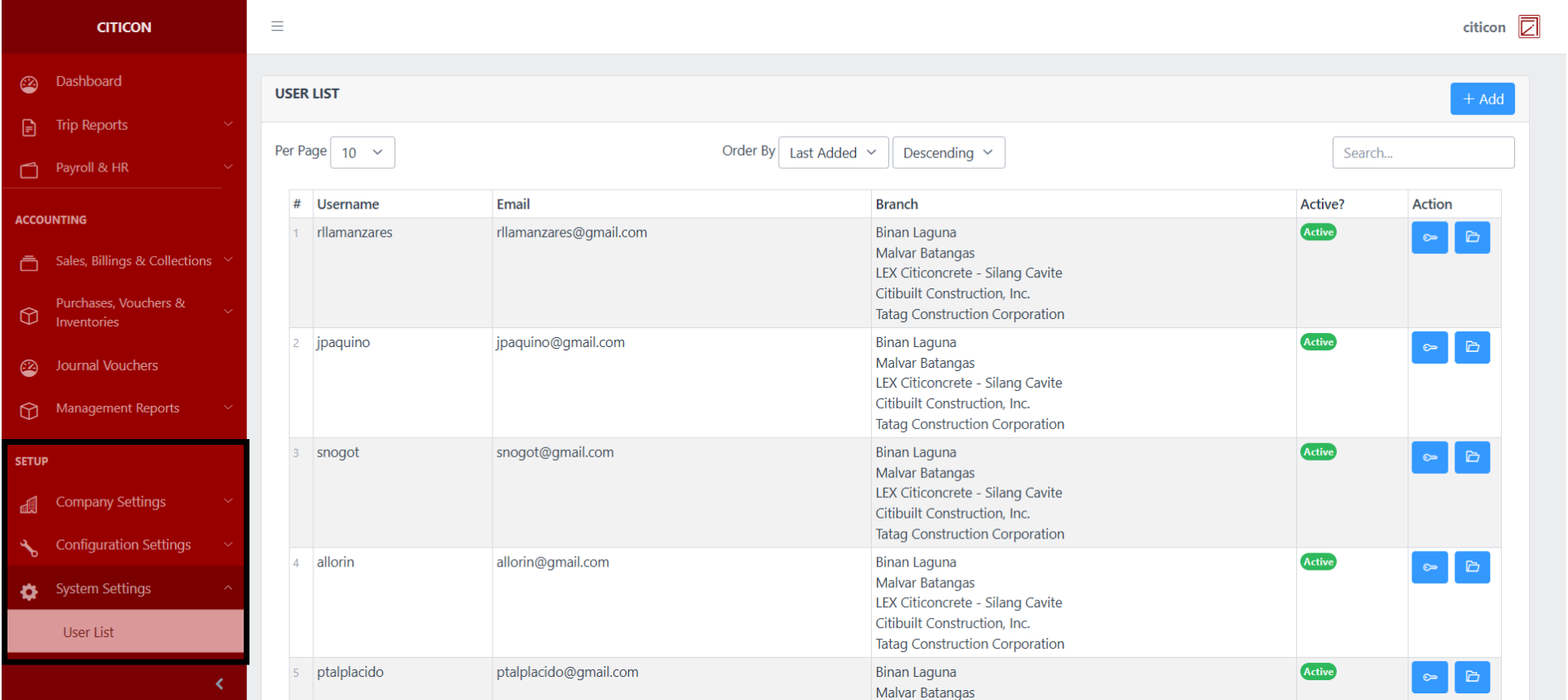
To access the User List Settings. Go to Setup, select System Settings, then select User List.
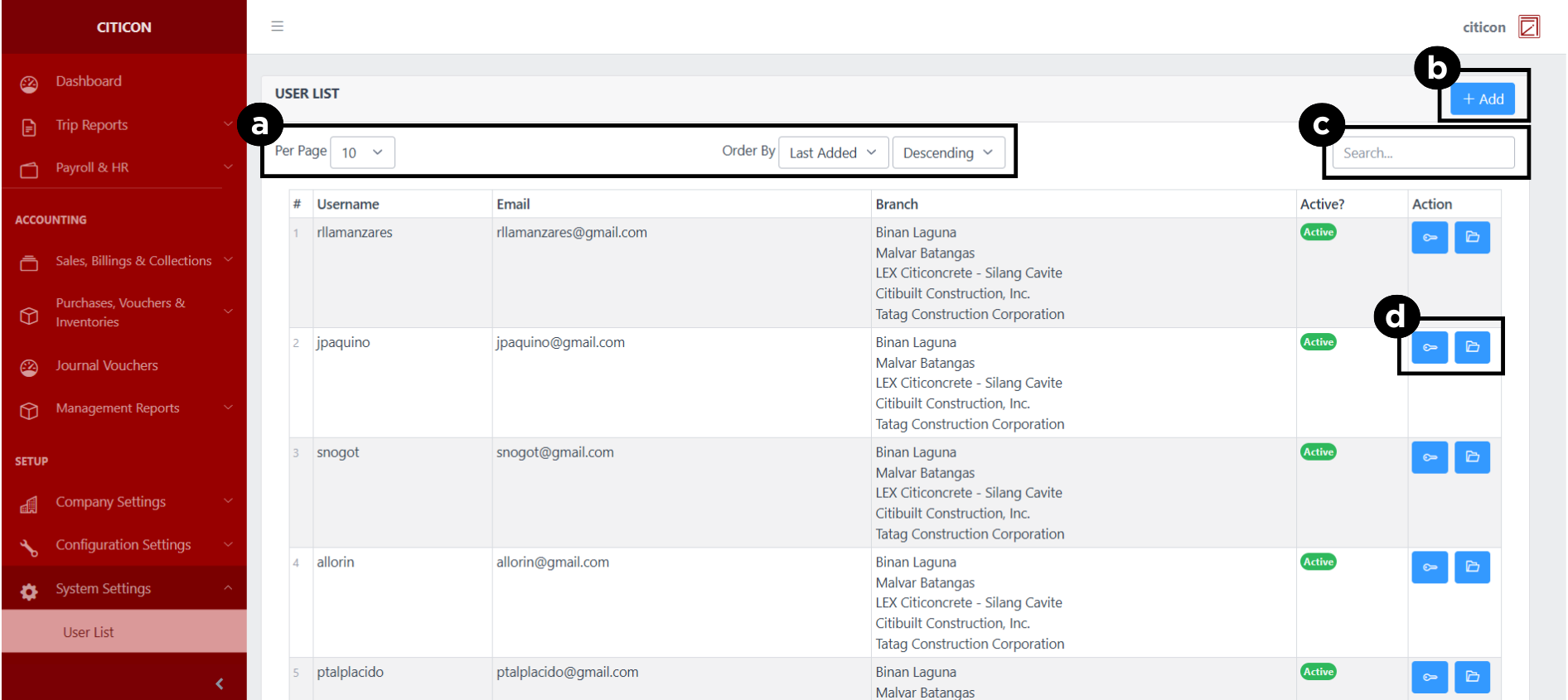
a. Adjust the paging, ordering, and sorting of the User List Page here.
b. Select the Add button to add a new user data.
c. Search for specific record details using the search bar.
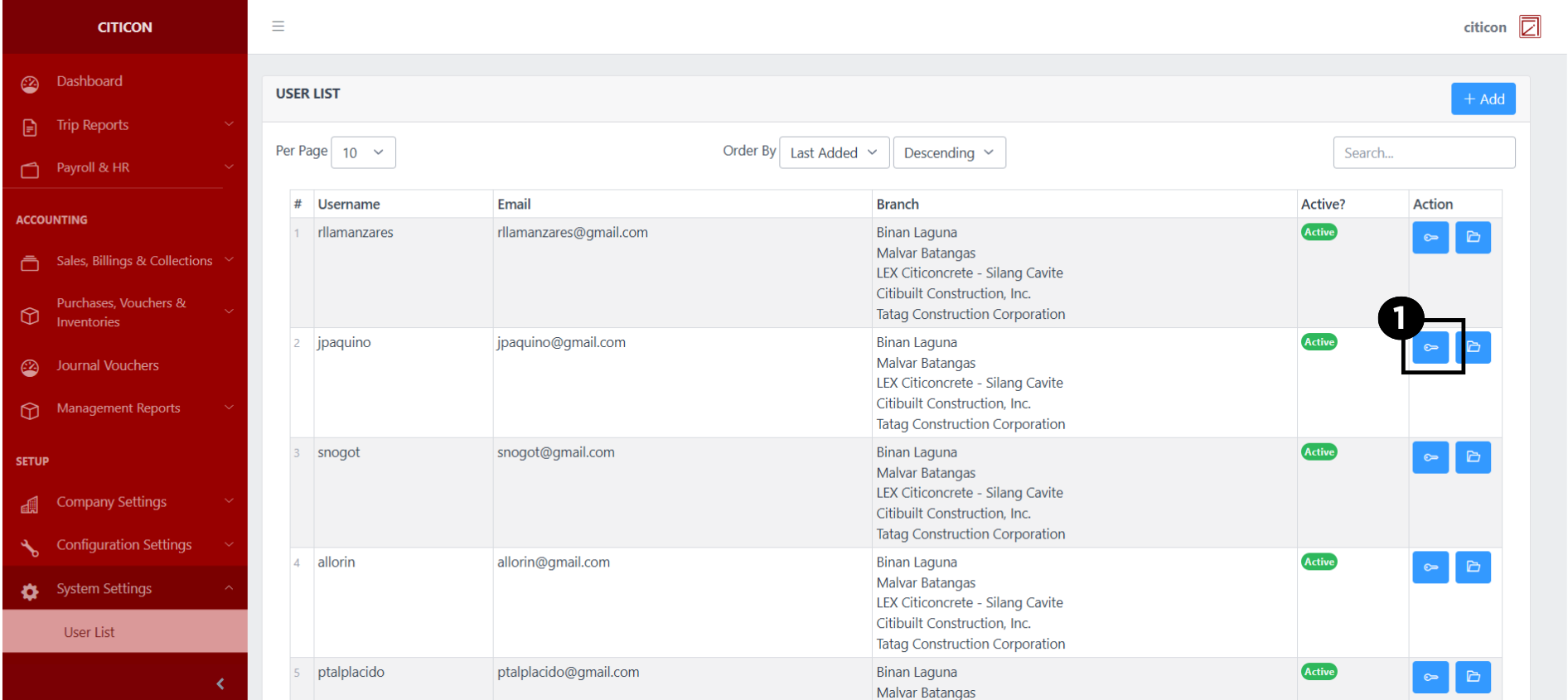
d. Select the respective button to either edit a user data or edit their access roles.
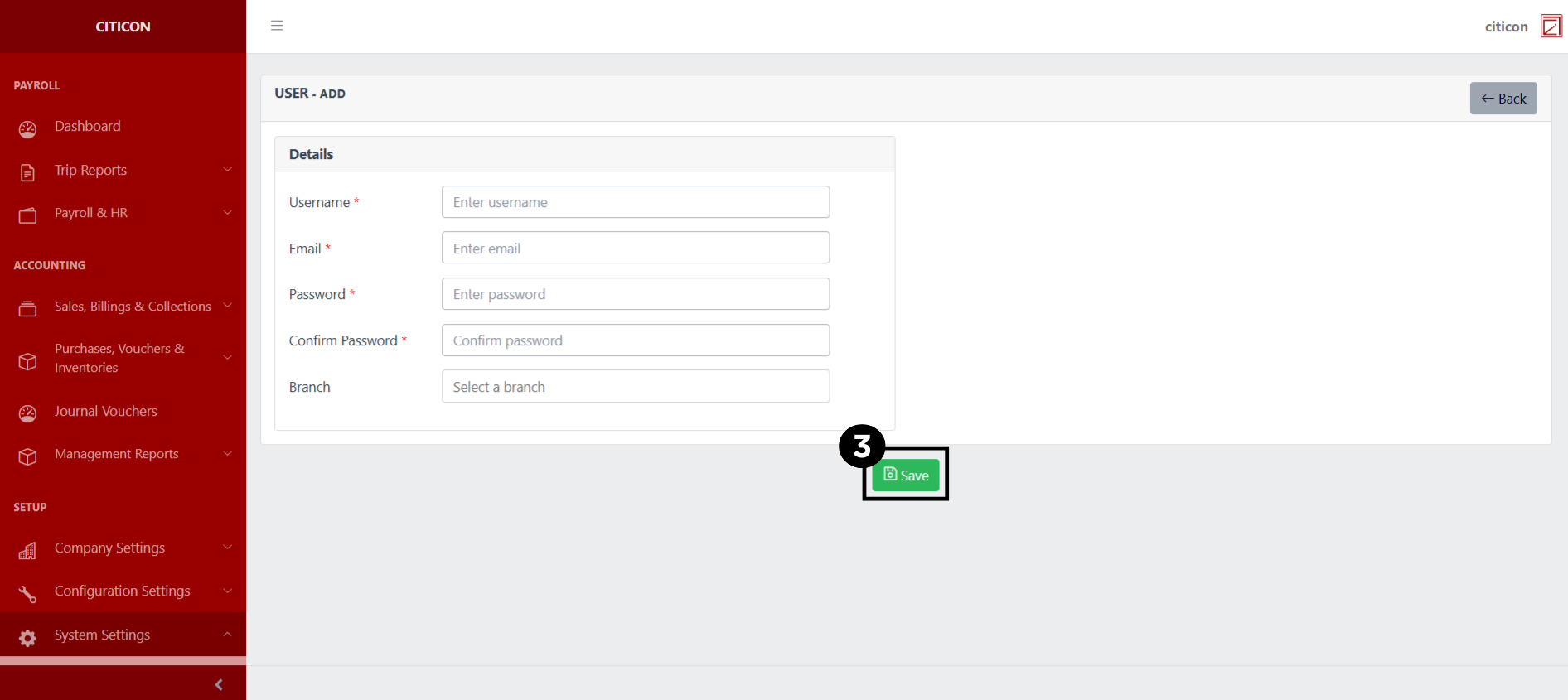
Add User
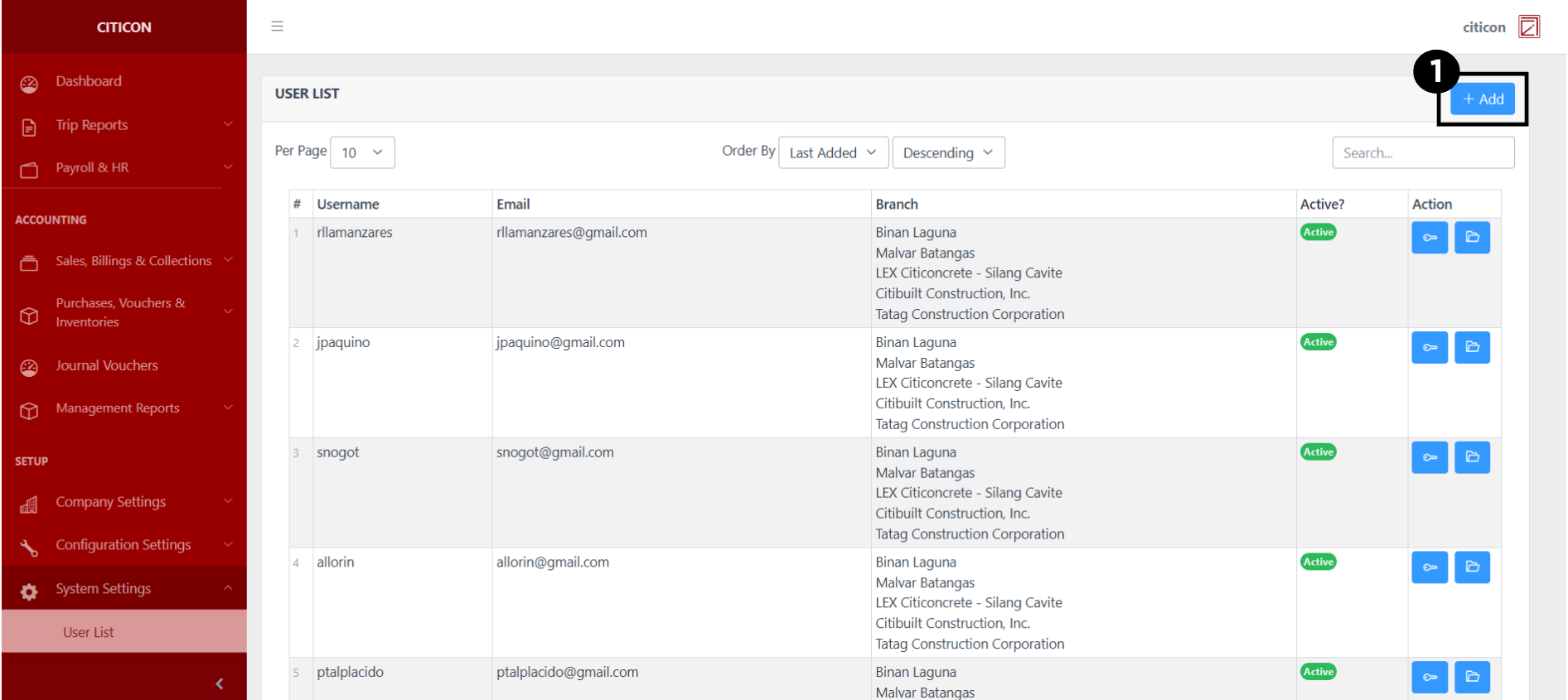
- Select the Add button to add a new user.
- Input the necessary details for your new user.
All fields that has an asterisk (*) are required to be filled up.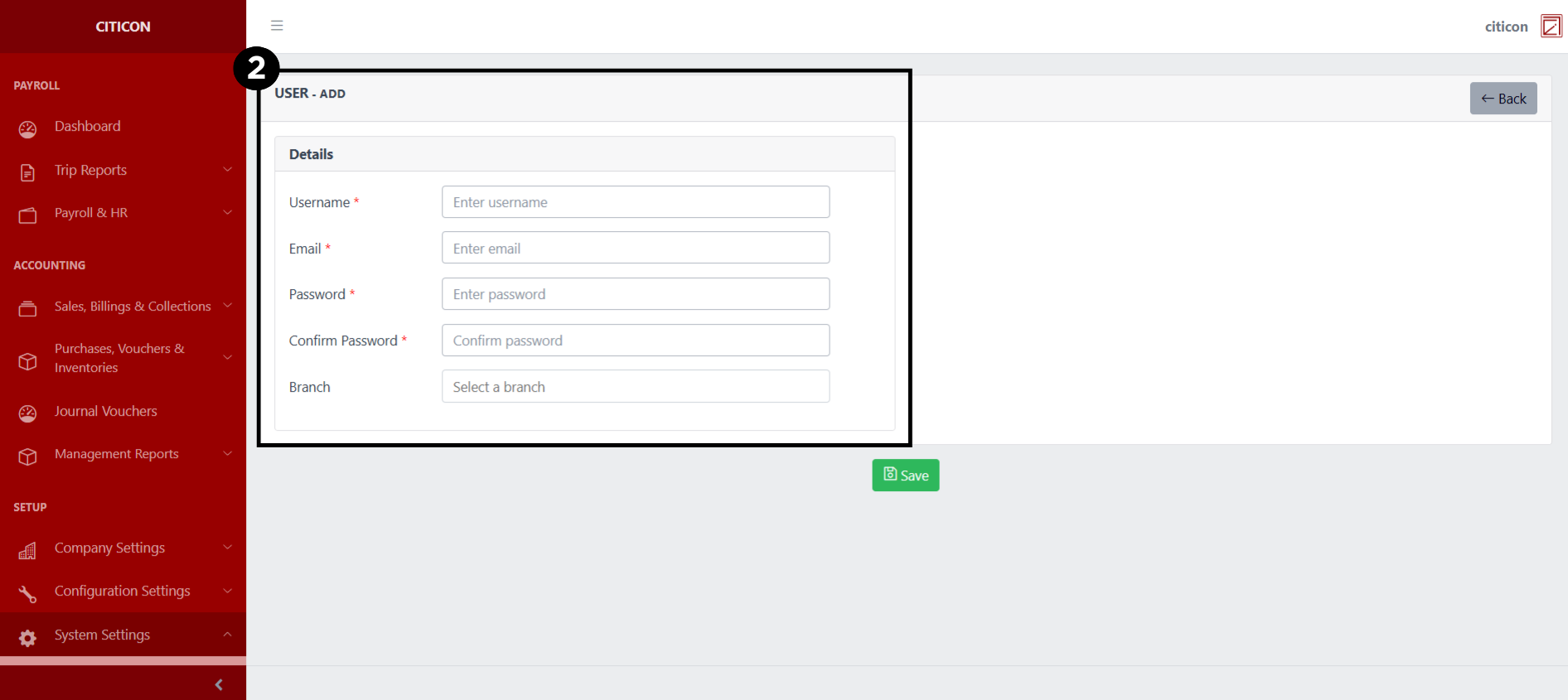
- Select the Save button to save your new user.
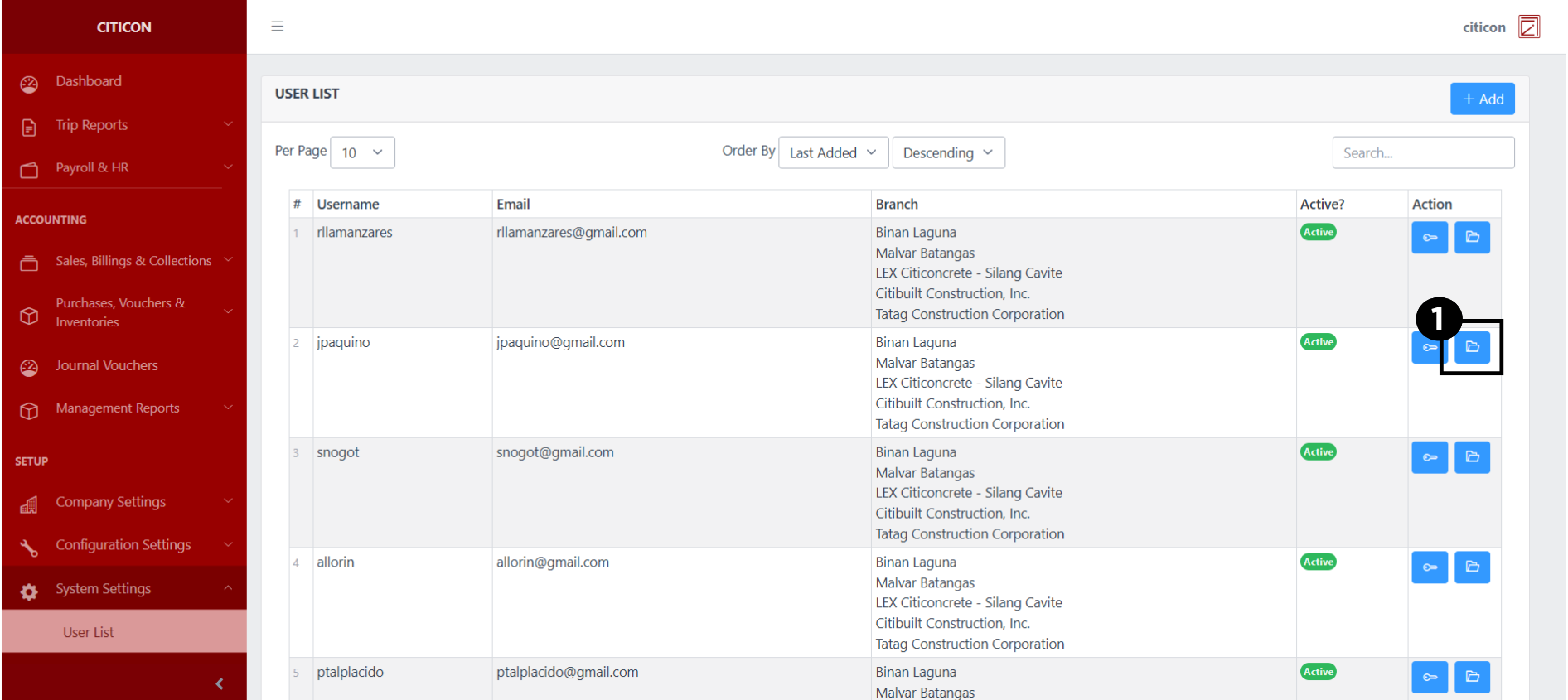
Show User Data
- Select the folder button to view a user.
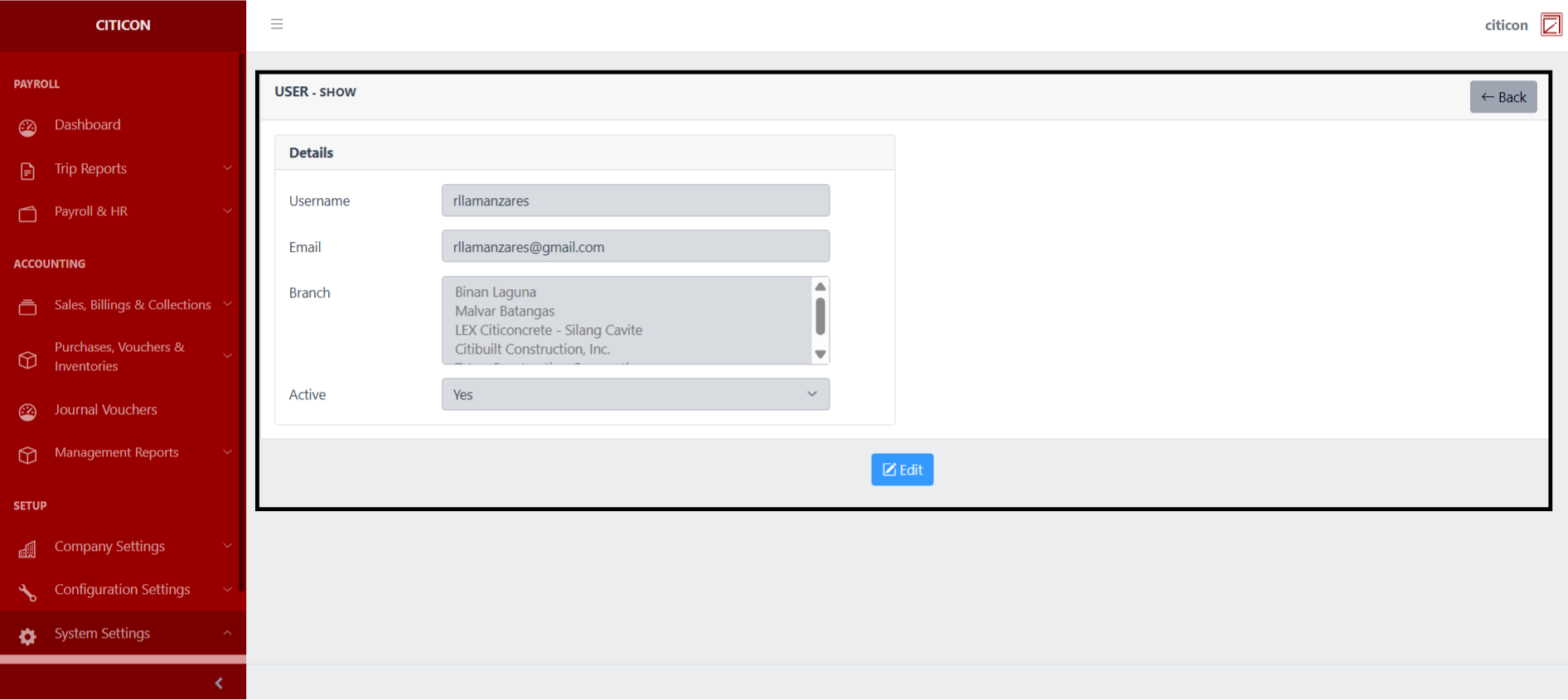
 Here you can view more specific details on the user that you selected.
Update User Data
- Select the folder button of the user which you want to edit.
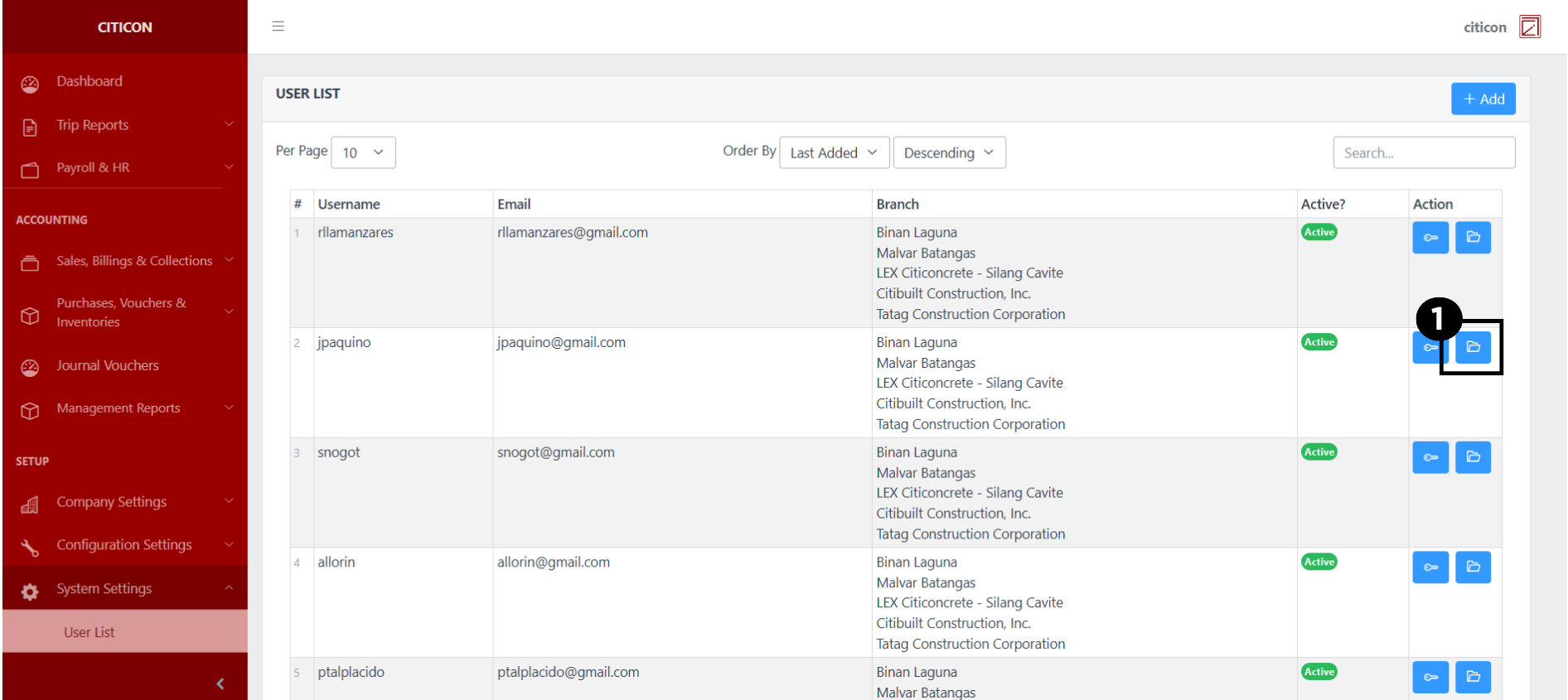
- Select the Edit button to update the details of the user.
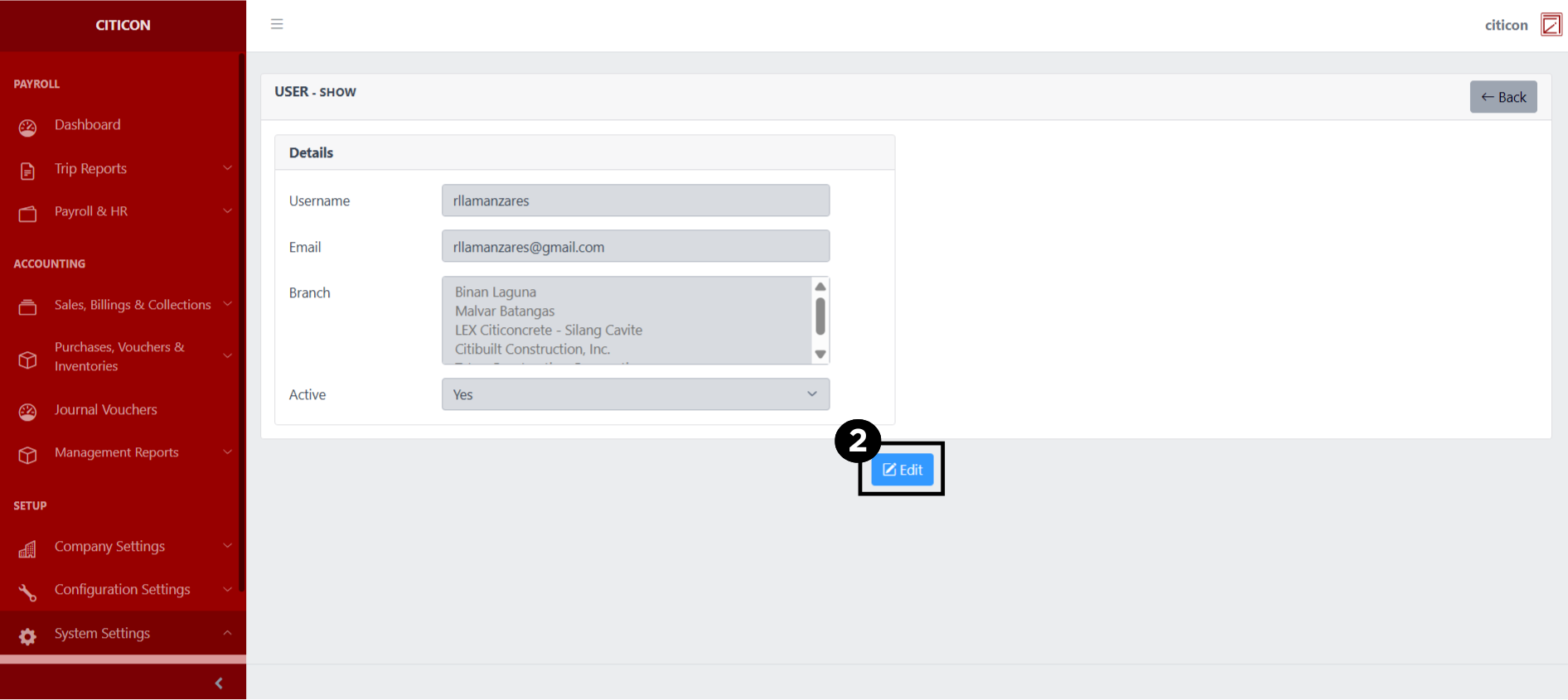
- Select a detail section which you want to edit, and enter the necessary changes.
All fields with an asterisk (*) are required to be filled up.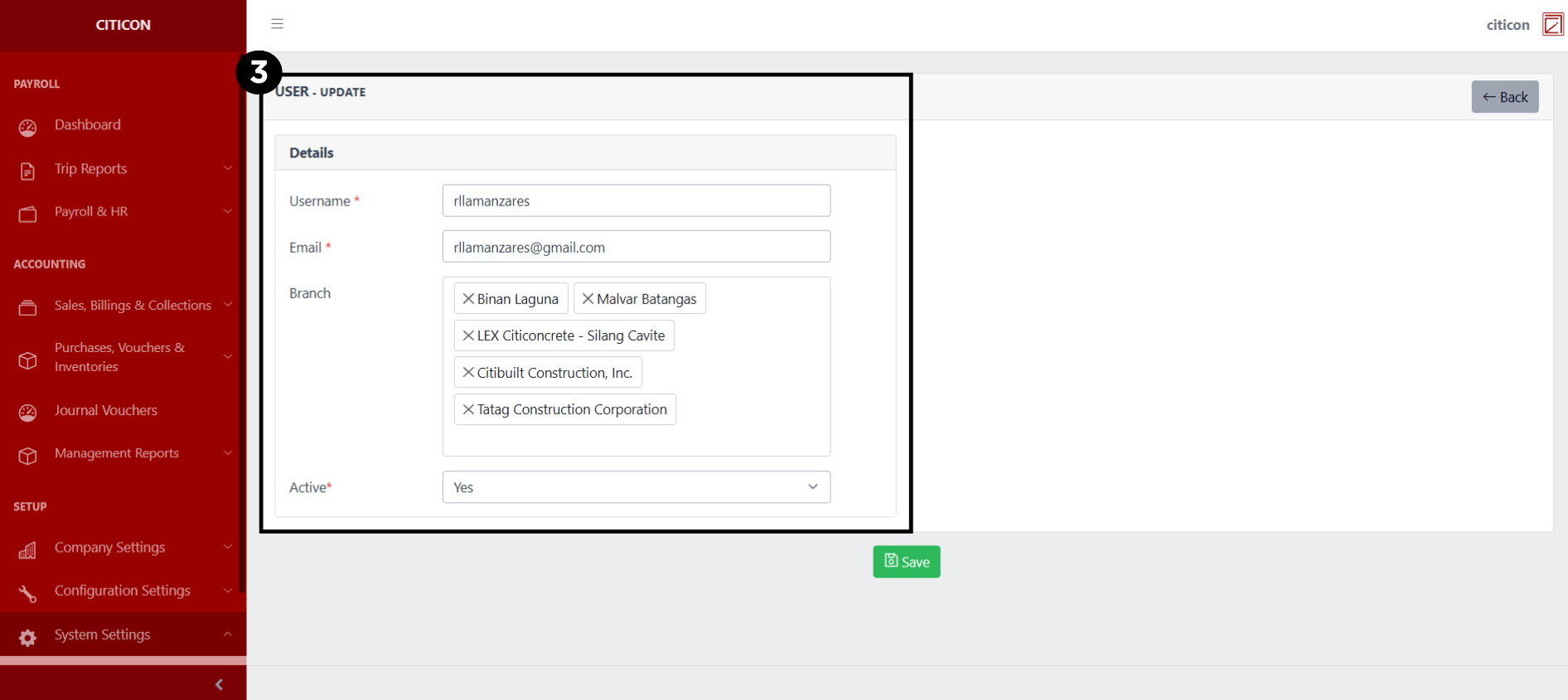
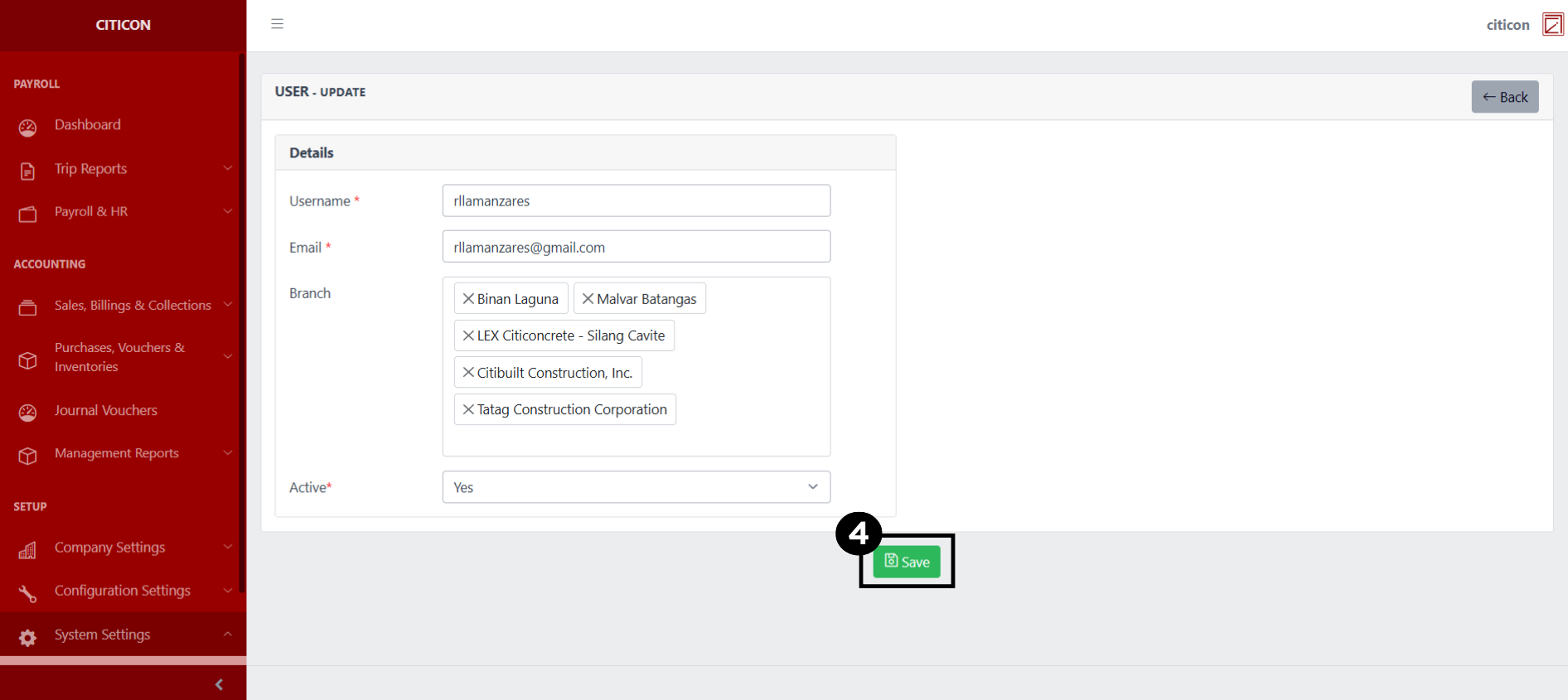
- Select the Save button to save the changes you have made.
Edit Access Role
- Select the key button of the user which you want to edit the access roles.
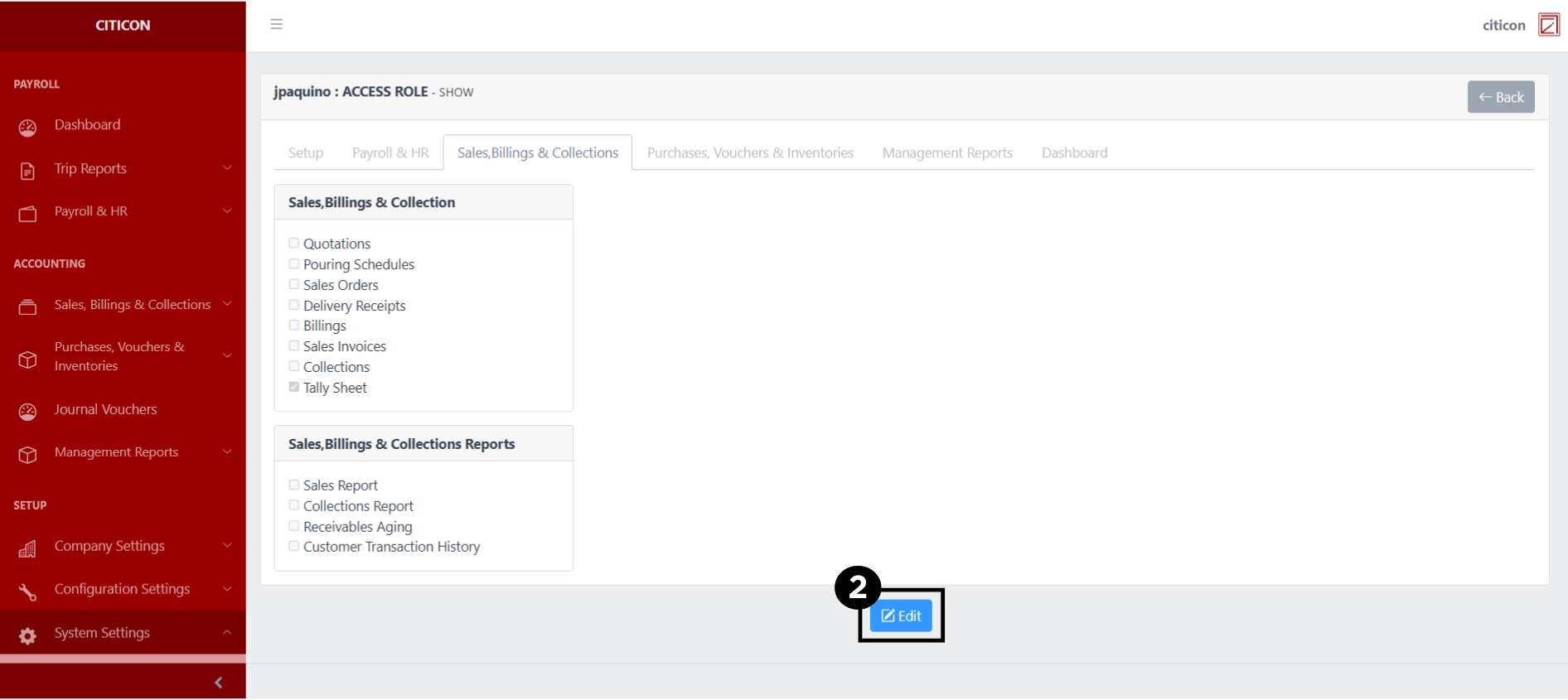
- Select the Edit button to update the details of the user.
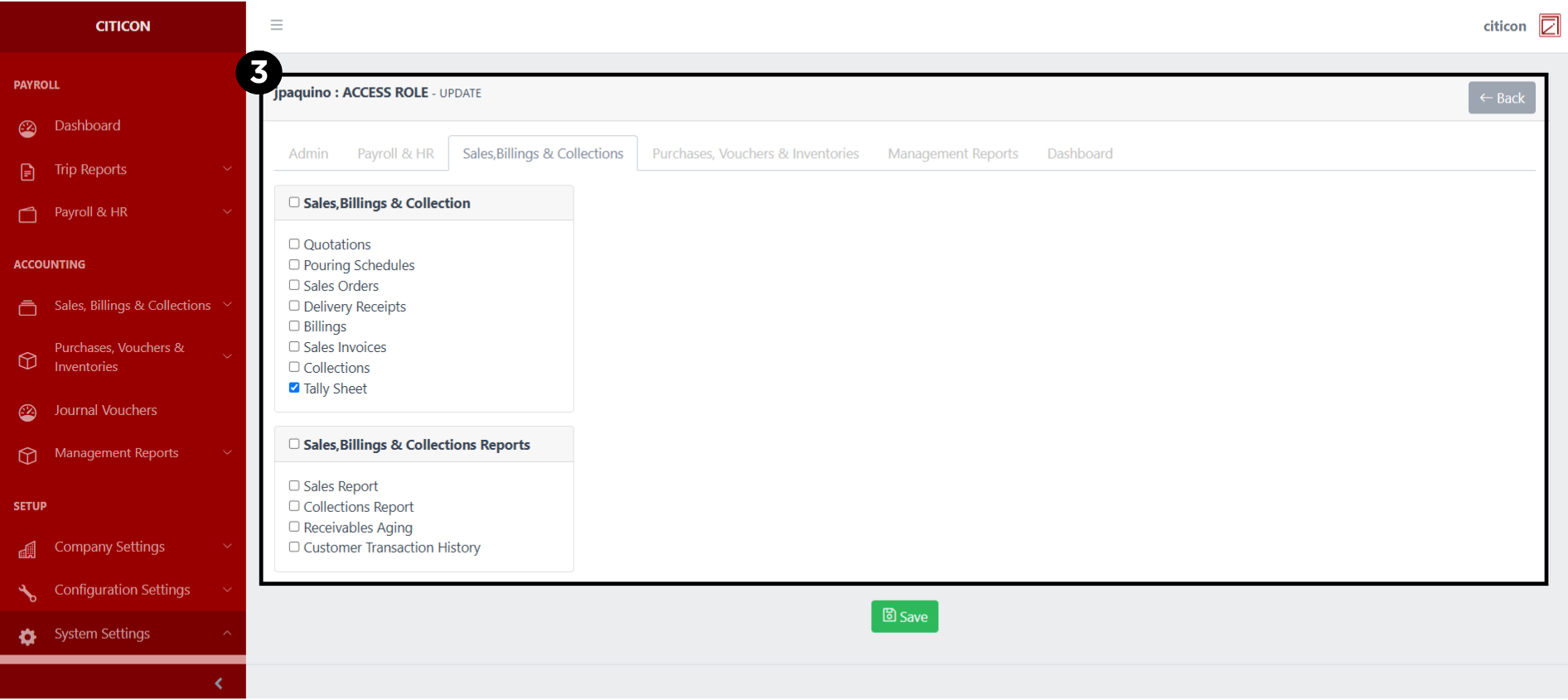
- Check or uncheck the specific modules which you want to give or revoke access from the user.
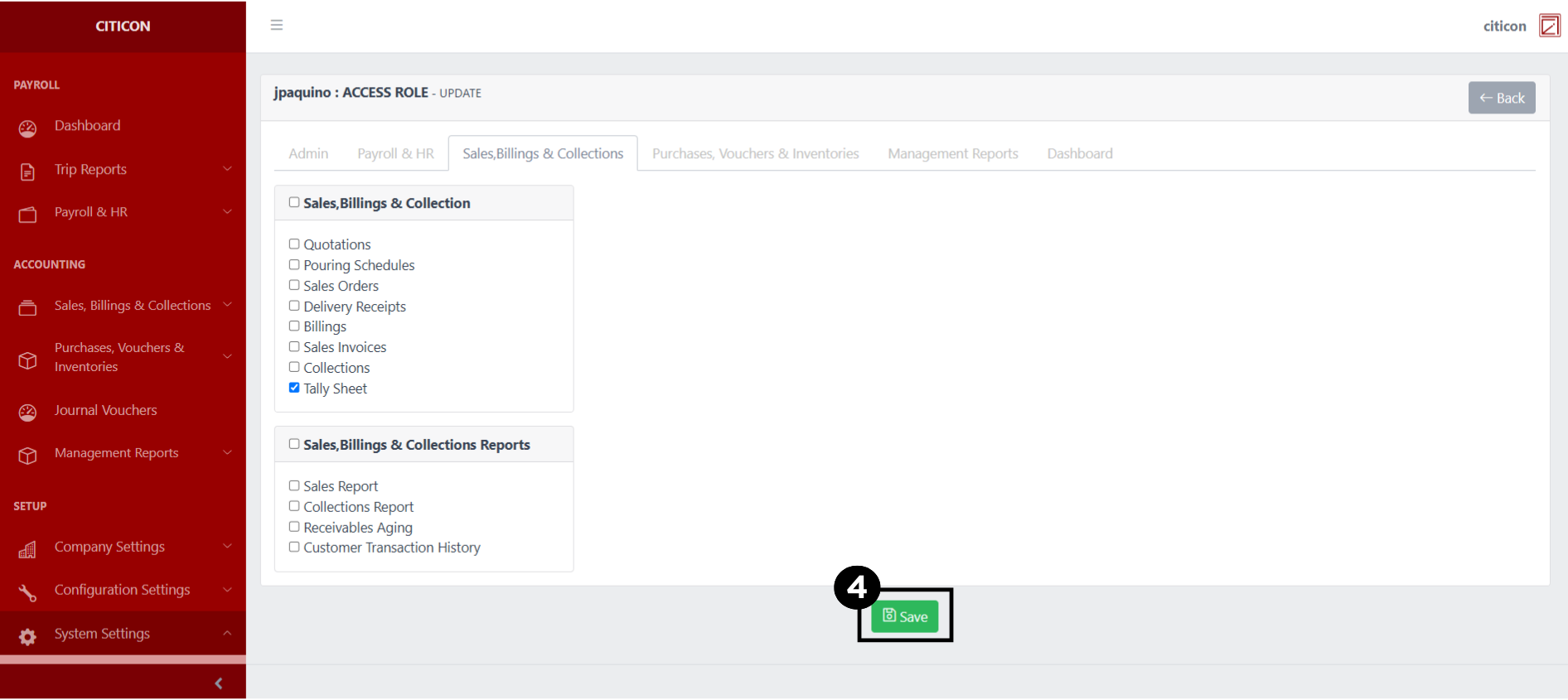
- Select the Save button to save the changes you have made.
Explore Citicon Payroll and Accounting System: User List Settings