Trip Reports - Transit Mixer
Welcome to Citicon Payroll and Accounting Systems Configuration for Trip Reports - Transit Mixer. This section allows you to log and manage detailed trip data for transit mixer operations, supporting transparent job tracking, compensation calculation, and project-specific reporting. With structured entries for each trip and clear breakdowns of involved resources and costs, this module helps standardize how trip records are submitted, approved, and used in payroll and project analytics.
Key Purposes
- Capture Trip Assignment Details: Record essential trip data including assigned driver with salary grade and trip duration using start and end dates to track work timelines accurately.
- Include Contextual Remarks: Provide additional context or special instructions for each report entry to assist with review and approvals.
- Log Operational Item Records: Input trip-specific information such as dates, TM numbers, projects, DR numbers, and the number of trips for detailed documentation.
- Calculate Total Compensation per Trip: Track trip amounts and any additionals to automatically compute total compensation, ensuring transparency and payroll accuracy.
- Manage Trip Report Workflows: Use system tools to add new reports, submit drafts, and approve finalized entries, streamlining the reporting and validation process.
Transit Mixer Module User-Manual
This section provides details, and set-by-step instructions to access, view, and update the Transit Mixer report stored in the system.
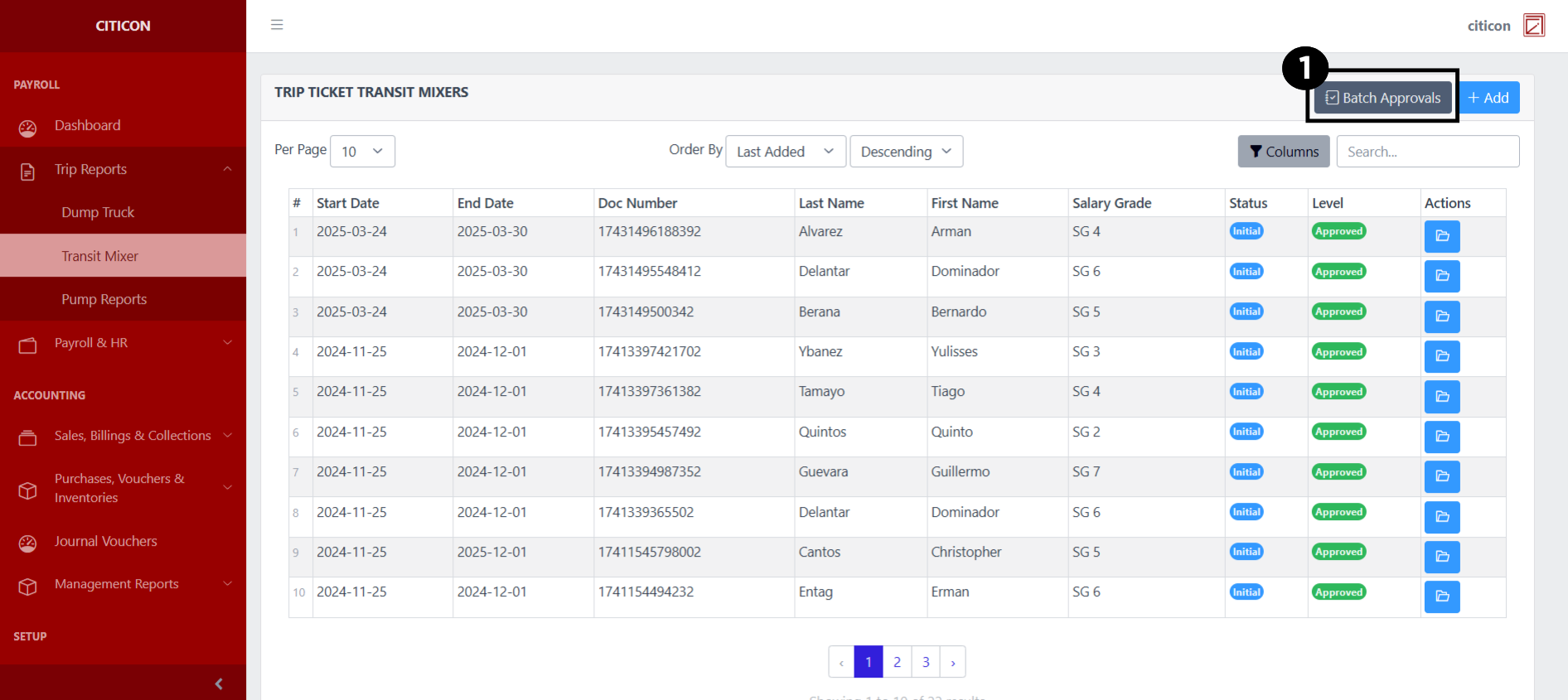
Index Page
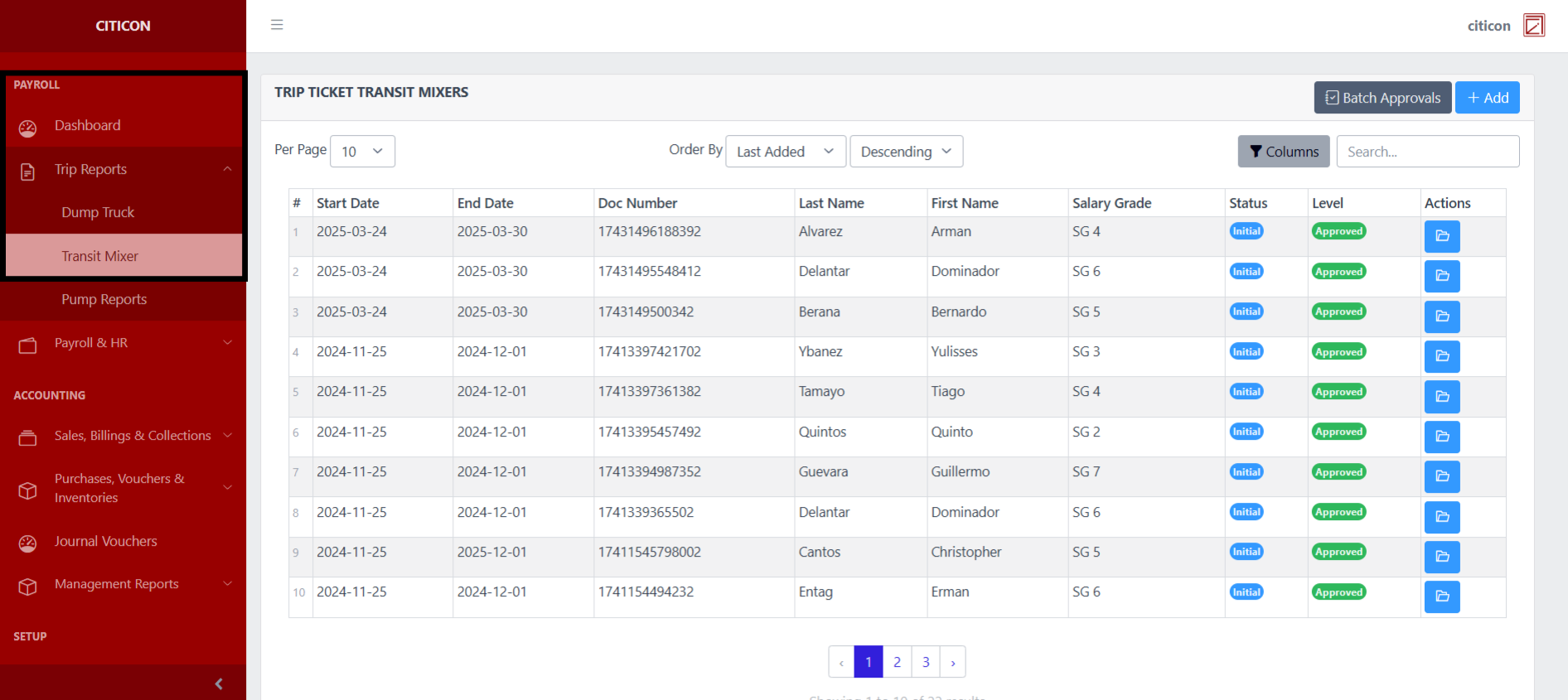
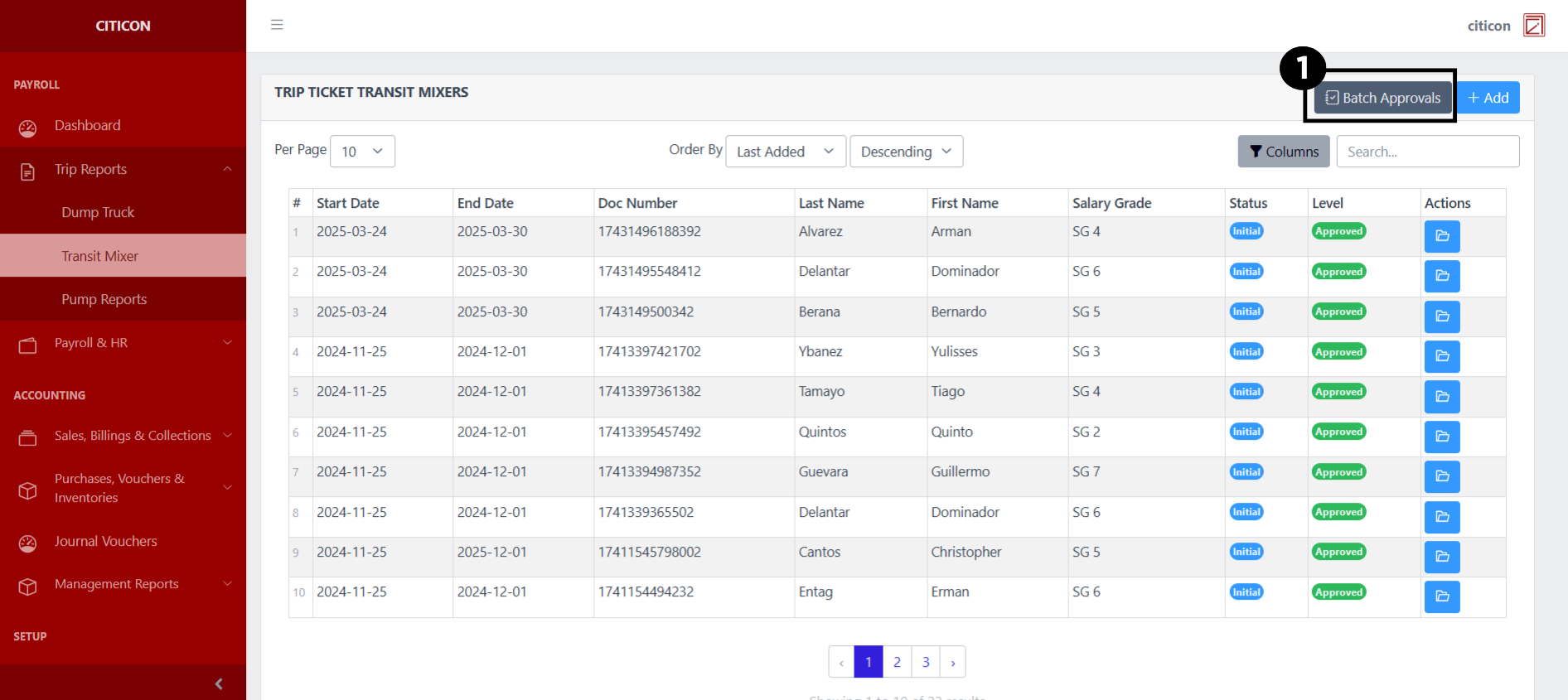
To access the Transit Mixer Settings. Go to Payroll, select Trip Reports, then select Transit Mixer.
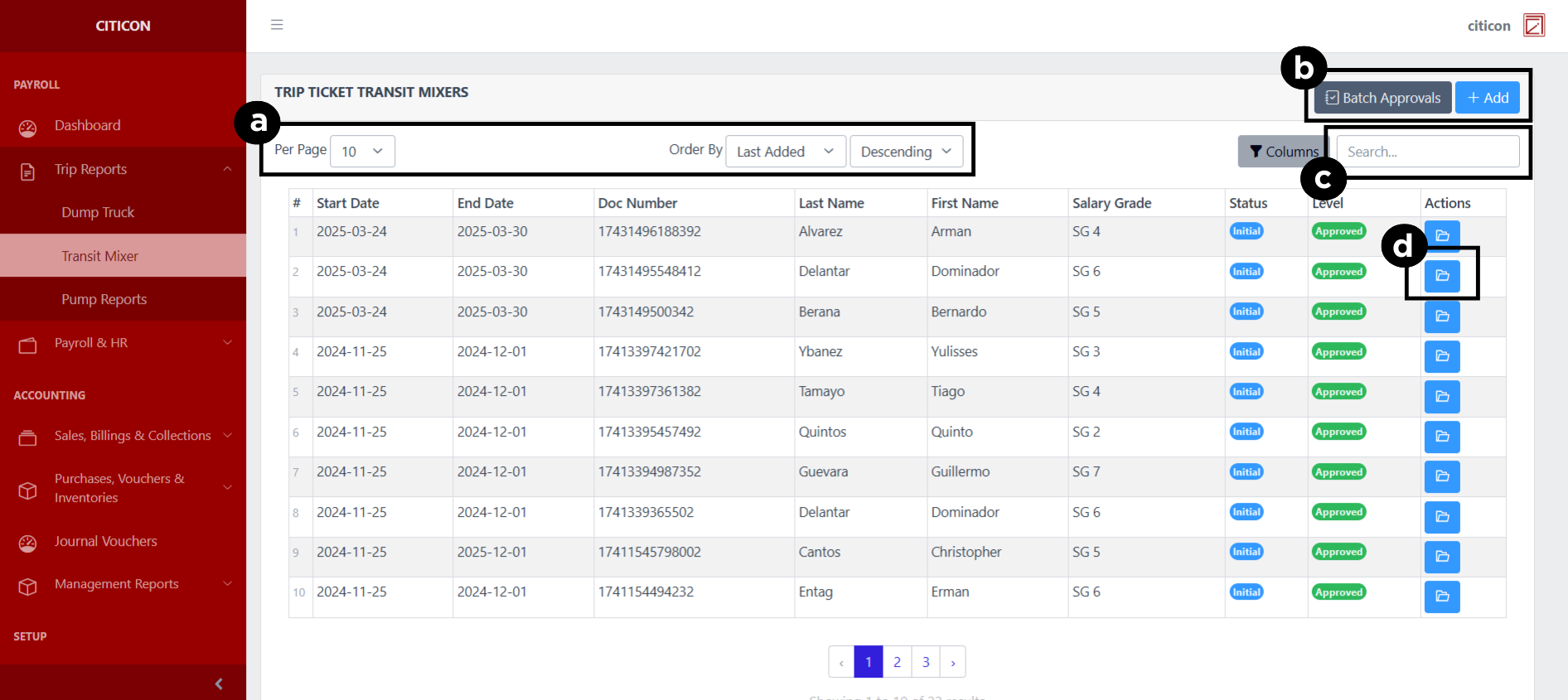
a. Adjust the paging, ordering, and sorting of the Transit Mixer Page here.
b. Select the respective button to either Add new reports or process reports to be approved.
c. Search for specific report details using the search bar.
d. View or Cancel a report by selecting the folder button. You can also download PDF of the report through here.
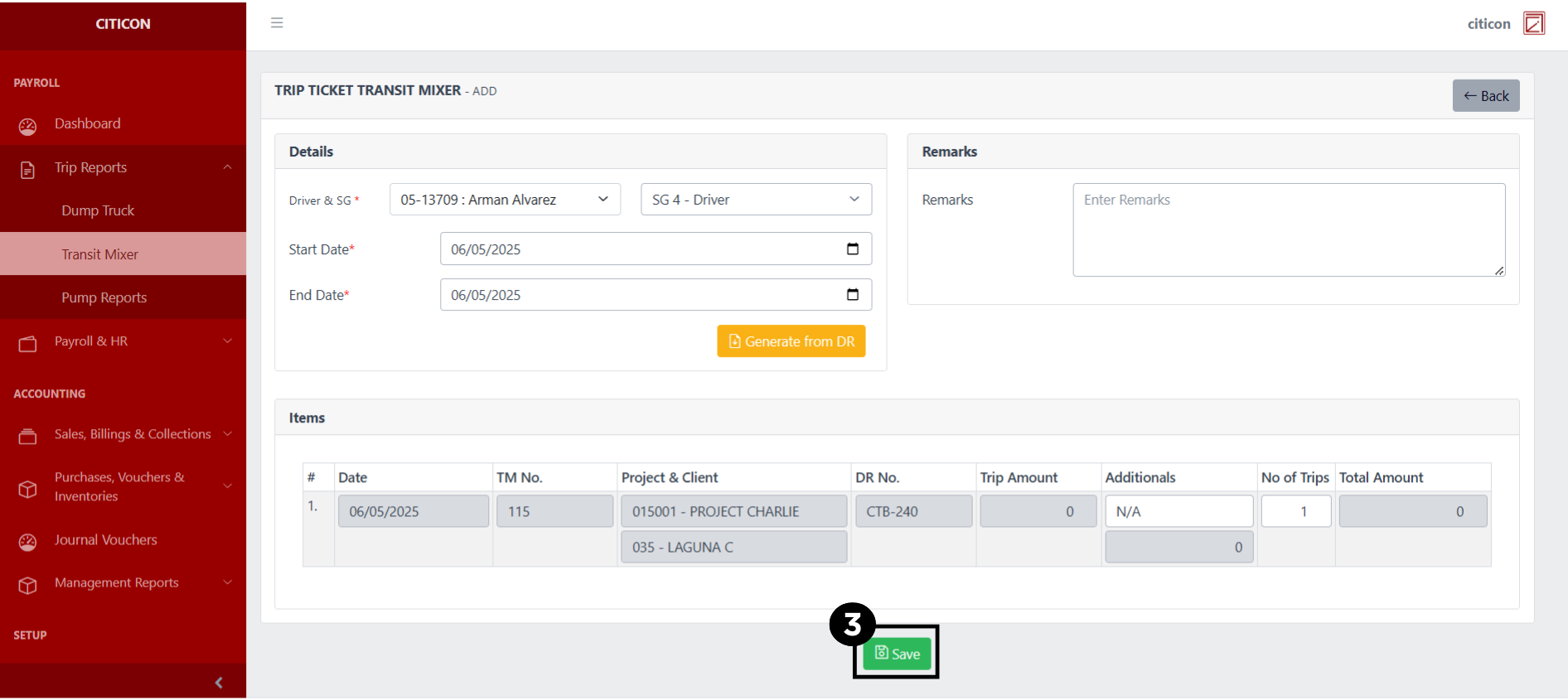
Add Report
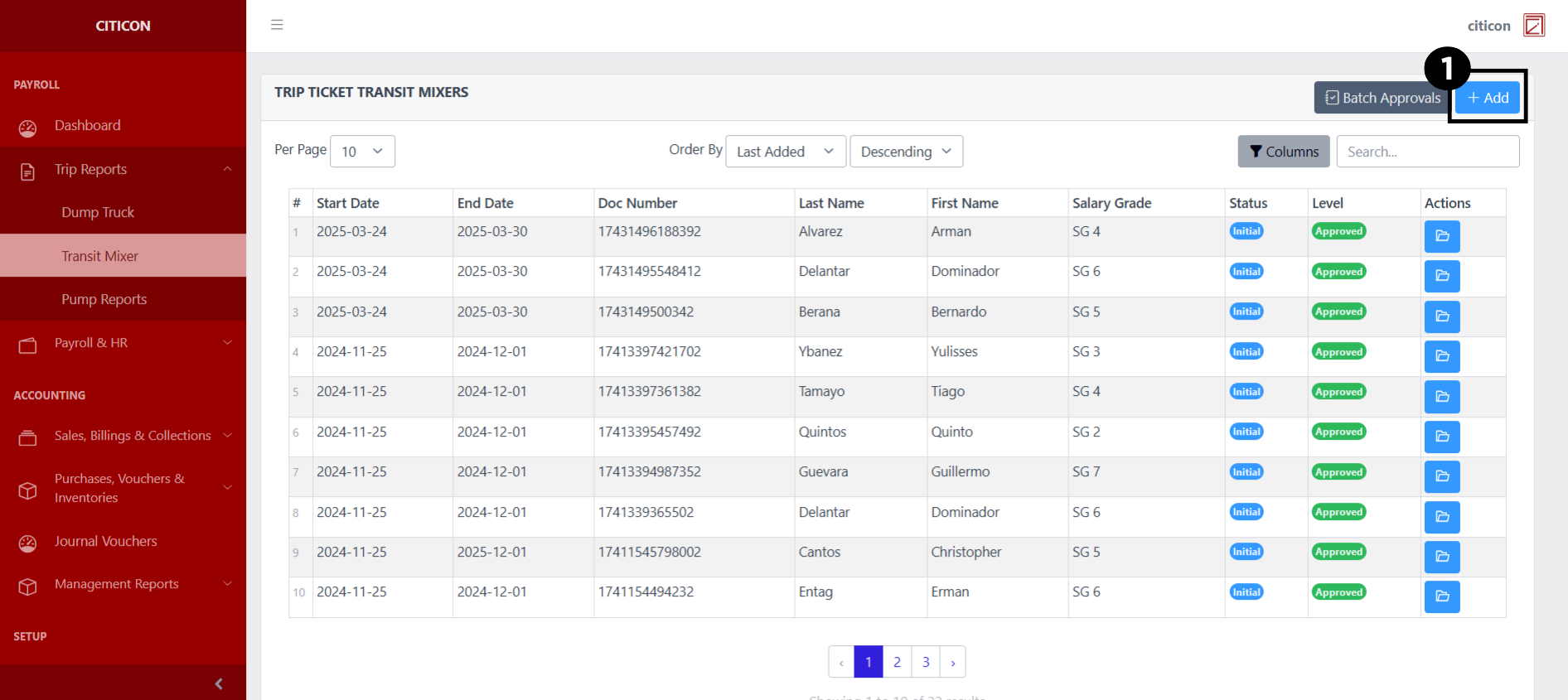
- Select the Add button to add a new report.
- Input the necessary details for your new report, then select the Generate from DR button.
All fields that has an asterisk (*) are required to be filled up. Make sure that the details you input match the details of an active Delivery Receipt.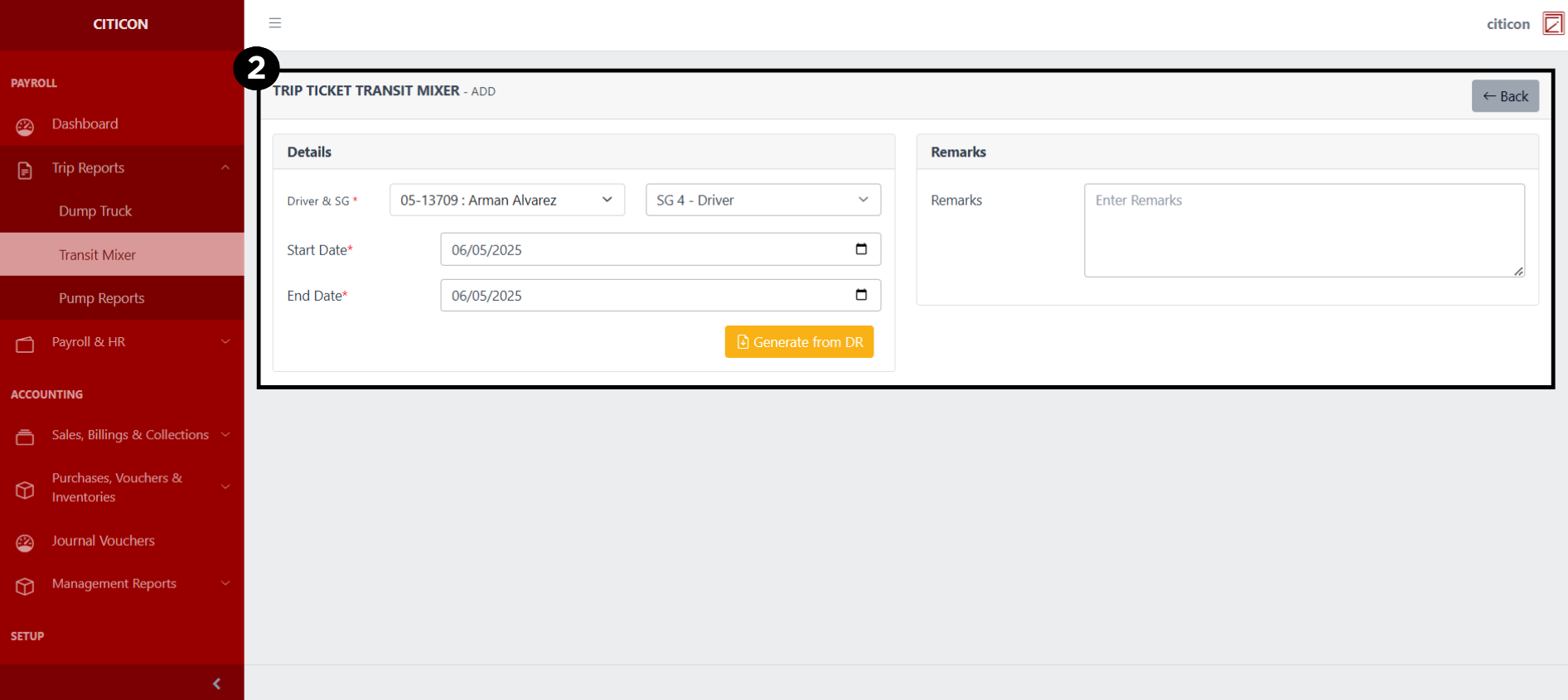
- Select the Save button to save your new report.
Submit Report
- Select the Batch Approvals button to submit a report.
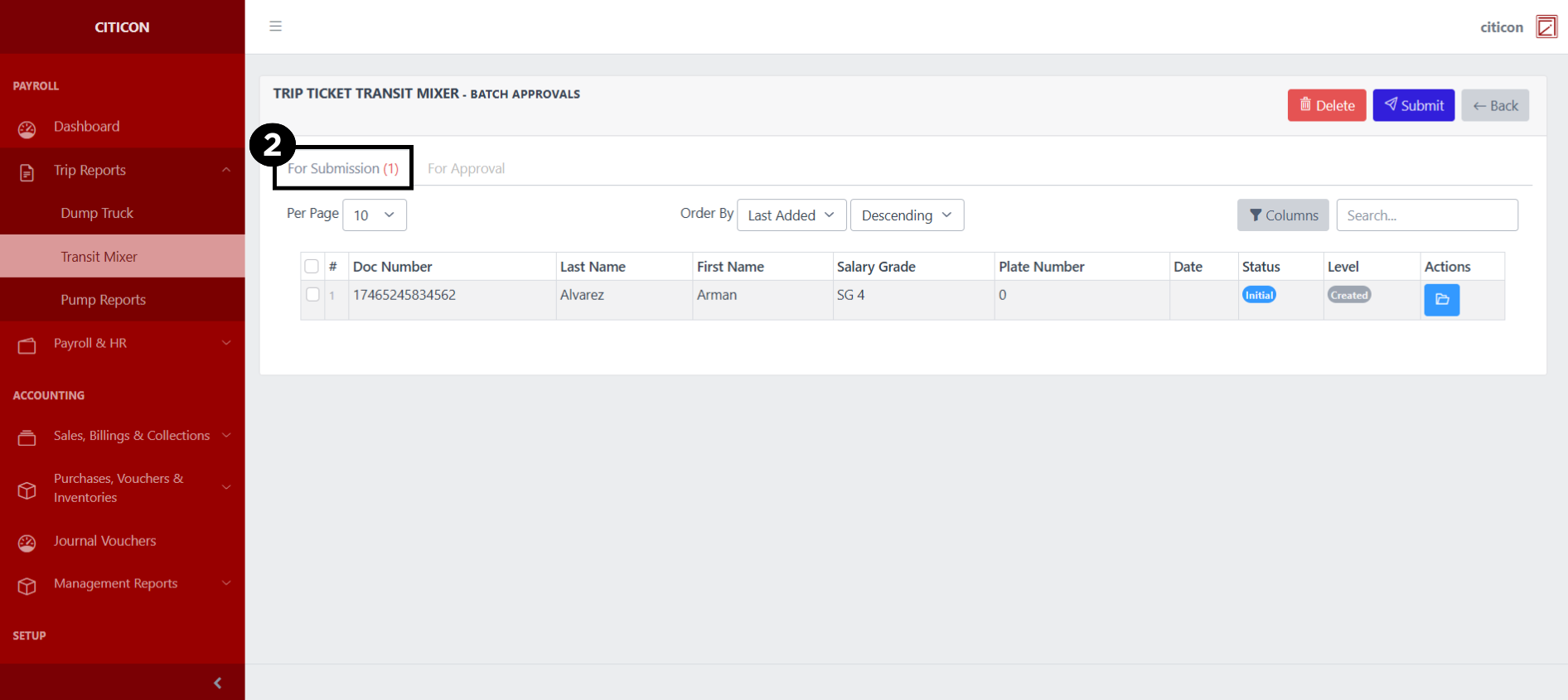
- Select the For Submission tab.
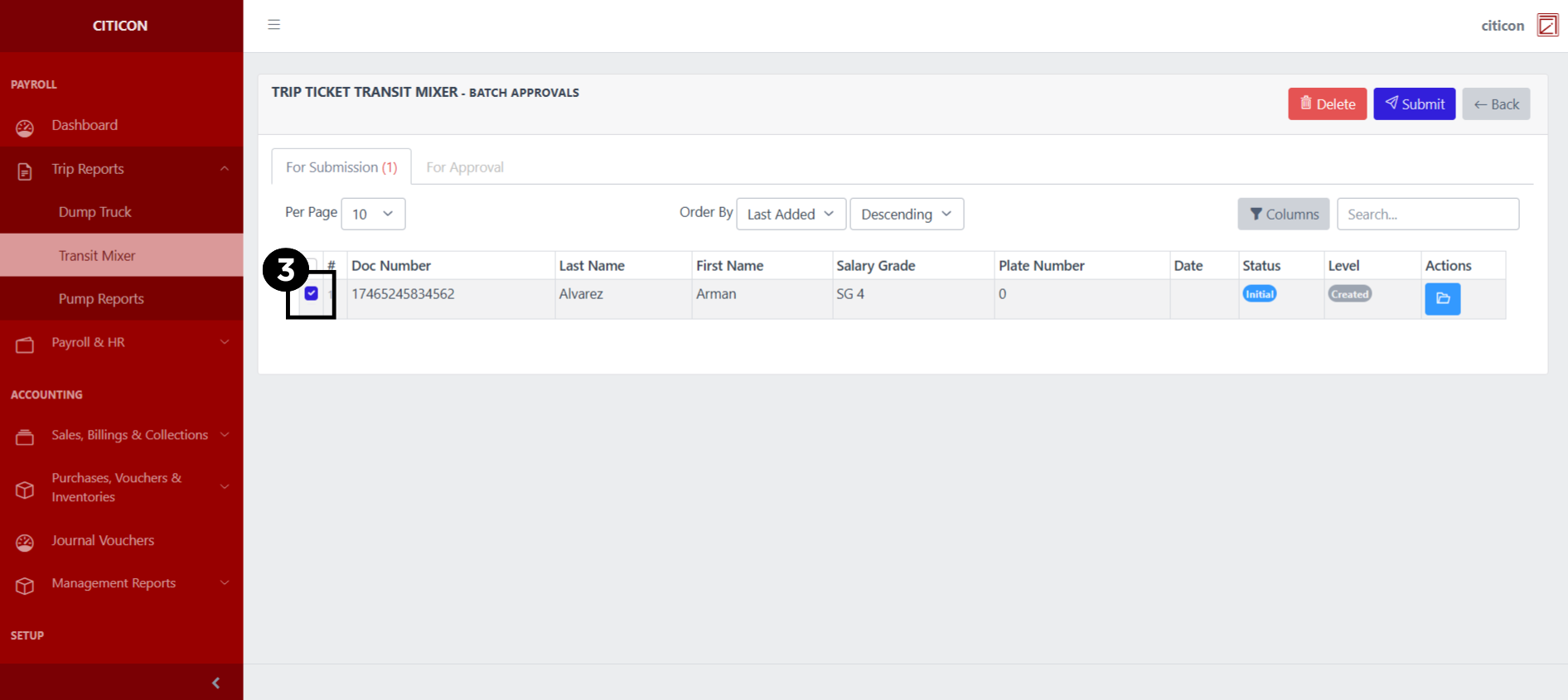
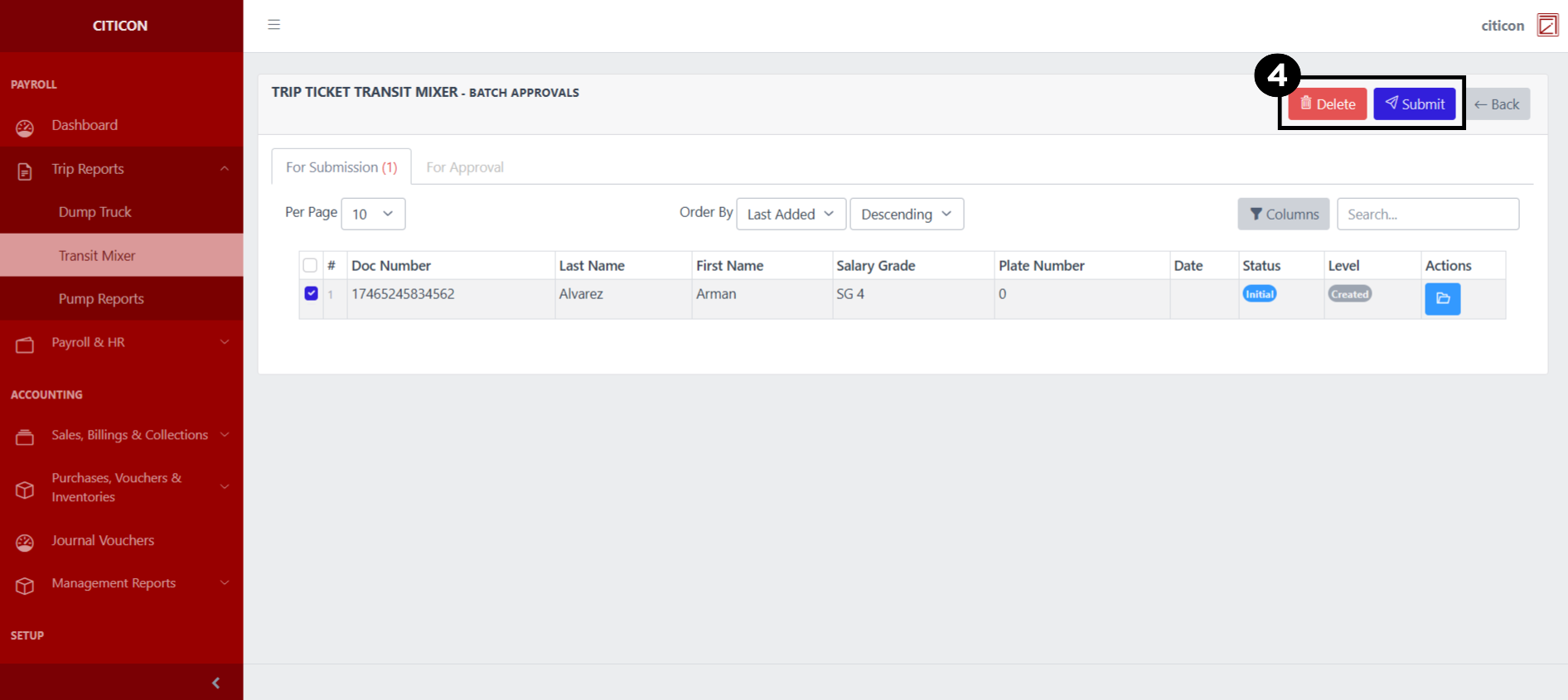
- Select the report/s that you want to submit.
- Select the Submit button to submit the report. In cases where you want to delete a report, select the report/s you want to delete, then select the Delete button.
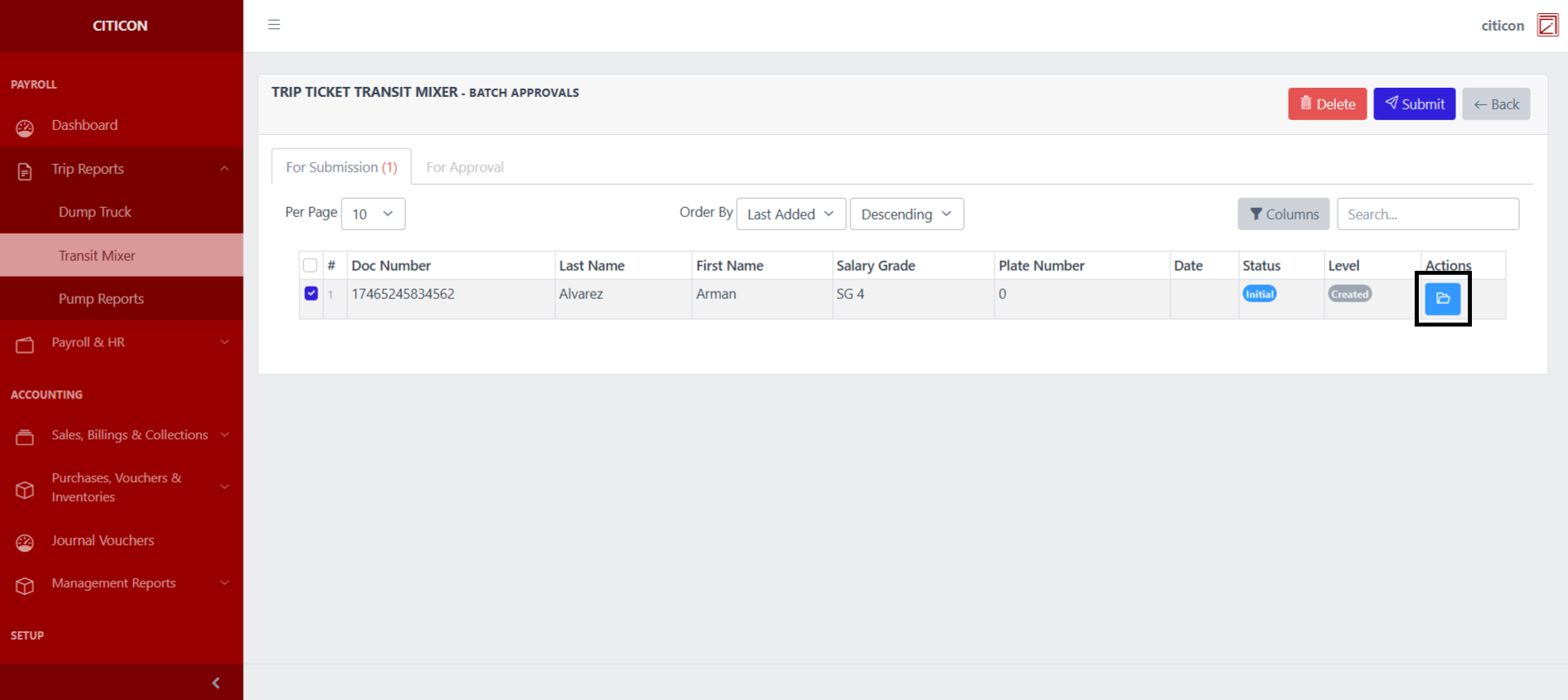
 To view the details of an individual report, select the folder button and from here, you may either Edit, Delete, Submit, or Cancel the report.
Approve Report
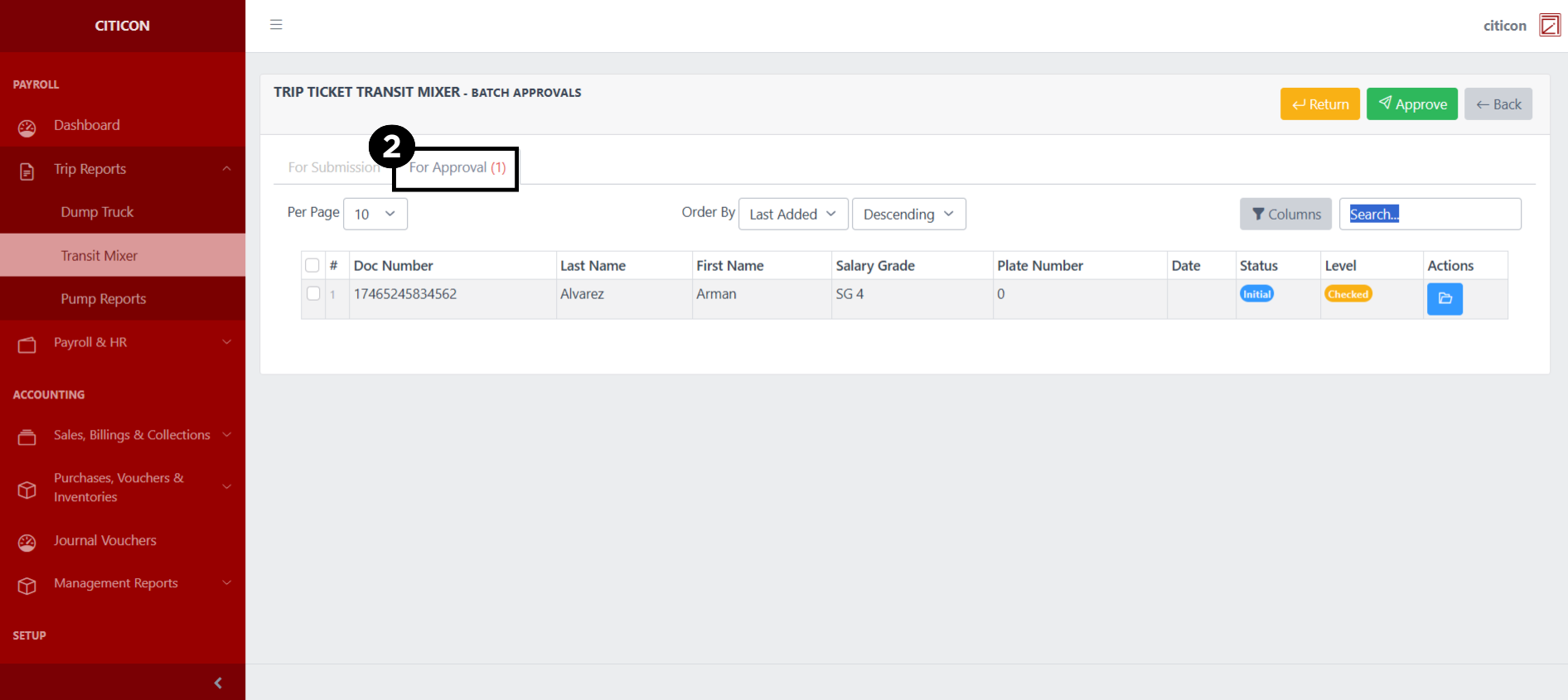
- Select the Batch Approvals button to approve a report.
- Select the For Approval tab.
- Select the report/s that you want to approve.
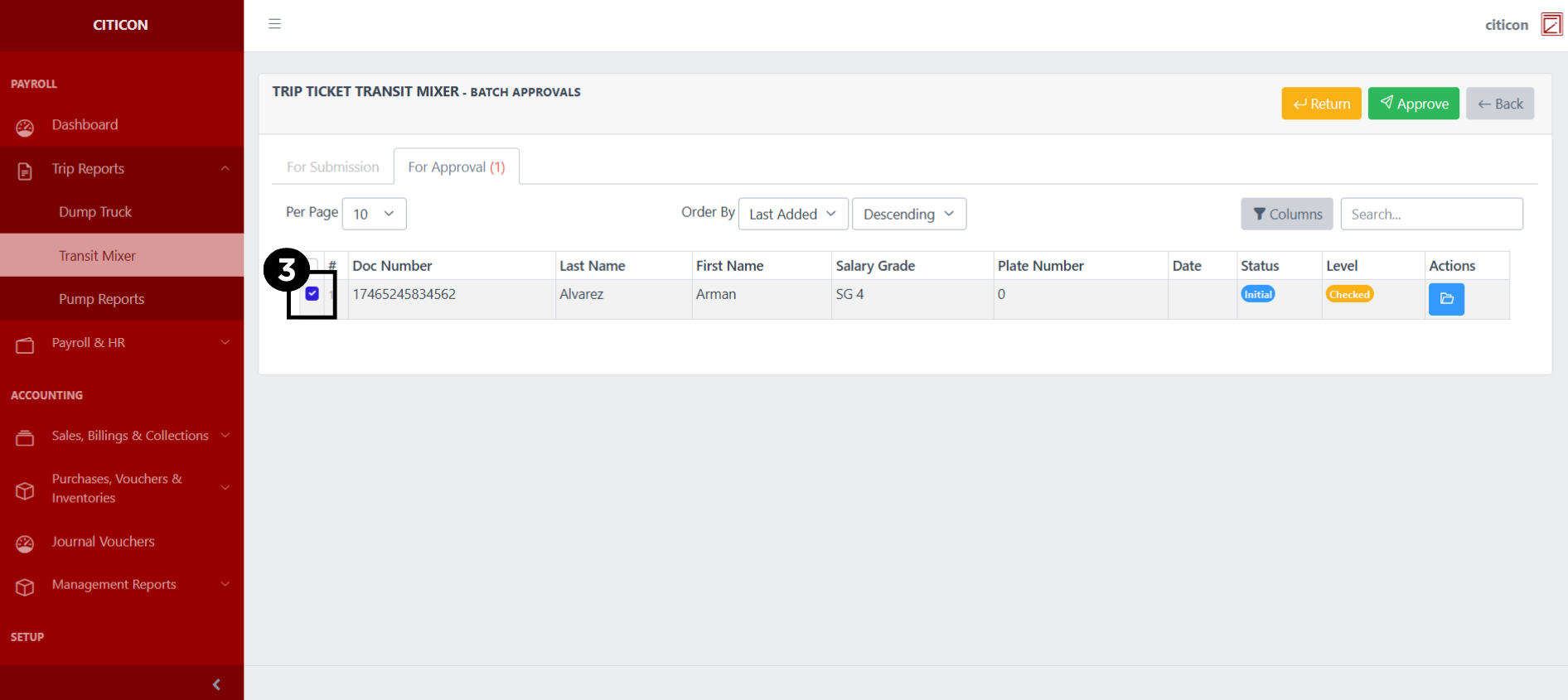
- Select the Approve button to approve the report. In cases where you want to return a report to submission section, select the report/s you want to return, then select the Return button.
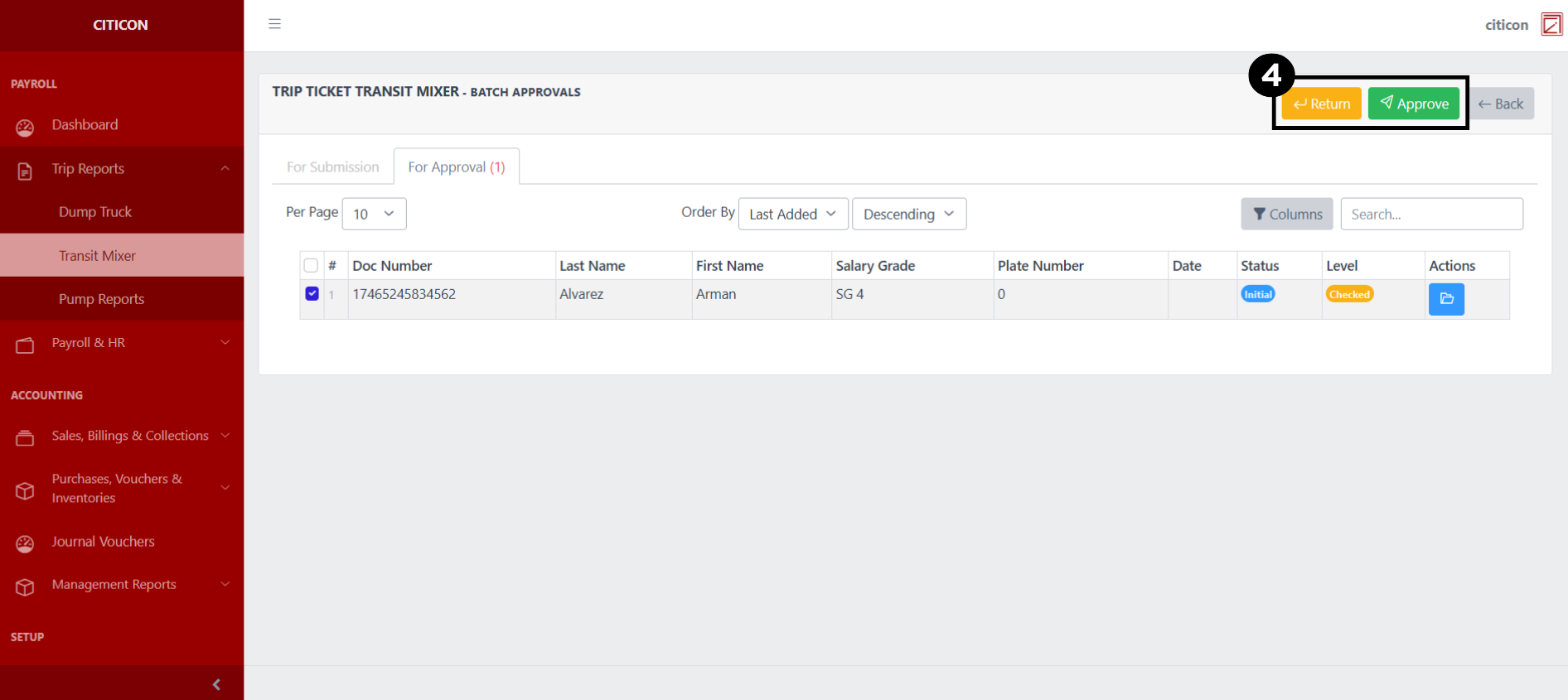 To view the details of an individual report, select the folder button and from here, you may either Return, Approve, or Cancel the report.
Explore Citicon Payroll and Accounting System: Trip Reports - Pump Reports