Trip Reports - Pumpcrete
Welcome to Citicon Payroll and Accounting Systems Configuration for Trip Reports - Pumpcrete. This section is designed to document and manage pumpcrete trip operations in detail, covering both setup and delivery phases to ensure accurate reporting, verification, and payroll processing. With a focus on site-specific configurations, client details, and volume-based metrics, this module provides transparency and traceability across all pumpcrete operations.
Key Purposes
- Record Project and Equipment Details: Log critical trip data such as PC numbers, project information, number of pipes and elbows, floor level, structure, and client to properly track each operation.
- Define Site and Activity Data: Capture essential activity inputs like truck site, pipe laying, pouring, and total volume delivered, ensuring job completion is clearly documented.
- Maintain Date-Specific Logs: Ensure accuracy with required trip dates and volume logs per load for day-to-day tracking and scheduling.
- Track Load-Specific Information: Detail each load with corresponding DR numbers, volumes, cumulative volumes, and time-in/time-out of transit mixers for granular monitoring.
- Streamline Report Workflows: Enable easy creation, submission, and approval of trip reports to support efficient review and integration into payroll and operations.
Pump Reports Module User-Manual
This section provides details, and set-by-step instructions to access, view, and update the Pump Reports report stored in the system.
Index Page
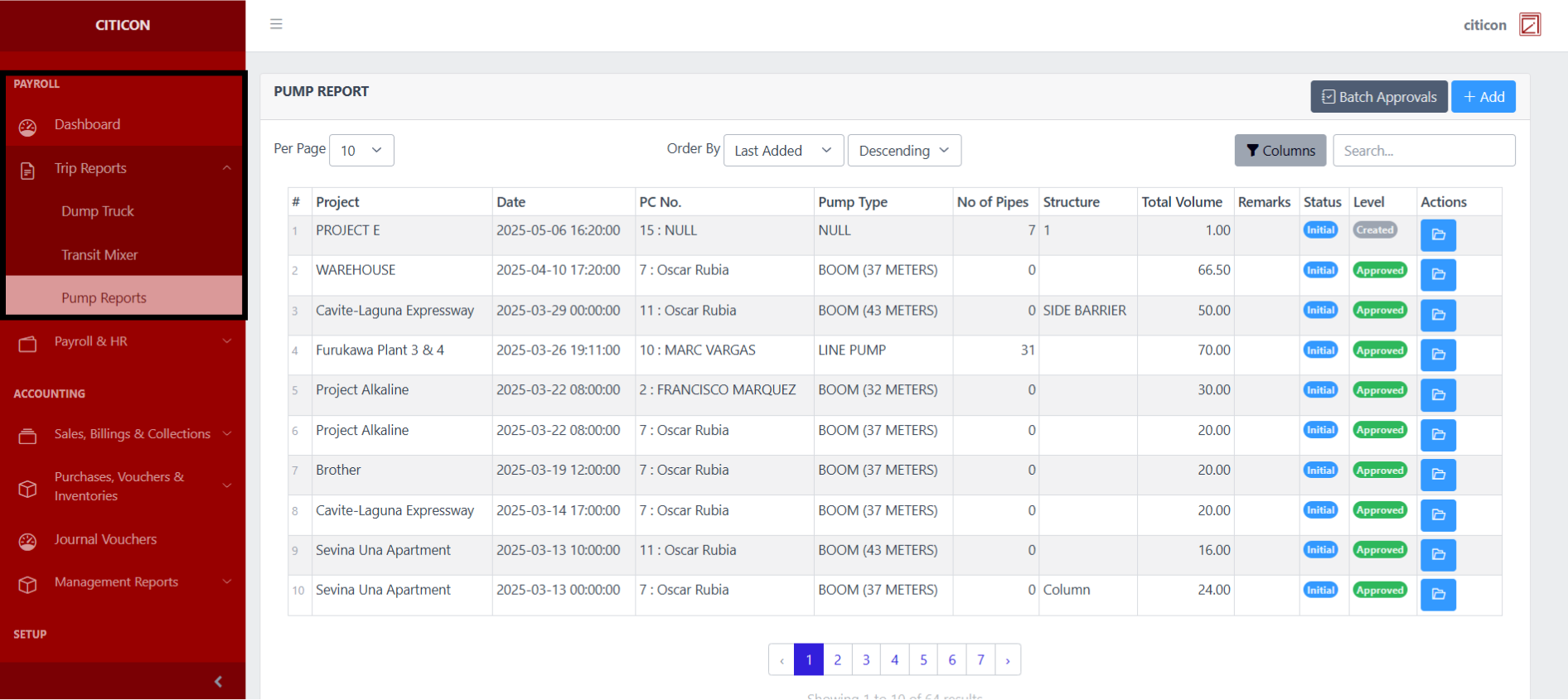
To access the Pump Reports Settings. Go to Payroll, select Trip Reports, then select Pump Reports.
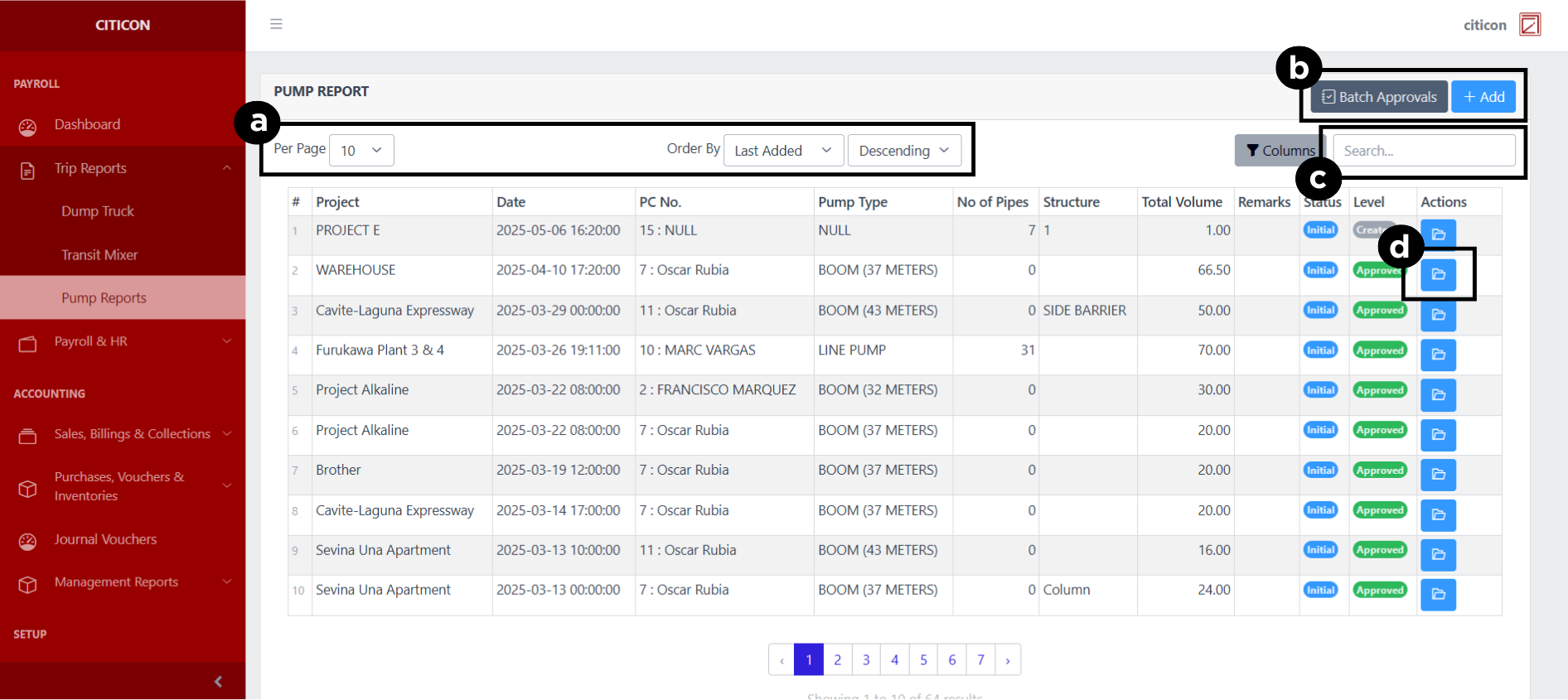
a. Adjust the paging, ordering, and sorting of the Pump Reports Page here.
b. Select the respective button to either Add new reports or process reports to be approved.
c. Search for specific report details using the search bar.
d. View or Cancel a report by selecting the folder button. You can also download PDF of the report through here.
Add Report
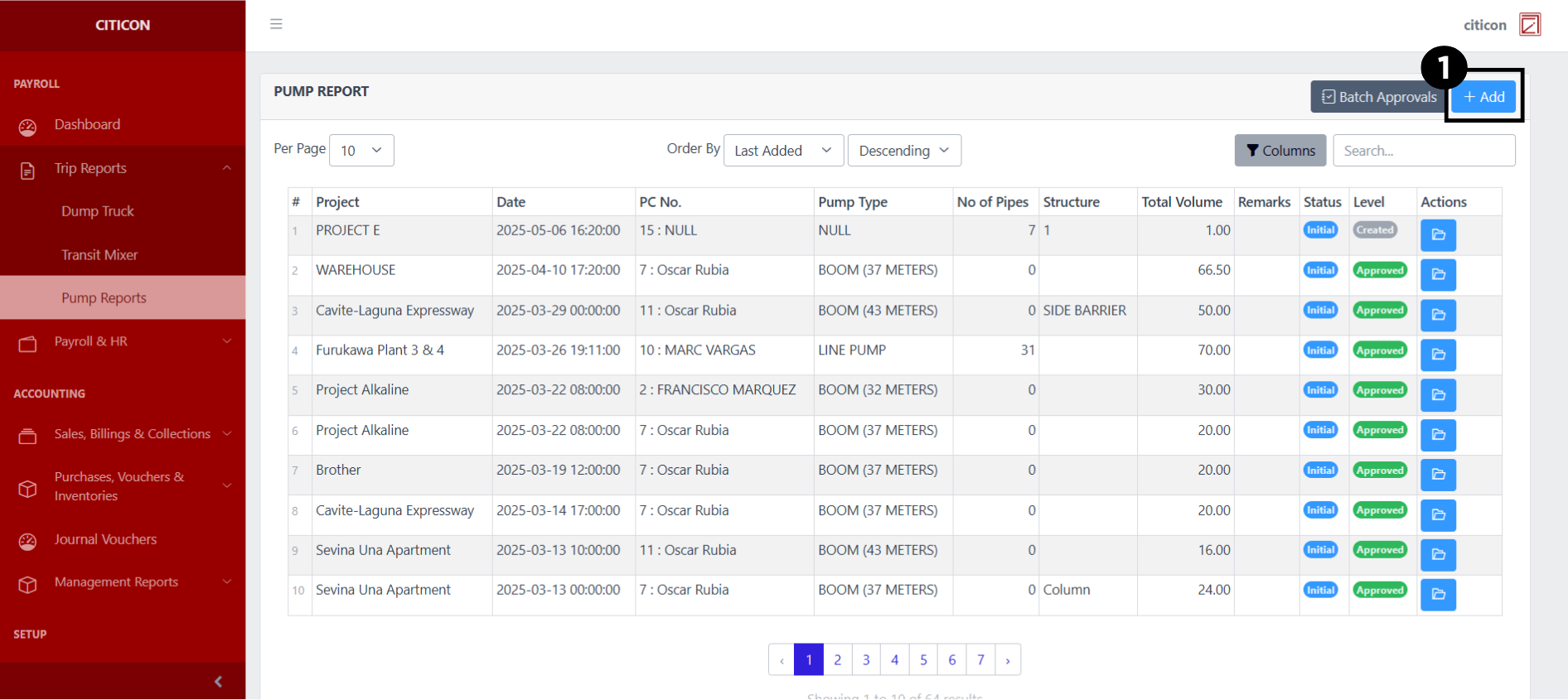
- Select the Add button to add a new report.
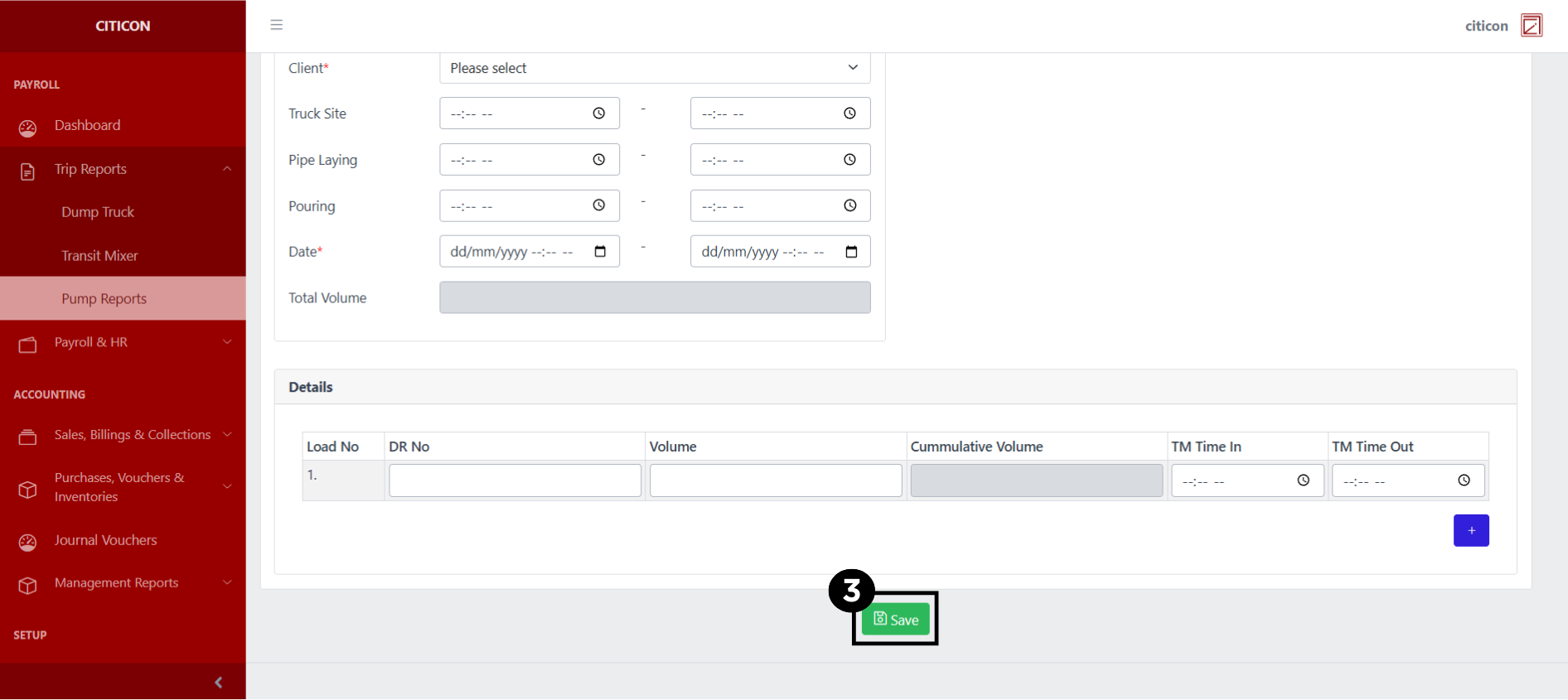
- Input the necessary details for your new report.
All fields that has an asterisk (*) are required to be filled up.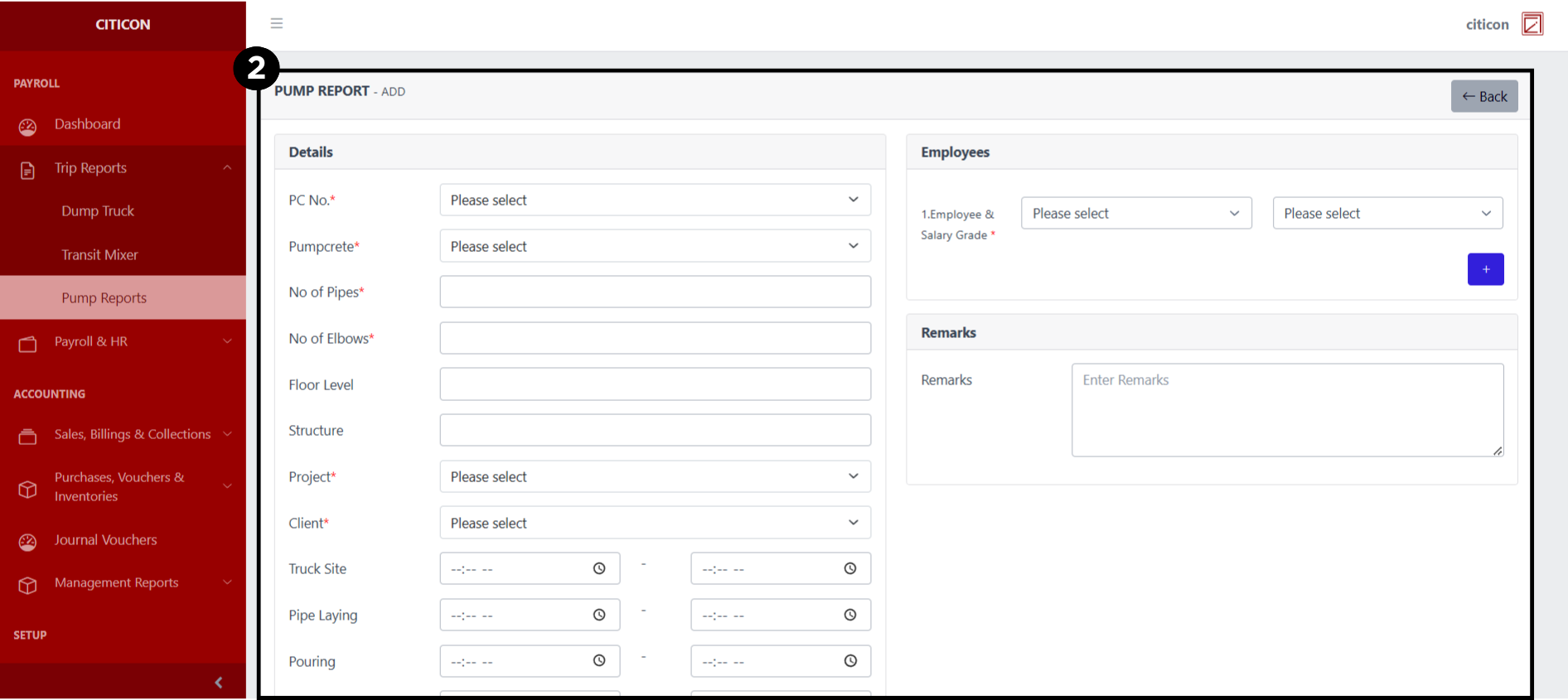
- Select the Save button to save your new report.
Submit Report
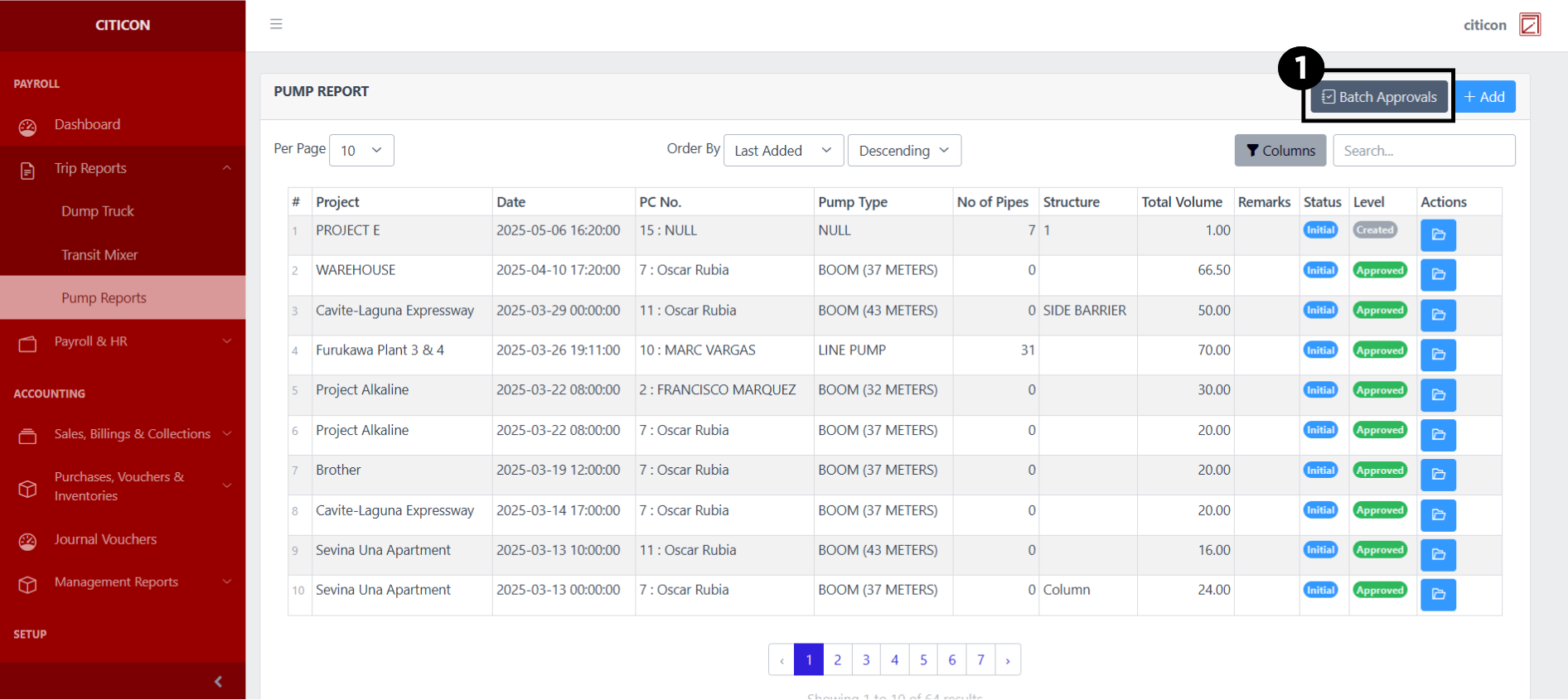
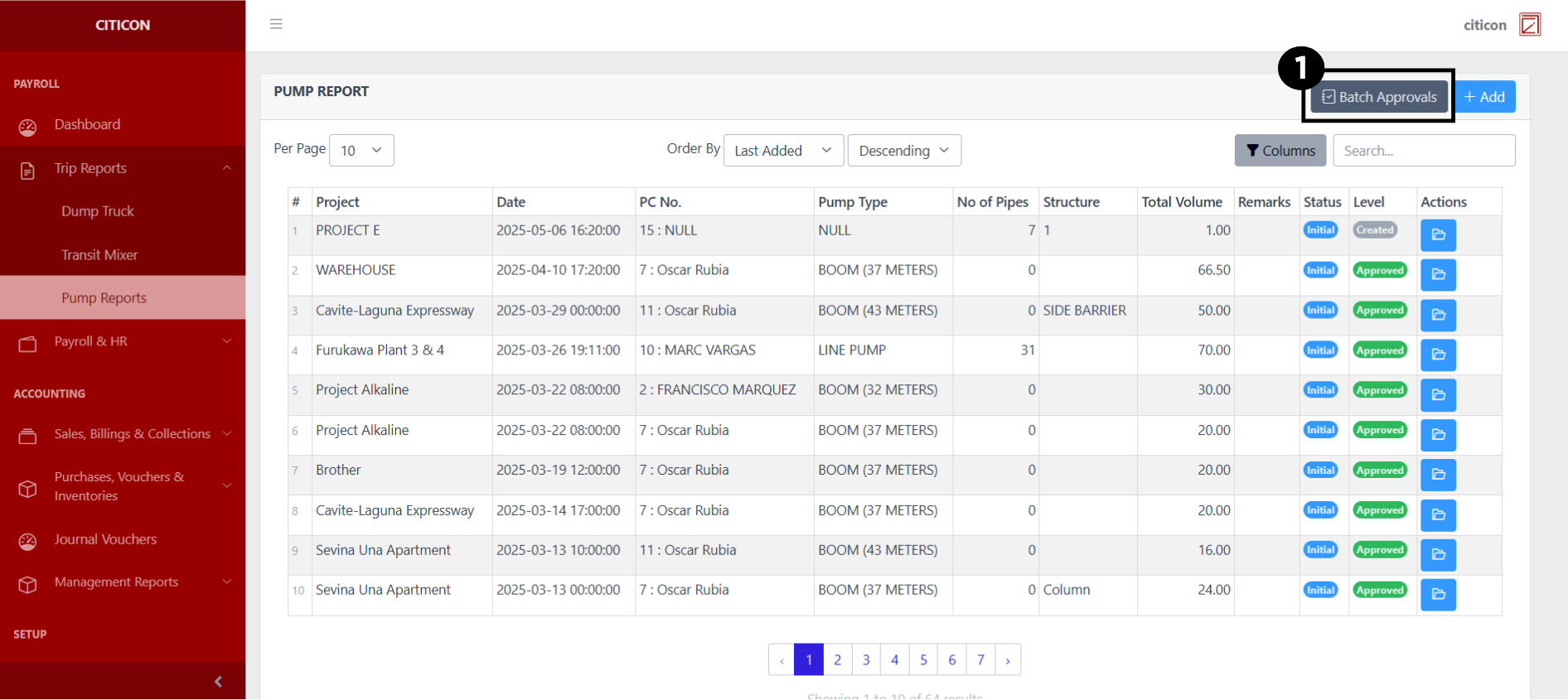
- Select the Batch Approvals button to submit a report.
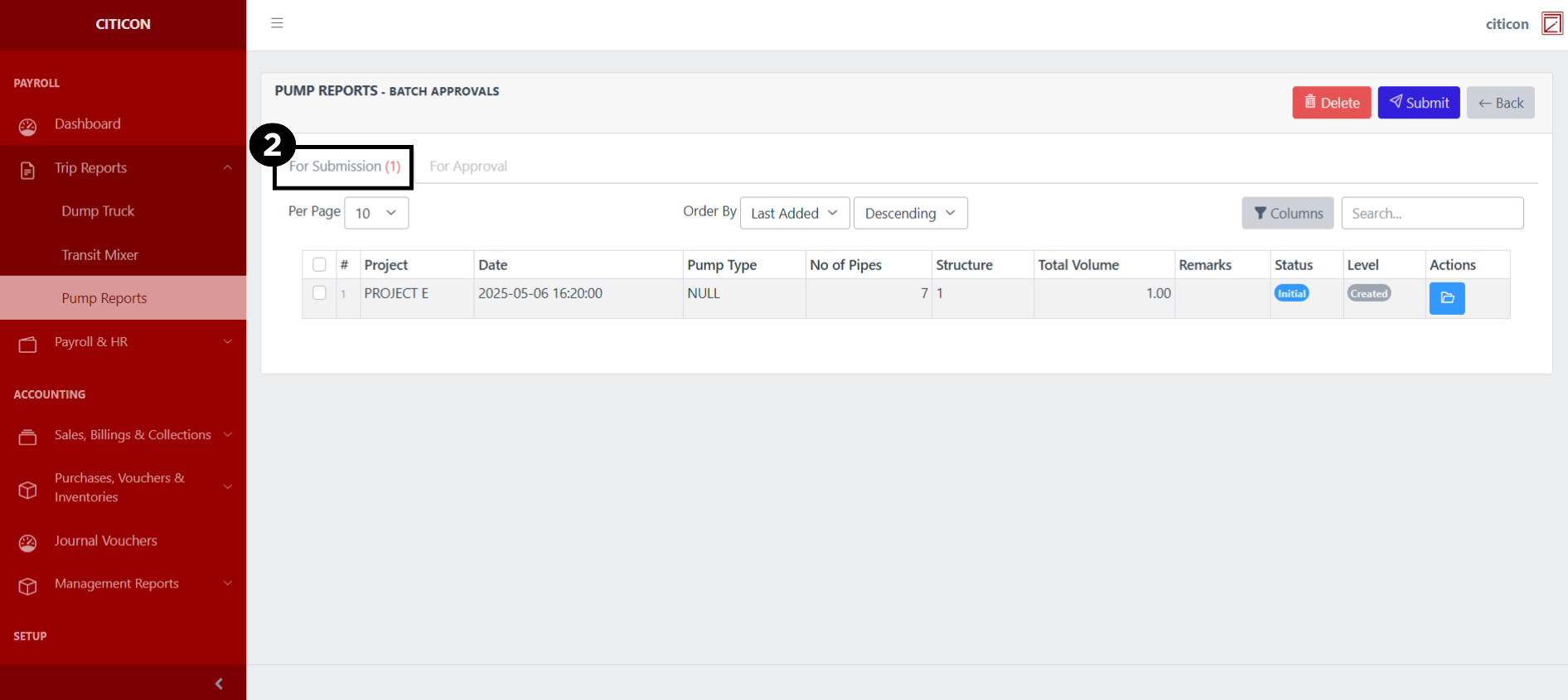
- Select the For Submission tab.
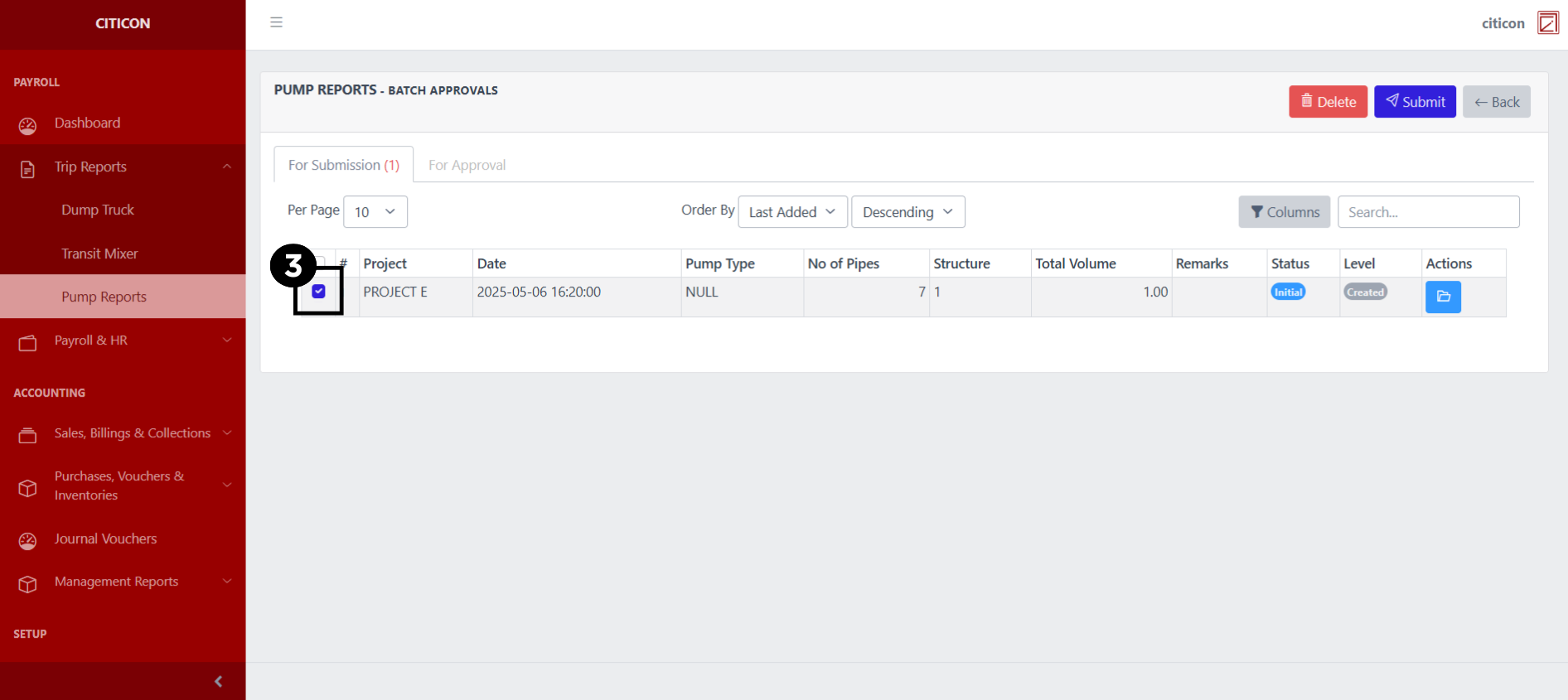
- Select the report/s that you want to submit.
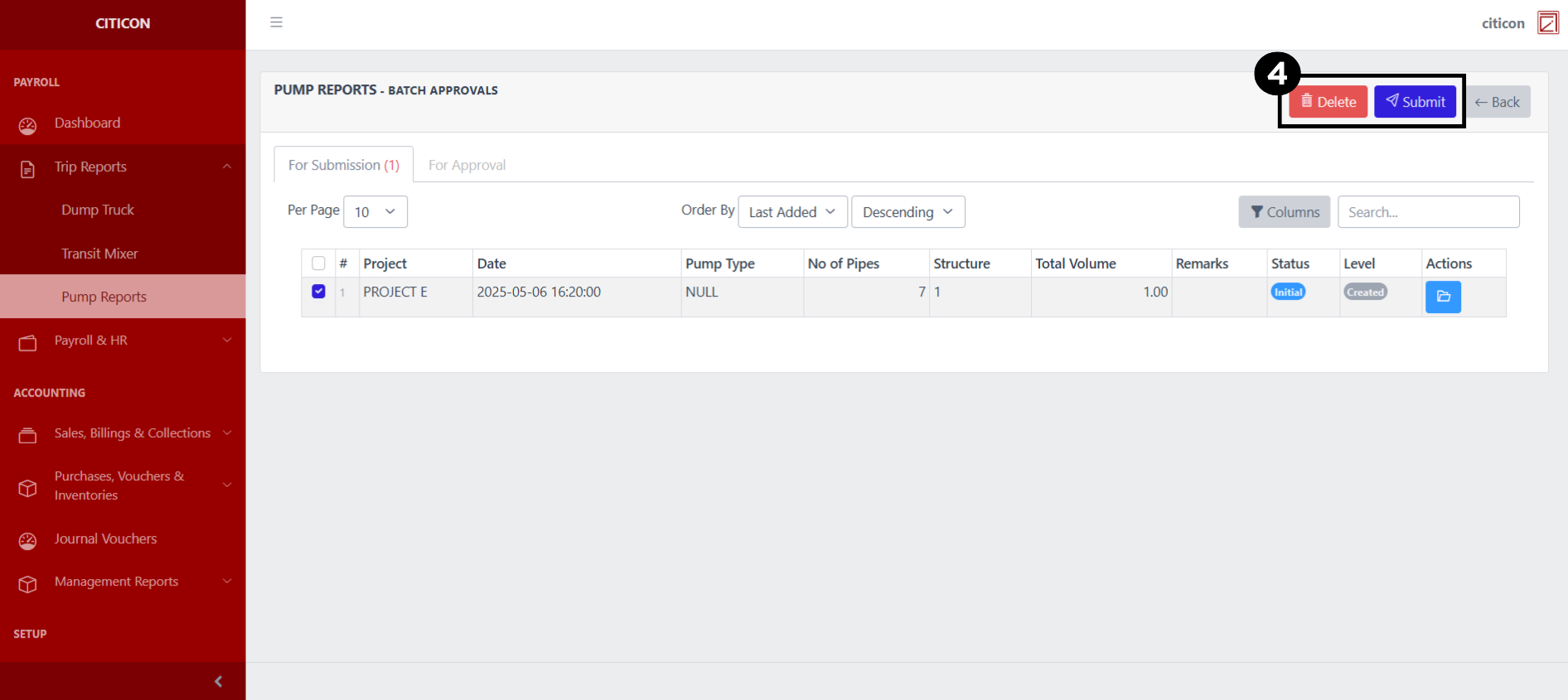
- Select the Submit button to submit the report. In cases where you want to delete a report, select the report/s you want to delete, then select the Delete button.
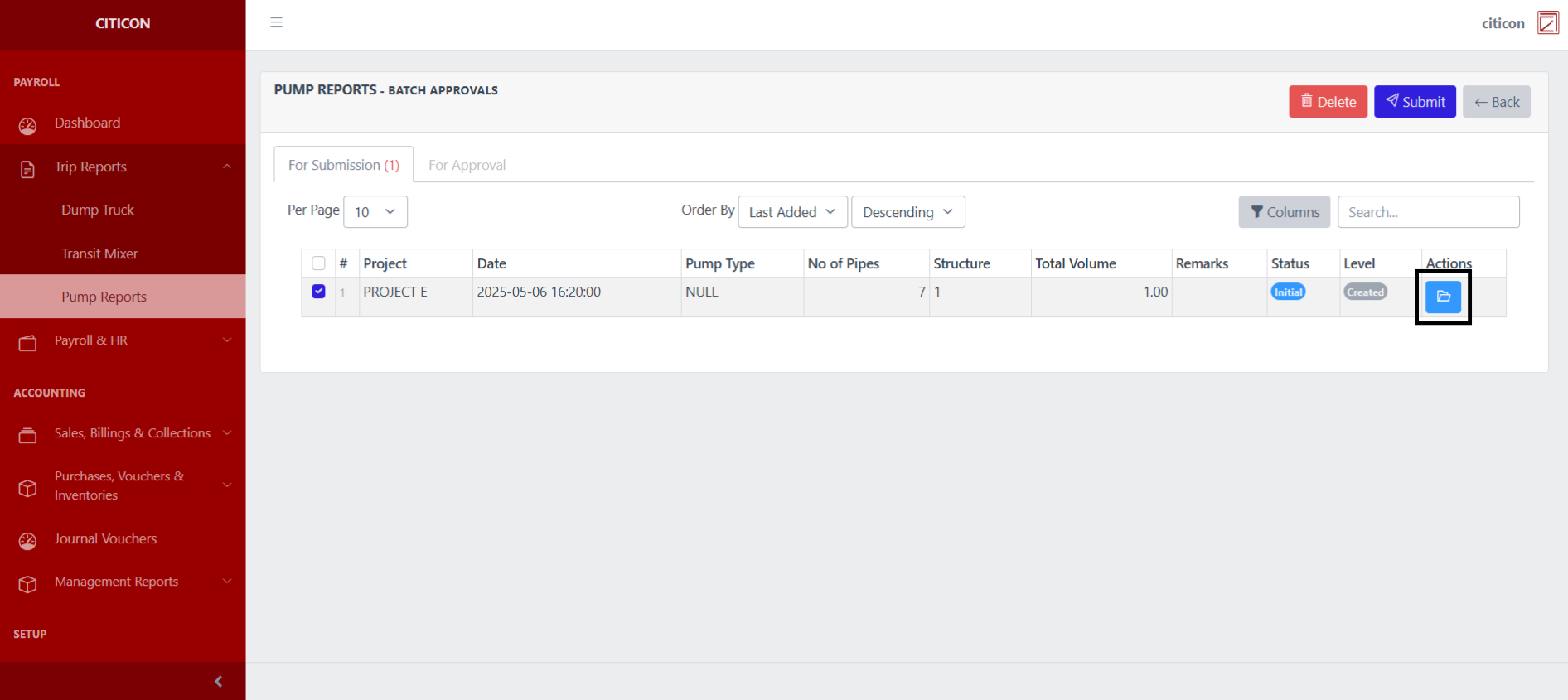
 To view the details of an individual report, select the folder button and from here, you may either Edit, Delete, Submit, or Cancel the report.
Approve Report
- Select the Batch Approvals button to approve a report.
- Select the For Approval tab.
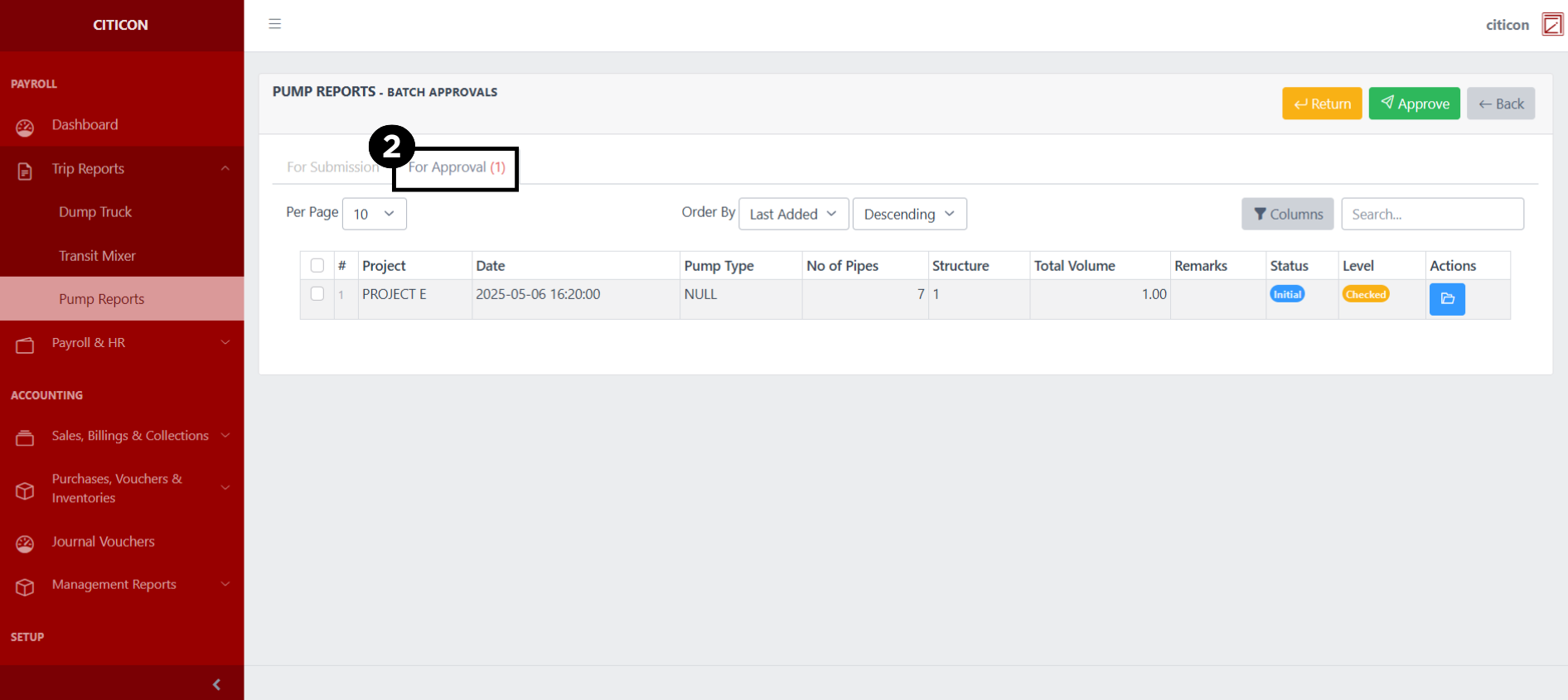
- Select the report/s that you want to approve.
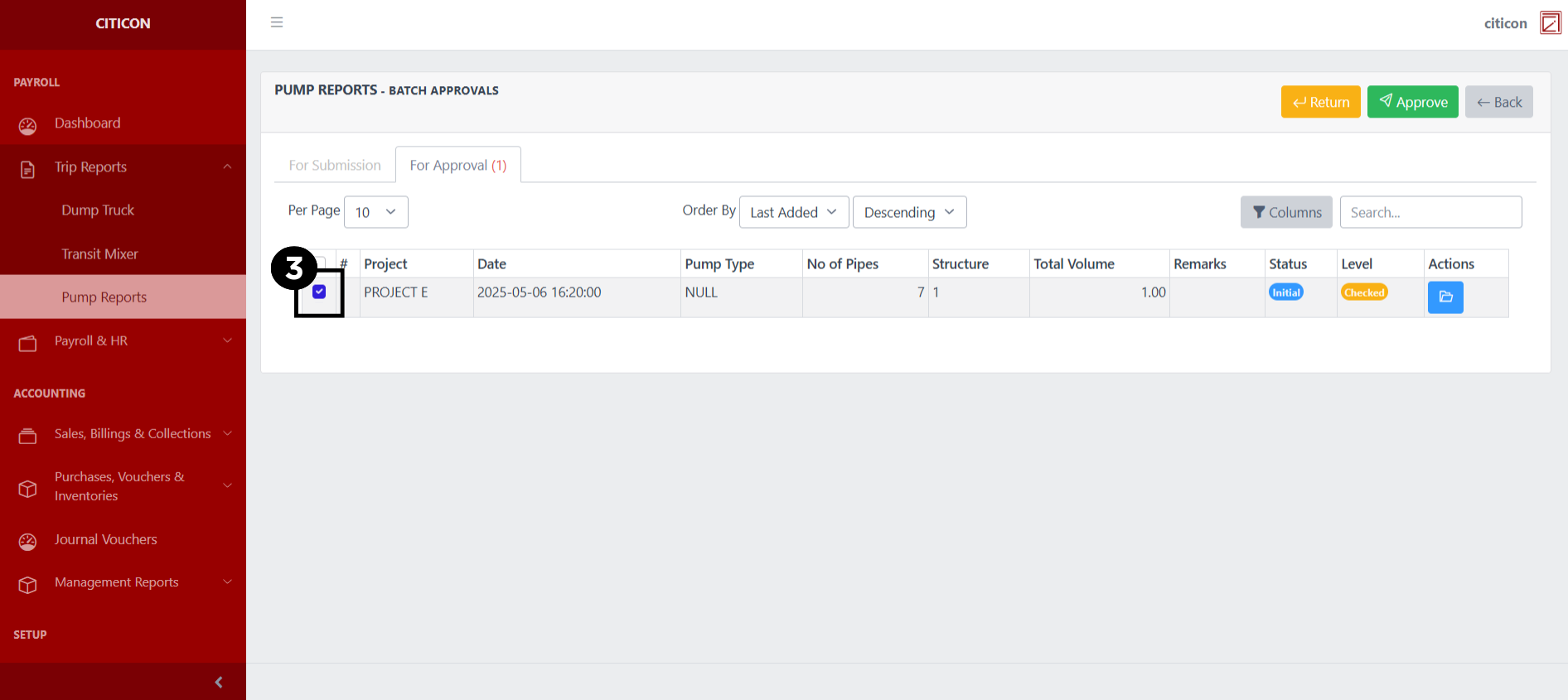
- Select the Approve button to approve the report. In cases where you want to return a report to submission section, select the report/s you want to return, then select the Return button.
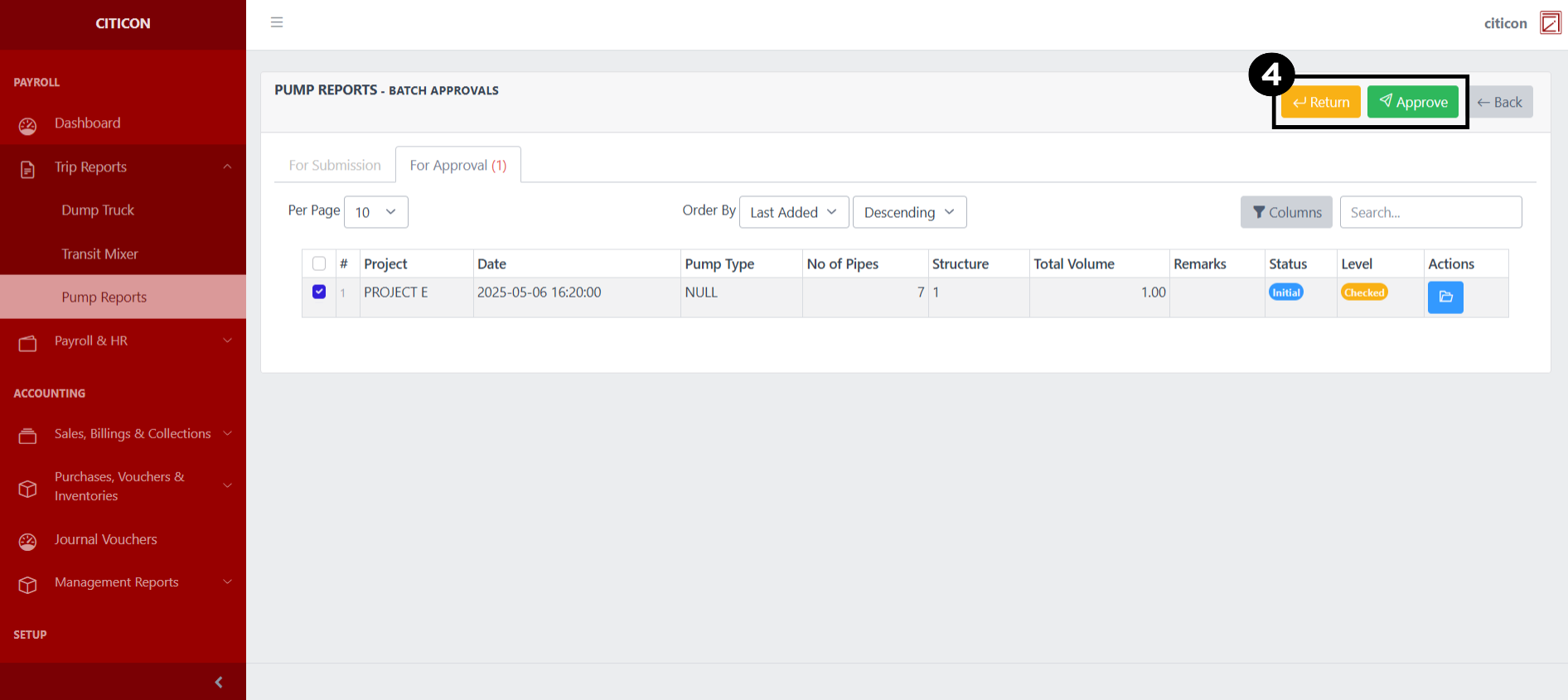 To view the details of an individual report, select the folder button and from here, you may either Return, Approve, or Cancel the report.
Explore Citicon Payroll and Accounting System: Payroll & HR - Employee Profiles