Trip Reports - Dump Truck
Welcome to Citicon Payroll and Accounting Systems Configuration for Trip Reports - Dump Truck. This section allows you to manage and document trip-based operations for dump trucks, ensuring accurate tracking of work performed, trip frequencies, compensation calculations, and diesel usage. This module supports end-to-end reporting for both drivers and helpers, providing detailed records for each trip, facilitating payroll processing, and promoting accountability in field operations.
Key Purposes
- Record Trip Assignment Details: Log key information such as plate number, start and end dates, and assigned personnel to ensure every trip is documented accurately.
- Document Driver and Helper Participation: Capture assigned drivers and helpers along with their corresponding salary grades to support payroll mapping and crew accountability.
- Track Daily Job Activities: Input specific details per date including job type, trip rate, number of trips, diesel usage, and DR numbers to provide a complete operational log.
- Enable Report Lifecycle Management: Use system features to add new trip reports, submit for validation, and approve finalized records to support workflow transparency.
- Support Payroll and Performance Analysis: Leverage captured data to compute compensation, monitor operational efficiency, and analyze fuel consumption per trip or personnel.
Dump Truck Module User-Manual
This section provides details, and set-by-step instructions to access, view, and update the Dump Truck report stored in the system.
Index Page
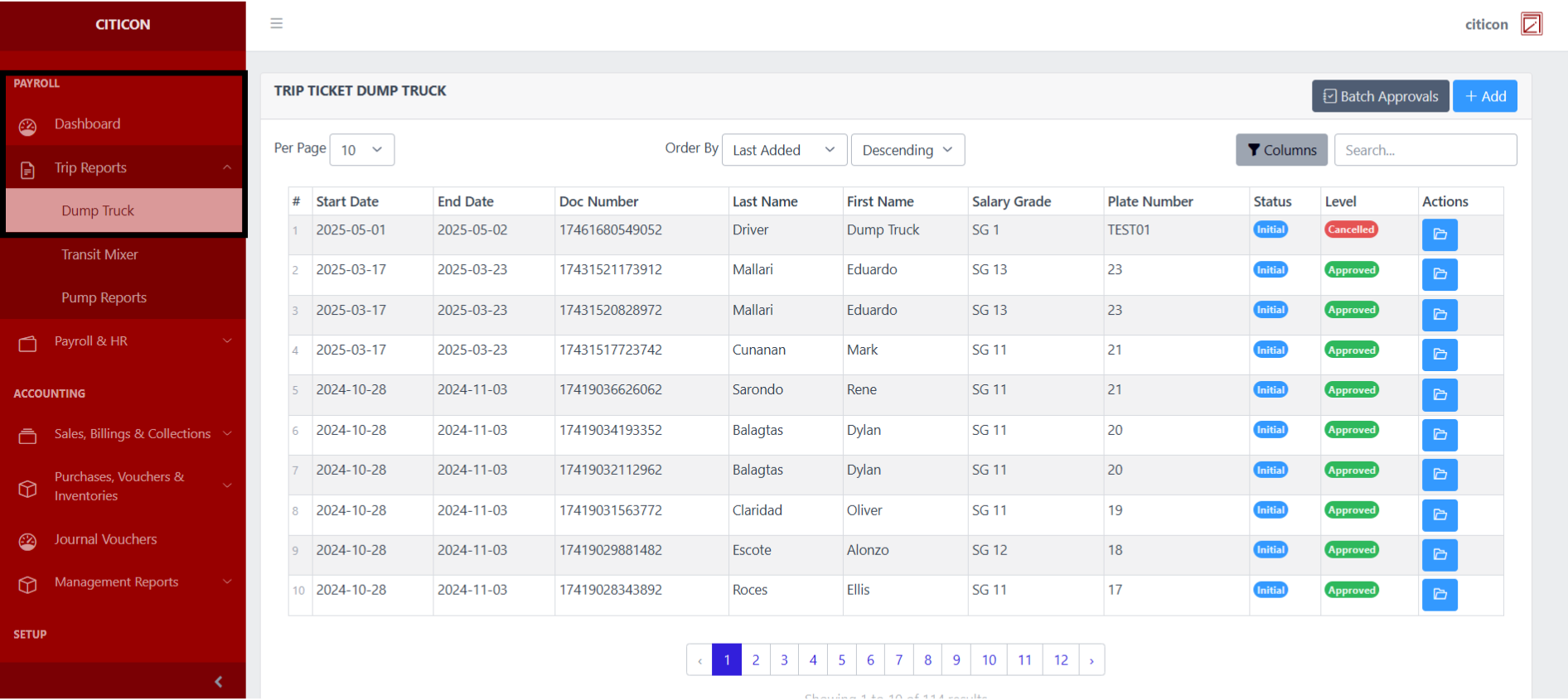
To access the Dump Truck Settings. Go to Payroll, select Trip Reports, then select Dump Truck.
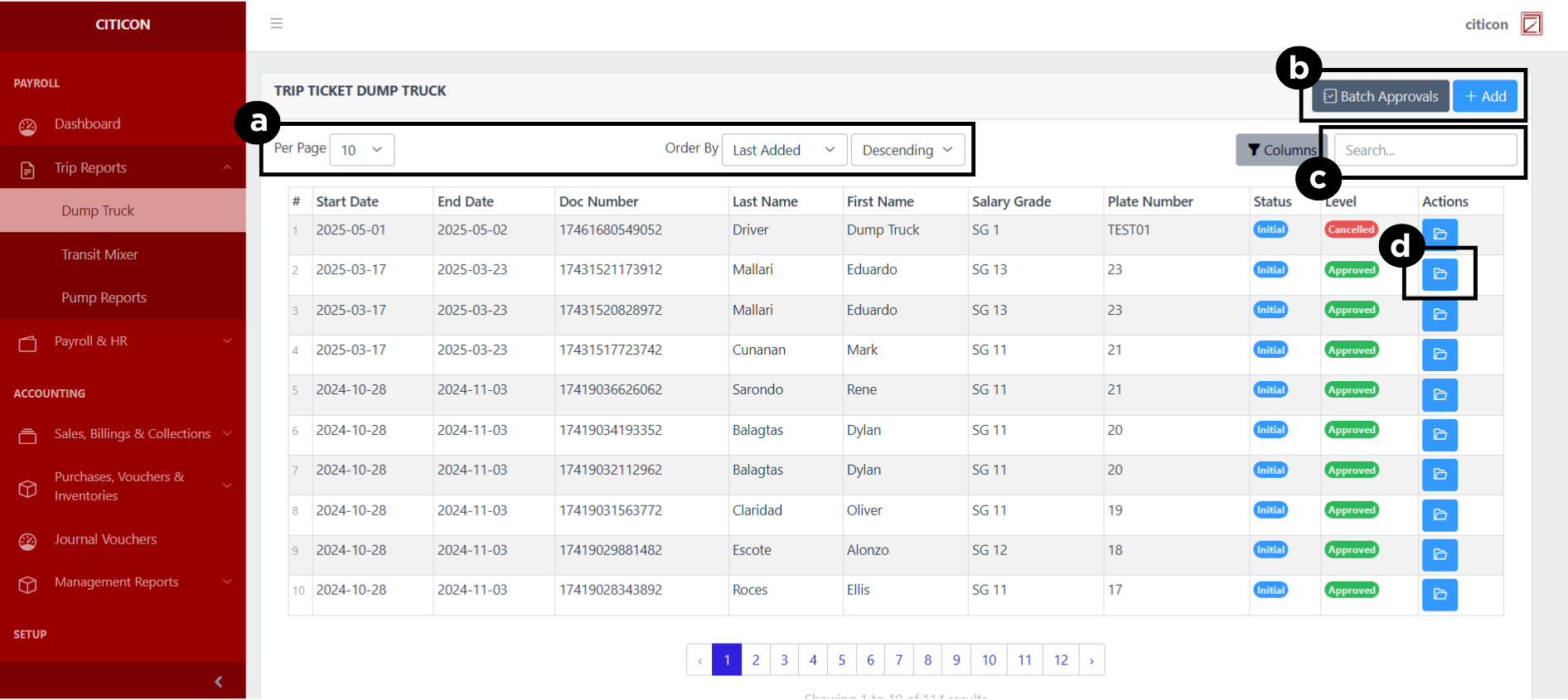
a. Adjust the paging, ordering, and sorting of the Dump Truck Page here.
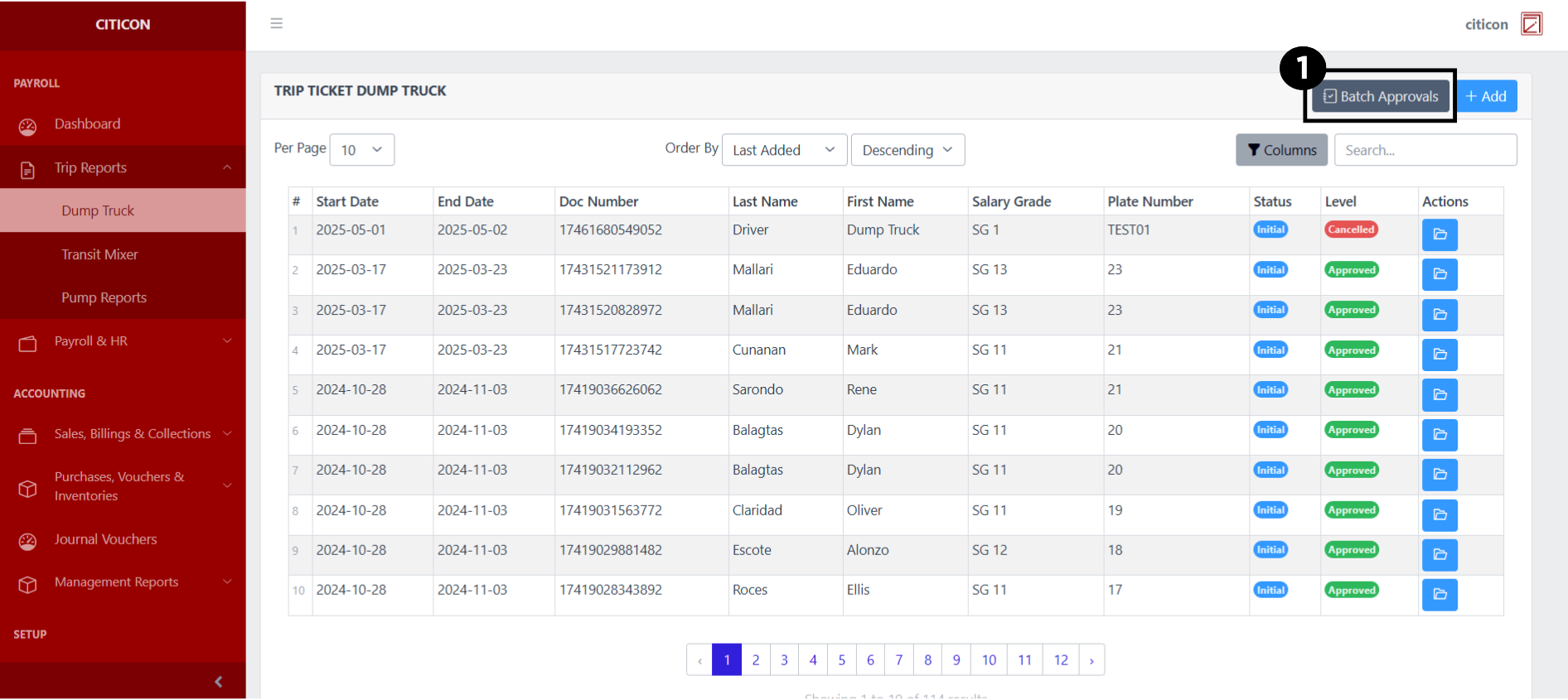
b. Select the respective button to either Add new reports or process reports to be approved.
c. Search for specific report details using the search bar.
d. View or Cancel a report by selecting the folder button. You can also download PDF of the report through here.
Add Report
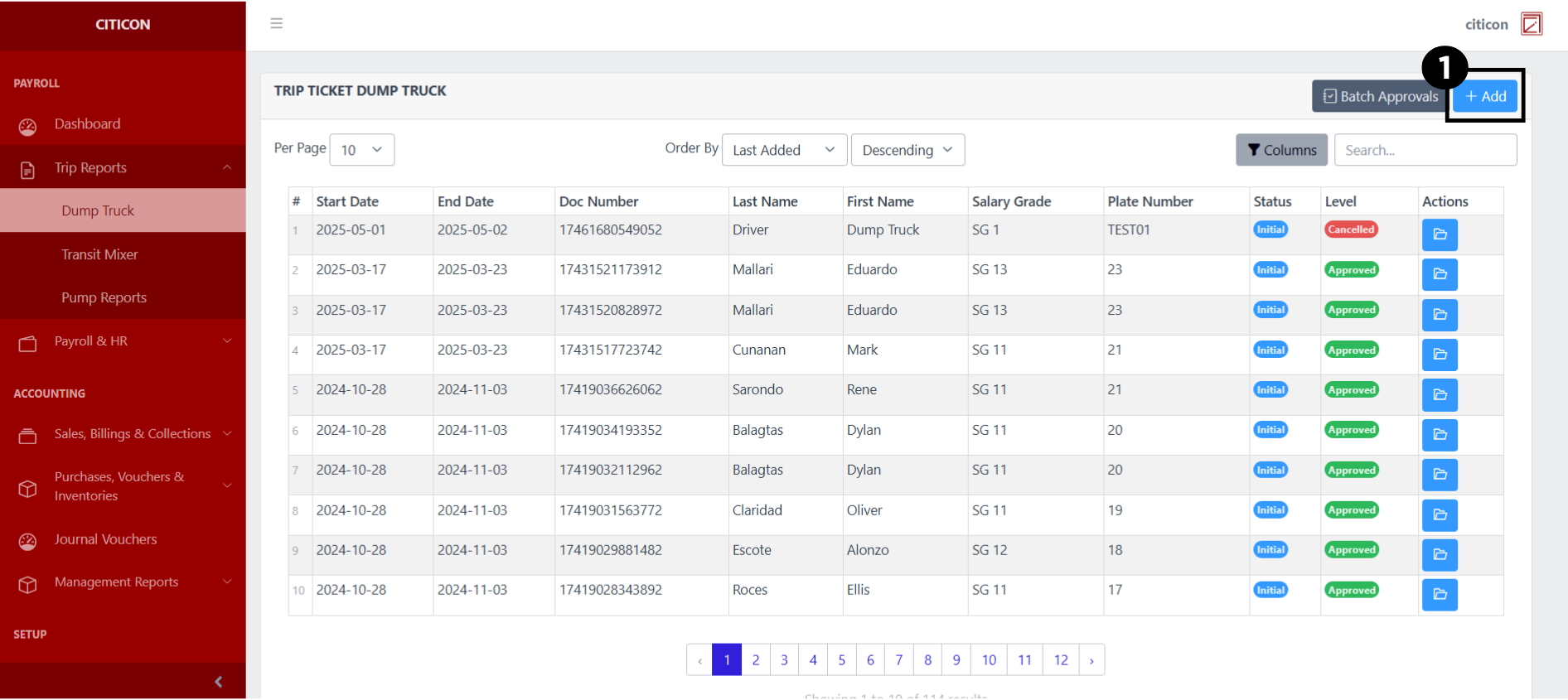
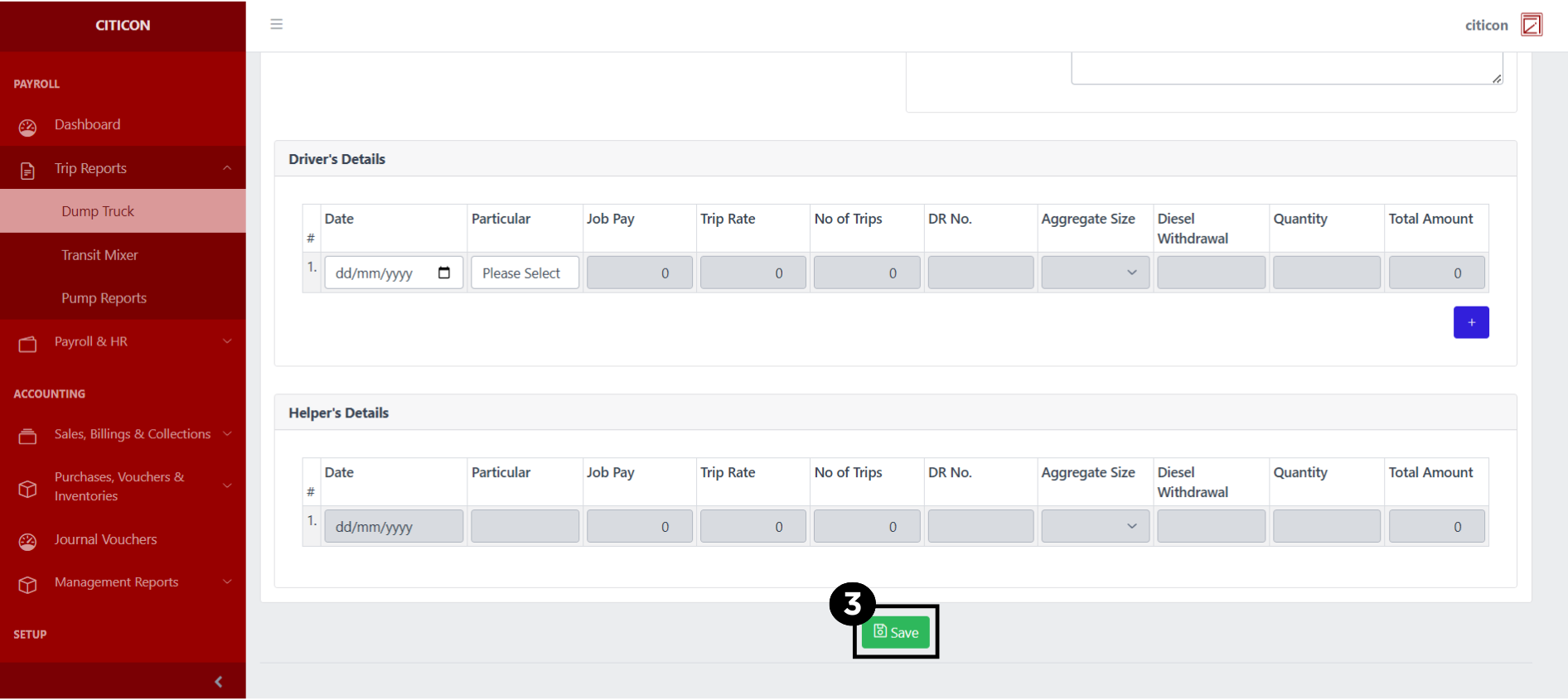
- Select the Add button to add a new report.
- Input the necessary details for your new report.
All fields that has an asterisk (*) are required to be filled up.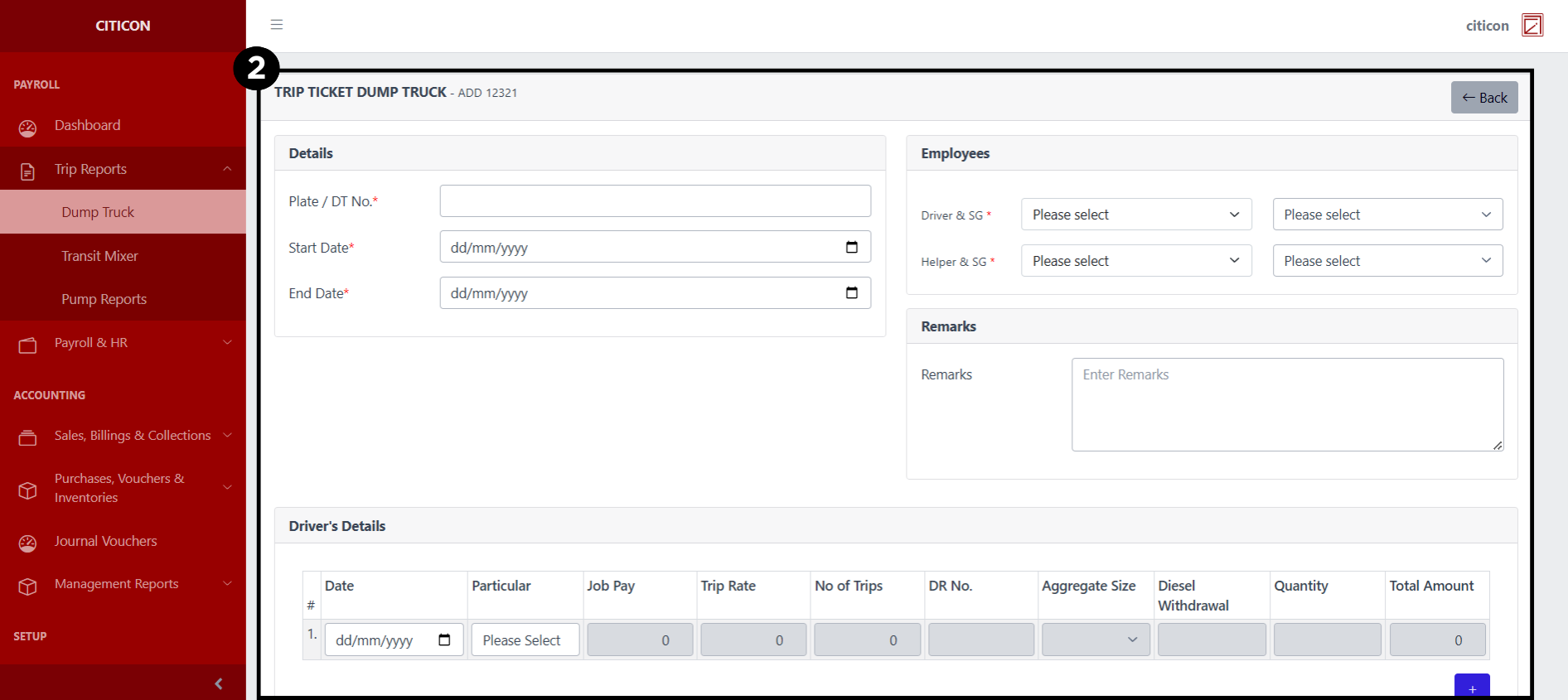
- Select the Save button to save your new report.
Submit Report
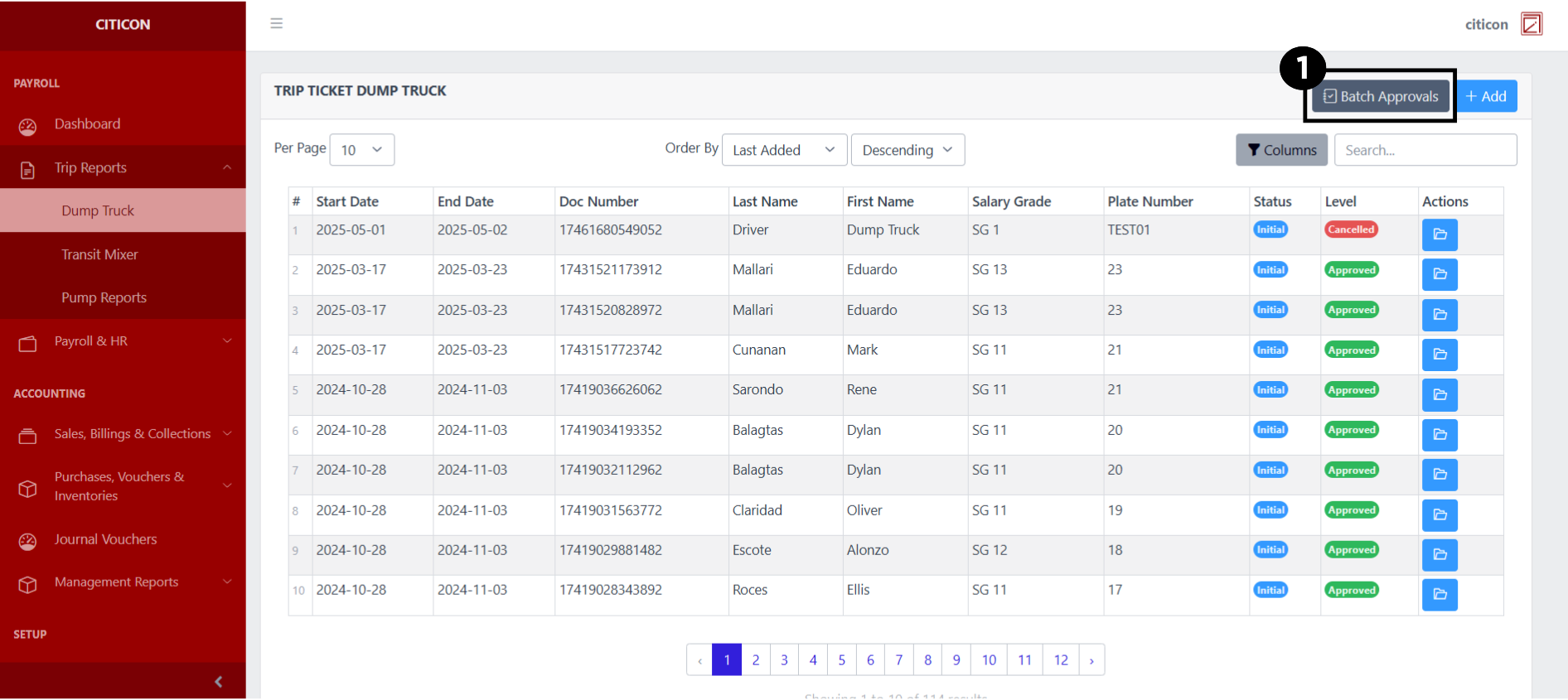
- Select the Batch Approvals button to submit a report.
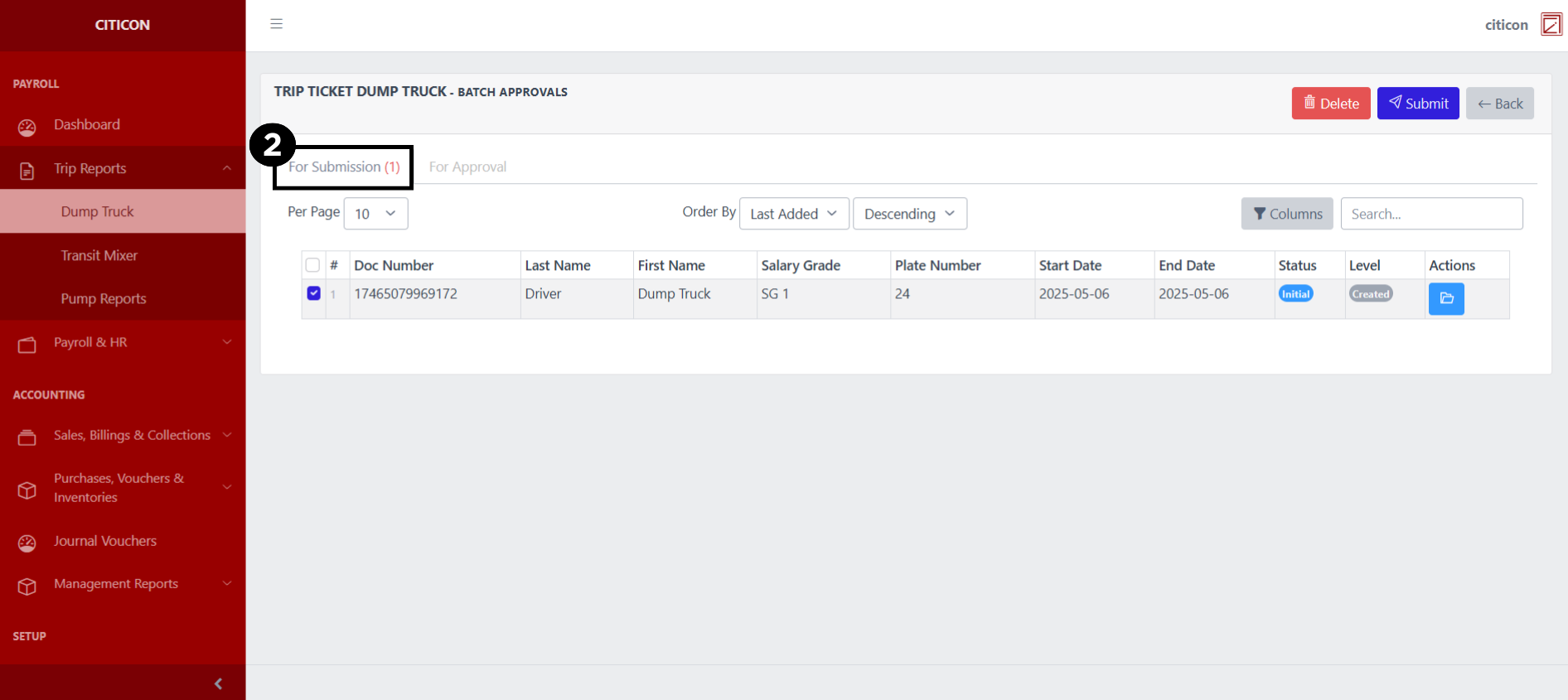
- Select the For Submission tab.
- Select the report/s that you want to submit.
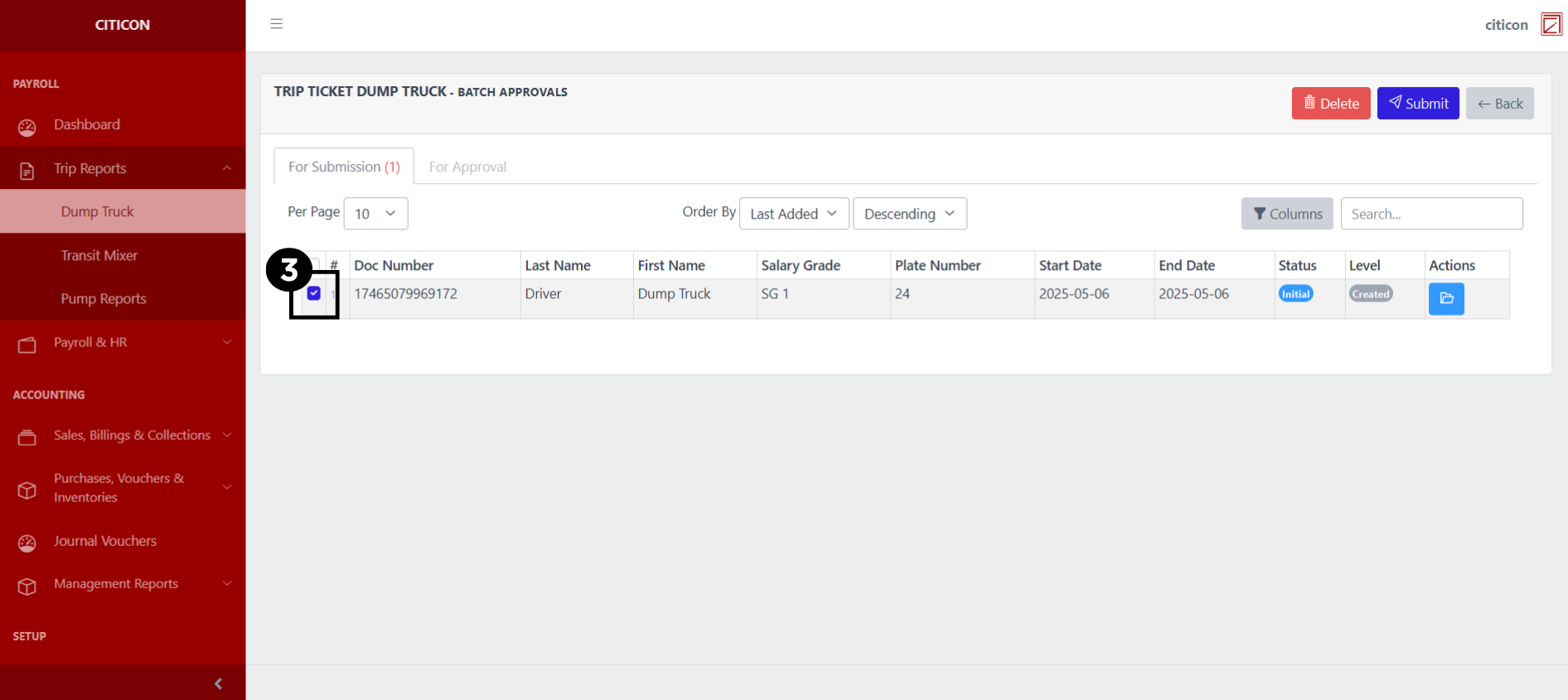
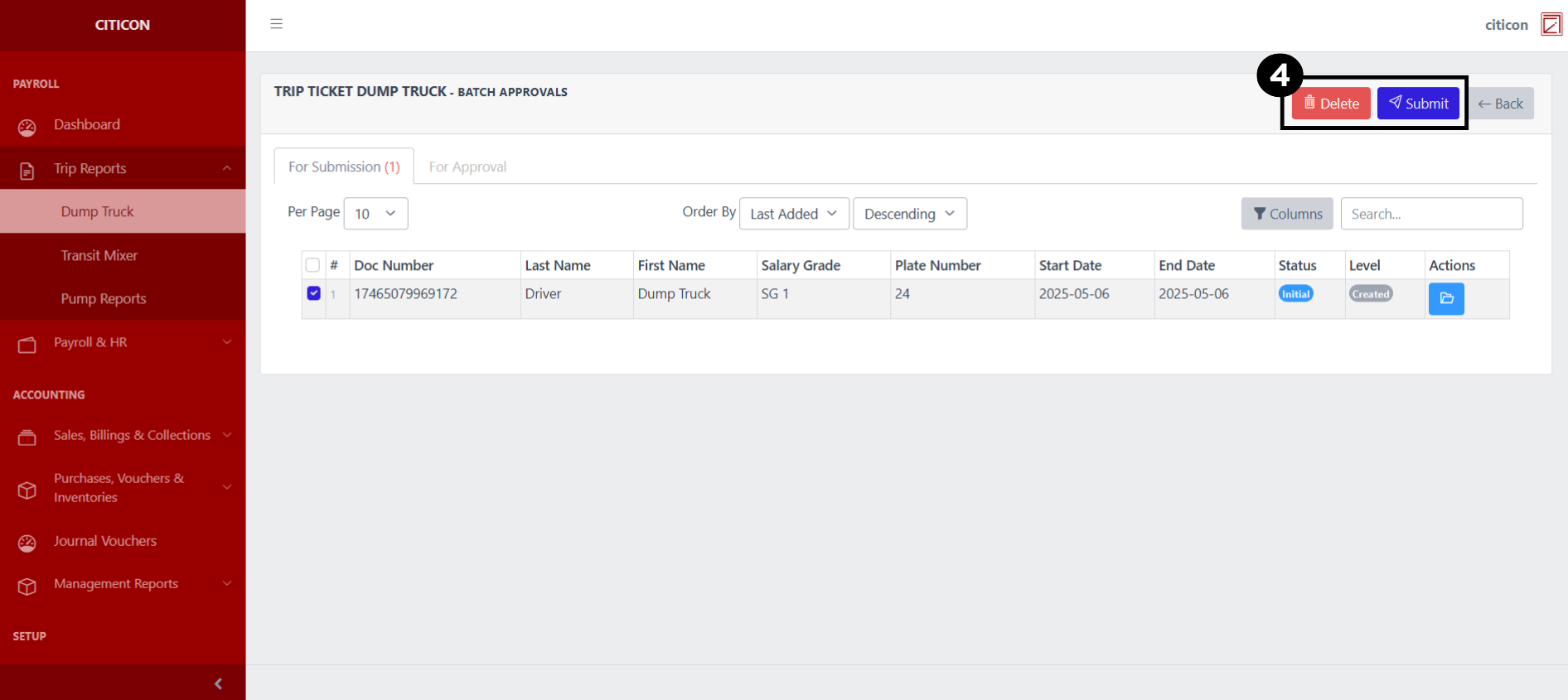
- Select the Submit button to submit the report. In cases where you want to delete a report, select the report/s you want to delete, then select the Delete button.
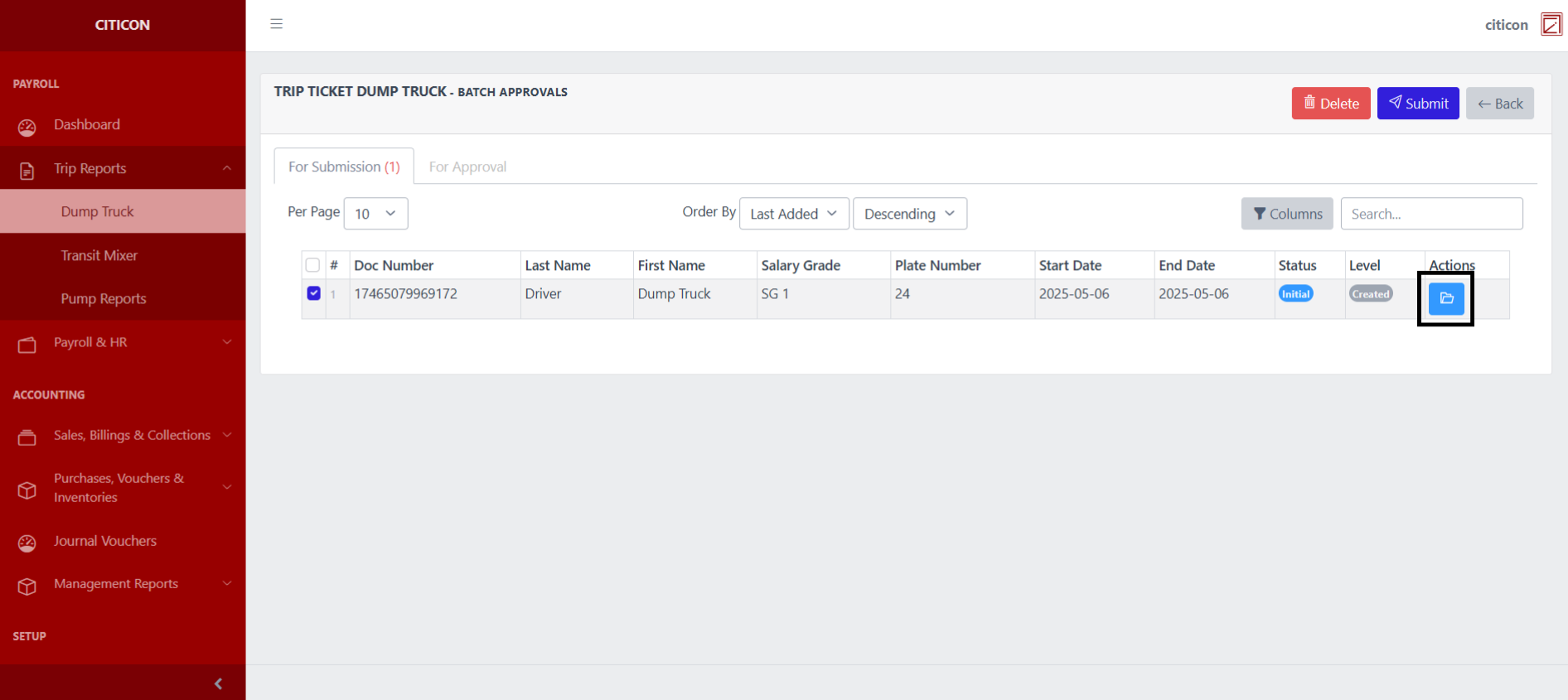
 To view the details of an individual report, select the folder button and from here, you may either Edit, Delete, Submit, or Cancel the report.
Approve Report
- Select the Batch Approvals button to approve a report.
- Select the For Approval tab.
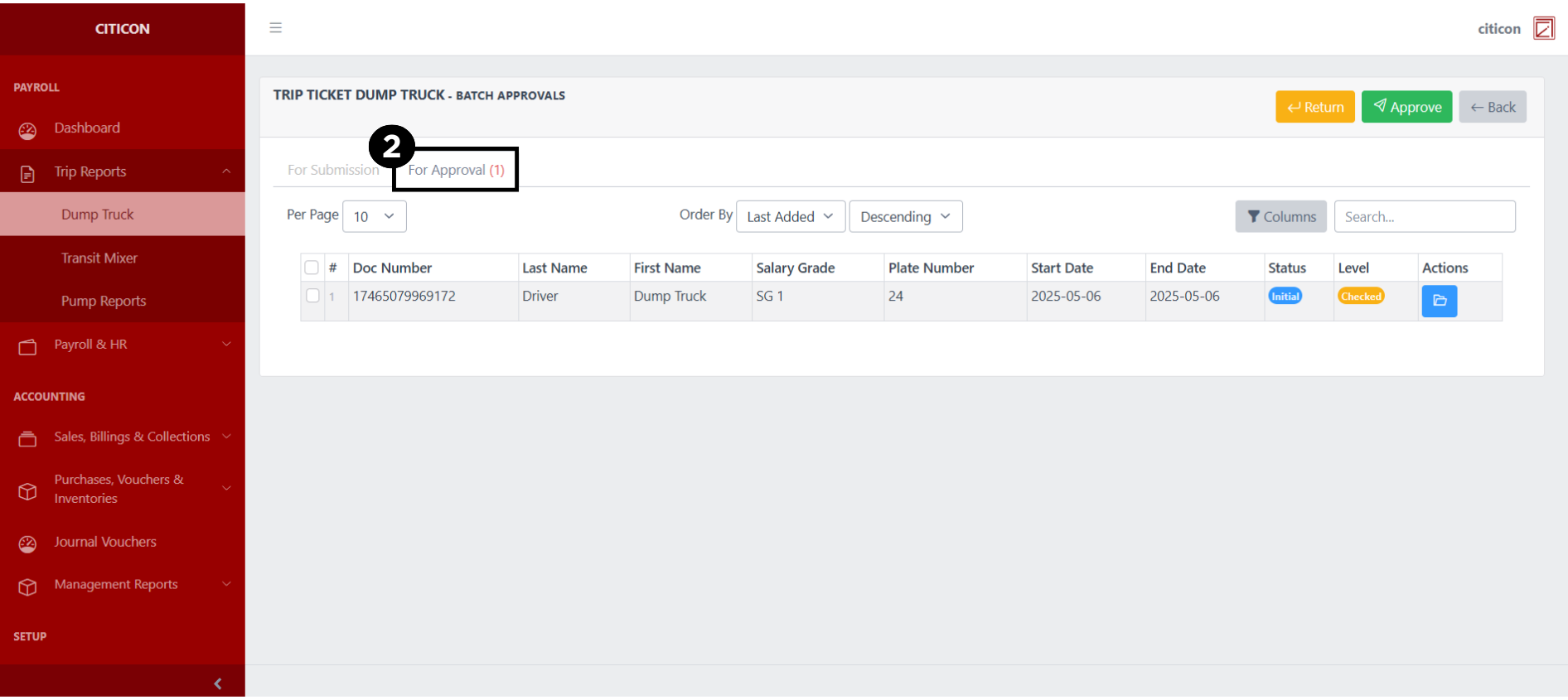
- Select the report/s that you want to approve.
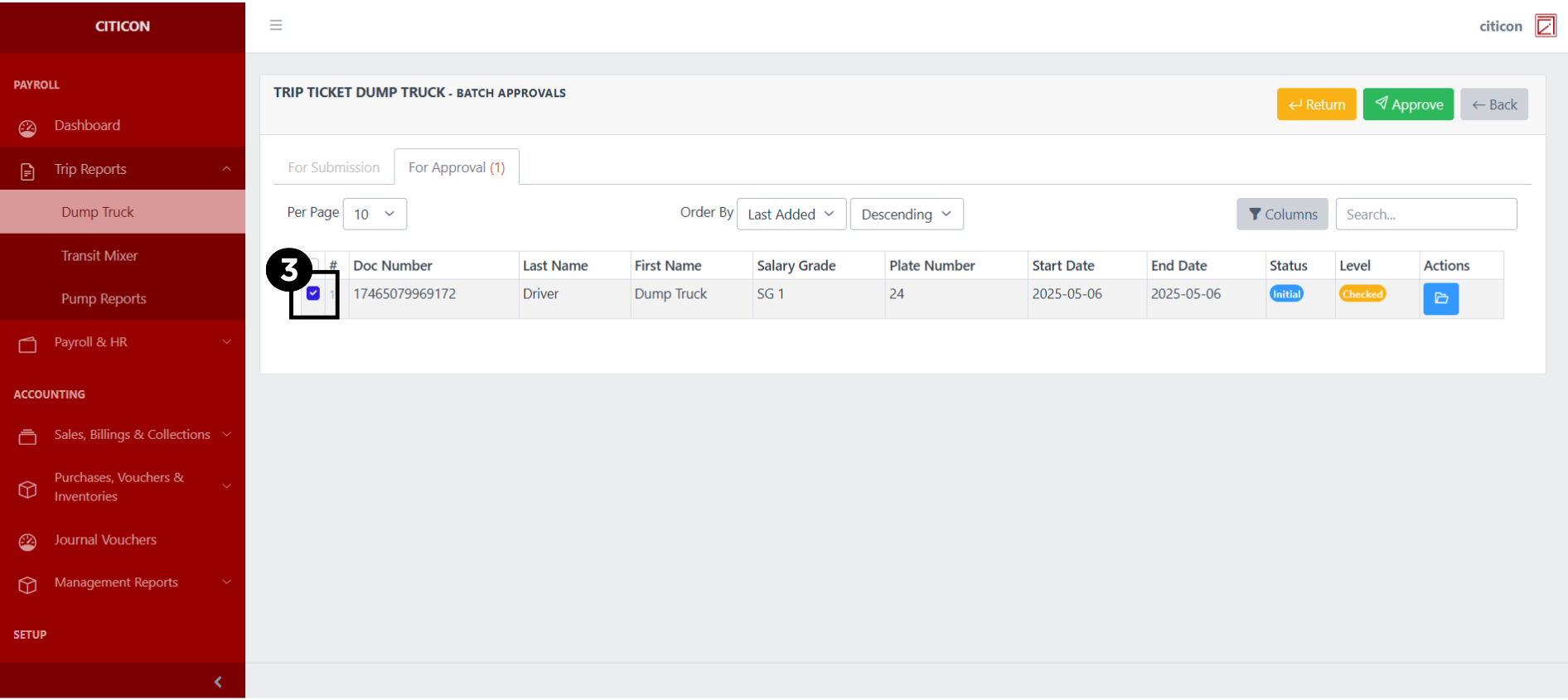
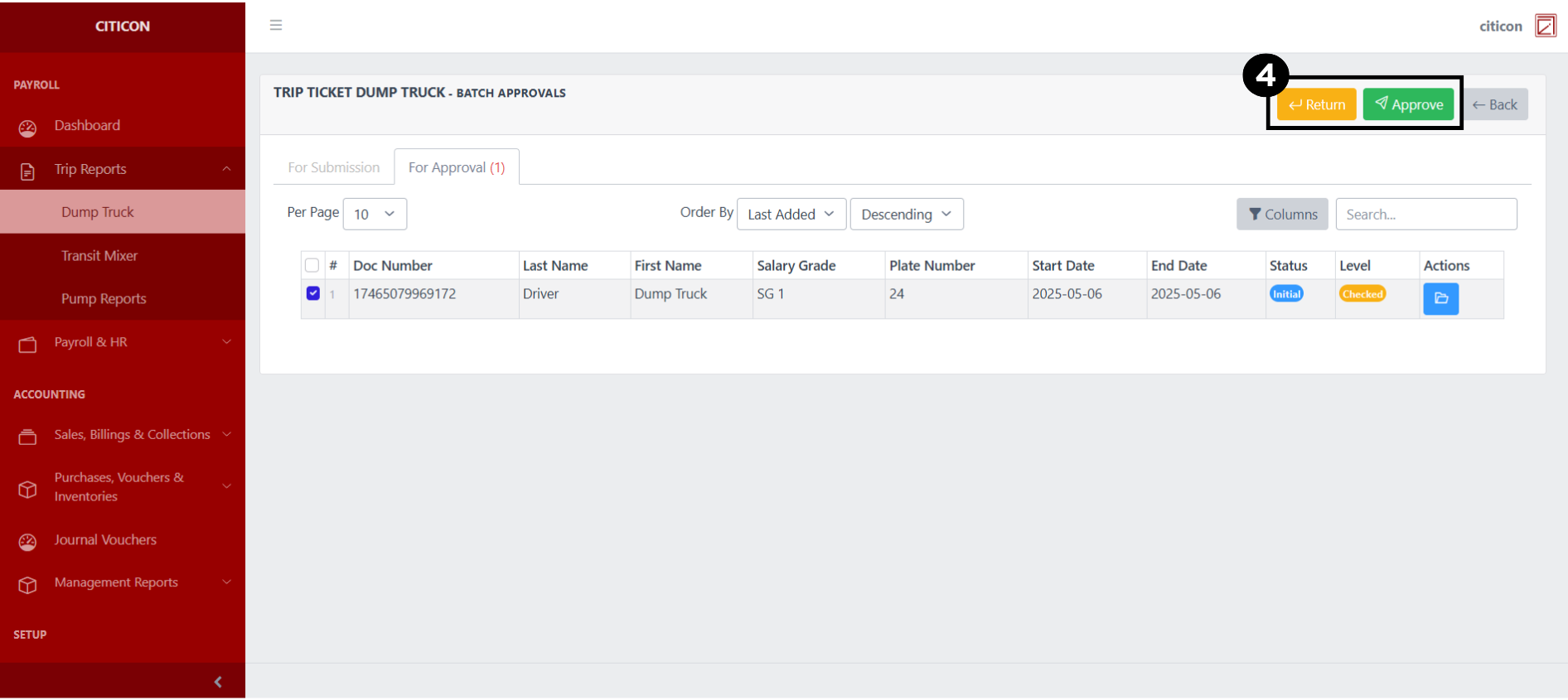
- Select the Approve button to approve the report. In cases where you want to return a report to submission section, select the report/s you want to return, then select the Return button.
 To view the details of an individual report, select the folder button and from here, you may either Return, Approve, or Cancel the report.
Explore Citicon Payroll and Accounting System: Trip Reports - Transit Mixer