Payroll Generation - Transit Mixer (Weekly)
Welcome to the Payroll Generation – Weekly Transit Mixer section of the Payroll Information under the Payroll & HR Module. This module is designed specifically for Transit Mixer employees, capturing payroll variables such as trip-based compensation, night differential, holiday pay, and contributions. It offers streamlined payroll management tailored to the unique compensation structure of mobile operations, ensuring accurate and compliant payroll generation every week.
Key Purposes
- Generate Trip-Based Payroll: Computes weekly payroll based on trip amount, overtime, Sunday work, night differential, and various holiday pay types.
- Incorporate Add-Ons and Shop Rates: Integrates additional income items like shop rate and trip allowance into gross income calculations.
- Apply Leave and Adjustment Entries: Considers leave amounts and allows for adjustments (taxable and non-taxable) for accurate payroll corrections.
- Automate Loan Deductions: Deduces various loan types including SSS, HDMF, company loans, and other government loans from payroll.
- Manage Statutory Contributions: Calculates detailed government contributions such as SSS, PhilHealth, and HDMF for both employer and employee shares.
- Compute Net Pay with Transparency: Ensures precise breakdown from gross income to net pay with visibility on all earnings, deductions, and contributions.
- Support Batch Operations: Enables batch approval, payroll generation, and cancellation of entries for efficient weekly processing.
Payroll Generation - Weekly (Transit Mixer) Module User-Manual
This section provides details, and set-by-step instructions to access, view, and update the Payroll Generation - Weekly (Transit Mixer) entries stored in the system.
Index Page
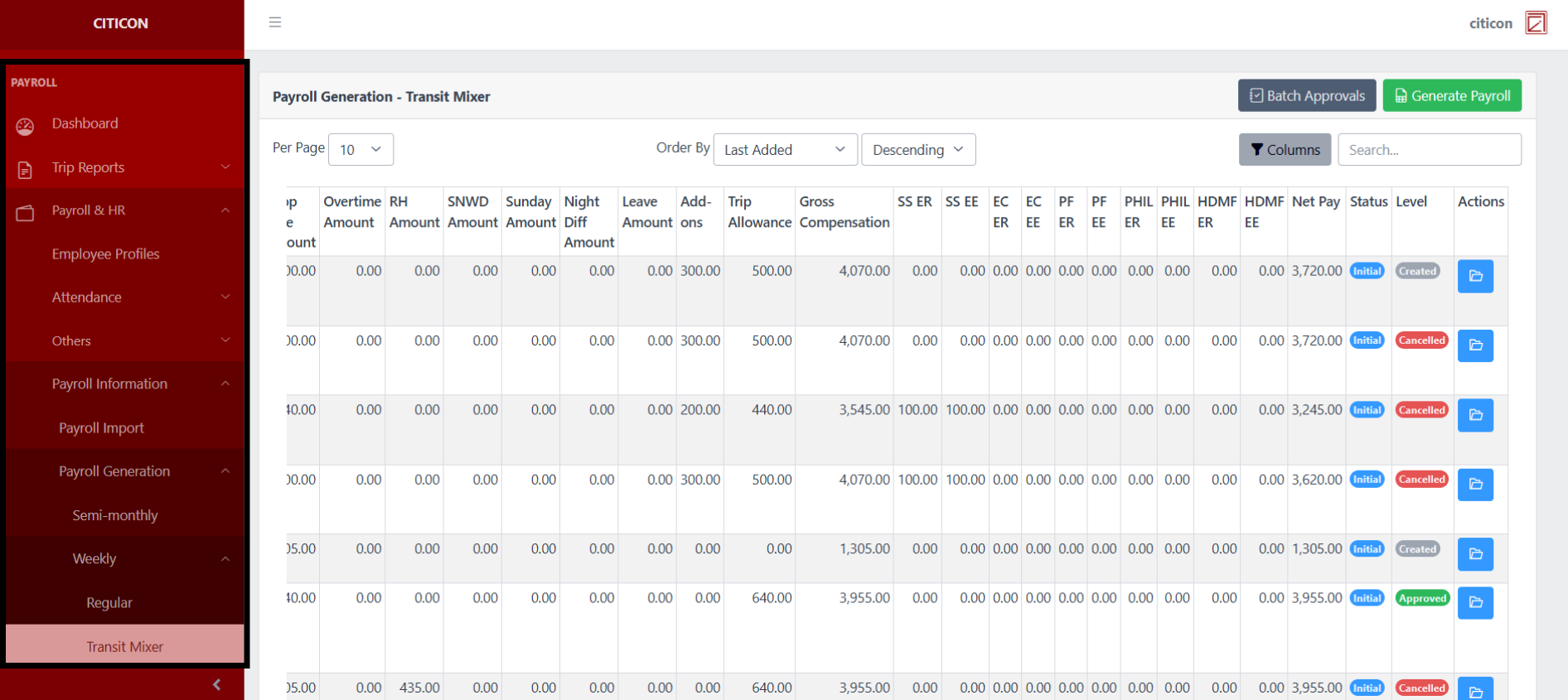
To access the Payroll Generation - Weekly (Transit Mixer). Go to Payroll, select Payroll & HR, select Payroll Information, select Payroll Generation, select Weekly, then select Transit Mixer.
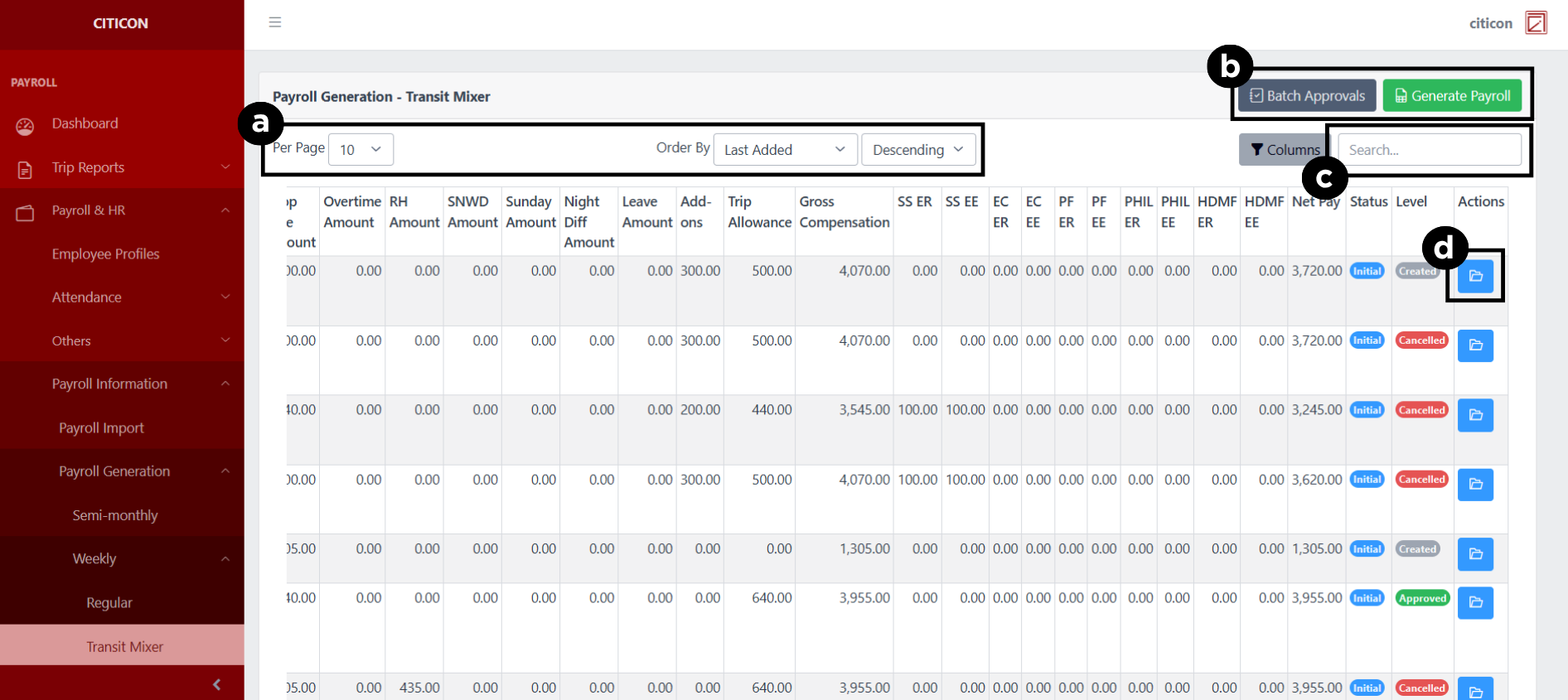
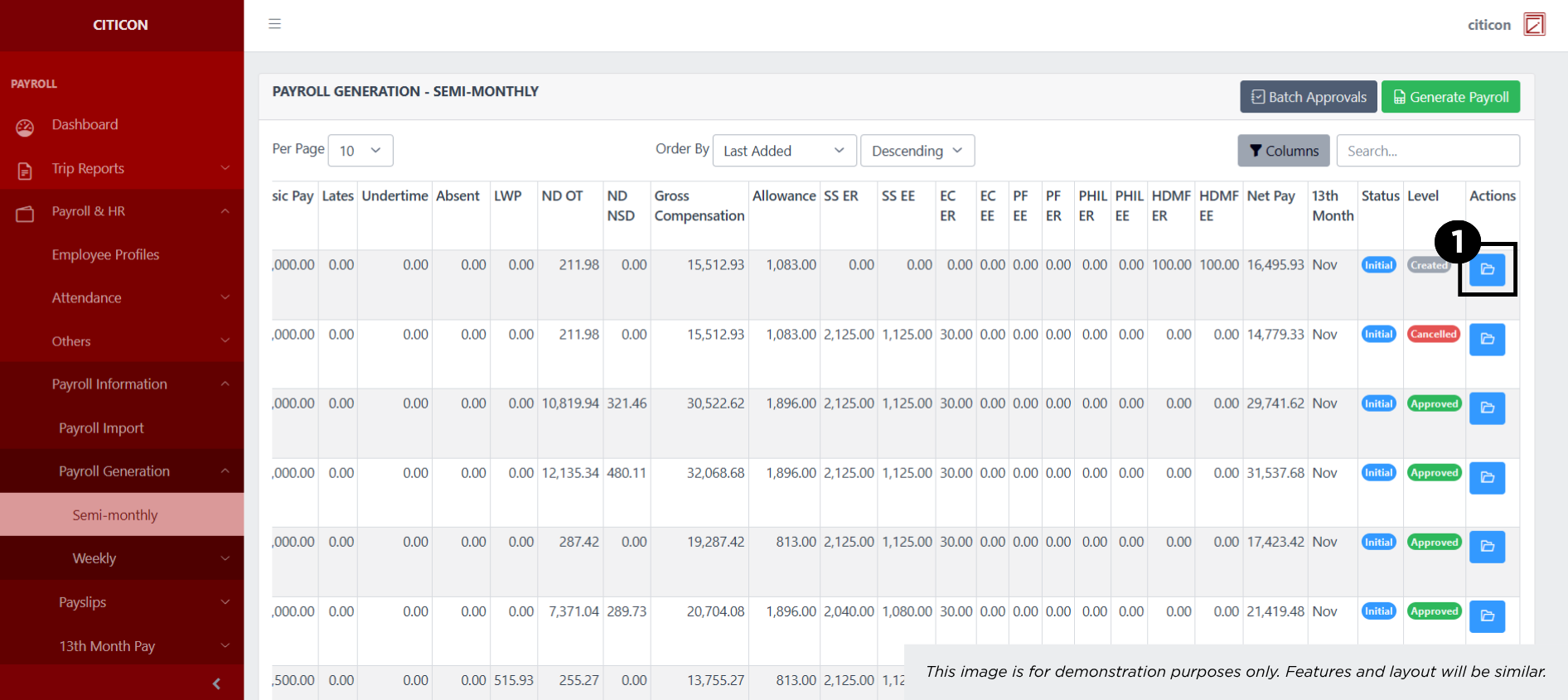
a. Adjust the paging, ordering, and sorting of the Payroll Generation - Weekly (Transit Mixer) Page here.
b. Select the respective button to Generate Payroll entries, or process entries for Approval.
c. Search for specific entry details using the search bar.
d. View or Cancel an entry by selecting the folder button.
Generate Payroll
- Select the Generate Payroll Import button.
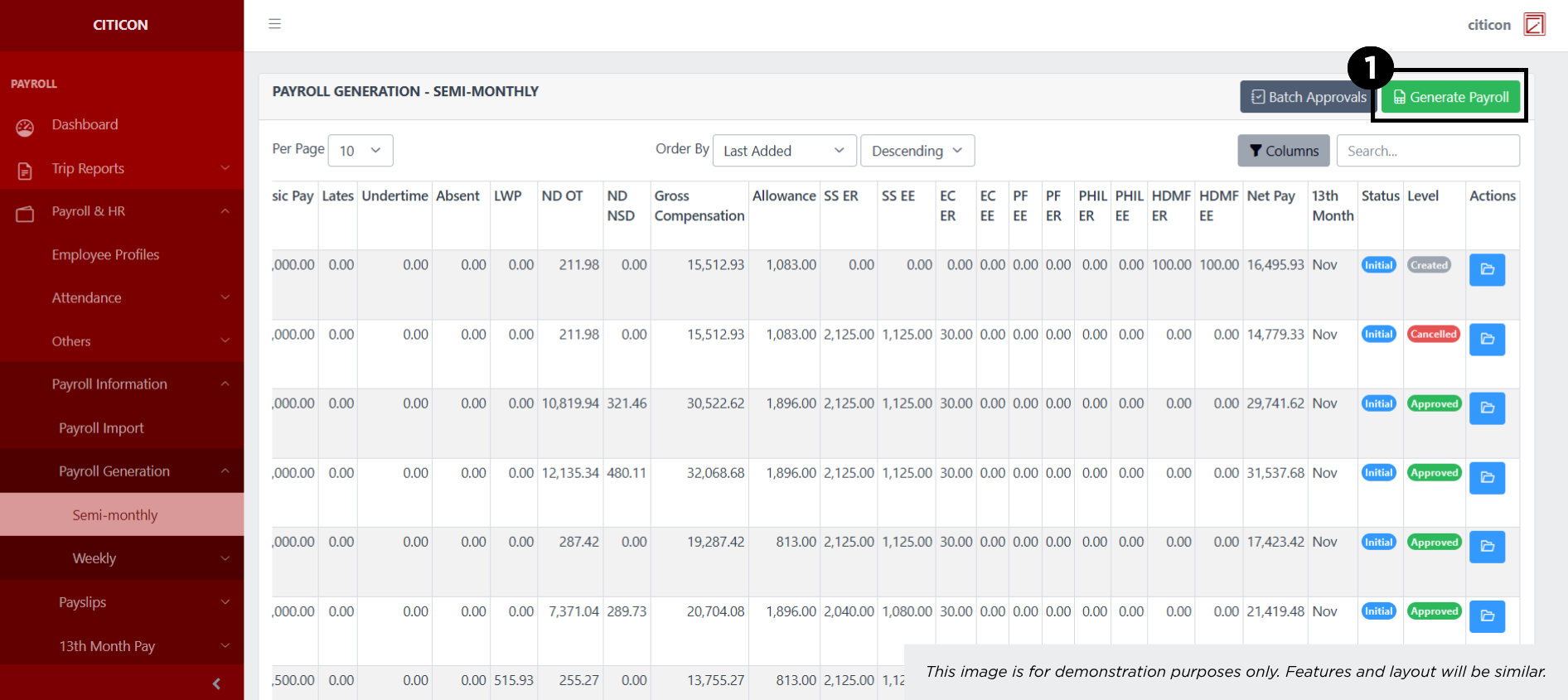
- Input the necessary details regarding the payroll entries you would like to generate.
All fields that has an asterisk (*) are required to have an input.
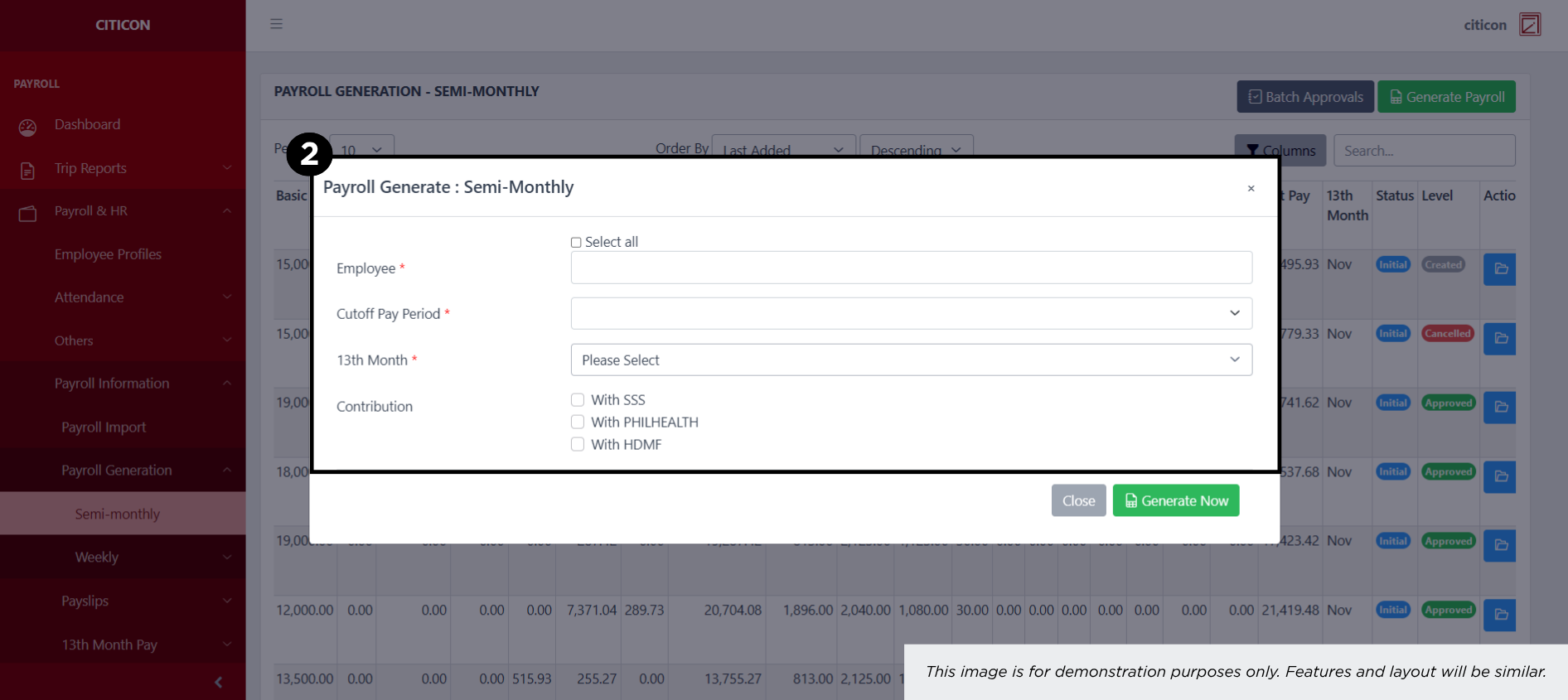
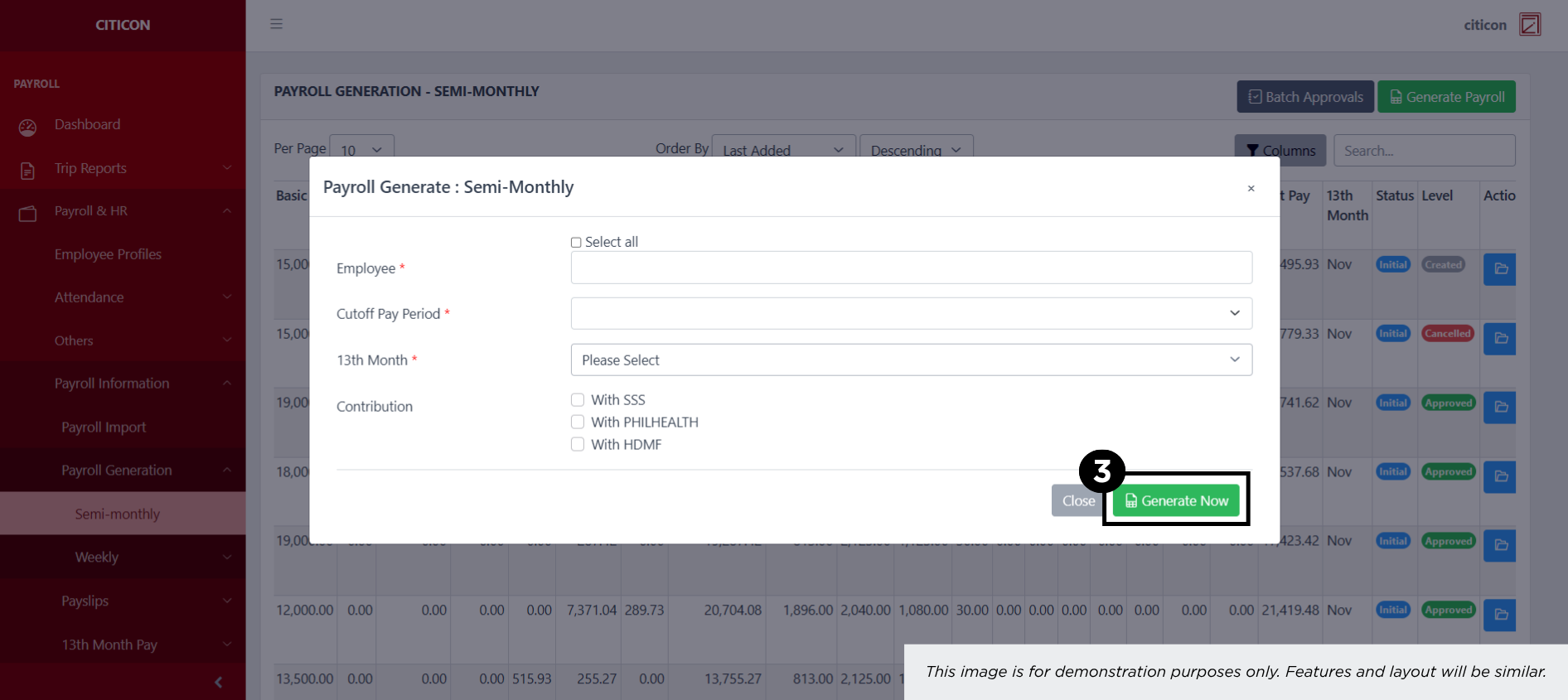
- Select the Generate button.
Show Entry
- Select the folder button to view an entry.
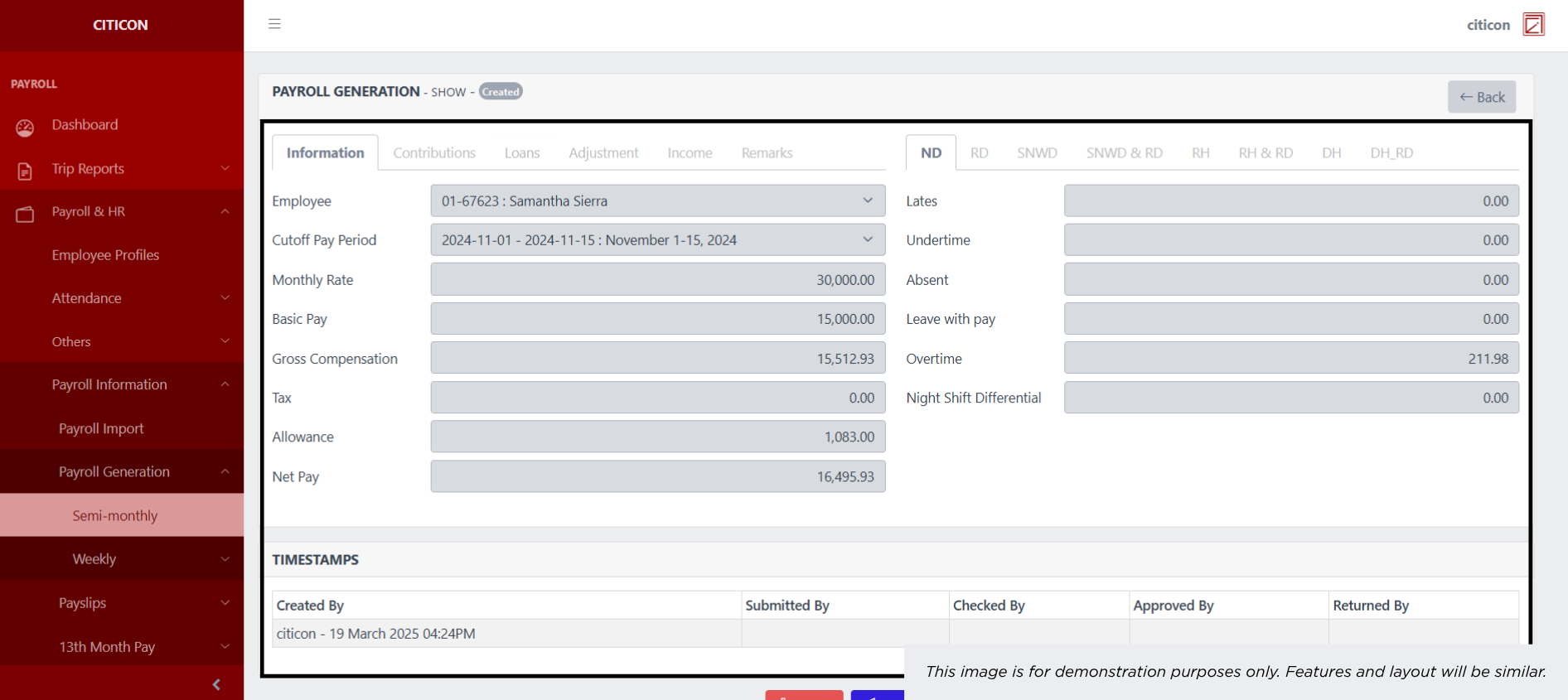
 Here you can view more specific details on the entry that you selected.
Submit Entry
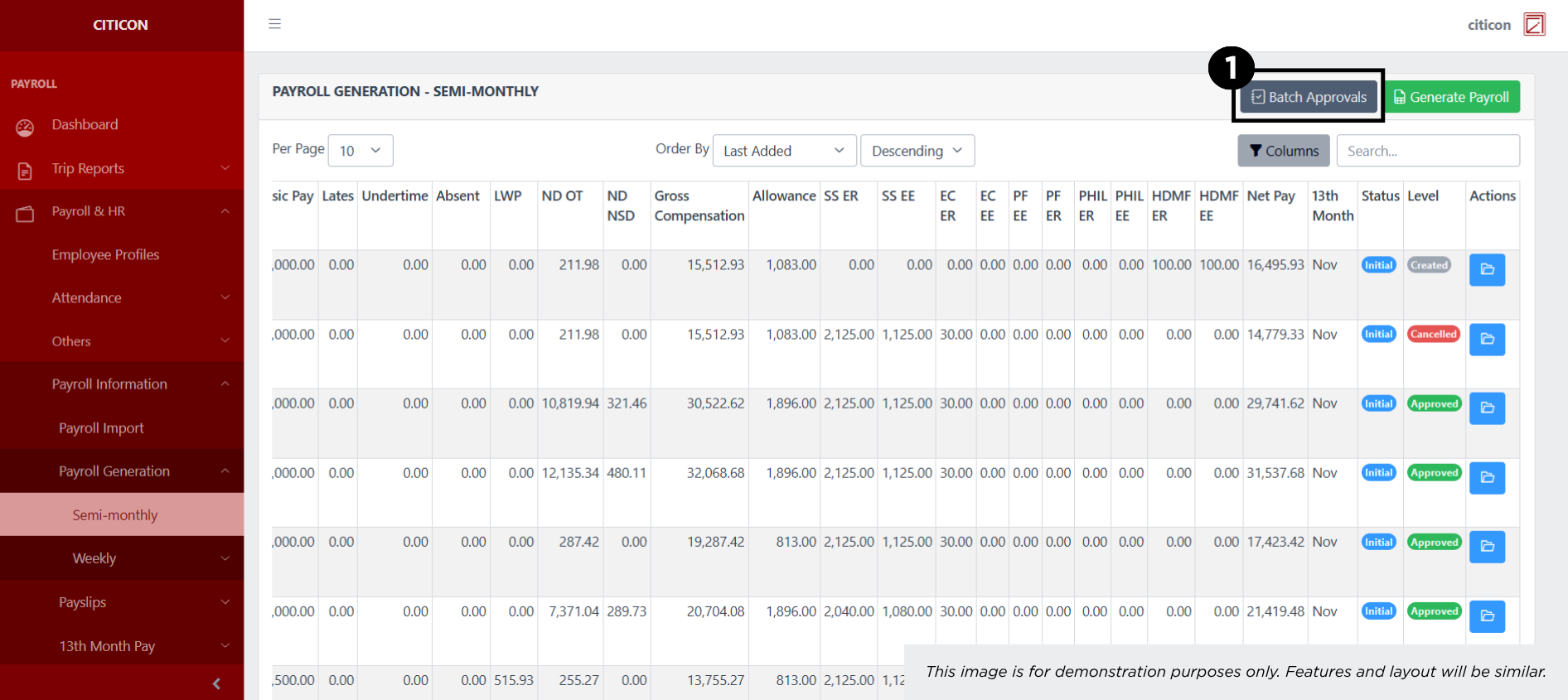
- Select the Batch Approvals button to submit an entry.
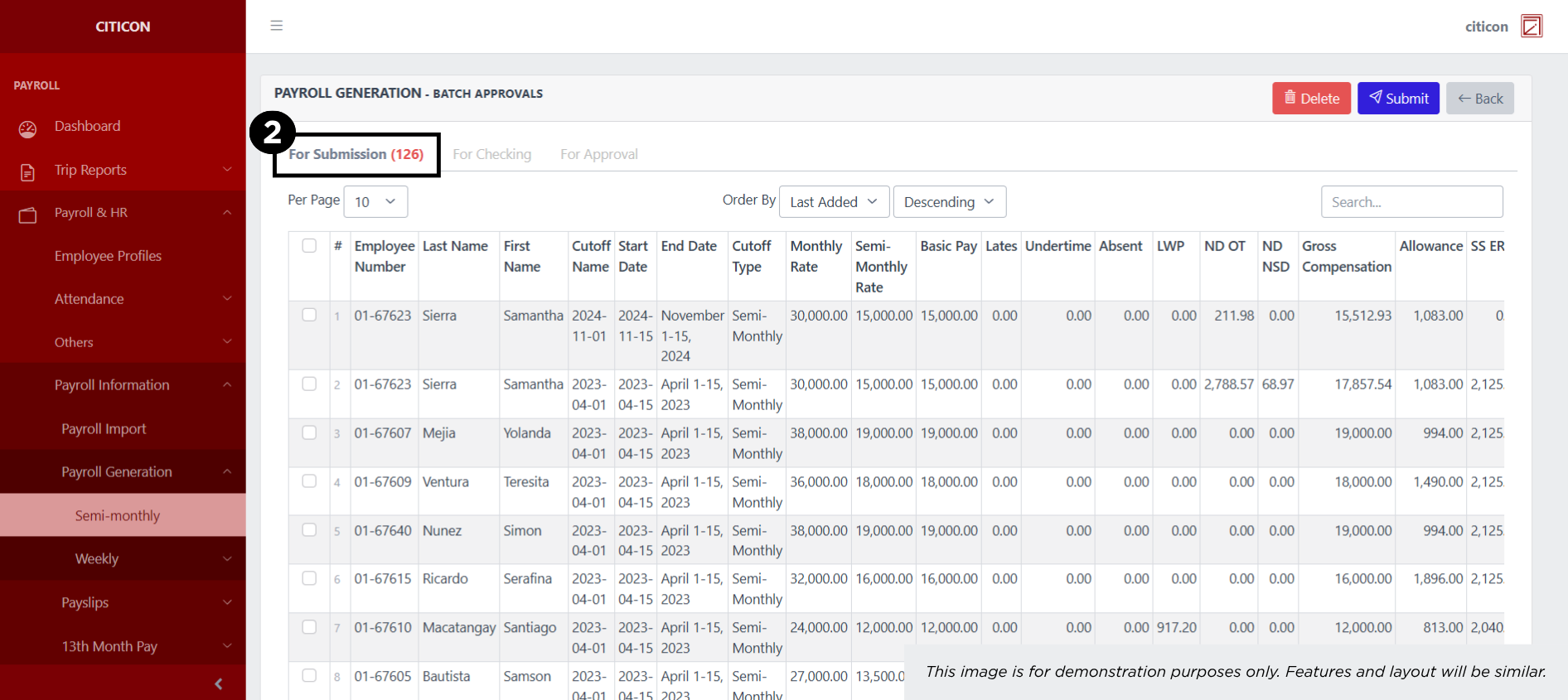
- Select the For Submission tab.
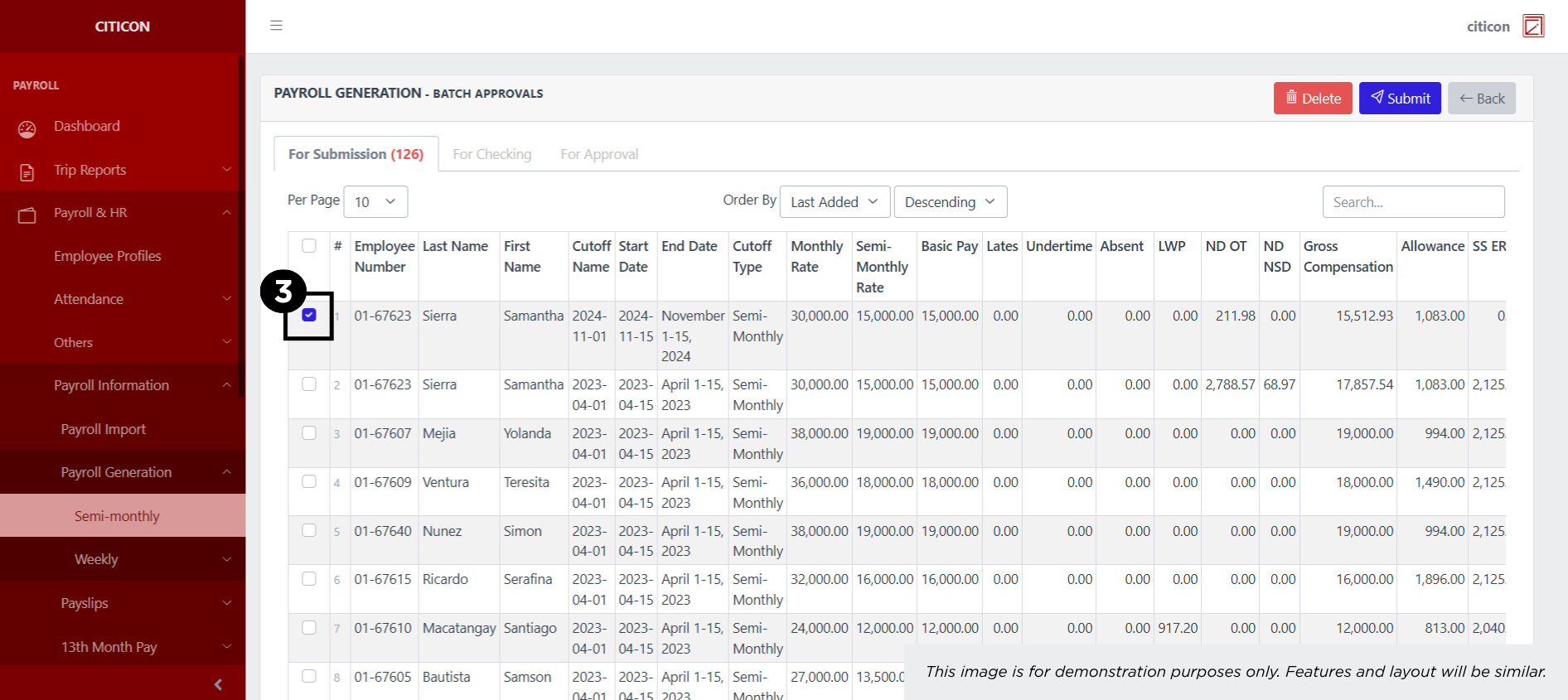
- Select the entry that you want to submit.
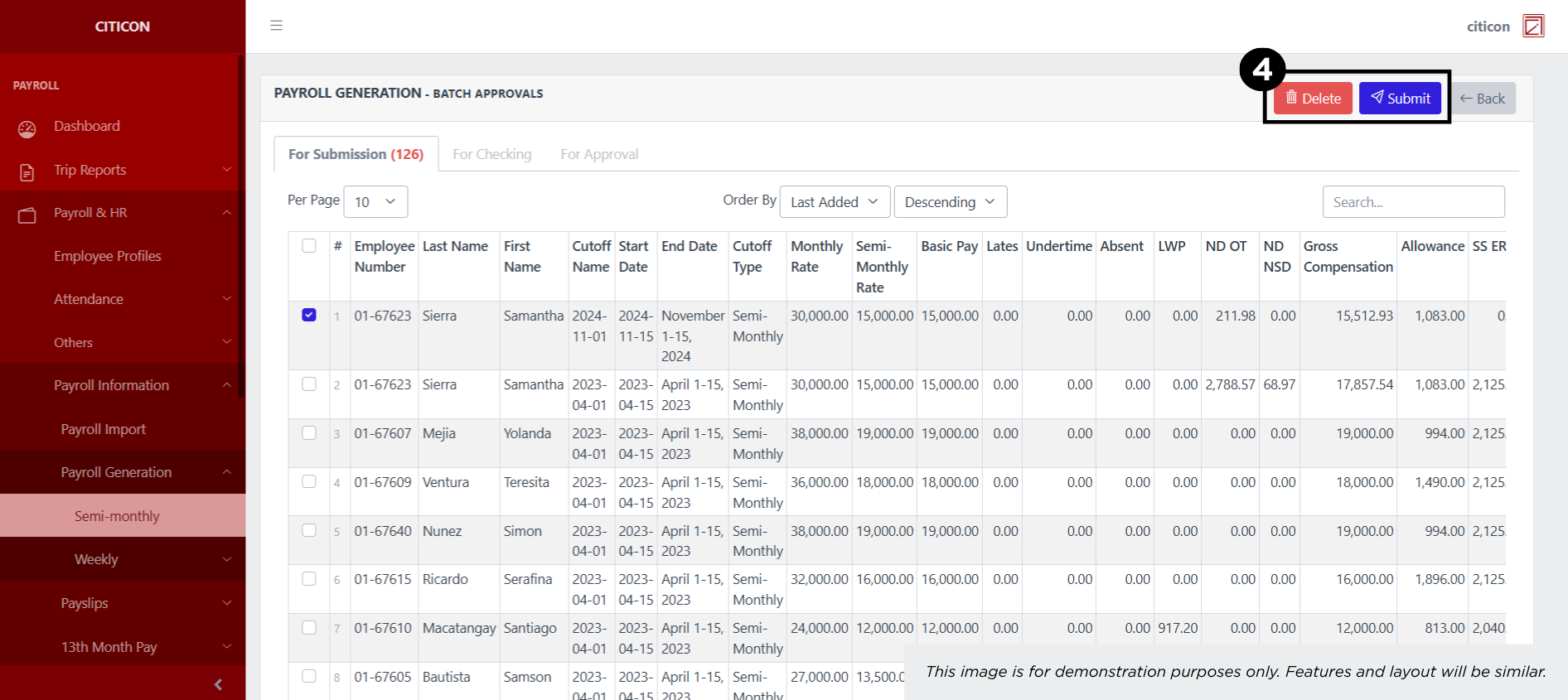
- Select the Submit button to submit the entry. In cases where you want to delete a entry, select the entry you want to delete, then select the Delete button.
Check Entry
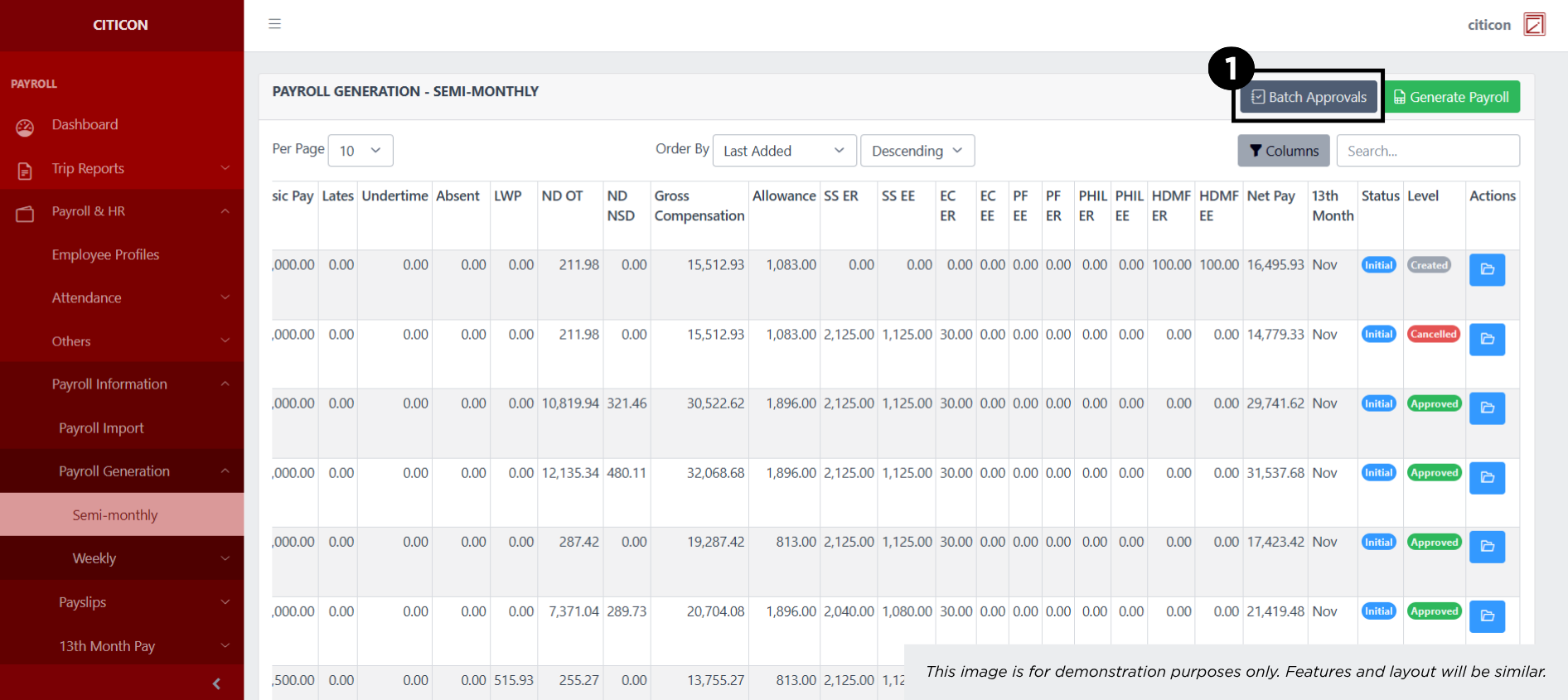
- Select the Batch Approvals button to check an entry.
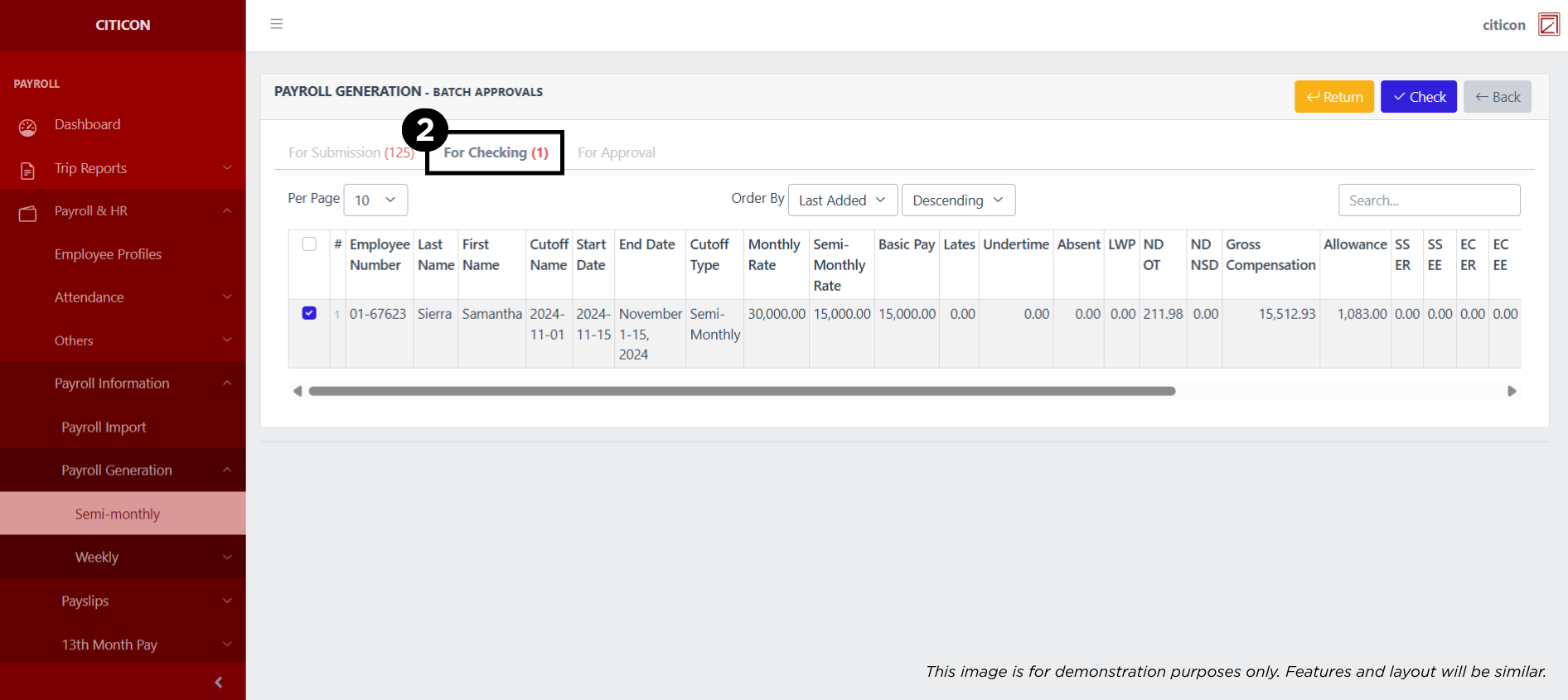
- Select the For Checking tab.
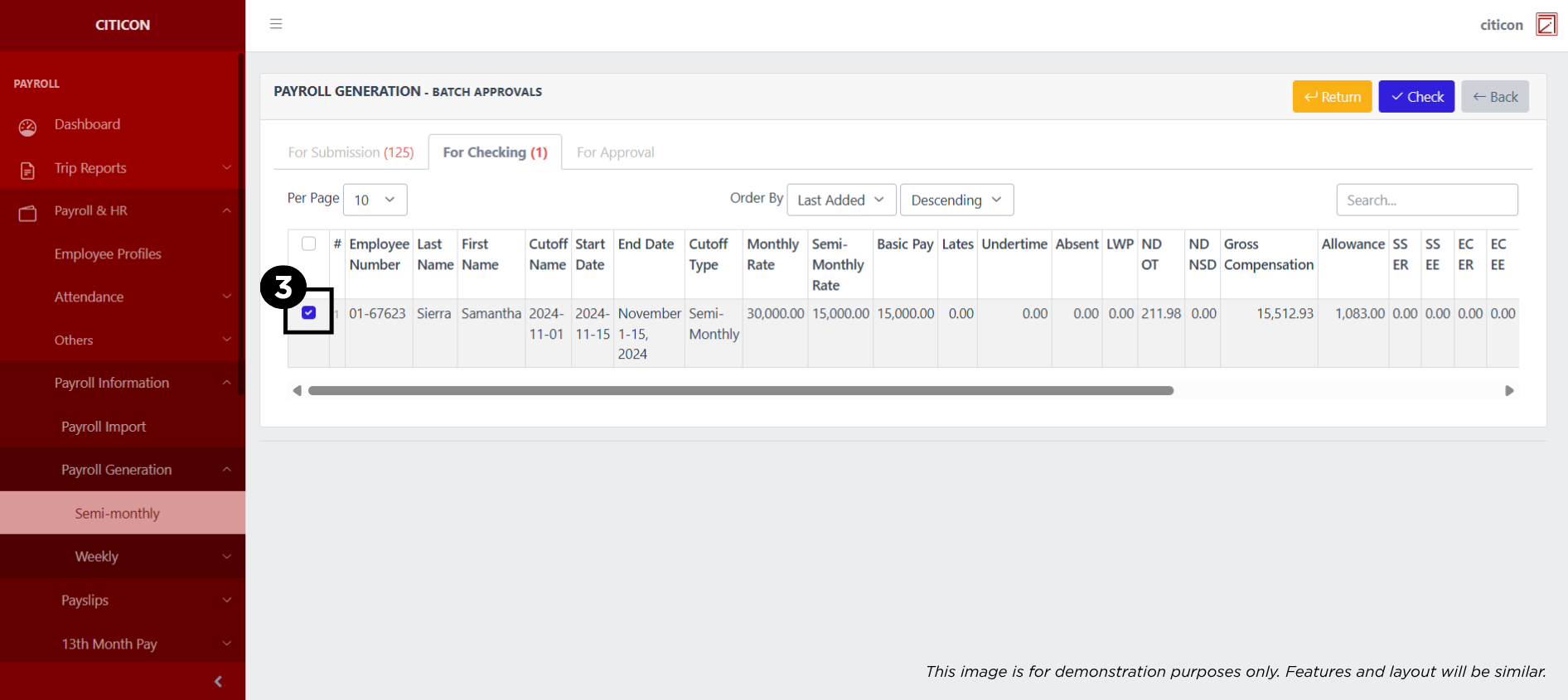
- Select the entry that you want to be checked.
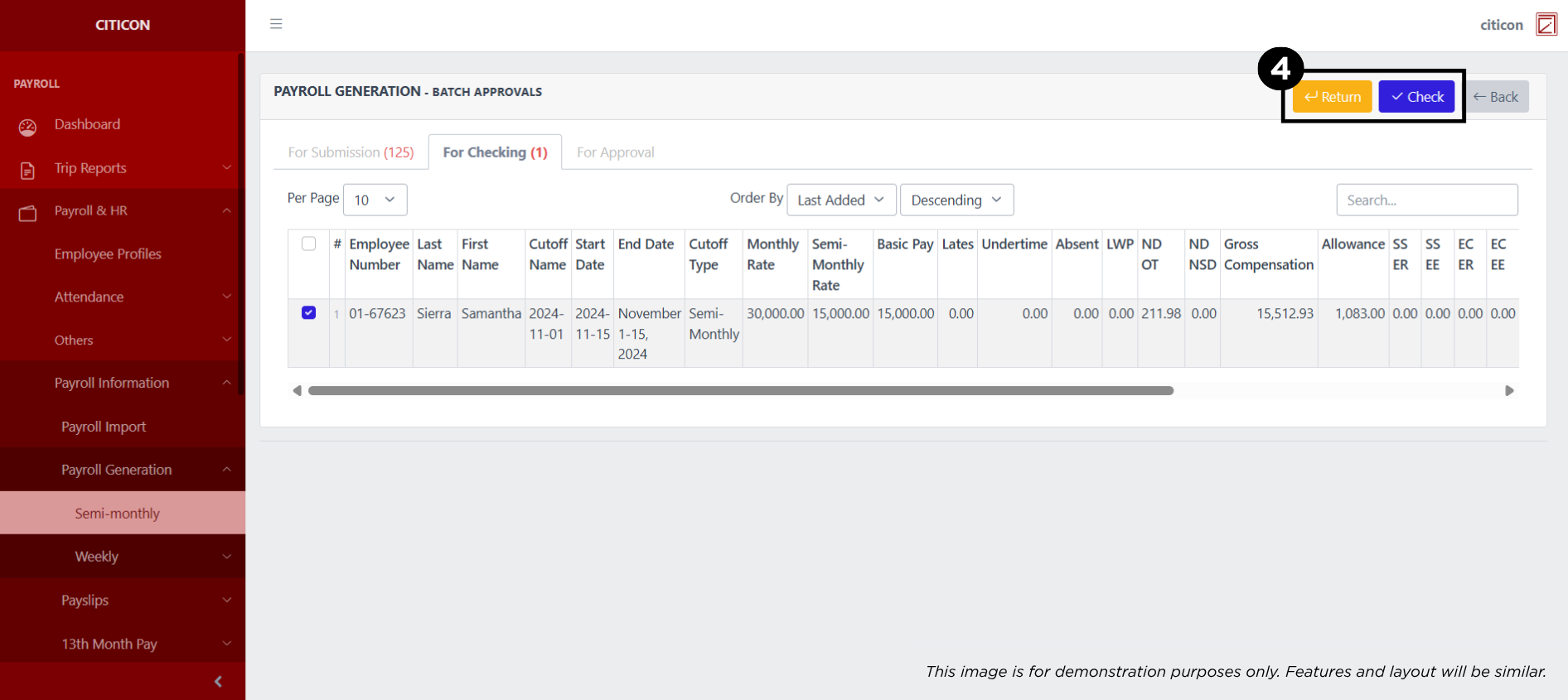
- Select the Check button to check the entry. In cases where you want to return a entry, select the entry you want to return, then select the Return button.
Approve Entry
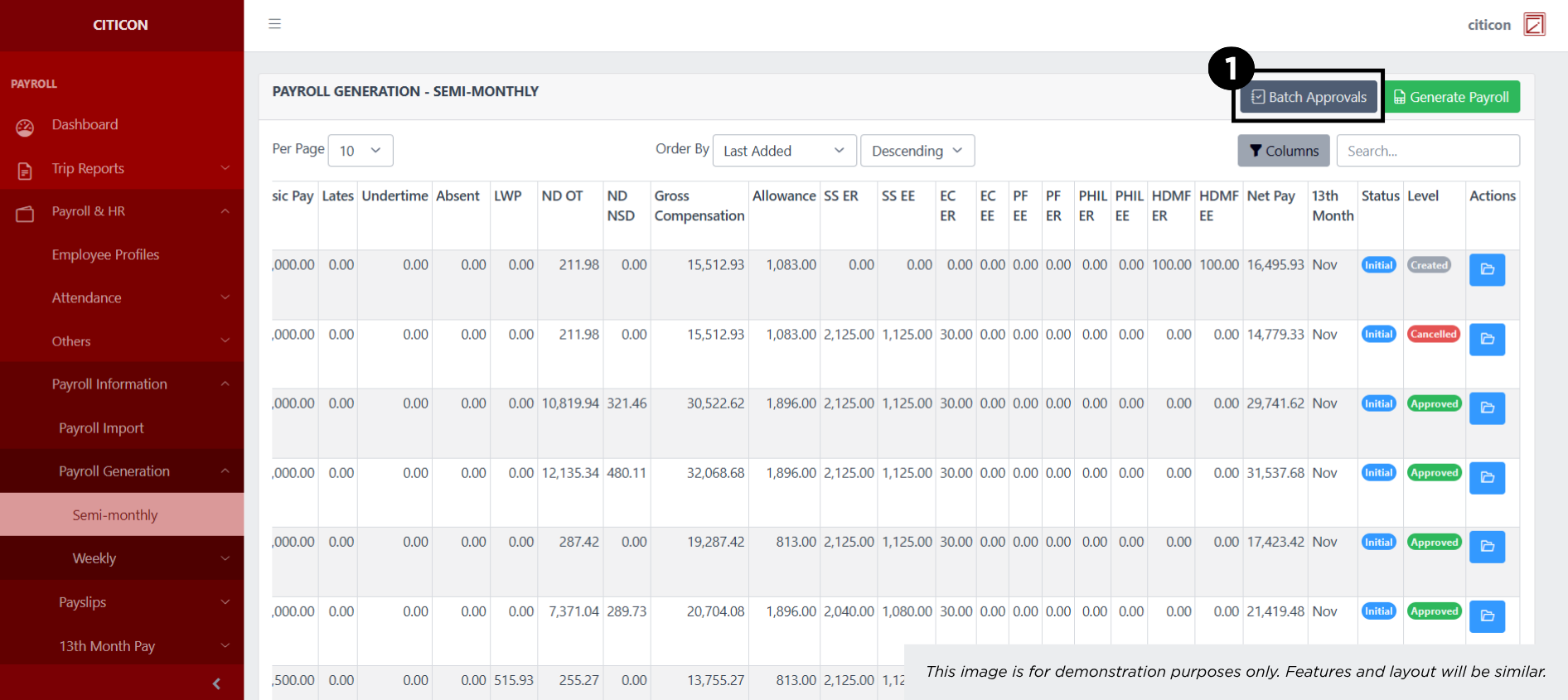
- Select the Batch Approvals button to approve a entry.
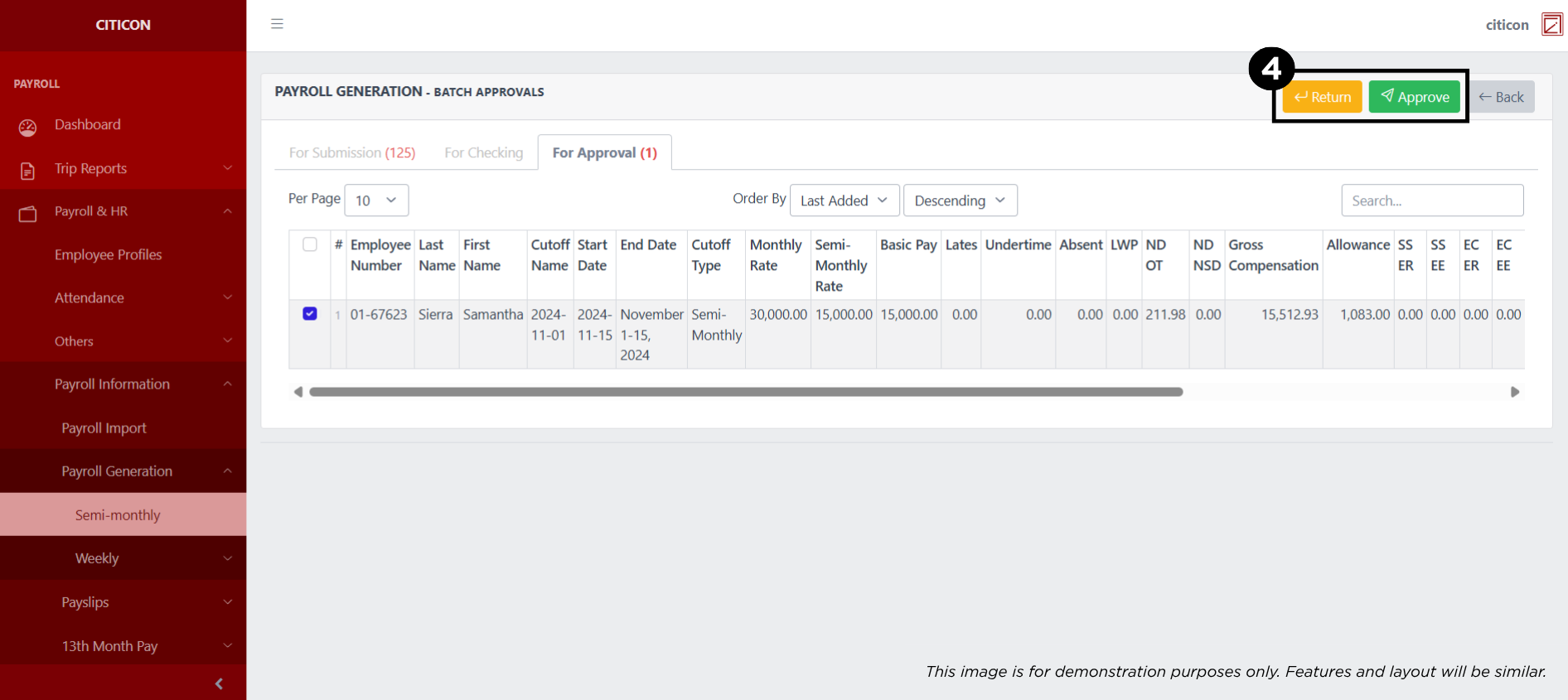
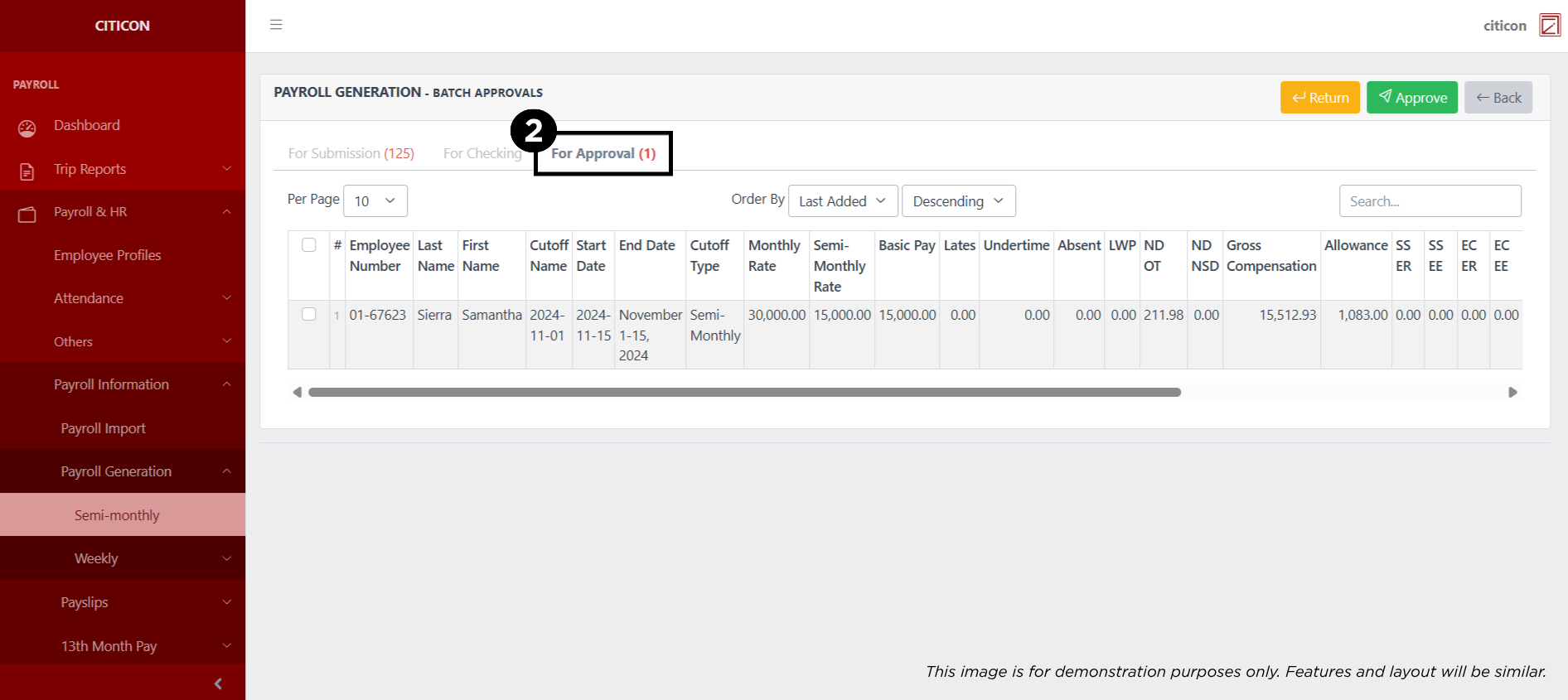
- Select the For Approval tab.
- Select the entry that you want to approve.
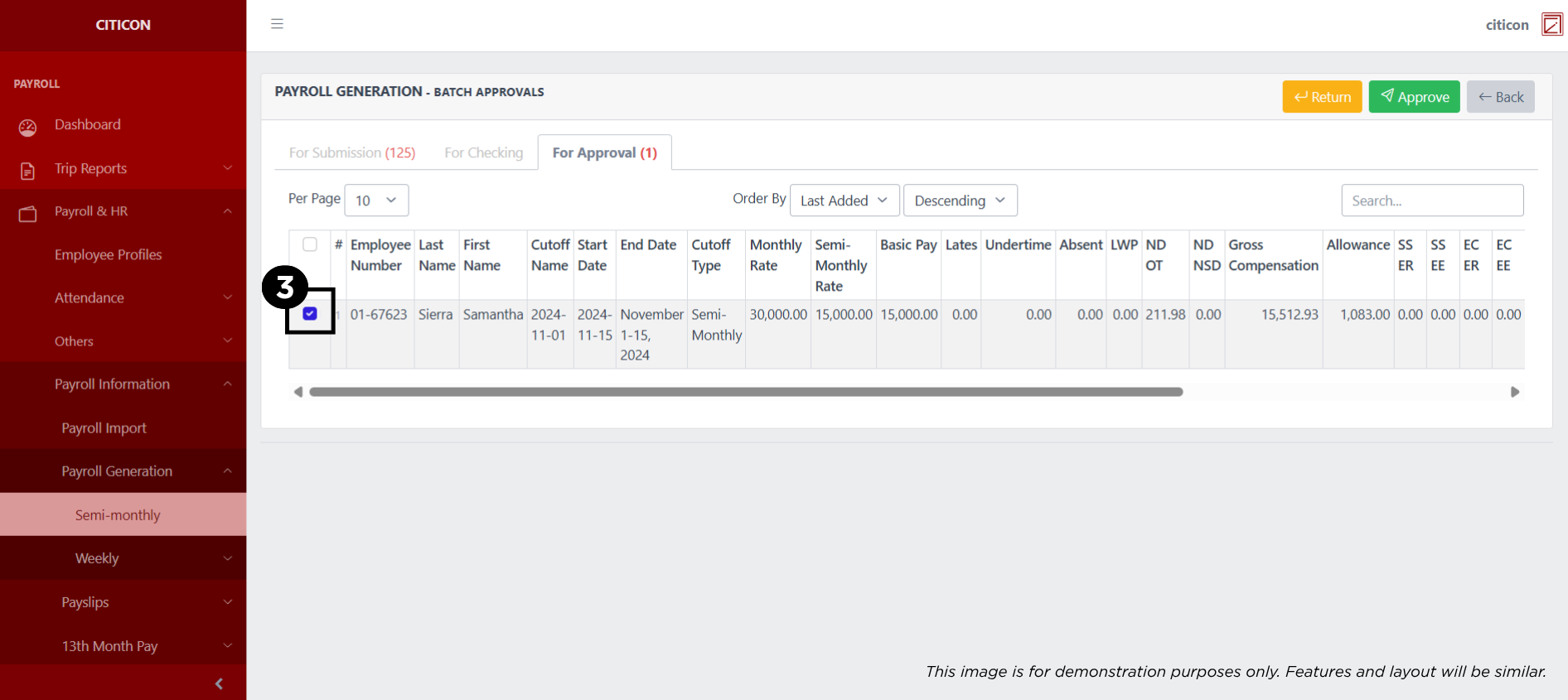
- Select the Approve button to approve the entry. In cases where you want to return a entry to submission section, select the entry you want to return, then select the Return button.