13th Month Pay - Pumpcrete (Weekly)
Welcome to the 13th Month Pay – Weekly – Pumpcrete section under the Payroll Information module in Payroll & HR. This feature streamlines weekly payroll processing for regular employees by managing employee details, generating payroll entries, and supporting payroll-related actions such as exporting, approving, or canceling entries. It ensures efficient, accurate, and compliant payroll generation for weekly operations.
Key Purposes
- Manage Transit Mixer Payroll Details: Records employee information including start date, end date, employee number, name, and assigned plant.
- Capture Trip-Based Earnings: Tracks total trips and corresponding trip incentives per week.
- Track Attendance-Linked Pay: Calculates payroll based on total number of presents and corresponding present amount.
- Compute Bonus Pay: Integrates total bonus pay into weekly payroll computation.
- Monitor Payroll Status: Displays the status of payroll entries such as pending, approved, or canceled.
- Enable Batch Operations: Supports bulk payroll generation, batch approvals, and entry cancellations.
- Export Payroll Entries: Allows both bulk export and individual PDF export for compliance, reporting, or distribution.
13th Month Pay - Weekly (Pumpcrete) Module User-Manual
This section provides details, and set-by-step instructions to access, view, and update the 13th Month Pay - Weekly (Pumpcrete) entries stored in the system.
Index Page
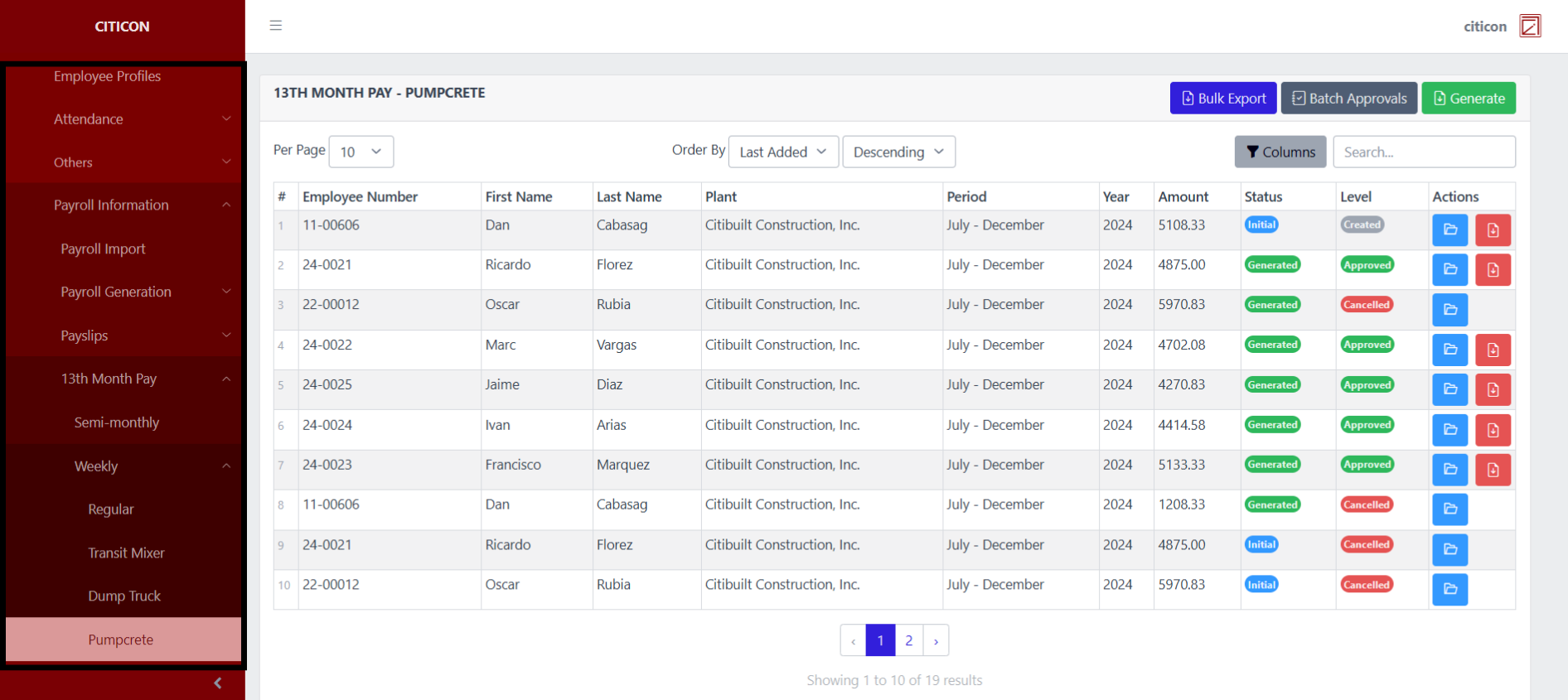
To access the 13th Month Pay - Weekly (Pumpcrete). Go to Payroll, select Payroll & HR, select Payroll Information, select 13th Month Pay, select Weekly, then select Pumpcrete.
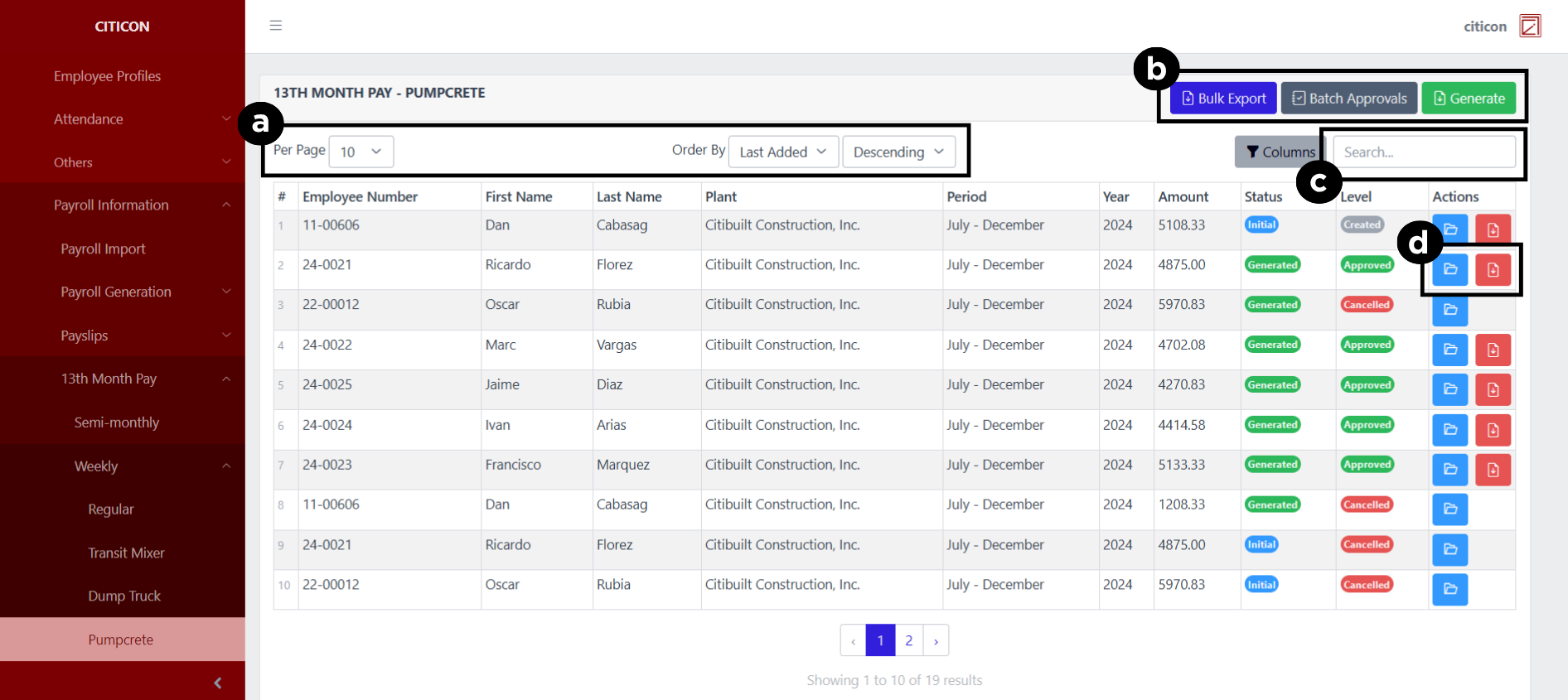
a. Adjust the paging, ordering, and sorting of the 13th Month Pay - Weekly (Pumpcrete) Page here.
b. Select the respective button to Export entries, Generate entreies, or process entries for Approval.
c. Search for specific entry details using the search bar.
d. Select the respective button to either View or Export an entry.
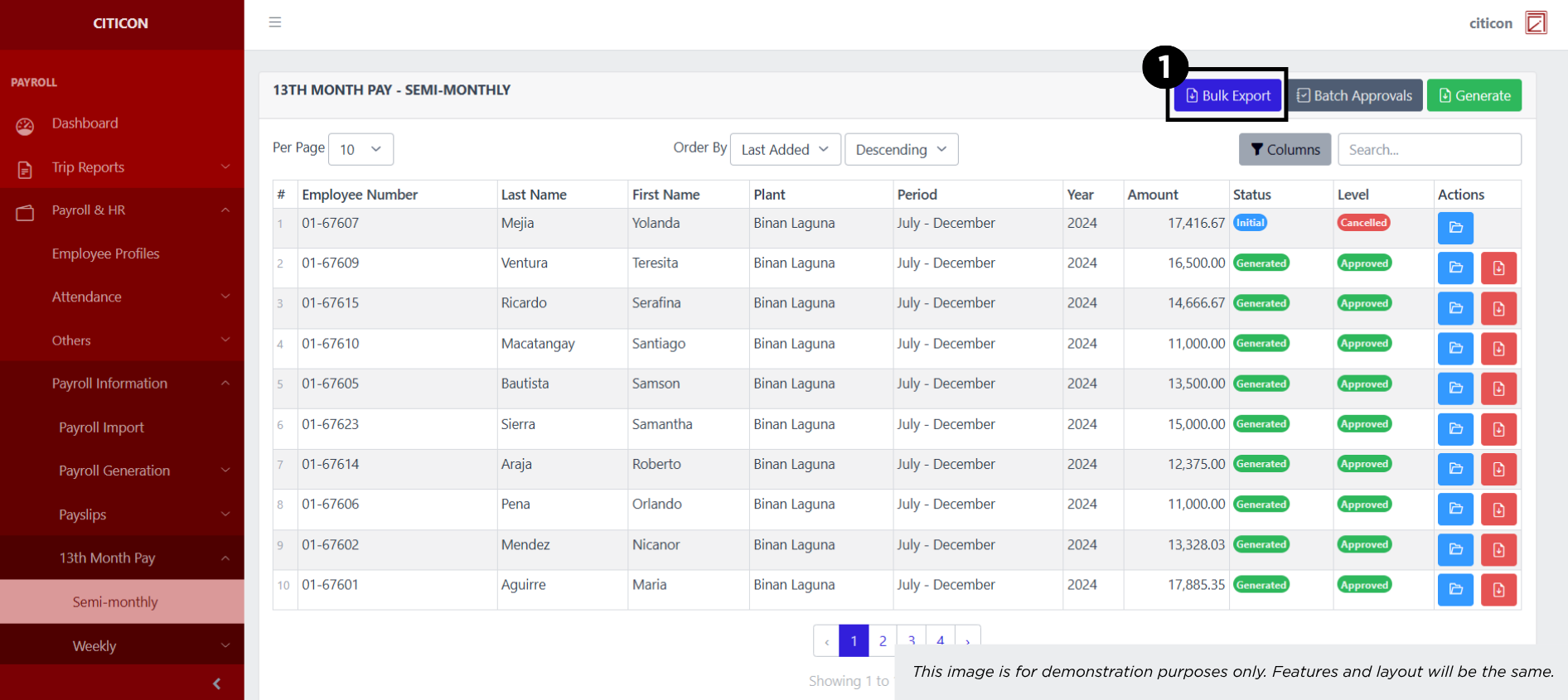
Export Entries
- Select the Export button.
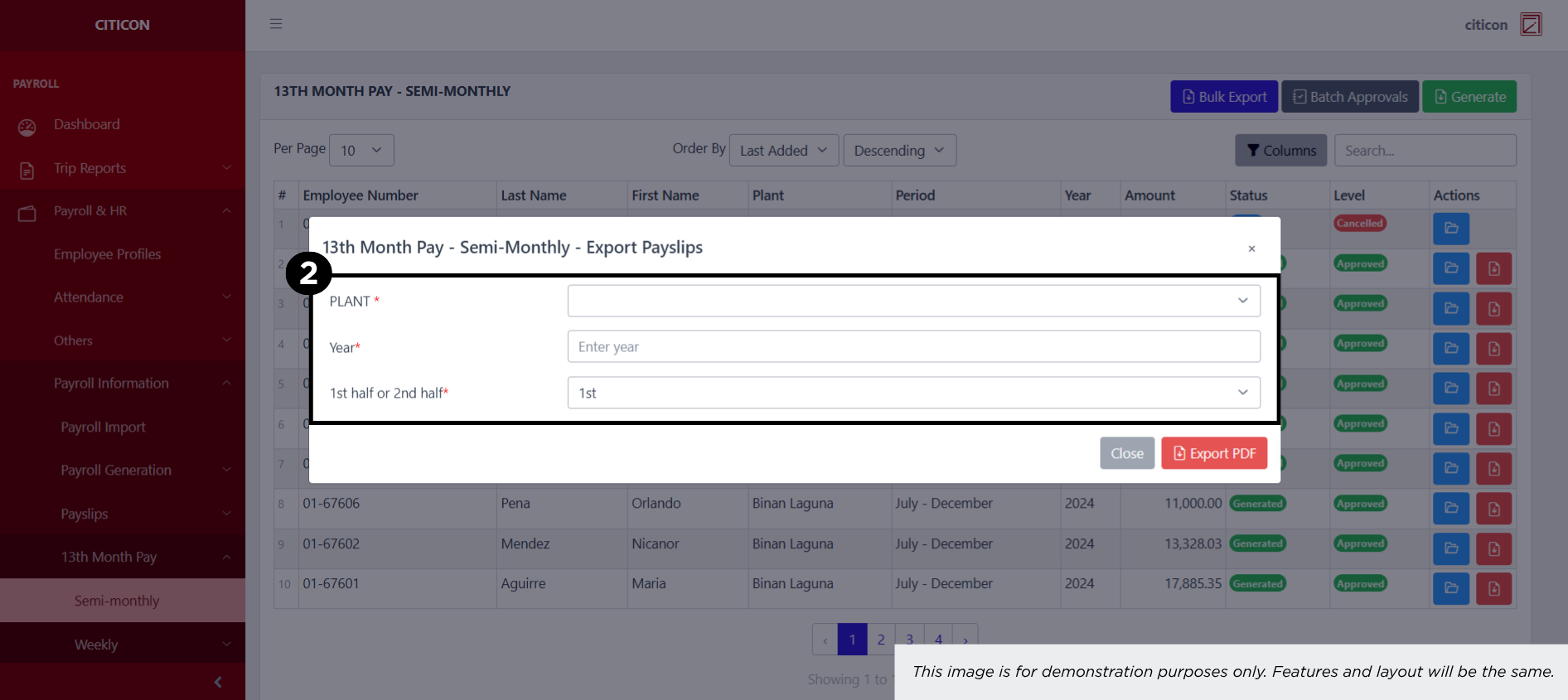
- Input the necessary details regarding the entries you would like to export (type, group, duration, etc.)
All fields that has an asterisk (*) are required to have an input.
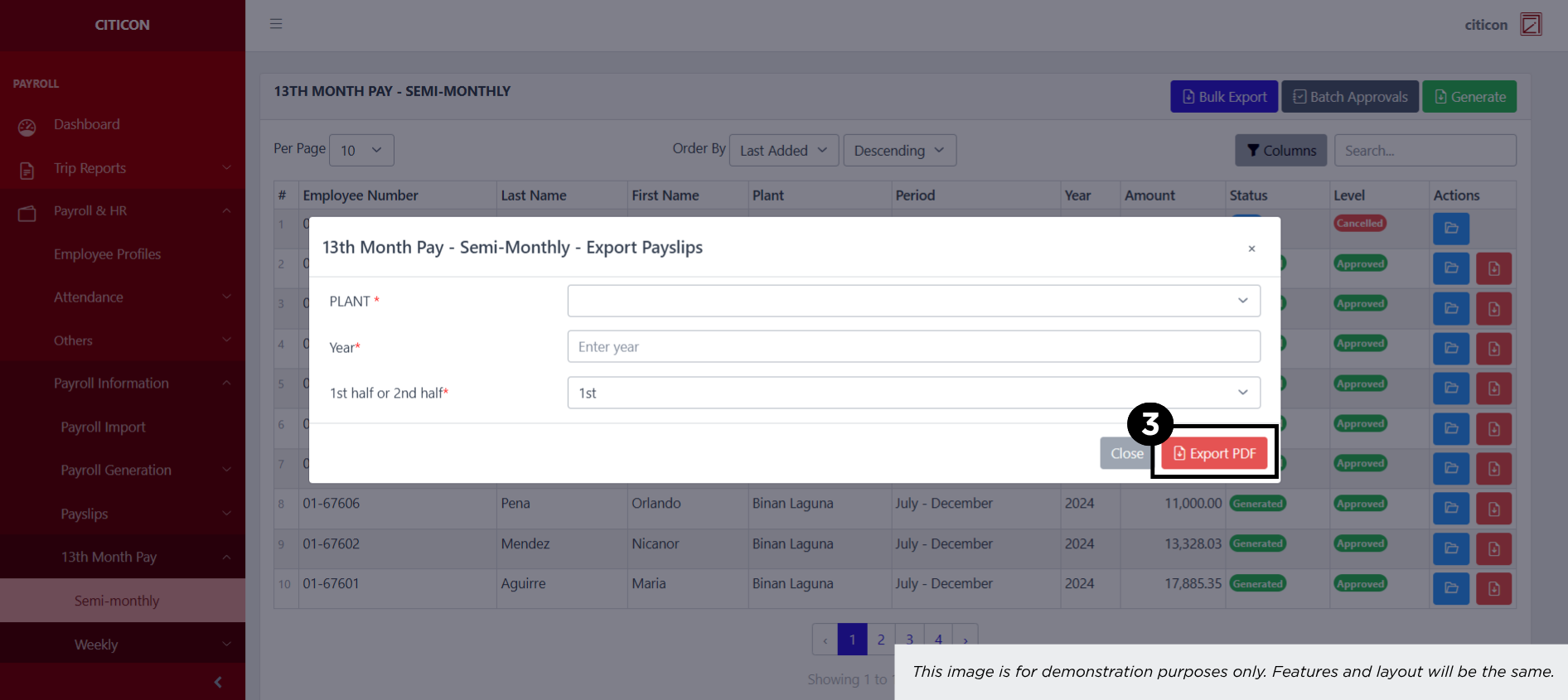
- Select the Export PDF button.
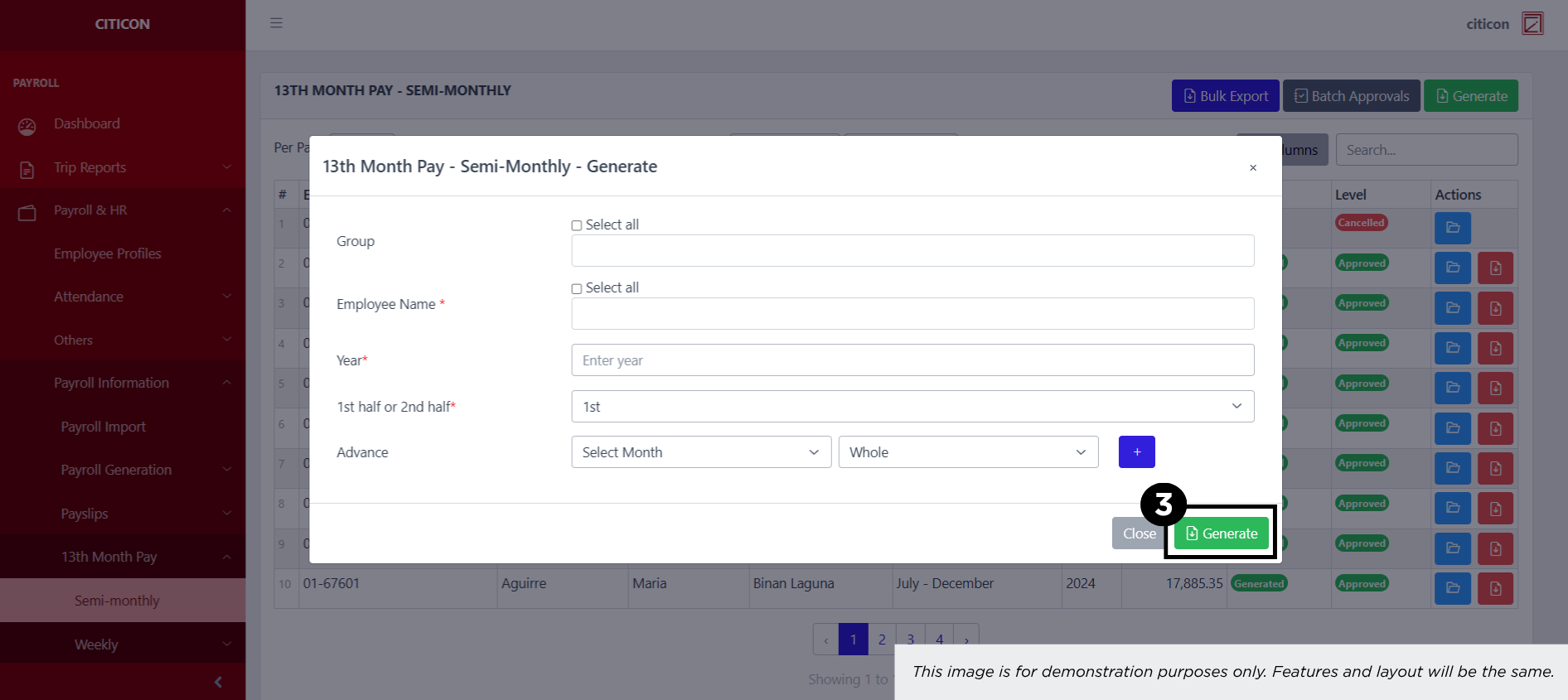
Generate Payroll
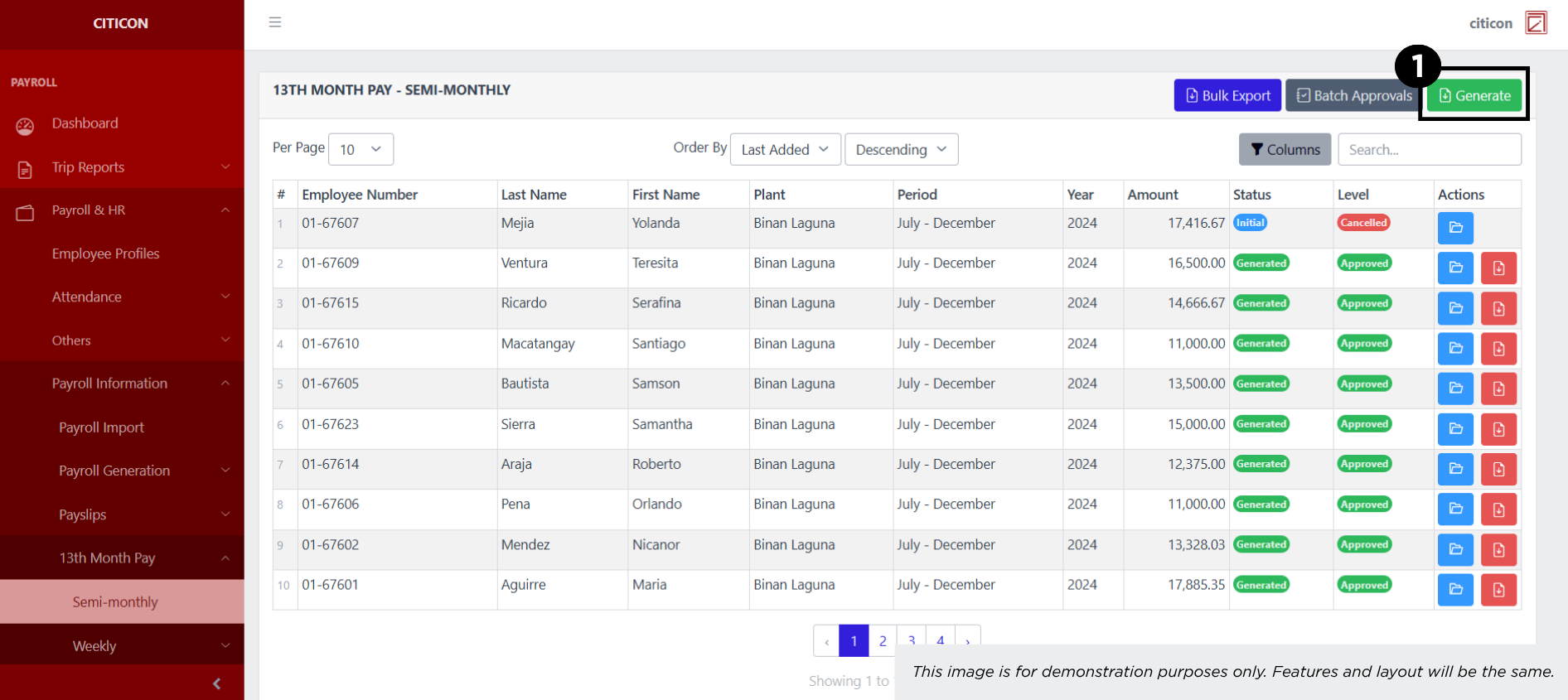
- Select the Generate Payroll Import button.
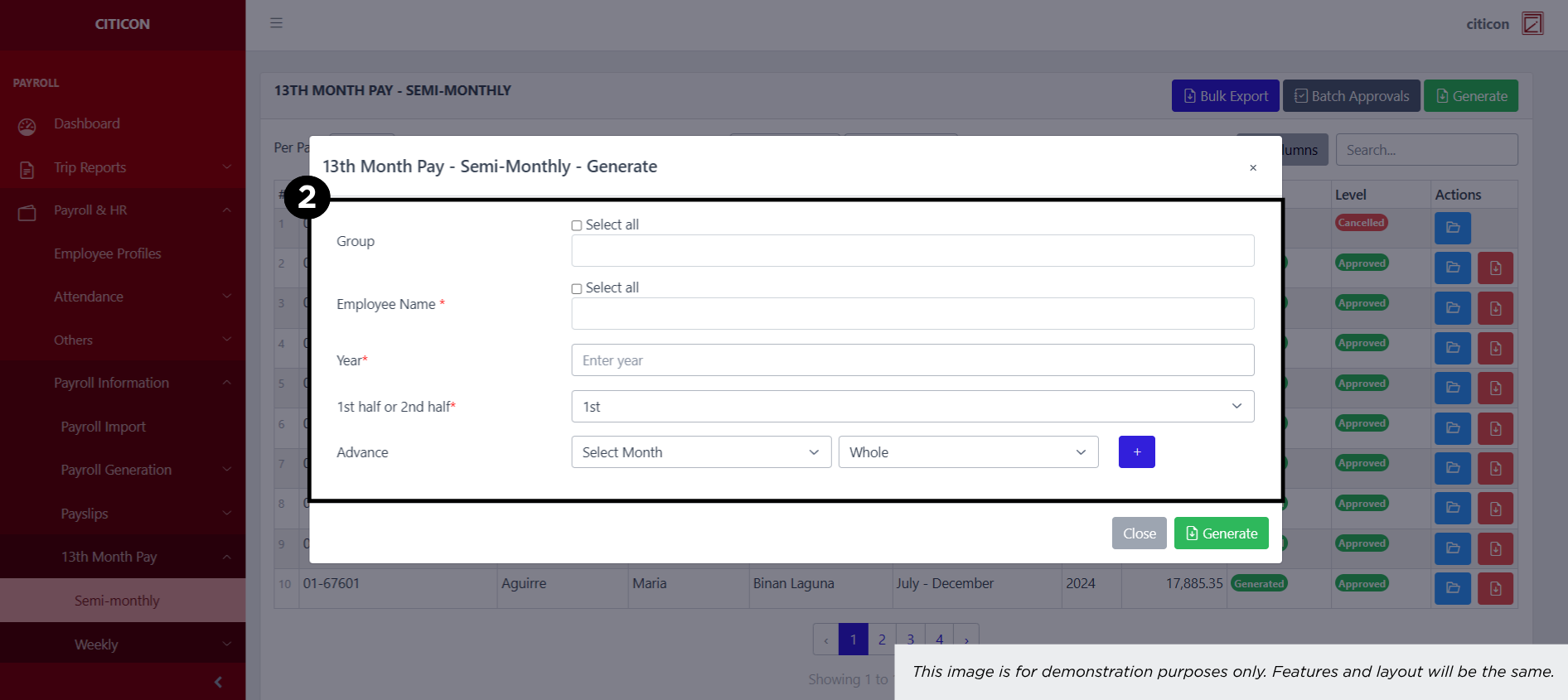
- Input the necessary details regarding the payroll entries you would like to generate.
All fields that has an asterisk (*) are required to have an input.
- Select the Generate button.
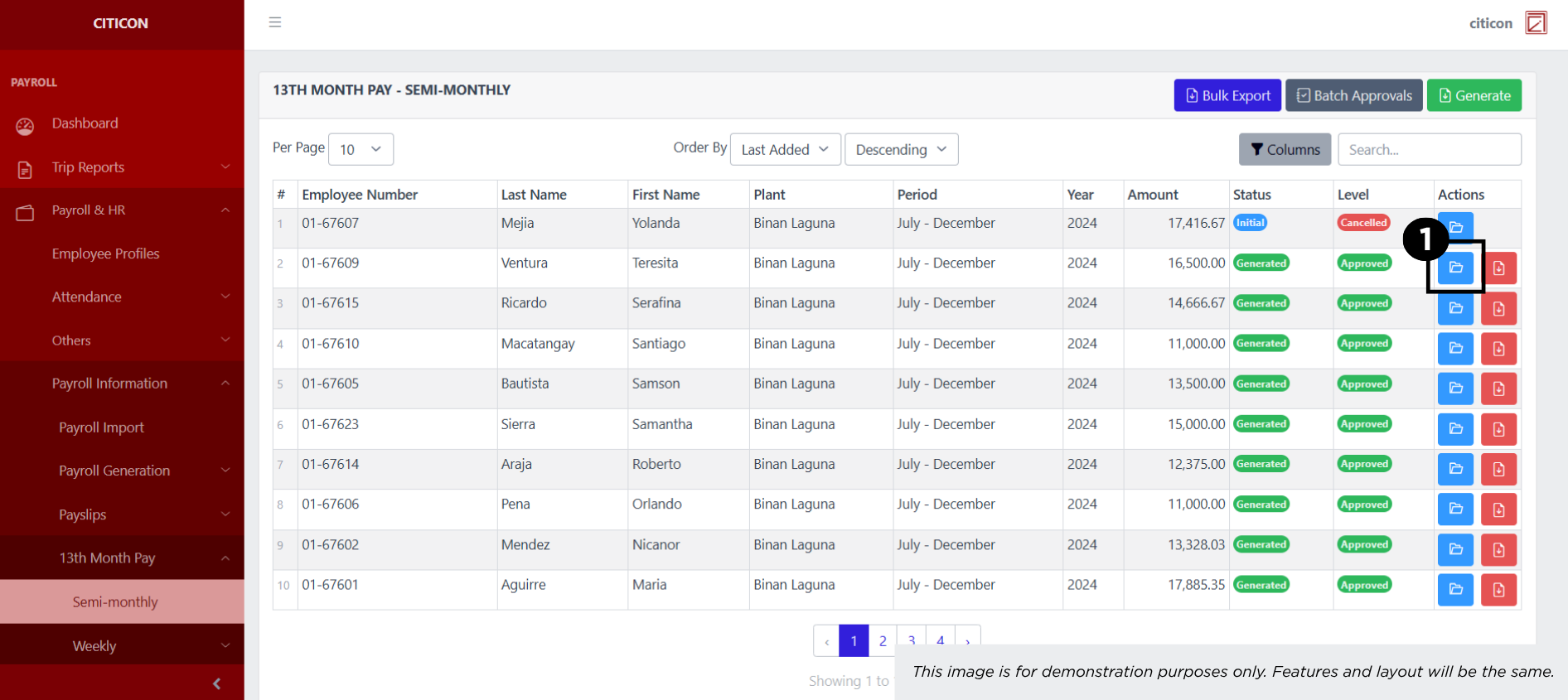
Show Entry
- Select the folder button to view an entry.
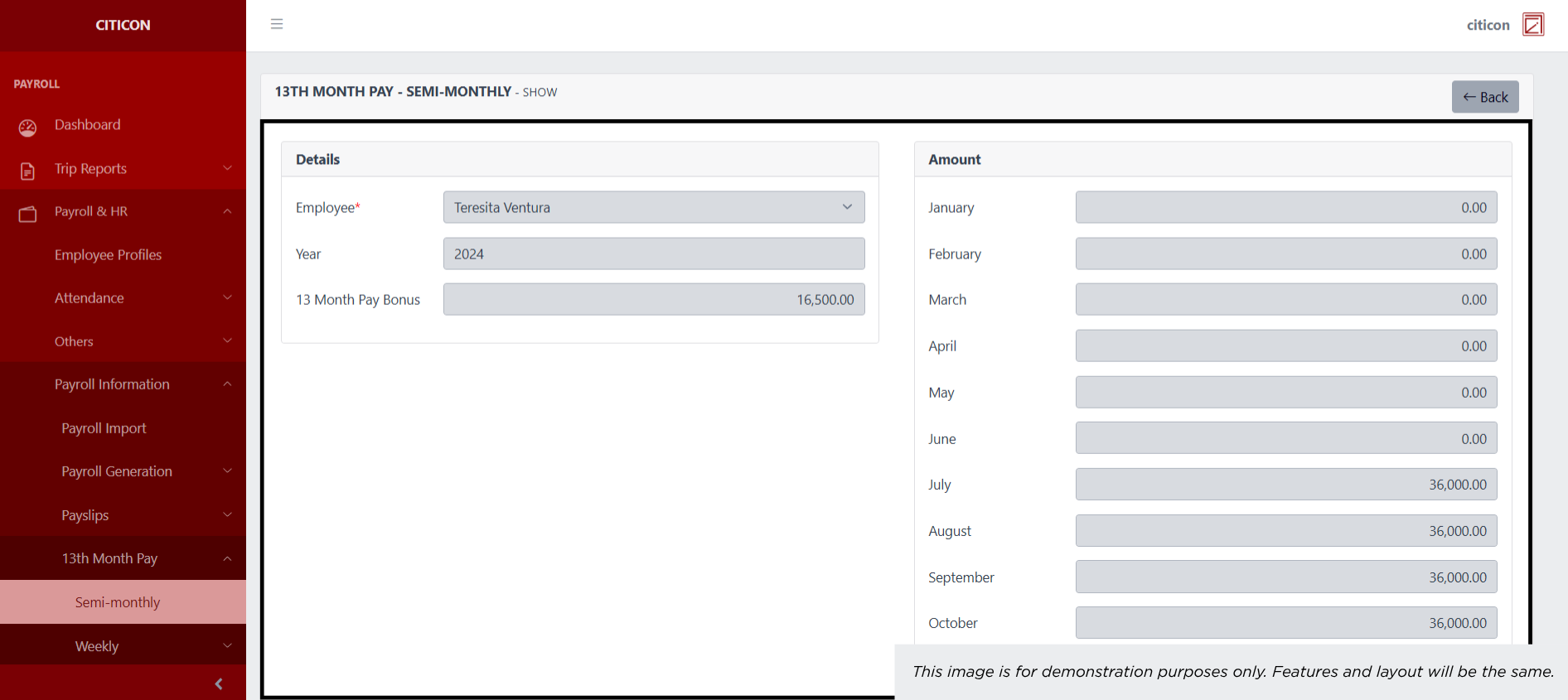
 Here you can view more specific details on the entry that you selected.
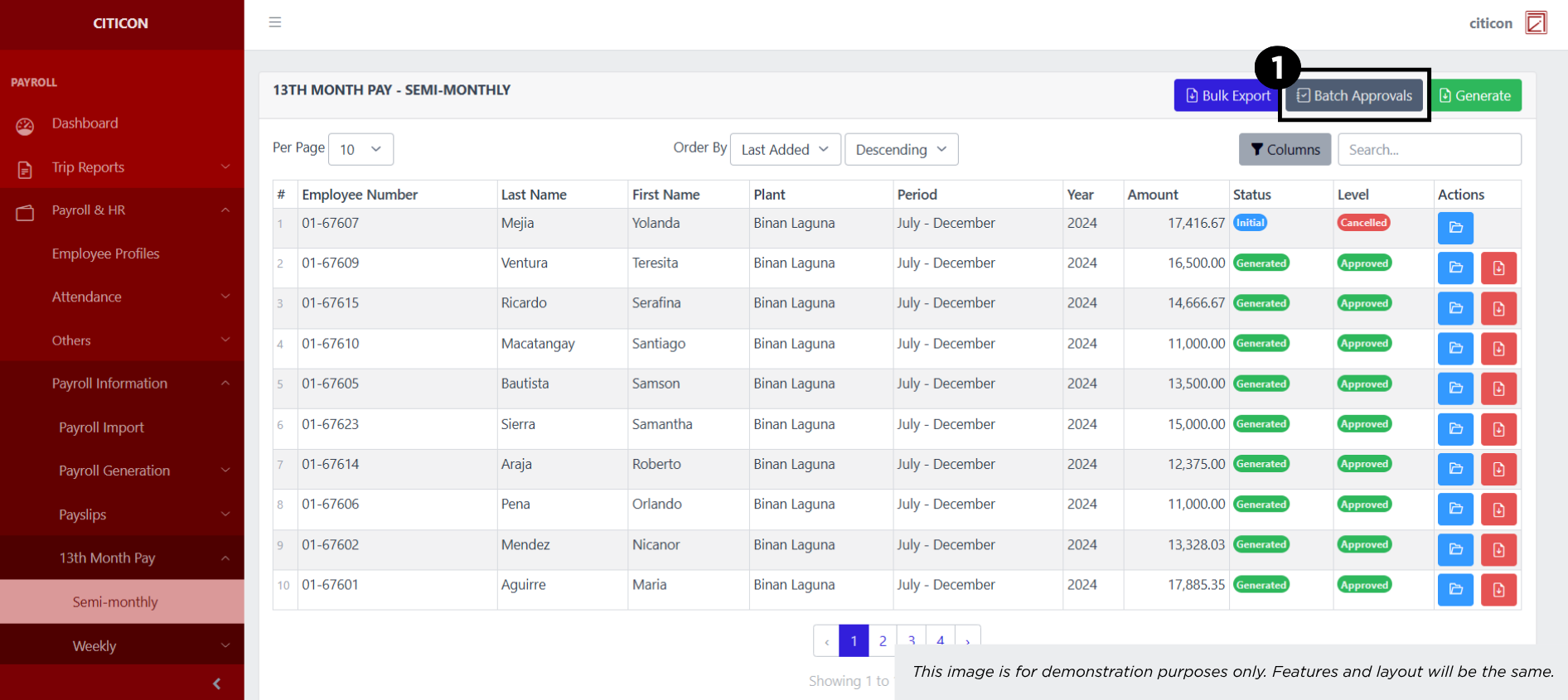
Submit Entry
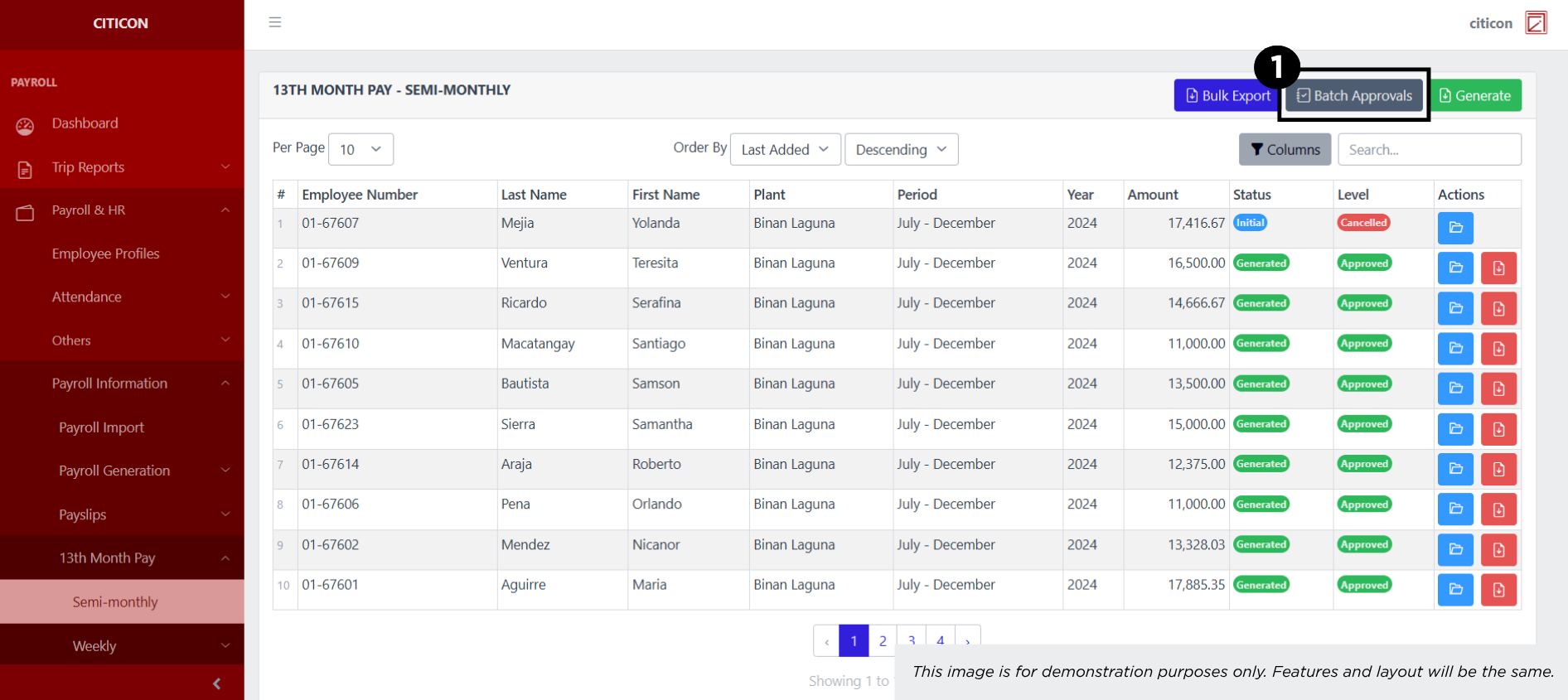
- Select the Batch Approvals button to submit an entry.
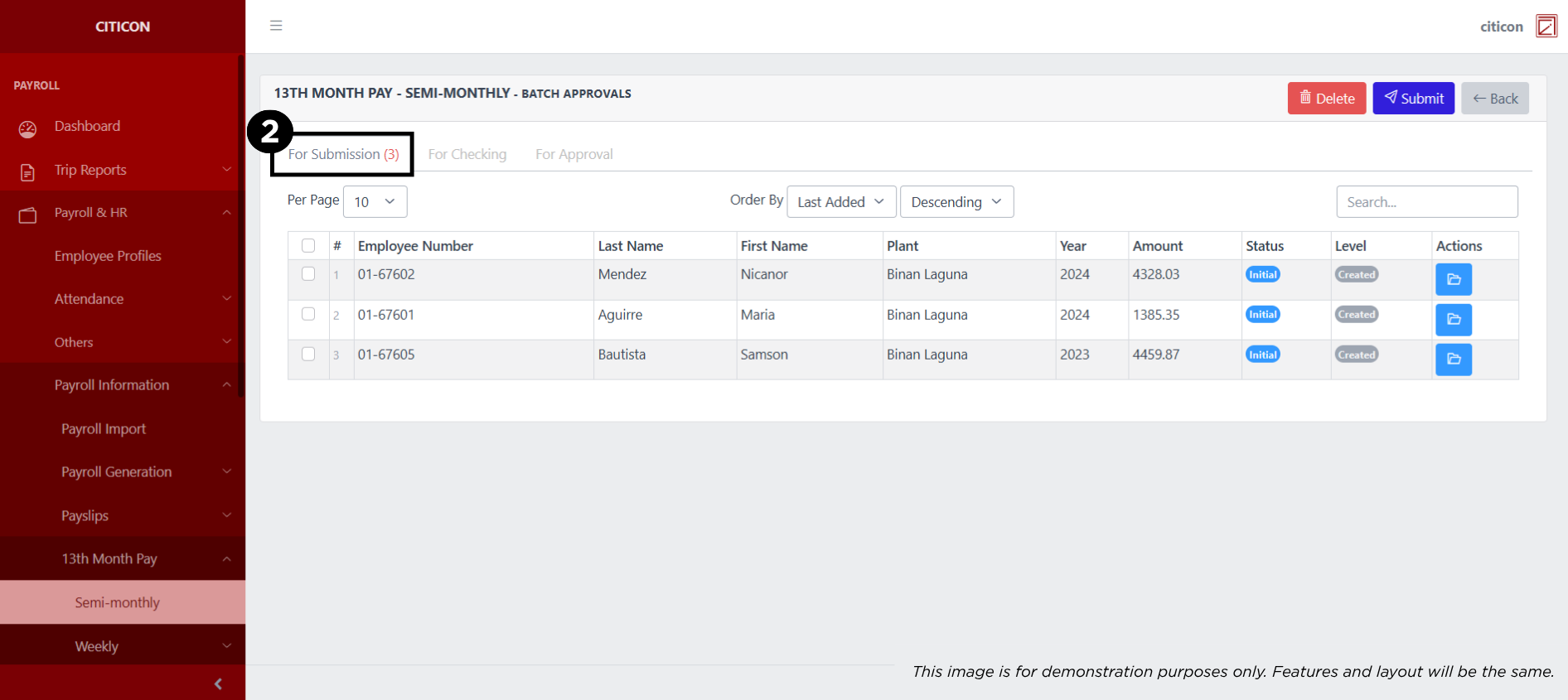
- Select the For Submission tab.
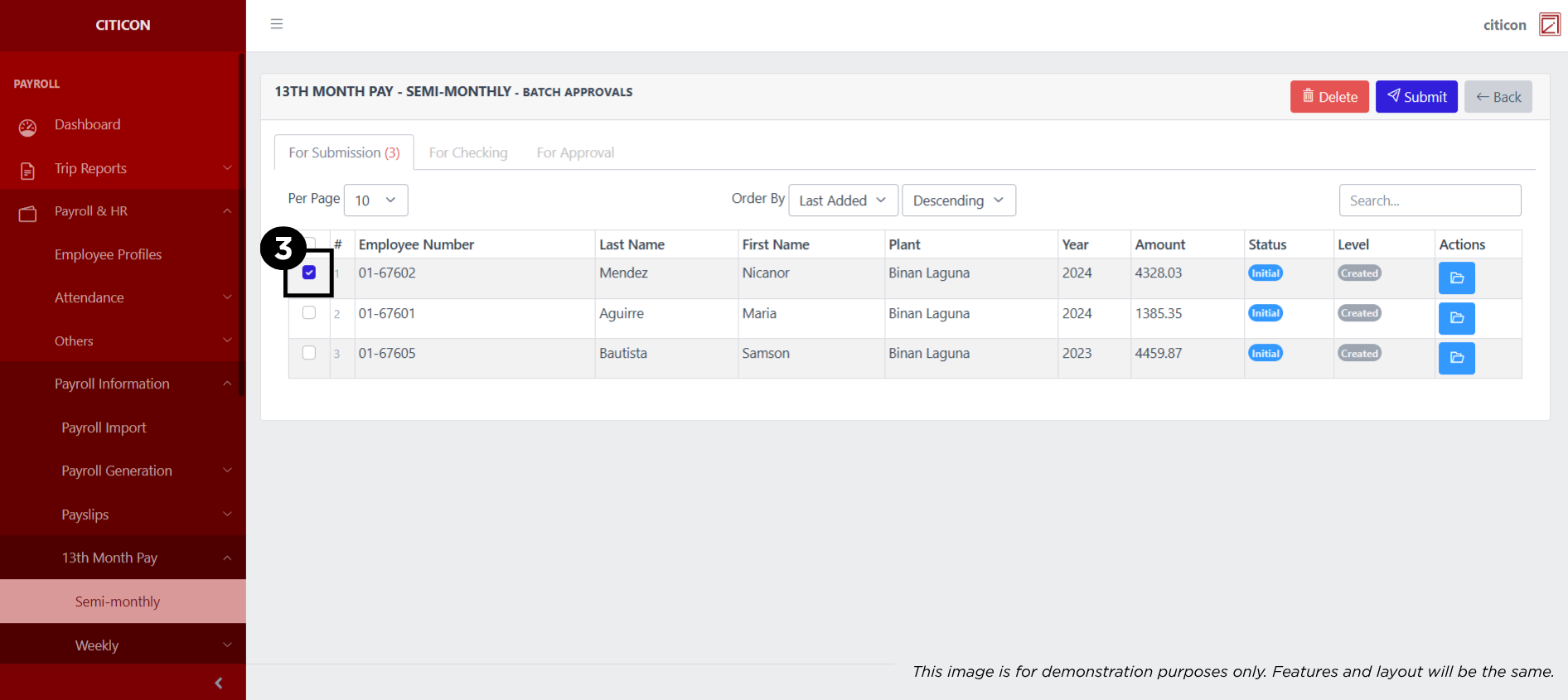
- Select the entry that you want to submit.
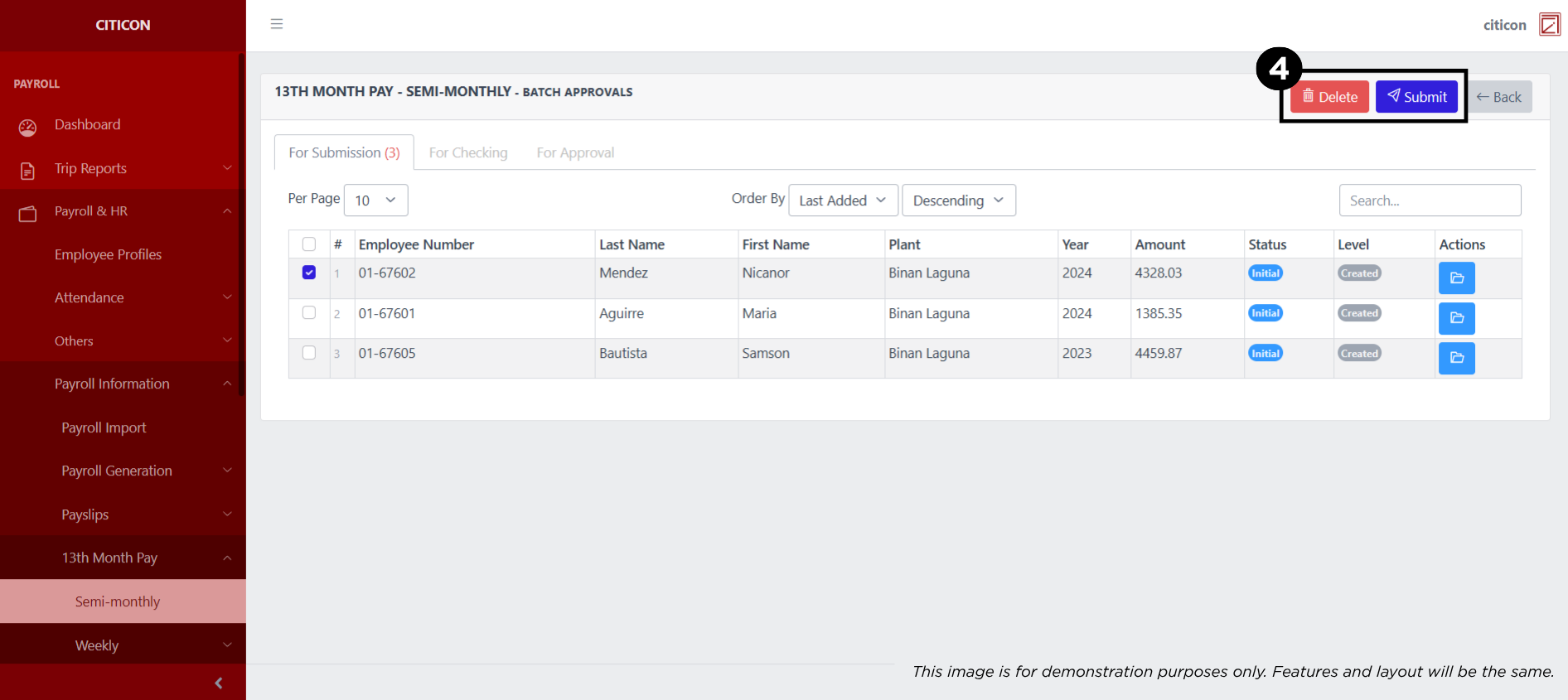
- Select the Submit button to submit the entry. In cases where you want to delete a entry, select the entry you want to delete, then select the Delete button.
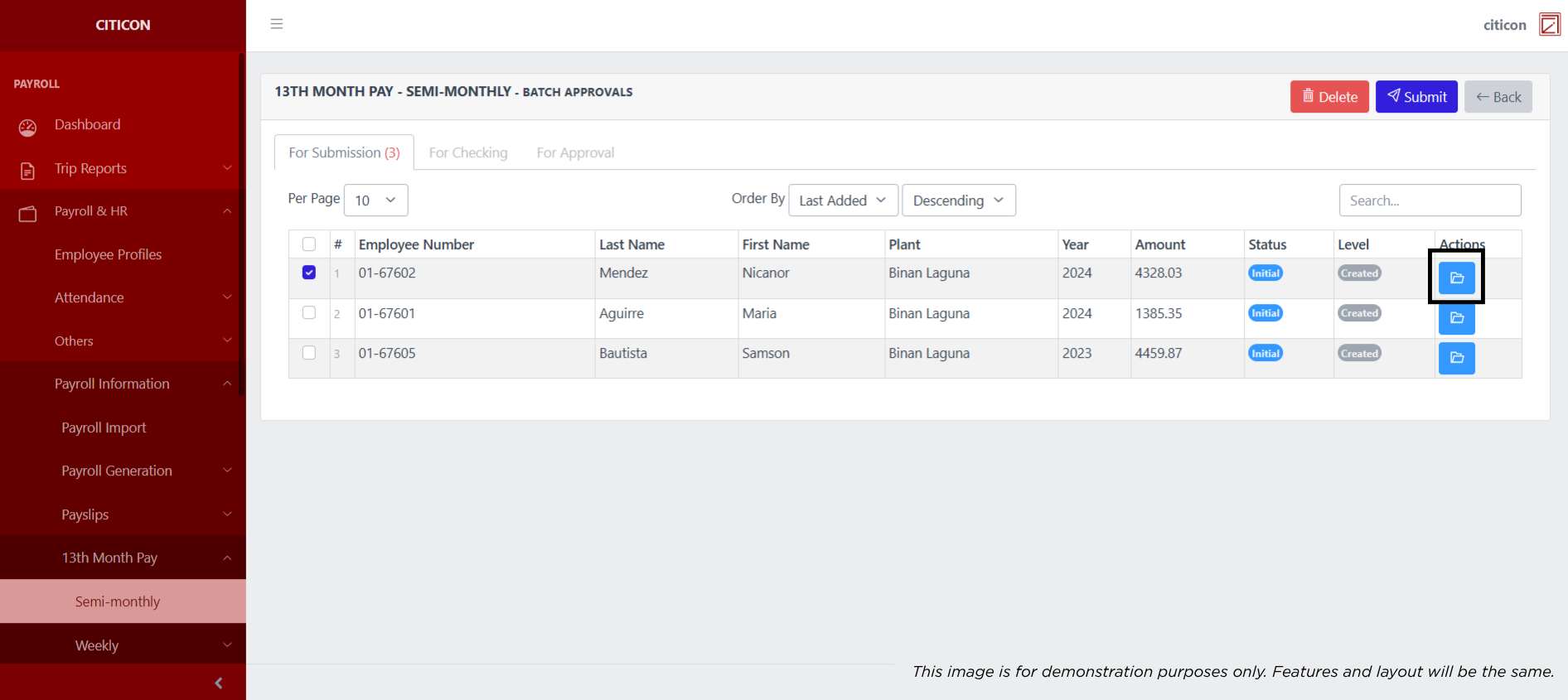
 To view the details of an individual entry, select the folder button and from here, you may either Edit, Delete, Submit, or Cancel the entry.
Check Entry
- Select the Batch Approvals button to check an entry.
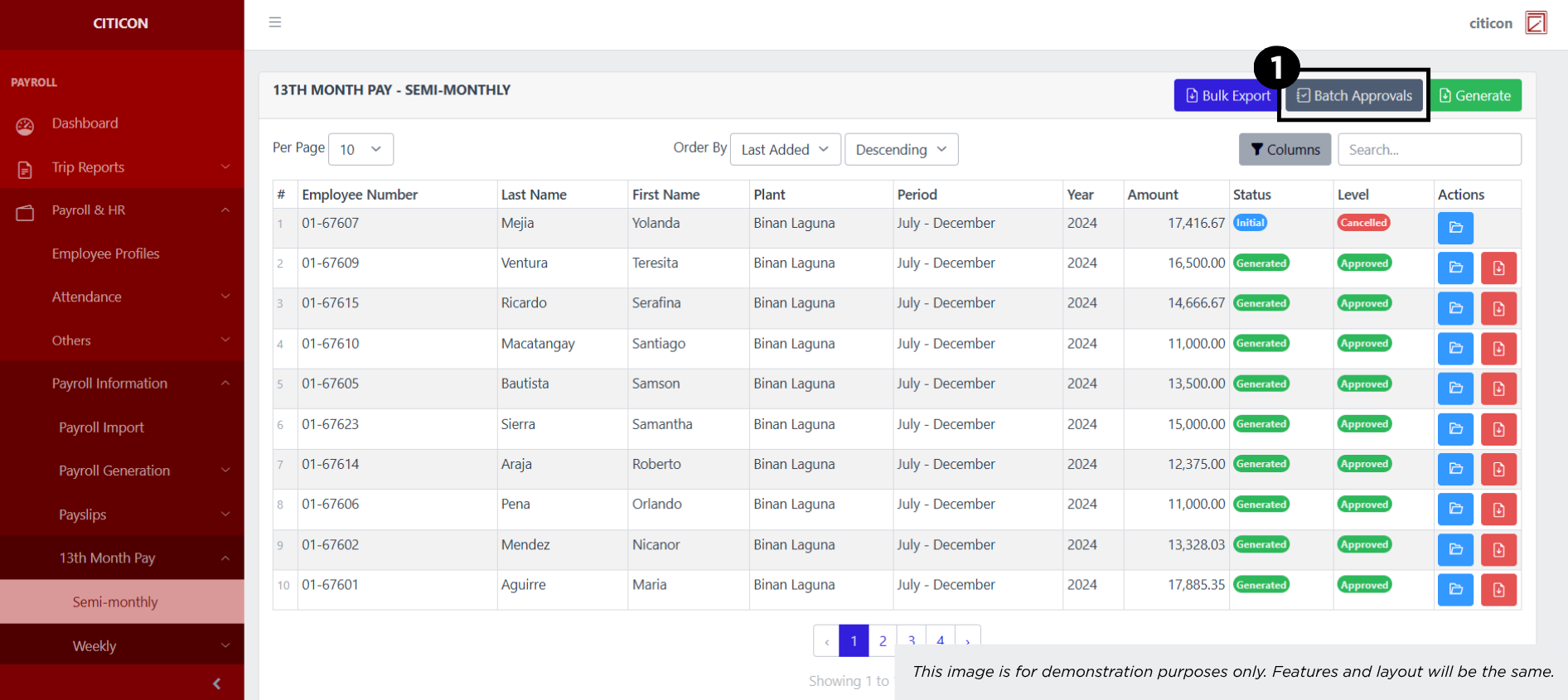
- Select the For Checking tab.
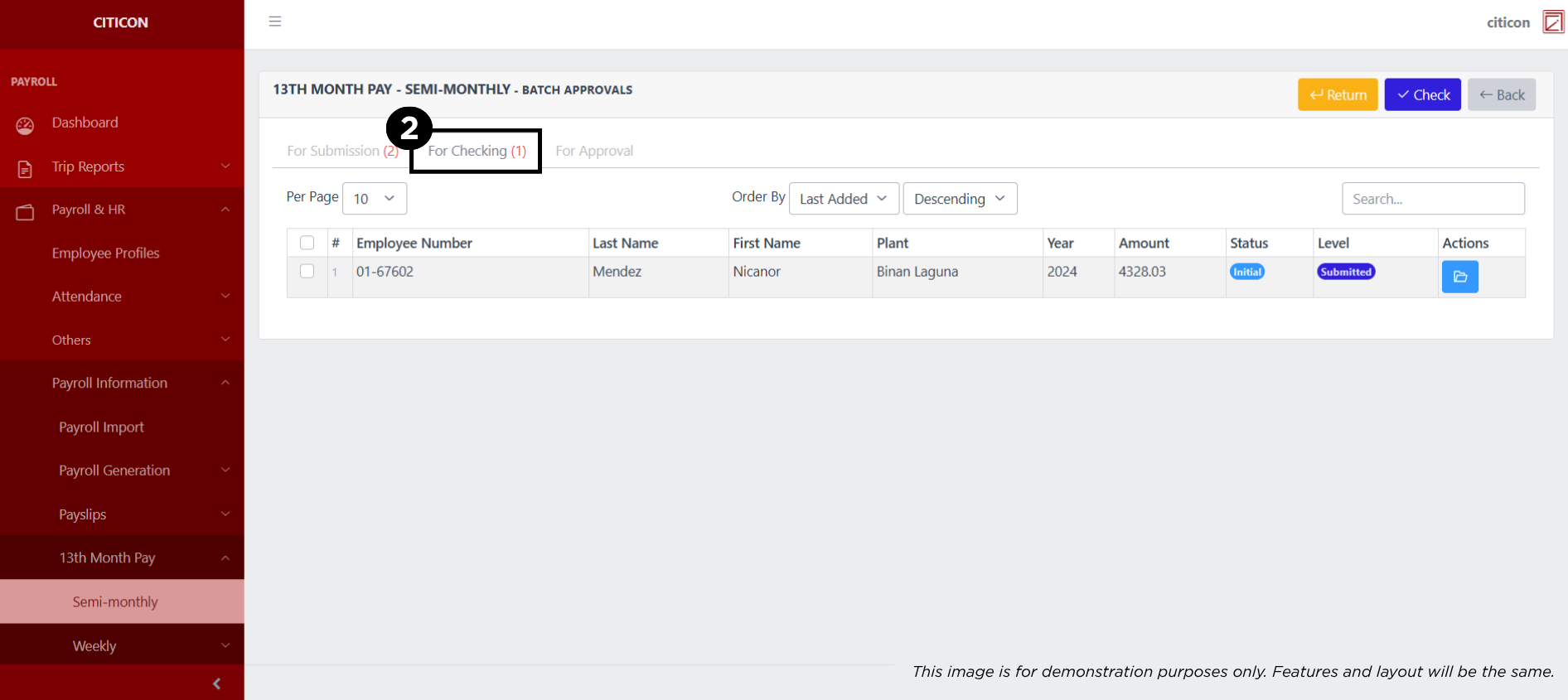
- Select the entry that you want to be checked.
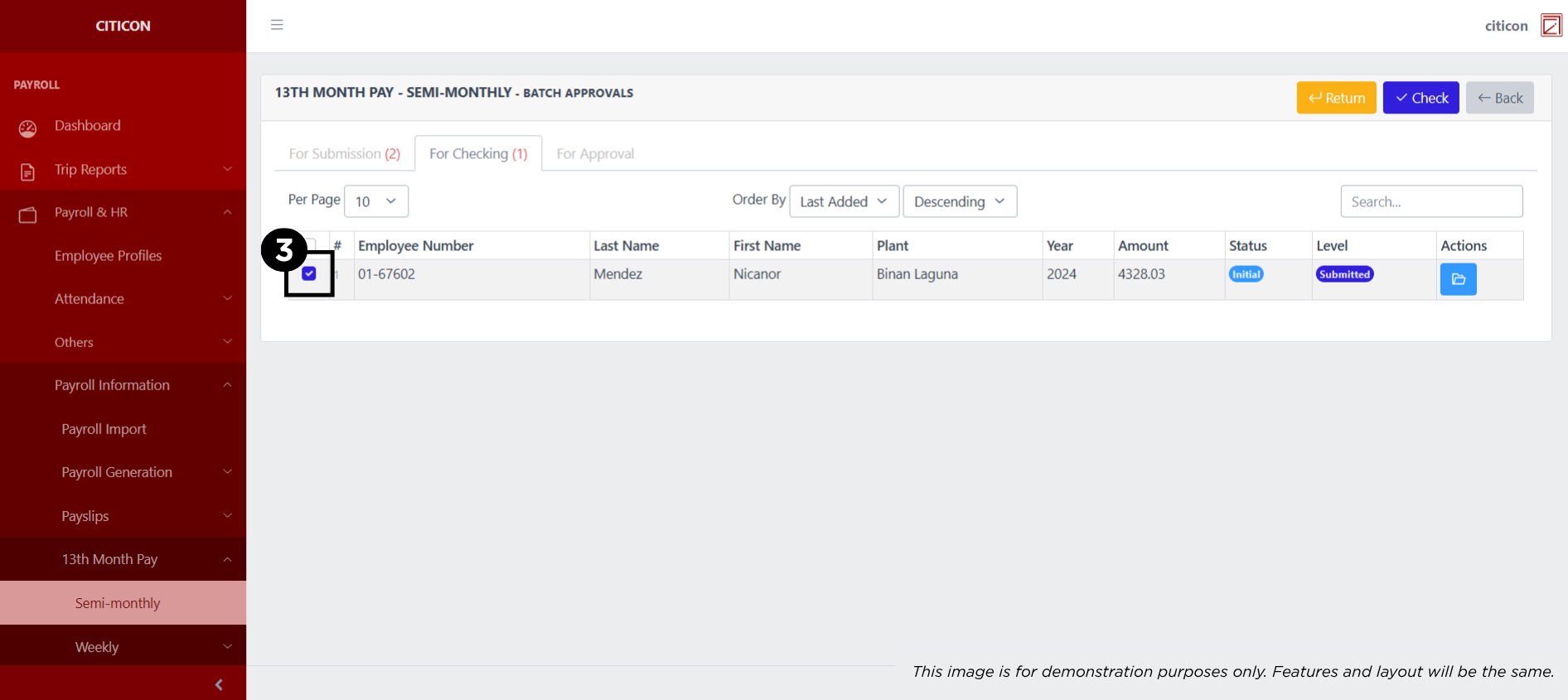
- Select the Check button to check the entry. In cases where you want to return a entry, select the entry you want to return, then select the Return button.
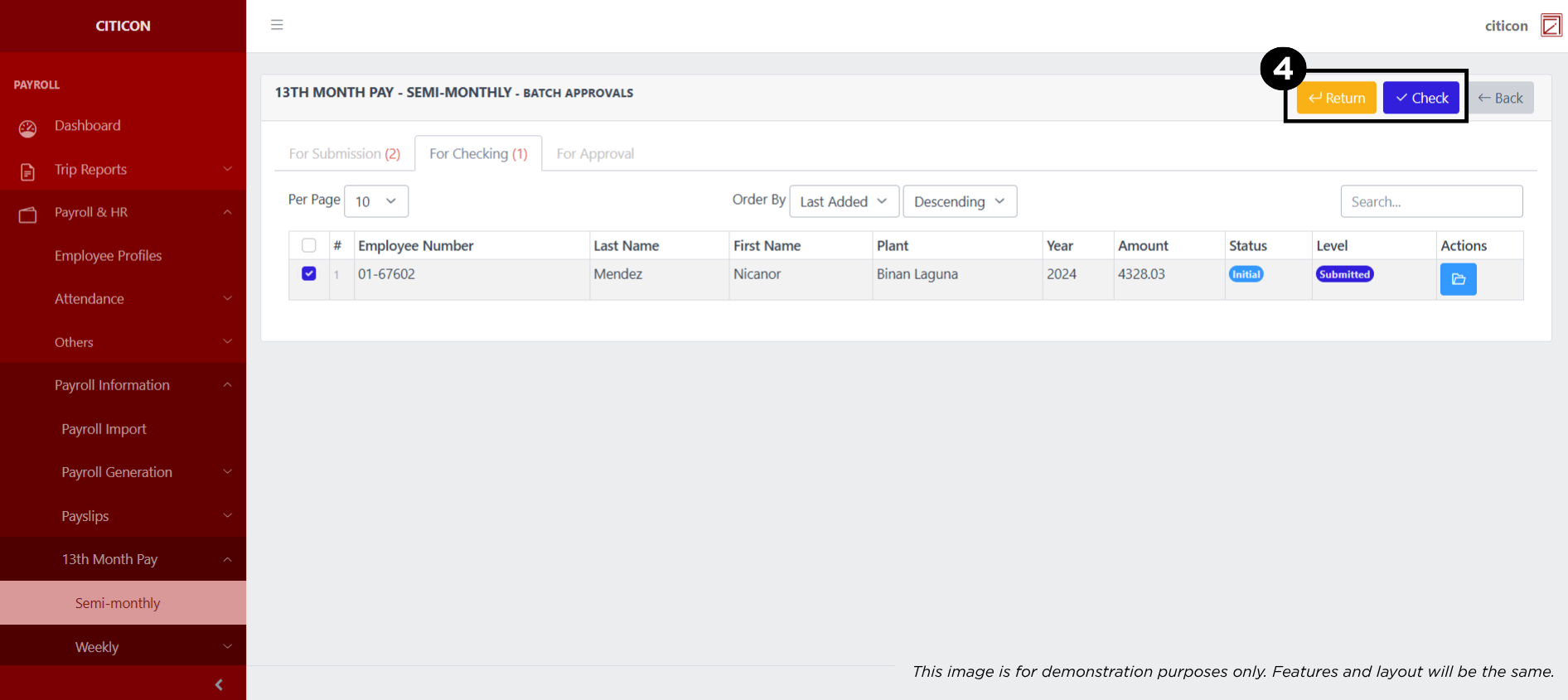 To view the details of an individual entry, select the folder button and from here, you may either Edit, Delete, Submit, or Cancel the entry.
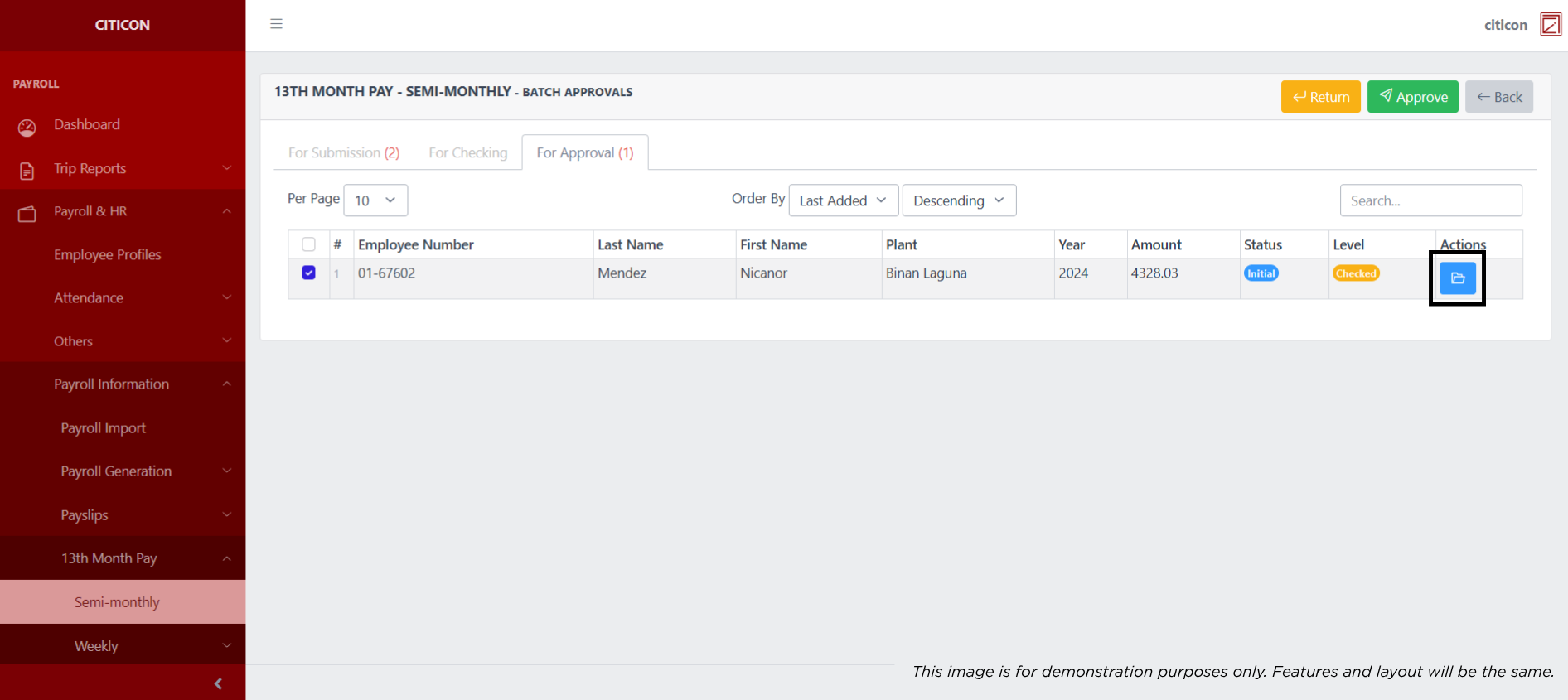
Approve Entry
- Select the Batch Approvals button to approve a entry.
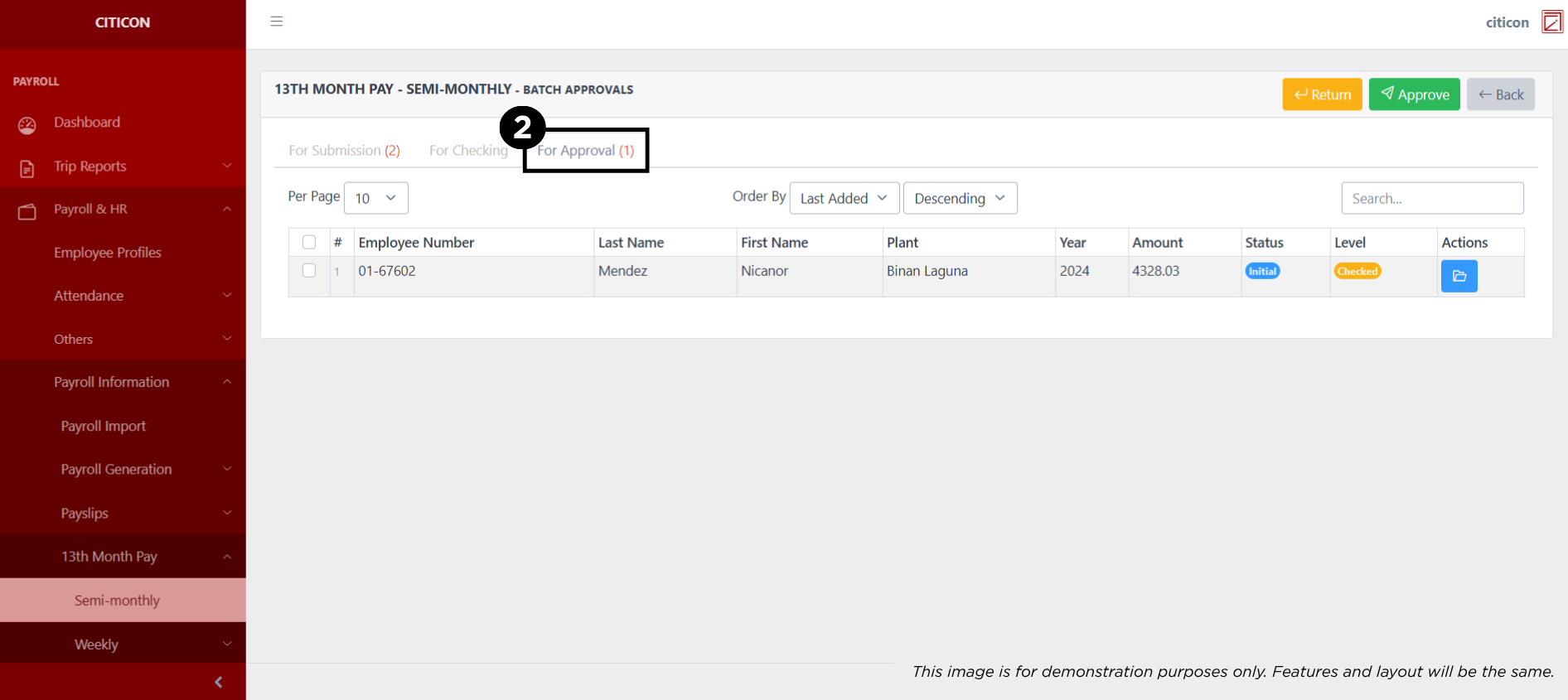
- Select the For Approval tab.
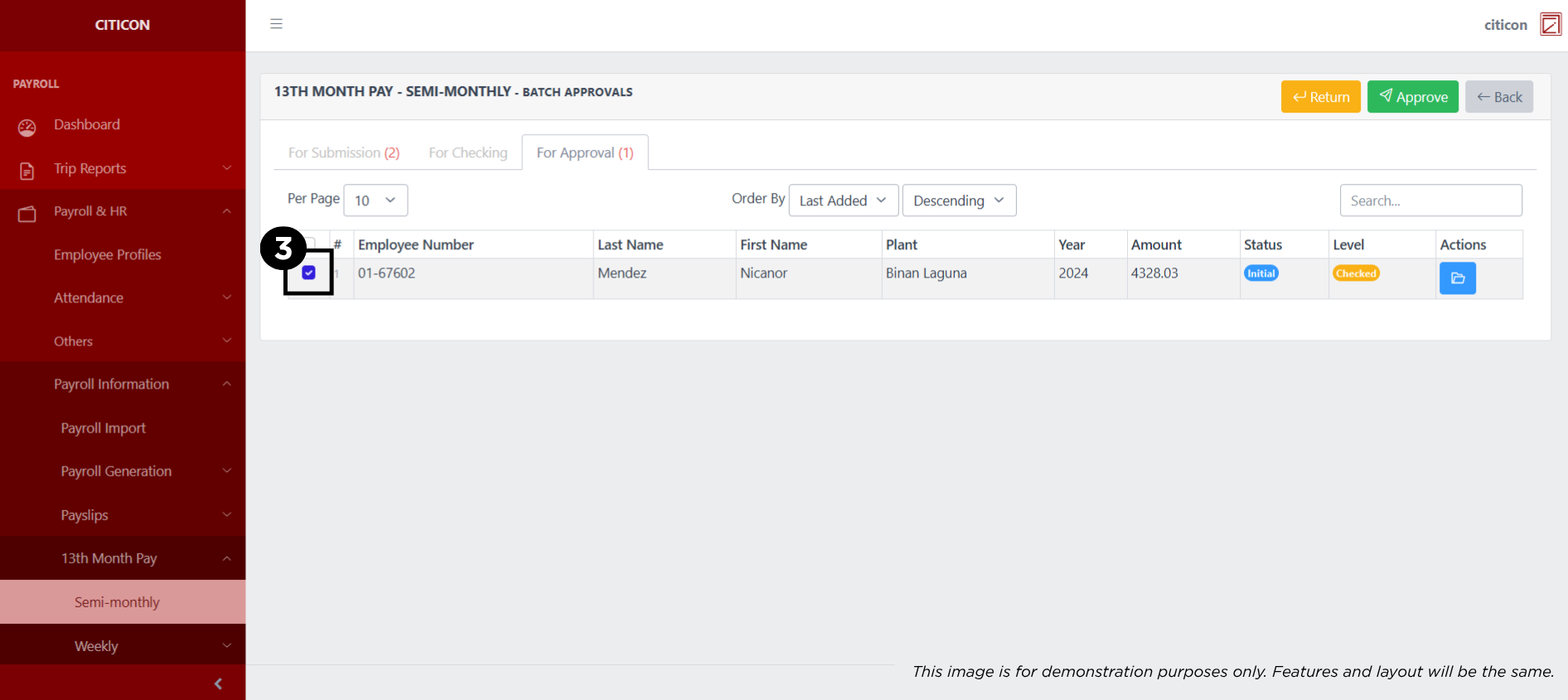
- Select the entry that you want to approve.
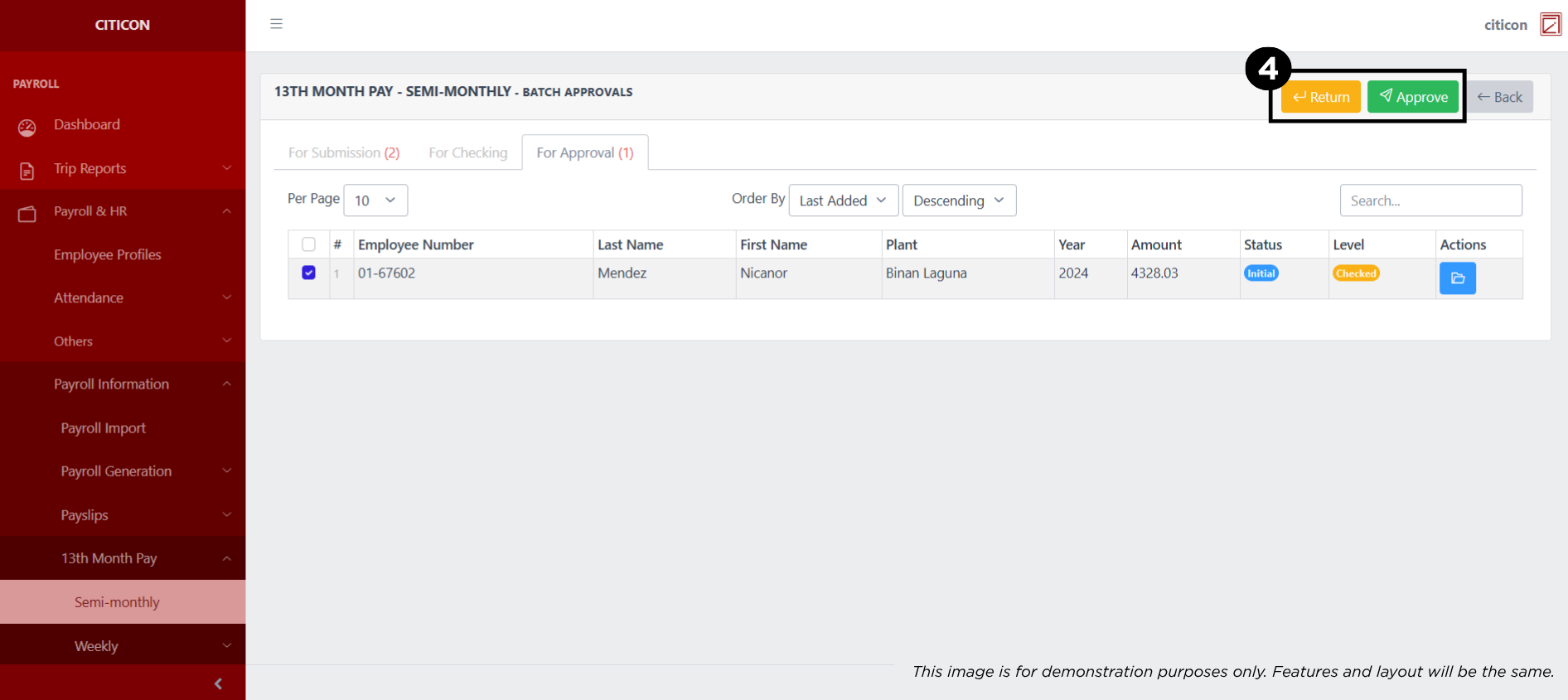
- Select the Approve button to approve the entry. In cases where you want to return a entry to submission section, select the entry you want to return, then select the Return button.
 To view the details of an individual entry, select the folder button and from here, you may either Return, Approve, or Cancel the entry.