13th Month Pay - Semi-Monthly
Welcome to the 13th Month Pay – Semi-Monthly section under the Payroll Information module in Payroll & HR. This module manages the automated and accurate computation of 13th month pay for semi-monthly employees, following statutory rules and company policies. It provides centralized handling of employee data, generated entries, and report exports for compliance and record-keeping.
Key Purposes
- Manage Employee 13th Month Pay Details: Displays employee info including number, name, plant, and applicable pay period and year.
- Compute 13th Month Pay: Automates the calculation of 13th month pay based on semi-monthly payroll structure.
- Track Payment Status: Displays the current status (e.g., pending, approved, canceled) of each entry.
- Support Batch Processing: Allows bulk approval and generation of 13th month pay records for multiple employees.
- Enable Data Export: Offers both bulk export and individual PDF export of 13th month pay entries.
- Allow Entry Management: Provides tools to cancel or regenerate specific 13th month pay records.
13th Month Pay - Semi-Monthly Module User-Manual
This section provides details, and set-by-step instructions to access, view, and update the 13th Month Pay - Semi-Monthly entries stored in the system.
Index Page
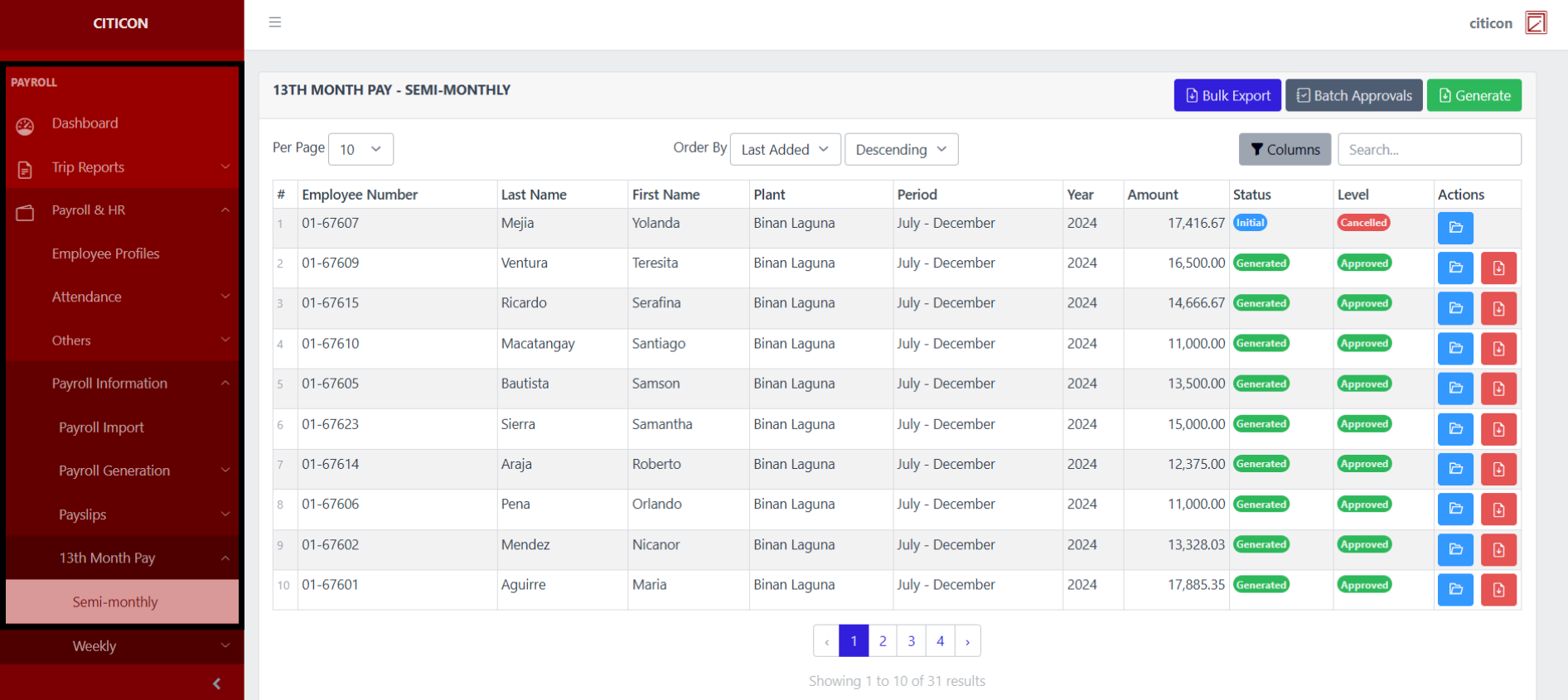
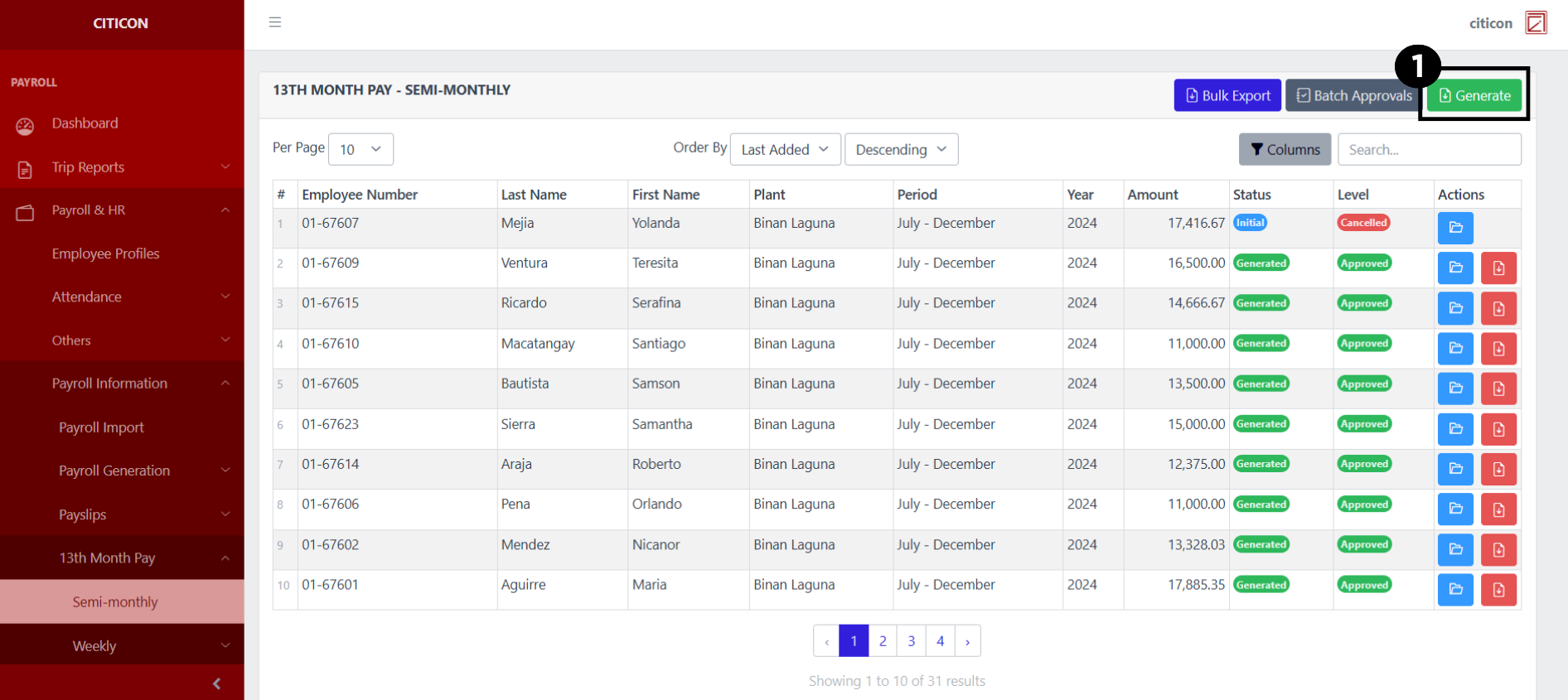
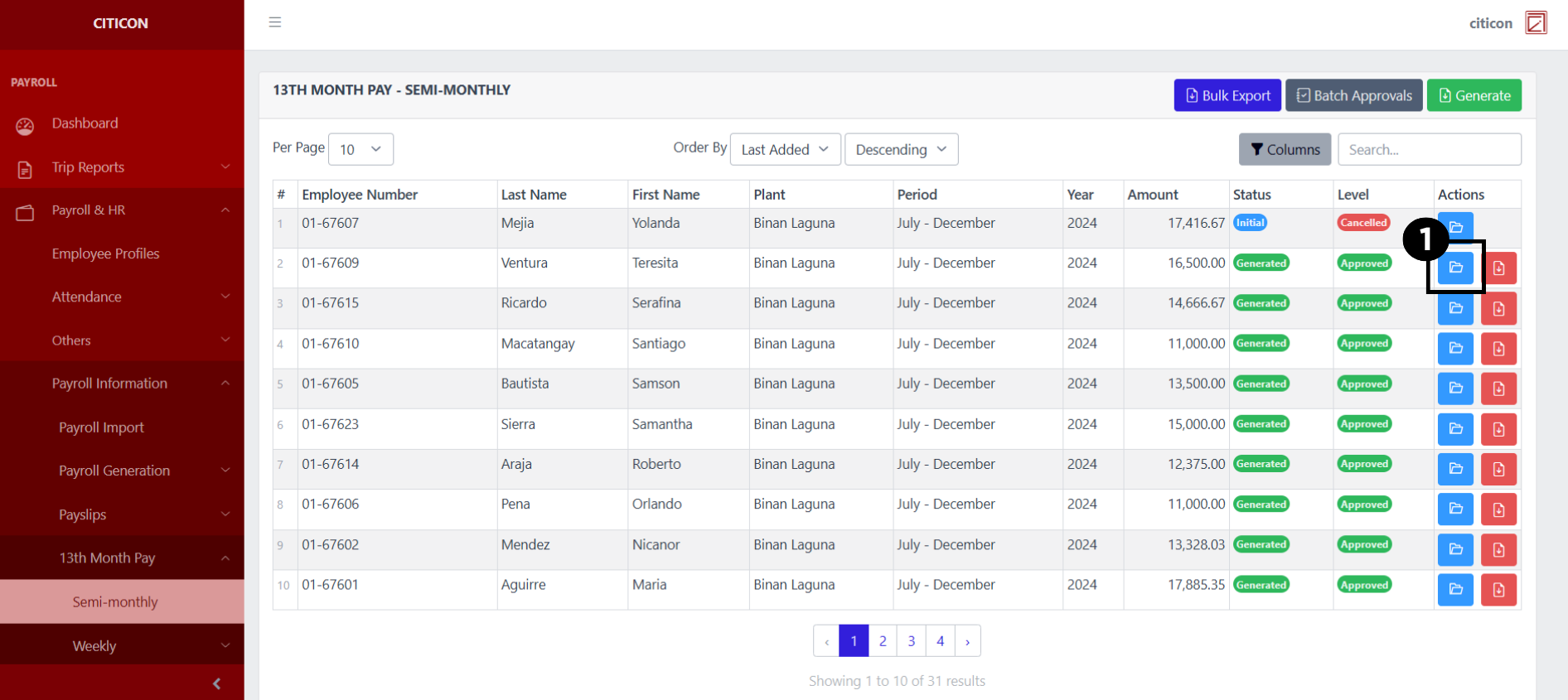
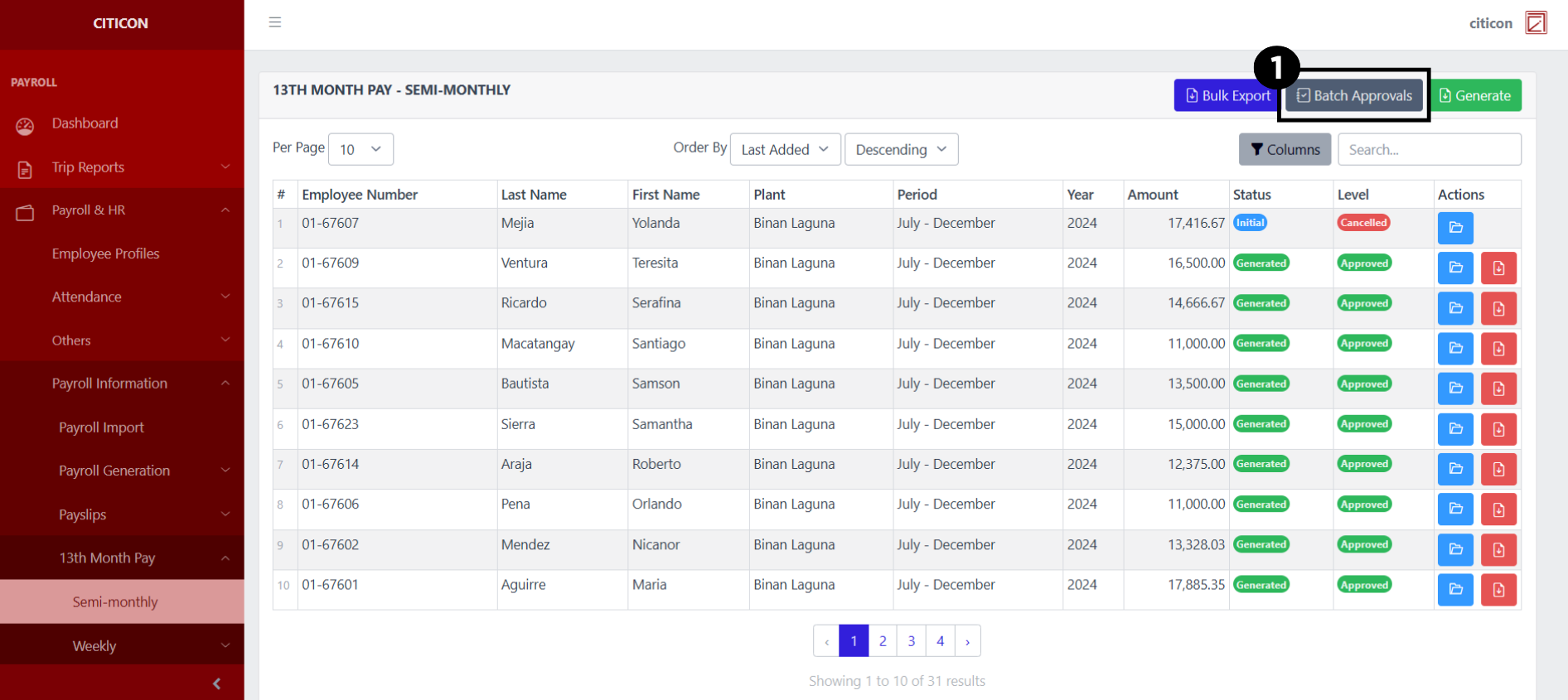
To access the 13th Month Pay - Semi-Monthly. Go to Payroll, select Payroll & HR, select Payroll Information, select 13th Month Pay, then select Semi-Monthly.
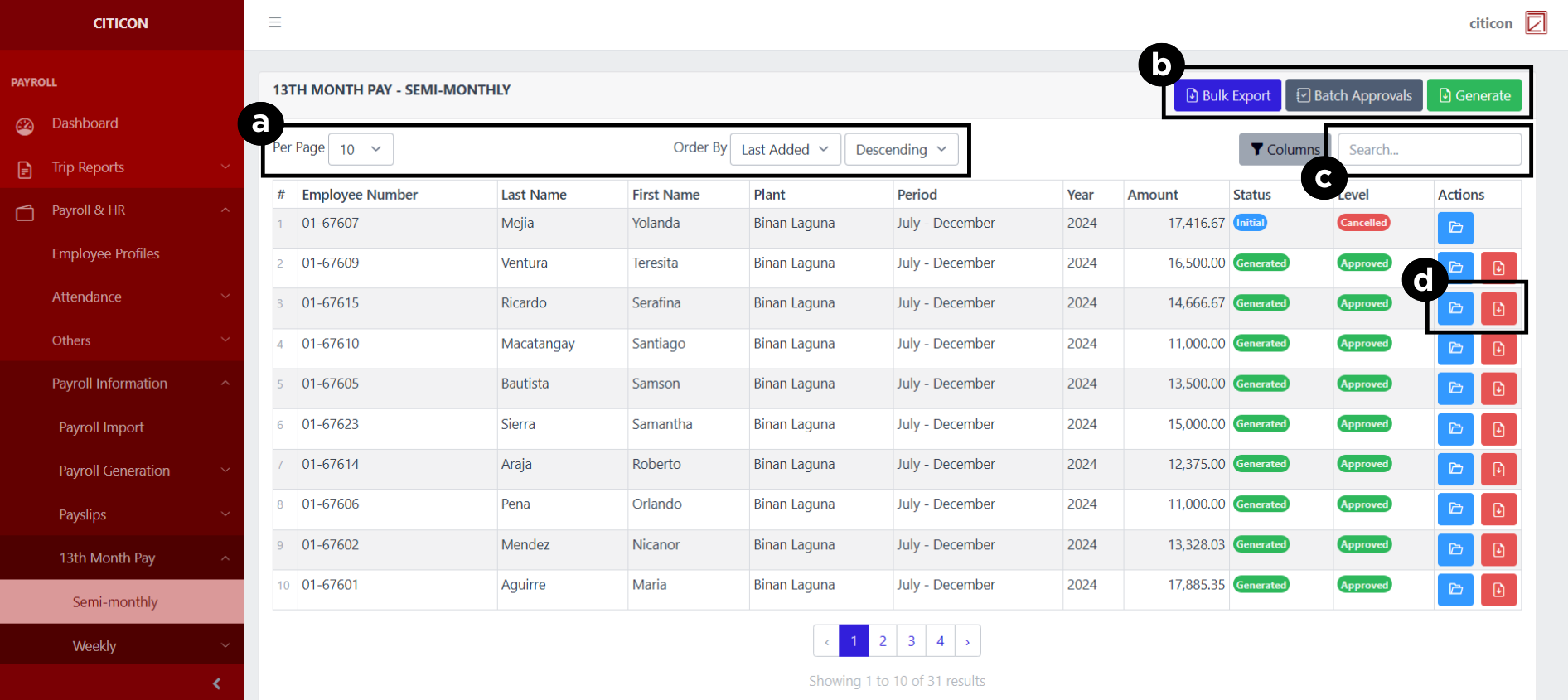
a. Adjust the paging, ordering, and sorting of the 13th Month Pay - Semi-Monthly Page here.
b. Select the respective button to Export entries, Generate entreies, or process entries for Approval.
c. Search for specific entry details using the search bar.
d. Select the respective button to either View or Export an entry.
Export Entries
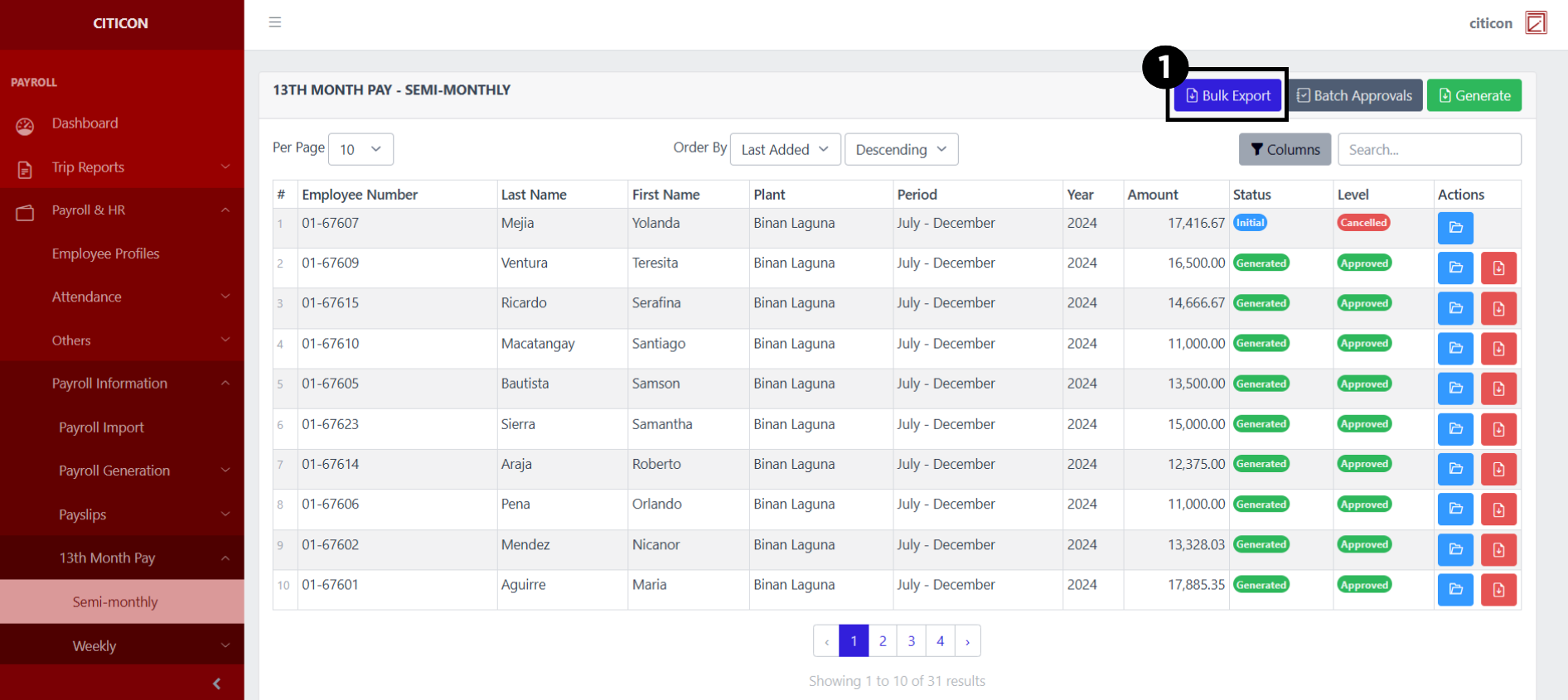
- Select the Export button.
- Input the necessary details regarding the entries you would like to export (type, group, duration, etc.)
All fields that has an asterisk (*) are required to have an input.
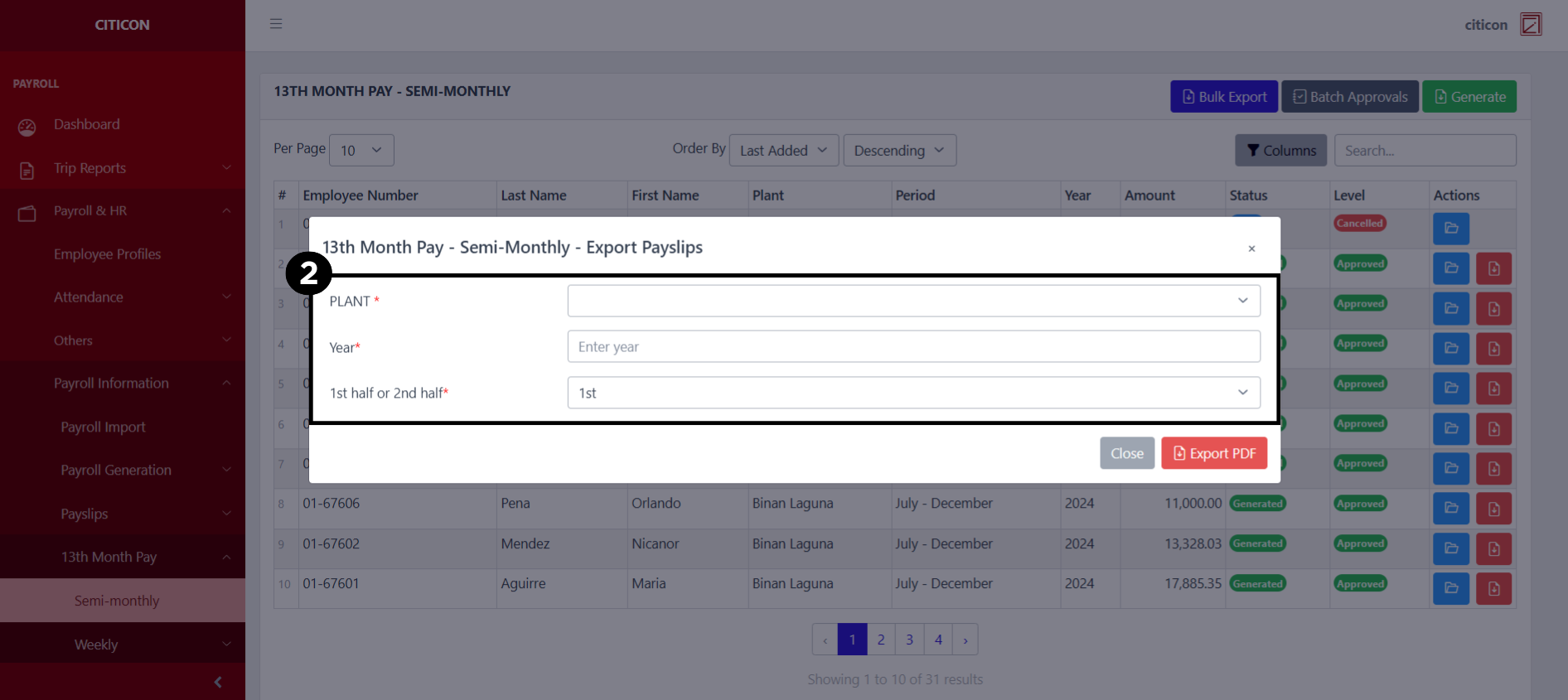
- Select the Export PDF button.
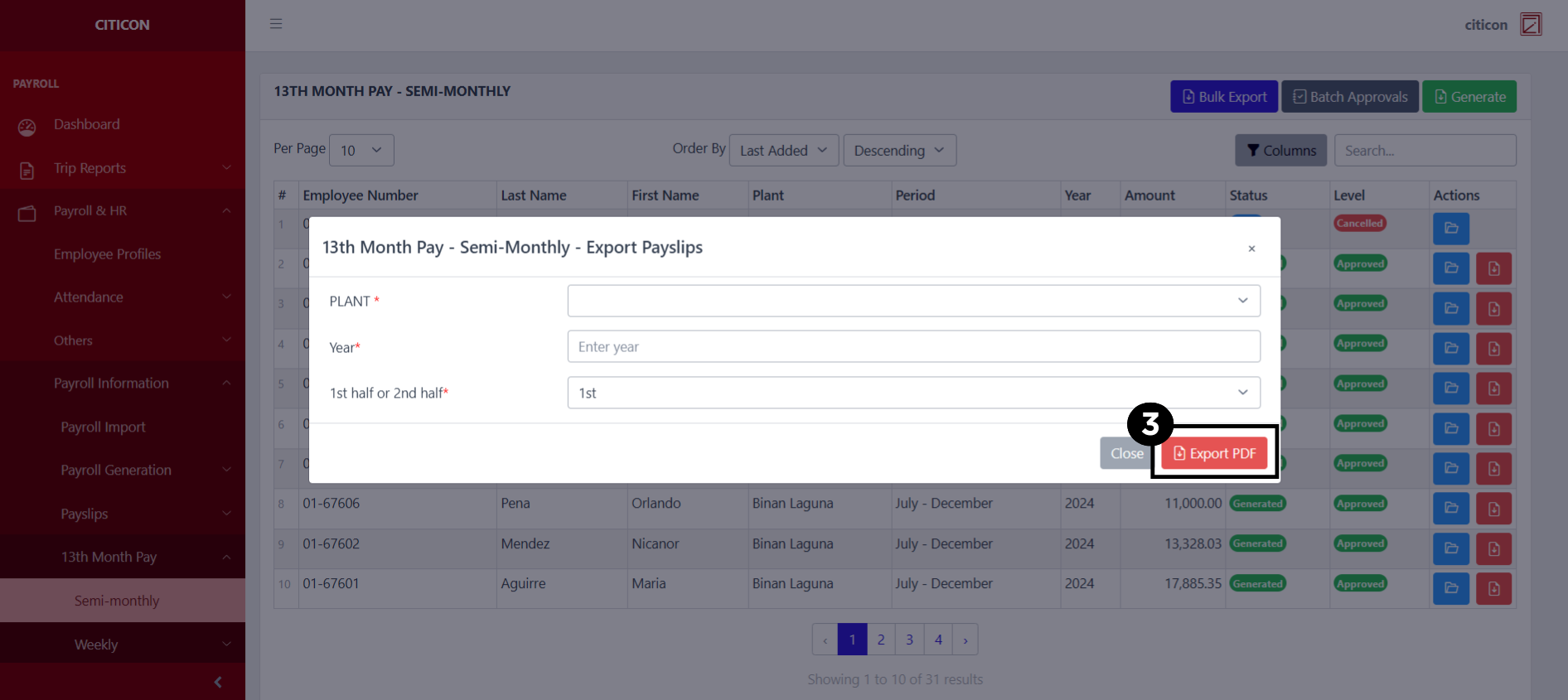
Generate Payroll
- Select the Generate Payroll Import button.
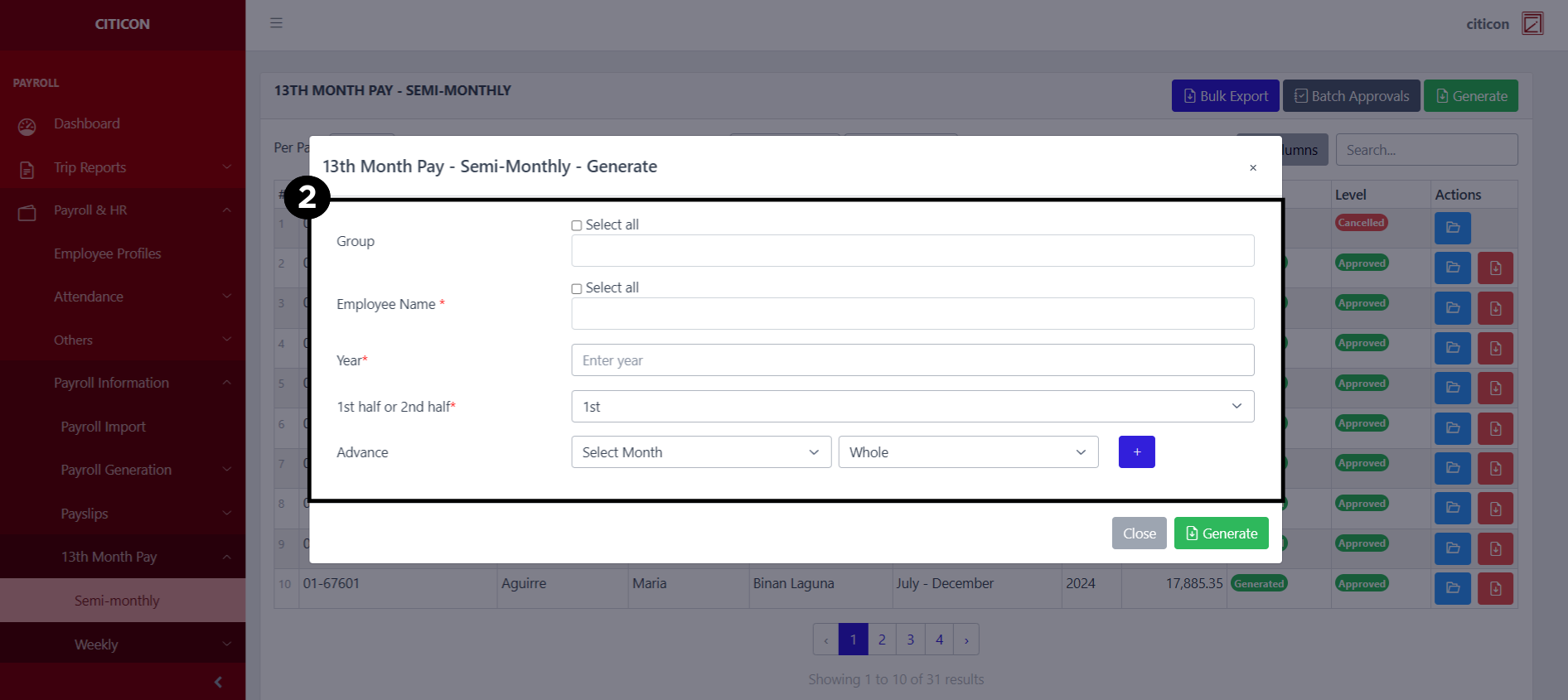
- Input the necessary details regarding the payroll entries you would like to generate.
All fields that has an asterisk (*) are required to have an input.
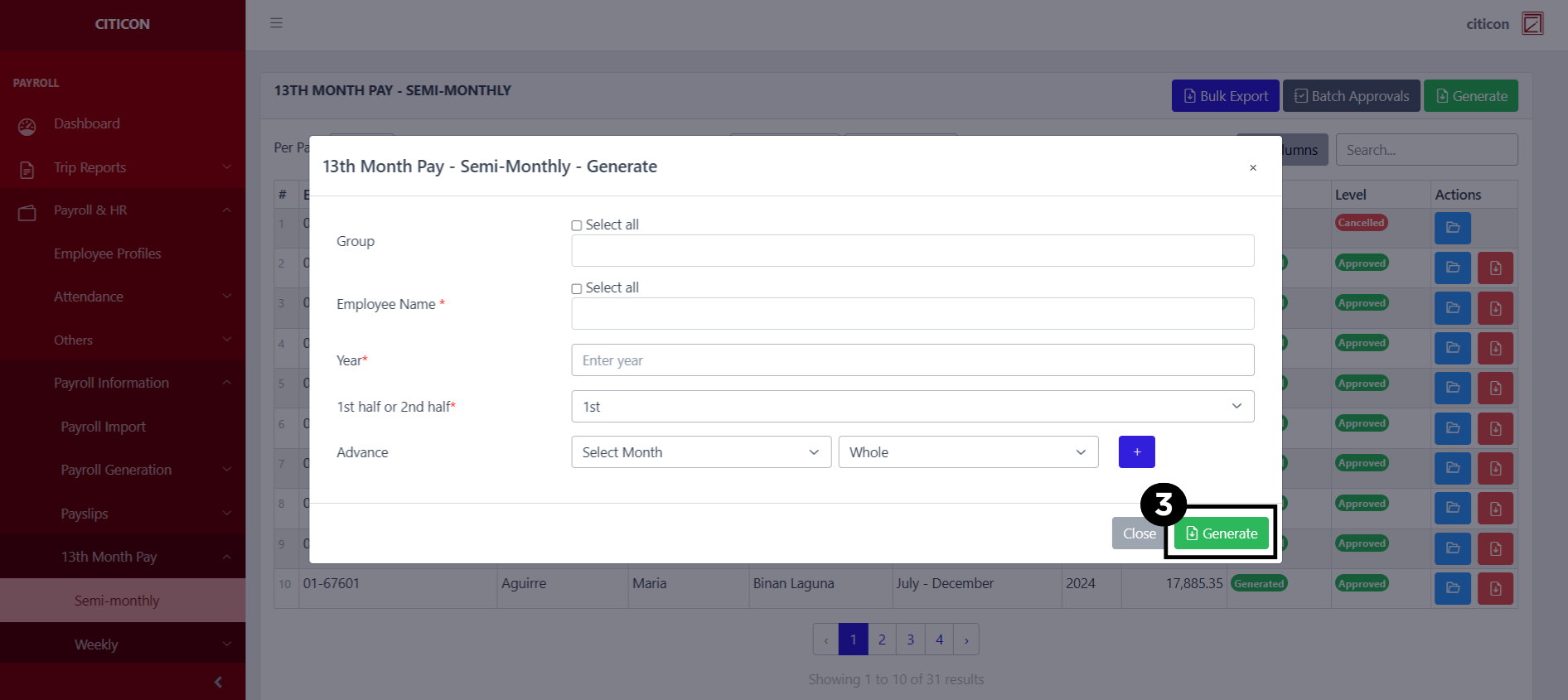
- Select the Generate button.
Show Entry
- Select the folder button to view an entry.
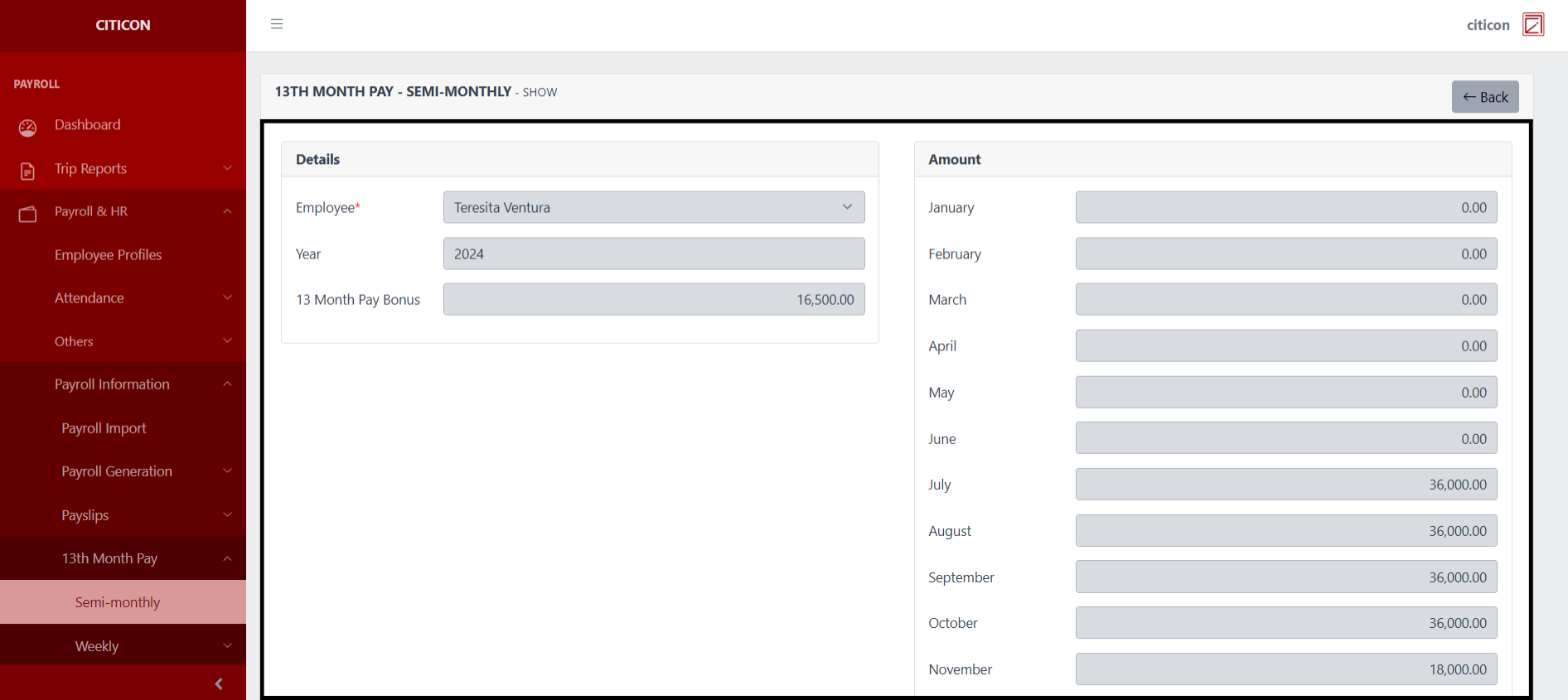
 Here you can view more specific details on the entry that you selected.
Submit Entry
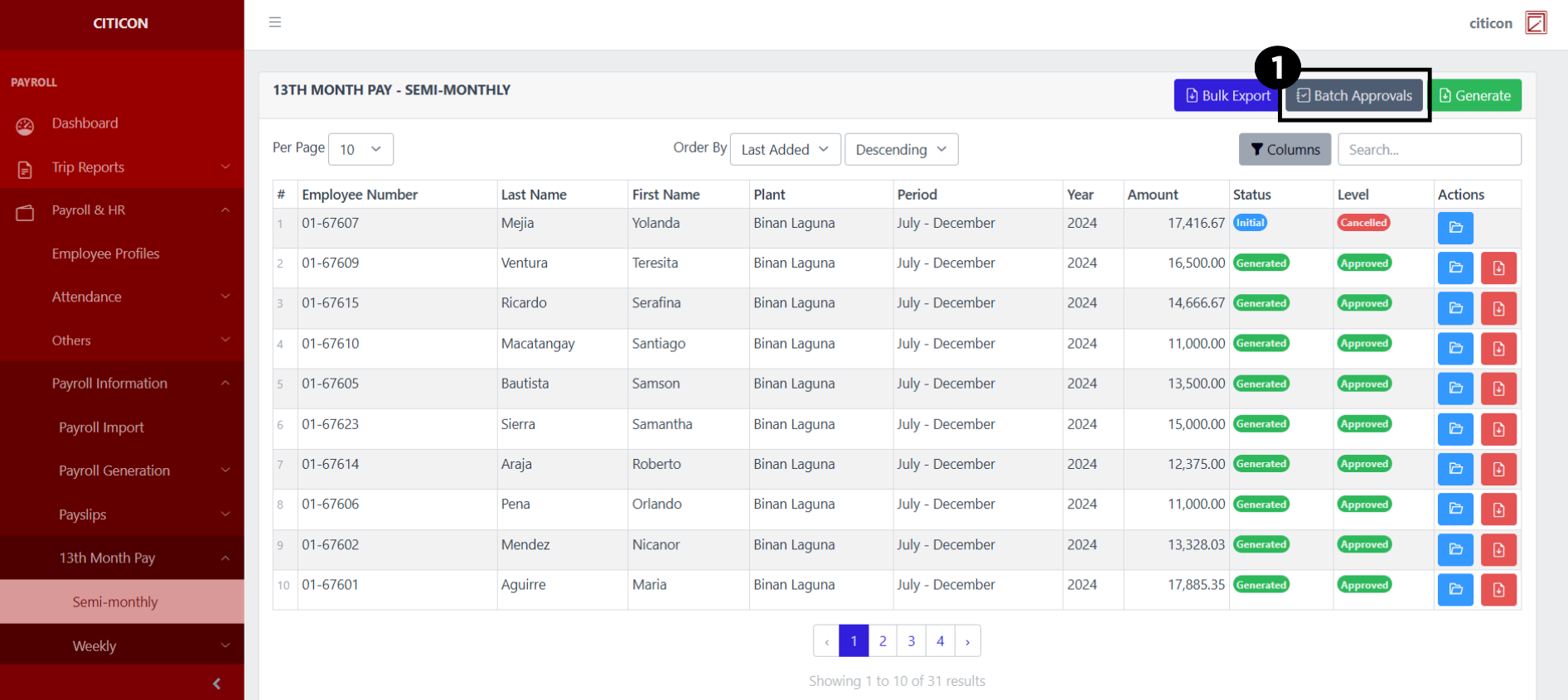
- Select the Batch Approvals button to submit an entry.
- Select the For Submission tab.
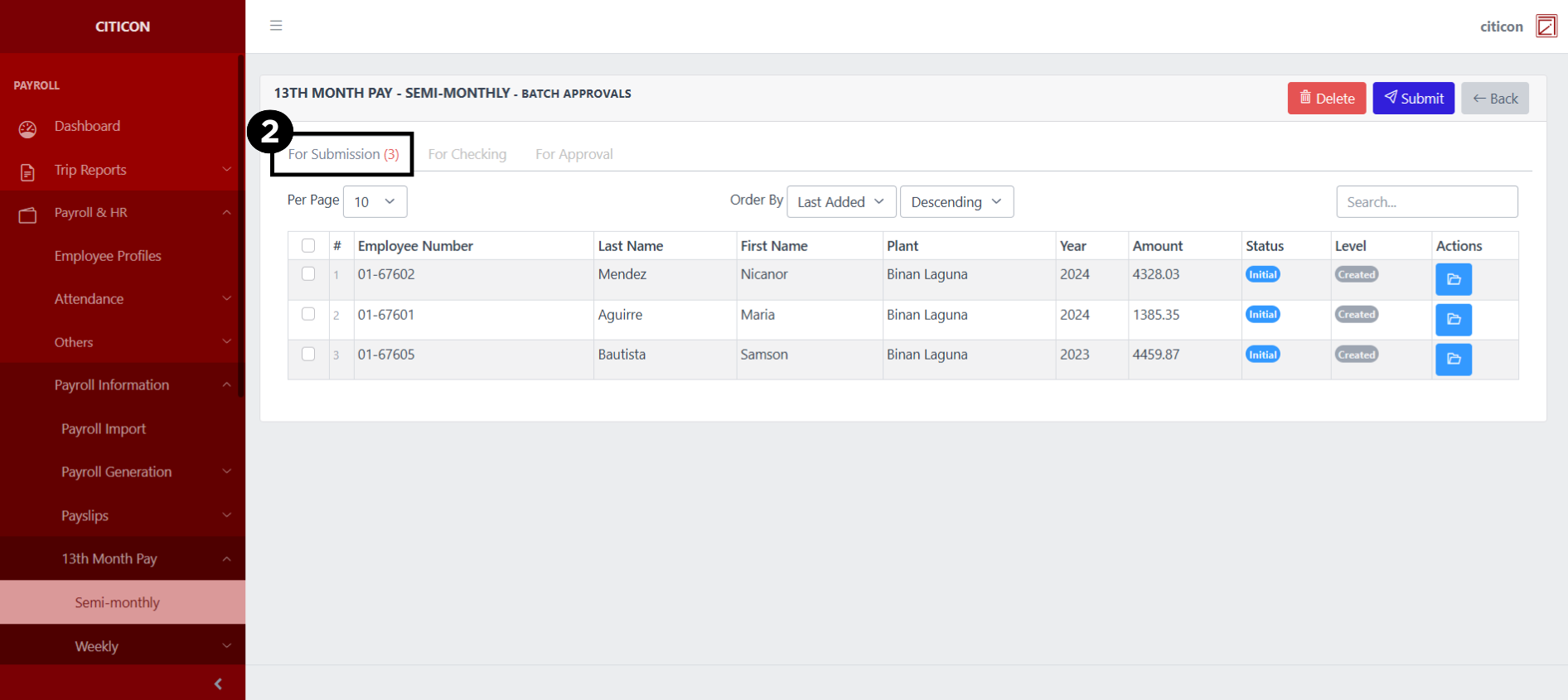
- Select the entry that you want to submit.
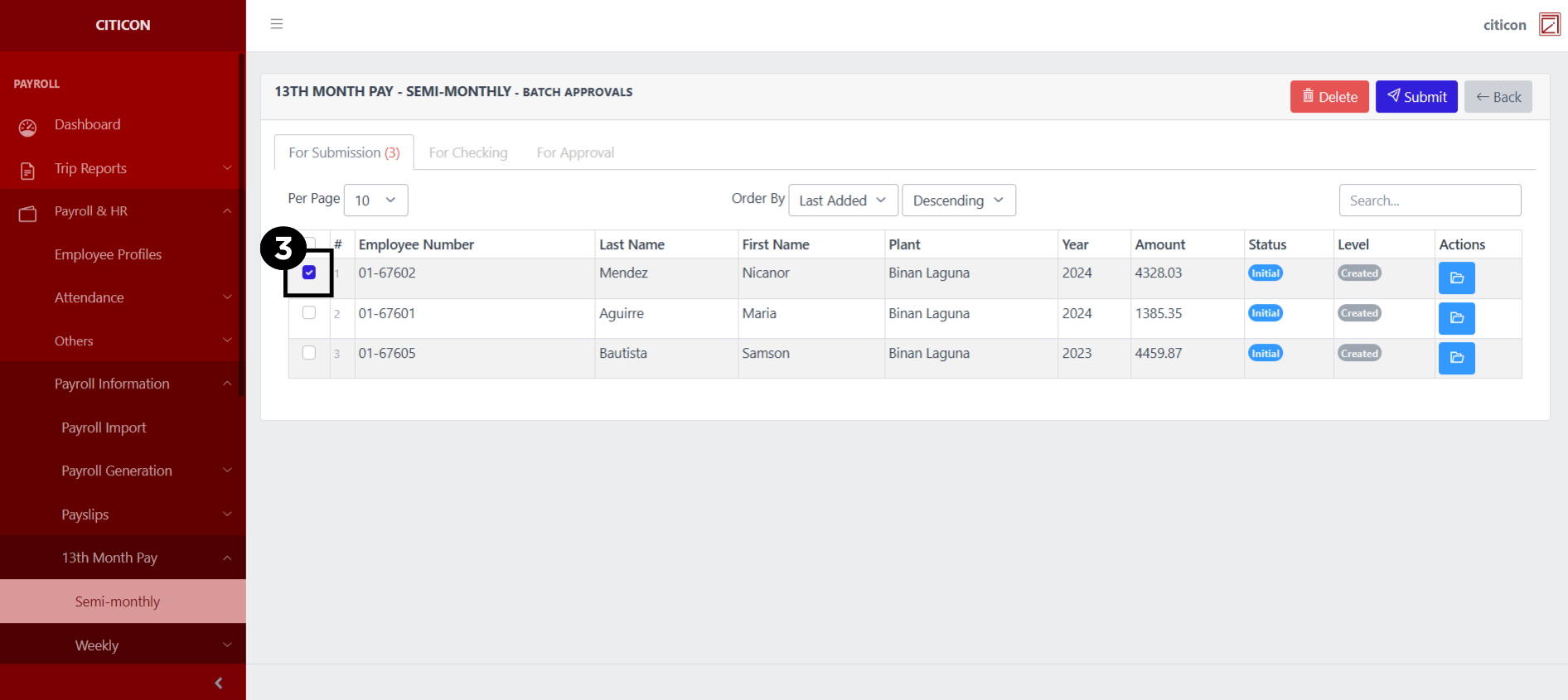
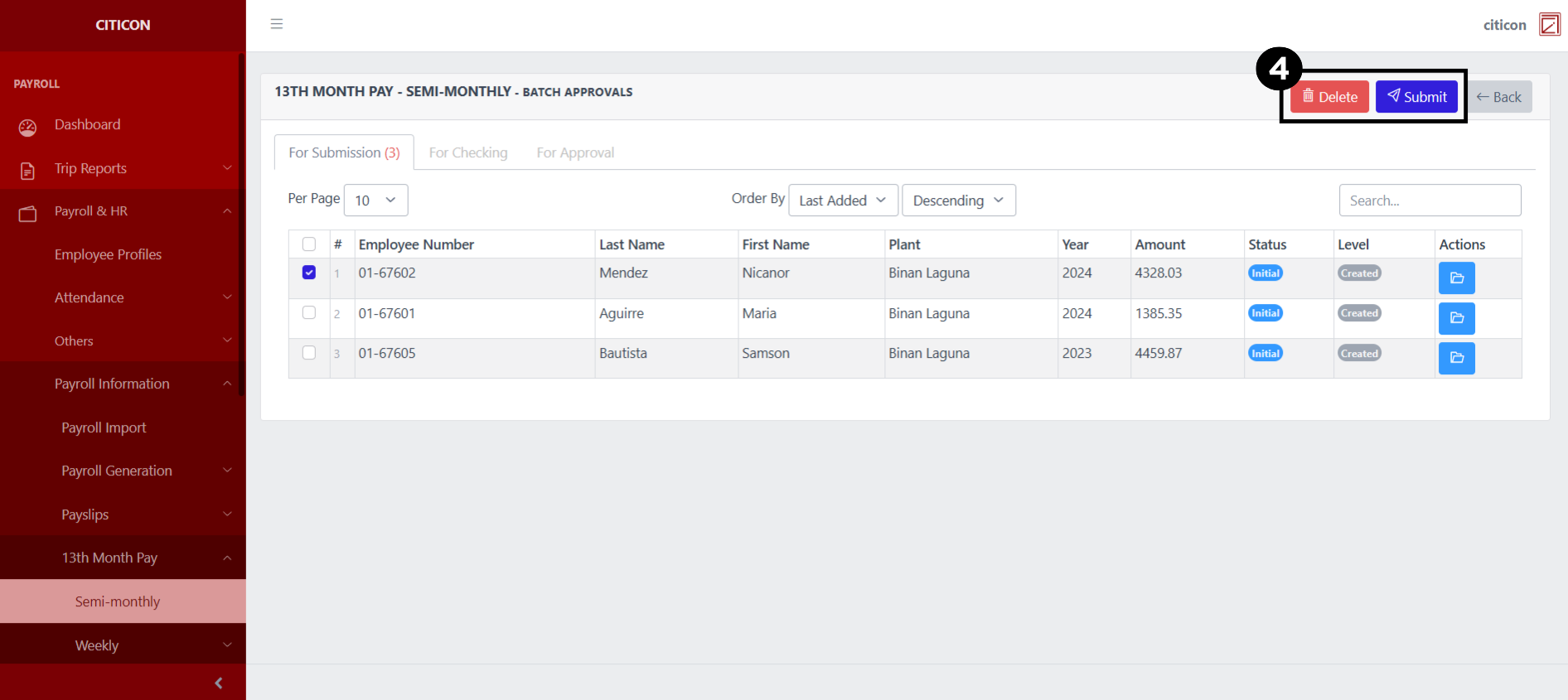
- Select the Submit button to submit the entry. In cases where you want to delete a entry, select the entry you want to delete, then select the Delete button.
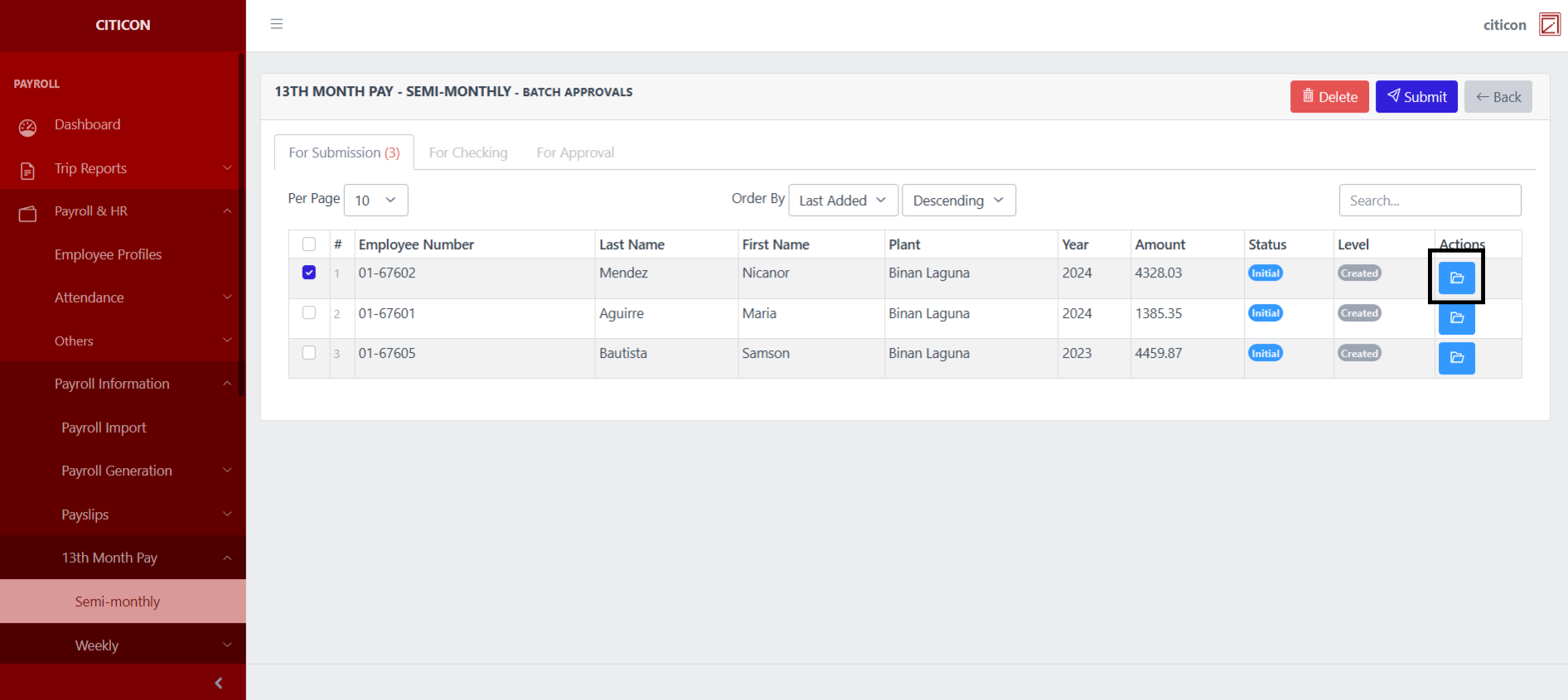
 To view the details of an individual entry, select the folder button and from here, you may either Edit, Delete, Submit, or Cancel the entry.
Check Entry
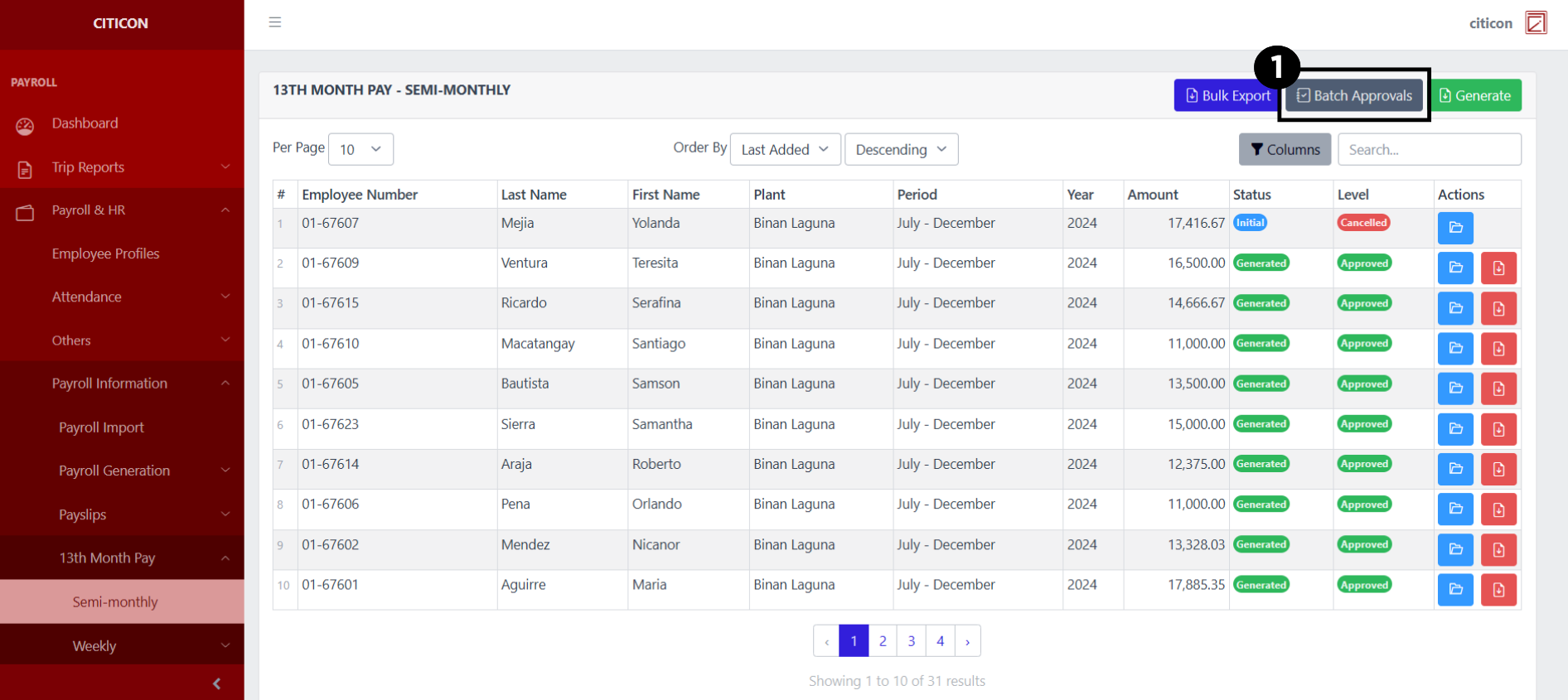
- Select the Batch Approvals button to check an entry.
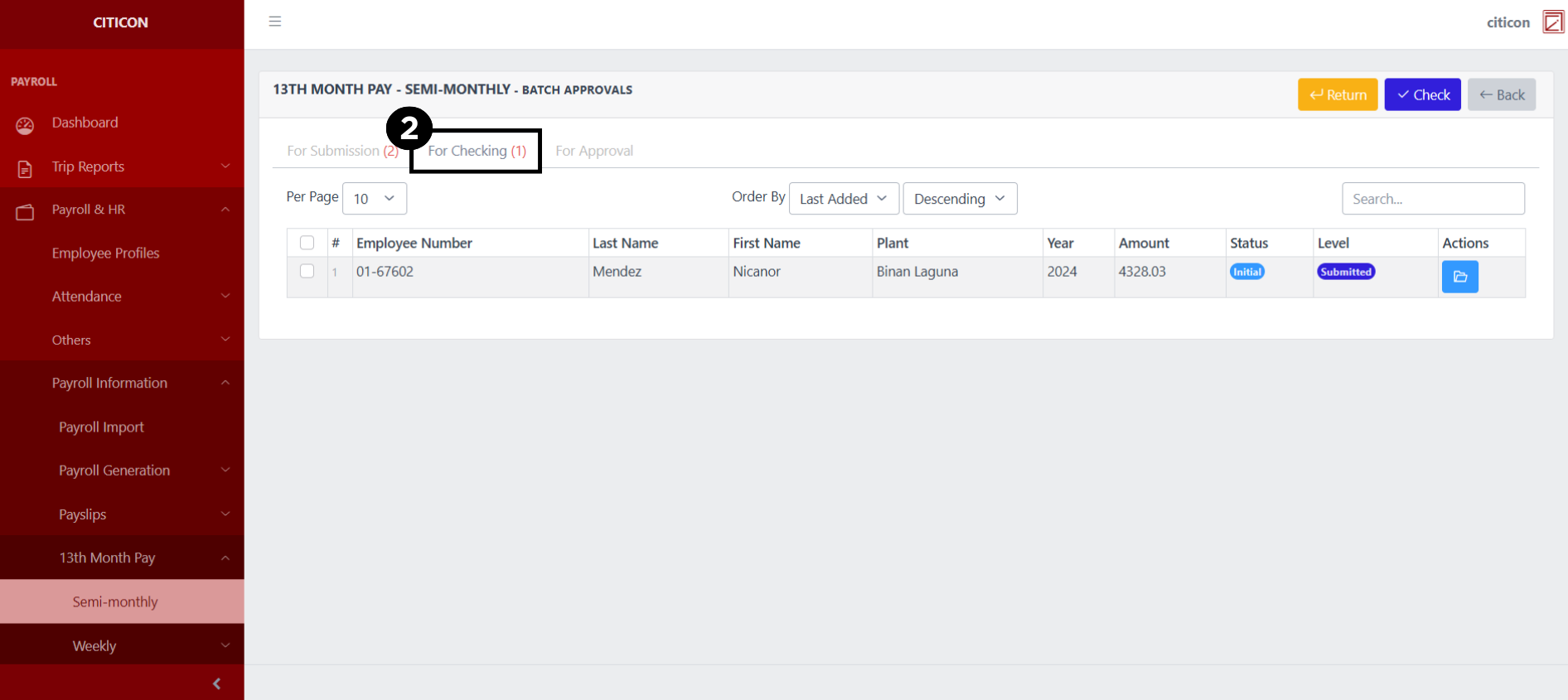
- Select the For Checking tab.
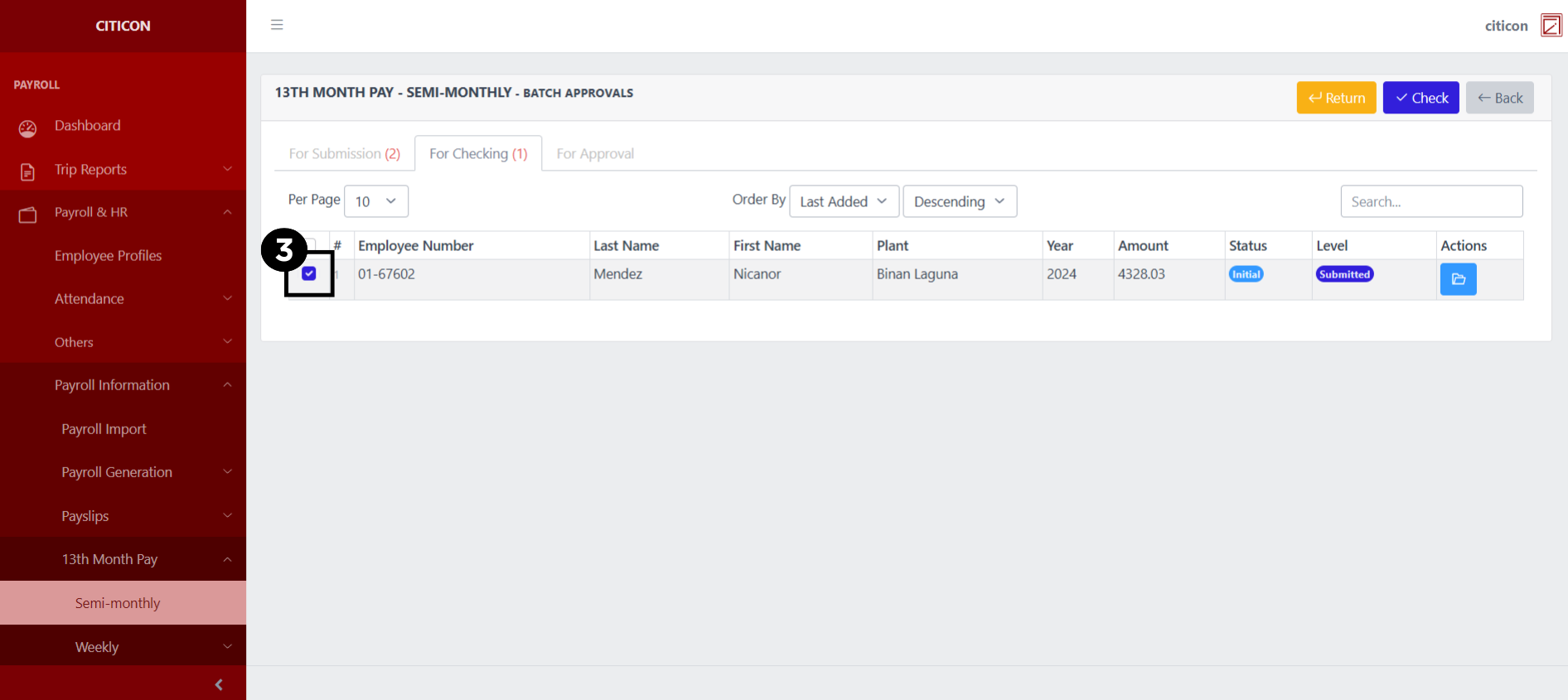
- Select the entry that you want to be checked.
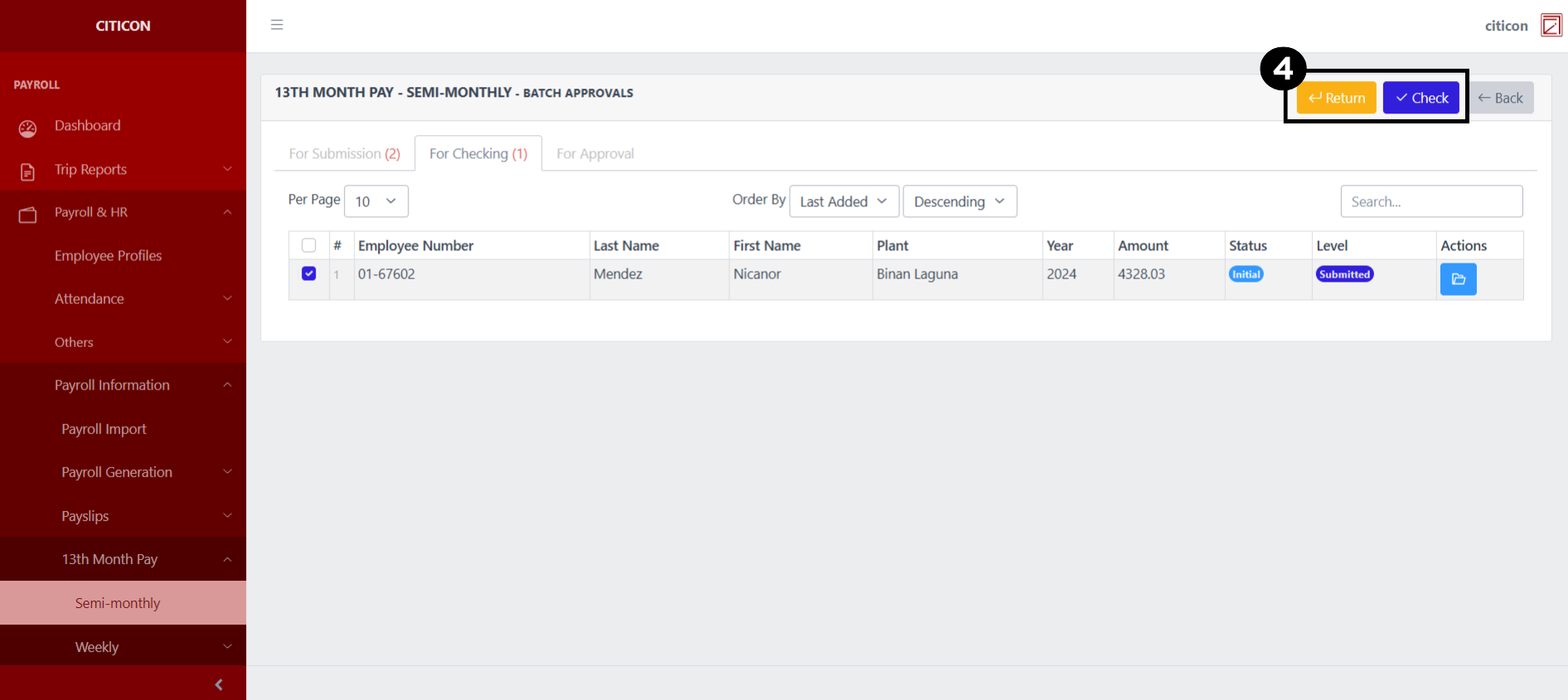
- Select the Check button to check the entry. In cases where you want to return a entry, select the entry you want to return, then select the Return button.
 To view the details of an individual entry, select the folder button and from here, you may either Edit, Delete, Submit, or Cancel the entry.
Approve Entry
- Select the Batch Approvals button to approve a entry.
- Select the For Approval tab.
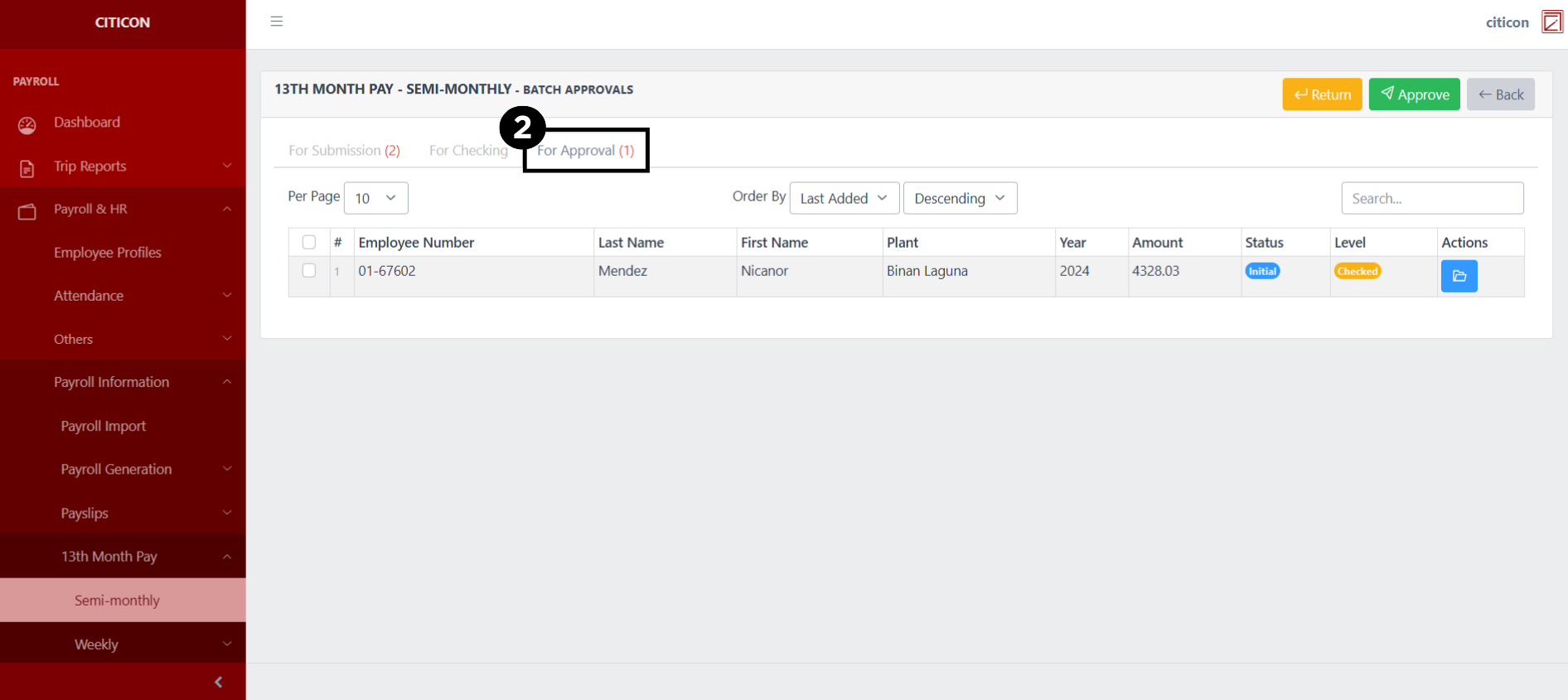
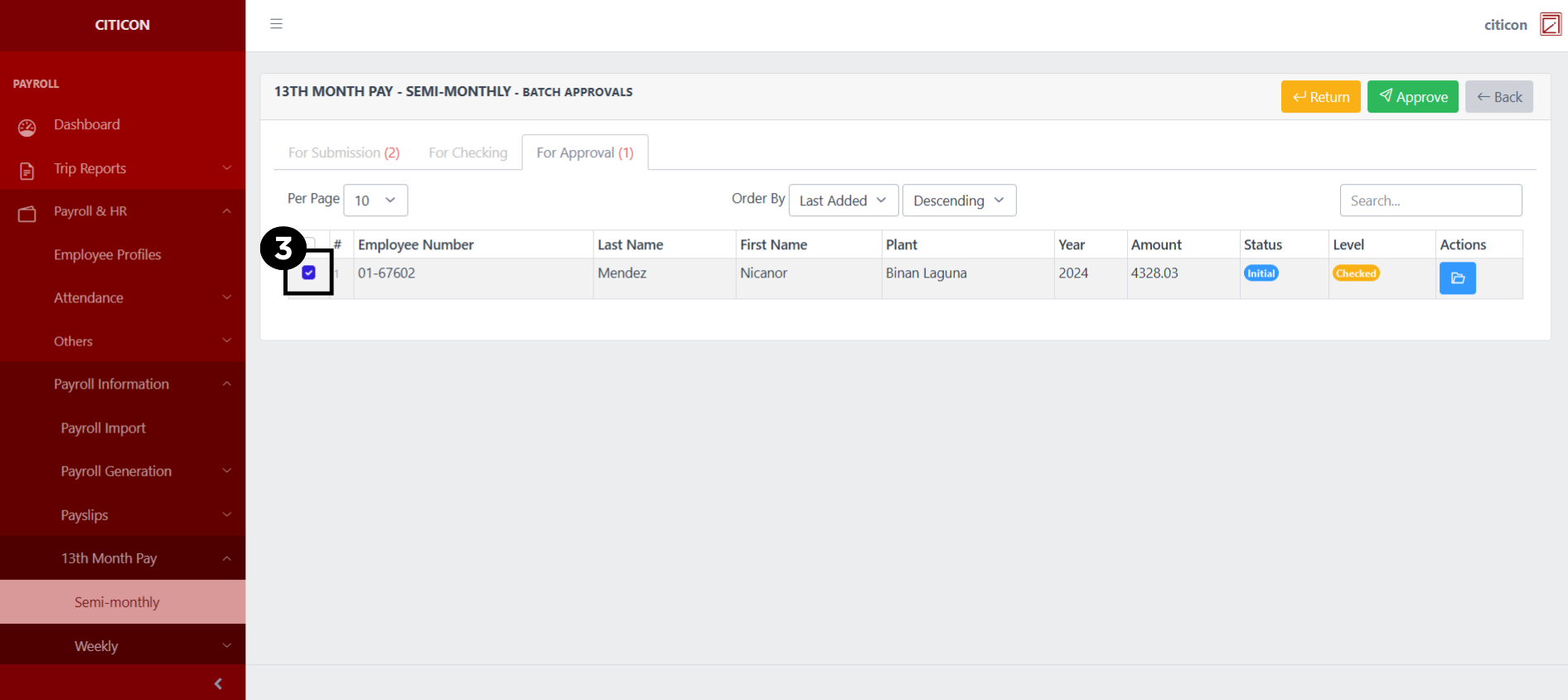
- Select the entry that you want to approve.
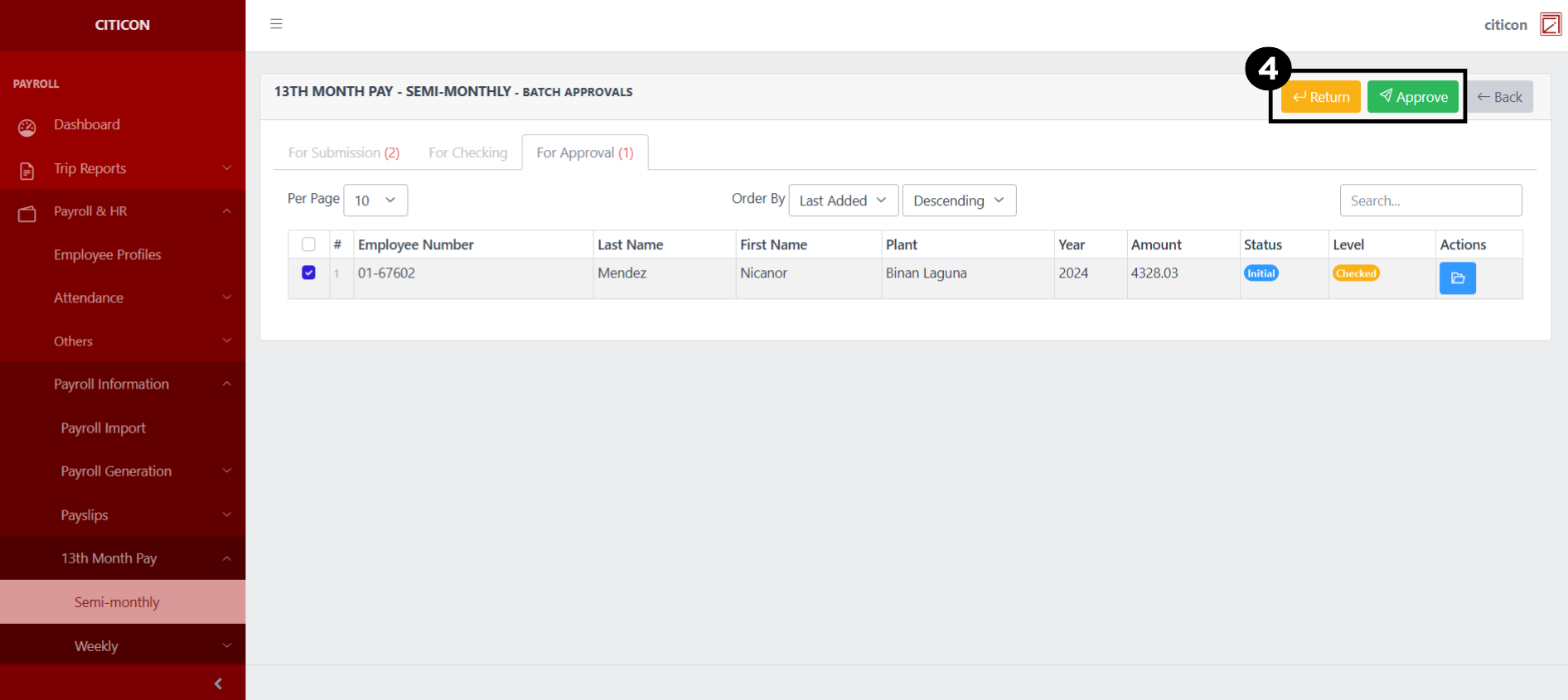
- Select the Approve button to approve the entry. In cases where you want to return a entry to submission section, select the entry you want to return, then select the Return button.
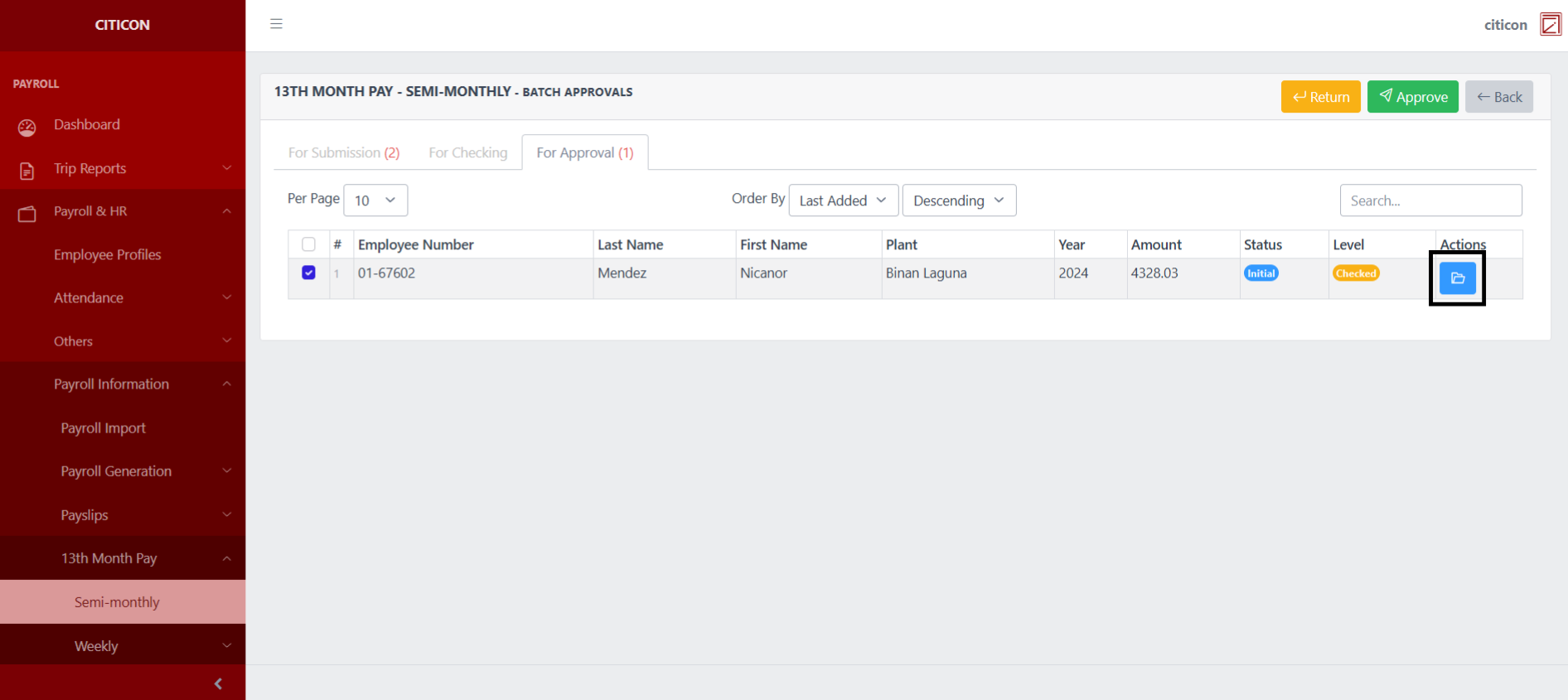
 To view the details of an individual entry, select the folder button and from here, you may either Return, Approve, or Cancel the entry.
Explore Citicon Payroll and Accounting System: Payroll & HR - 13th Month Pay - Weekly (Regular)