Others - Adjustments
Welcome to Citicon Payroll and Accounting Systems Configuration for Adjustments under the Others submodule of the Payroll & HR Module. This section is designed to record and manage payroll-related financial adjustments, whether one-time or recurring, ensuring precise and compliant payroll computation.
Key Purposes
- Record One-Time and Recurring Adjustments: Input financial changes affecting an employee's pay such as corrections, reimbursements, or penalties.
- Define Adjustment Terms and Conditions: Capture applicable rates, terms, and tax settings for accurate deductions or additions.
- Link to Specific Employees and Groups: Assign adjustments to targeted personnel or departments to align with company financial controls.
- Monitor Supporting Documents: Track references like official receipts or adjustment memos to support auditing and verification.
- Ensure Transparent Payroll Corrections: Incorporate approved adjustments seamlessly into payroll for error-free disbursement.
Adjustments Module User-Manual
This section provides details, and set-by-step instructions to access, view, and update the Adjustments entries stored in the system.
Index Page
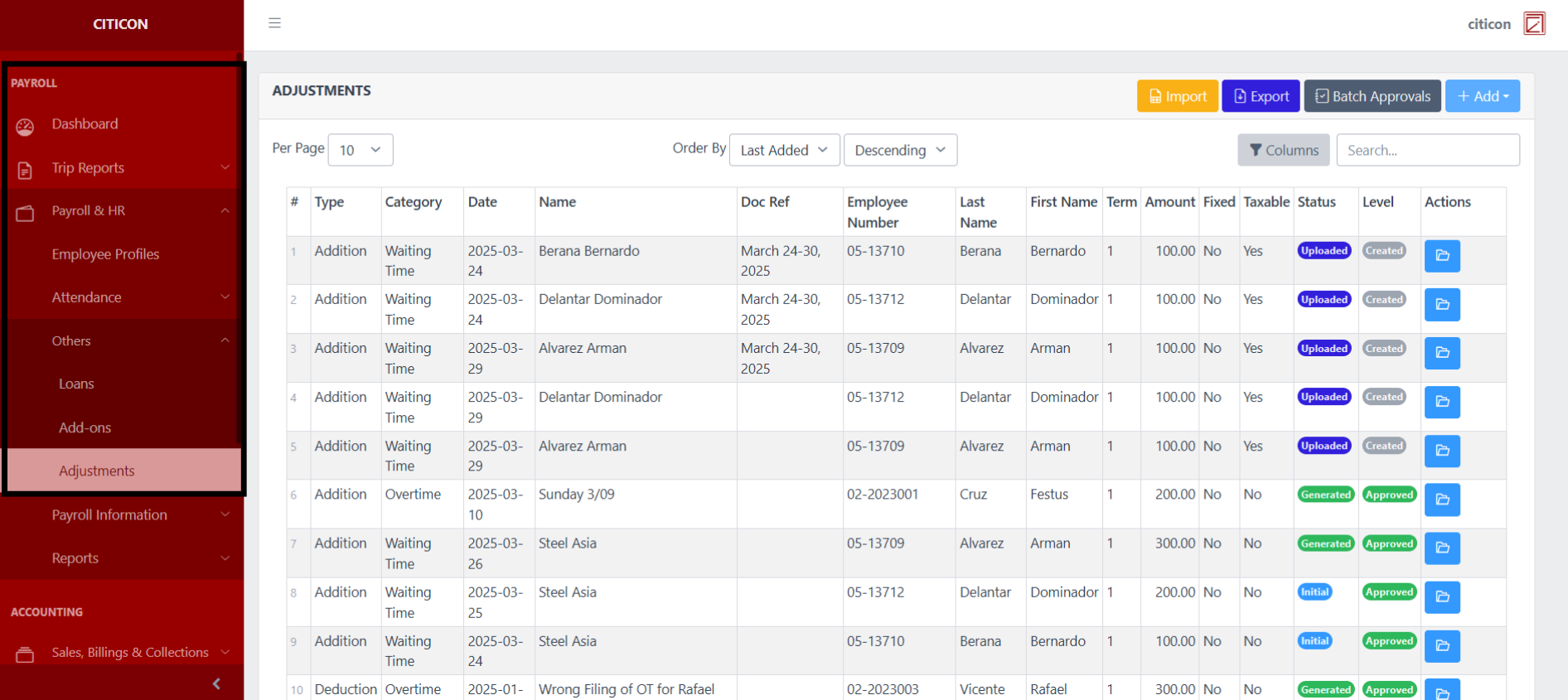
To access the Adjustments. Go to Payroll, select Payroll & HR, select Others, then select Adjustments.
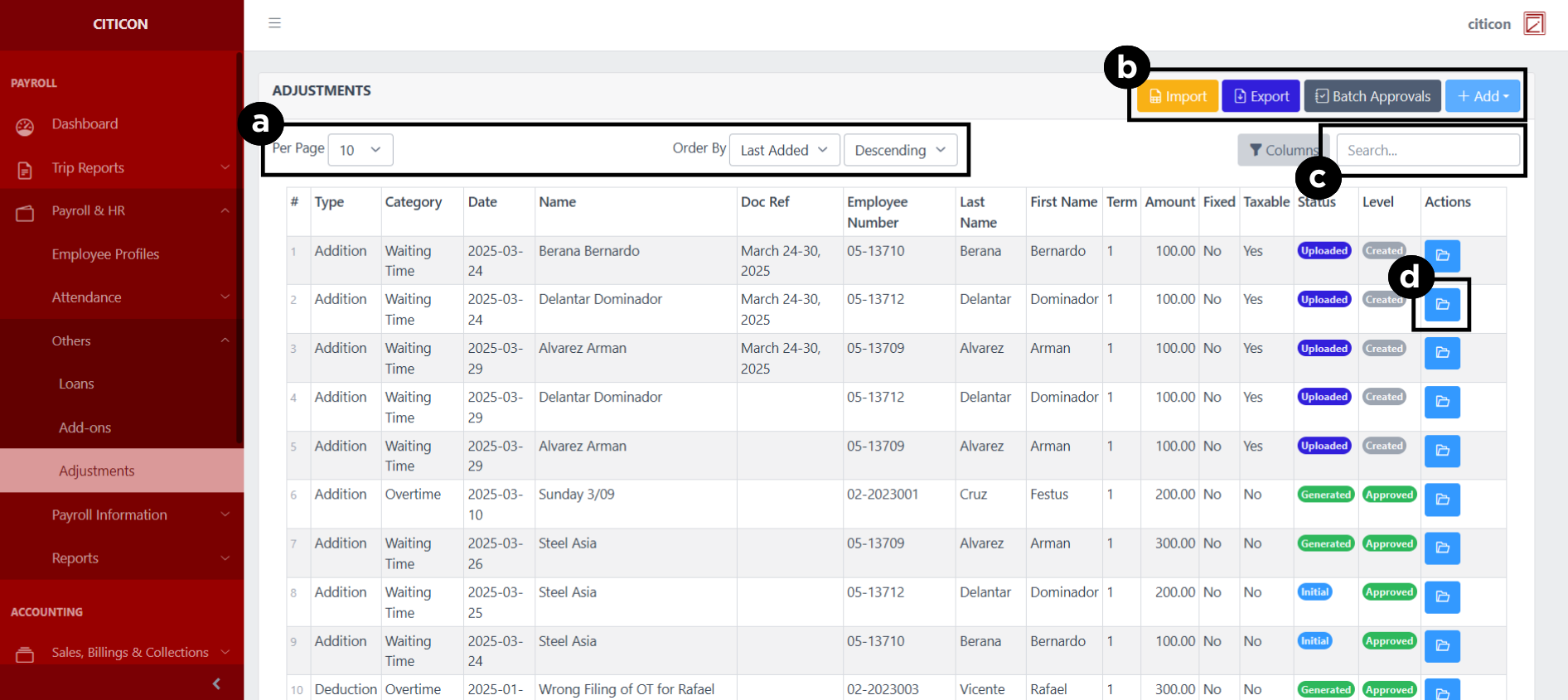
a. Adjust the paging, ordering, and sorting of the Adjustments Page here.
b. Select the respective button to either Import new entries, Export the current entries, Add new entries, or process Approvals.
c. Search for specific entry details using the search bar.
d. View or Edit data by selecting the folder button.
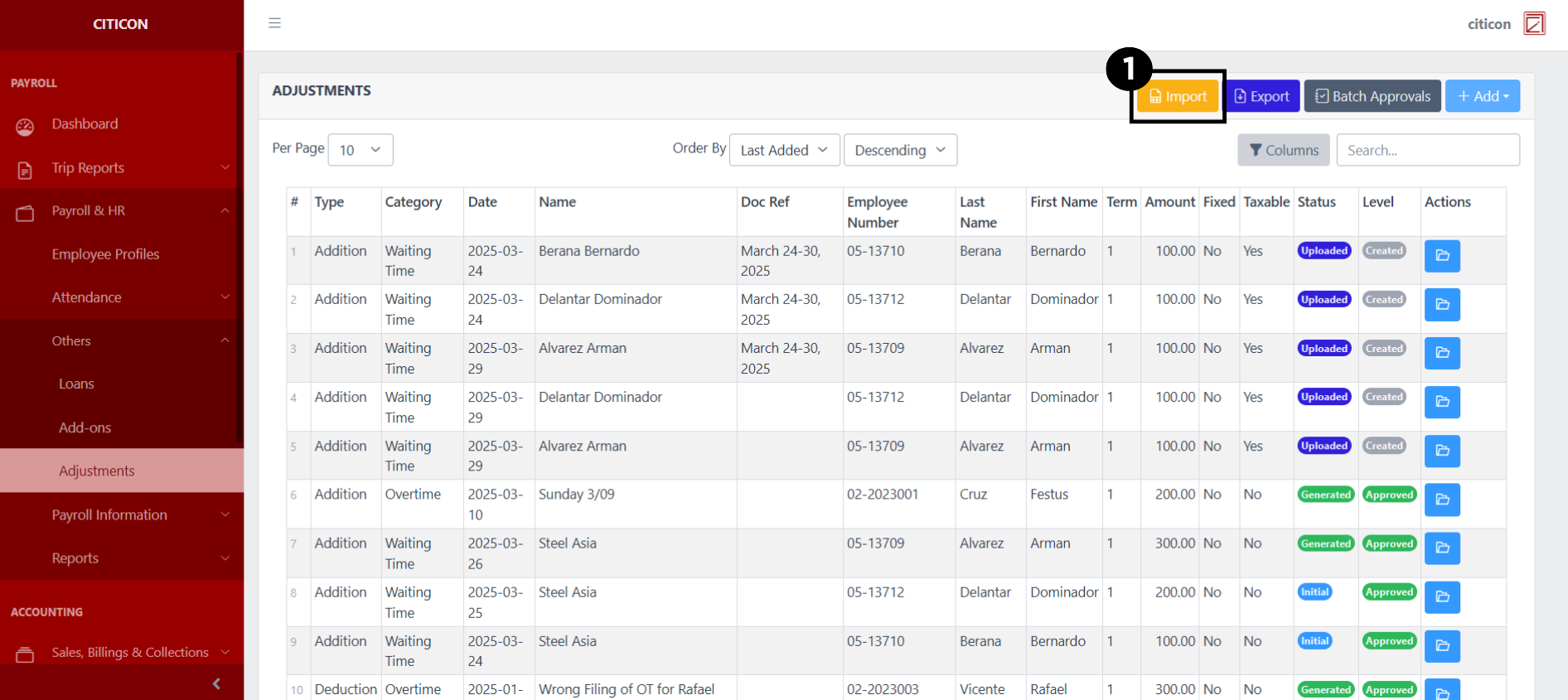
Import Entries
- Select the Import button to import new entries.
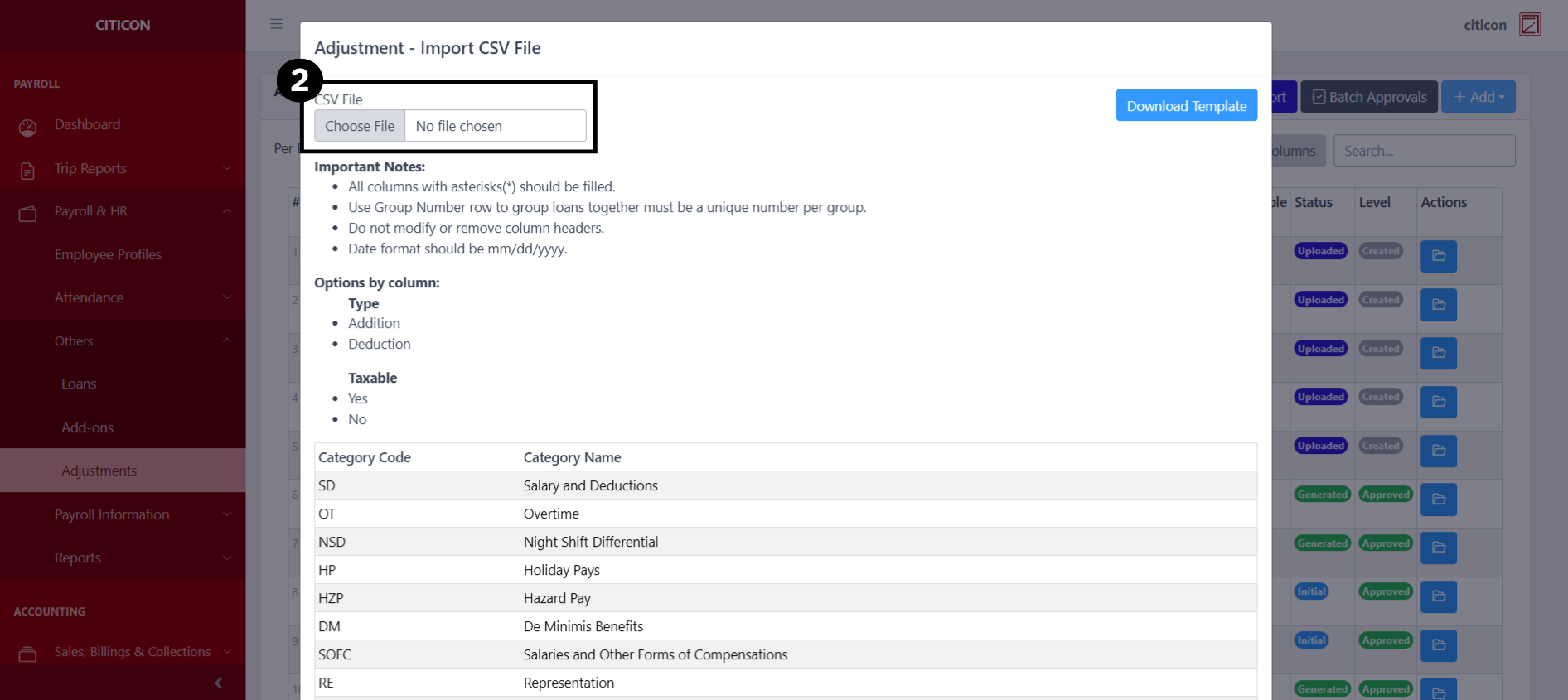
- Select the Choose File button.
Select the Download Template button to view the required format for imported entries, including the number of columns, and mandatory fields to be filled.
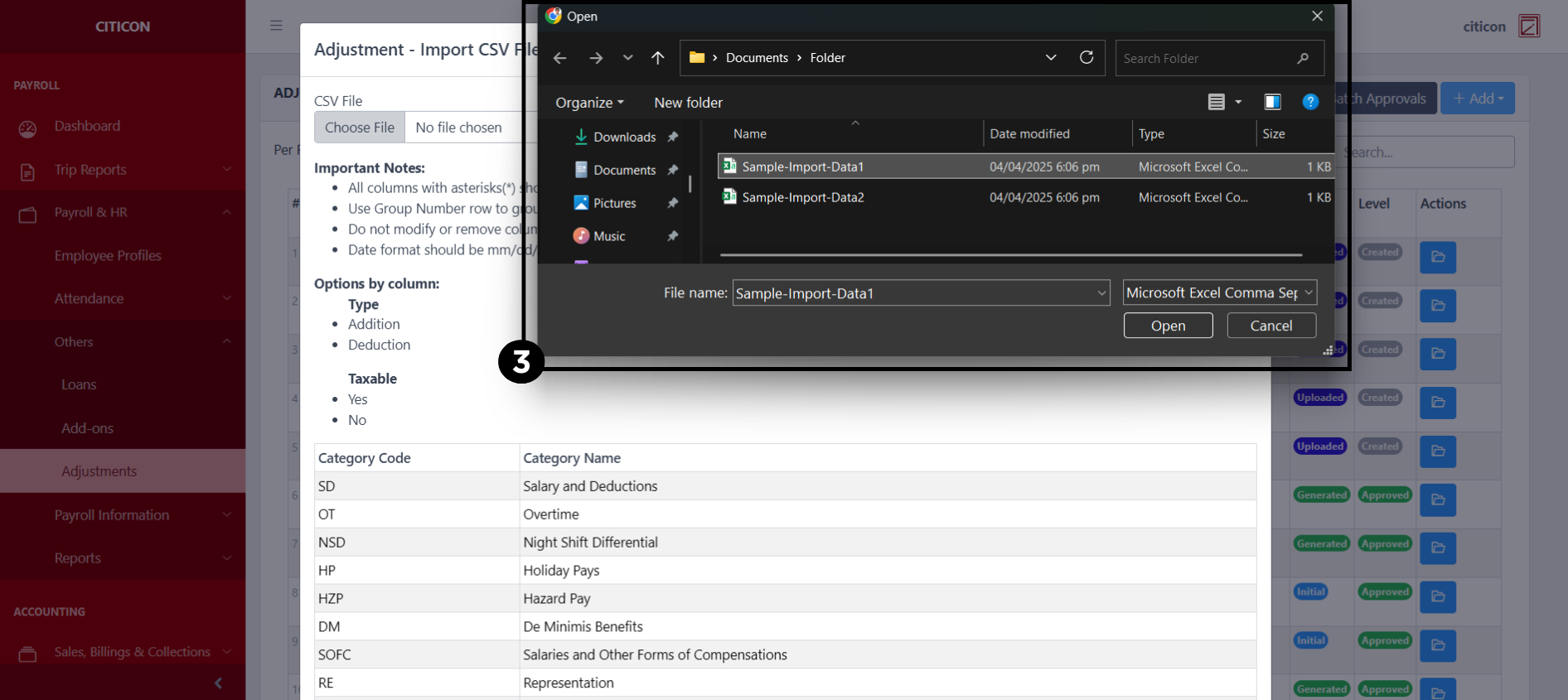
- From your local storage, select the file you want to import, then select the Open button.
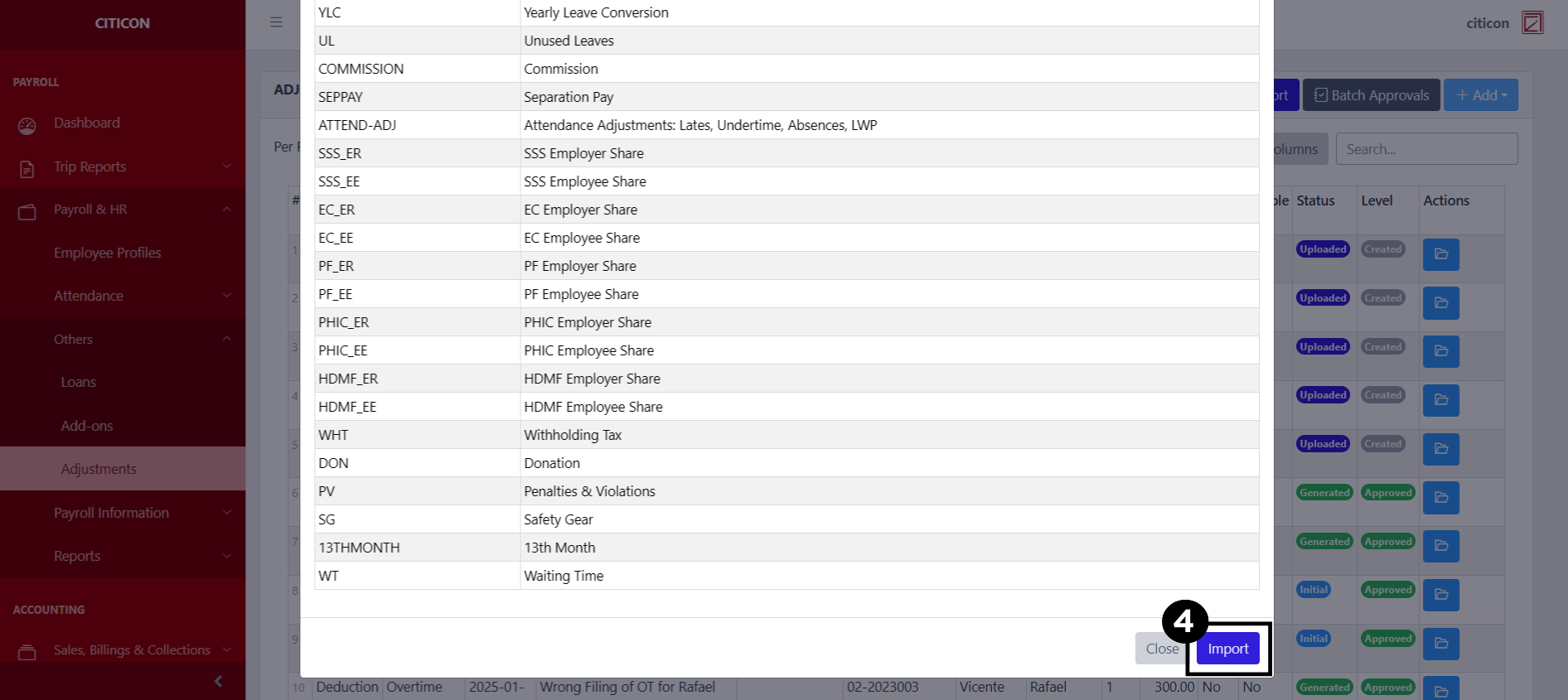
- Select the Import button.
Add Entry
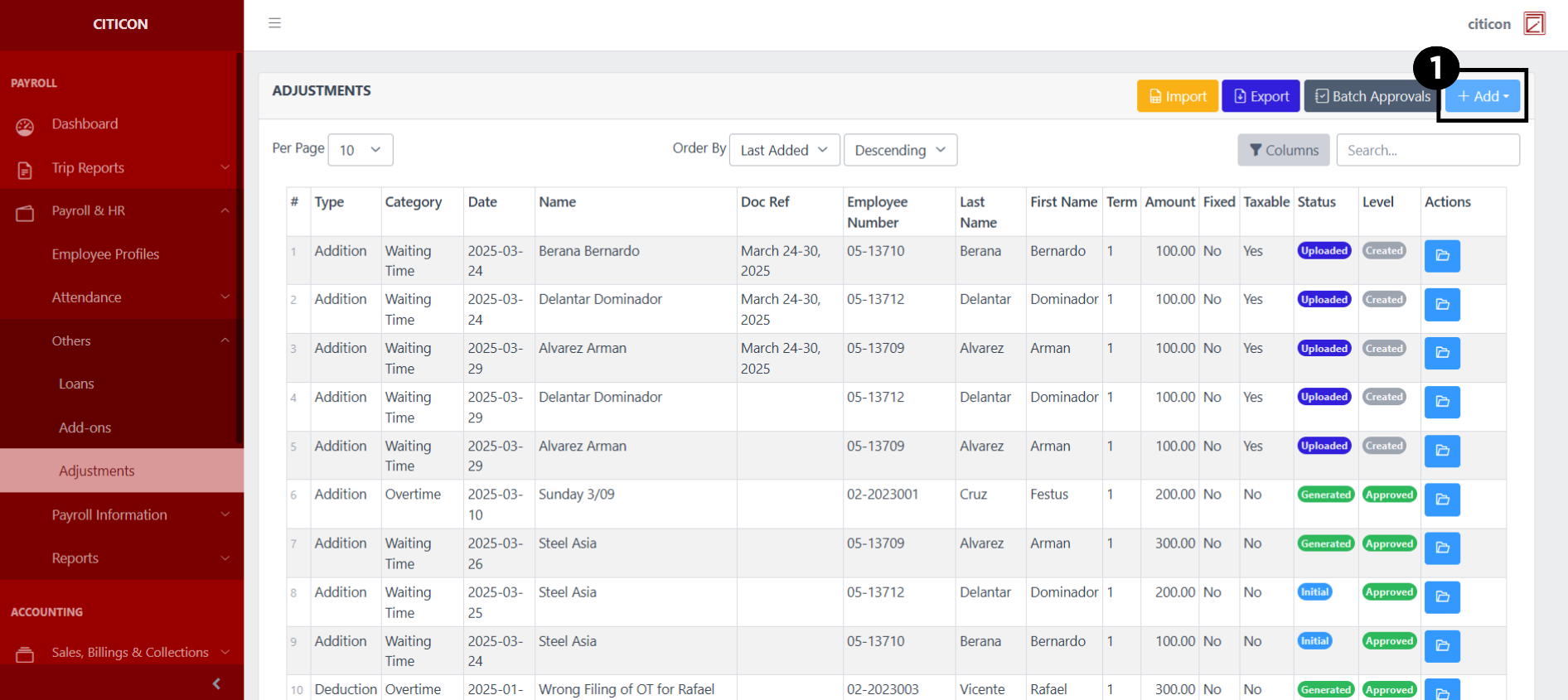
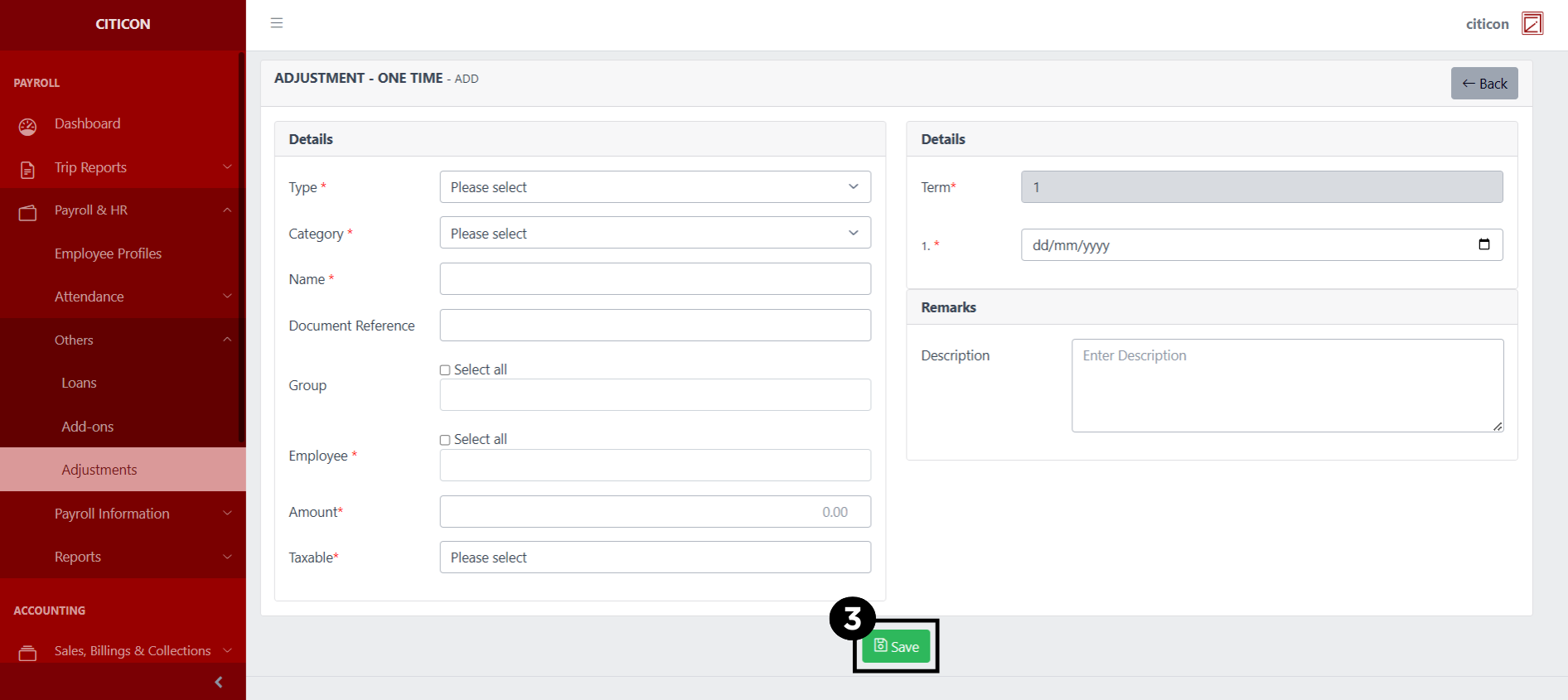
- Select the Add button to add a new entry.
Select if the entry is One Time or a Recurring type.
- Input the necessary details for your new entry.
All fields that has an asterisk (*) are required to be filled up.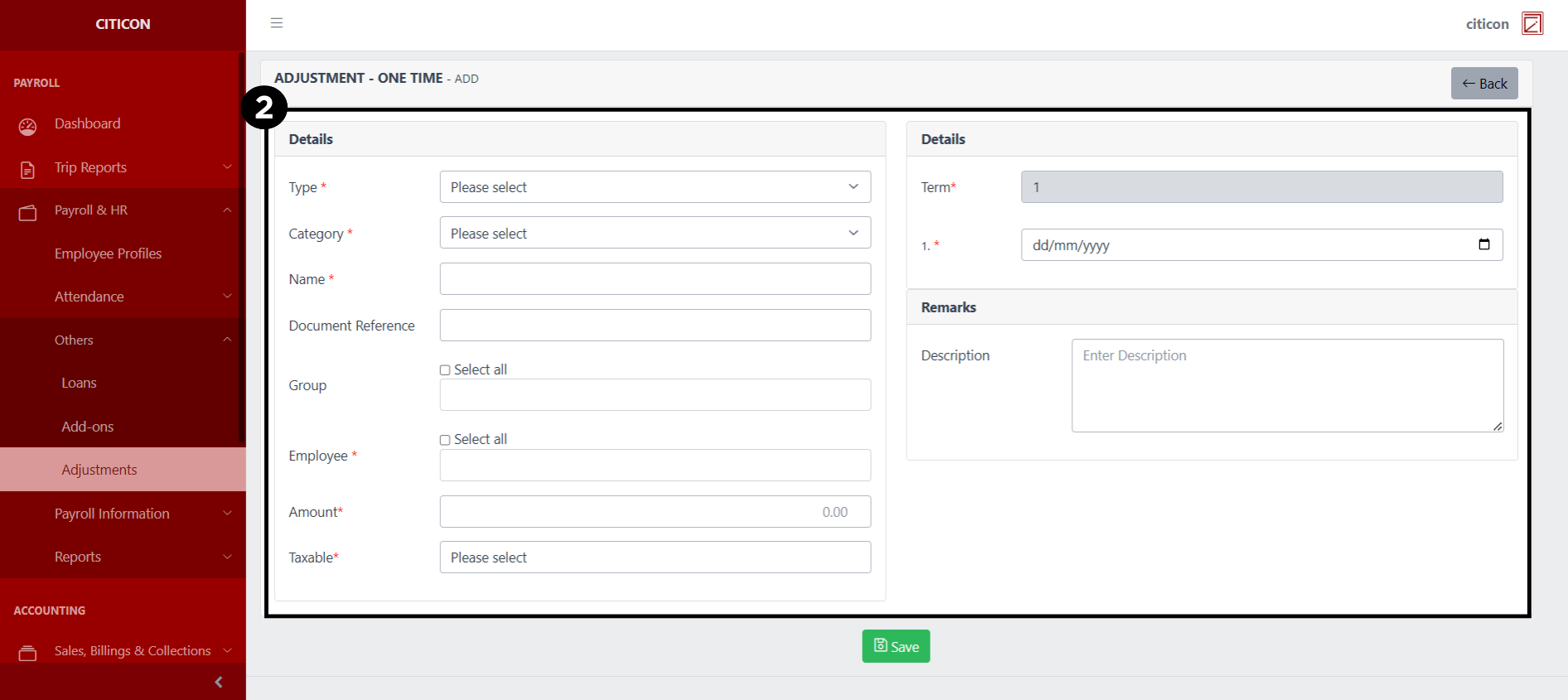
- Select the Save button to save your new entry.
Show Entry
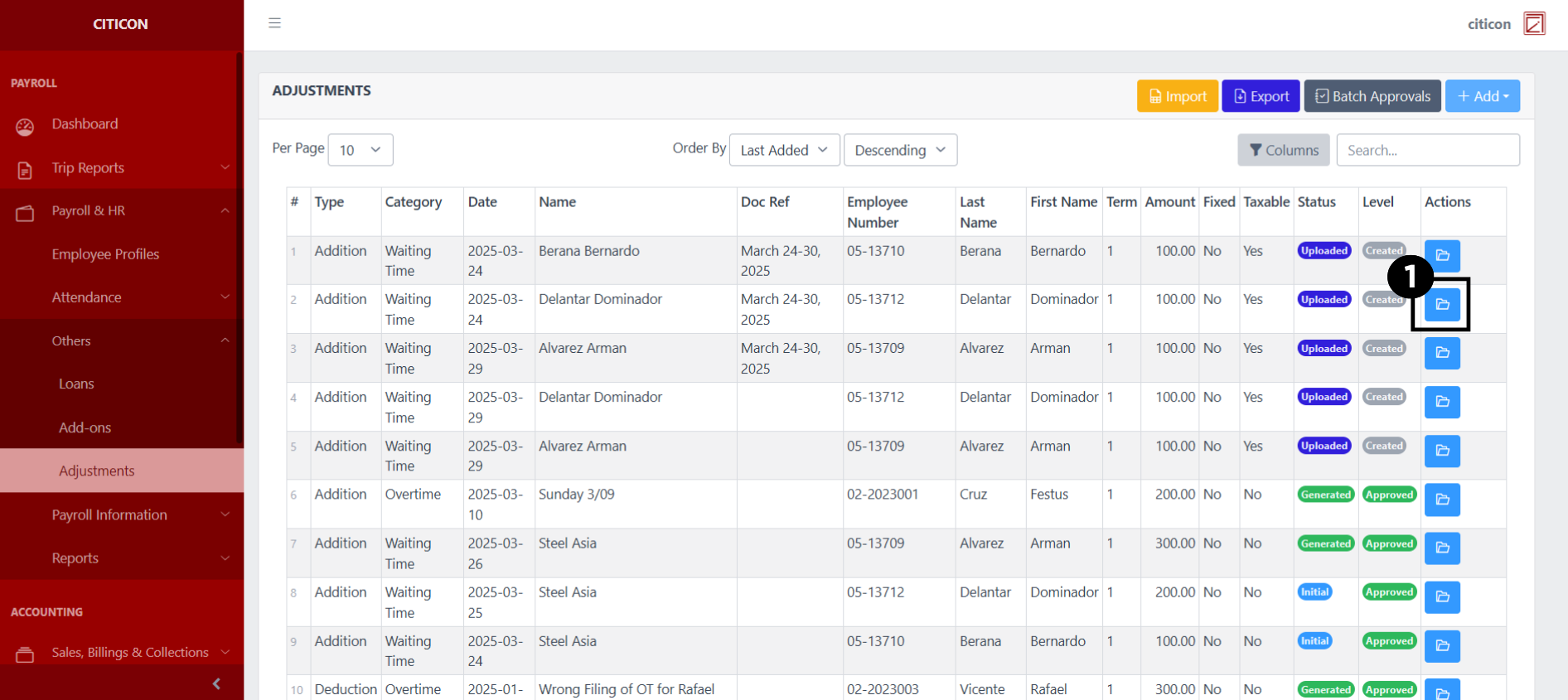
- Select the folder button to view an entry.
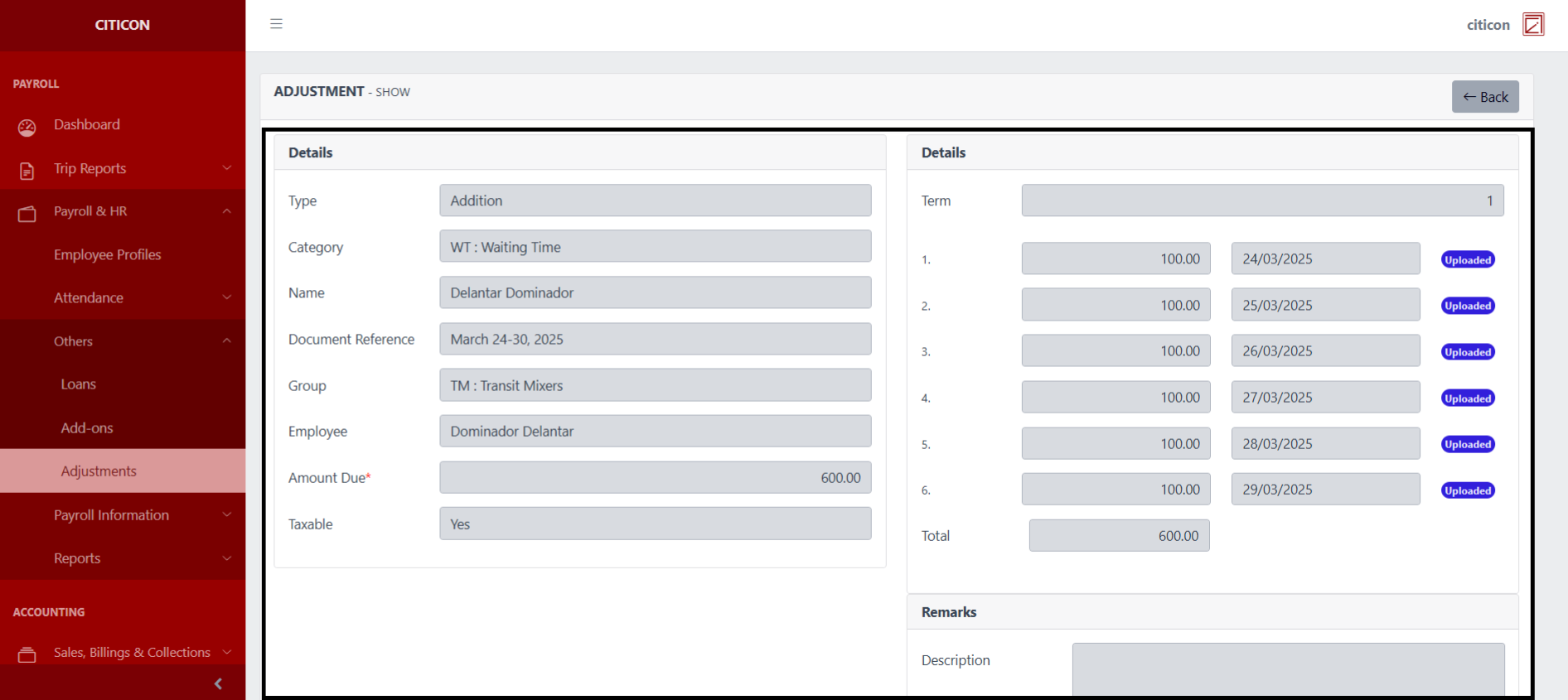
 Here you can view more specific details on the entry that you selected.
Update Entry
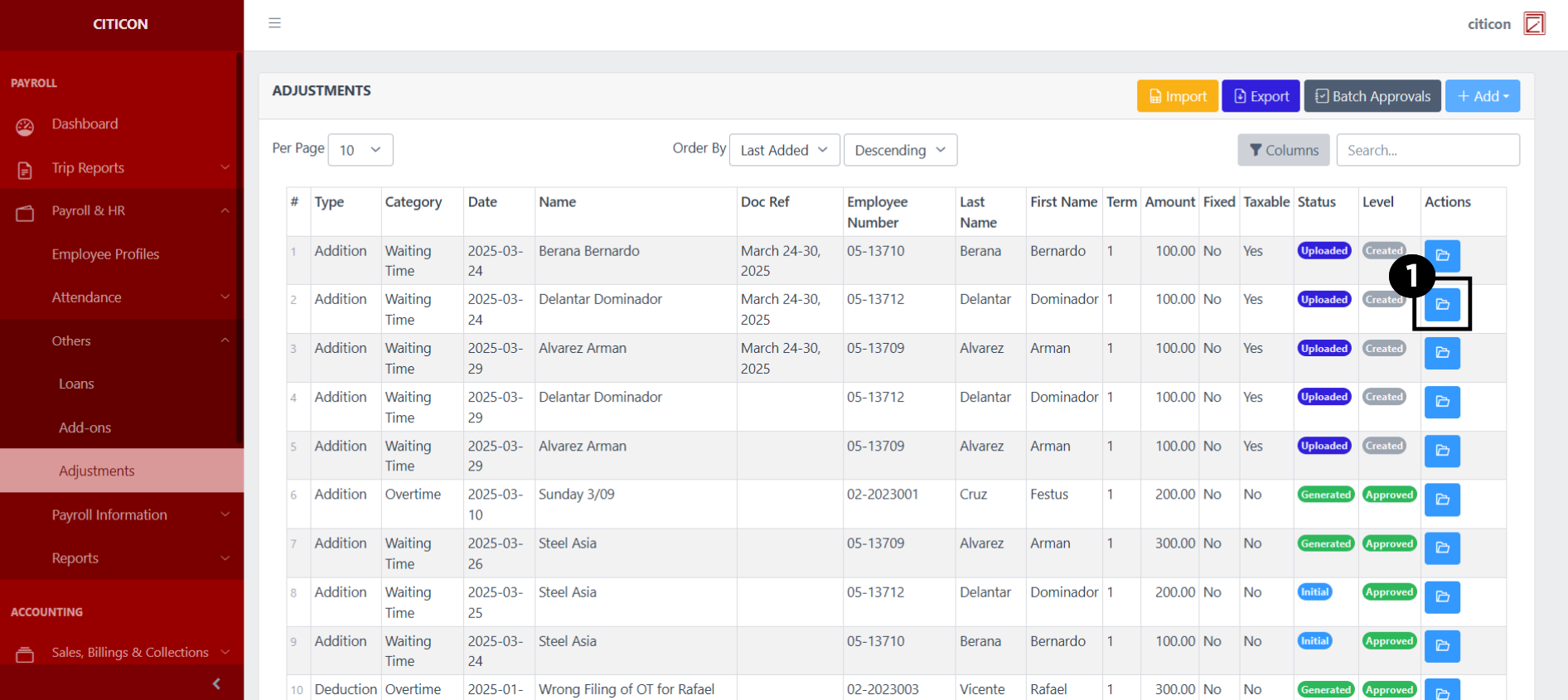
- Select the folder button of the entry which you want to edit.
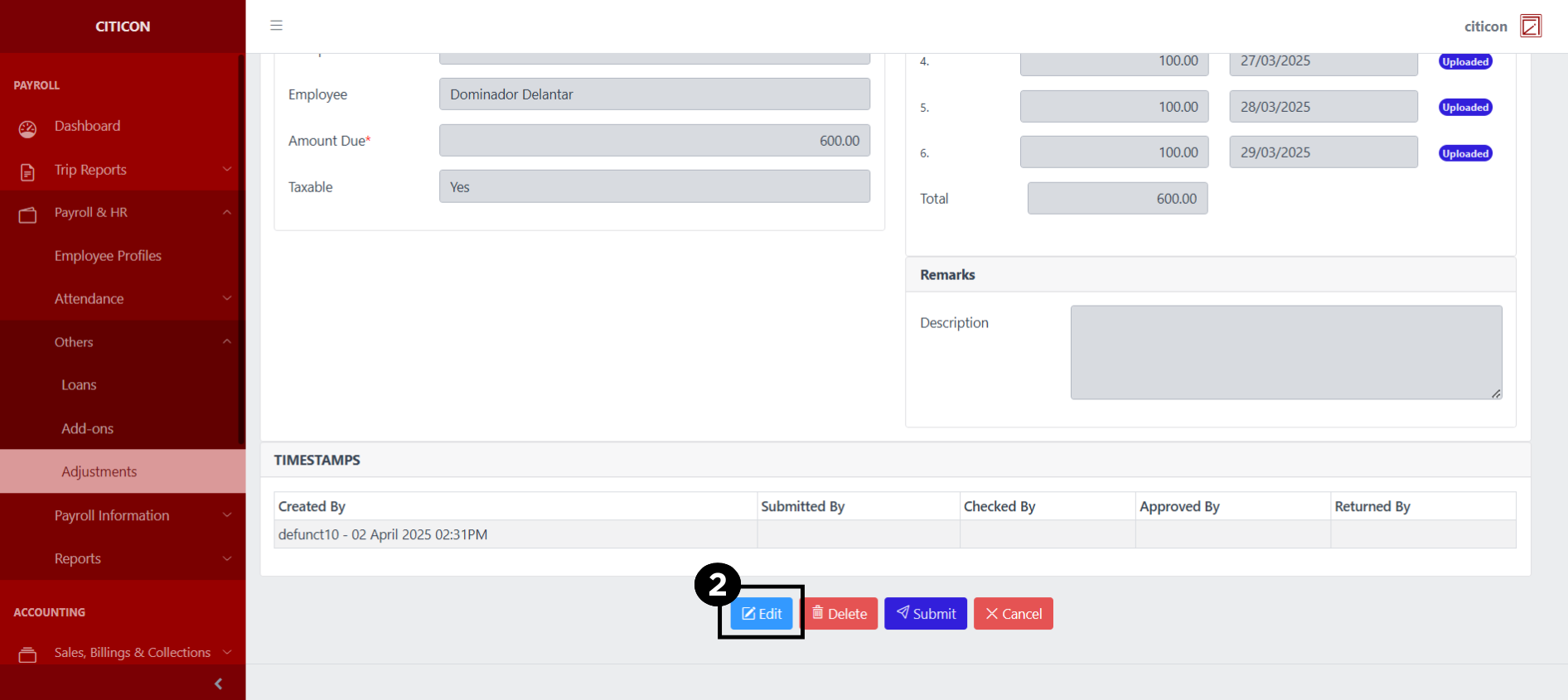
- Select the Edit button to update the details of the entry.
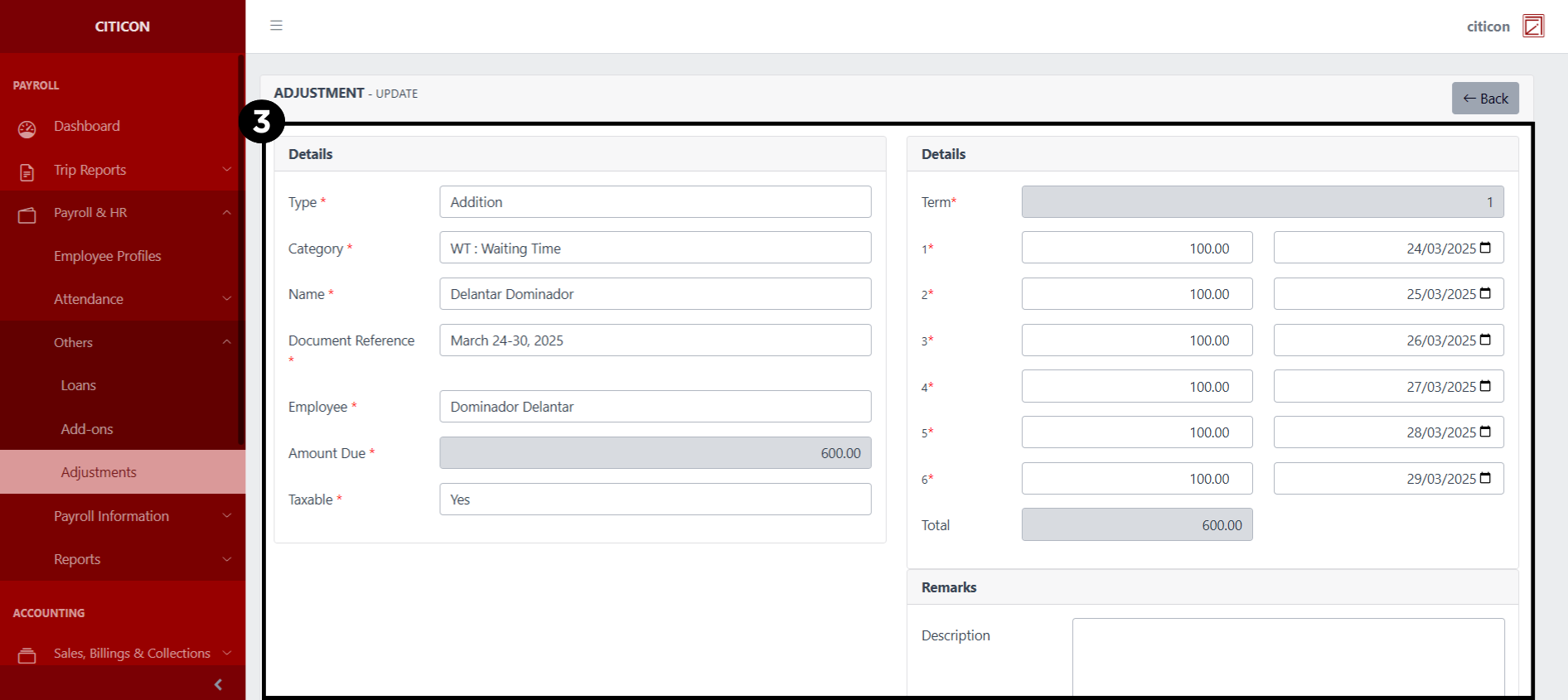
- Select a detail section which you want to edit, and enter the necessary changes.
All fields with an asterisk (*) are required to be filled up.
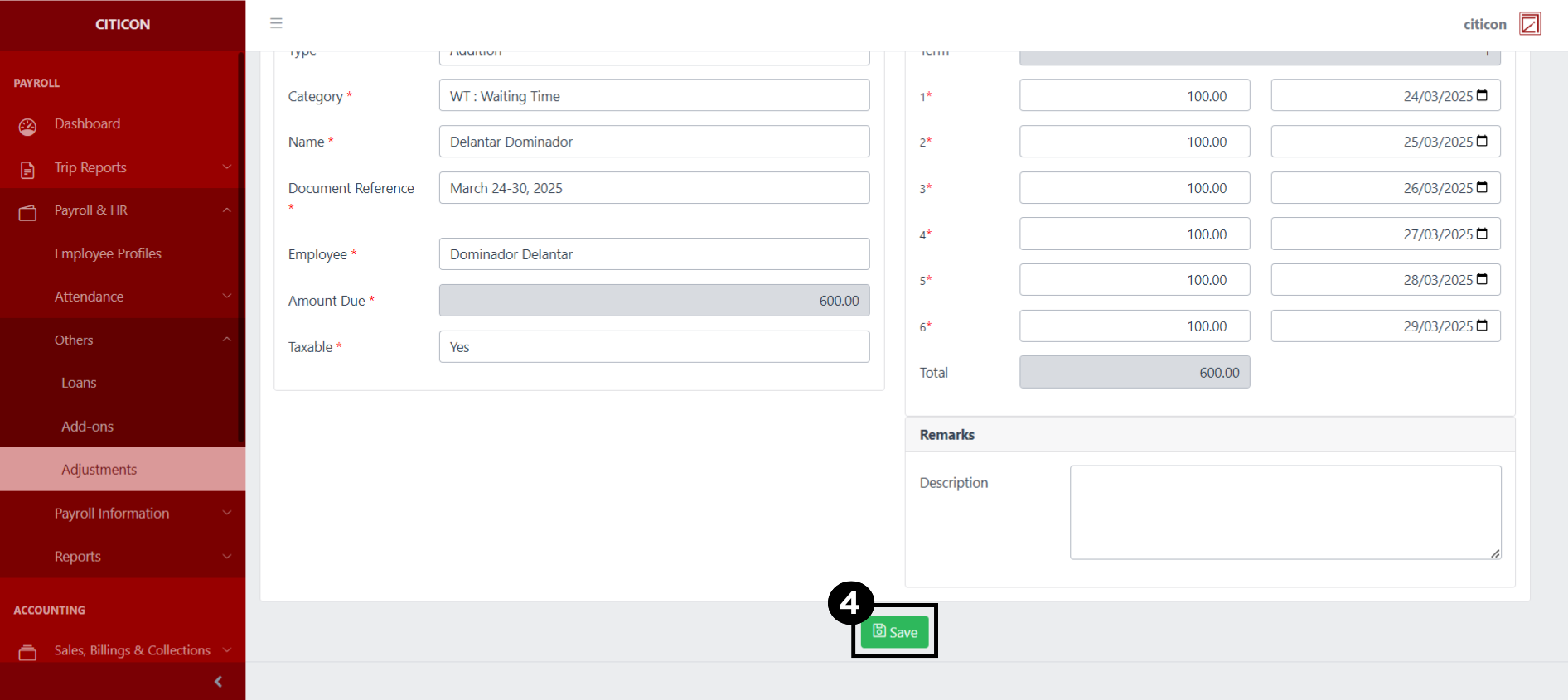
- Select the Save button to save the changes you have made.
Submit Entry
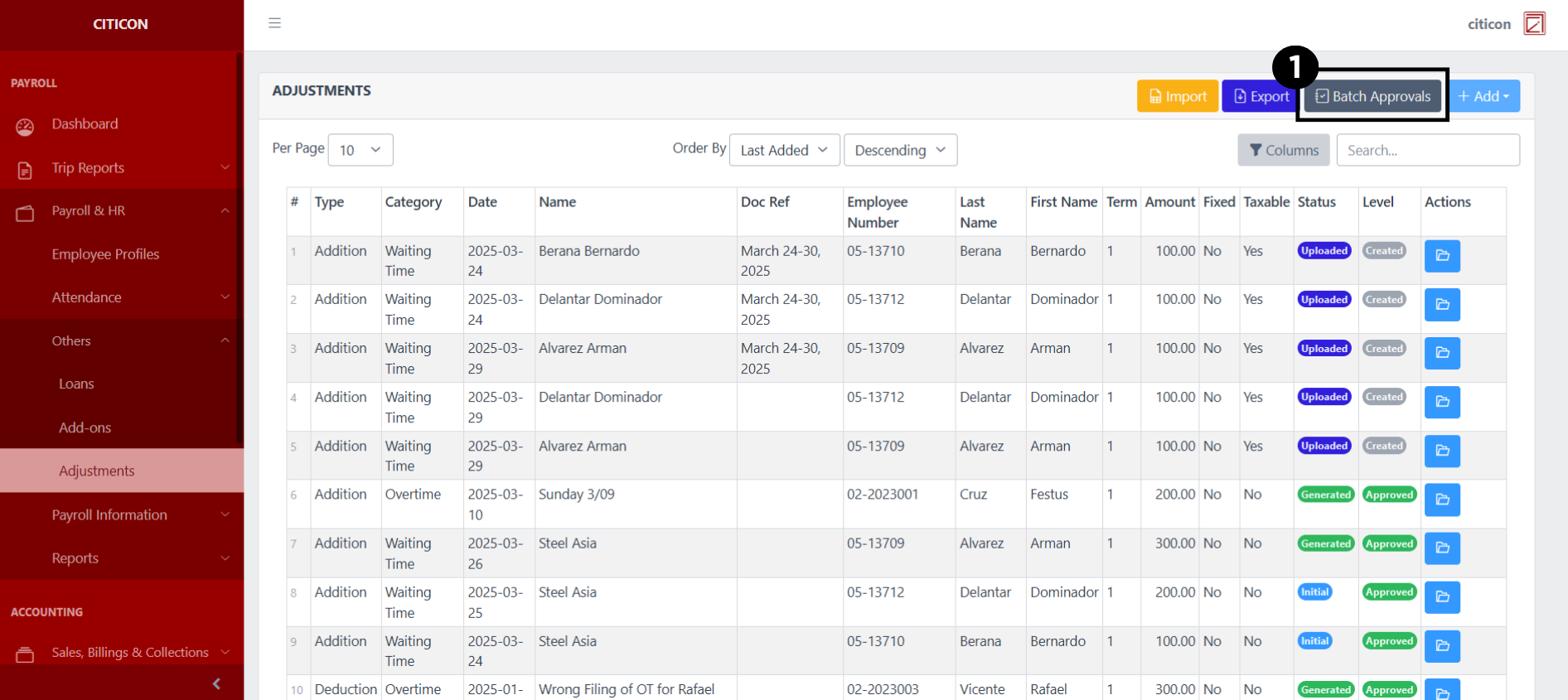
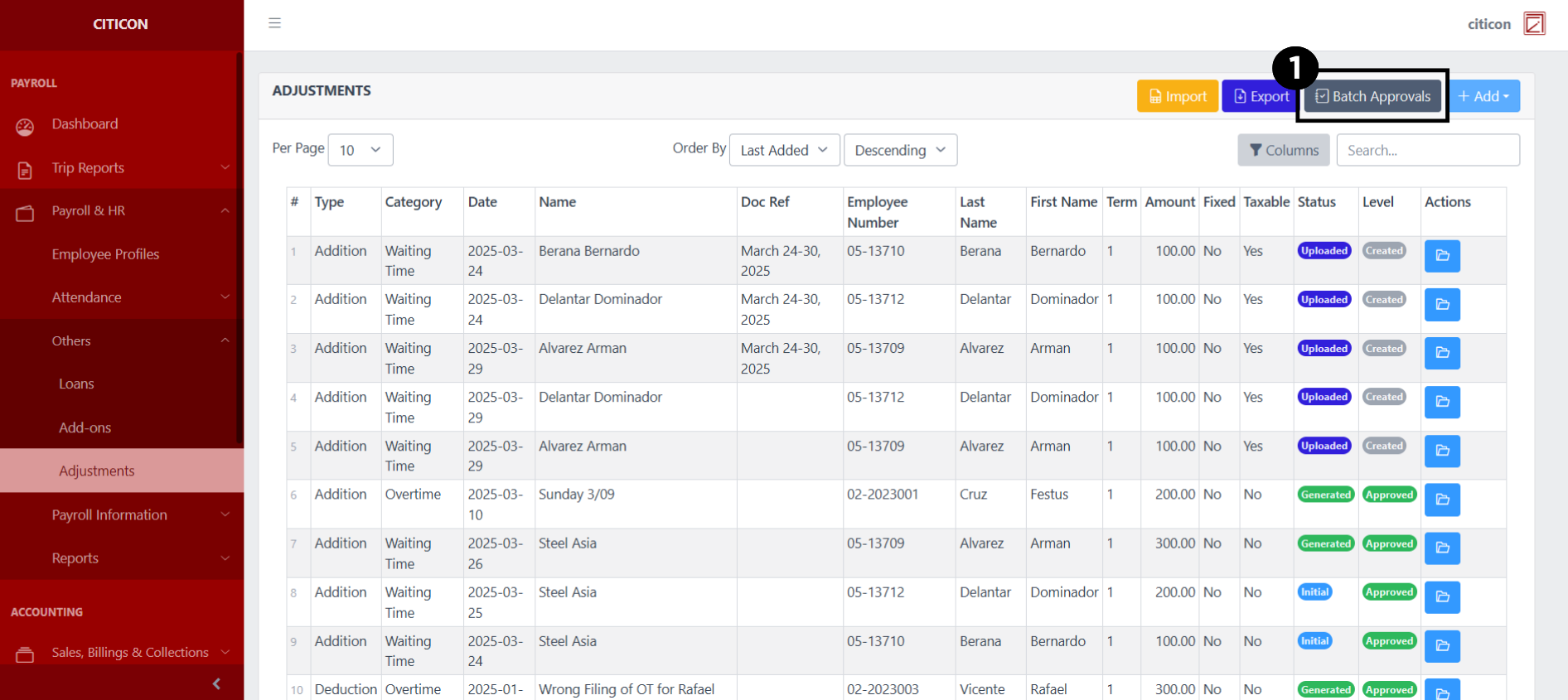
- Select the Batch Approvals button to submit an entry.
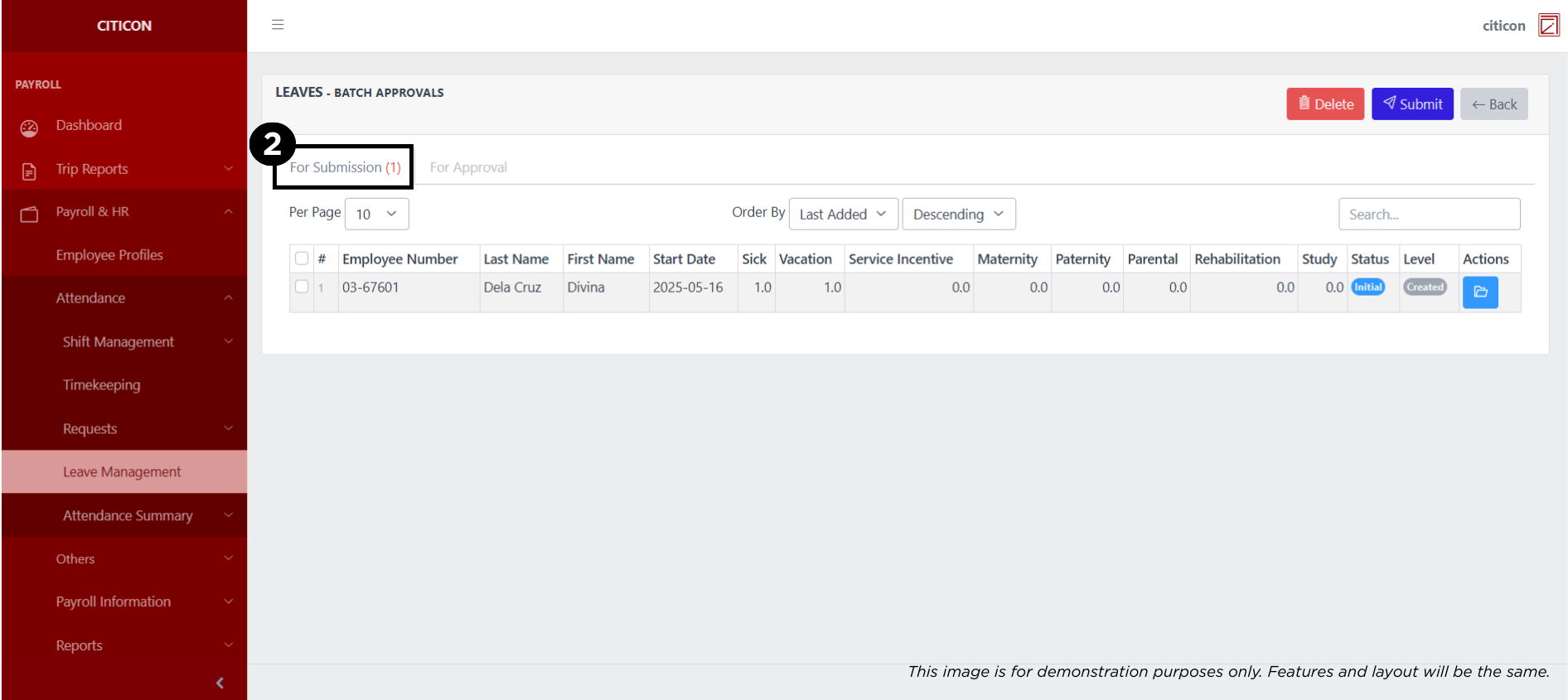
- Select the For Submission tab.
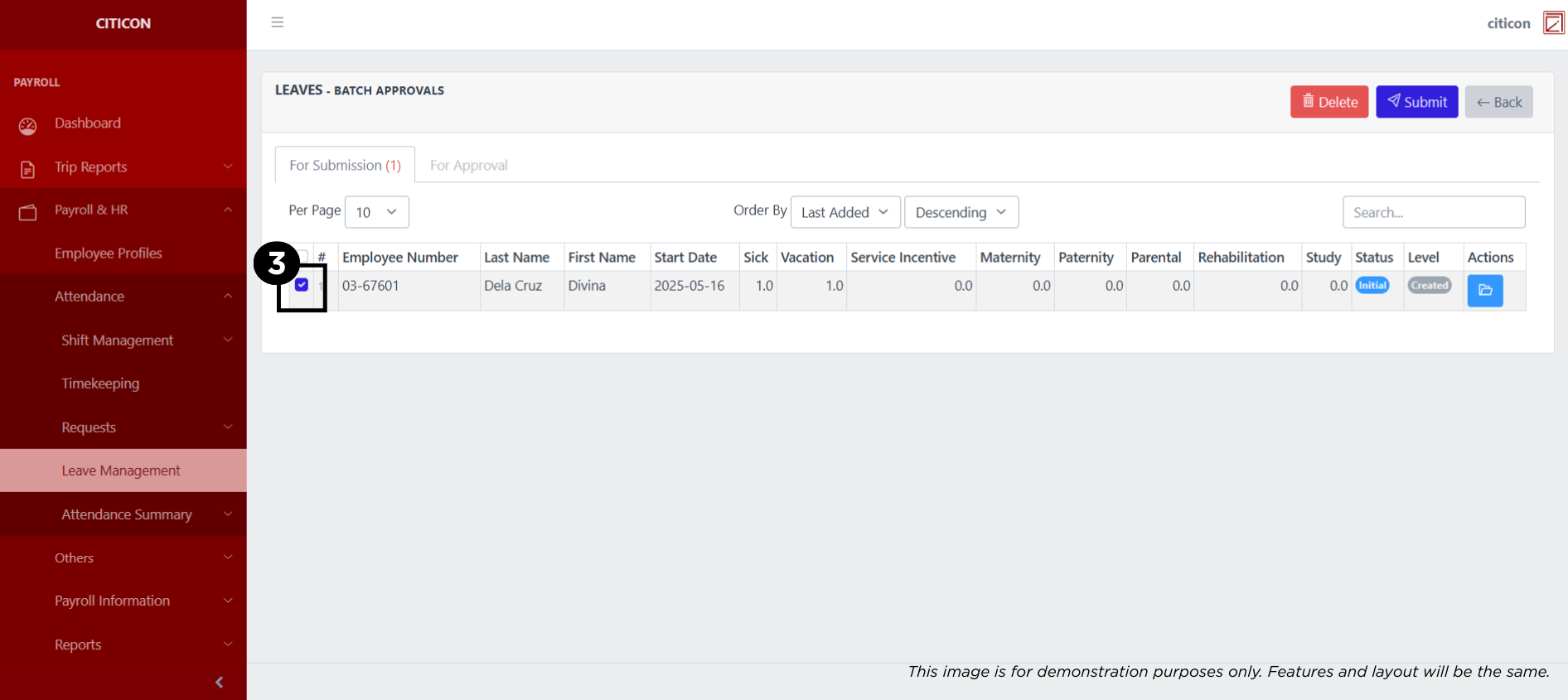
- Select the entry that you want to submit.
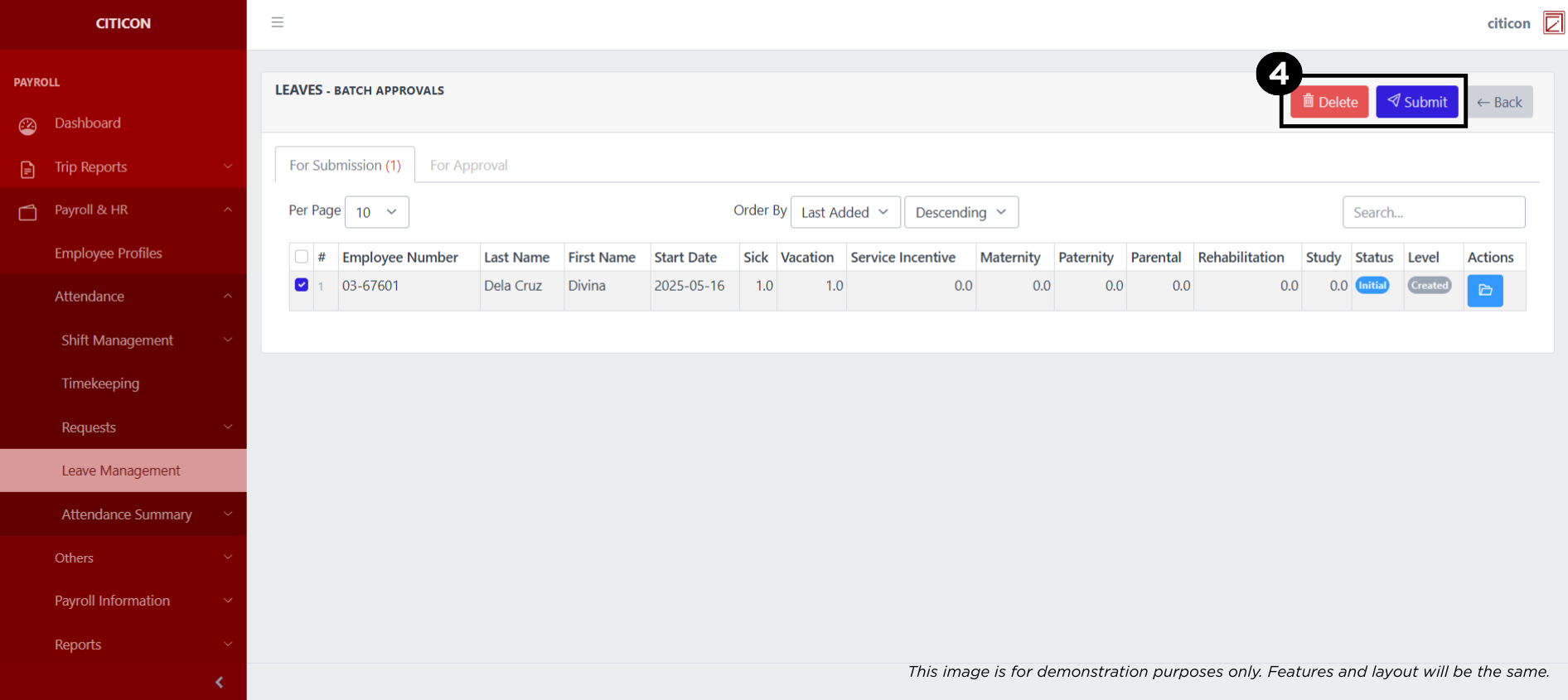
- Select the Submit button to submit the entry. In cases where you want to delete a entry, select the entry you want to delete, then select the Delete button.
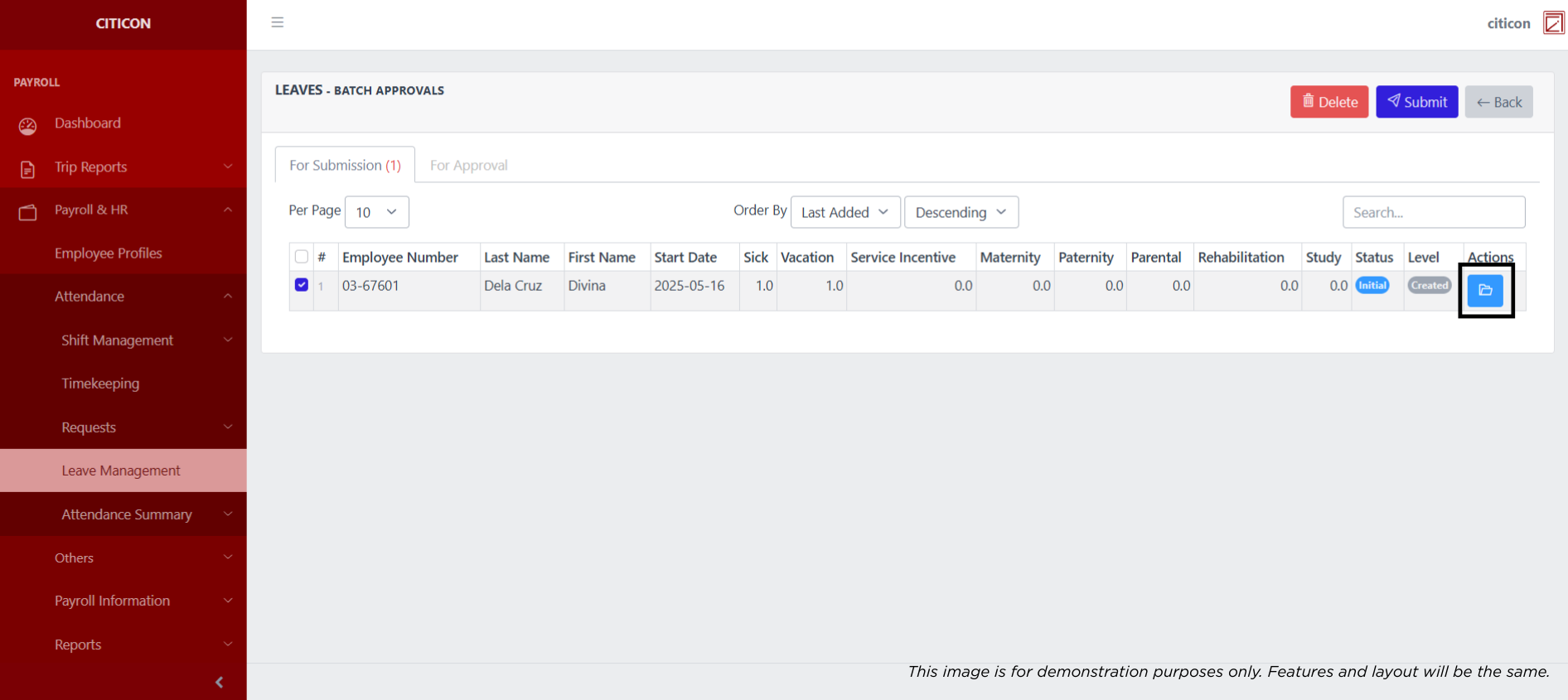
 To view the details of an individual entry, select the folder button and from here, you may either Edit, Delete, Submit, or Cancel the entry.
Approve Entry
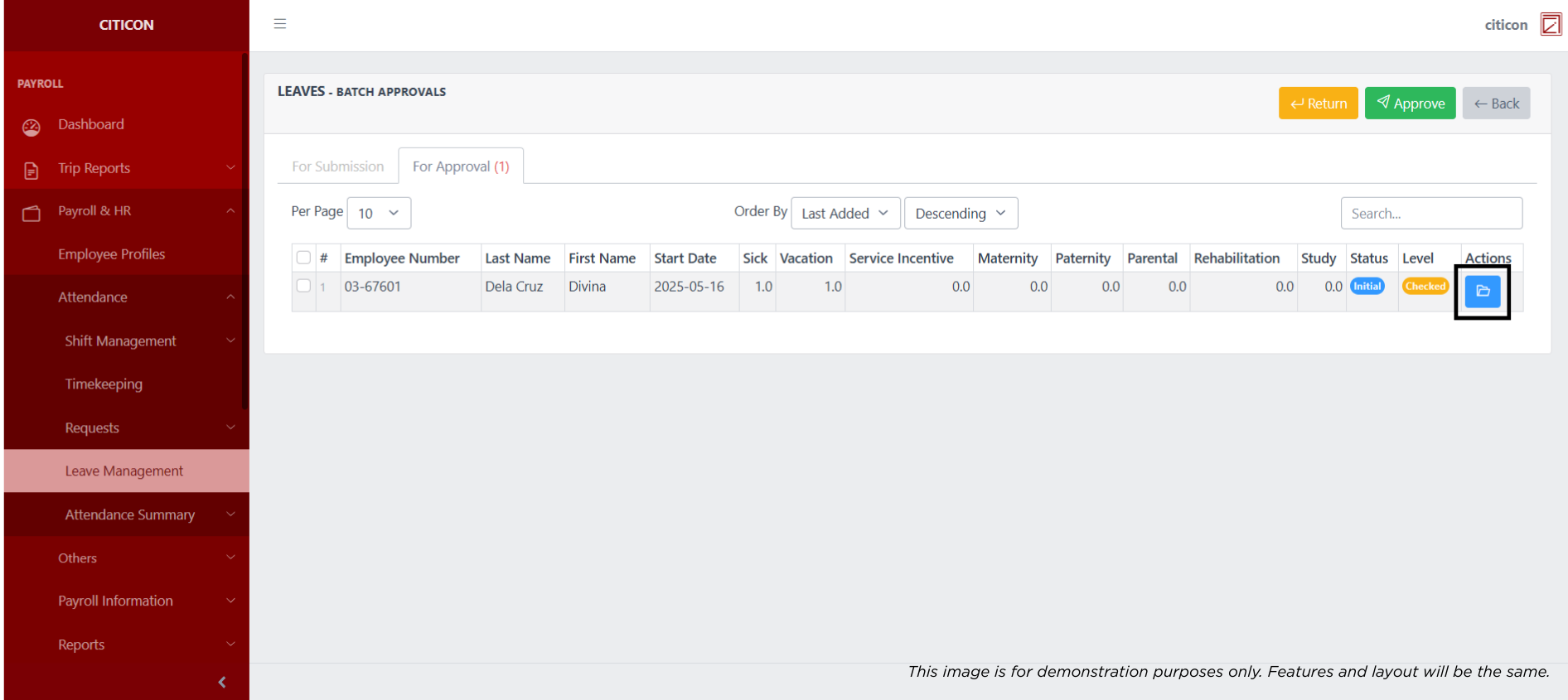
- Select the Batch Approvals button to approve a entry.
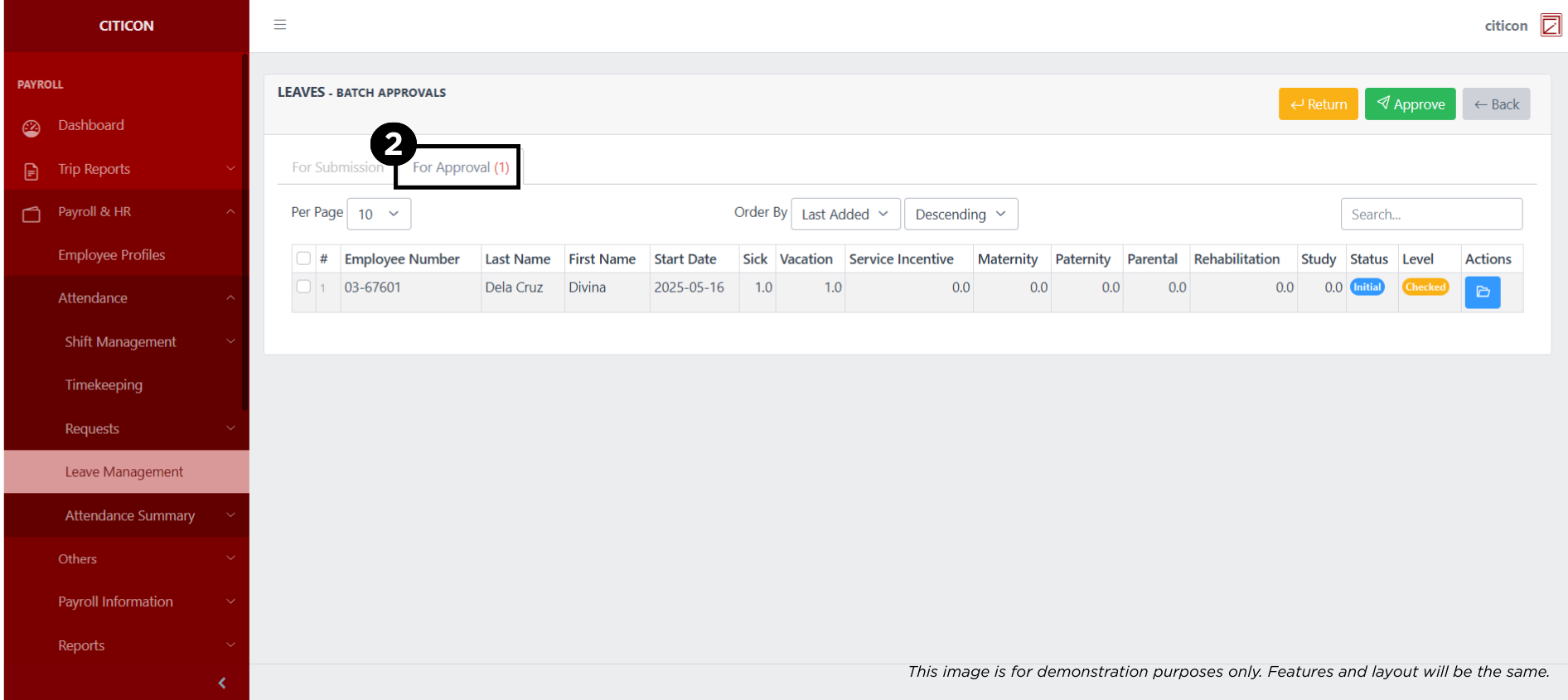
- Select the For Approval tab.
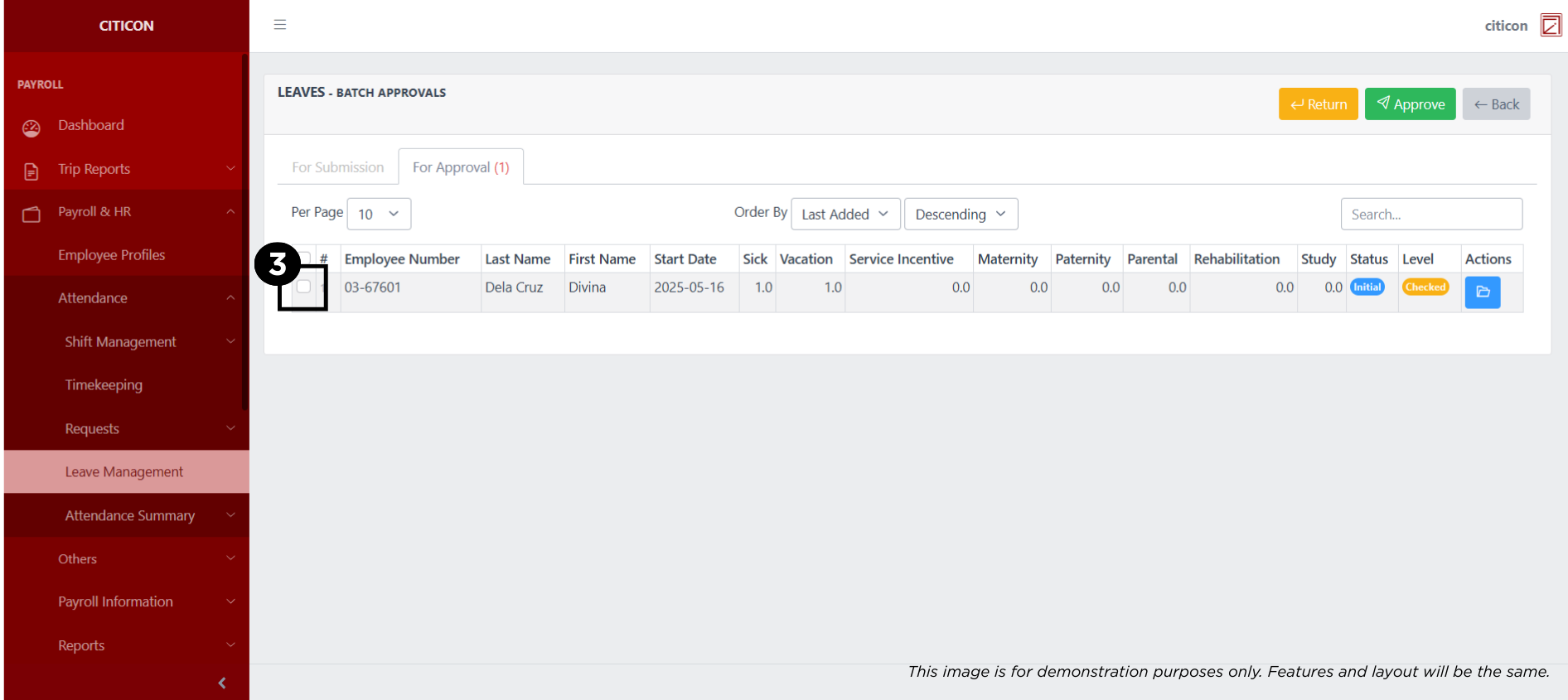
- Select the entry that you want to approve.
- Select the Approve button to approve the entry. In cases where you want to return a entry to submission section, select the entry you want to return, then select the Return button.
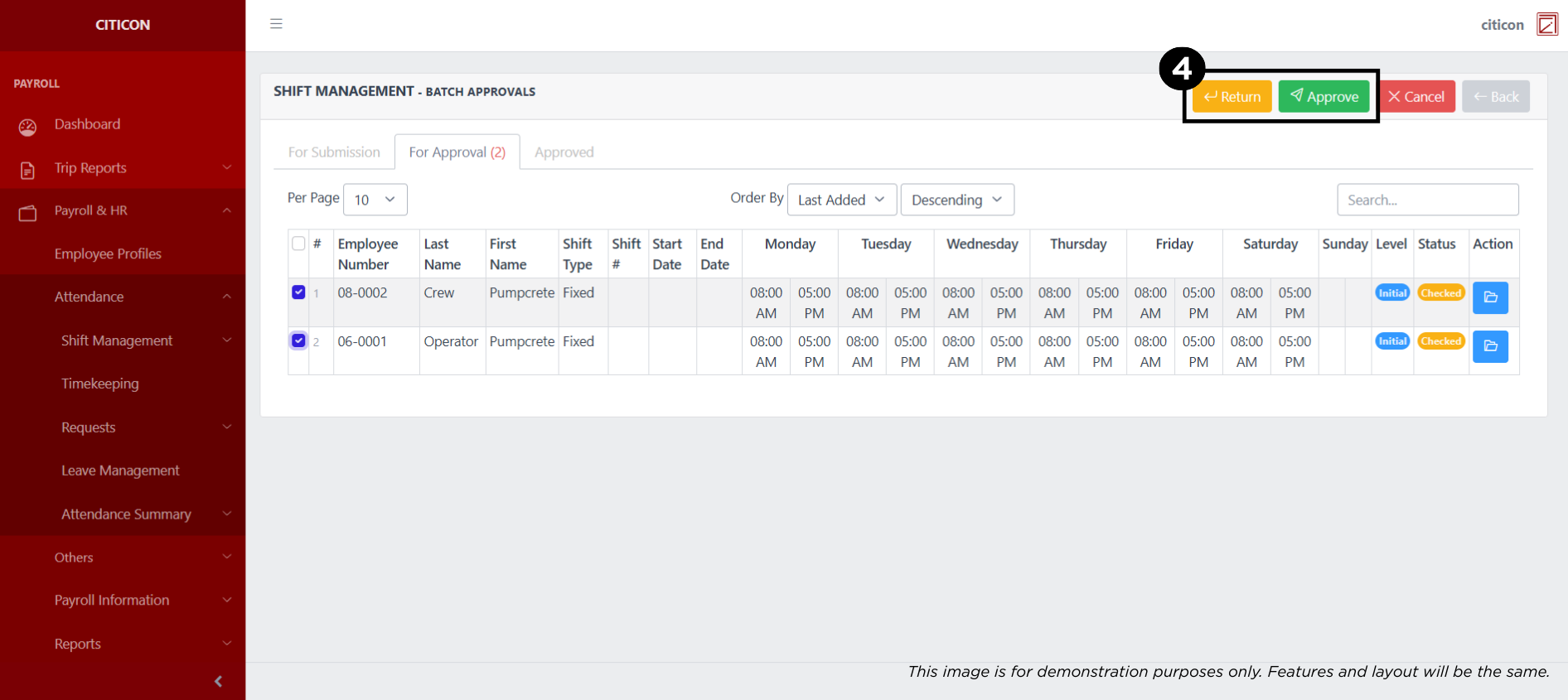 To view the details of an individual entry, select the folder button and from here, you may either Return, Approve, or Cancel the entry.
Explore Citicon Payroll and Accounting System: Payroll & HR - Payroll Information - Payroll Import