Timekeeping
Welcome to Citicon Payroll and Accounting Systems Configuration for Timekeeping under the Attendance submodule of the Payroll & HR module. This section captures employee clock-in and clock-out records, serving as the foundation for calculating work hours, absences, and payroll accuracy.
Effective timekeeping ensures that employee attendance is tracked precisely, promoting transparency, accountability, and compliance with company policies.
Key Purposes
- Record Daily Attendance Logs: Maintain accurate records of employee in-and-out times, including dates, days, and attendance status for payroll and HR tracking.
- Support Multiple Approval Levels: Monitor the approval workflow by tracking each entry’s level of review and authorization for secure validation.
- Enable Bulk Import of Entries: Simplify data handling by allowing batch imports of timekeeping records from biometric devices or external sources.
- Promote Accurate Payroll Calculations: Ensure payroll reflects actual hours worked by integrating approved time entries directly into salary computations.
- Streamline Attendance Audits: Provide a reliable history of time records for auditing, dispute resolution, and performance reviews.
Timekeeping Module User-Manual
This section provides details, and set-by-step instructions to access, view, and update the Timekeeping entries stored in the system.
Index Page
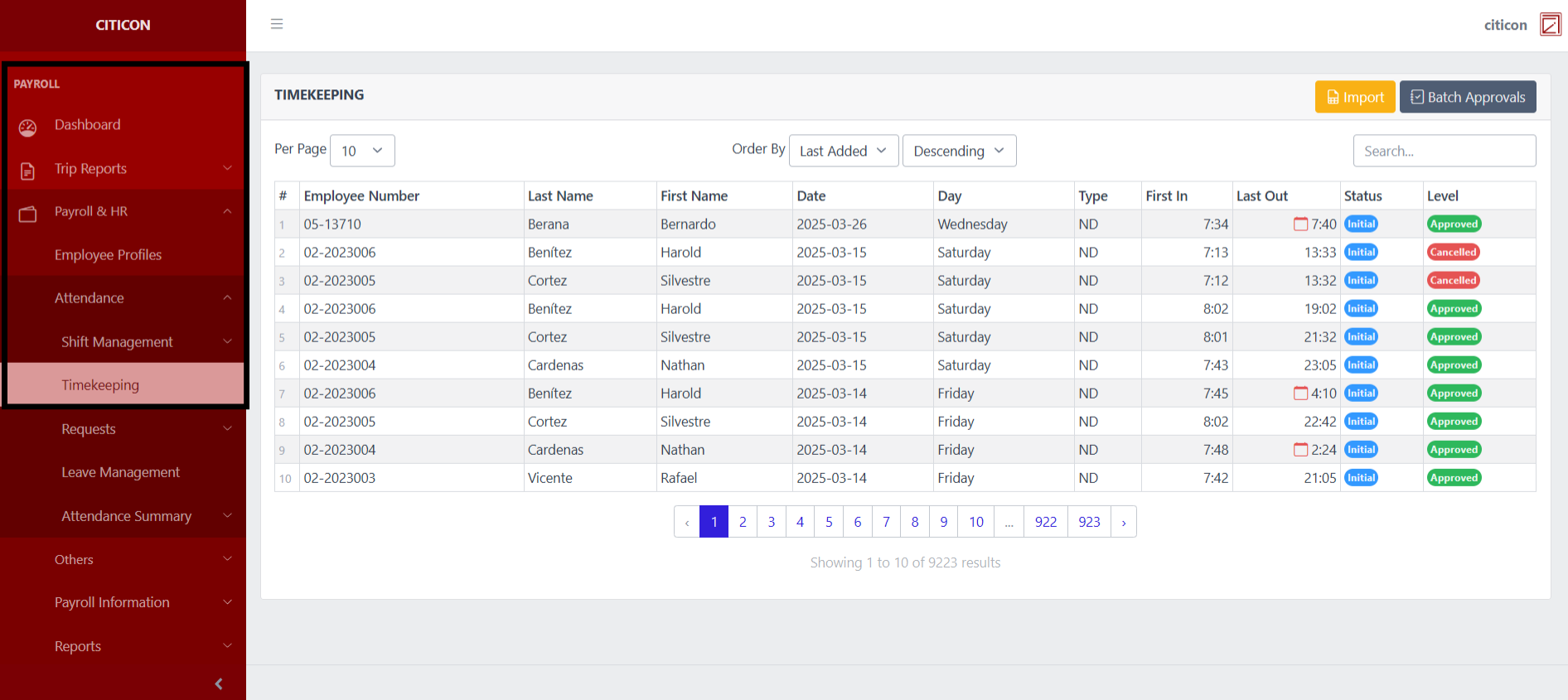
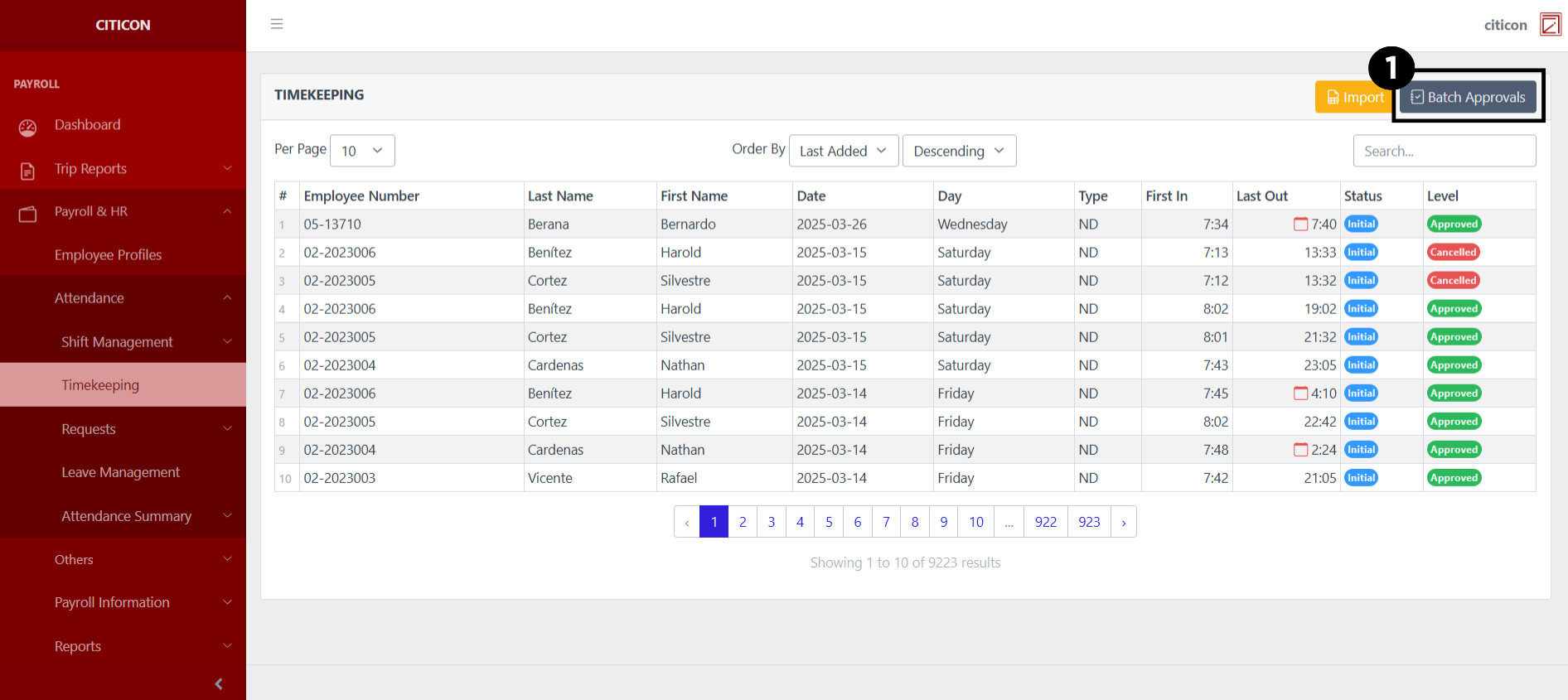
To access the Timekeeping. Go to Payroll, select Payroll & HR, select Attendance, then select Timekeeping.
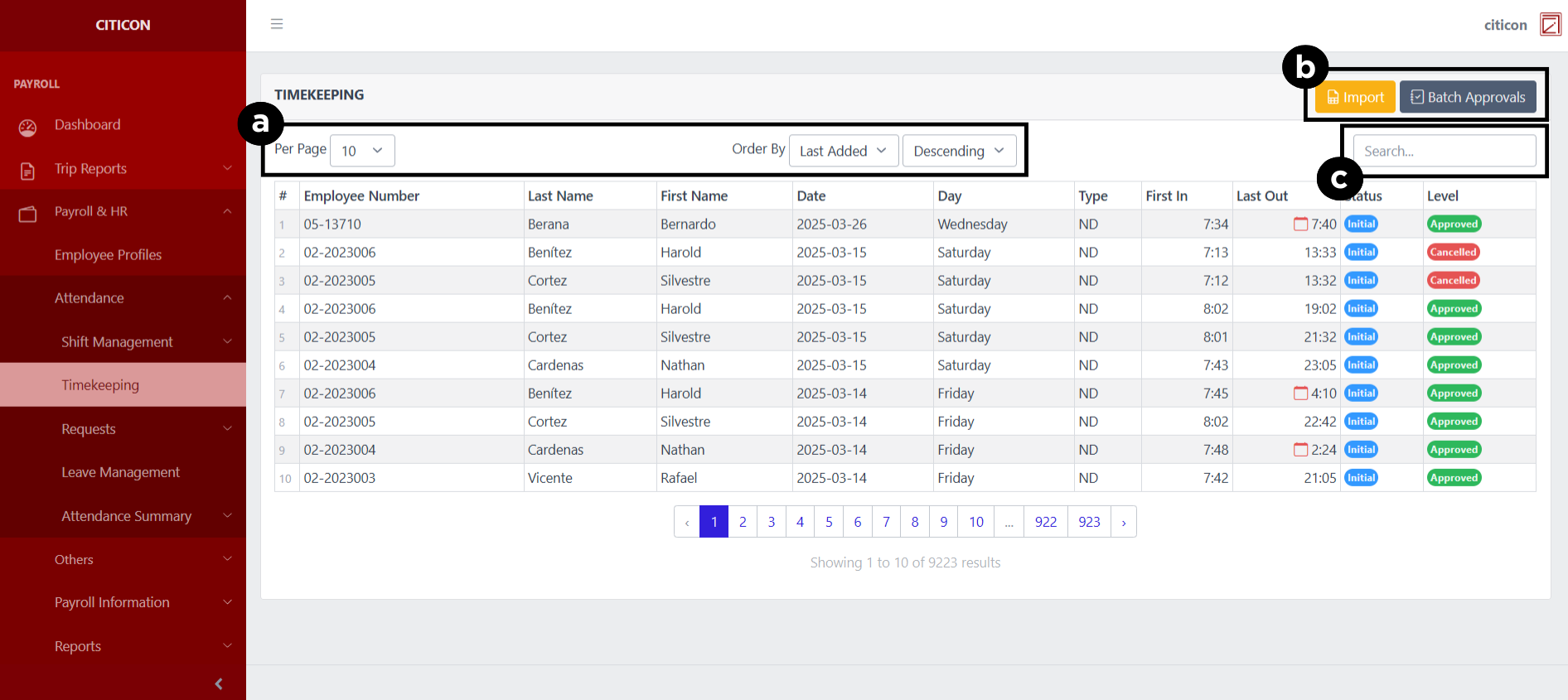
a. Adjust the paging, ordering, and sorting of the Timekeeping Page here.
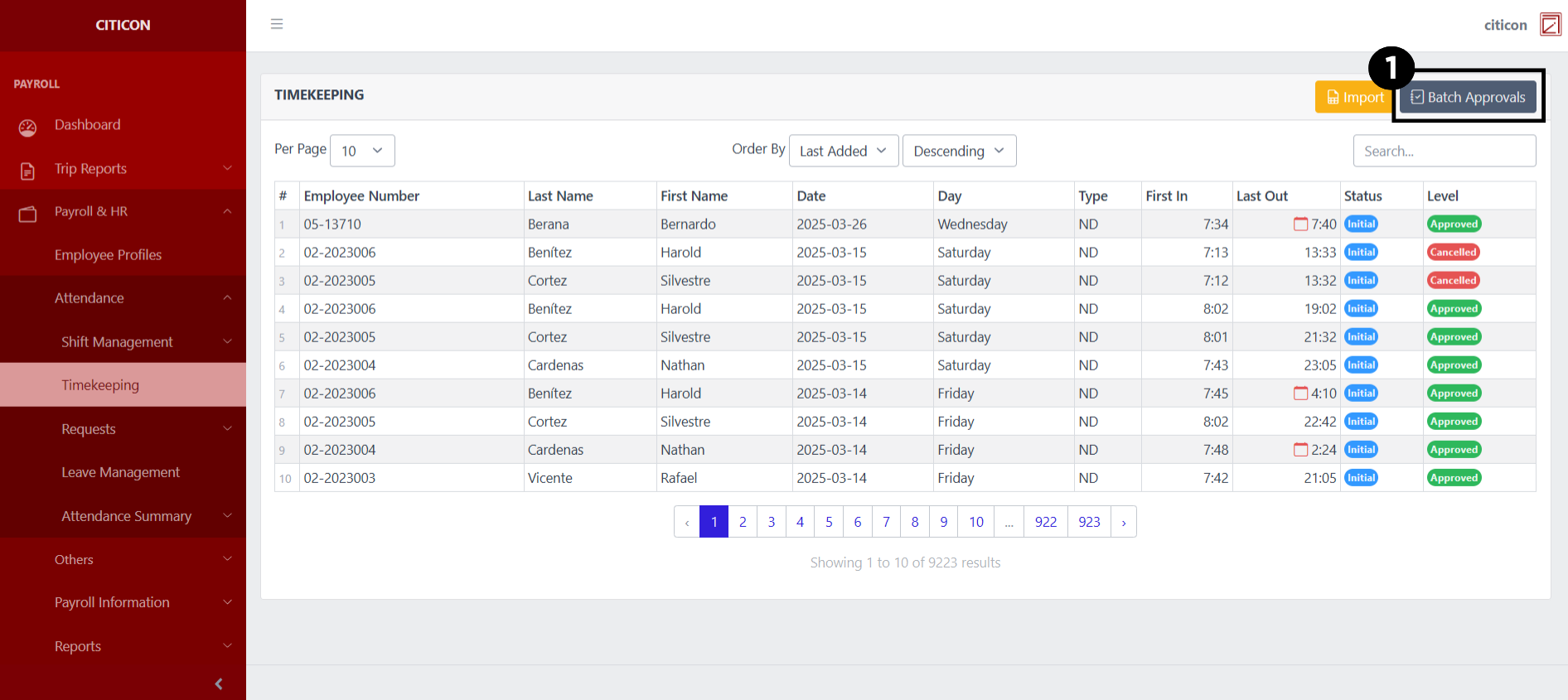
b. Select the respective button to either Import new entry or process entries to be approved.
c. Search for specific entry details using the search bar.
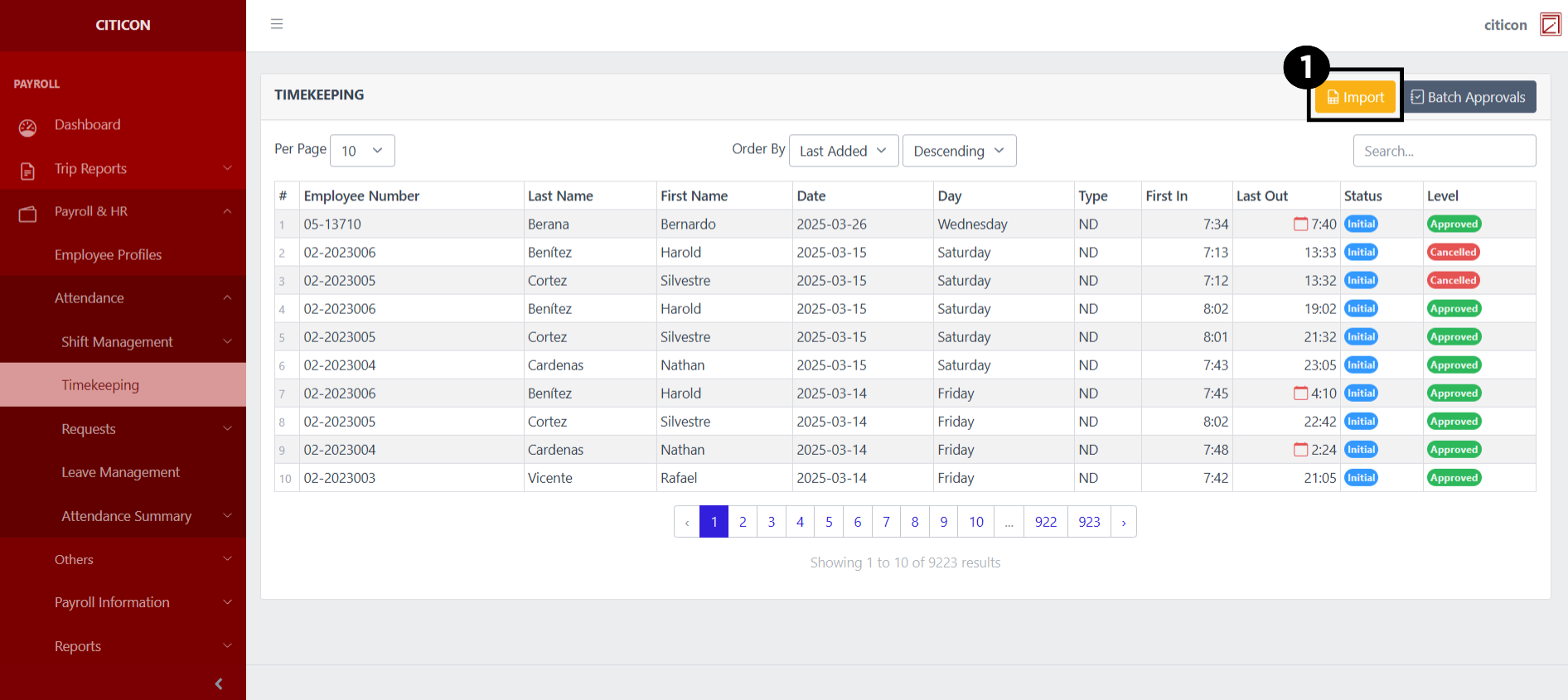
Import Entries
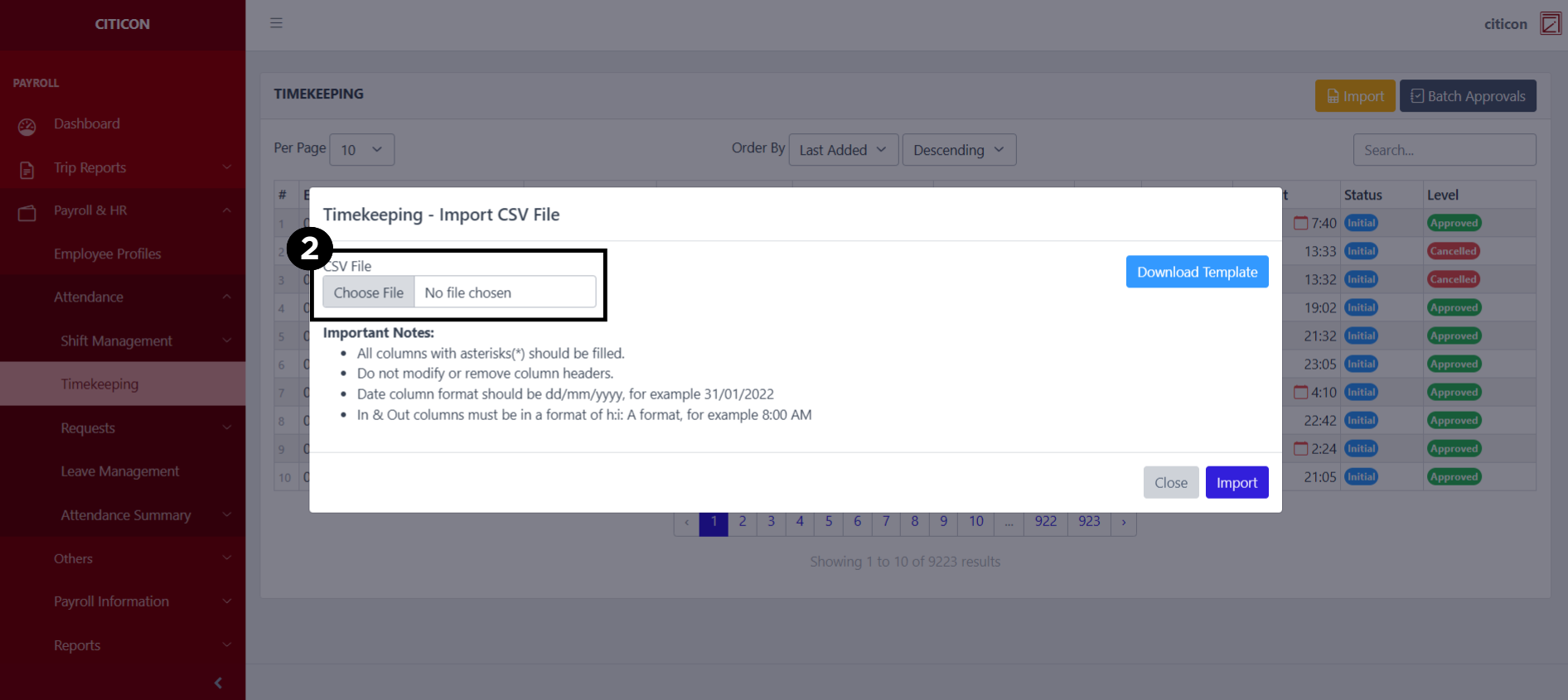
- Select the Import button to import new entries.
- Select the Choose File button.
Select the Download Template button to view the required format for imported entries, including the number of columns, and mandatory fields to be filled.
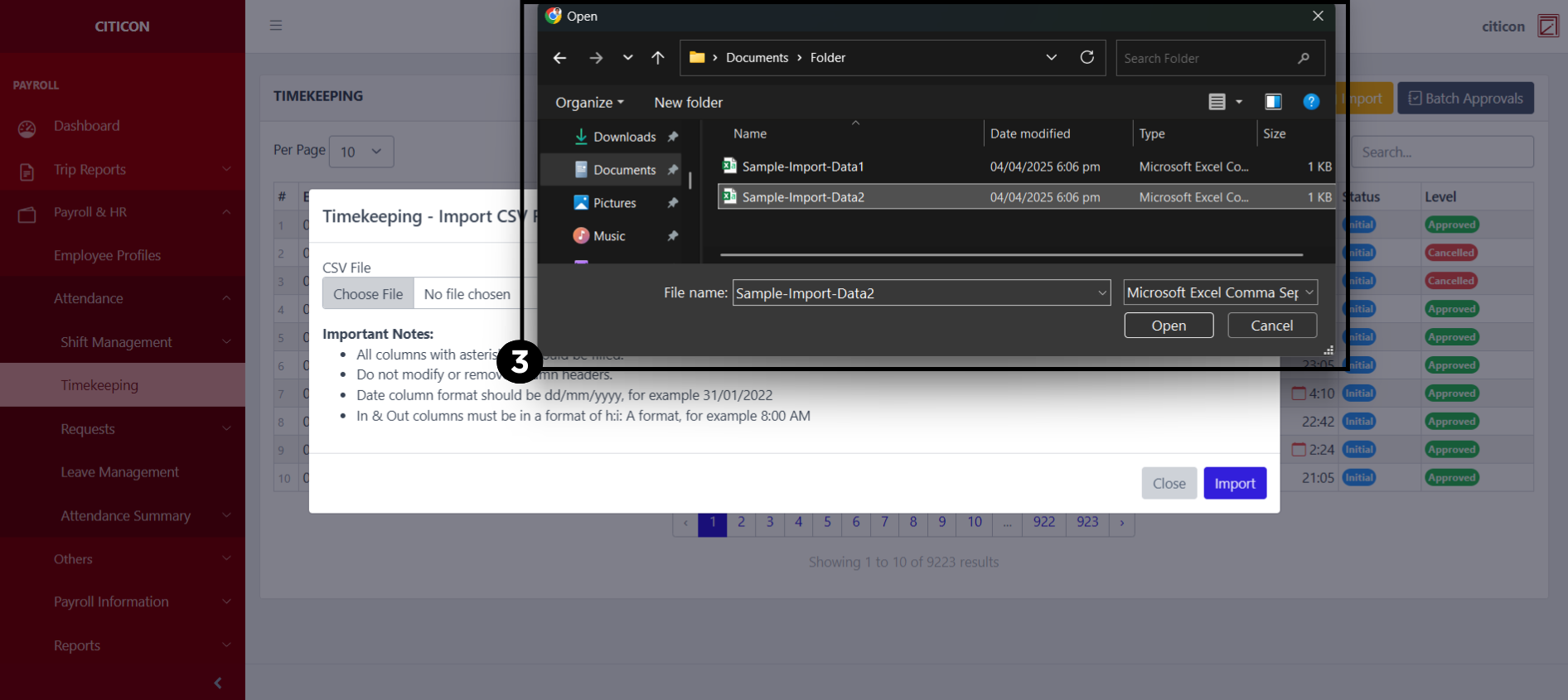
- From your local storage, select the file you want to import, then select the Open button.
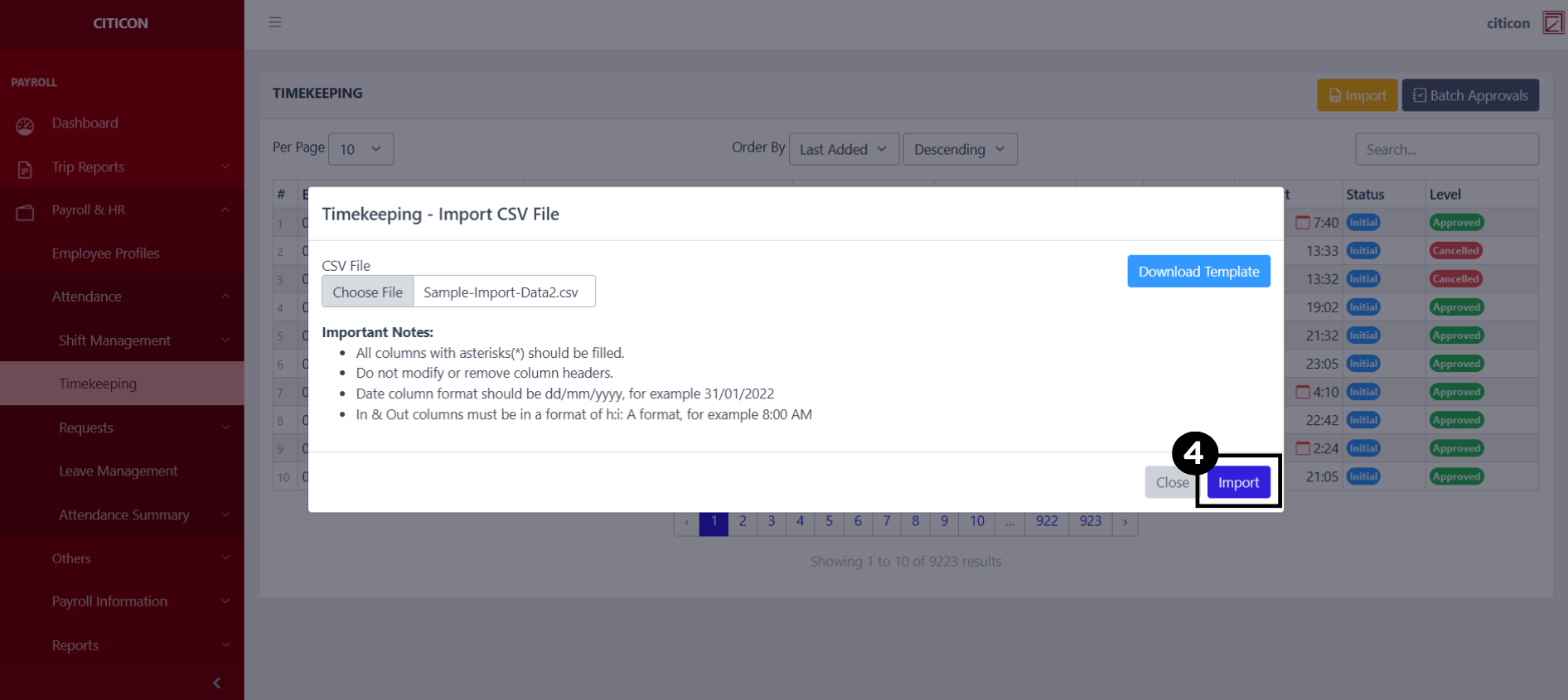
- Select the Import button.
Submit Entry
- Select the Batch Approvals button to submit an entry.
- Select the For Submission tab.
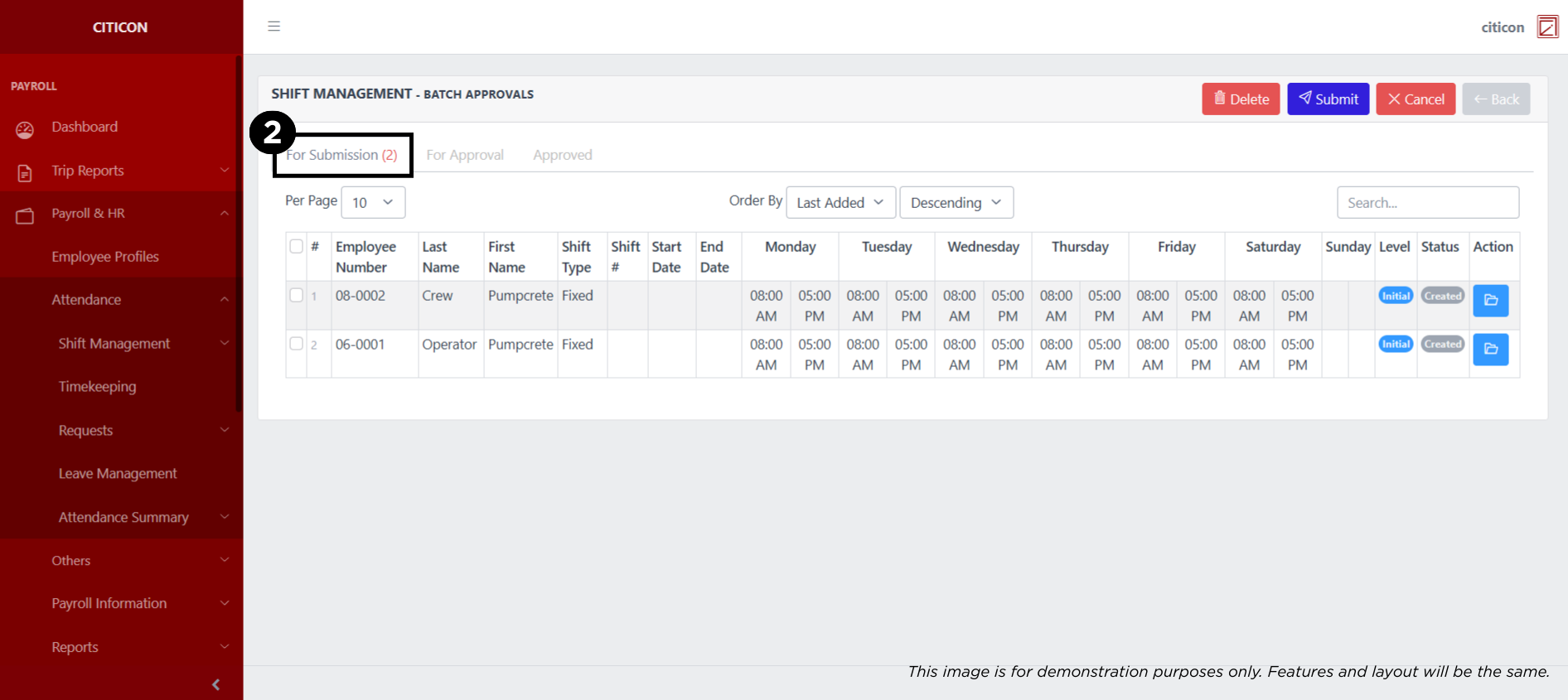
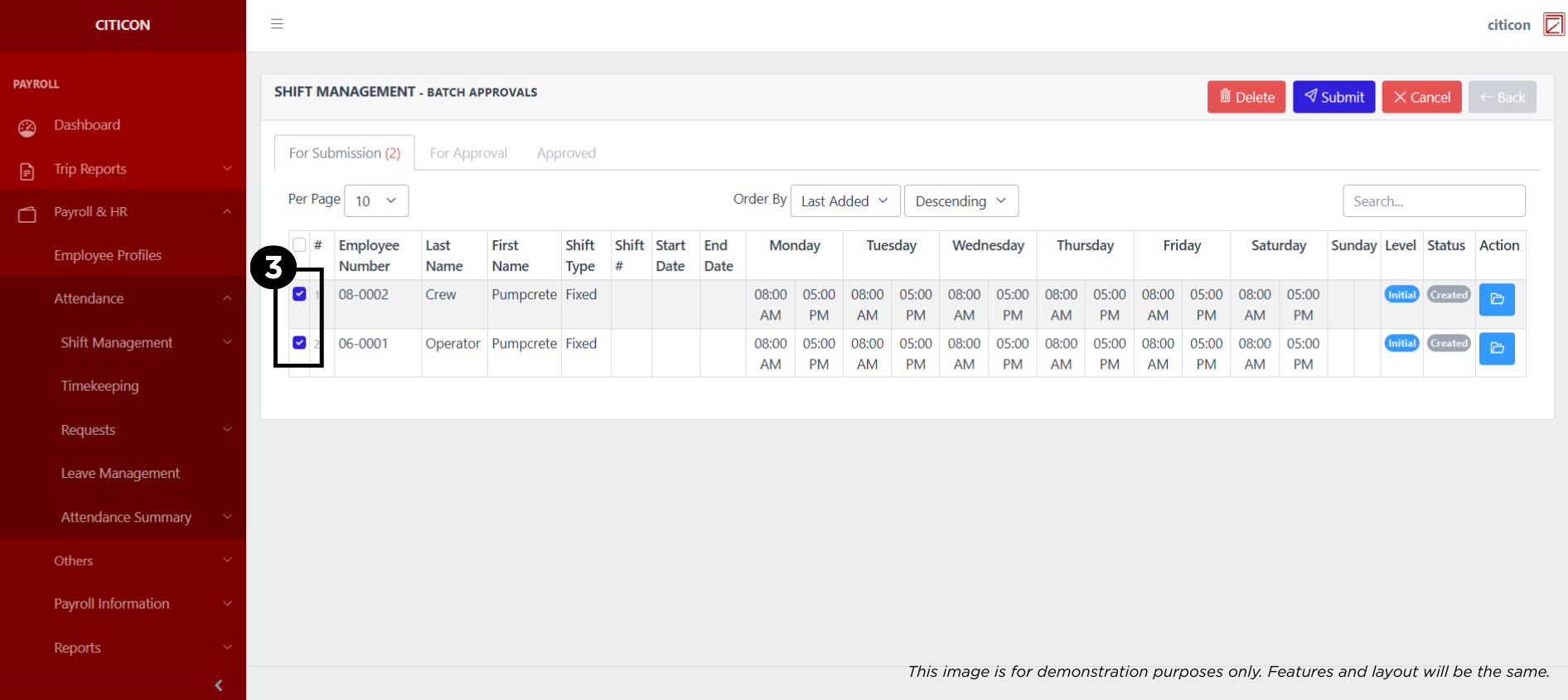
- Select the entry that you want to submit.
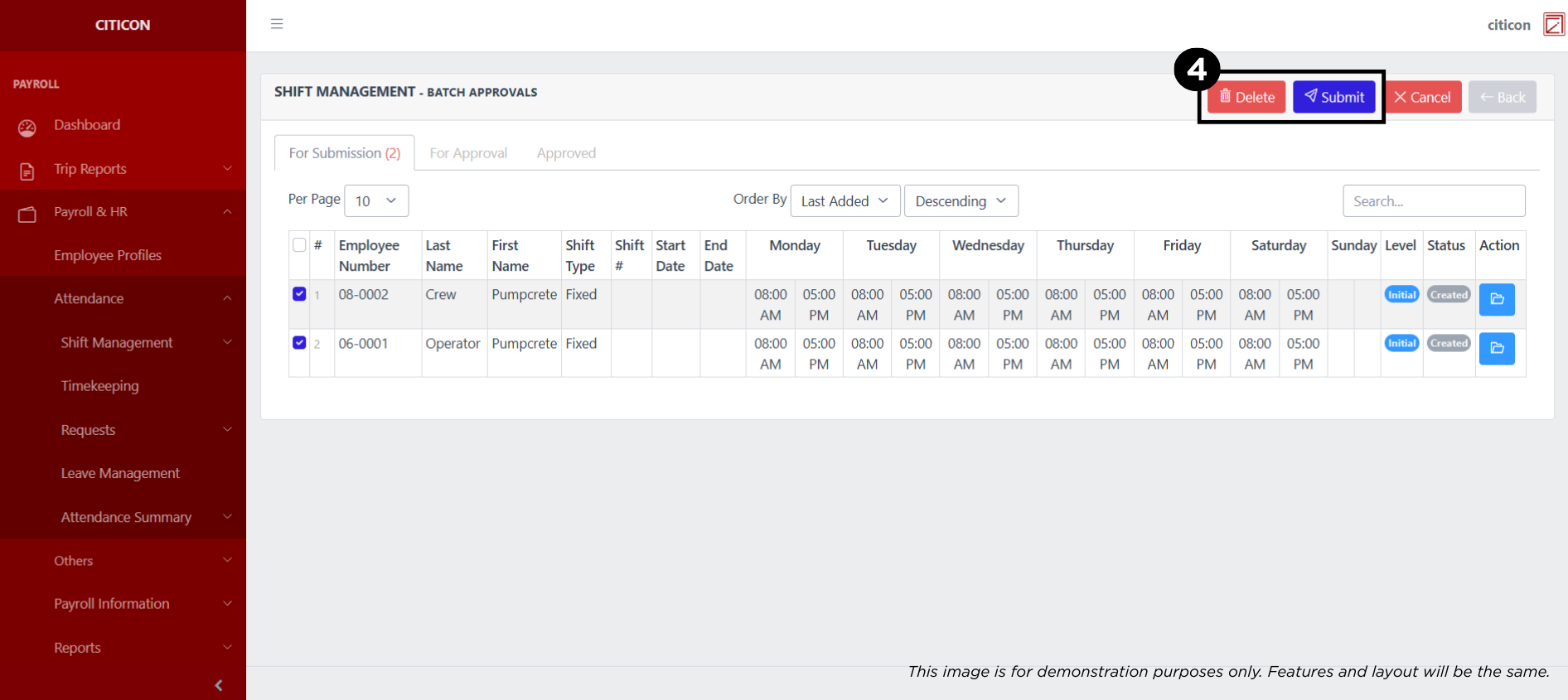
- Select the Submit button to submit the entry. In cases where you want to delete a entry, select the entry you want to delete, then select the Delete button.
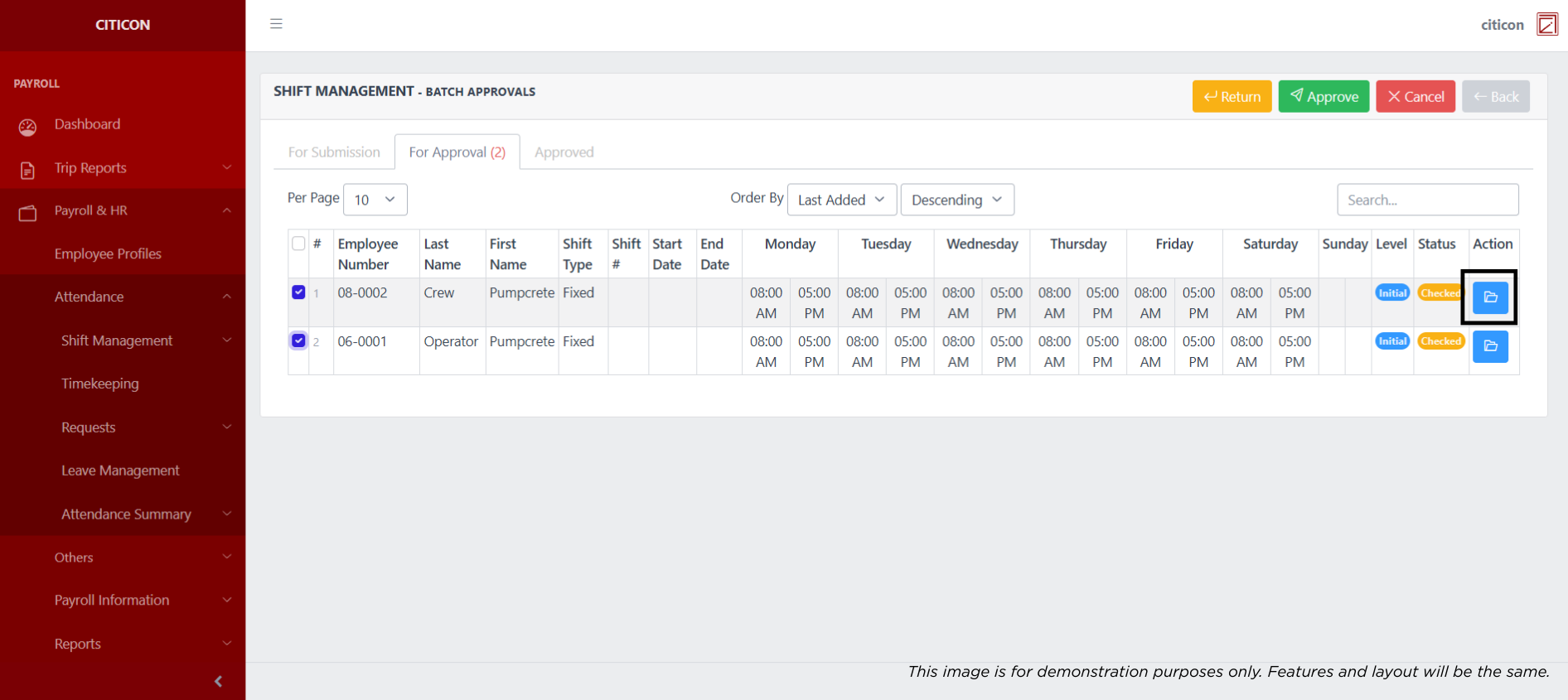
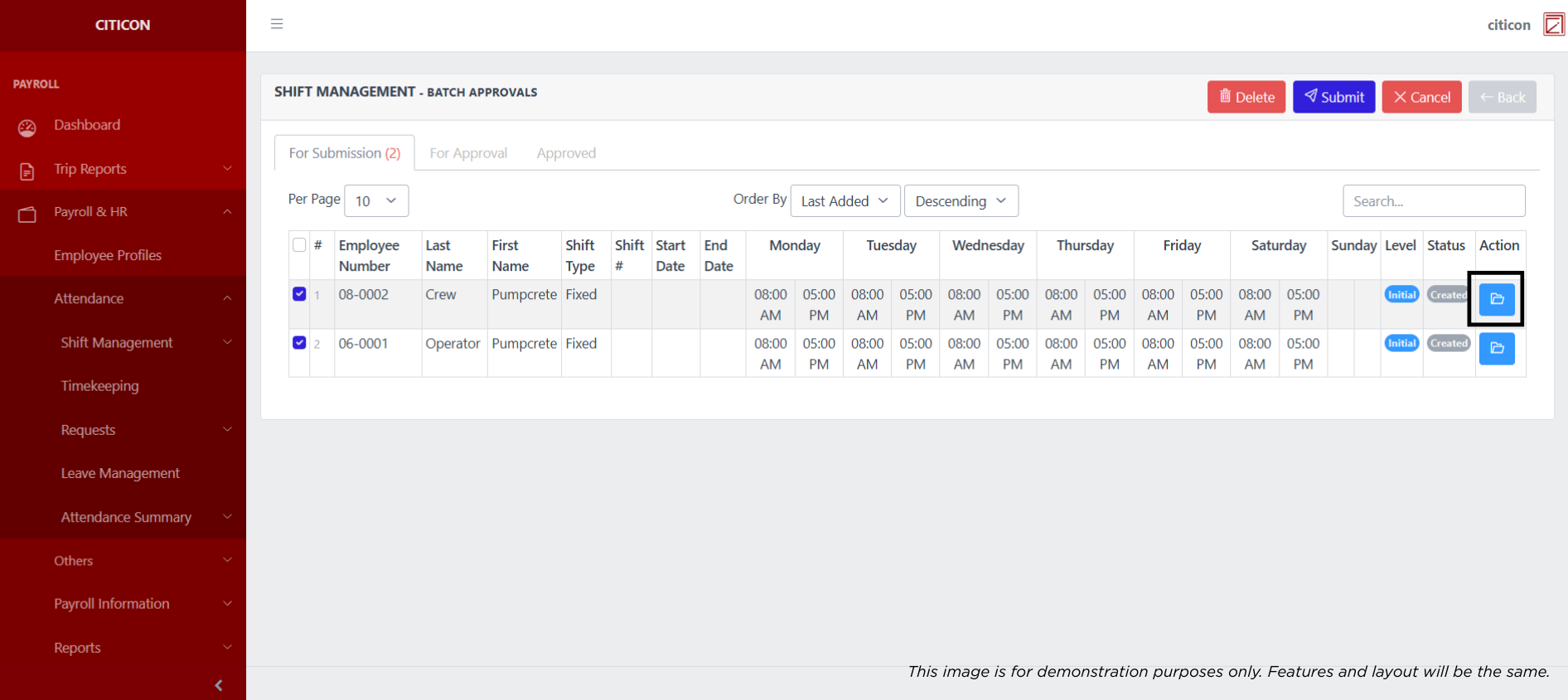
 To view the details of an individual entry, select the folder button and from here, you may either Edit, Delete, Submit, or Cancel the entry.
Approve Entry
- Select the Batch Approvals button to approve a entry.
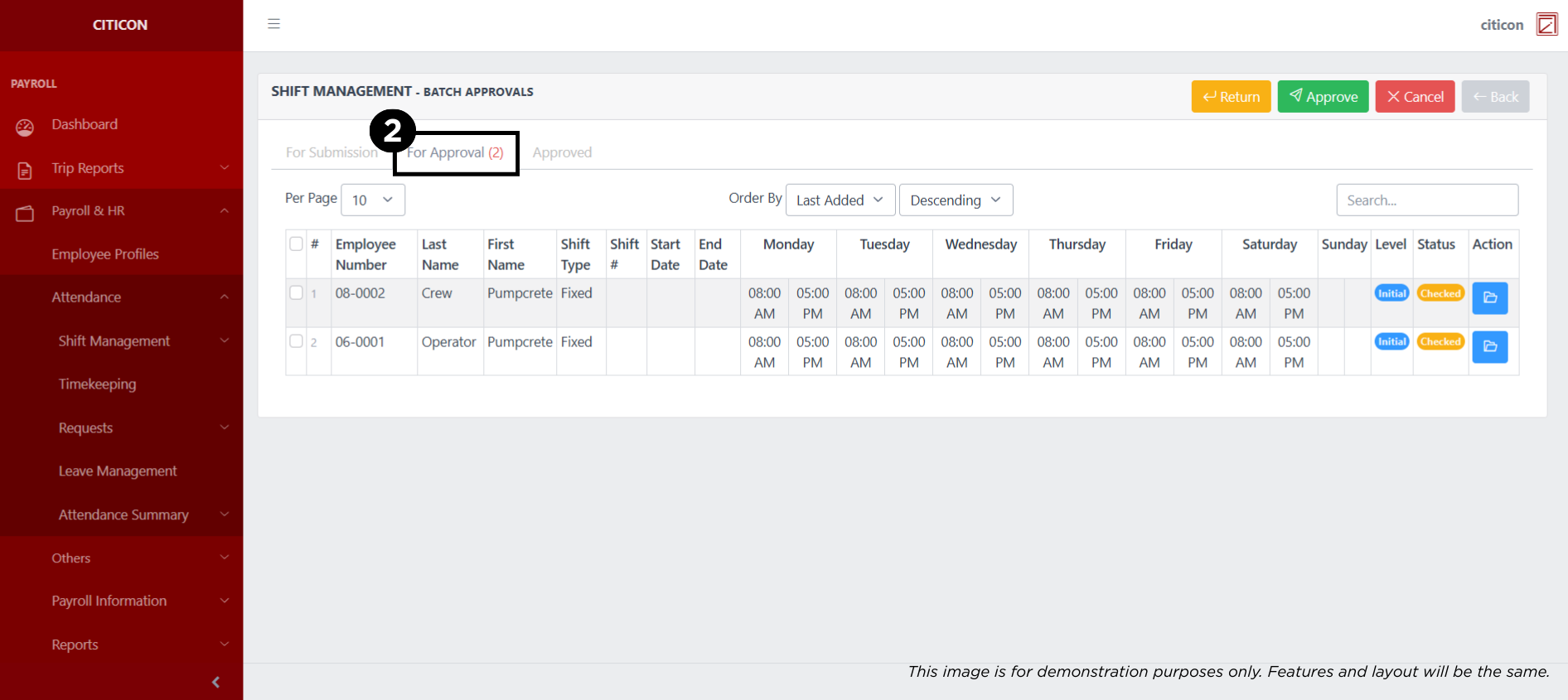
- Select the For Approval tab.
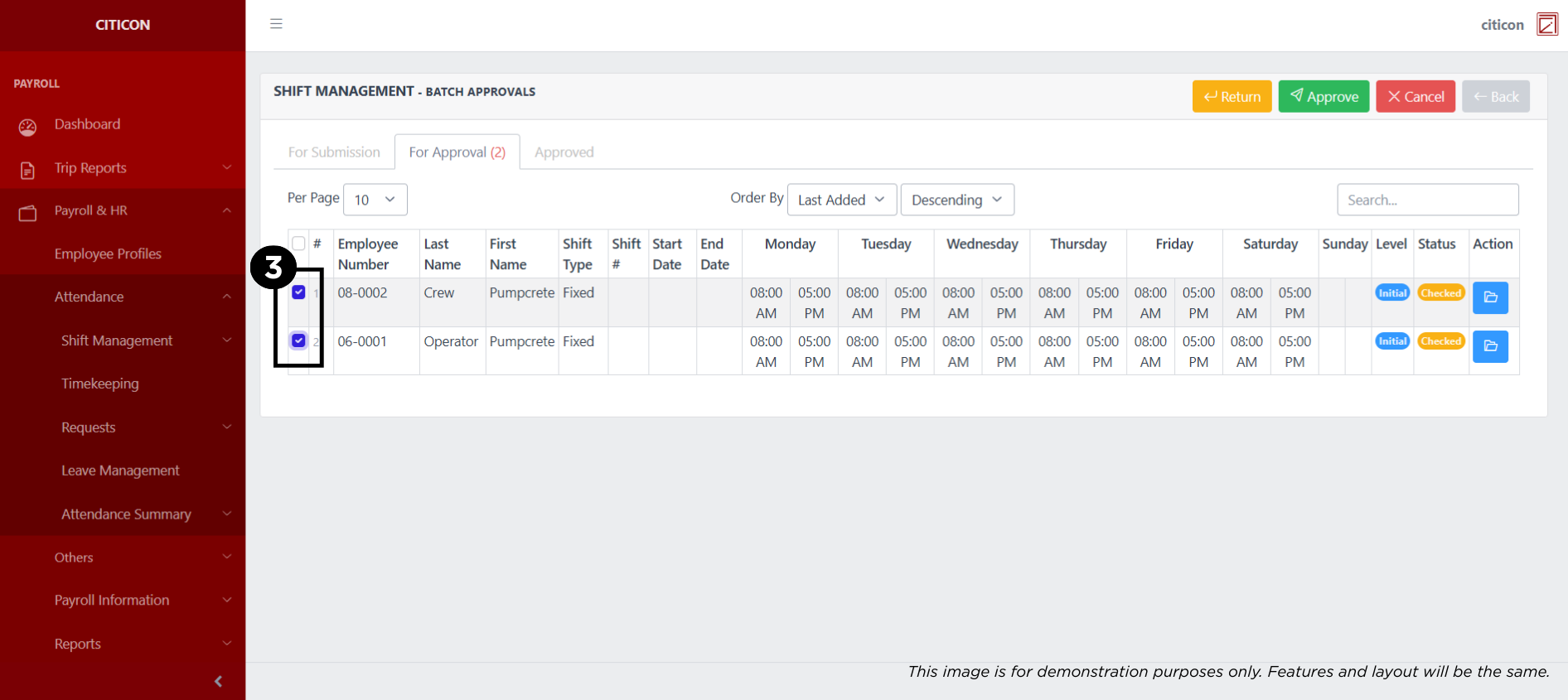
- Select the entry that you want to approve.
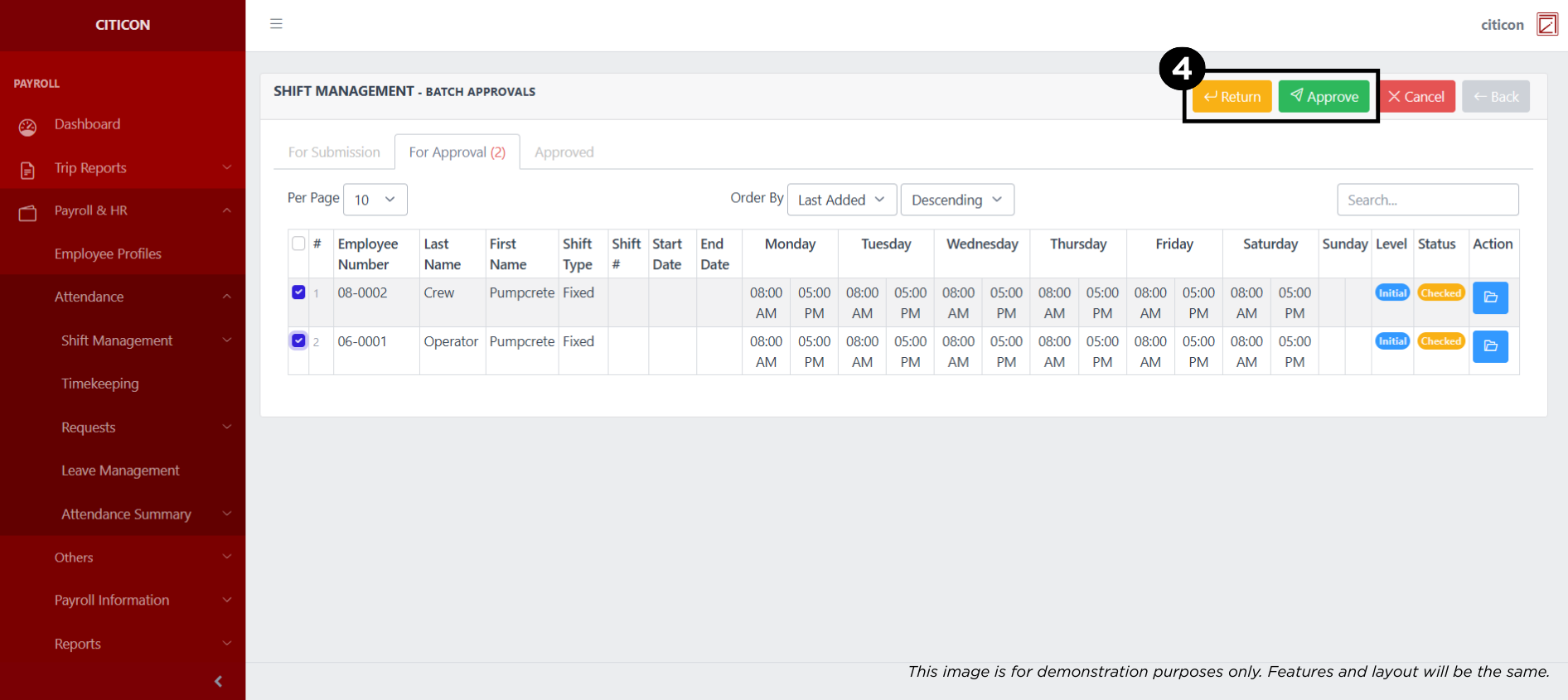
- Select the Approve button to approve the entry. In cases where you want to return a entry to submission section, select the entry you want to return, then select the Return button.
 To view the details of an individual entry, select the folder button and from here, you may either Return, Approve, or Cancel the entry.