Shift Management - All Shifts
Welcome to Citicon Payroll and Accounting Systems Configuration for All Shifts under the Attendance submodule of the Payroll & HR module. This section allows you to assign and manage individual employee work schedules based on predefined shift templates or customized shift types, ensuring accurate and personalized attendance tracking.
By managing all shifts effectively, you enhance workforce organization, promote schedule transparency, and support precise payroll processing.
Key Purposes
- Assign Employee Work Schedules: Link employees to specific shift types and templates, ensuring their work schedules are clearly defined and aligned with operational needs.
- Customize Individual Shift Plans: Modify daily schedules, break durations, and shift details to accommodate unique roles or requirements for each employee.
- Integrate Group-Based Scheduling: Use group classifications to streamline shift assignments for teams or departments, reducing repetitive input.
- Enable Attendance Accuracy: Ensure reliable timekeeping by aligning each employee's shift with the attendance tracking system for accurate computations.
- Support Workflow Approvals: Add, submit, and approve shift entries with built-in workflow features, enabling secure and compliant shift scheduling.
All Shifts Module User-Manual
This section provides details, and set-by-step instructions to access, view, and update the All Shifts entries stored in the system.
Index Page
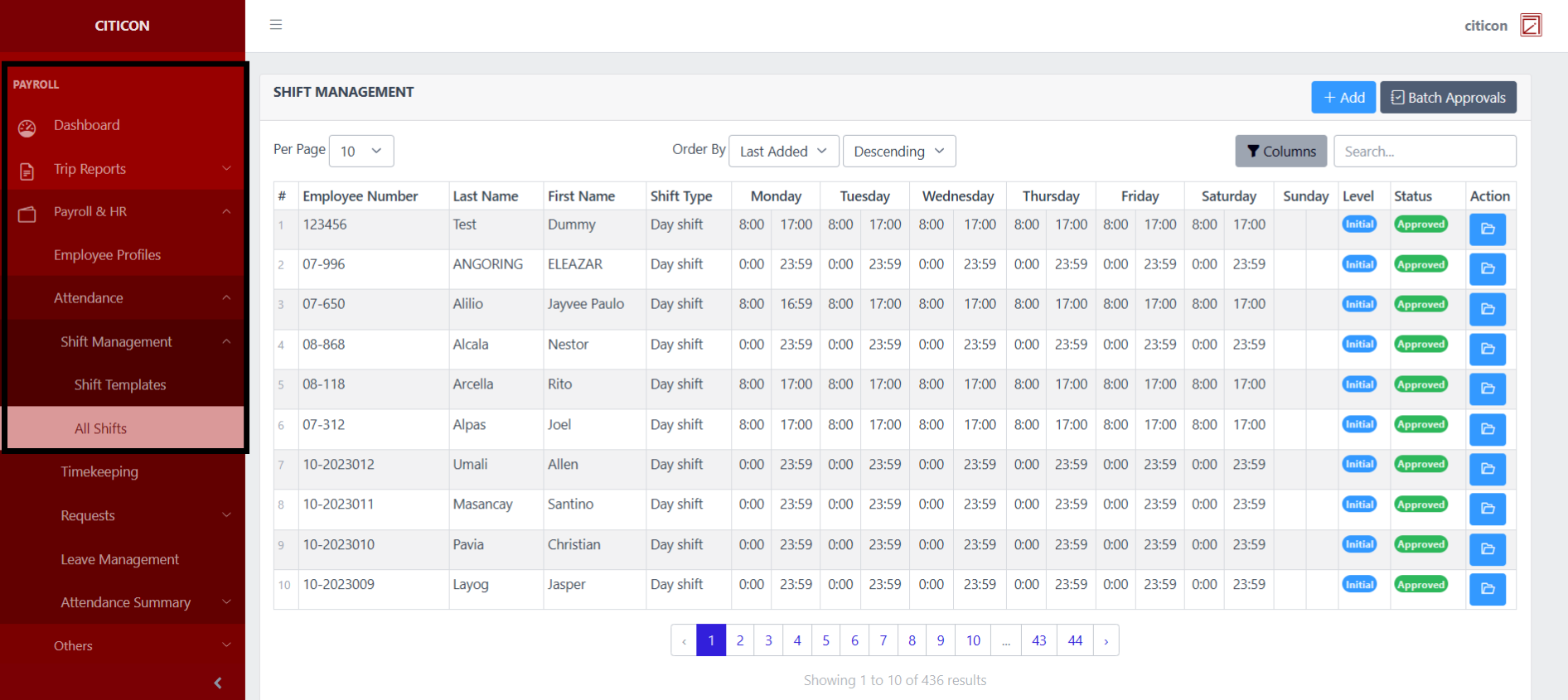
To access the All Shifts. Go to Payroll, select Payroll & HR, select Attendance, select Shift Management, then select All Shifts.
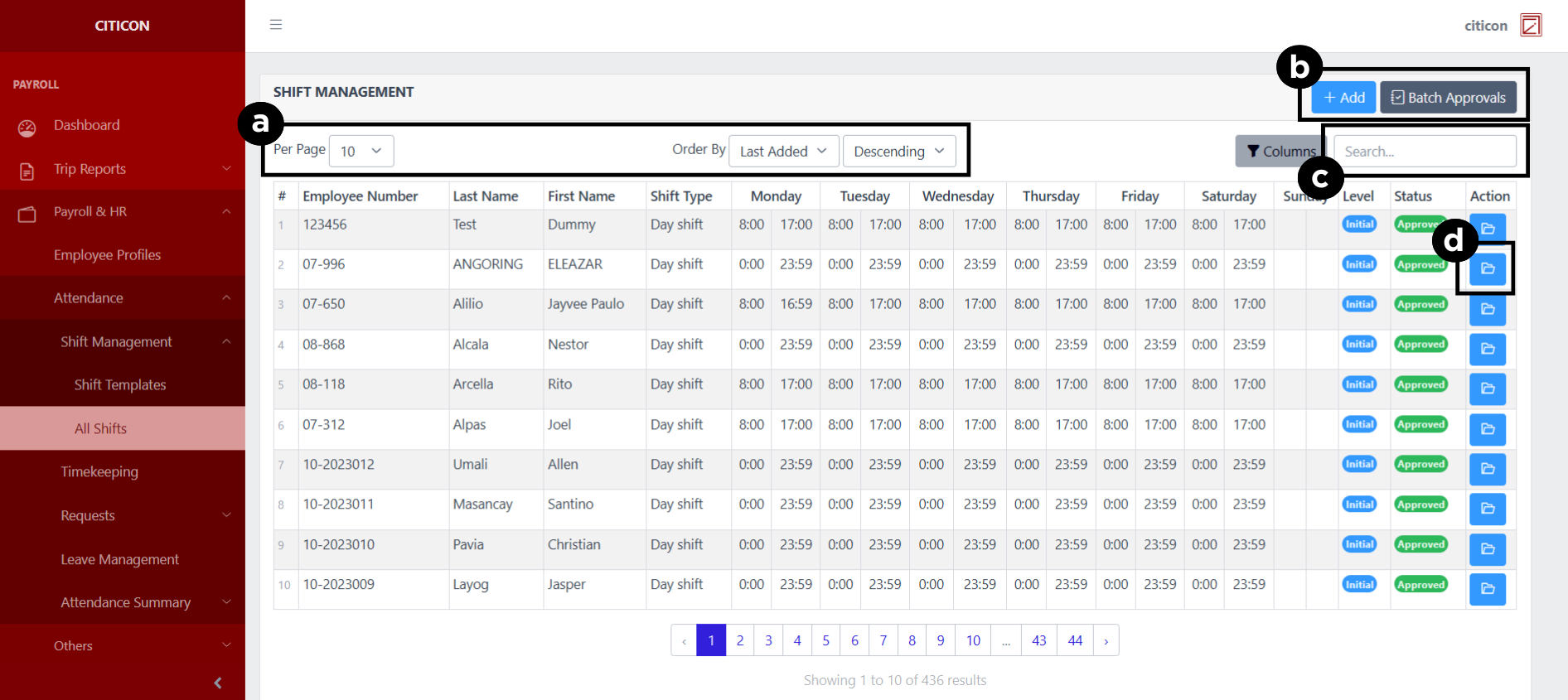
a. Adjust the paging, ordering, and sorting of the All Shifts Page here.
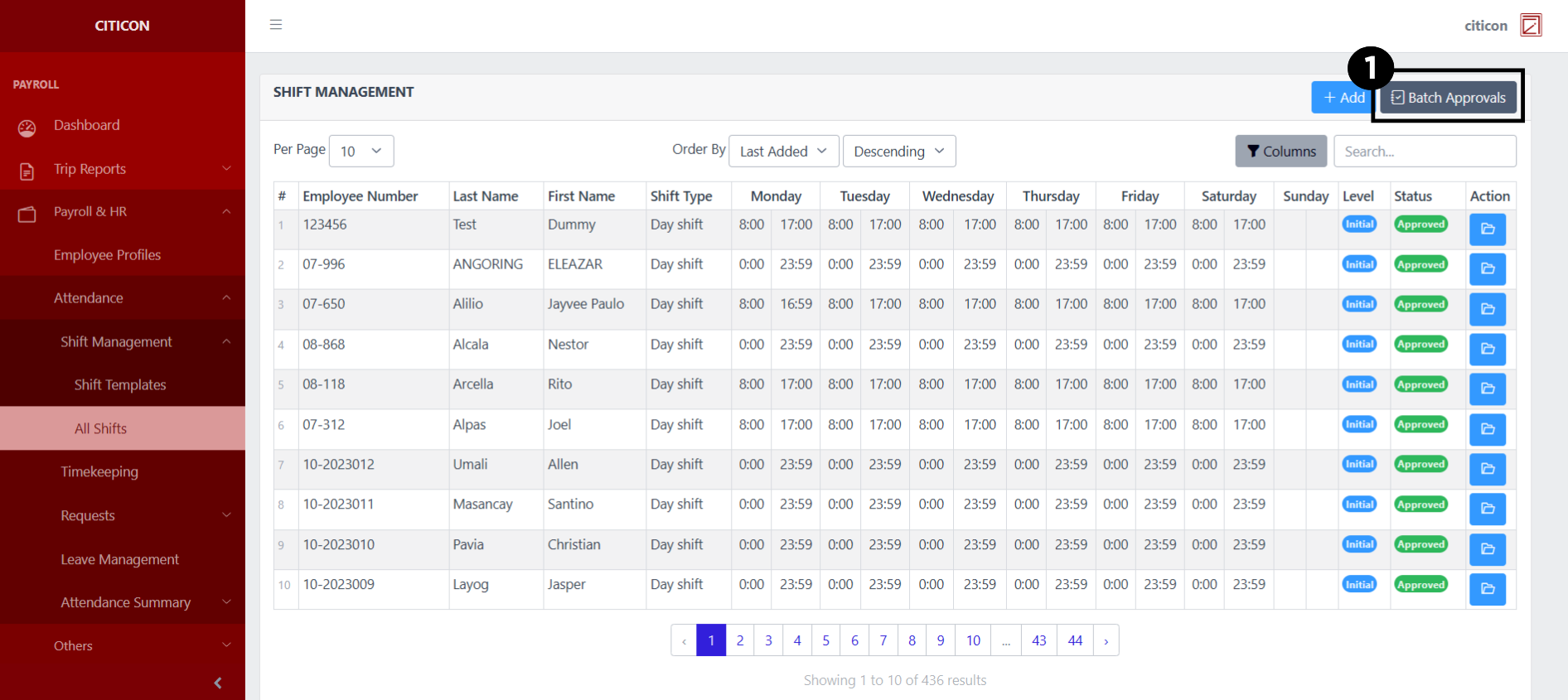
b. Select the respective button to either Add new entry or process entries to be approved.
c. Search for specific entry details using the search bar.
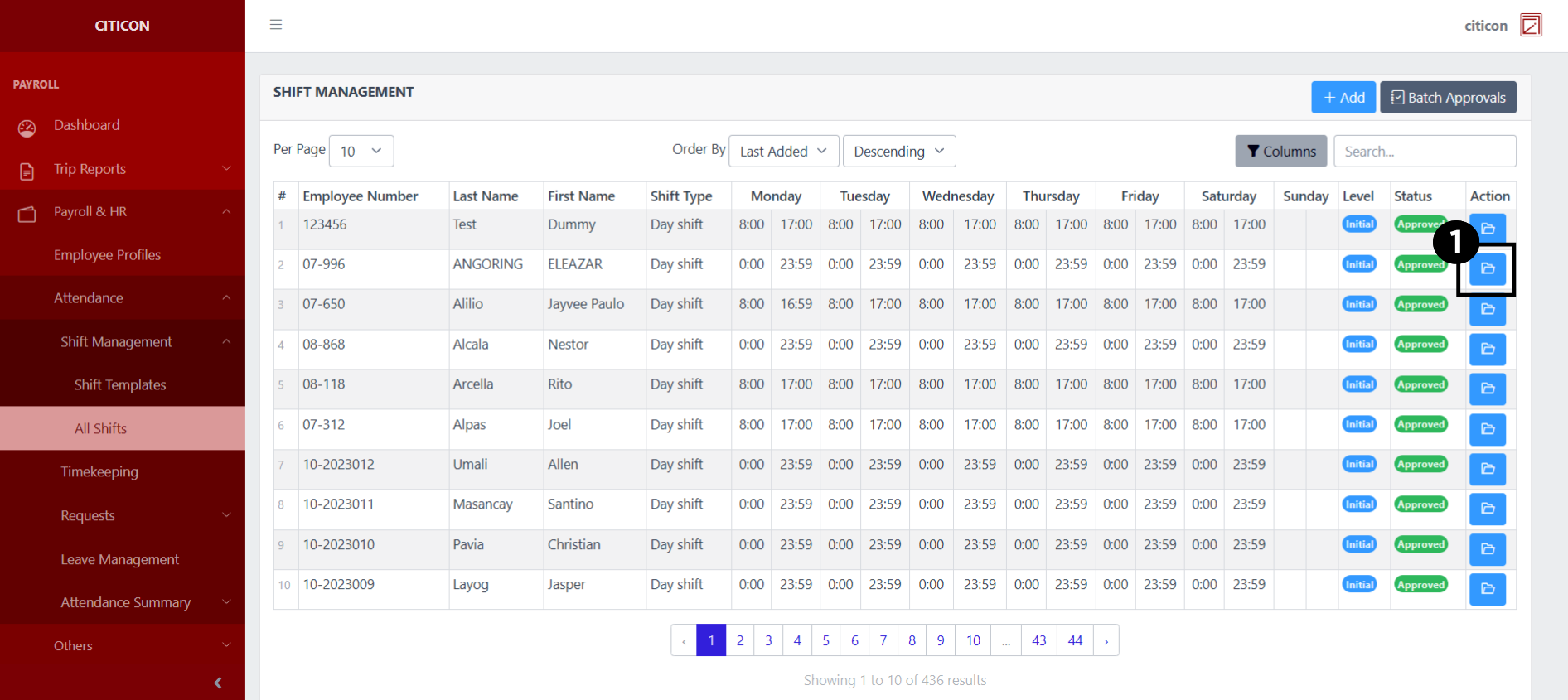
d. View, Edit, or Delete data by selecting the folder button.
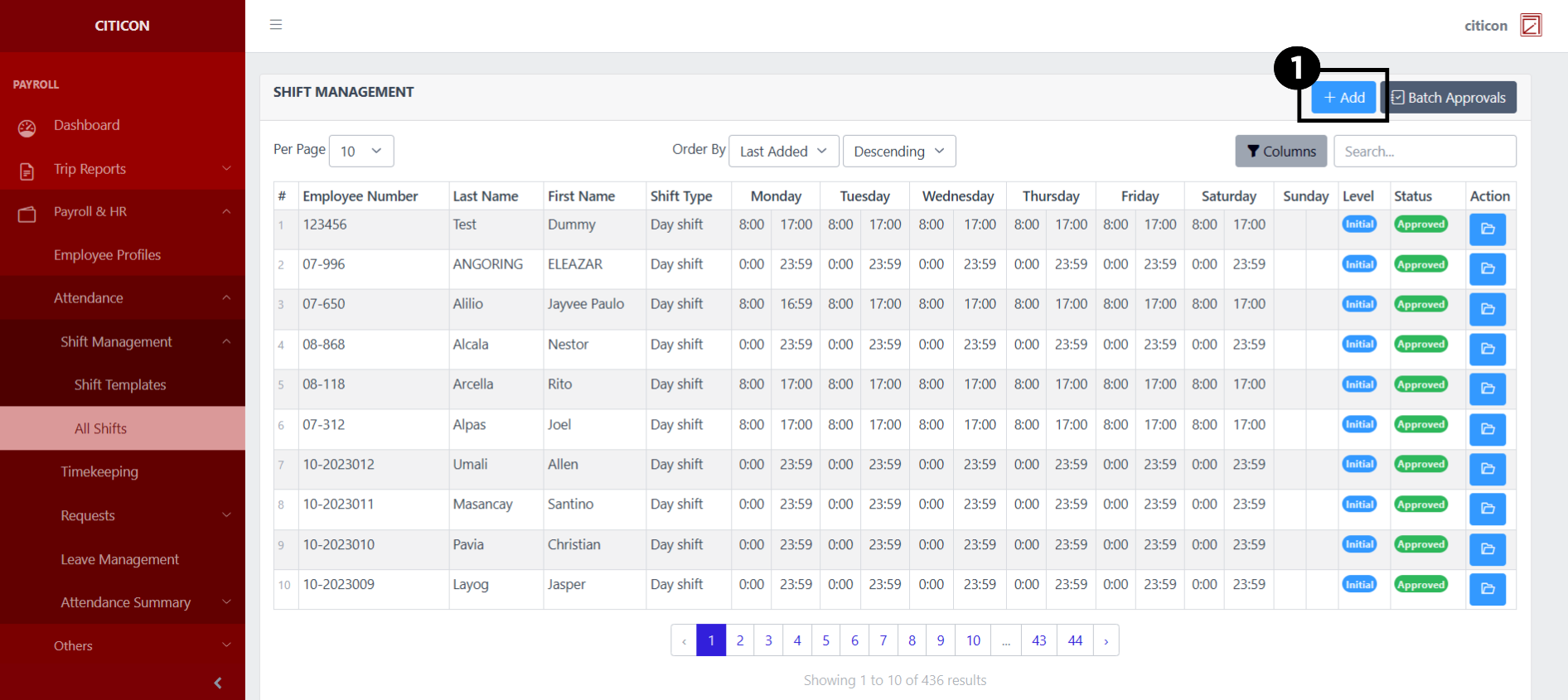
Add Entry
- Select the Add button to add a new entry.
- Input the necessary details for your new entry.
All fields that has an asterisk (*) are required to be filled up.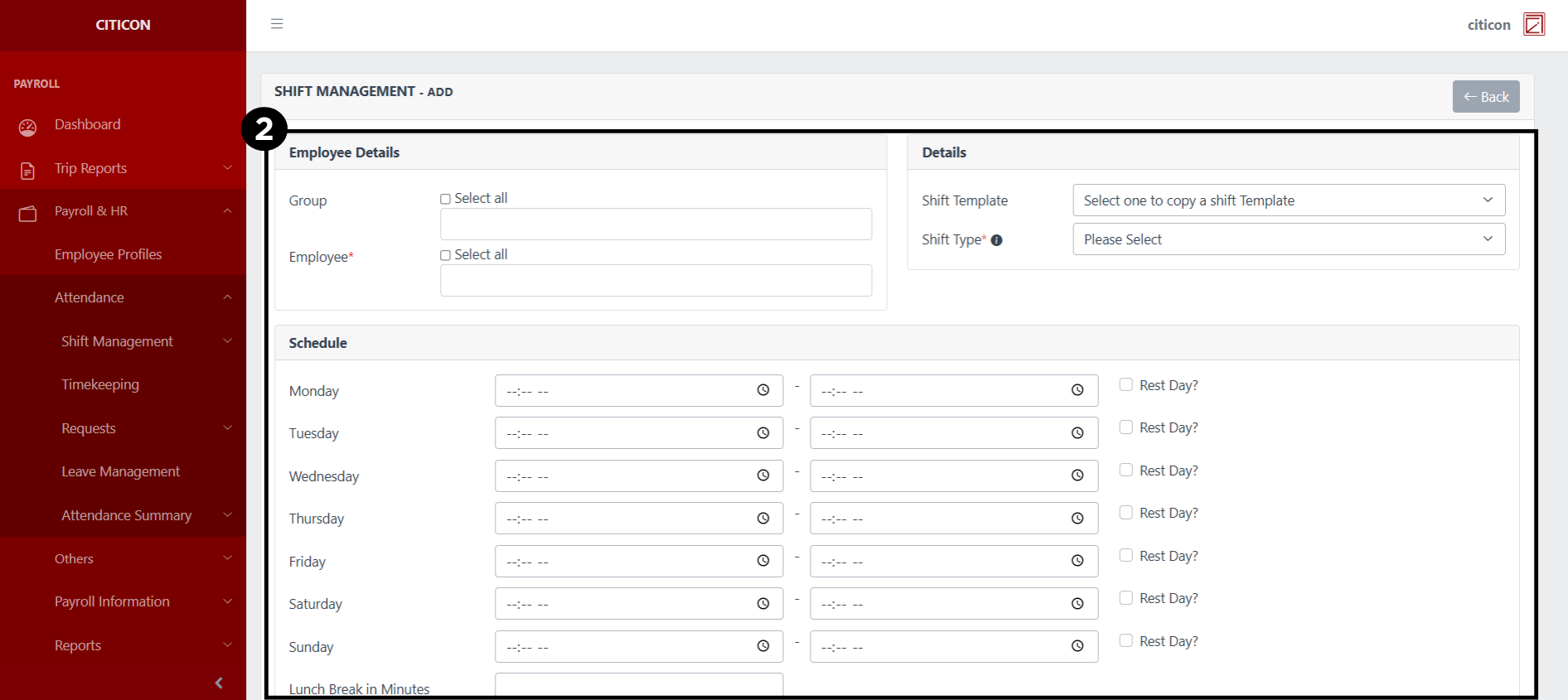
- Select the Save button to save your new entry.
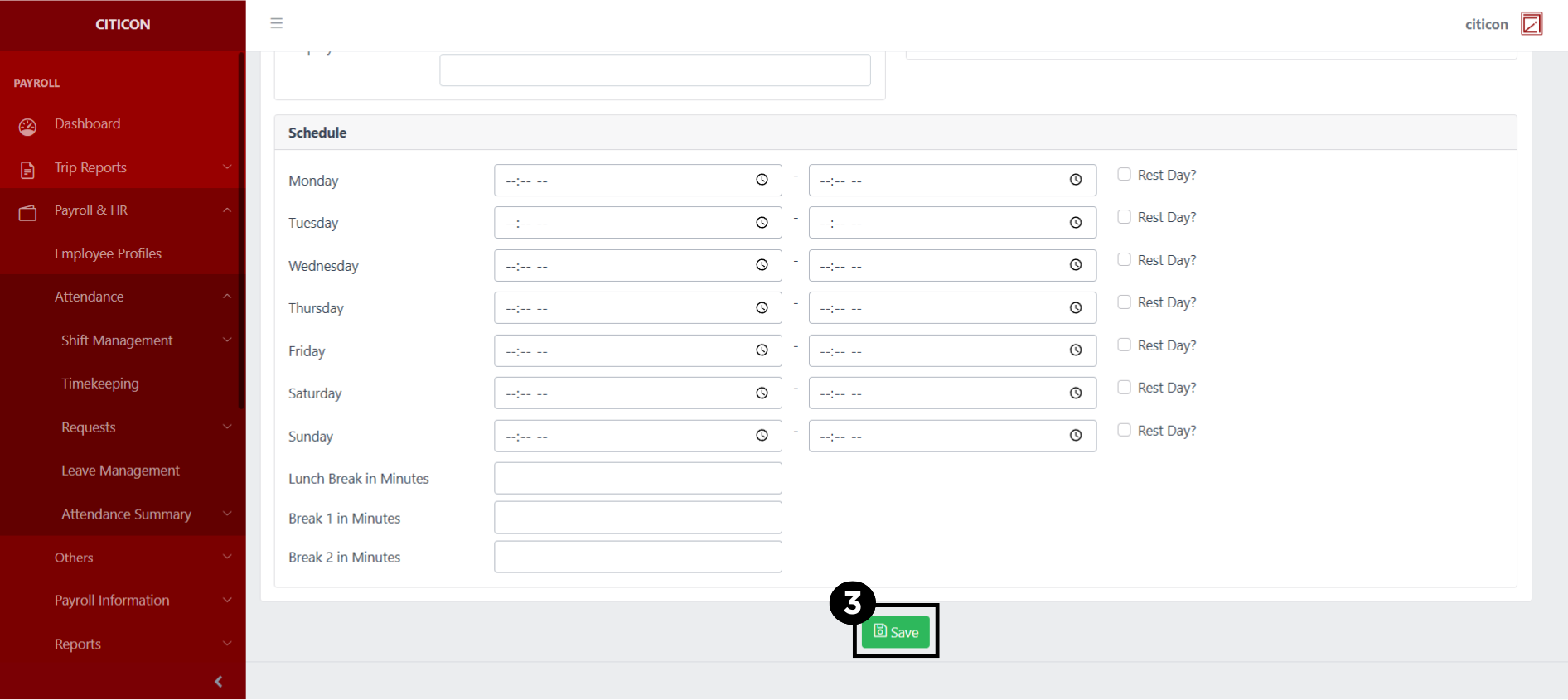
Show Entry
- Select the folder button to view an entry.
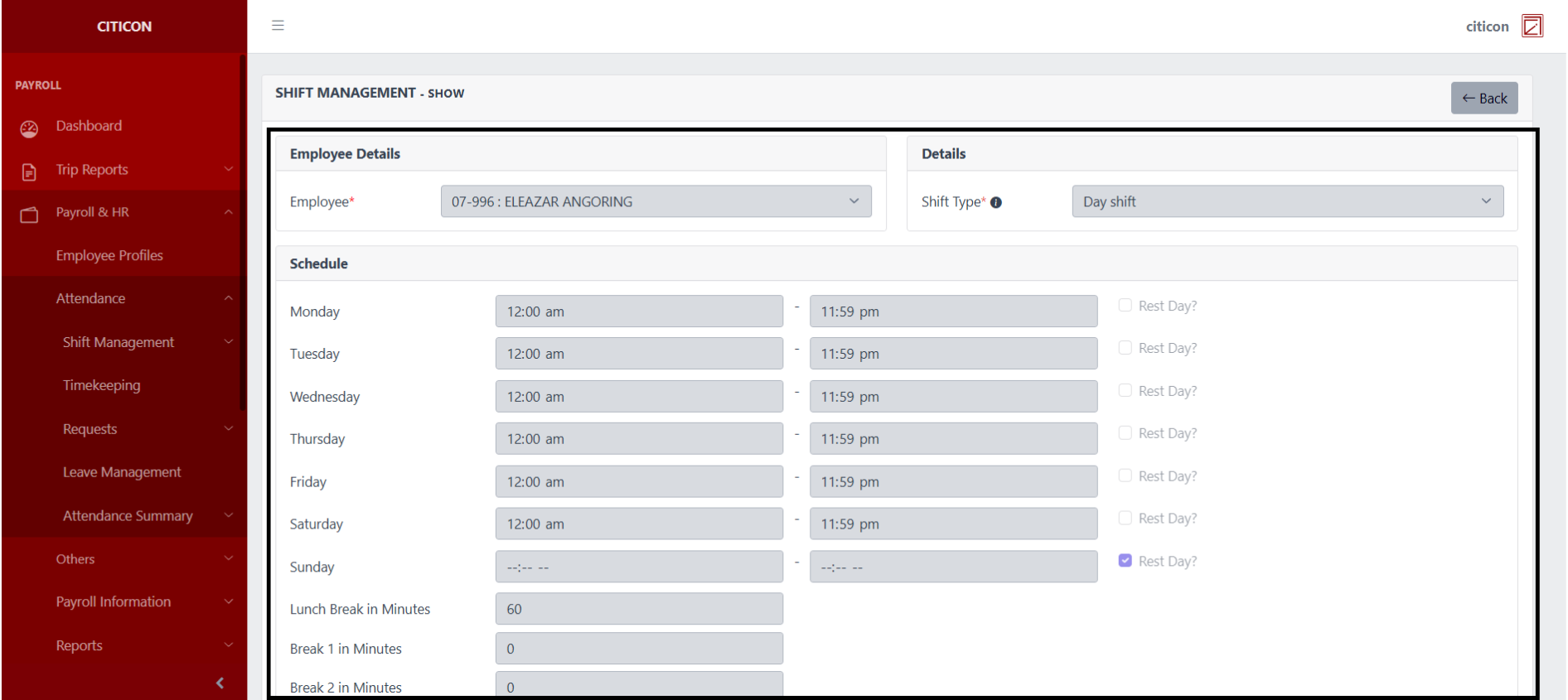
 Here you can view more specific details on the entry that you selected.
Update Entry
- Select the folder button of the entry which you want to edit.
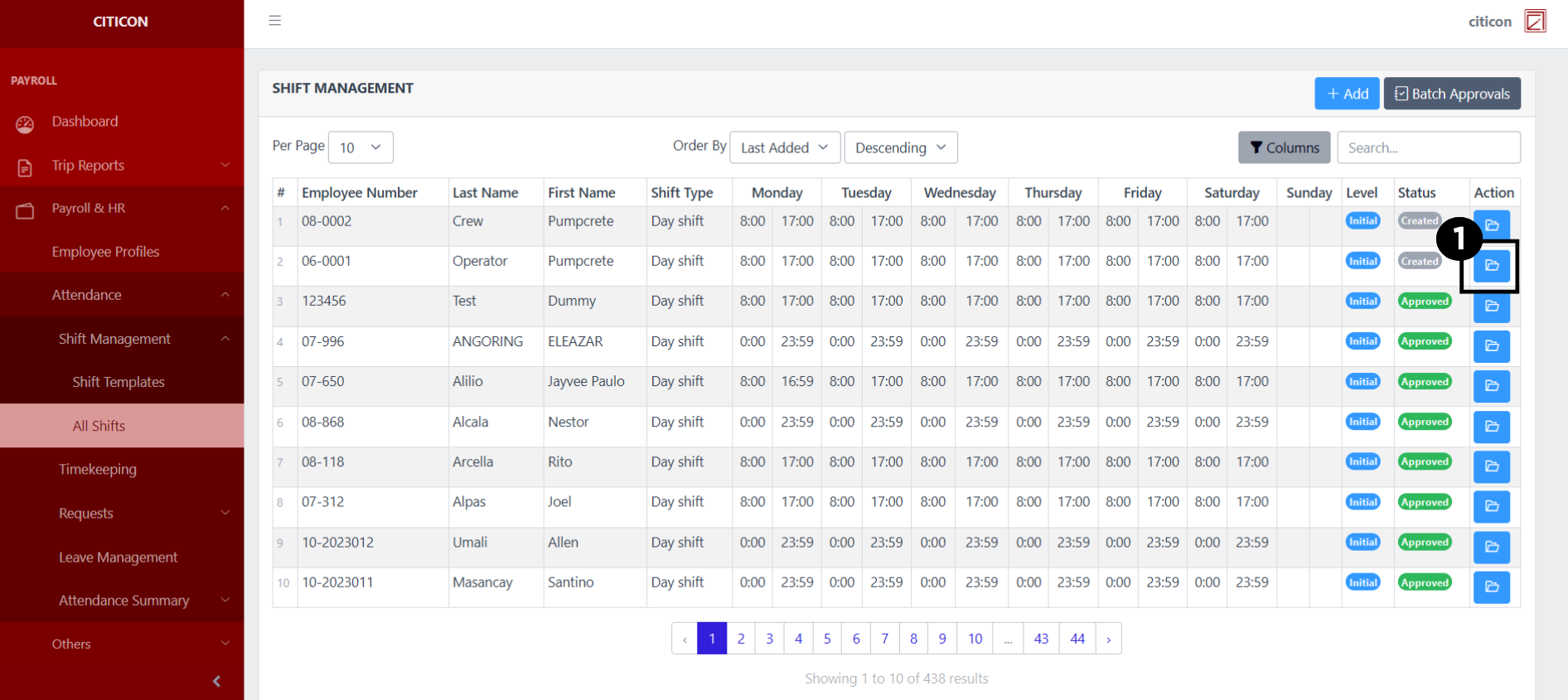
- Select the Edit button to update the details of the entry.
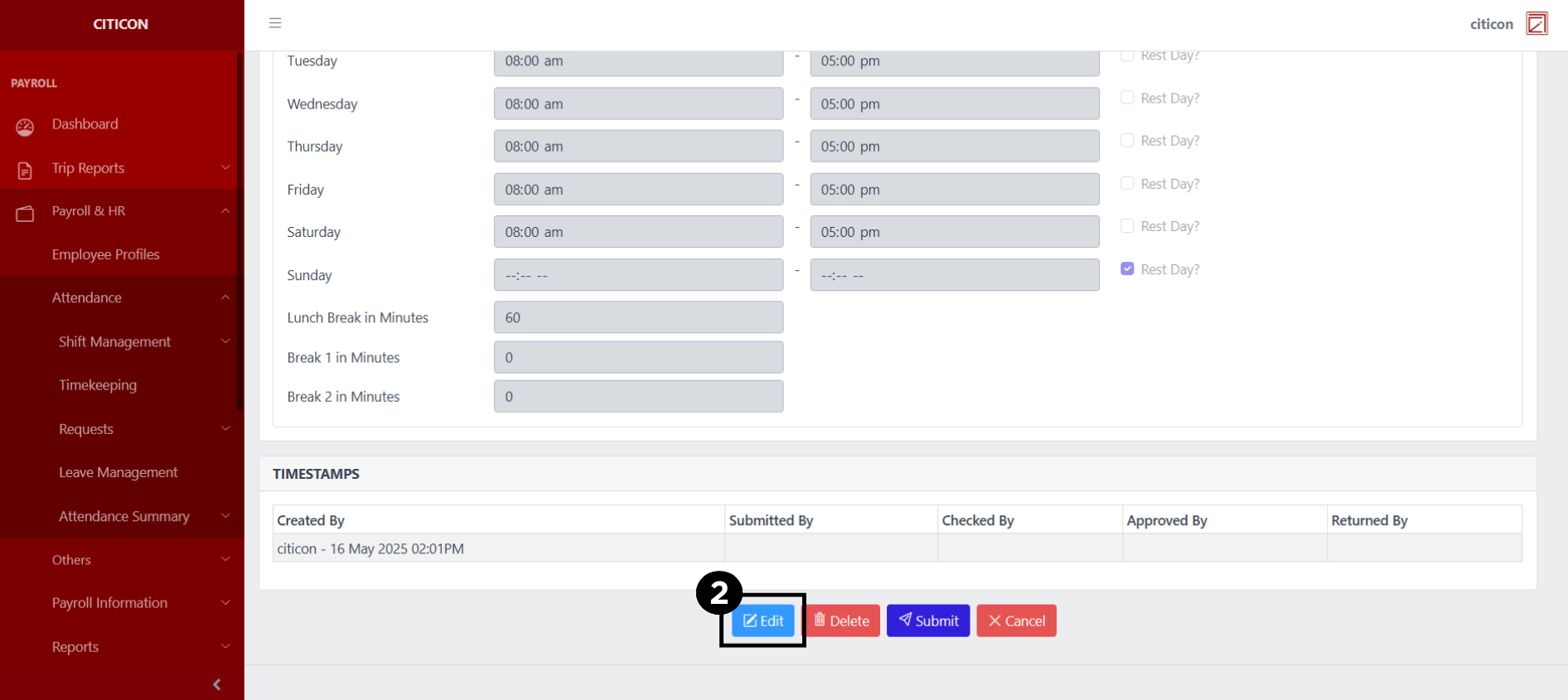
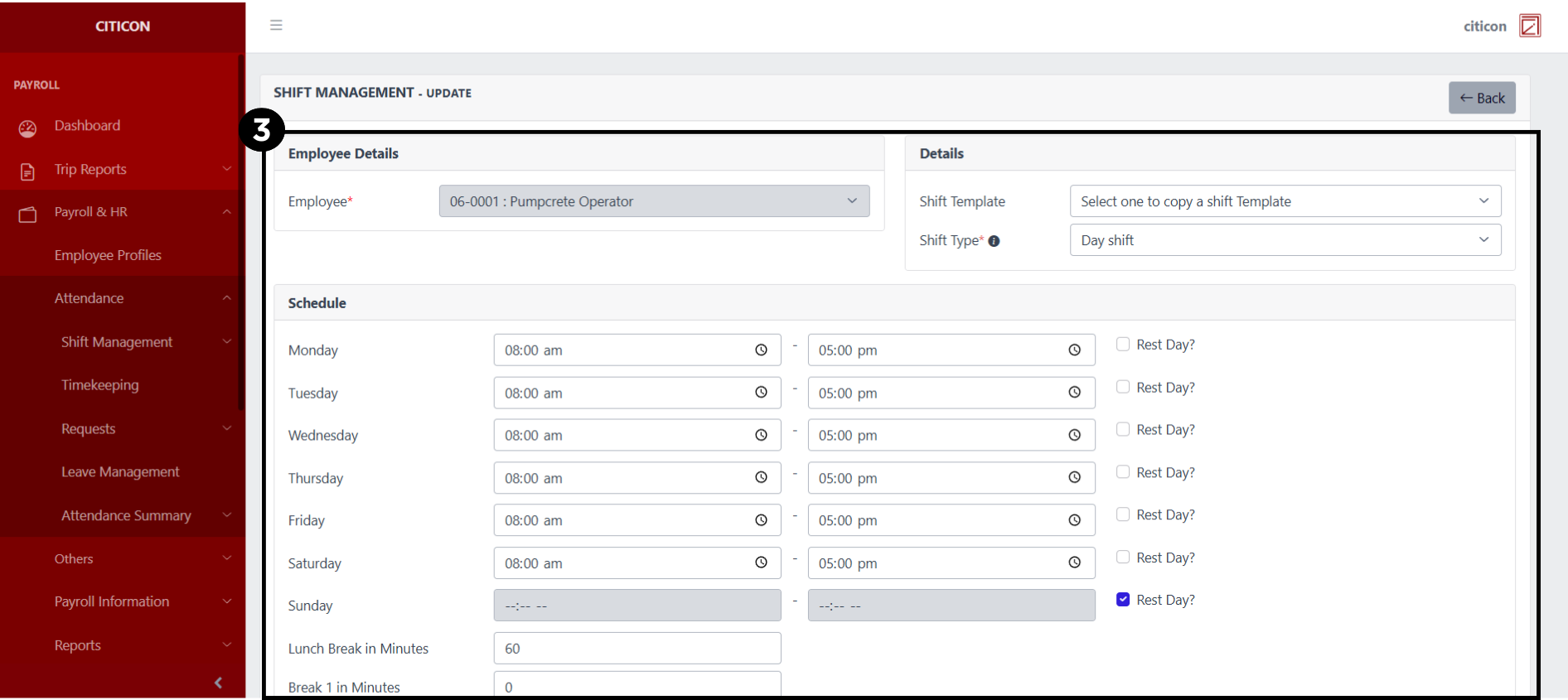
- Select a detail section which you want to edit, and enter the necessary changes.
All fields with an asterisk (*) are required to be filled up.
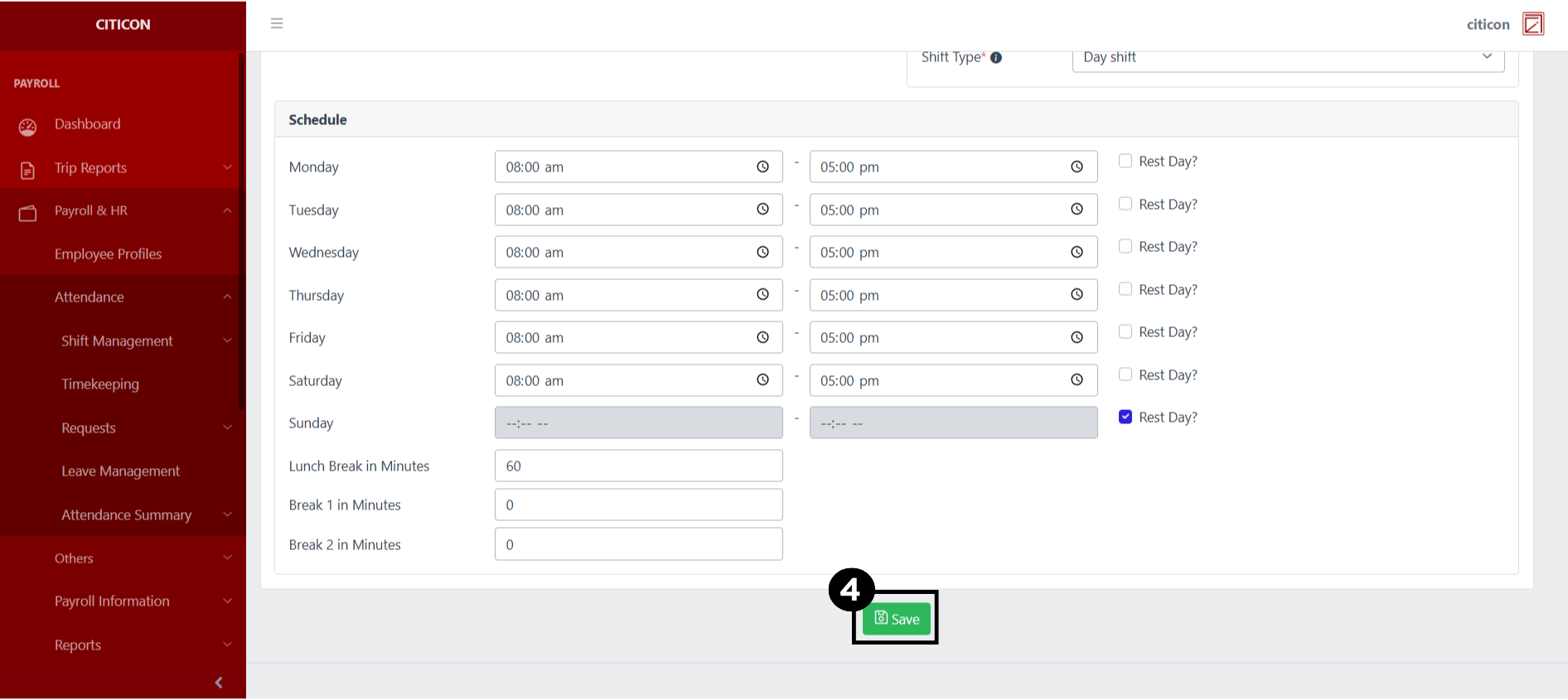
- Select the Save button to save the changes you have made.
Submit Entry
- Select the Batch Approvals button to submit an entry.
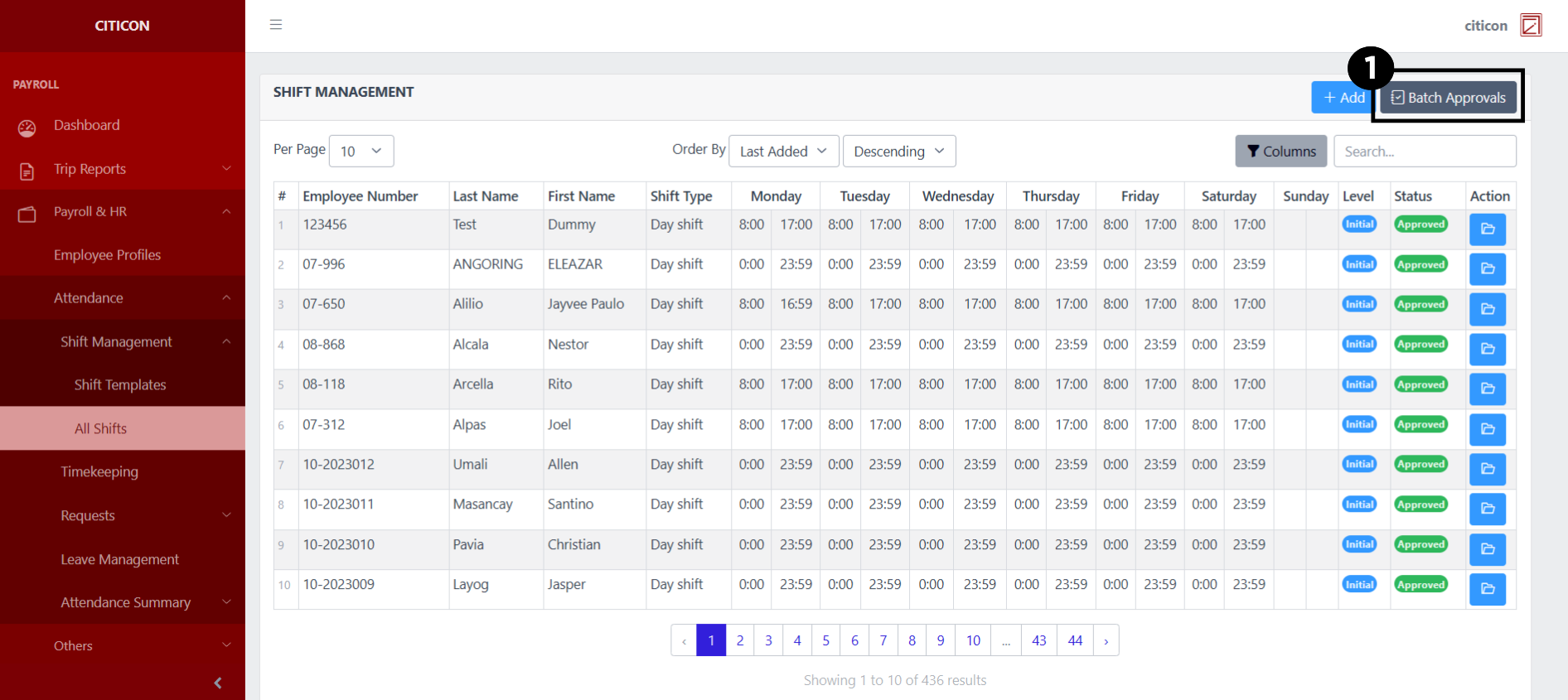
- Select the For Submission tab.
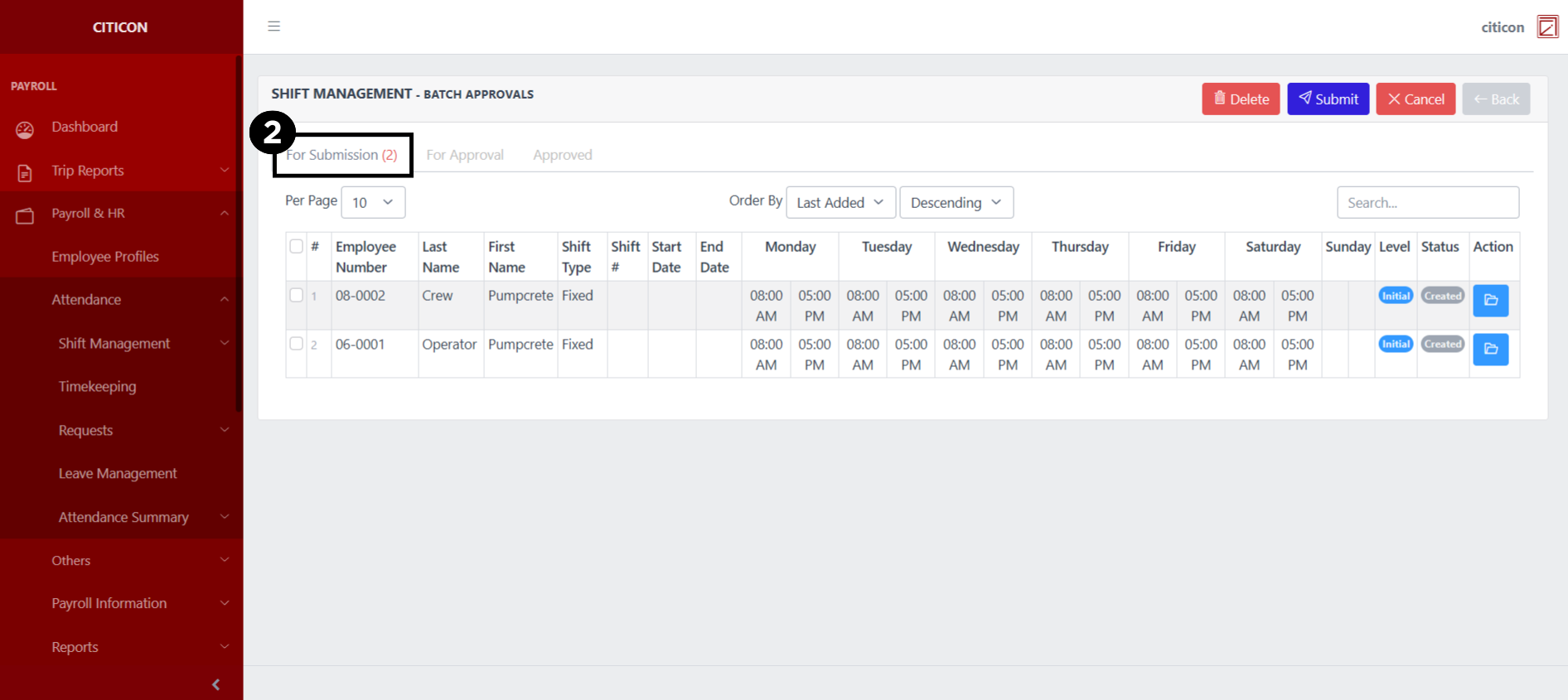
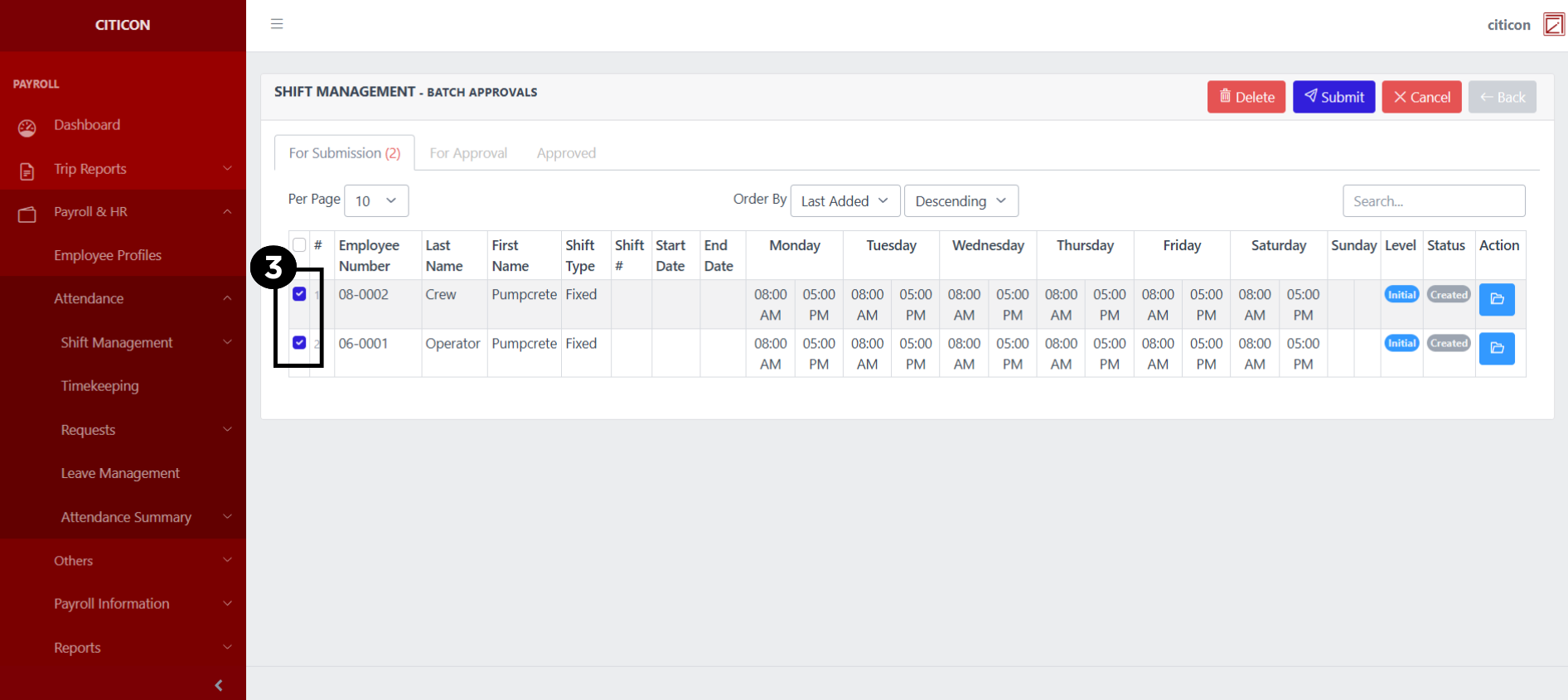
- Select the entry that you want to submit.
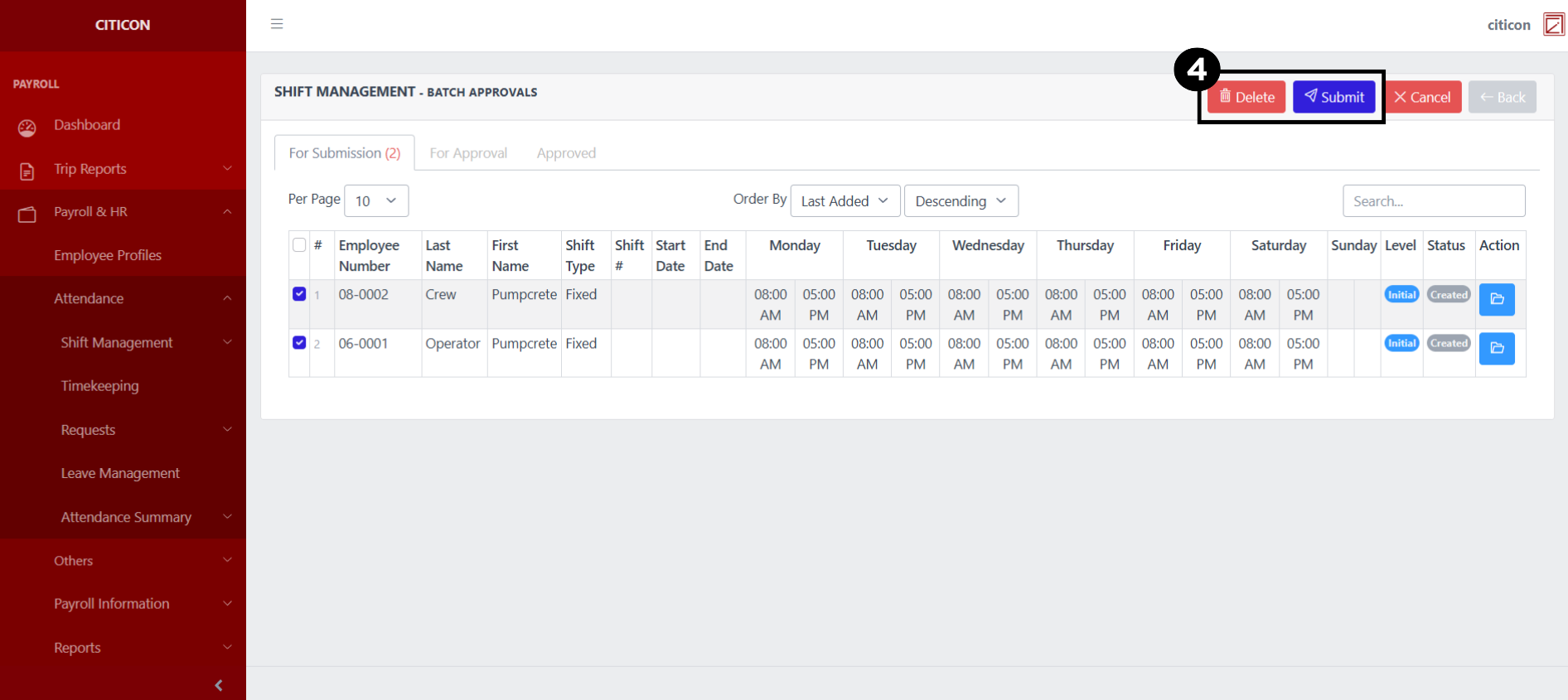
- Select the Submit button to submit the entry. In cases where you want to delete a entry, select the entry you want to delete, then select the Delete button.
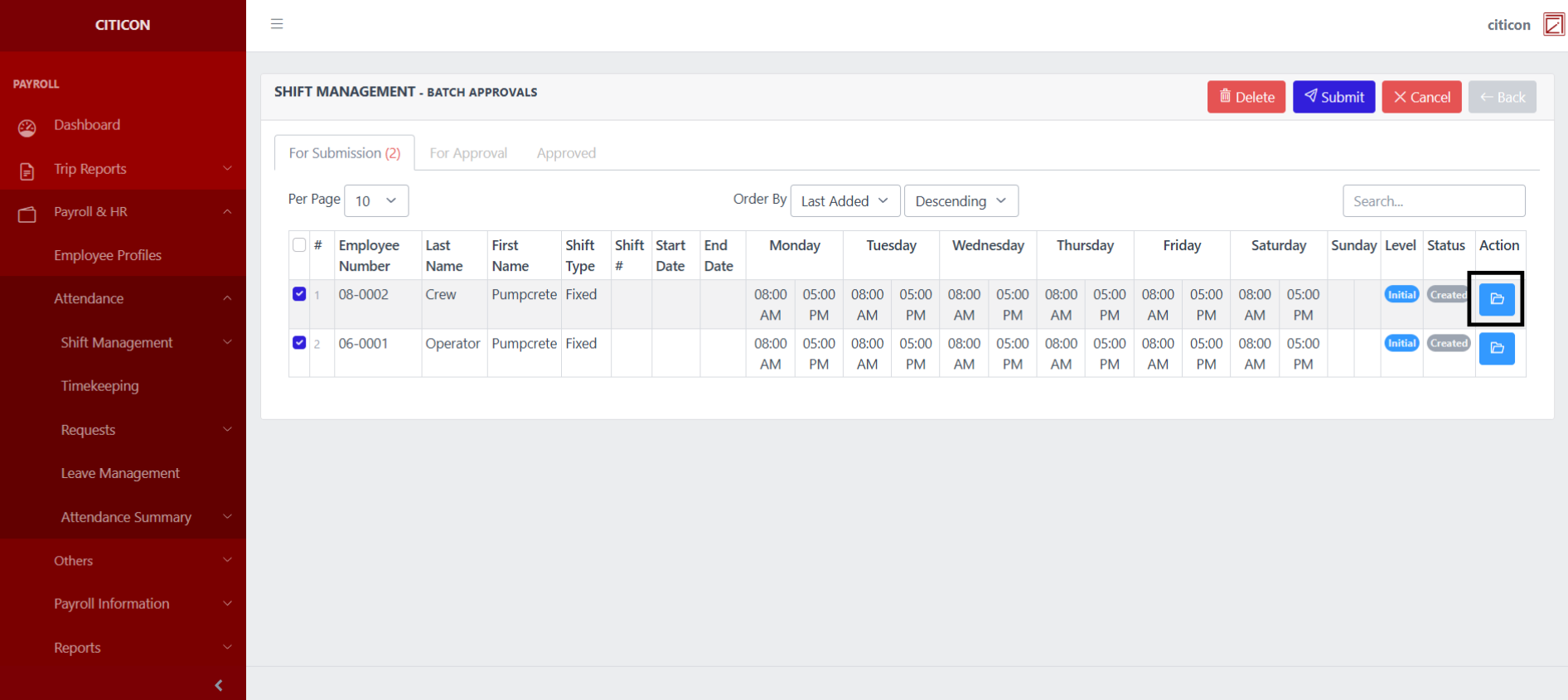
 To view the details of an individual entry, select the folder button and from here, you may either Edit, Delete, Submit, or Cancel the entry.
Approve Entry
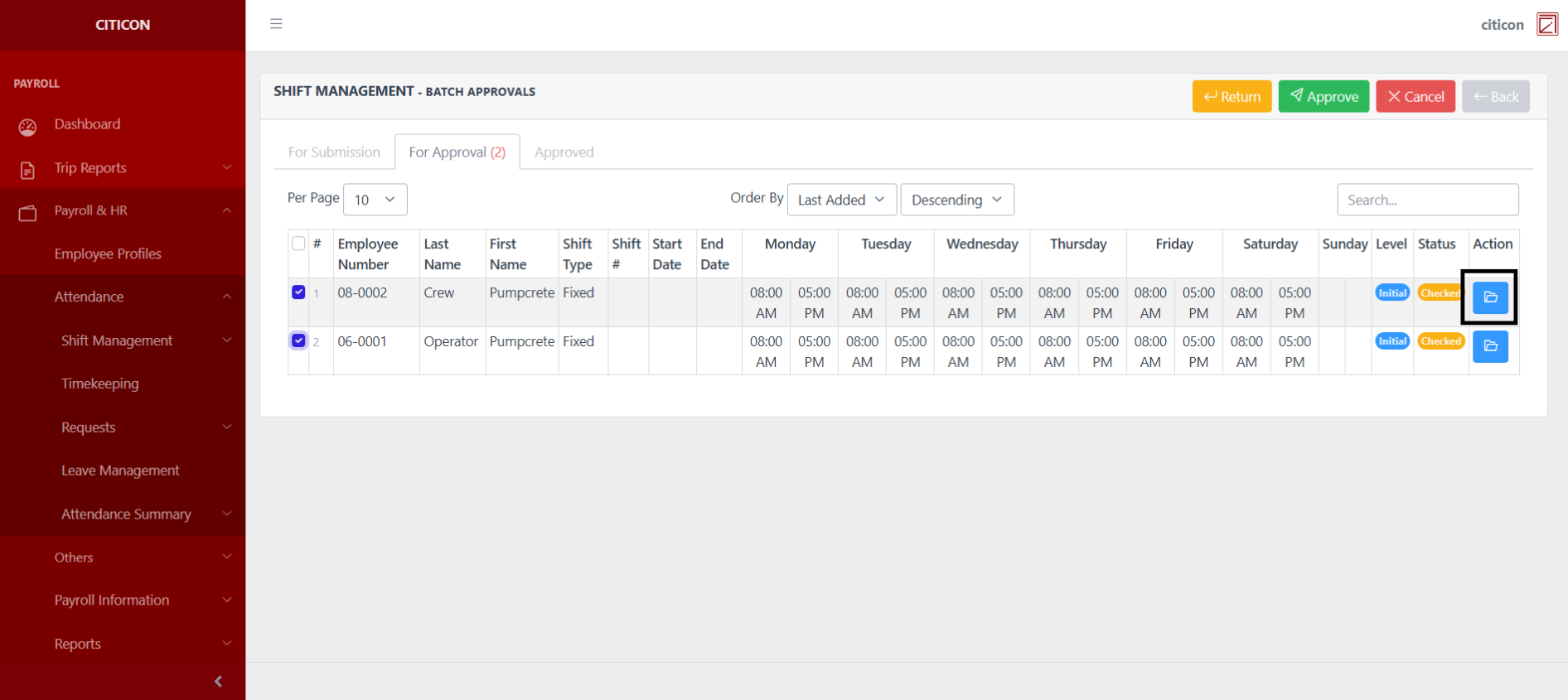
- Select the Batch Approvals button to approve a entry.
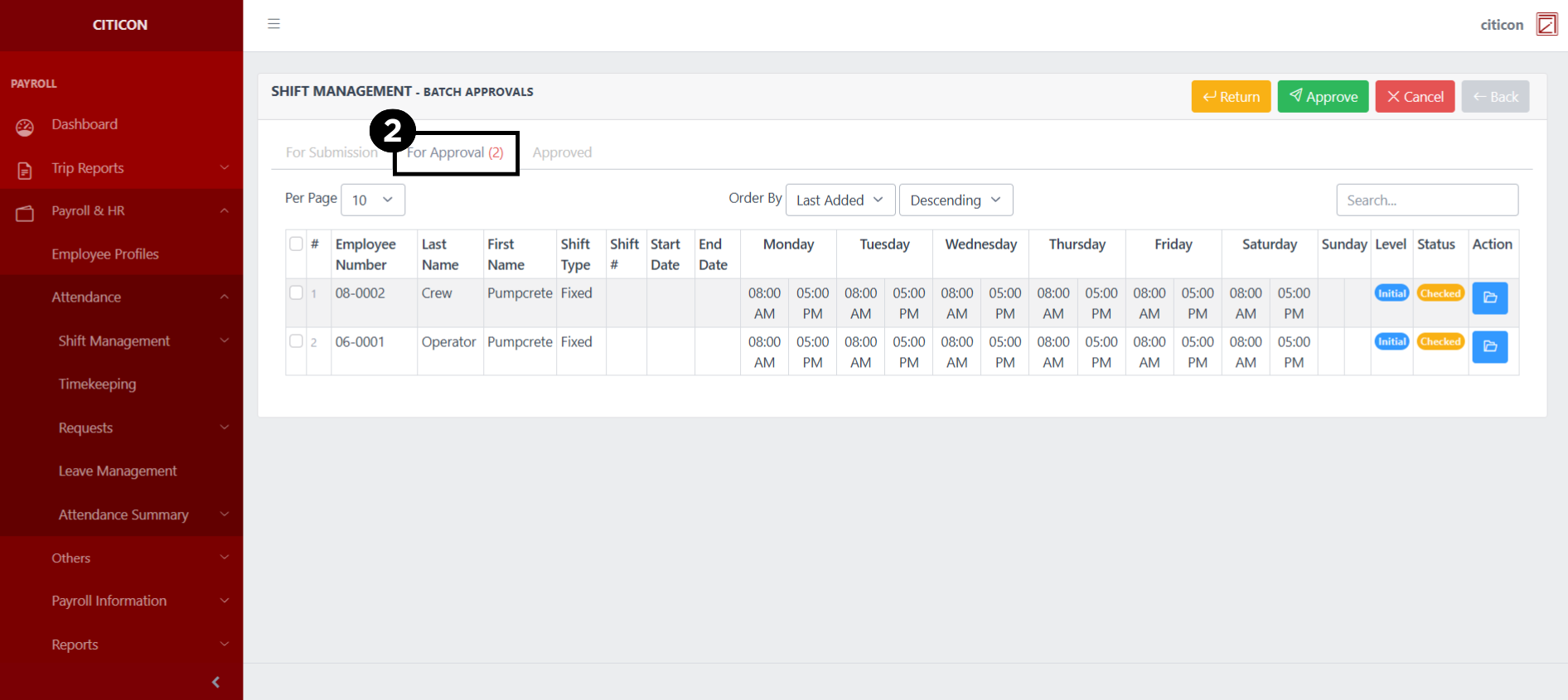
- Select the For Approval tab.
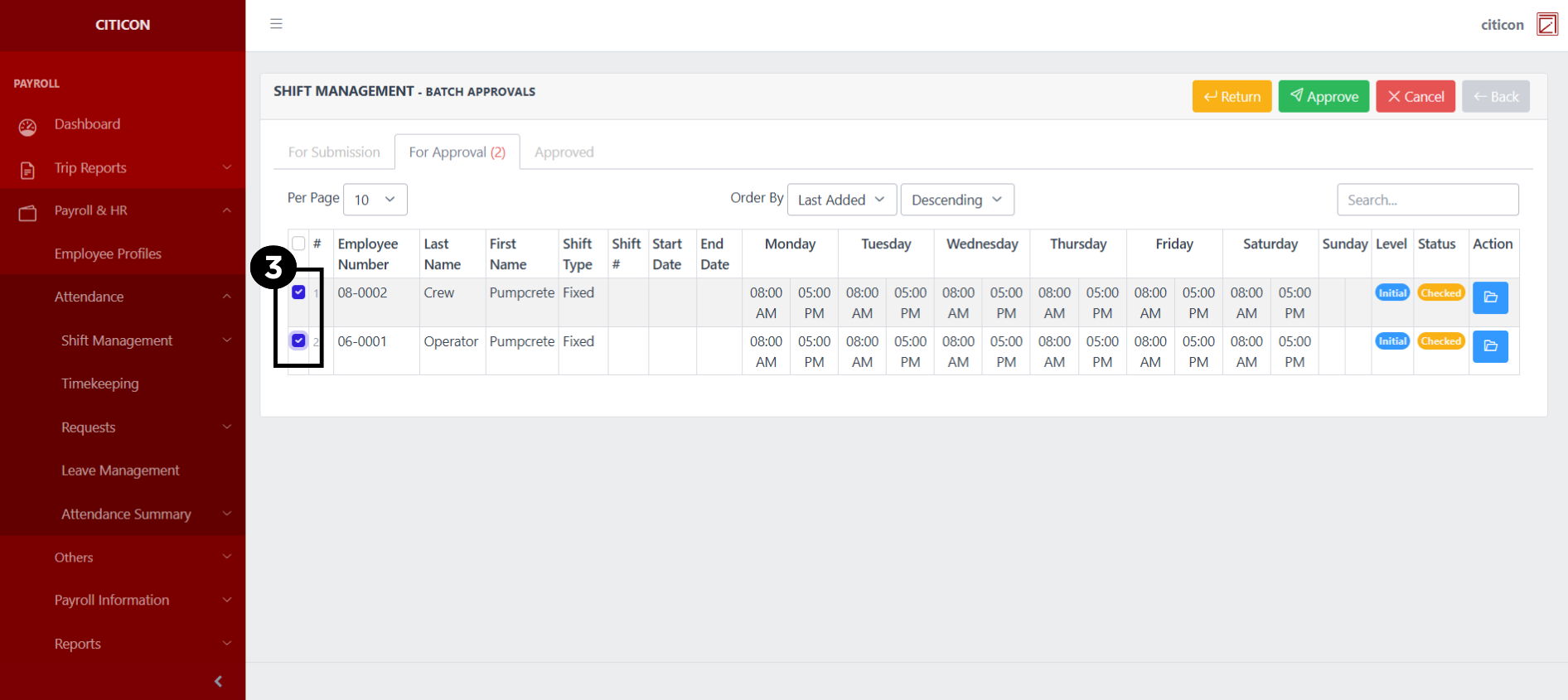
- Select the entry that you want to approve.
- Select the Approve button to approve the entry. In cases where you want to return a entry to submission section, select the entry you want to return, then select the Return button.
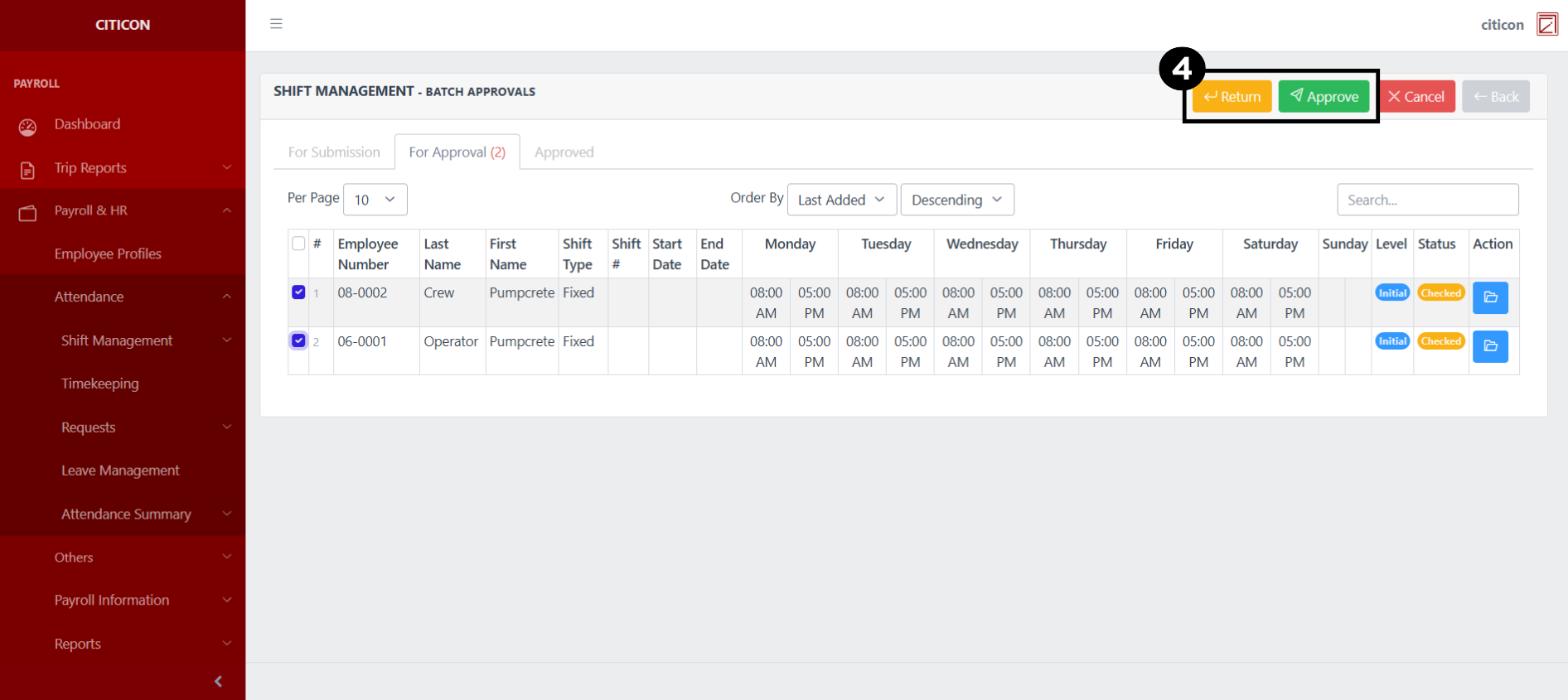 To view the details of an individual entry, select the folder button and from here, you may either Return, Approve, or Cancel the entry.
Explore Citicon Payroll and Accounting System: Payroll & HR - Attendance - Timekeeping