Requests - Sunday Requests
Welcome to Citicon Payroll and Accounting Systems Configuration for Sunday Requests under the Attendance submodule of the Payroll & HR module. This section handles employee submissions for Sunday work, supporting proper authorization and integration into attendance and payroll processing.
Managing Sunday Requests ensures accurate tracking of non-regular workdays and promotes compliance with labor policies regarding weekend work.
Key Purposes
- Record Sunday Work Submissions: Capture essential information including employee details, time schedules, and filing date for all Sunday work requests.
- Calculate Work Duration: Automatically compute total work hours by factoring in start and end times as well as designated break periods.
- Track Approval Status: Monitor each request's status and approval level to ensure that only validated Sunday work is considered in attendance logs.
- Maintain Audit Trail: Use entry numbers and action logs to keep a clear and accountable record of all Sunday requests submitted by employees.
- Integrate with Payroll Adjustments: Allow approved Sunday work to reflect in payroll computations for appropriate compensation and compliance.
Sunday Requests Module User-Manual
This section provides details, and set-by-step instructions to access, view, and update the Sunday Requests entries stored in the system.
Index Page
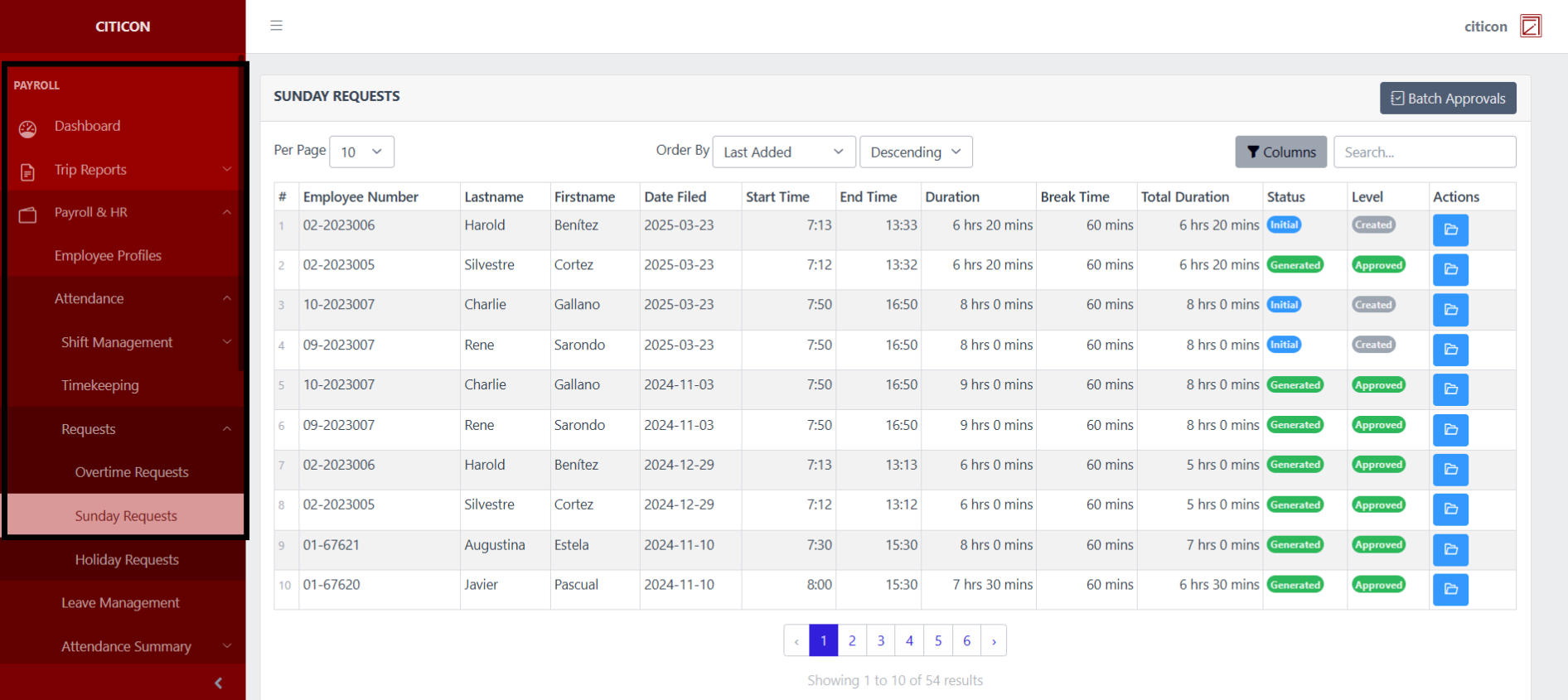
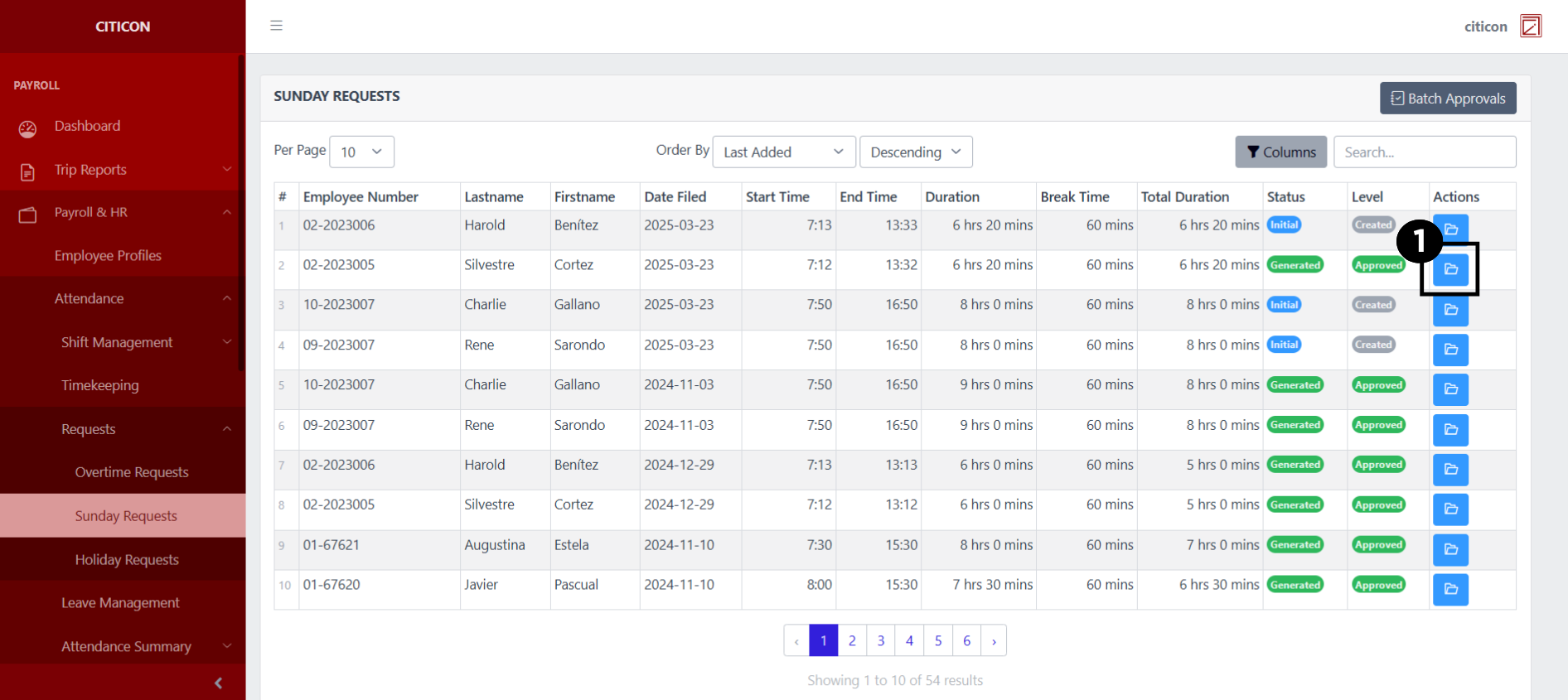
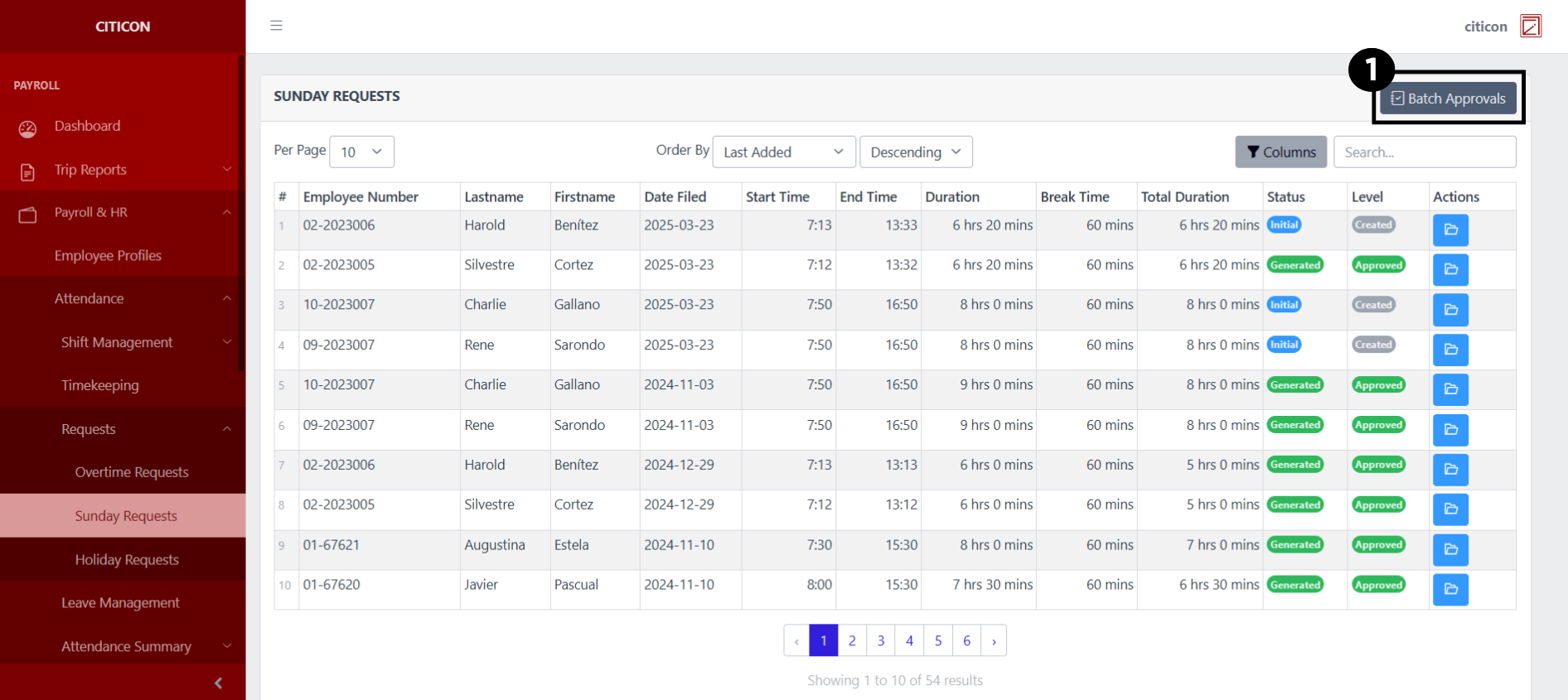
To access the Sunday Requests. Go to Payroll, select Payroll & HR, select Attendance, select Requests, then select Sunday Requests.
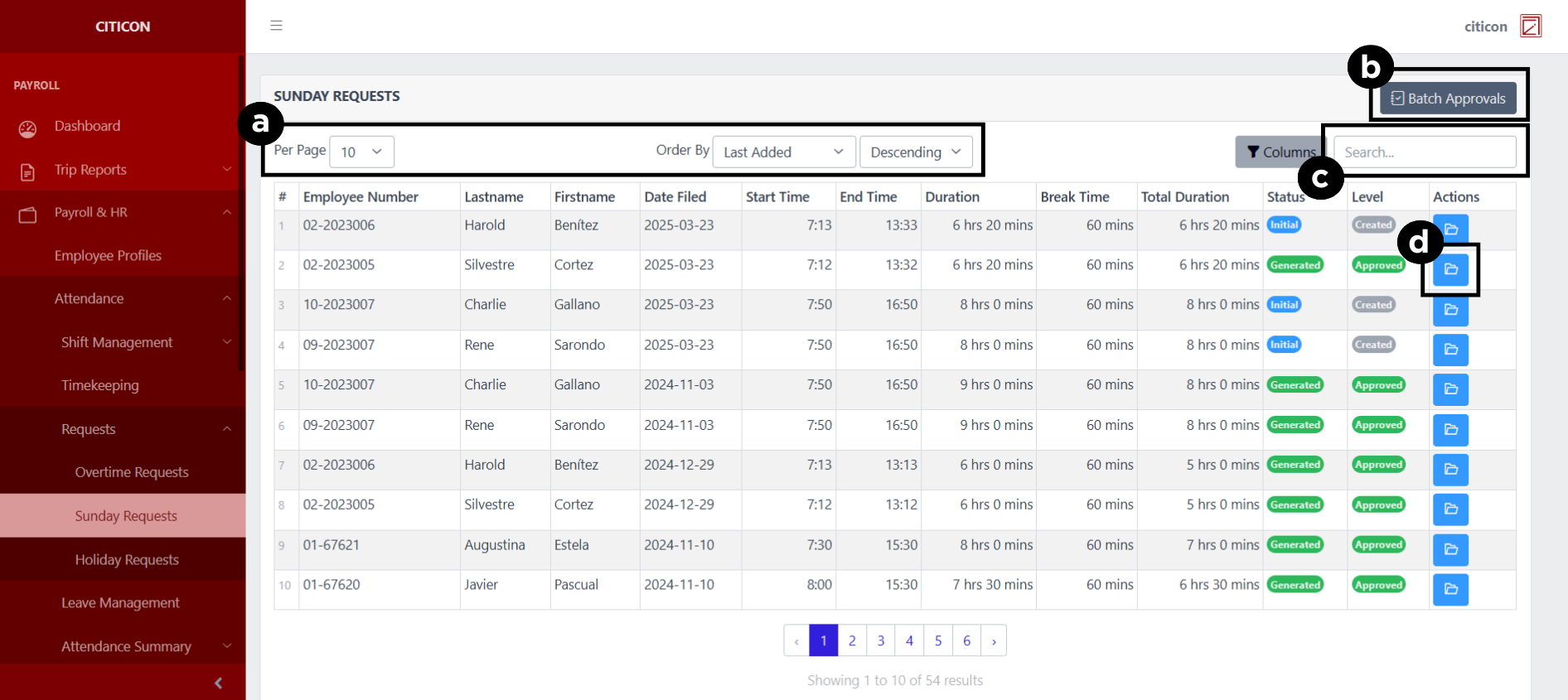
a. Adjust the paging, ordering, and sorting of the Sunday Requests Page here.
b. Select the Batch Approvals to process entries to be approved.
c. Search for specific entry details using the search bar.
d. View, Edit, or Delete data by selecting the folder button.
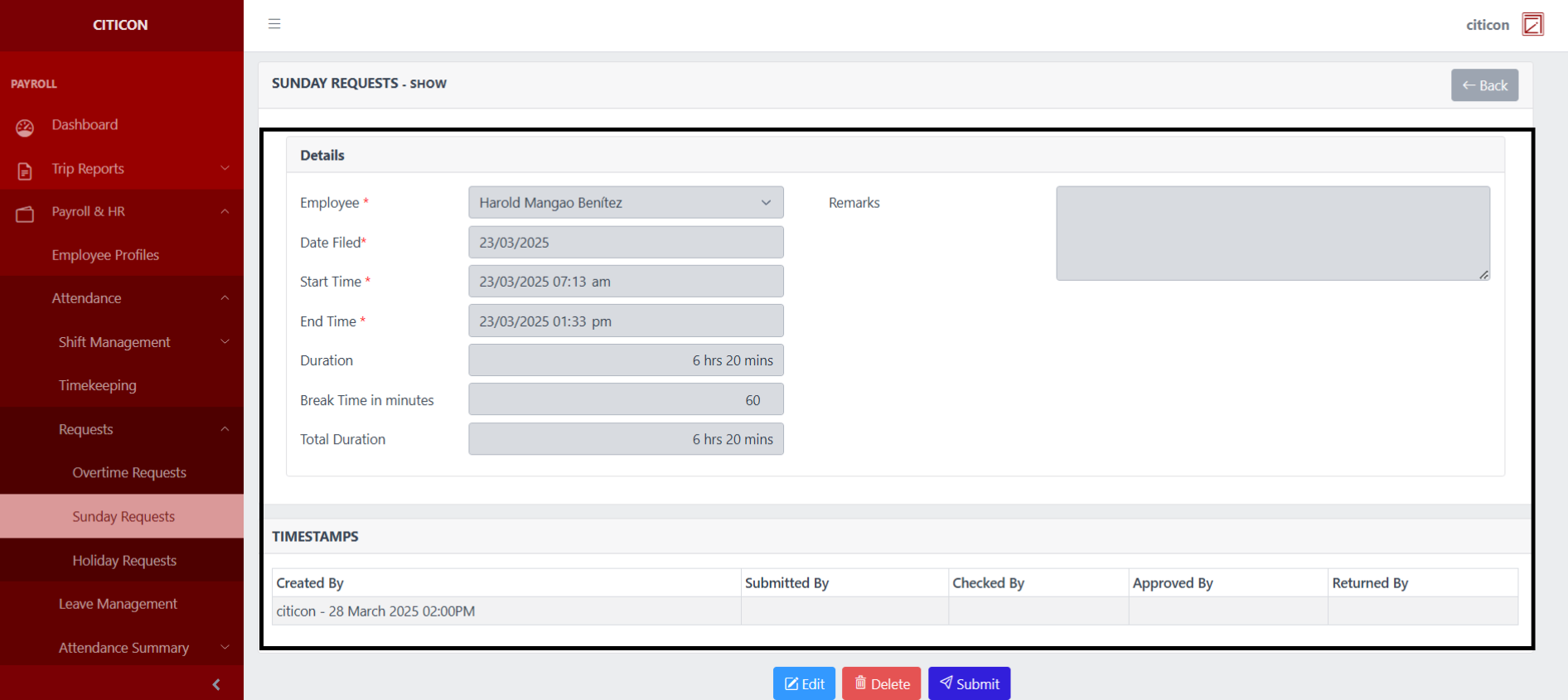
Show Entry
- Select the folder button to view an entry.
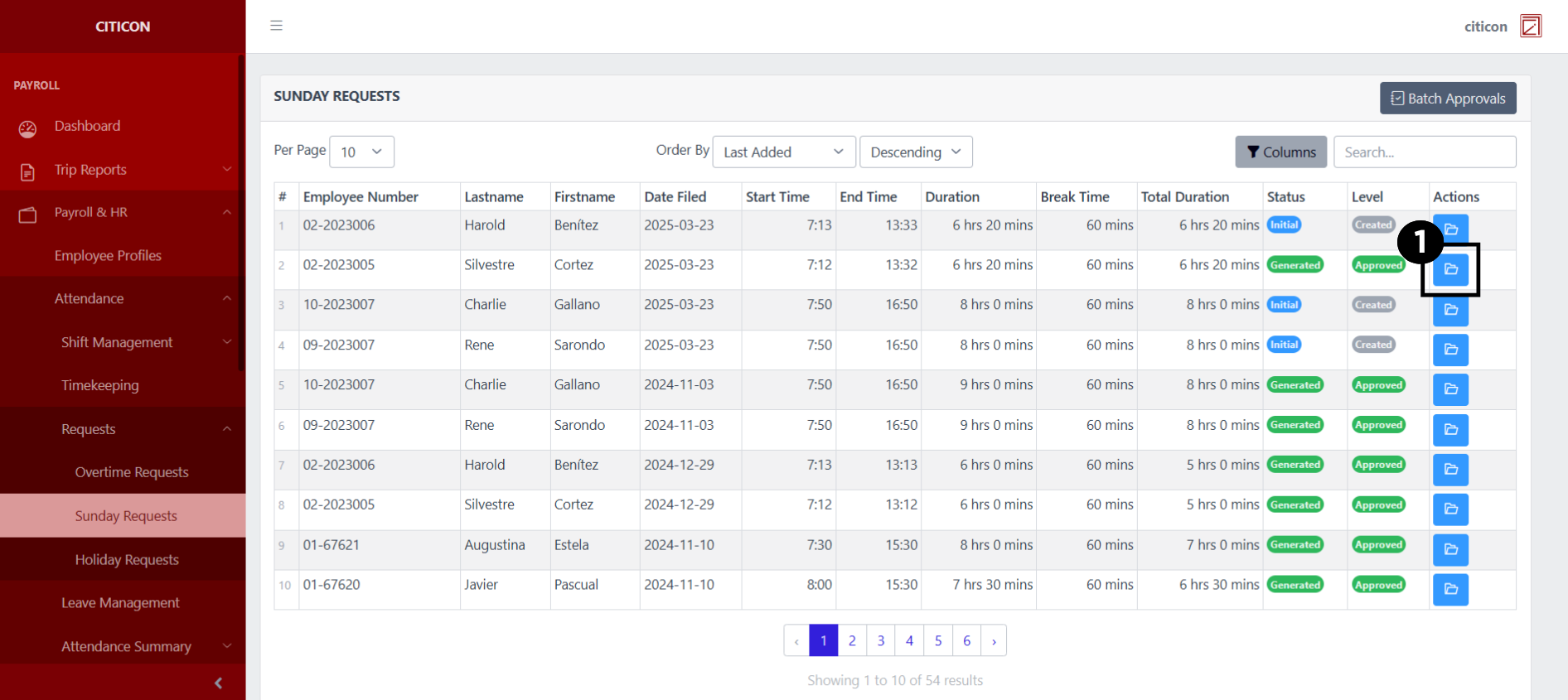 Here you can view more specific details on the entry that you selected.
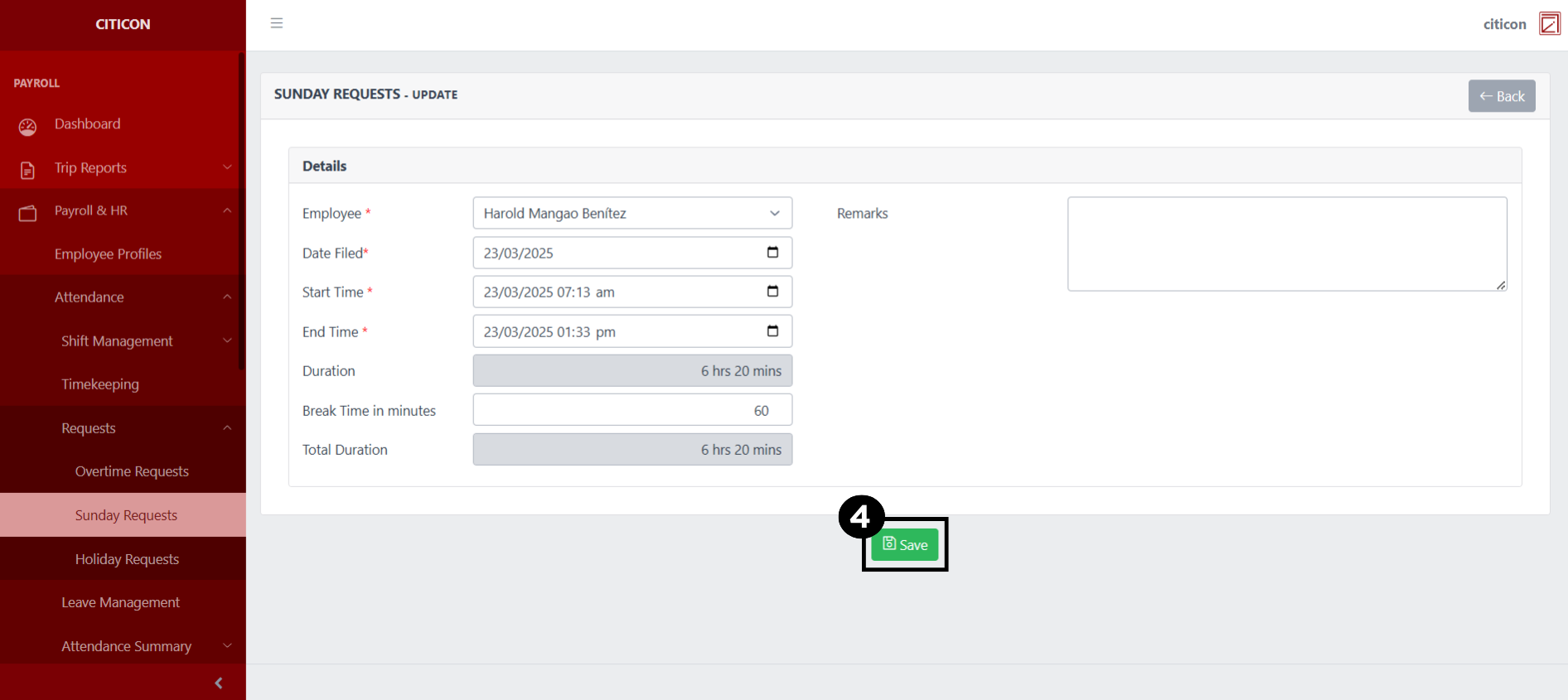
Update Entry
- Select the folder button of the entry which you want to edit.
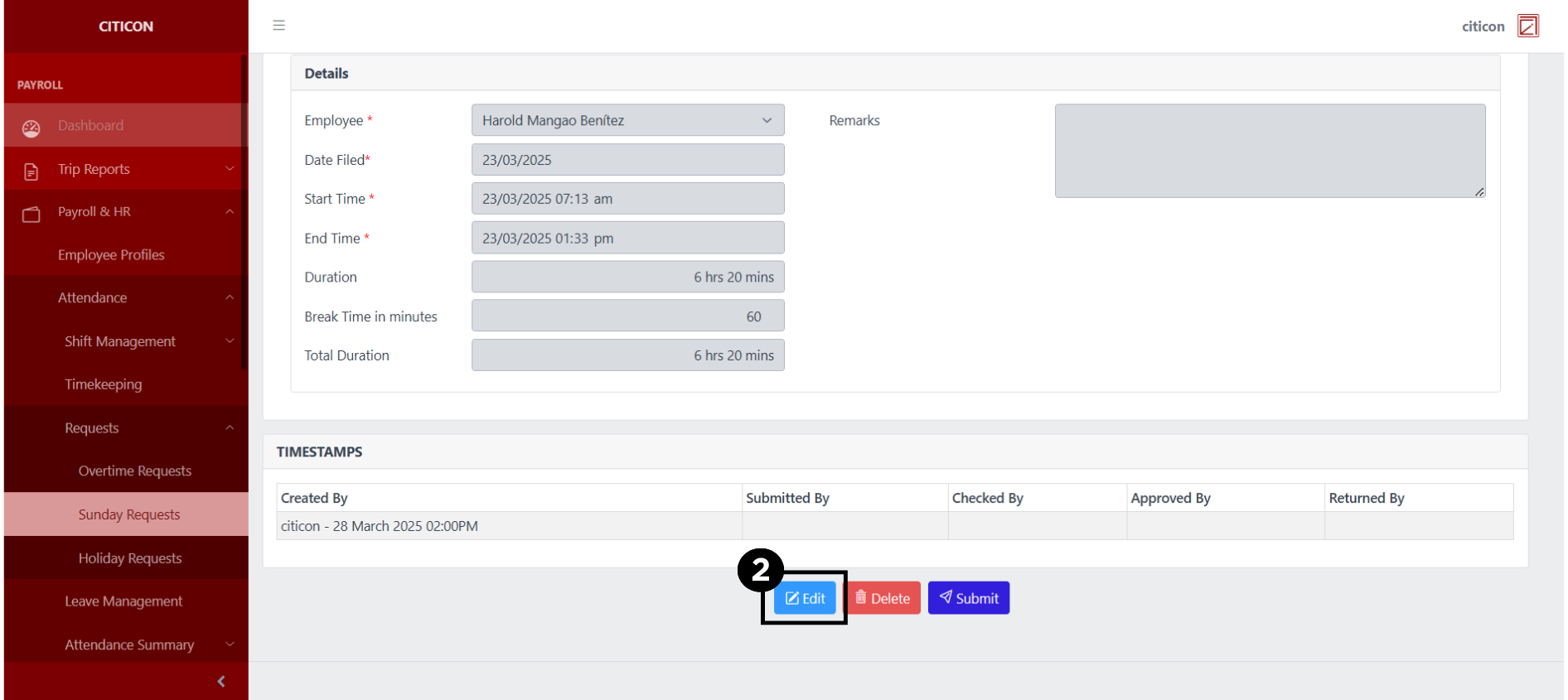
- Select the Edit button to update the details of the entry.
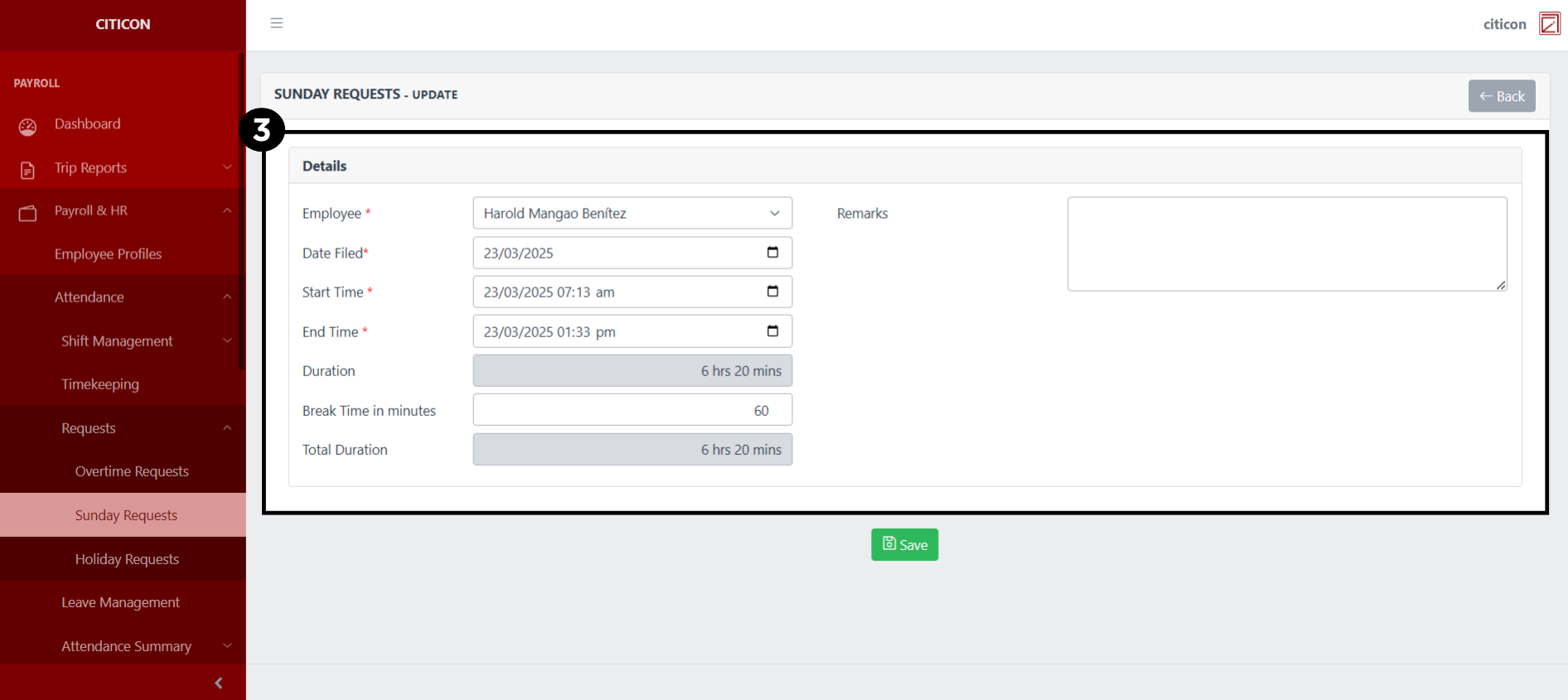
- Select a detail section which you want to edit, and enter the necessary changes.
All fields with an asterisk (*) are required to be filled up.
- Select the Save button to save the changes you have made.
Submit Entry
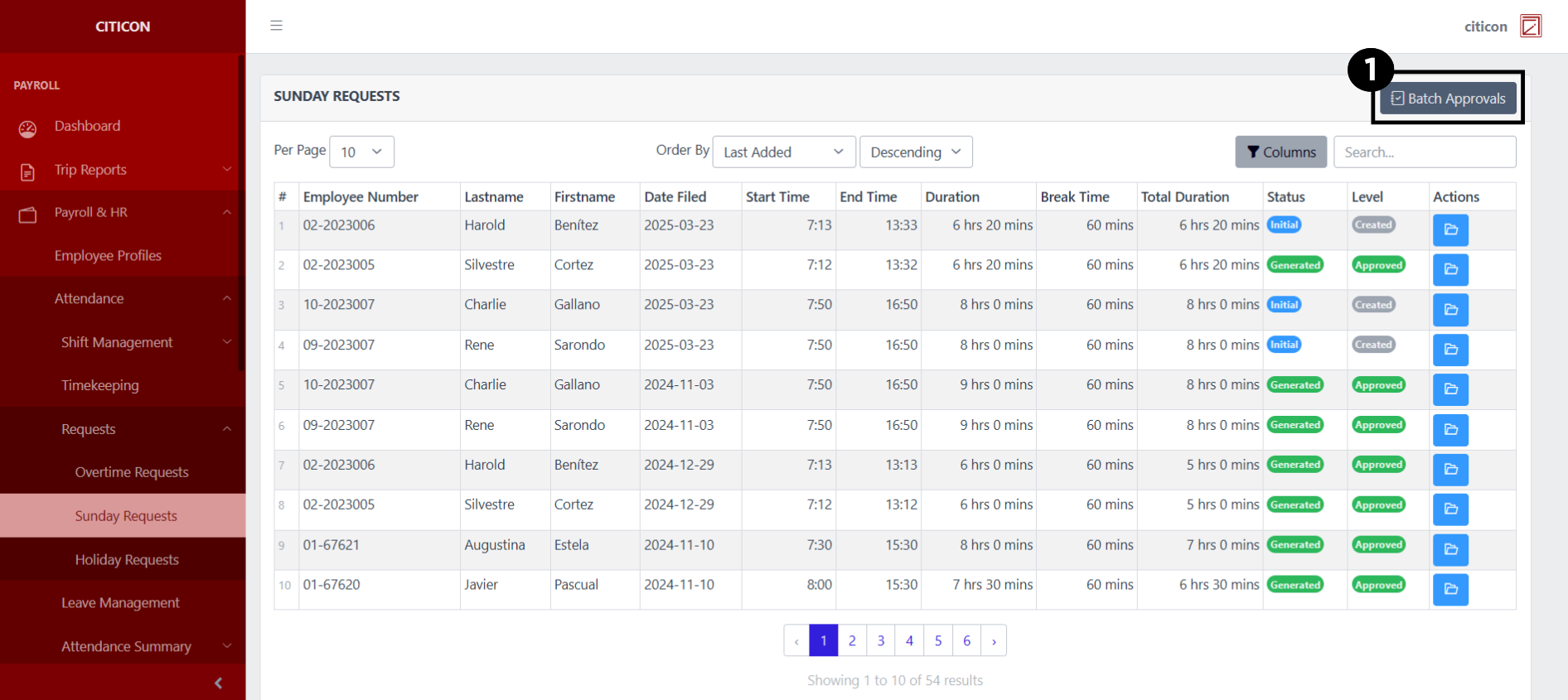
- Select the Batch Approvals button to submit an entry.
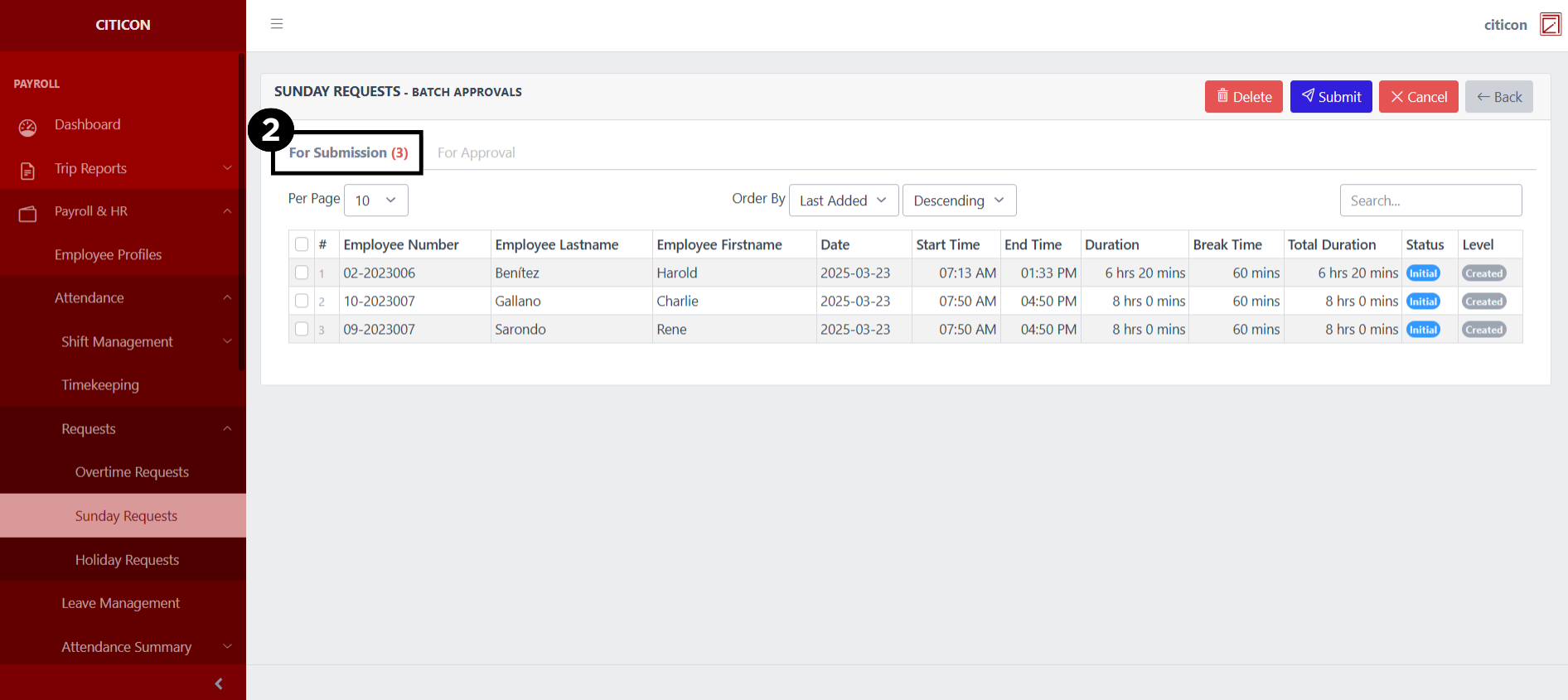
- Select the For Submission tab.
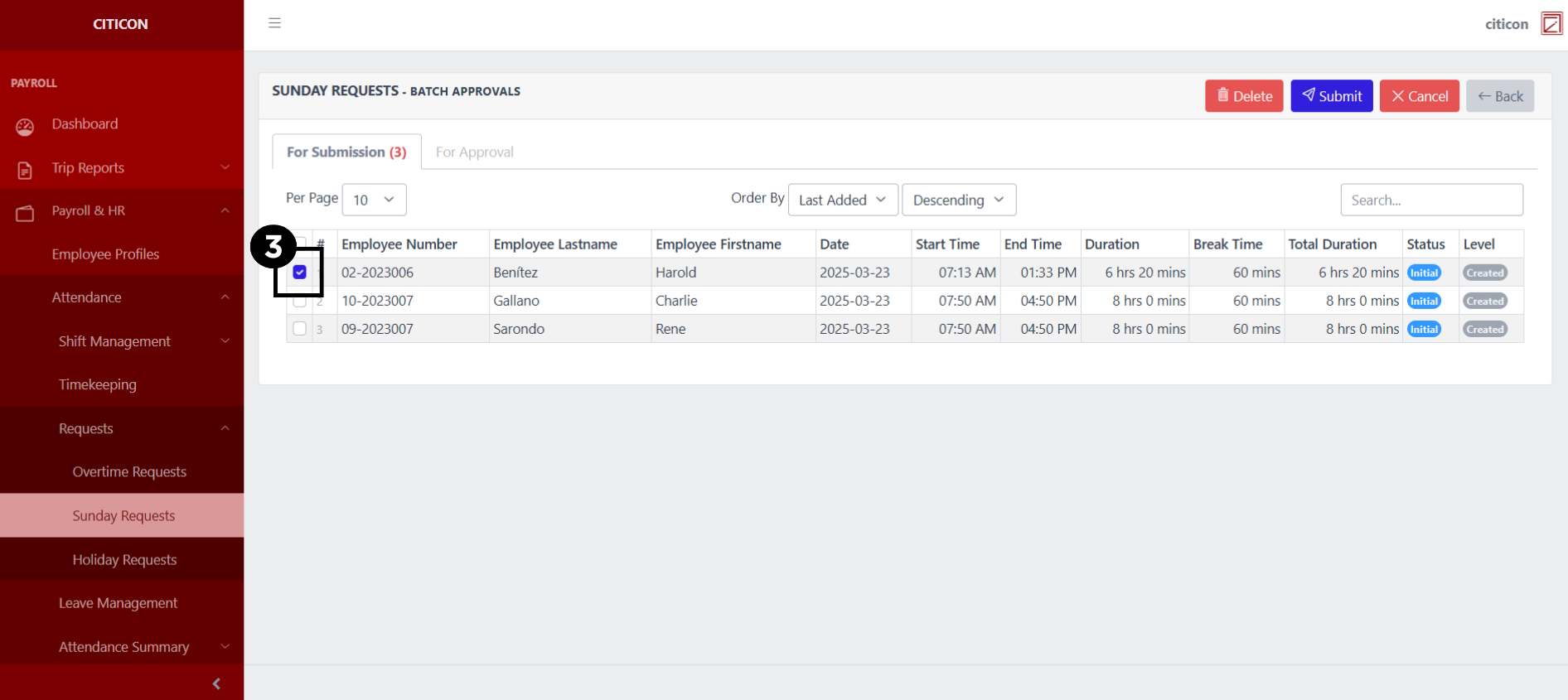
- Select the entry that you want to submit.
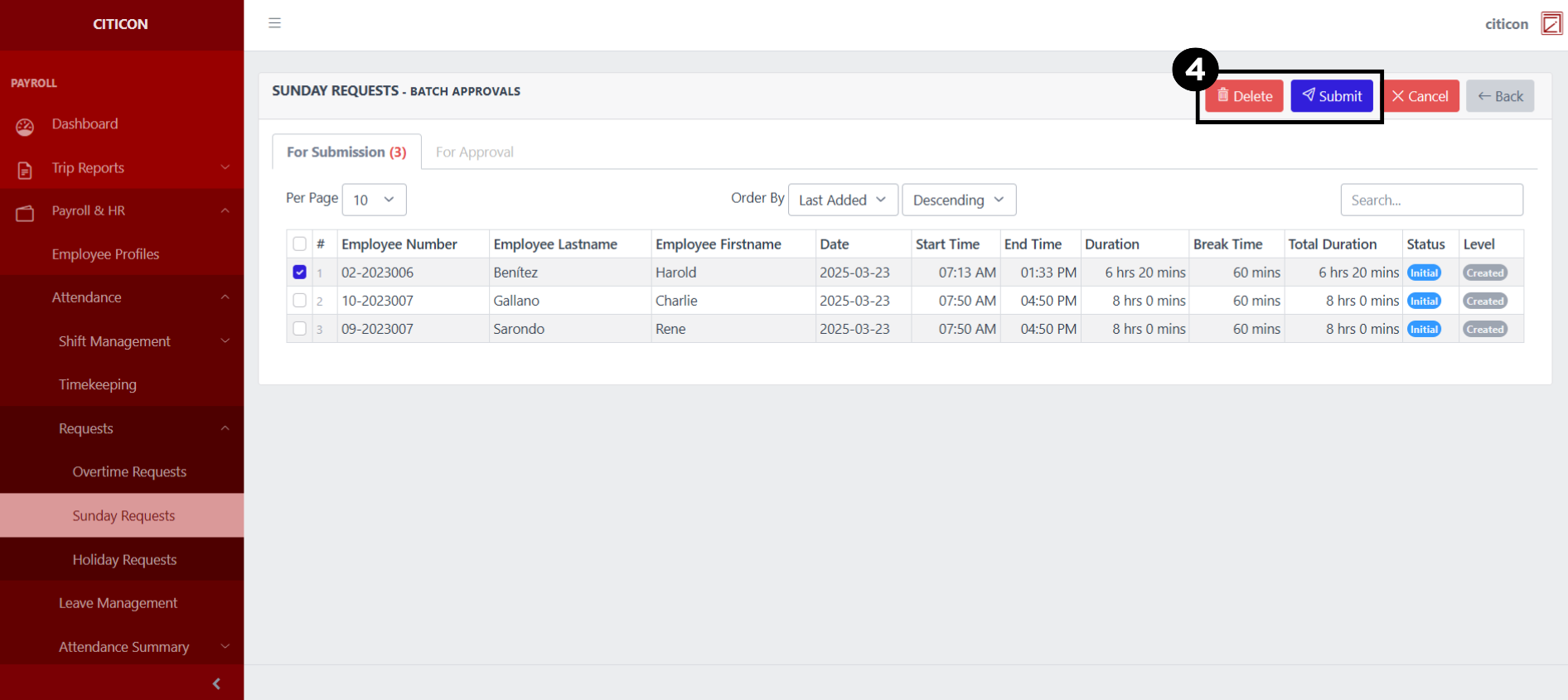
- Select the Submit button to submit the entry. In cases where you want to delete a entry, select the entry you want to delete, then select the Delete button.
Approve Entry
- Select the Batch Approvals button to approve a entry.
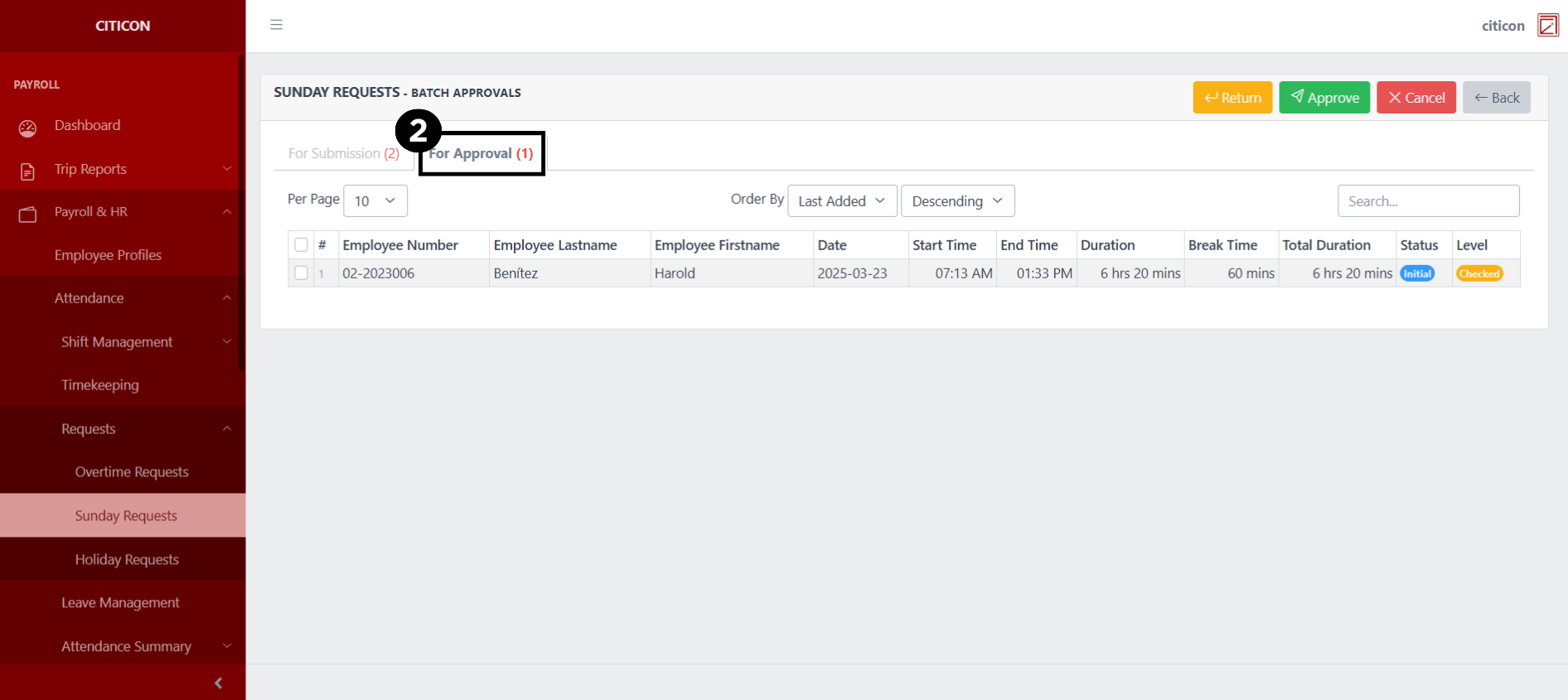
- Select the For Approval tab.
- Select the entry that you want to approve.
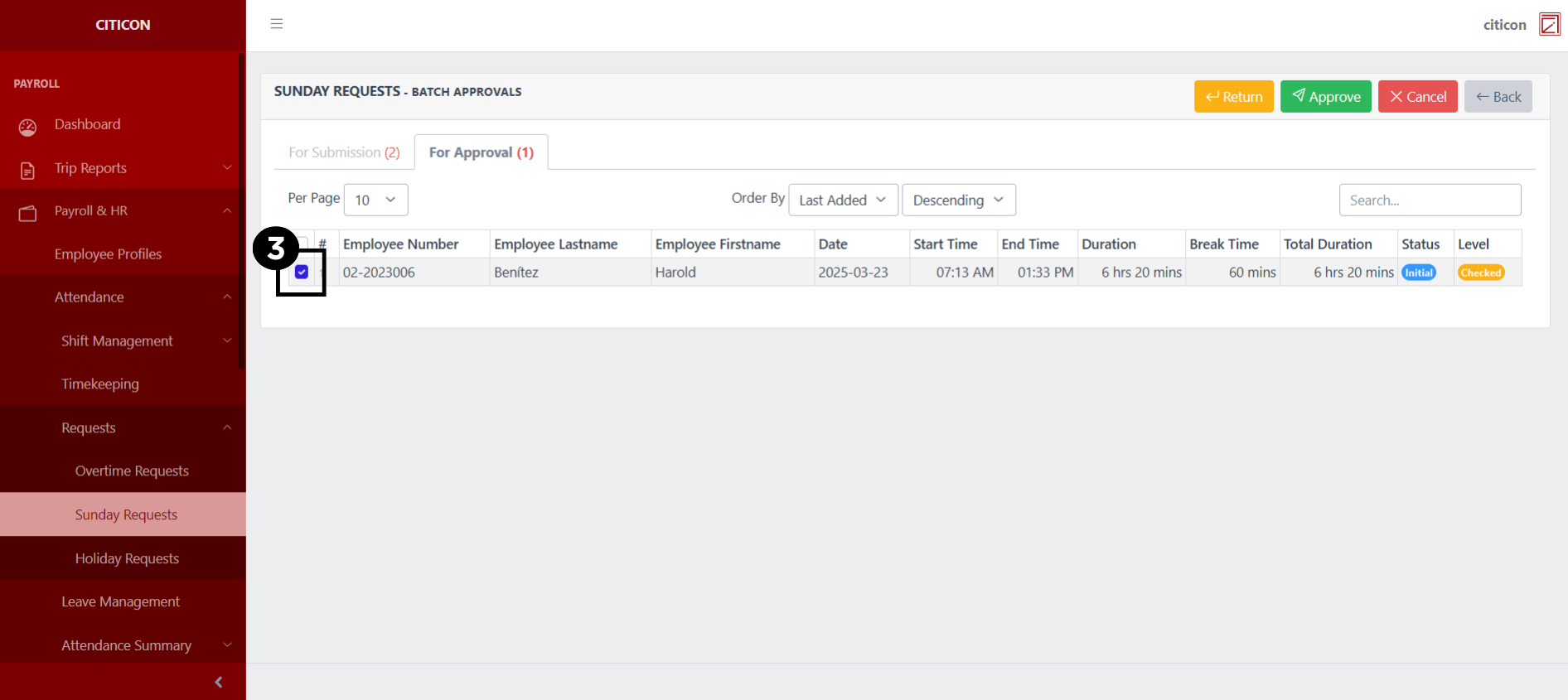
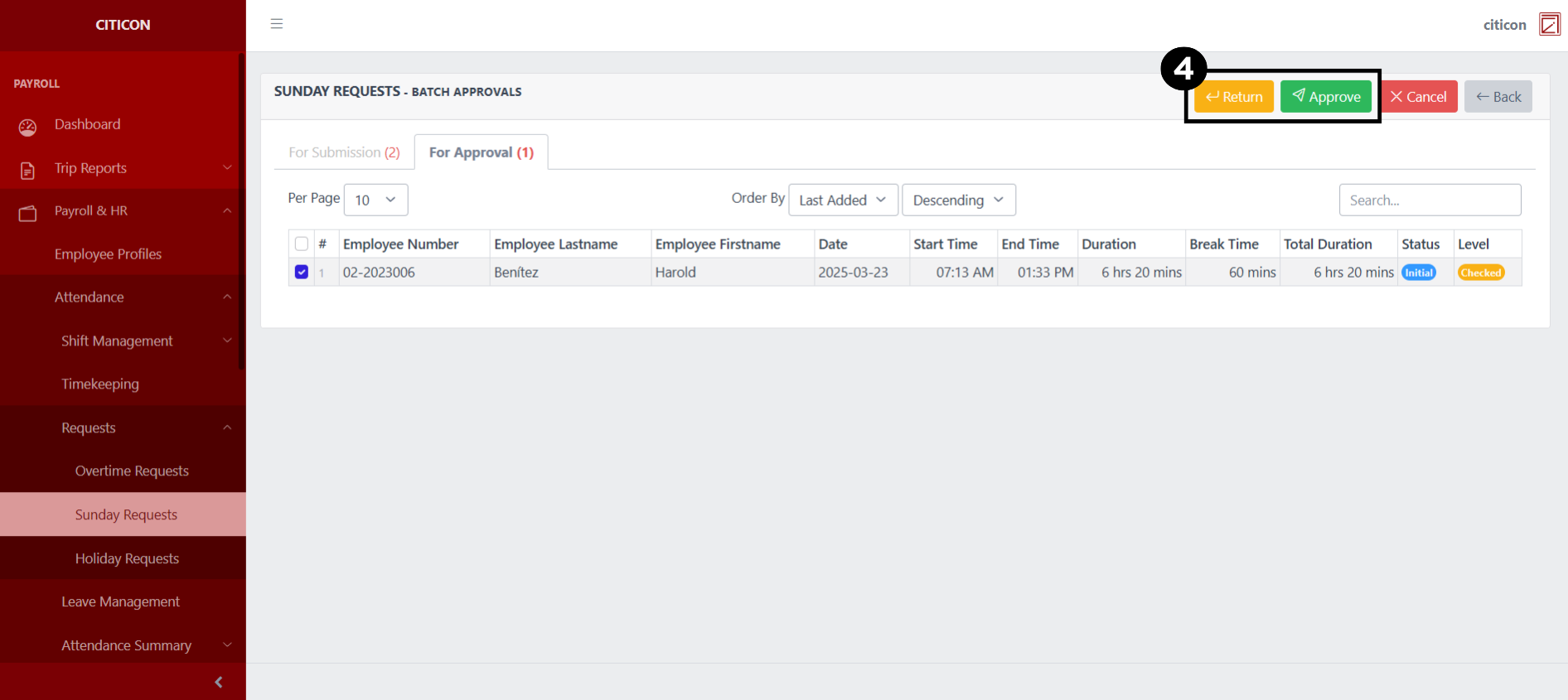
- Select the Approve button to approve the entry. In cases where you want to return a entry to submission section, select the entry you want to return, then select the Return button.