Requests - Holiday Requests
Welcome to Citicon Payroll and Accounting Systems Configuration for Holiday Requests under the Attendance submodule of the Payroll & HR module. This section enables employees to file requests for work rendered on official holidays, ensuring these entries are tracked and processed in accordance with labor regulations.
Proper handling of Holiday Requests supports accurate compensation, promotes transparency, and aligns with internal HR protocols.
Key Purposes
- Log Holiday Work Requests: Collect key employee details and holiday work information including filing date, type, and time schedule.
- Track Work Duration: Record the total duration of hours worked during holidays, supporting accurate timekeeping and audit trails.
- Monitor Request Status: View each request’s current approval level and status to maintain compliance with organizational workflow.
- Support HR Review and Validation: Enable HR and management to assess, validate, and approve holiday work entries efficiently.
- Integrate with Payroll Processing: Ensure approved holiday work is considered in payroll calculations for proper holiday pay or compensatory leave.
Holiday Requests Module User-Manual
This section provides details, and set-by-step instructions to access, view, and update the Holiday Requests entries stored in the system.
Index Page
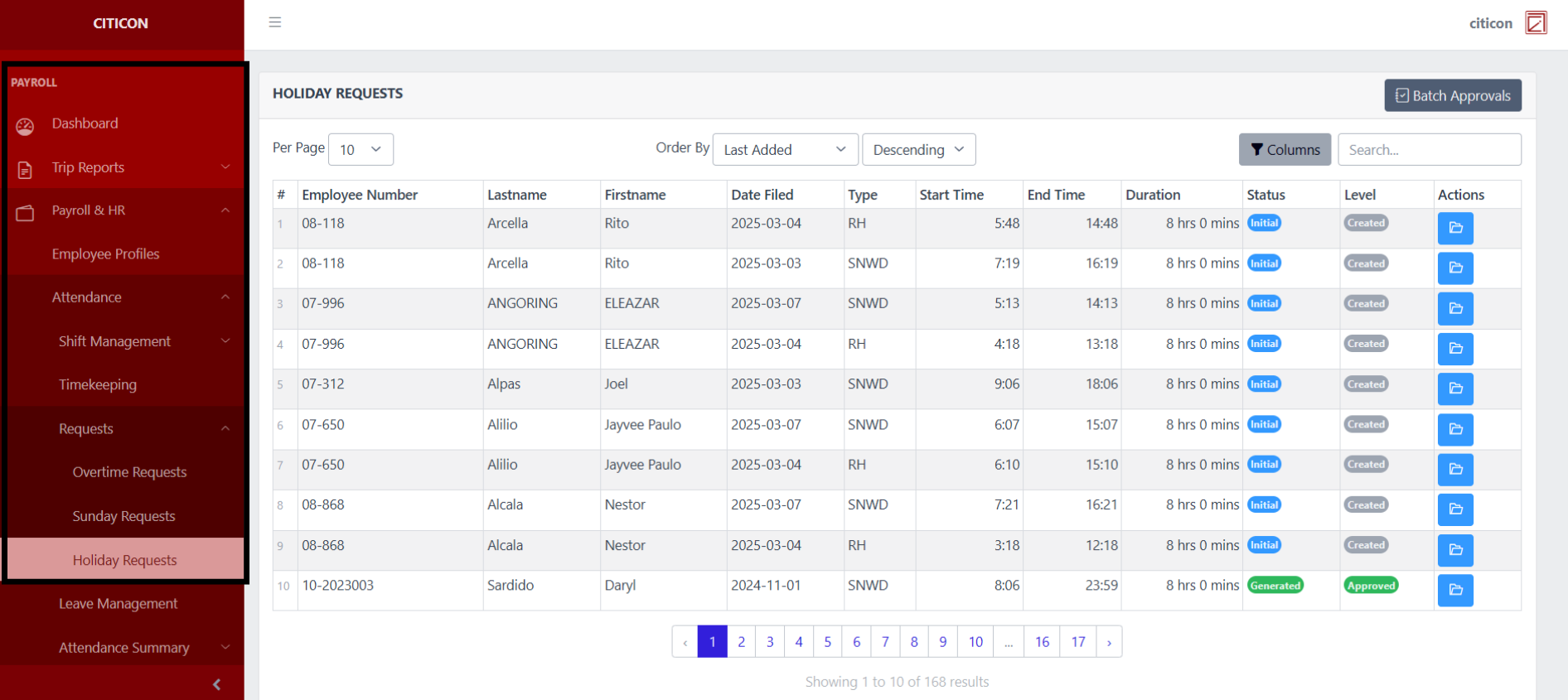
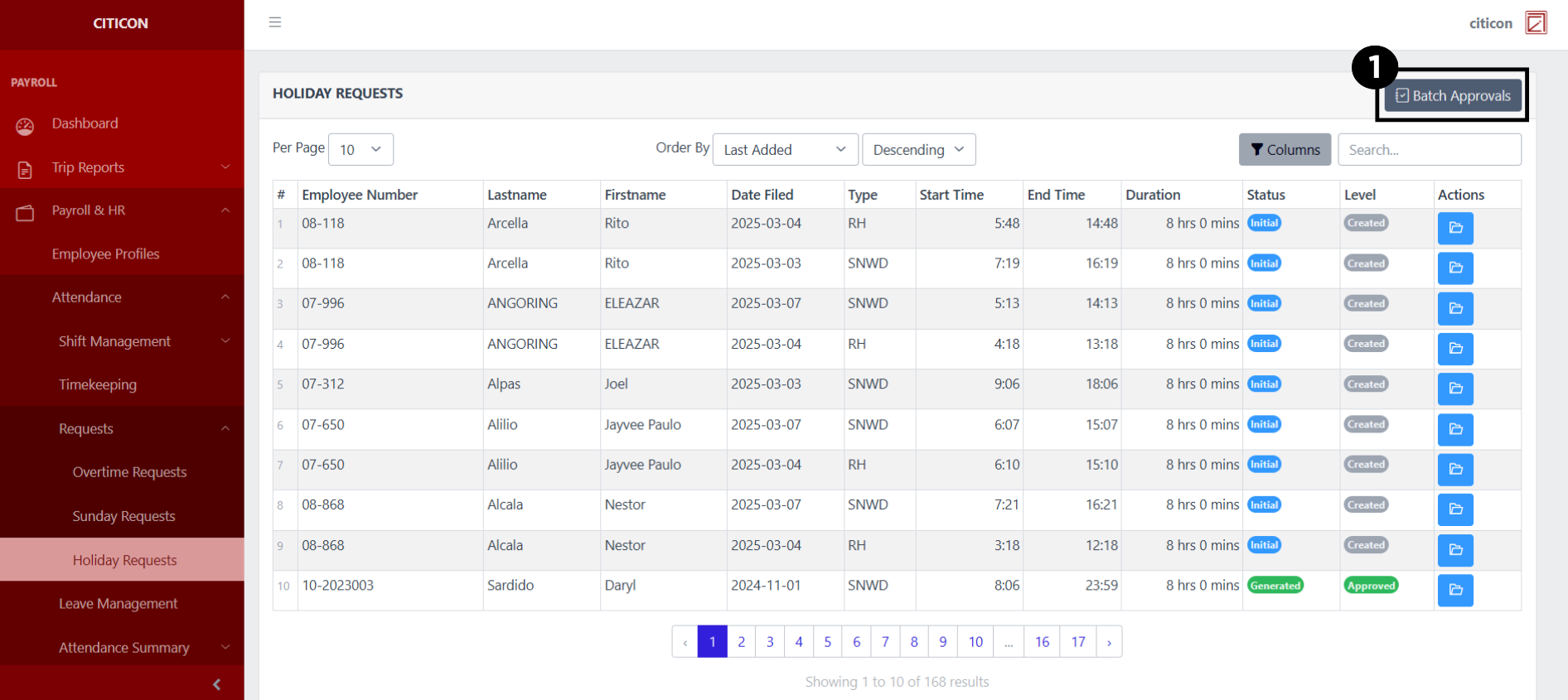
To access the Holiday Requests. Go to Payroll, select Payroll & HR, select Attendance, select Requests, then select Holiday Requests.
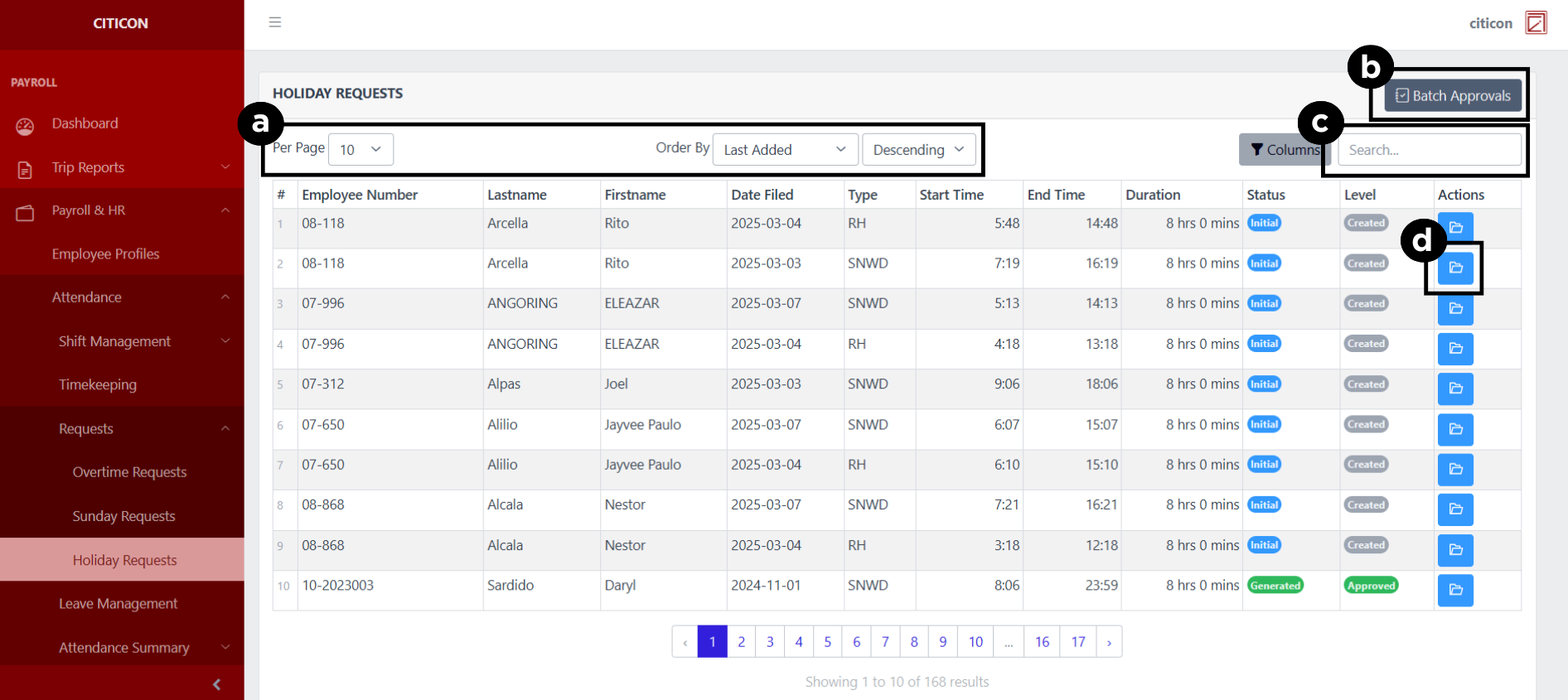
a. Adjust the paging, ordering, and sorting of the Holiday Requests Page here.
b. Select the Batch Approvals to process entries to be approved.
c. Search for specific entry details using the search bar.
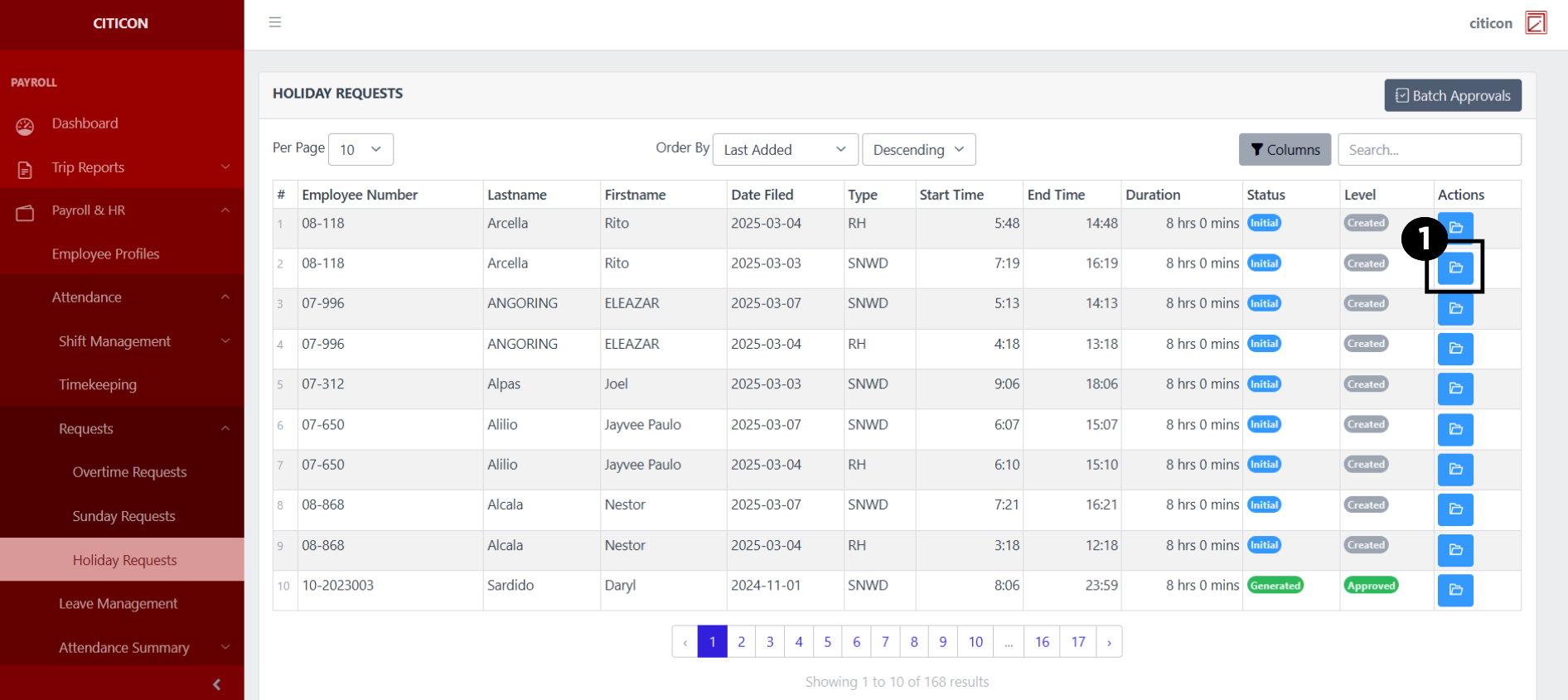
d. View, Edit, or Delete data by selecting the folder button.
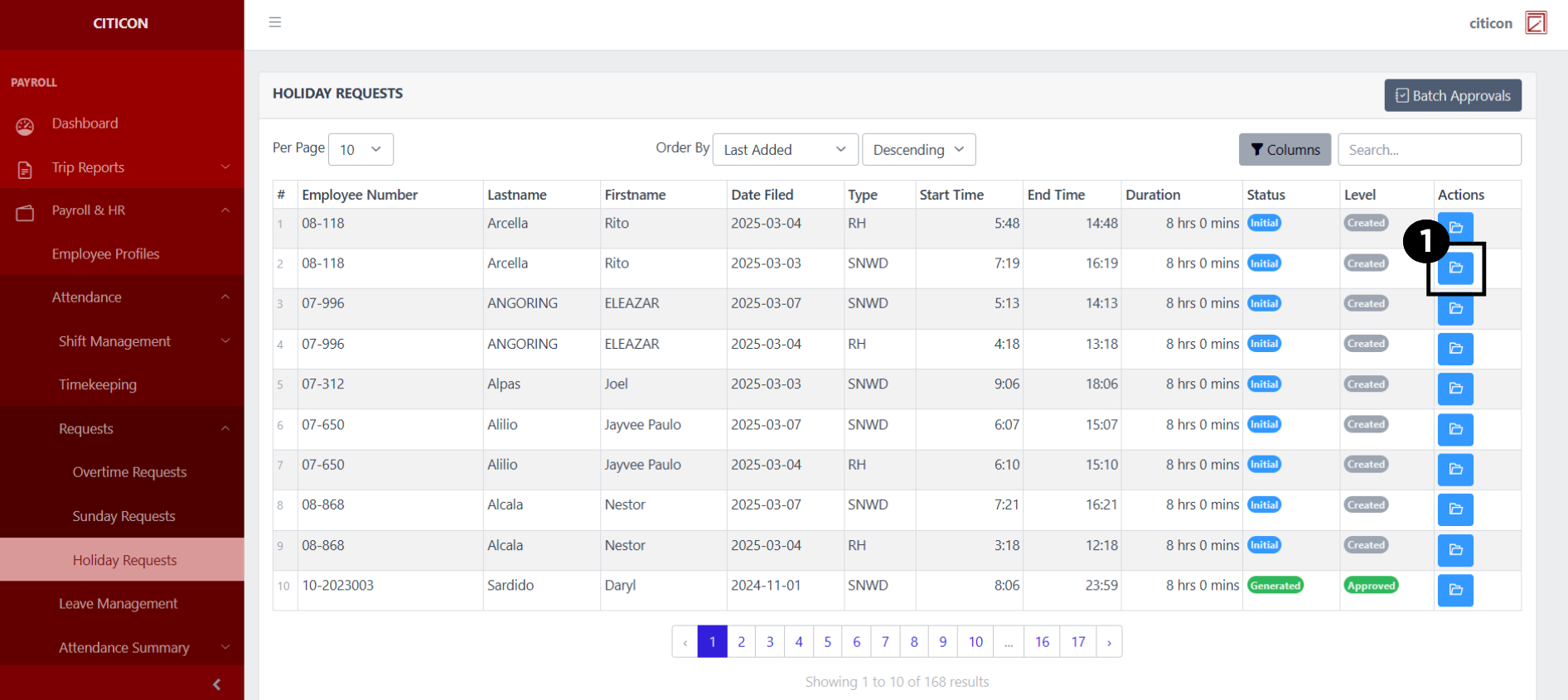
Show Entry
- Select the folder button to view an entry.
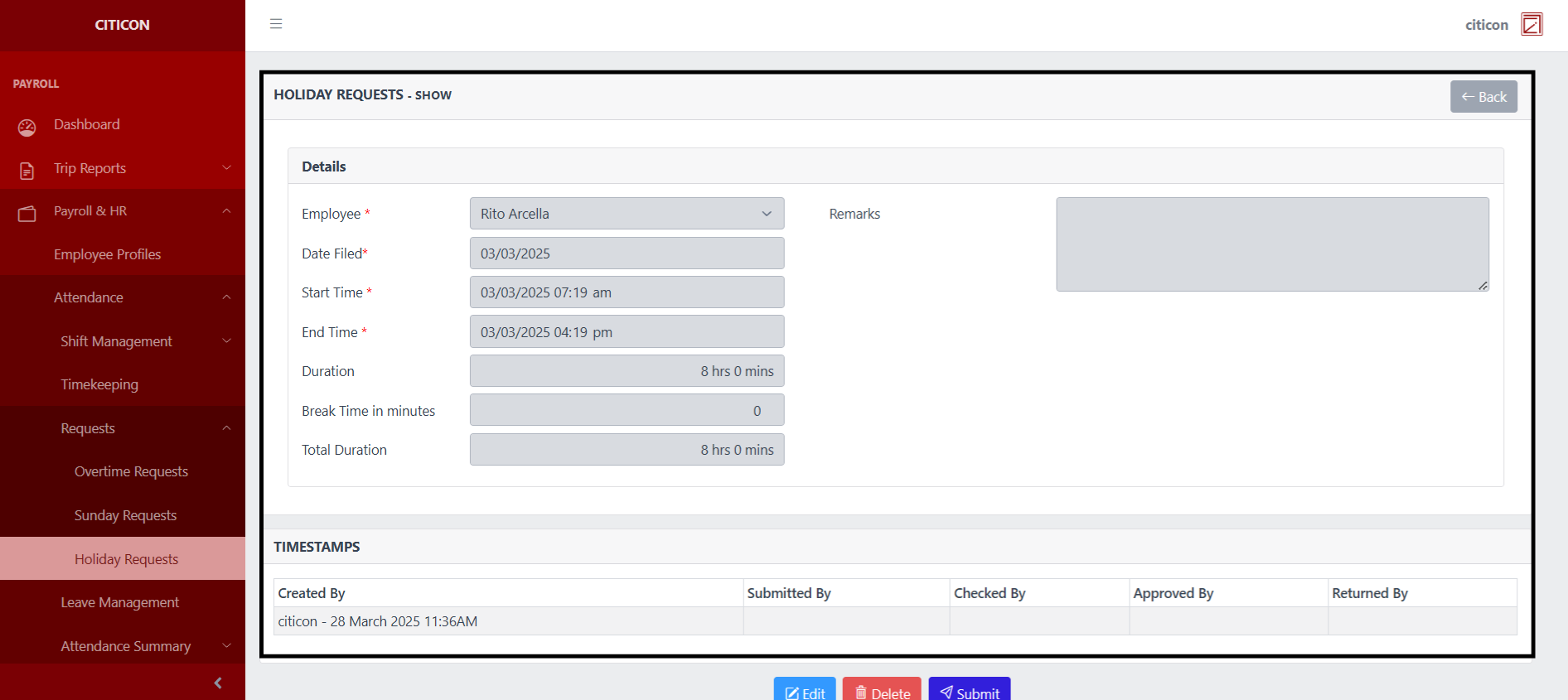
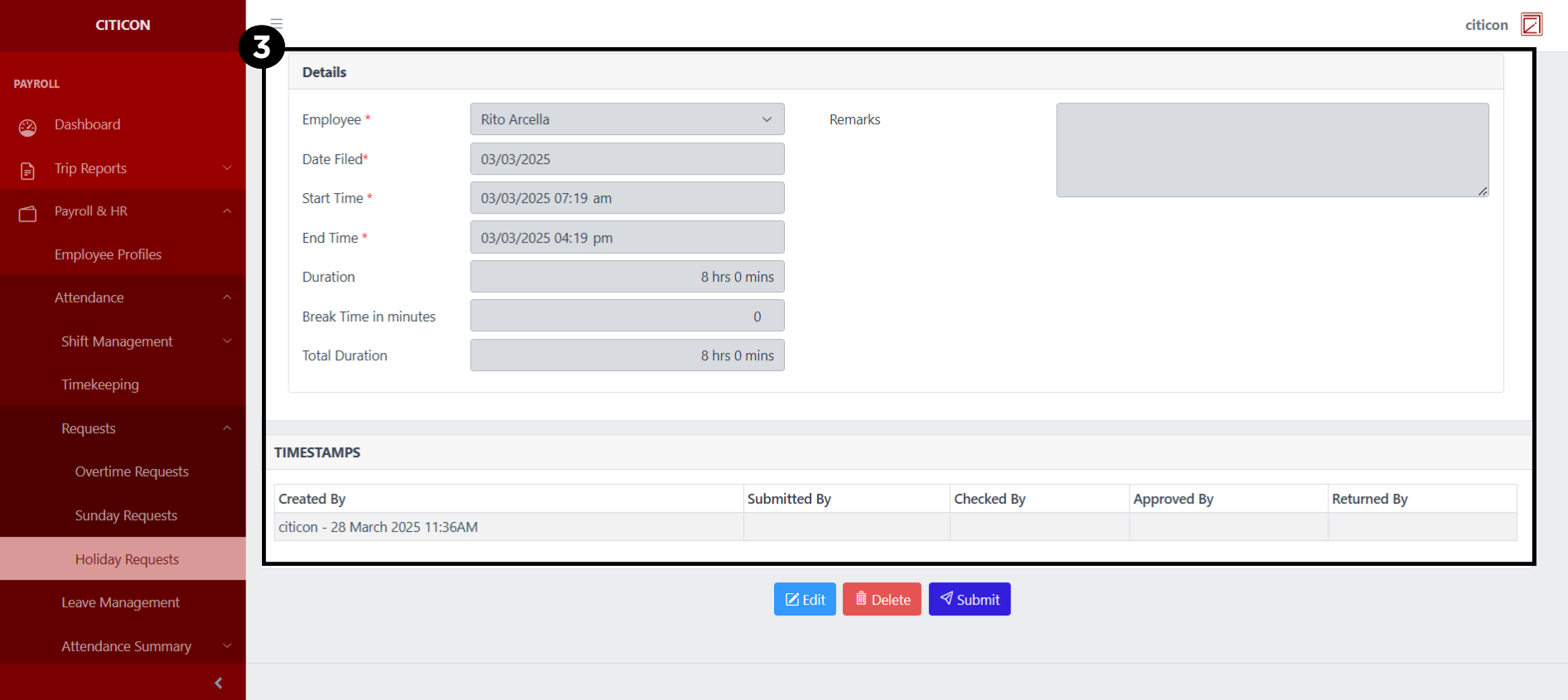
 Here you can view more specific details on the entry that you selected.
Update Entry
- Select the folder button of the entry which you want to edit.
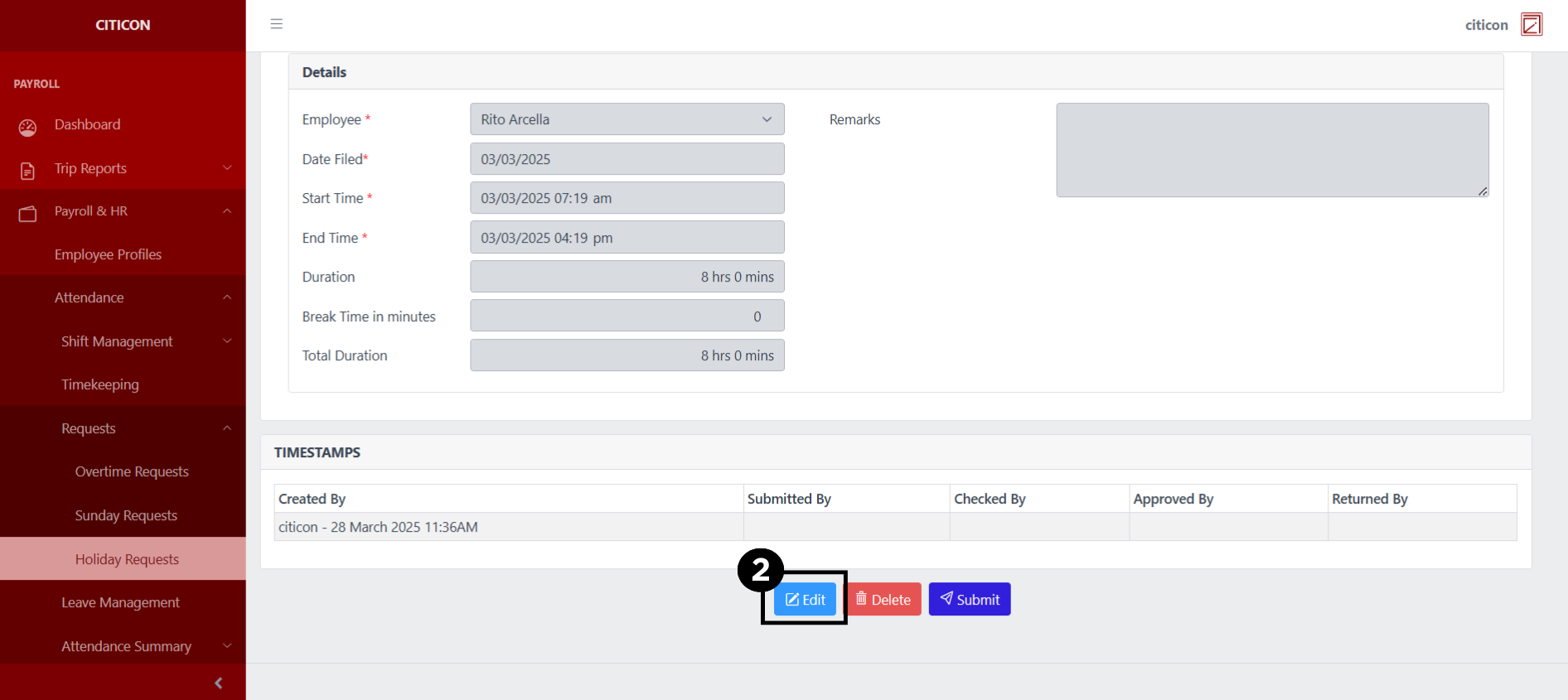
- Select the Edit button to update the details of the entry.
- Select a detail section which you want to edit, and enter the necessary changes.
All fields with an asterisk (*) are required to be filled up.
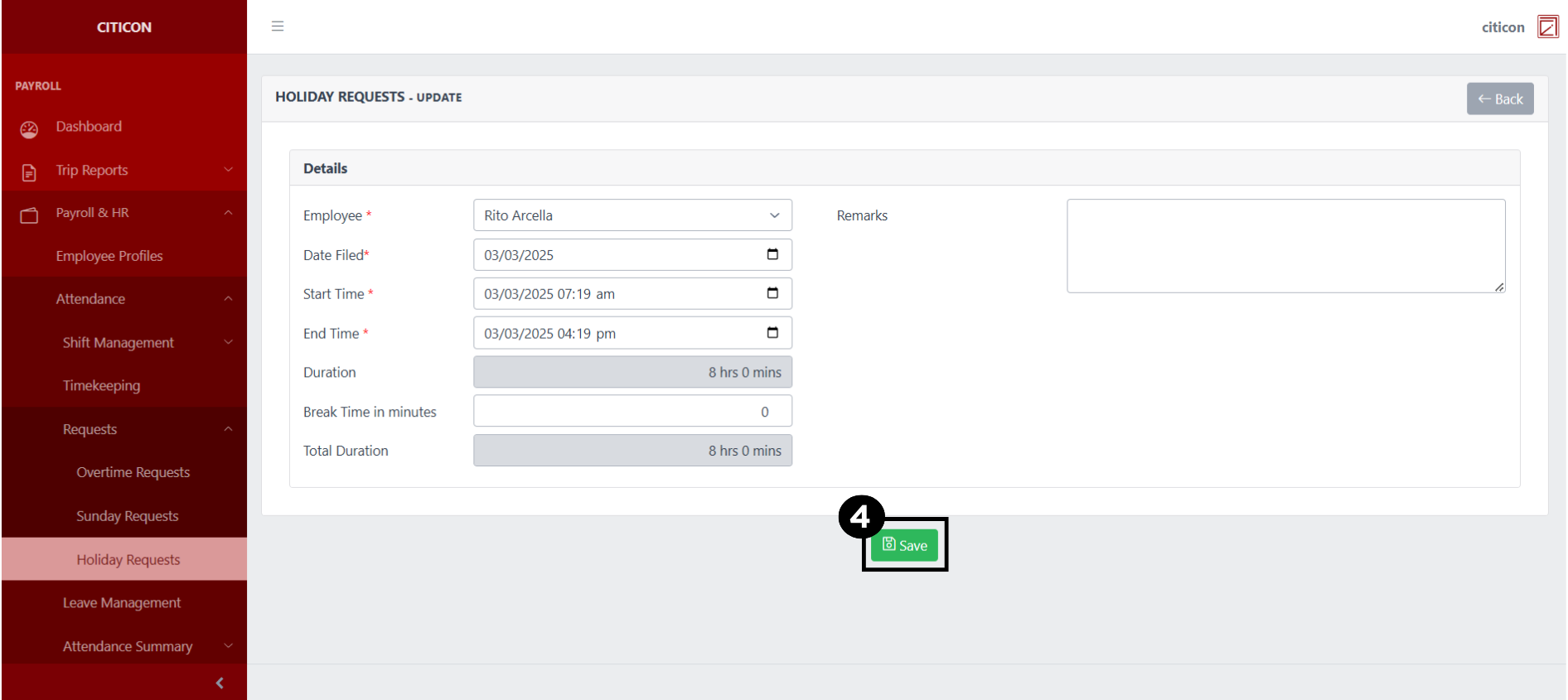
- Select the Save button to save the changes you have made.
Submit Entry
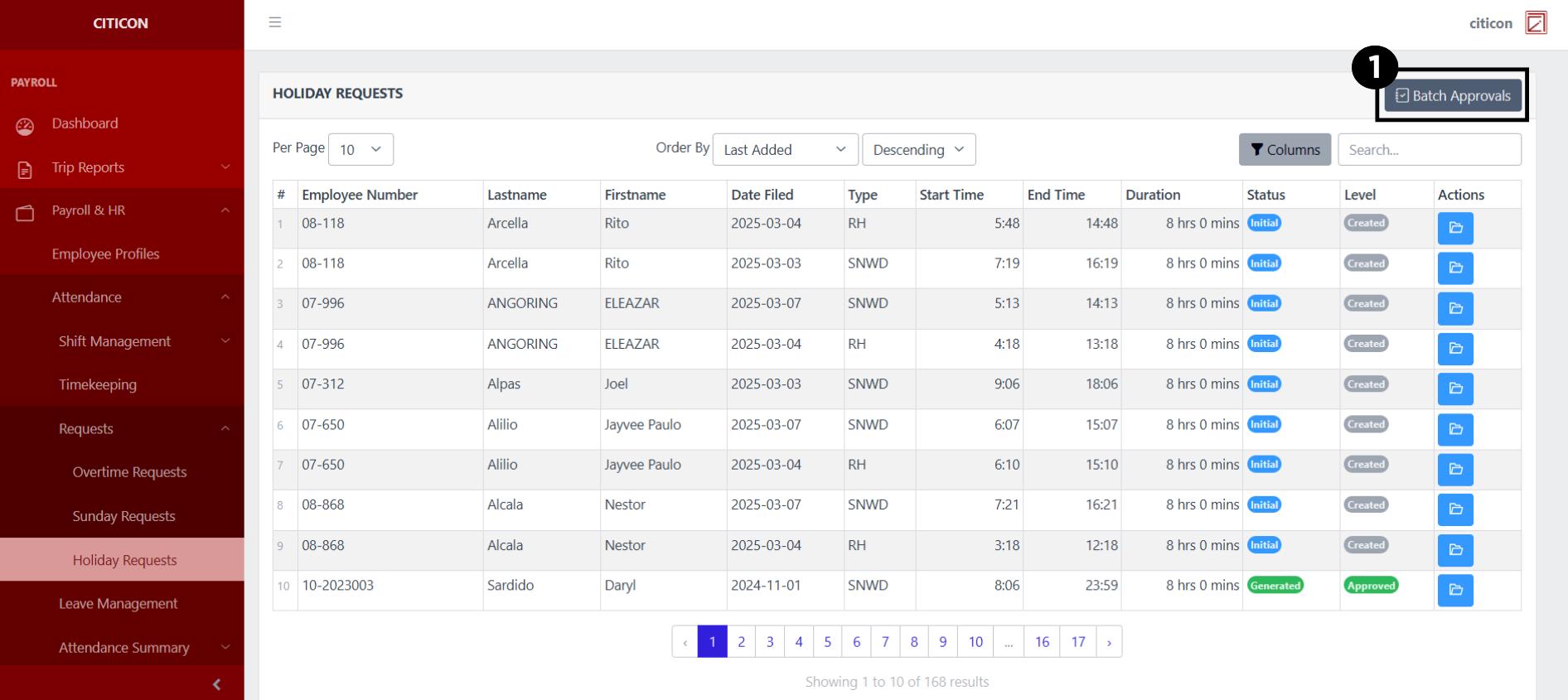
- Select the Batch Approvals button to submit an entry.
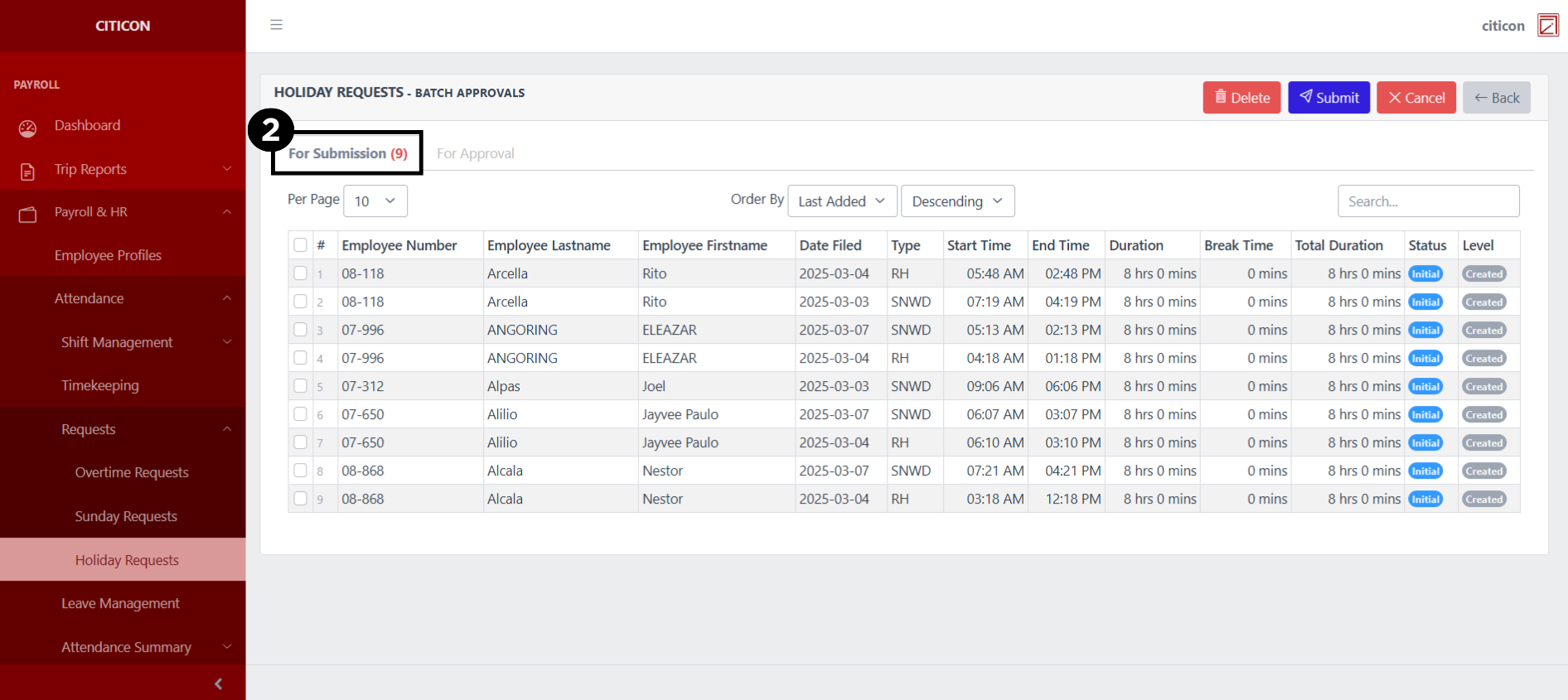
- Select the For Submission tab.
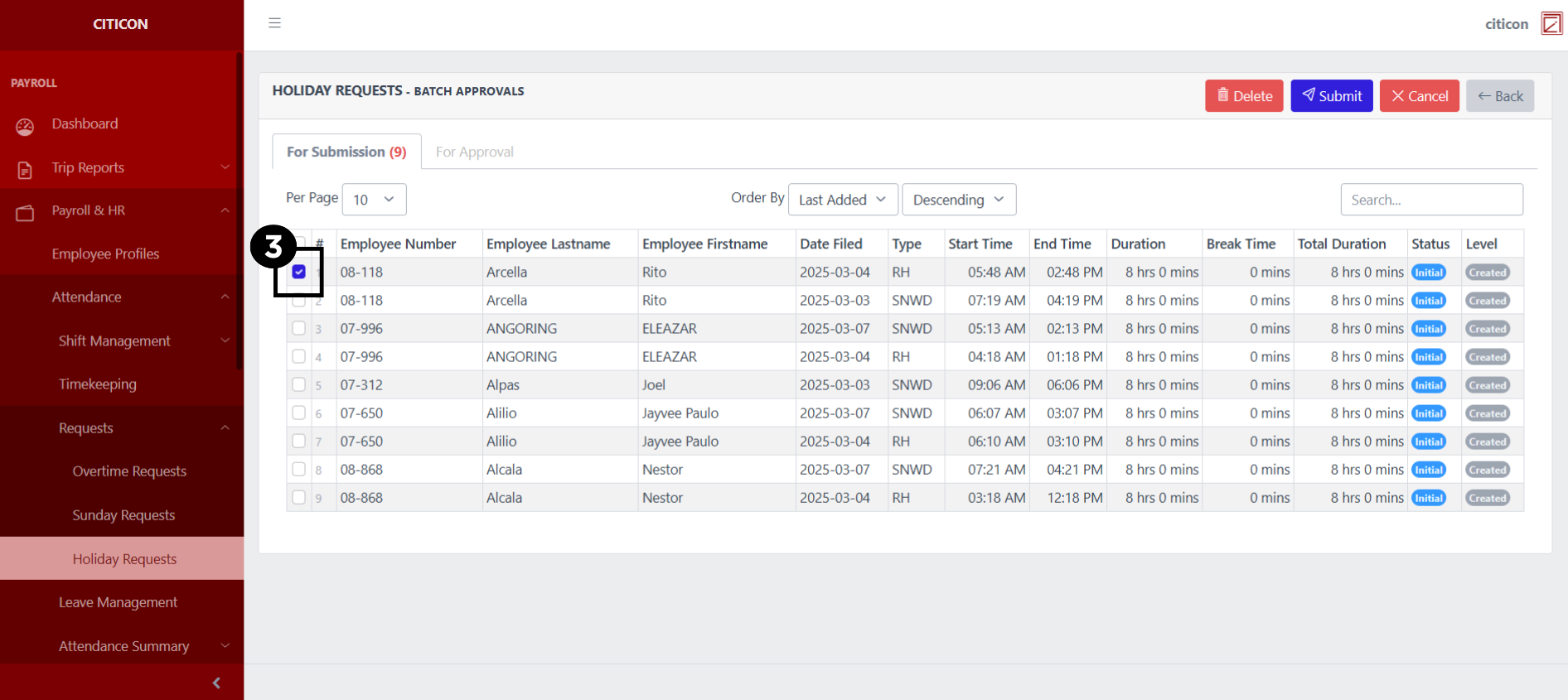
- Select the entry that you want to submit.
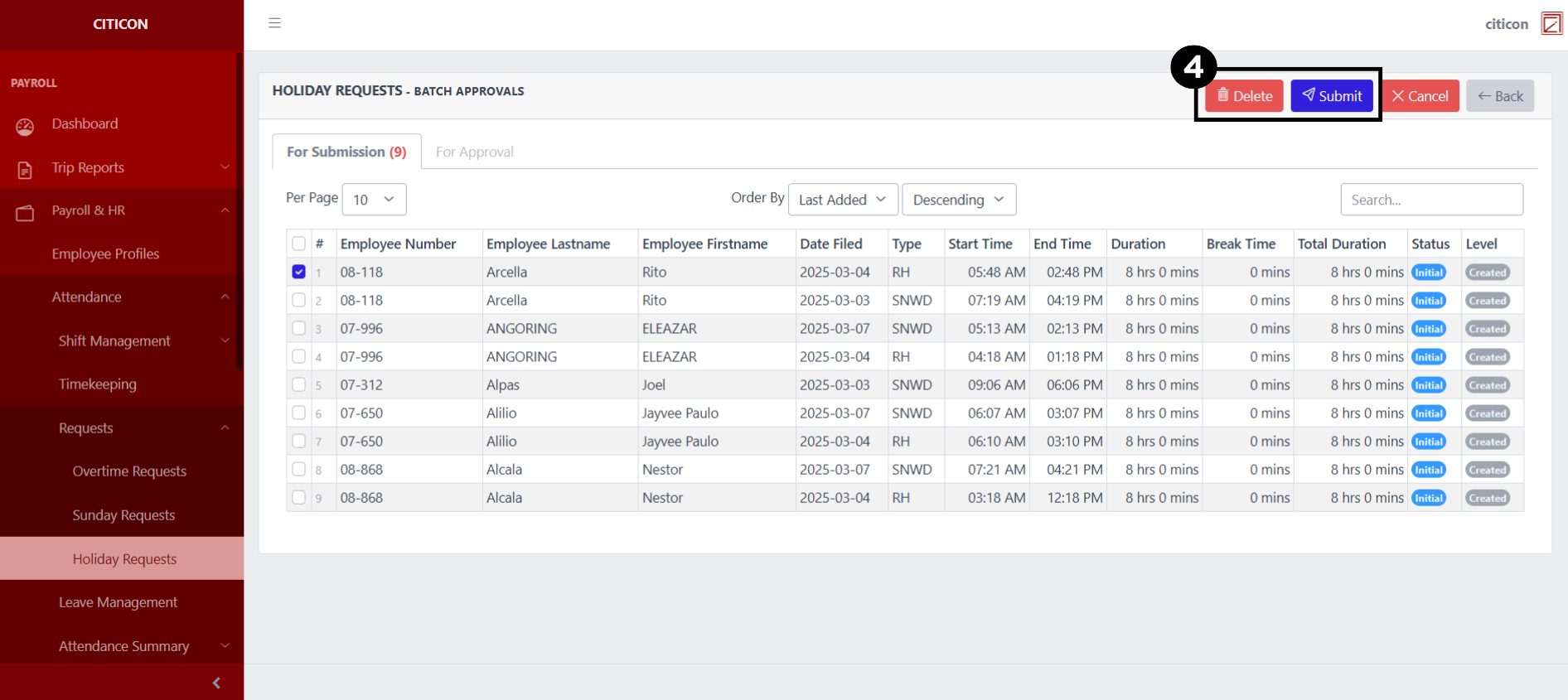
- Select the Submit button to submit the entry. In cases where you want to delete a entry, select the entry you want to delete, then select the Delete button.
Approve Entry
- Select the Batch Approvals button to approve a entry.
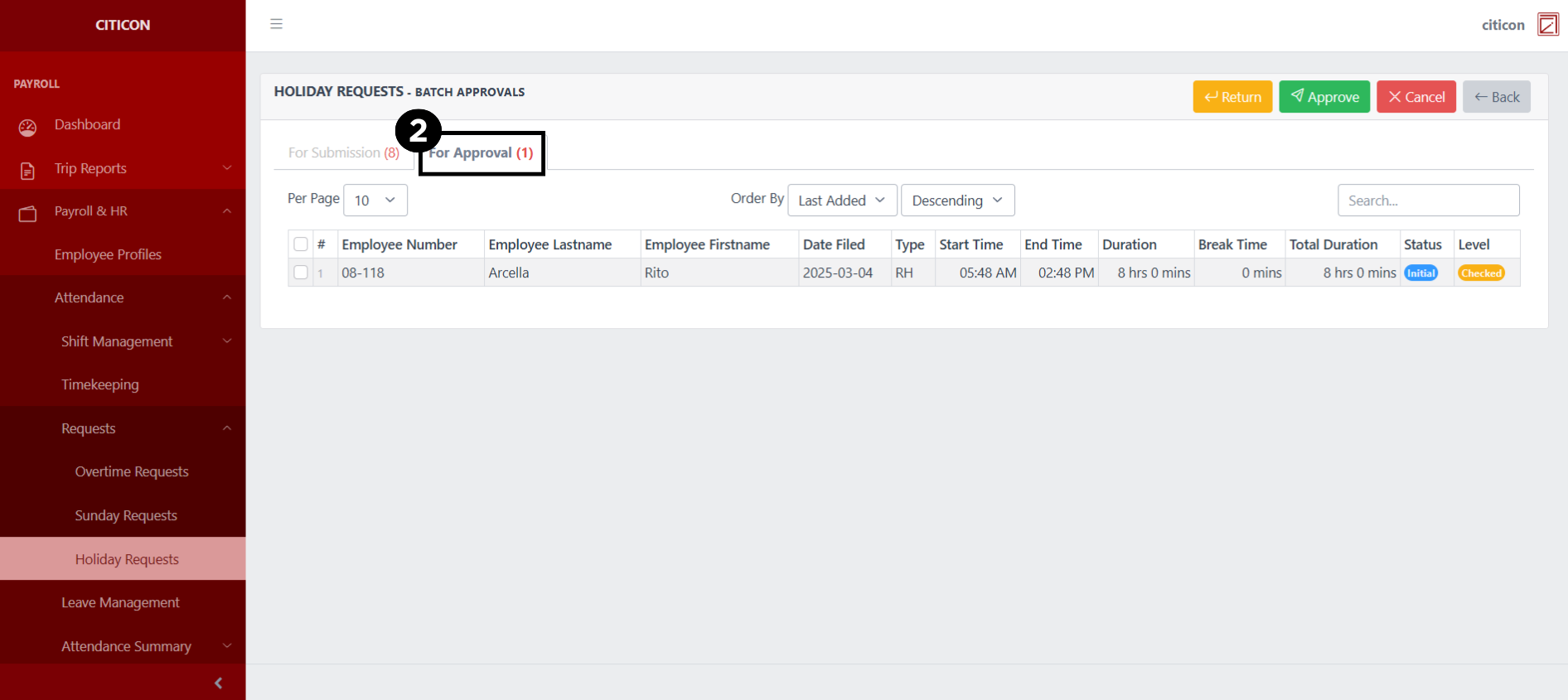
- Select the For Approval tab.
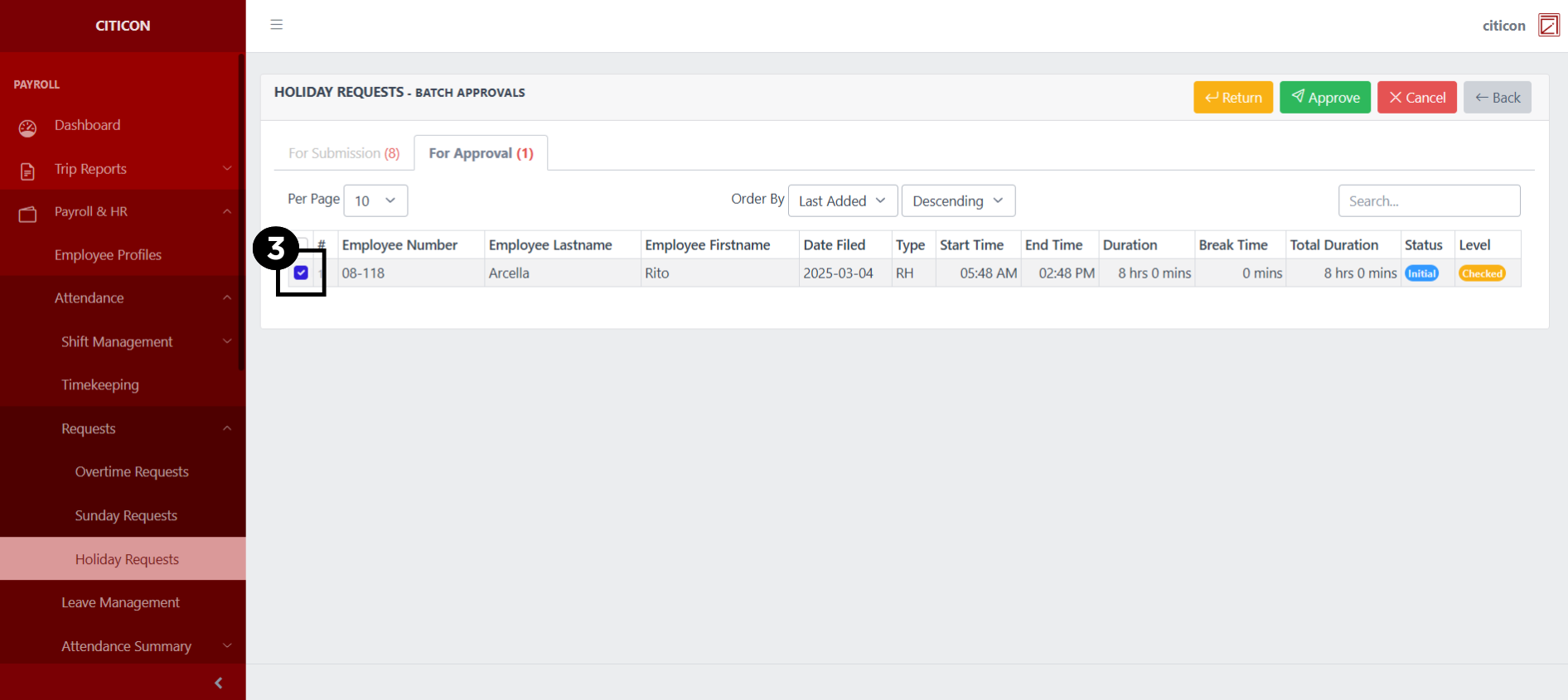
- Select the entry that you want to approve.
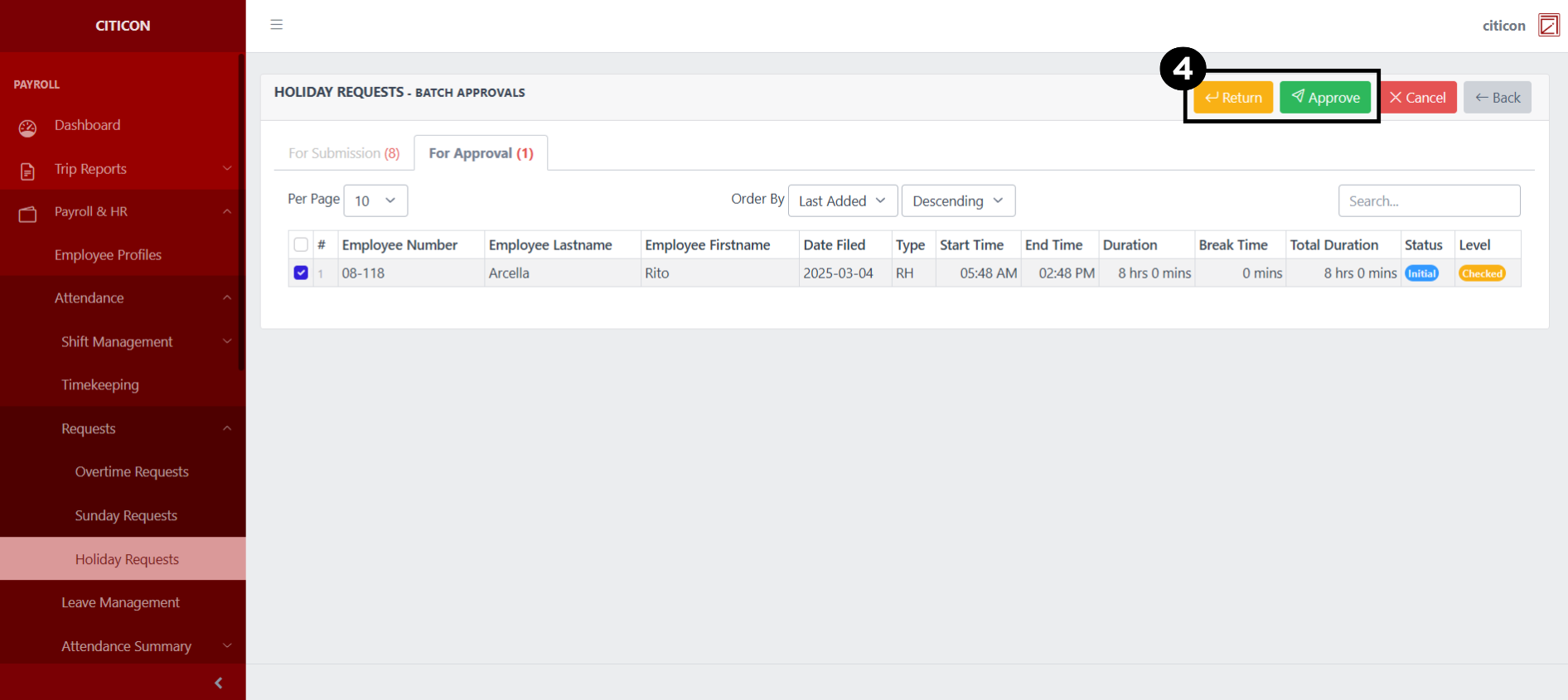
- Select the Approve button to approve the entry. In cases where you want to return a entry to submission section, select the entry you want to return, then select the Return button.
Explore Citicon Payroll and Accounting System: Payroll & HR - Attendance - Leave Management