Leave Management
Welcome to Citicon Payroll and Accounting Systems Configuration for Leave Management under the Attendance submodule of the Payroll & HR module. This section facilitates the organized submission and tracking of employee leave requests, ensuring proper documentation and smooth HR processing.
Efficient Leave Management is vital to maintaining workforce balance, employee satisfaction, and accurate payroll computations.
Key Purposes
- Record Employee Leave Requests: Capture essential leave details including employee name, start and end dates, and any relevant remarks.
- Categorize Leave Types: Distinguish between multiple leave categories—such as sick, vacation, maternity, paternity, and others—for streamlined recordkeeping and policy compliance.
- Support HR and Managerial Oversight: Enable supervisors and HR personnel to review, validate, and approve leave requests in a centralized system.
- Maintain Accurate Attendance Records: Integrate leave entries directly into attendance logs for consistency across HR and payroll modules.
- Ensure Fair Leave Utilization: Help monitor usage of each leave type to support transparency and prevent misuse of allocated leave days.
Leave Management Module User-Manual
This section provides details, and set-by-step instructions to access, view, and update the Leave Management entries stored in the system.
Index Page
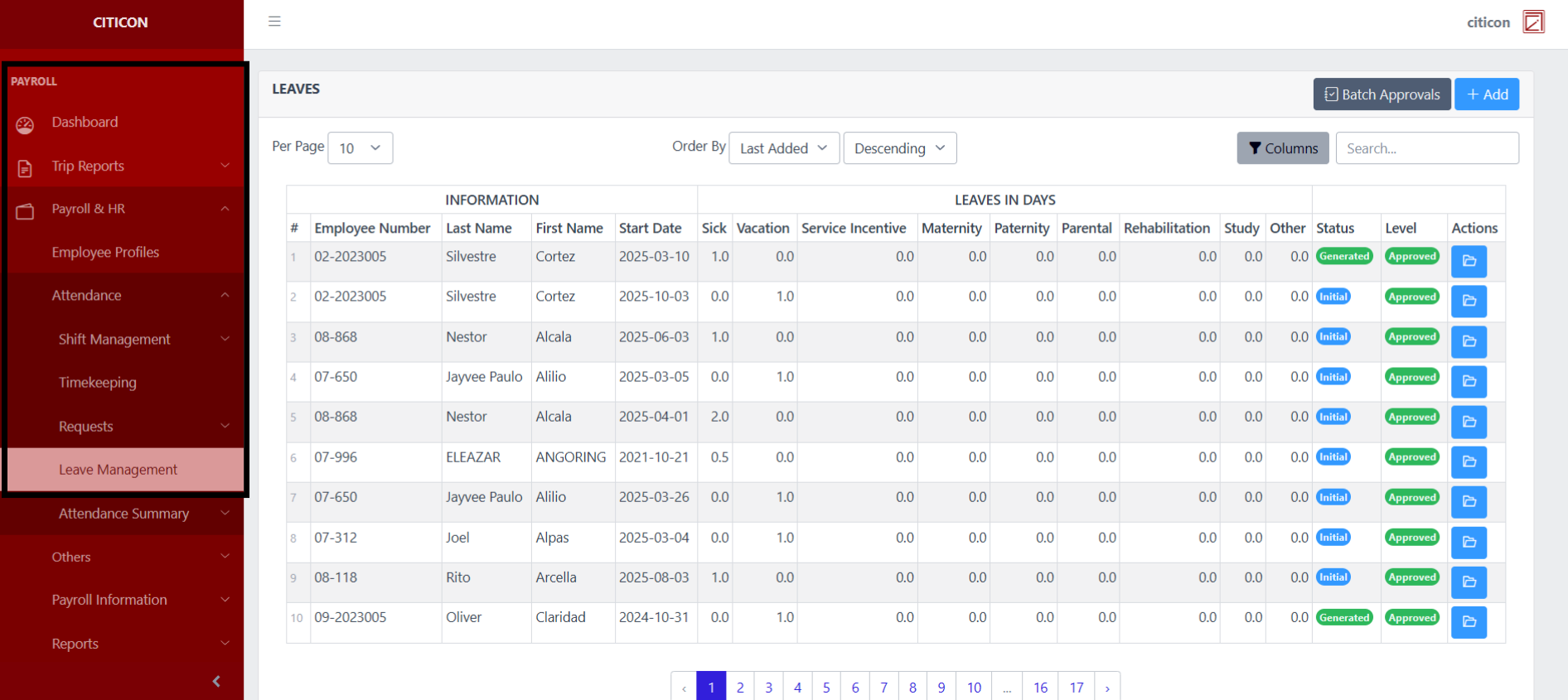
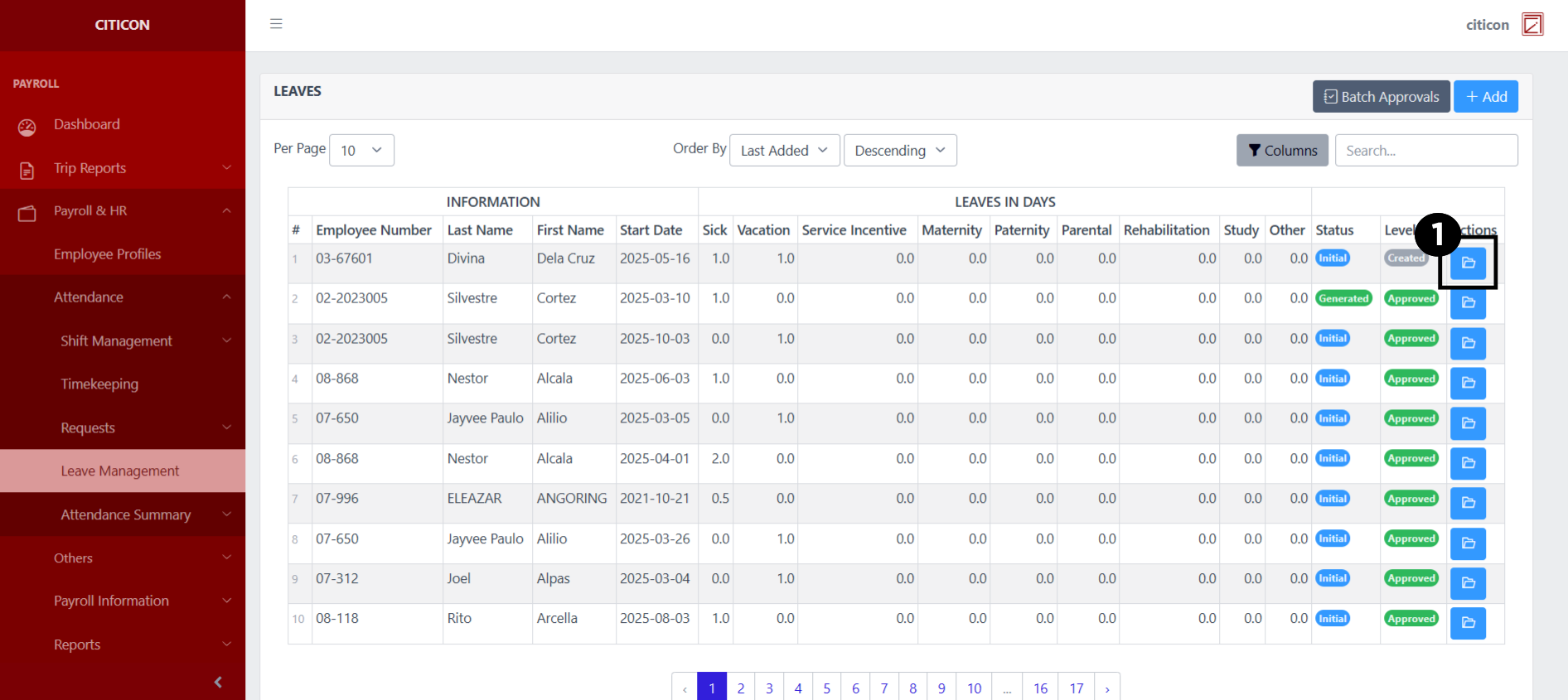
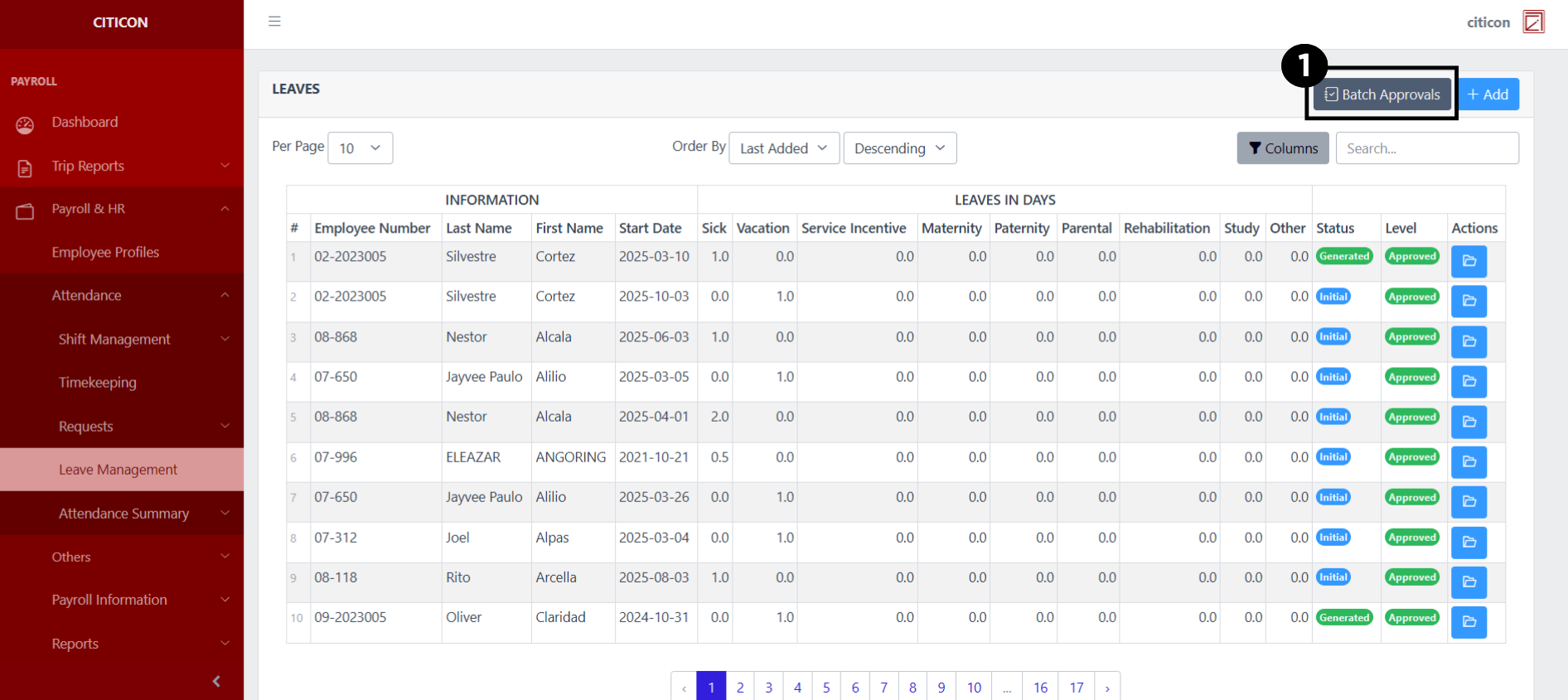
To access the Leave Management. Go to Payroll, select Payroll & HR, select Attendance, select Leave Management.
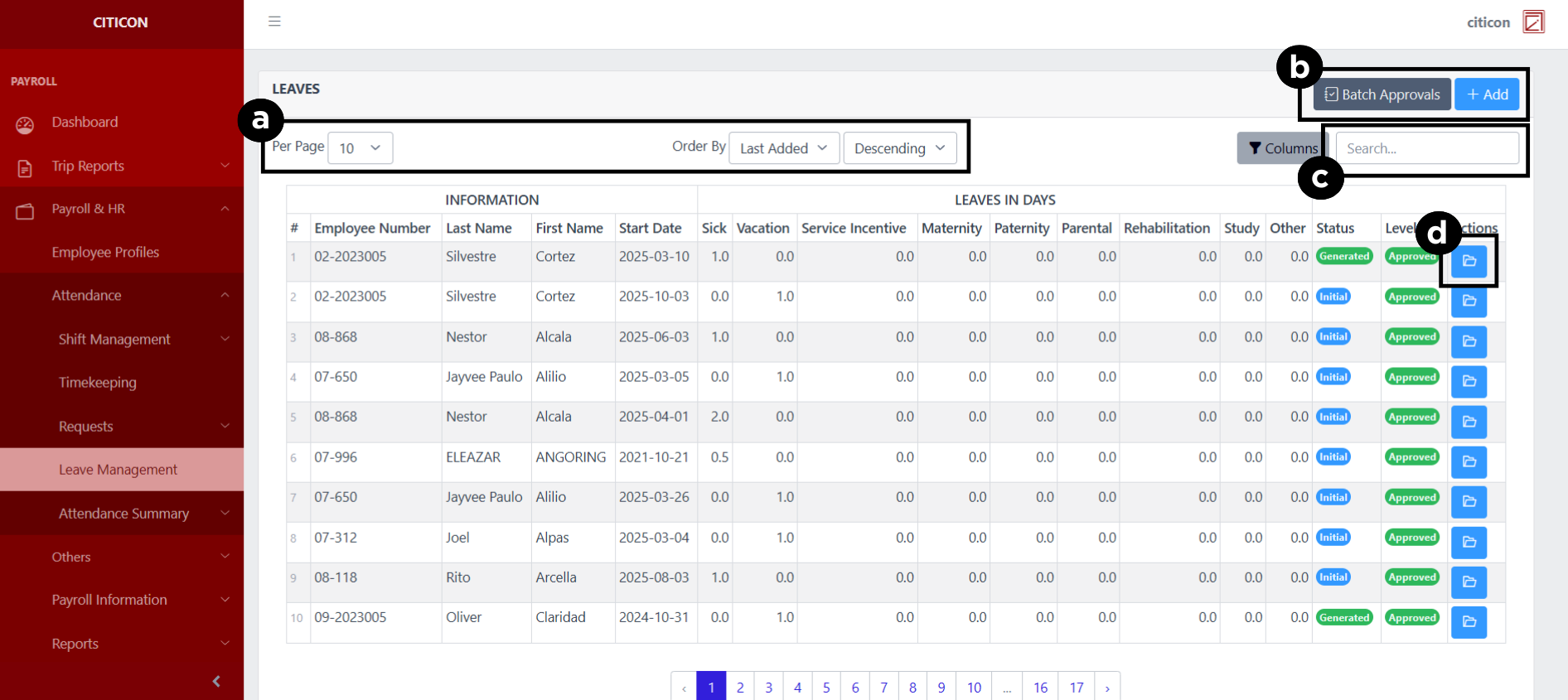
a. Adjust the paging, ordering, and sorting of the Leave Management Page here.
b. Select the respective button to either Add new entry or process entries to be approved.
c. Search for specific entry details using the search bar.
d. View or Cancel an entry by selecting the folder button.
Add Entry
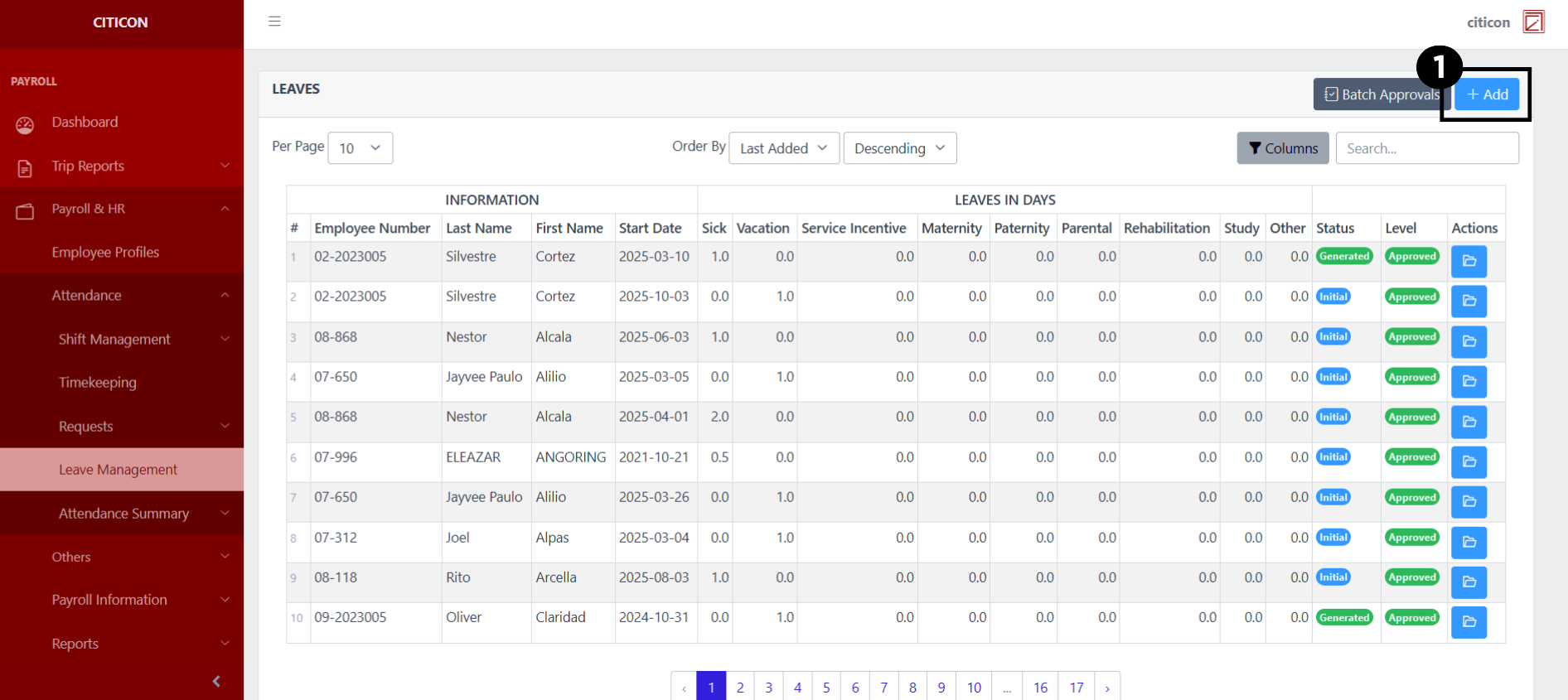
- Select the Add button to add a new entry.
- Input the necessary details for your new entry.
All fields that has an asterisk (*) are required to be filled up.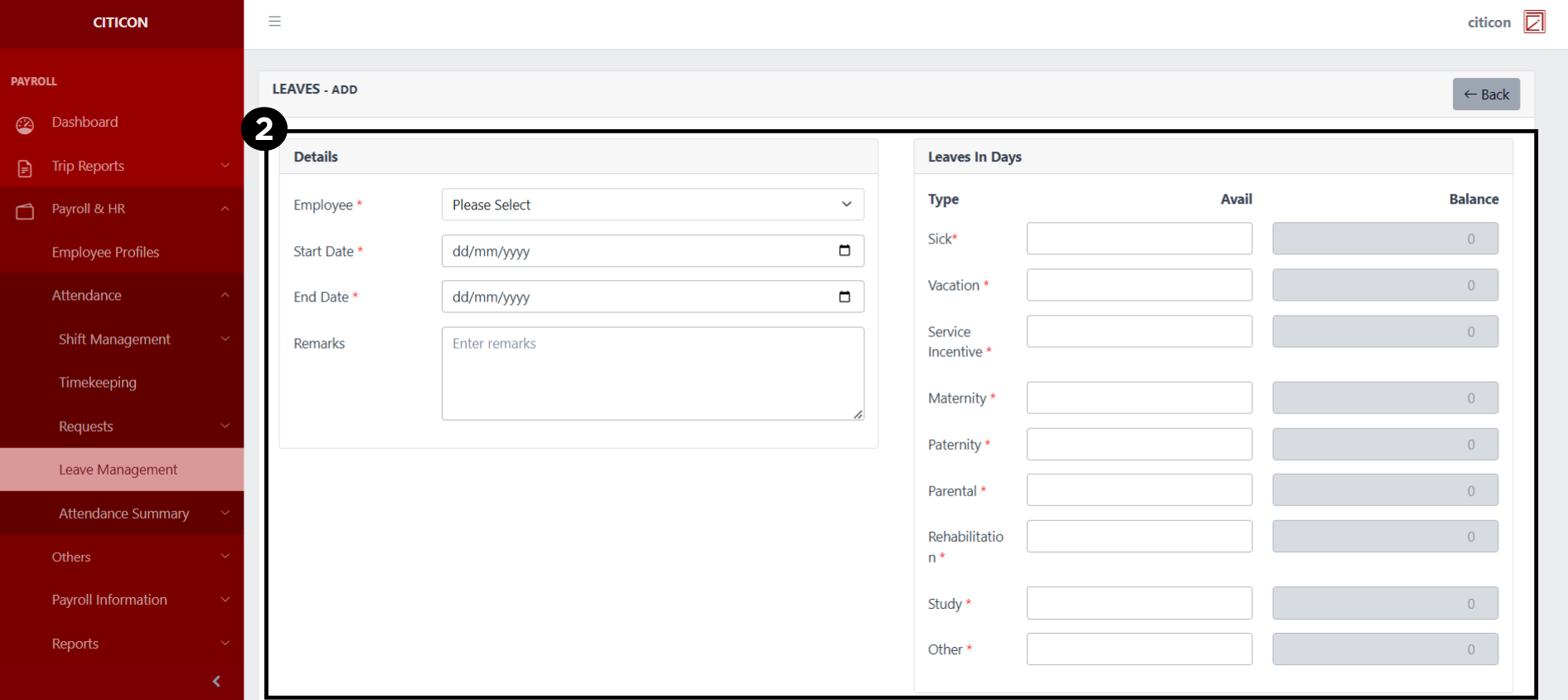
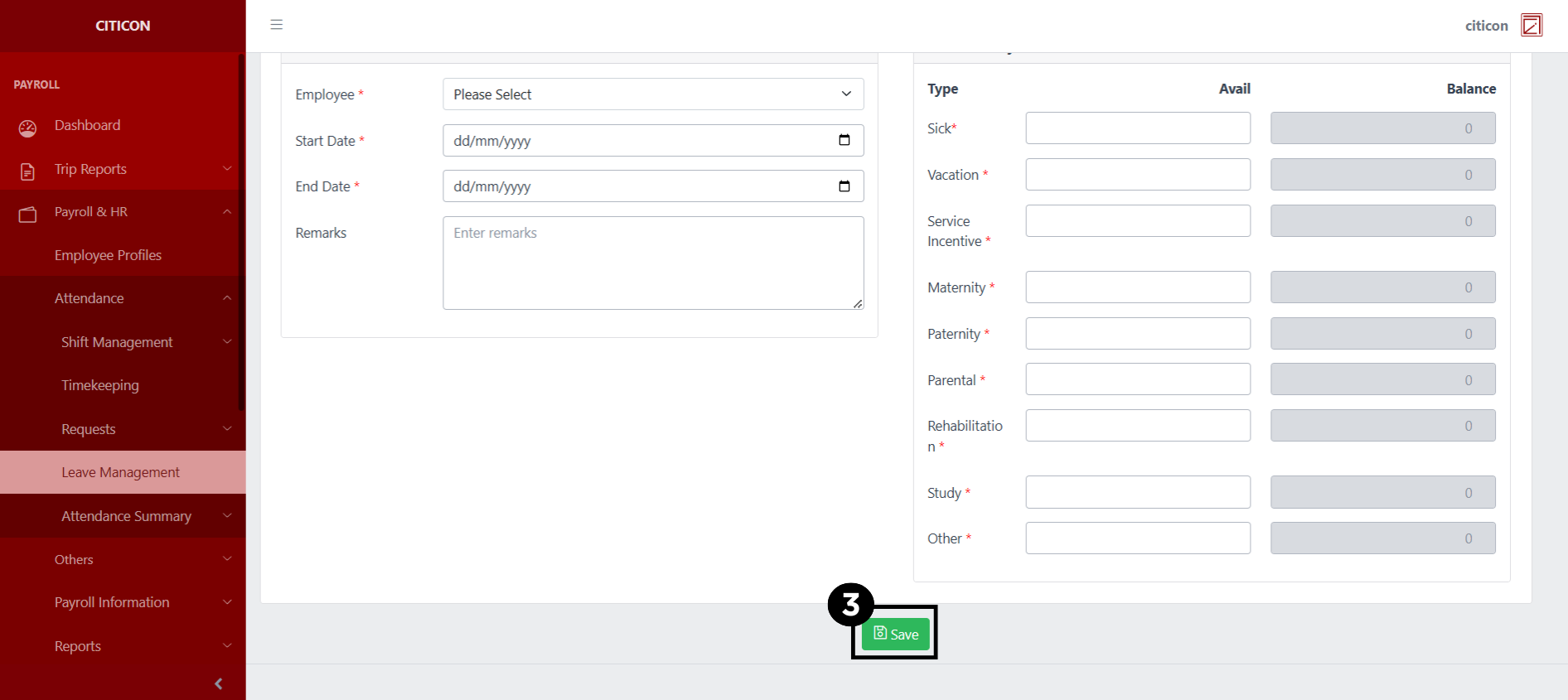
- Select the Save button to save your new entry.
Show Entry
- Select the folder button to view an entry.
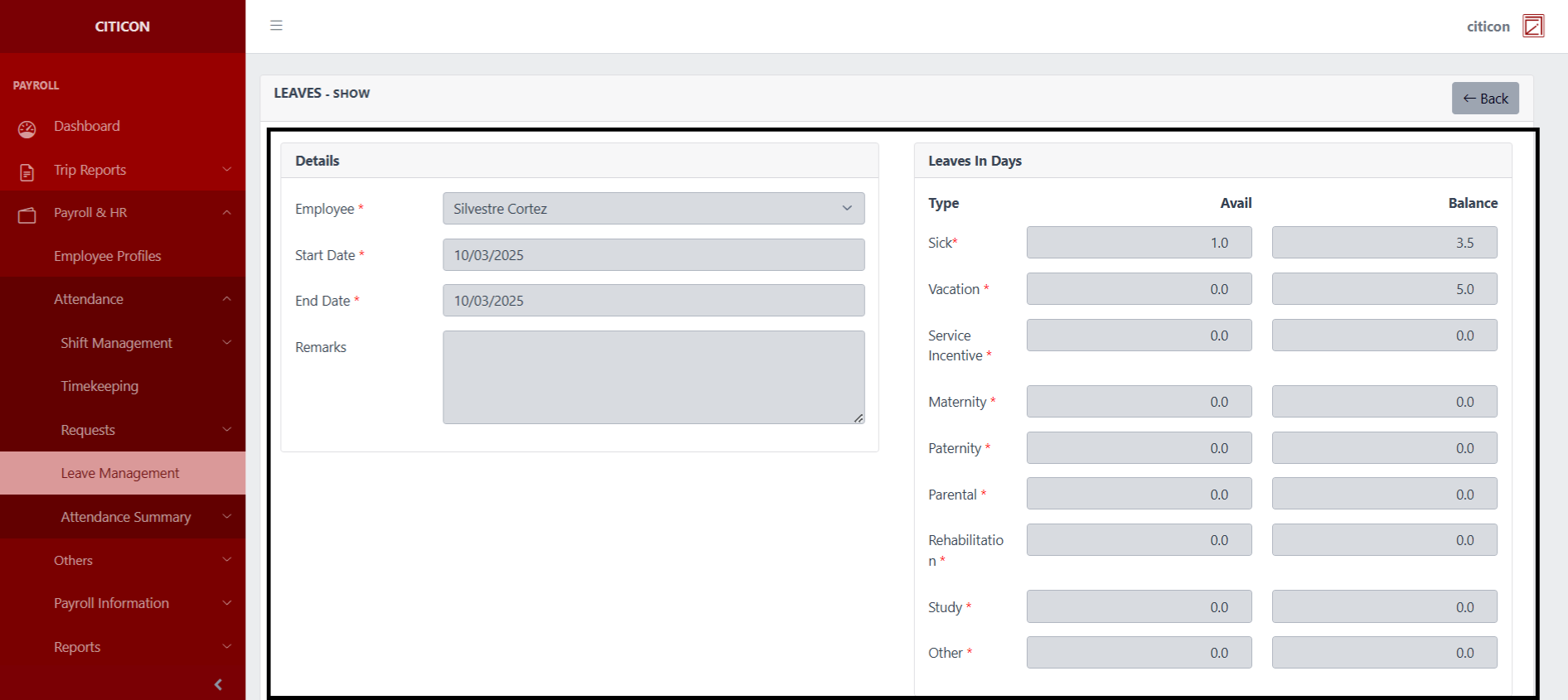
 Here you can view more specific details on the entry that you selected.
Update Entry
- Select the folder button of the entry which you want to edit.
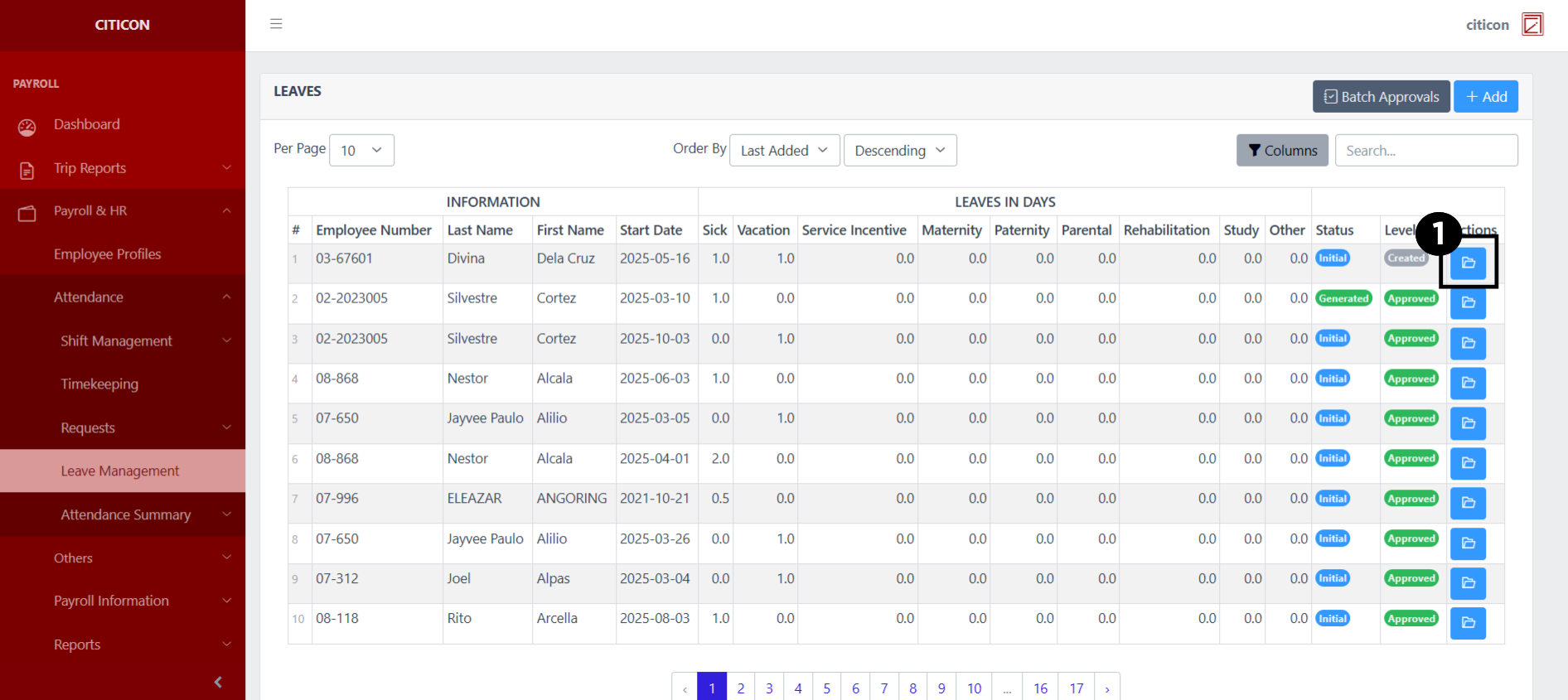
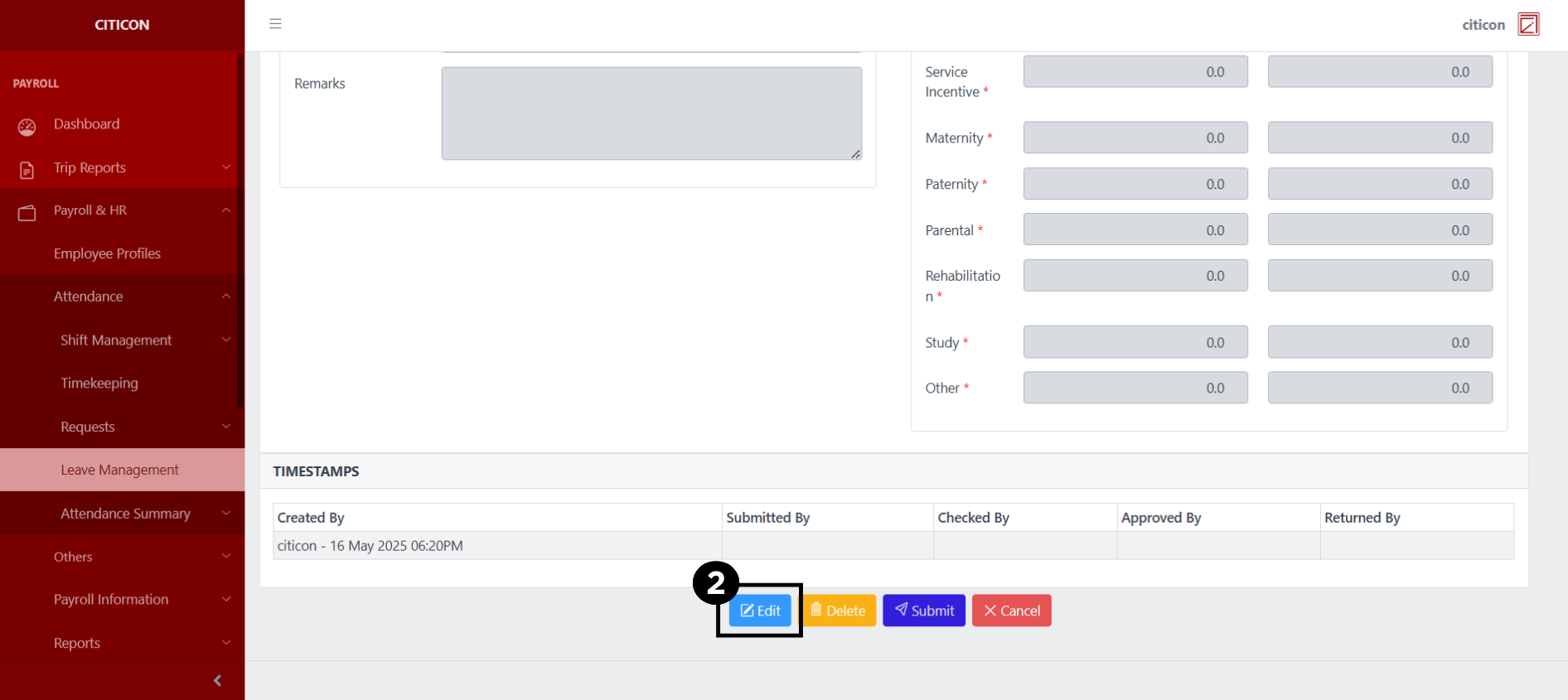
- Select the Edit button to update the details of the entry.
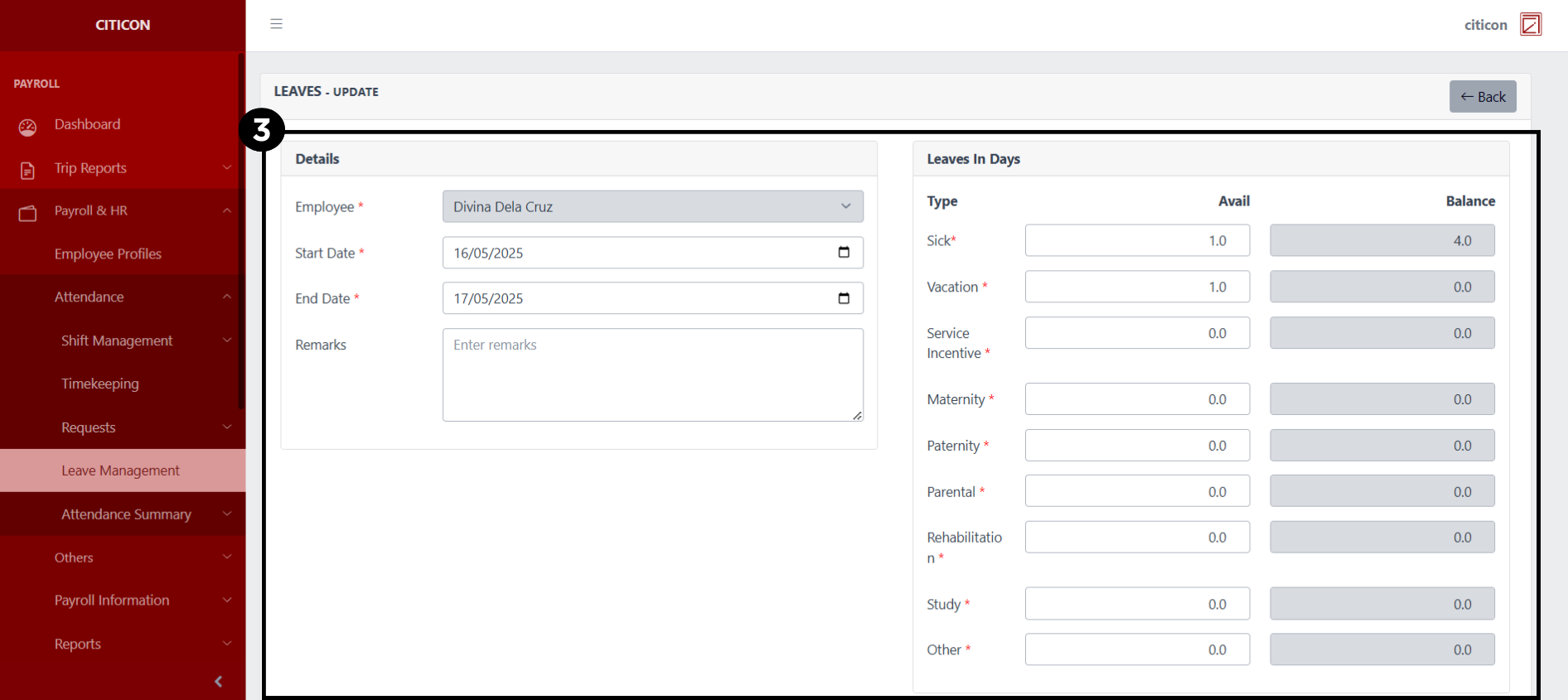
- Select a detail section which you want to edit, and enter the necessary changes.
All fields with an asterisk (*) are required to be filled up.
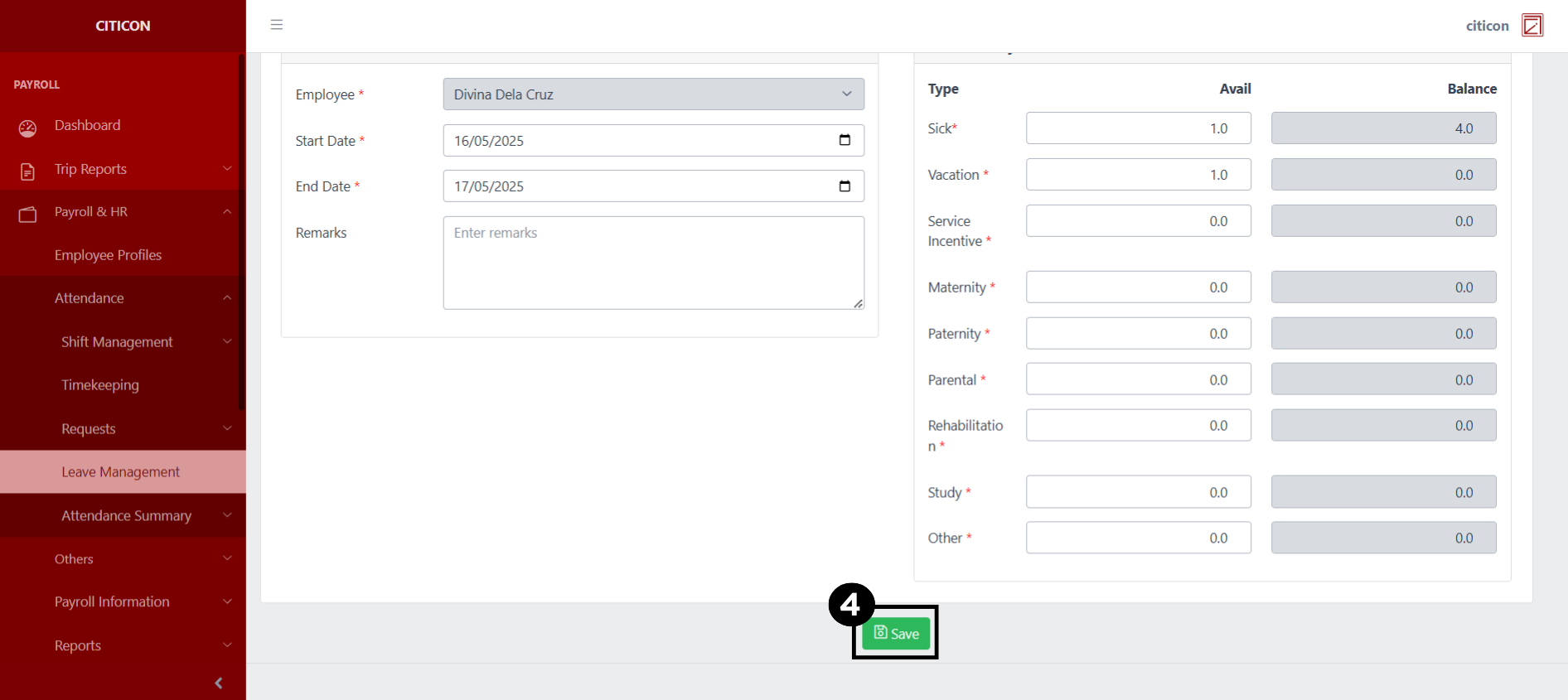
- Select the Save button to save the changes you have made.
Submit Entry
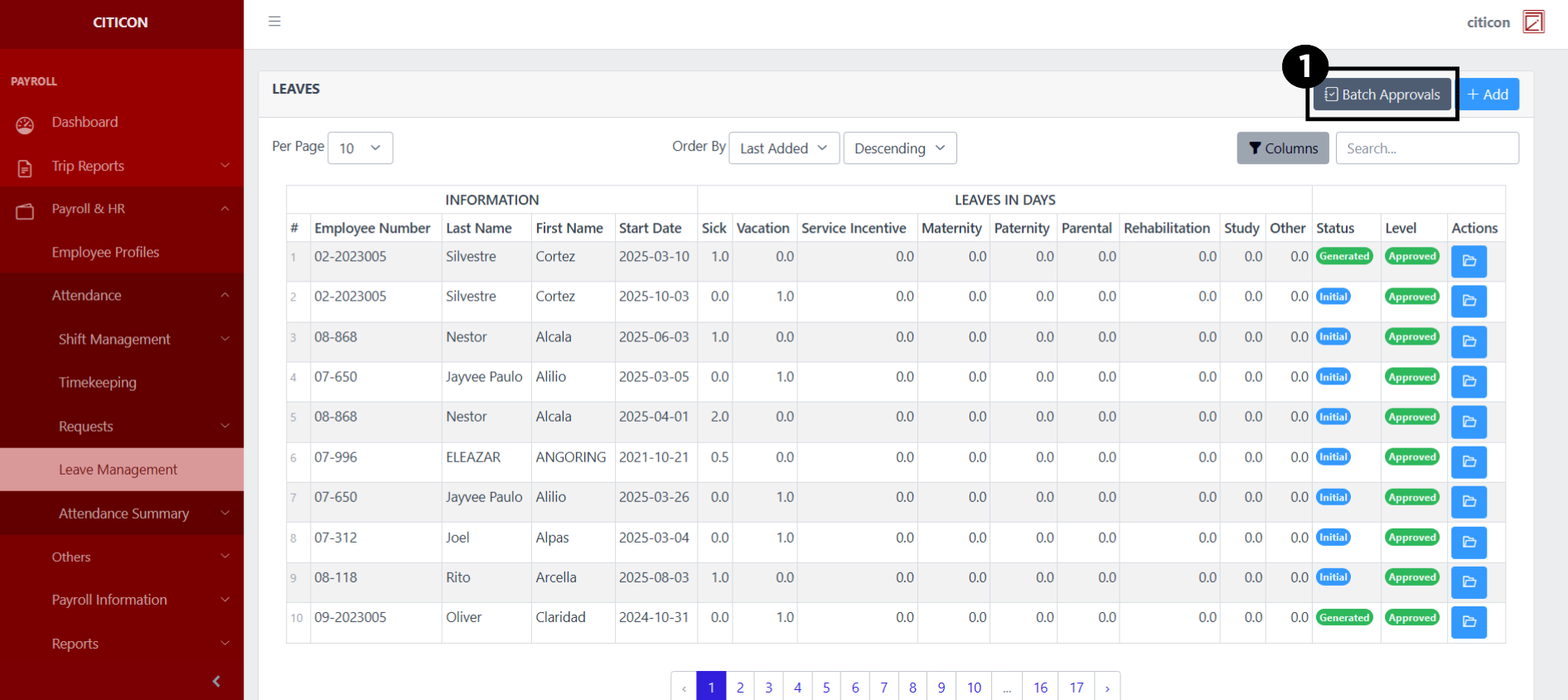
- Select the Batch Approvals button to submit an entry.
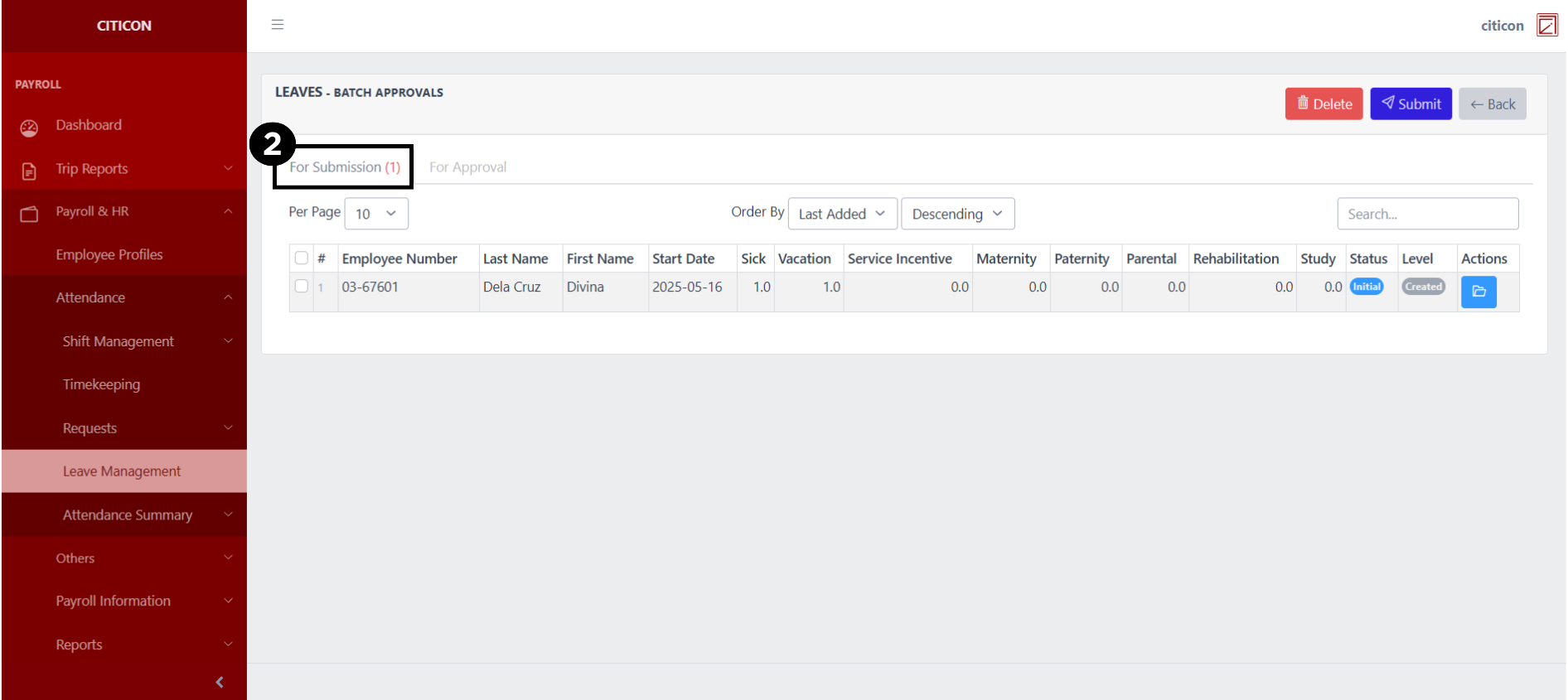
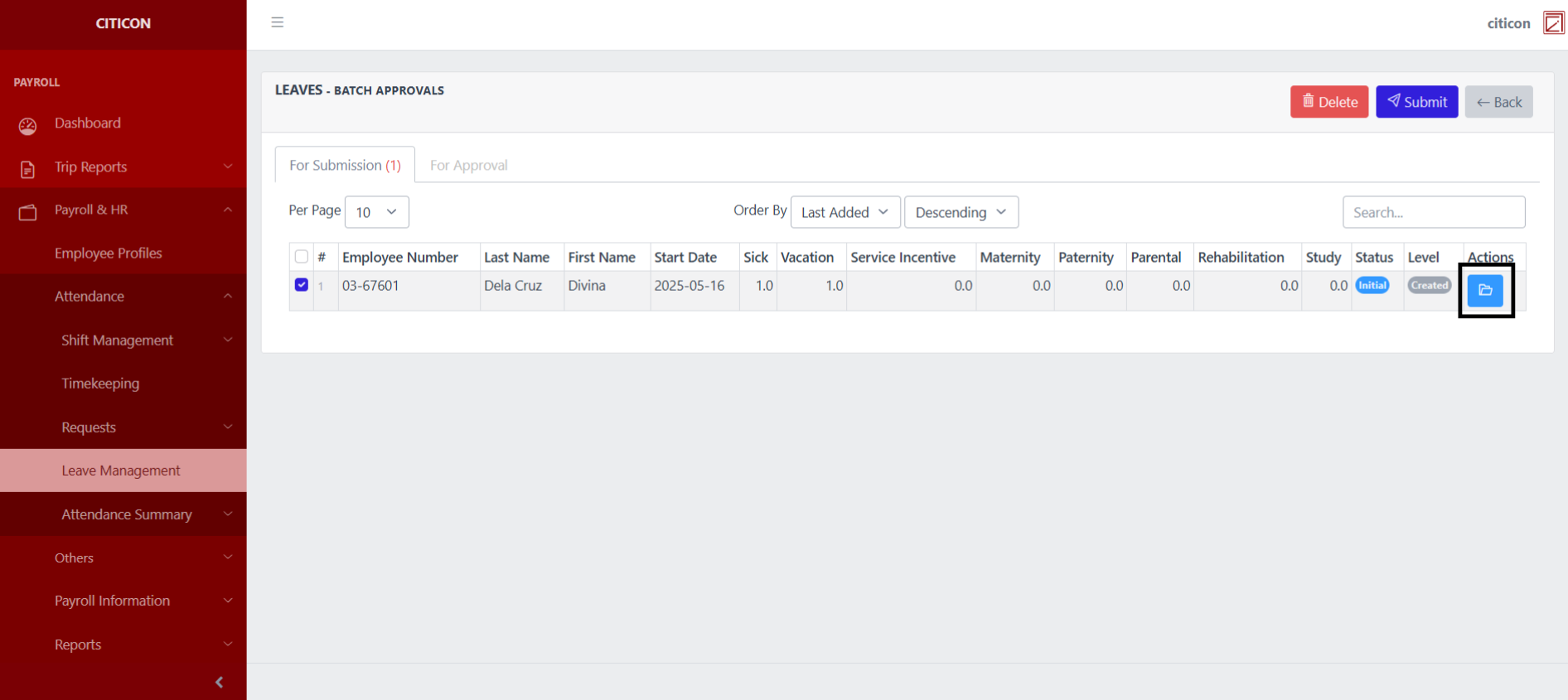
- Select the For Submission tab.
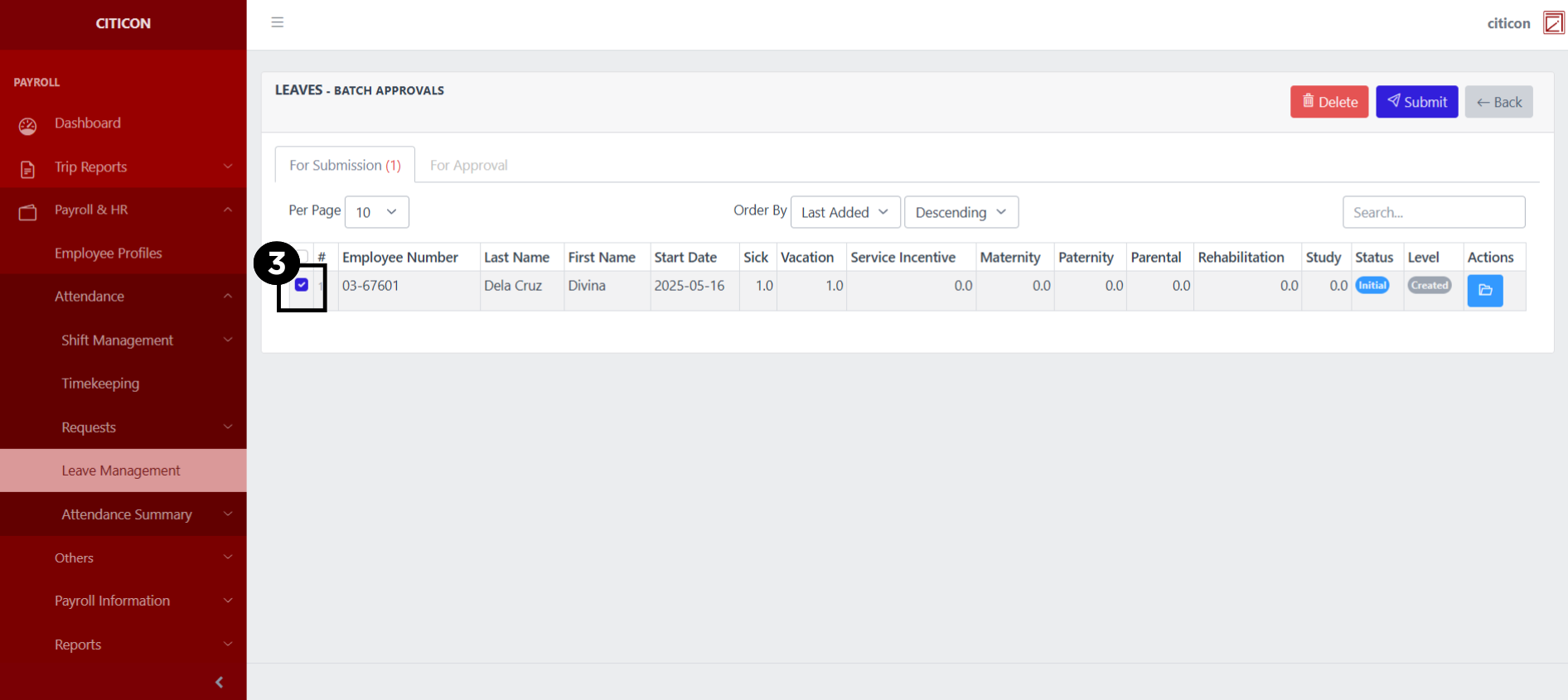
- Select the entry that you want to submit.
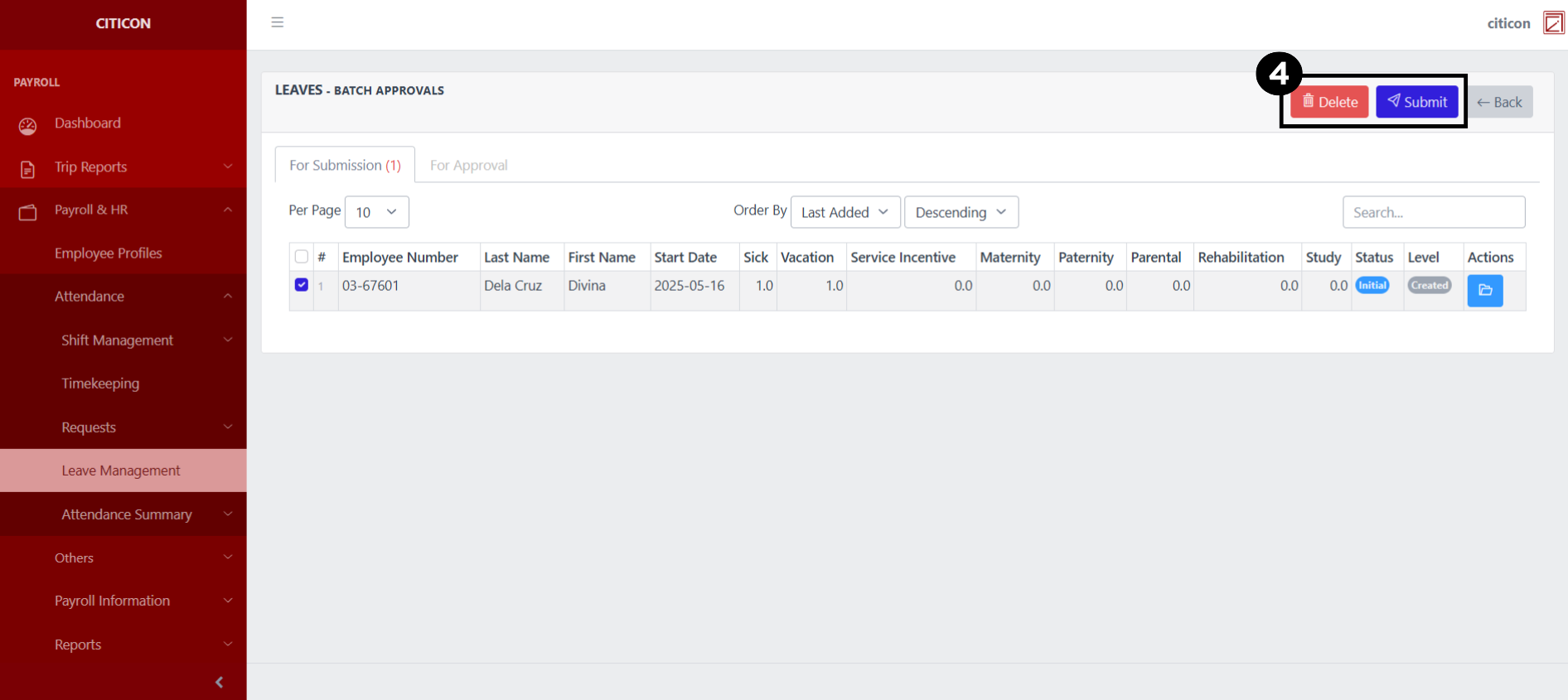
- Select the Submit button to submit the entry. In cases where you want to delete a entry, select the entry you want to delete, then select the Delete button.
 To view the details of an individual entry, select the folder button and from here, you may either Edit, Delete, Submit, or Cancel the entry.
Approve Entry
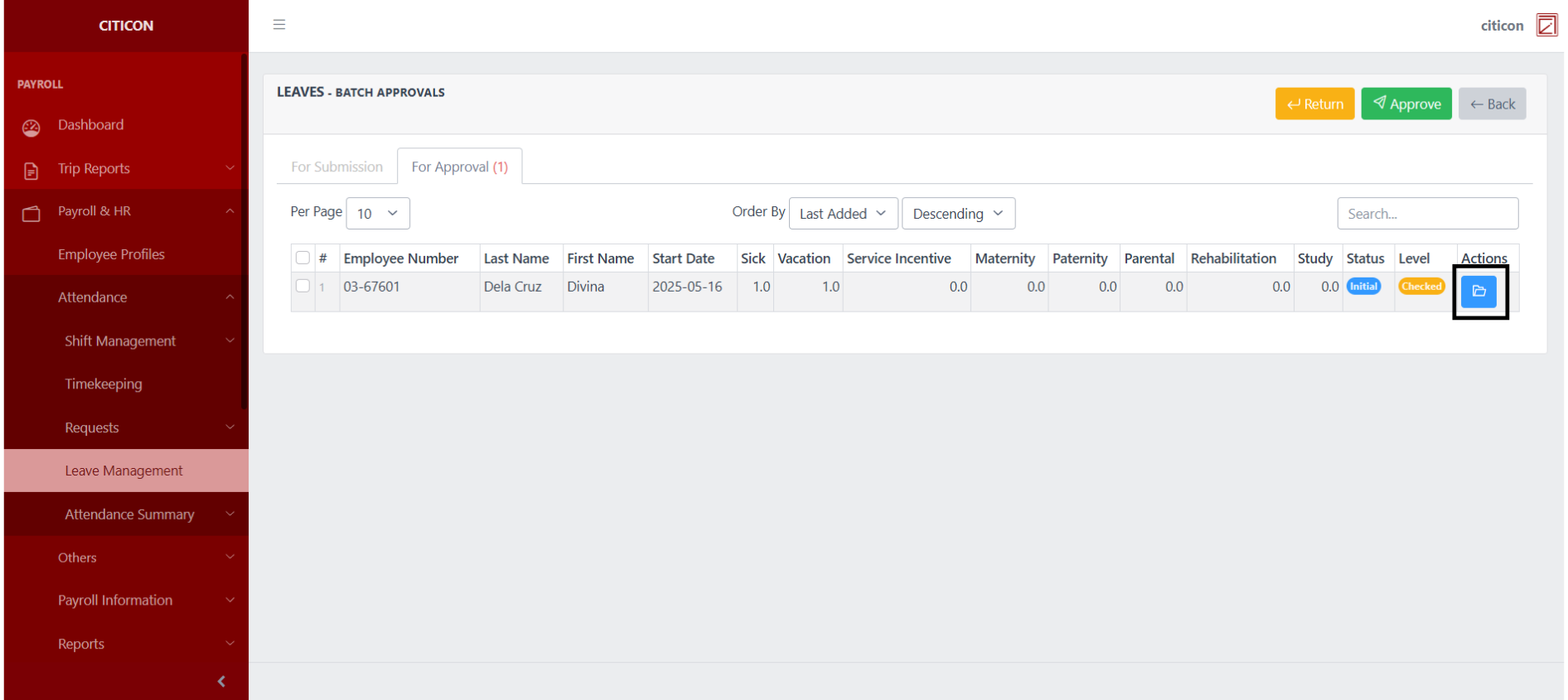
- Select the Batch Approvals button to approve a entry.
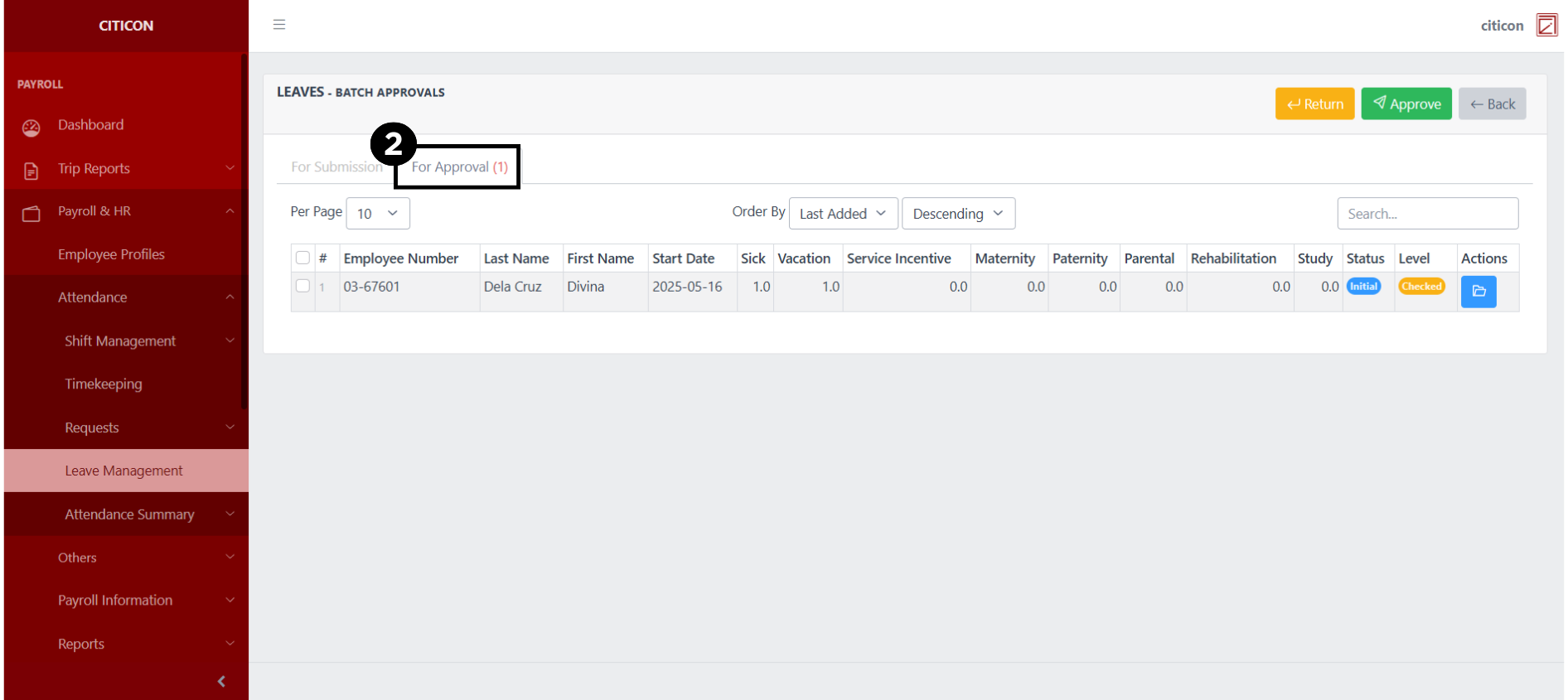
- Select the For Approval tab.
- Select the entry that you want to approve.
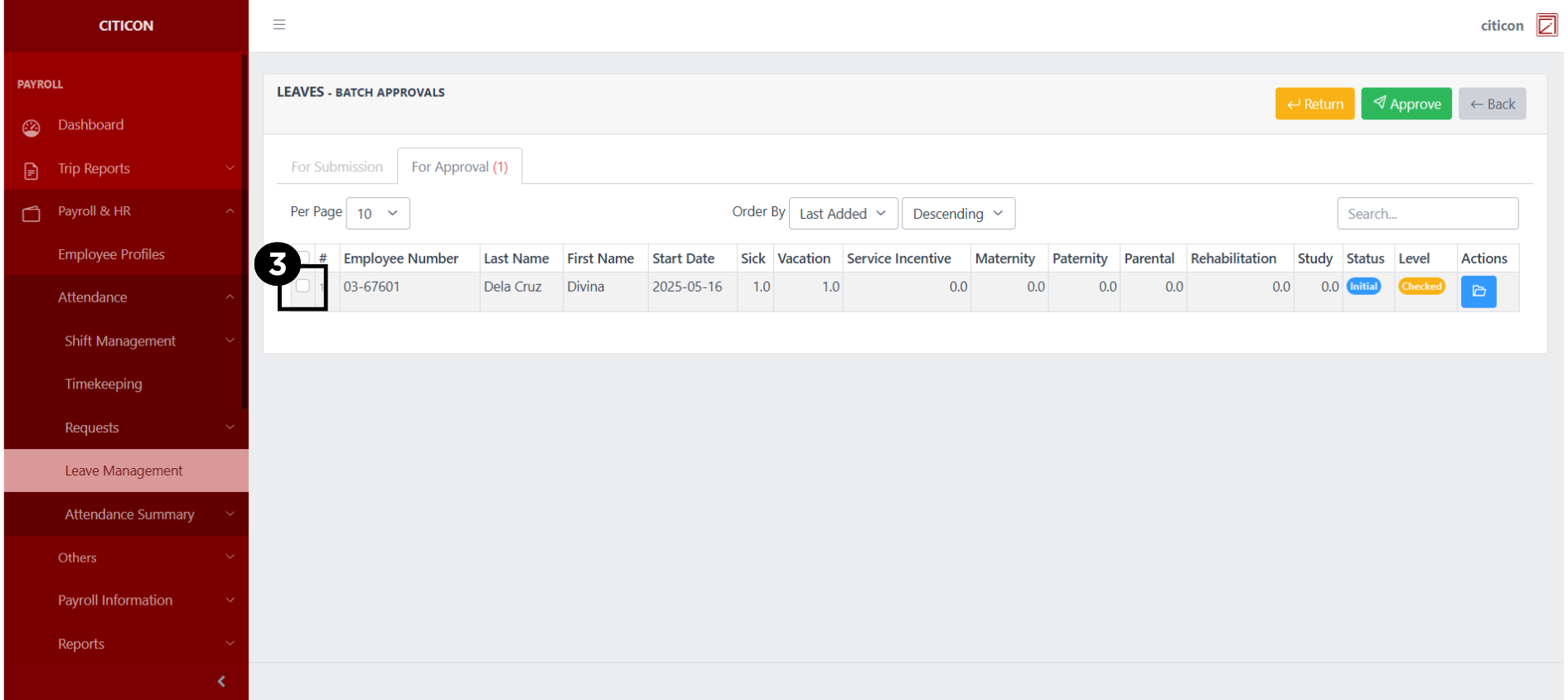
- Select the Approve button to approve the entry. In cases where you want to return a entry to submission section, select the entry you want to return, then select the Return button.
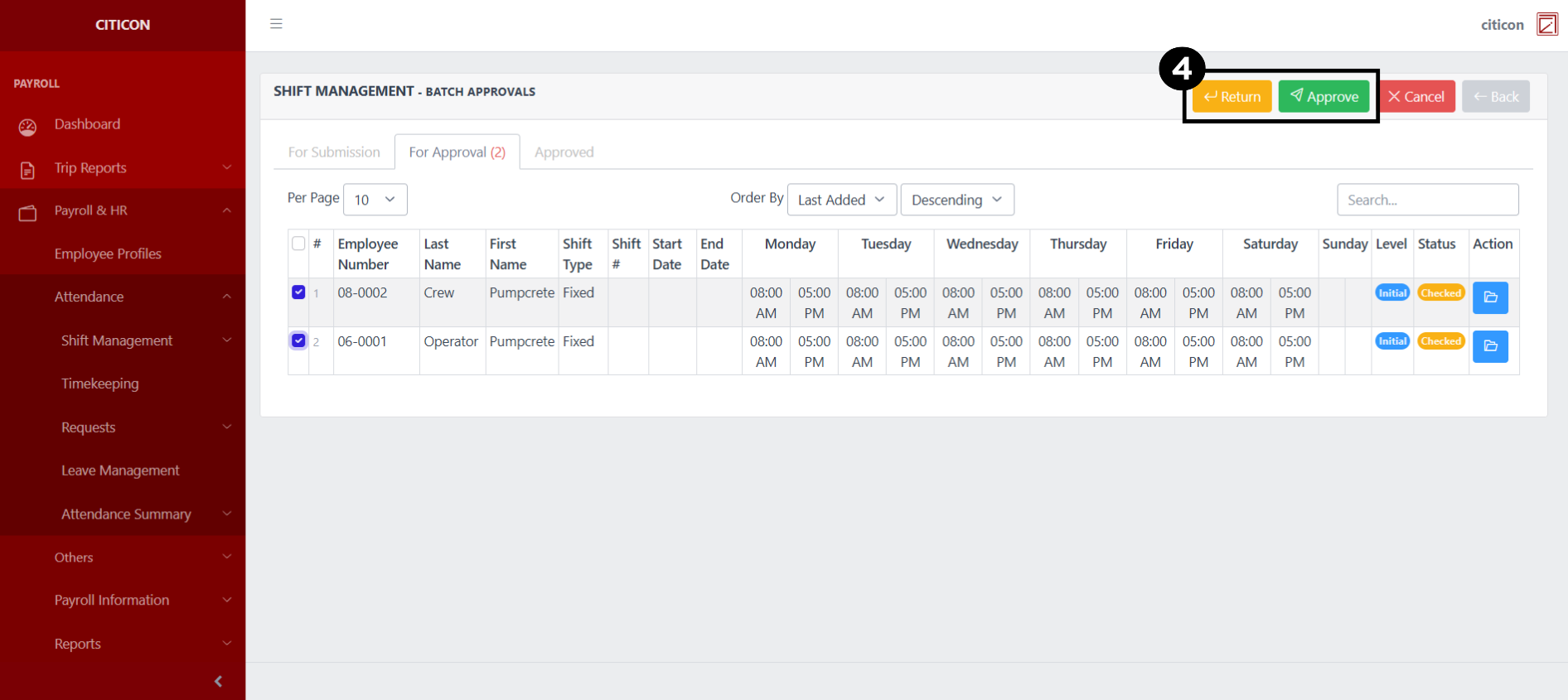 To view the details of an individual entry, select the folder button and from here, you may either Return, Approve, or Cancel the entry.