Trip Reports - Transit Mixer - Assignments Configuration
Welcome to Citicon Payroll and Accounting Systems Configuration for Trip Reports – Transit Mixer (Assignments). This module is designed to manage the assignment of Transit Mixer drivers, their designated units, and applicable additional rates to ensure accurate trip tracking and payroll computation.
Key Purposes
-
Driver Assignment: Assign Transit Mixer drivers to specific units for clear accountability and streamlined operations.
-
Unit Identification: Maintain accurate records of Transit Mixer units through their designated numbers and plate details.
-
Capacity Tracking: Record the maximum capacity of each Transit Mixer to help determine load limits and compensation.
-
Additional Rate Setup: Define any extra compensation per driver based on unit assignment or specific operational terms.
-
Payroll Integration: Ensure that driver assignments and associated rates are accurately reflected in payroll and trip reporting.
Transit Mixer - Assignments Module User-Manual
This section provides details, and set-by-step instructions to access, view, and update the Transit Mixer - Assignments data stored in the system.
Index Page
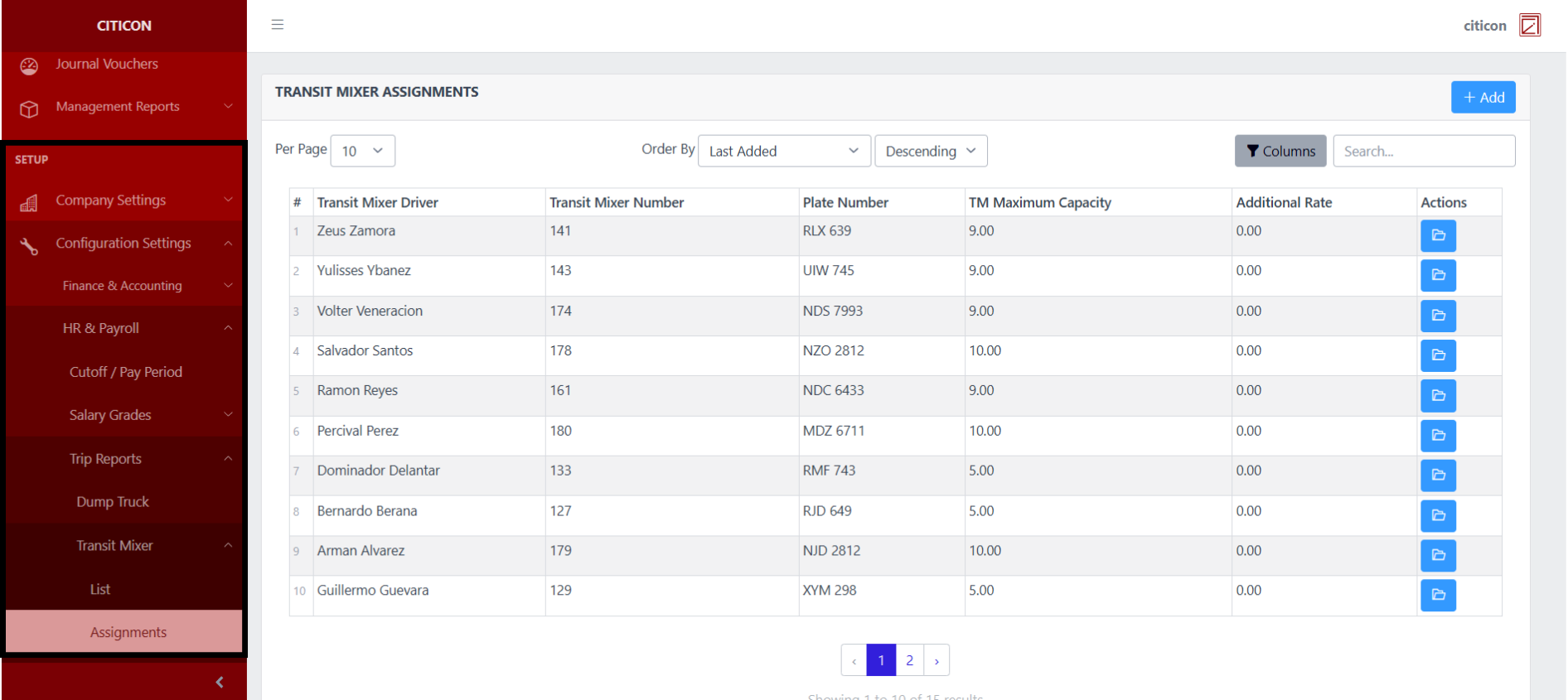
To access the Transit Mixer - Assignments Configuration. Go to Setup, select Configuration Settings, select HR & Payroll, select Trip Reports, select Transit Mixer, then select Assignments.
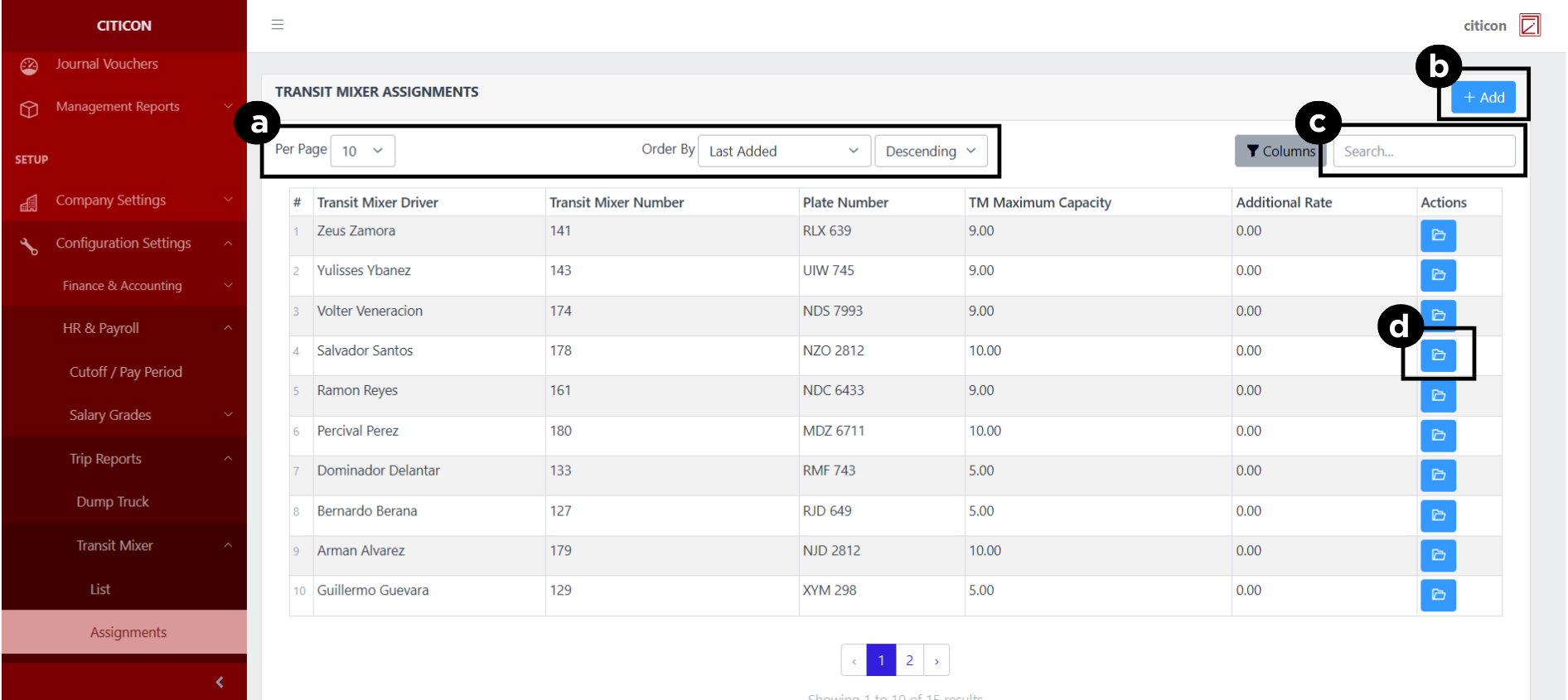
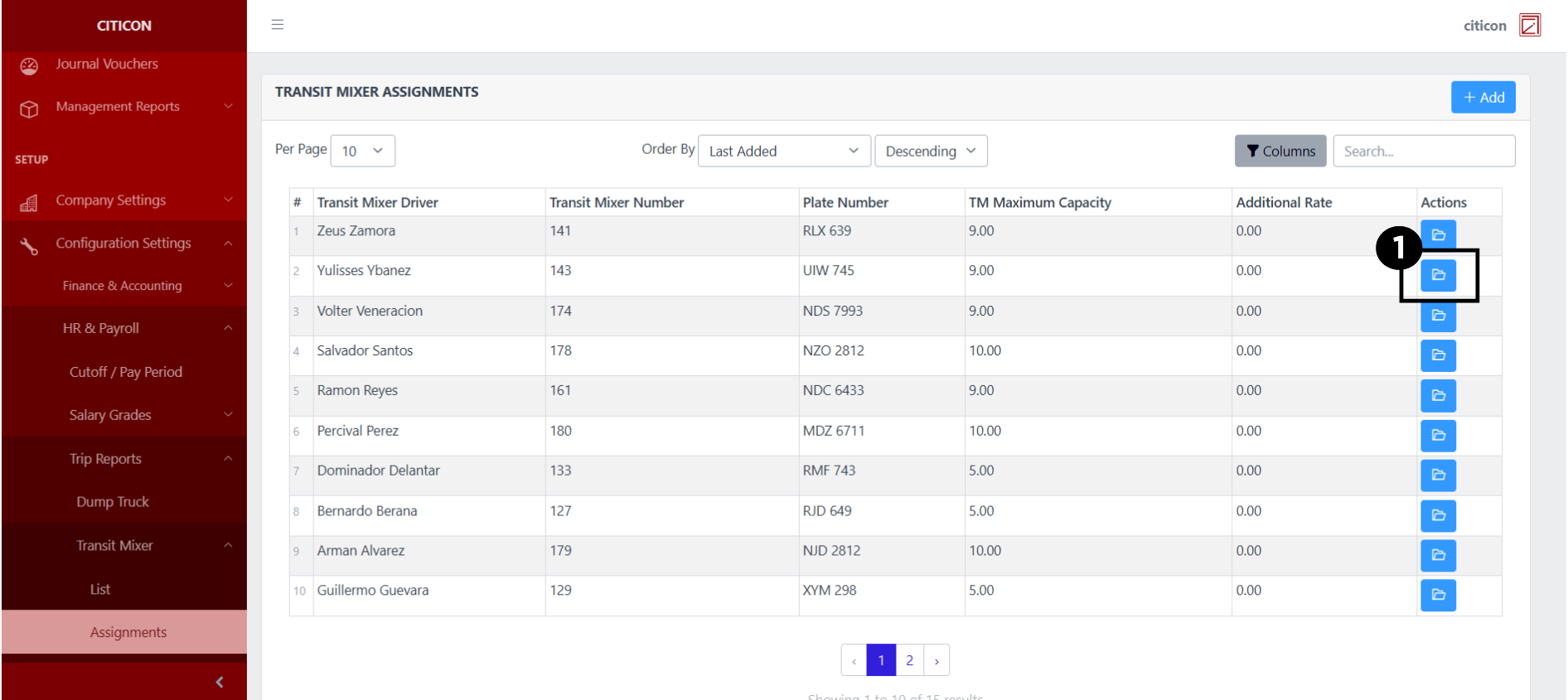
a. Adjust the paging, ordering, and sorting of the Transit Mixer - Assignments Page here.
b. Select the Add button to add new data.
c. Search for specific record details using the search bar.
d. View or Edit a record by selecting the folder button.
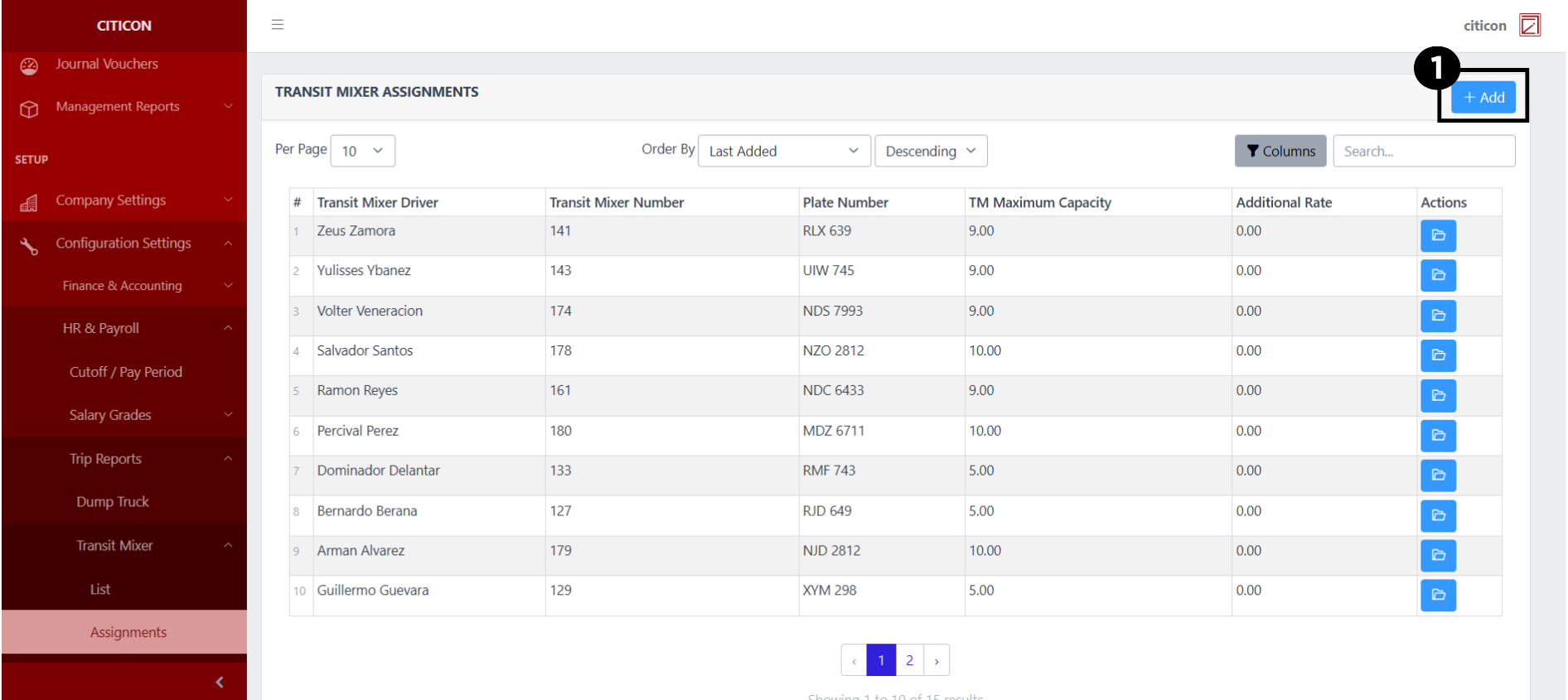
Add Records
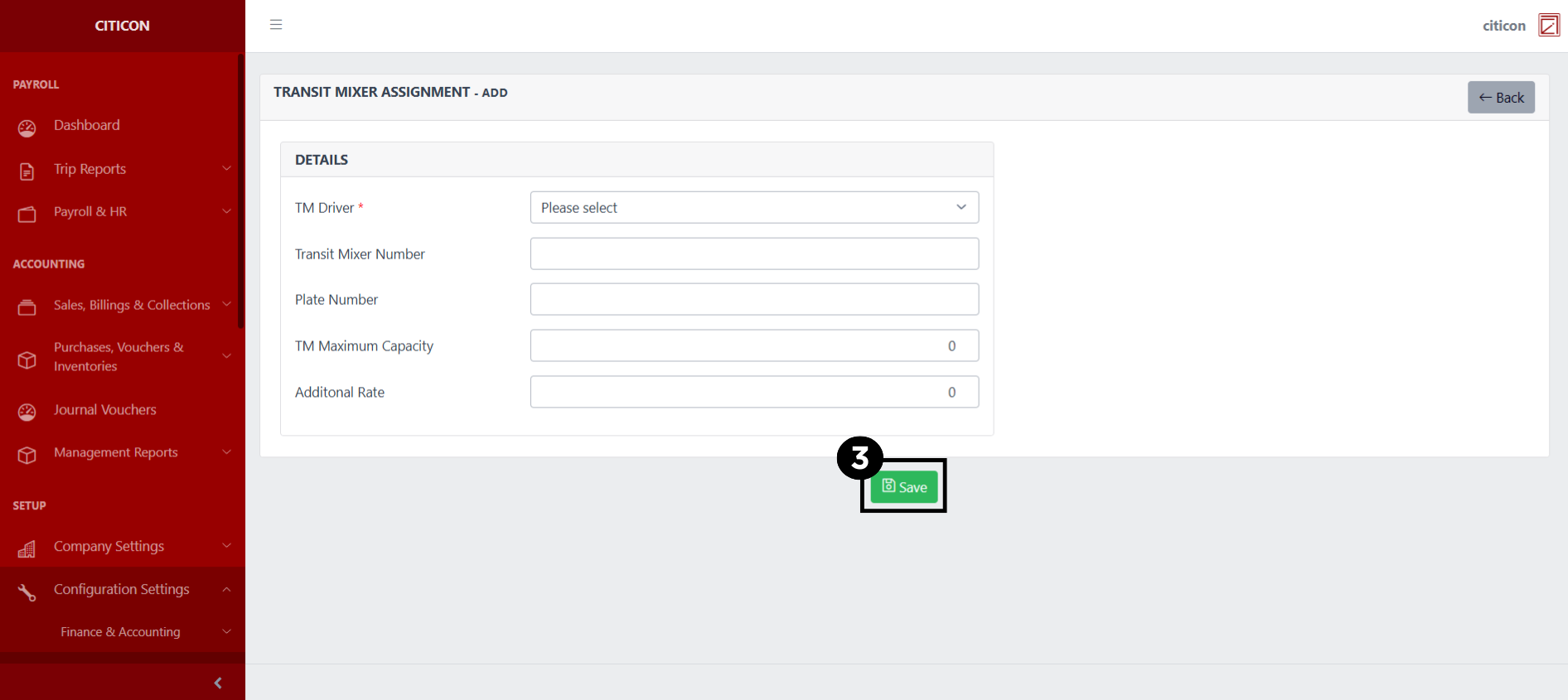
- Select the Add button to add a new record.
- Input the necessary details for your new record.
All fields that has an asterisk (*) are required to be filled up.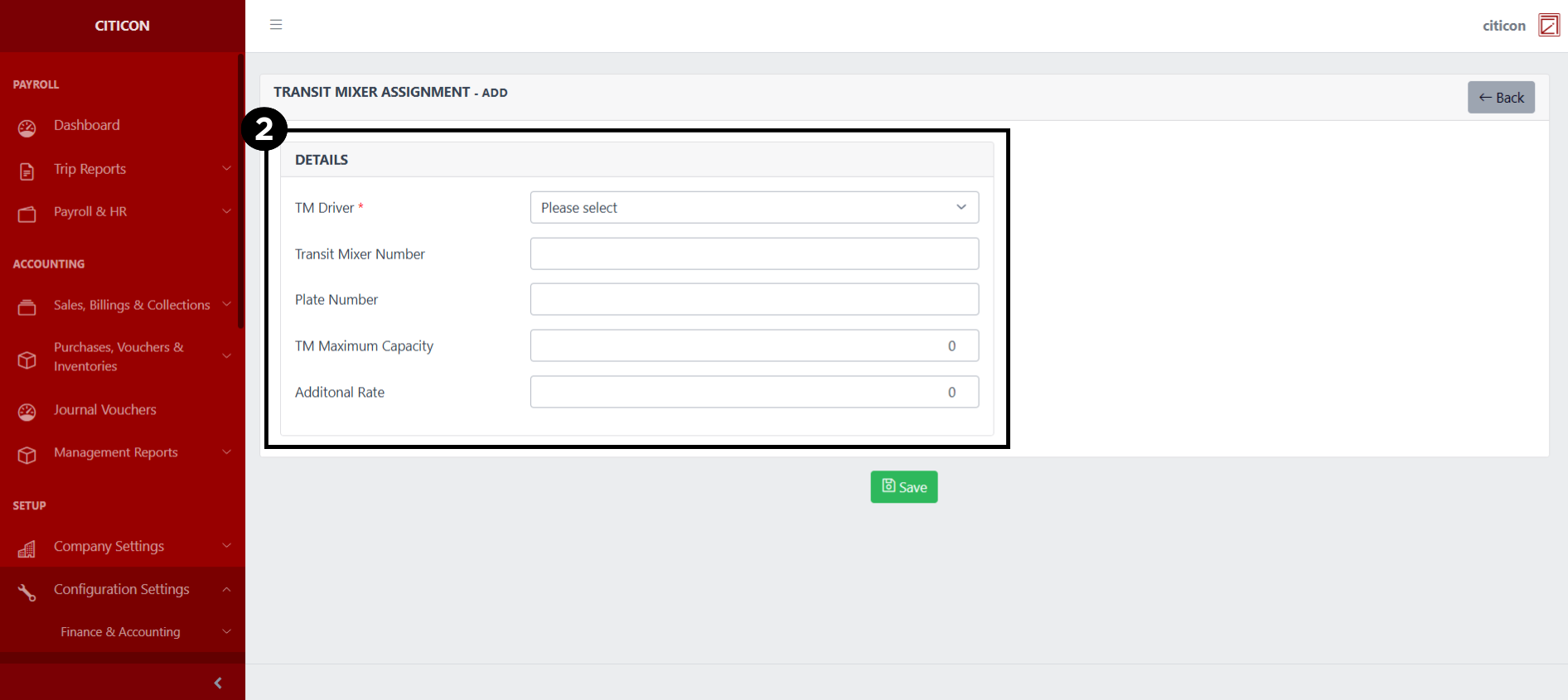
- Select the Save button to save your new record.
Show Records
- Select the folder button to view a record.
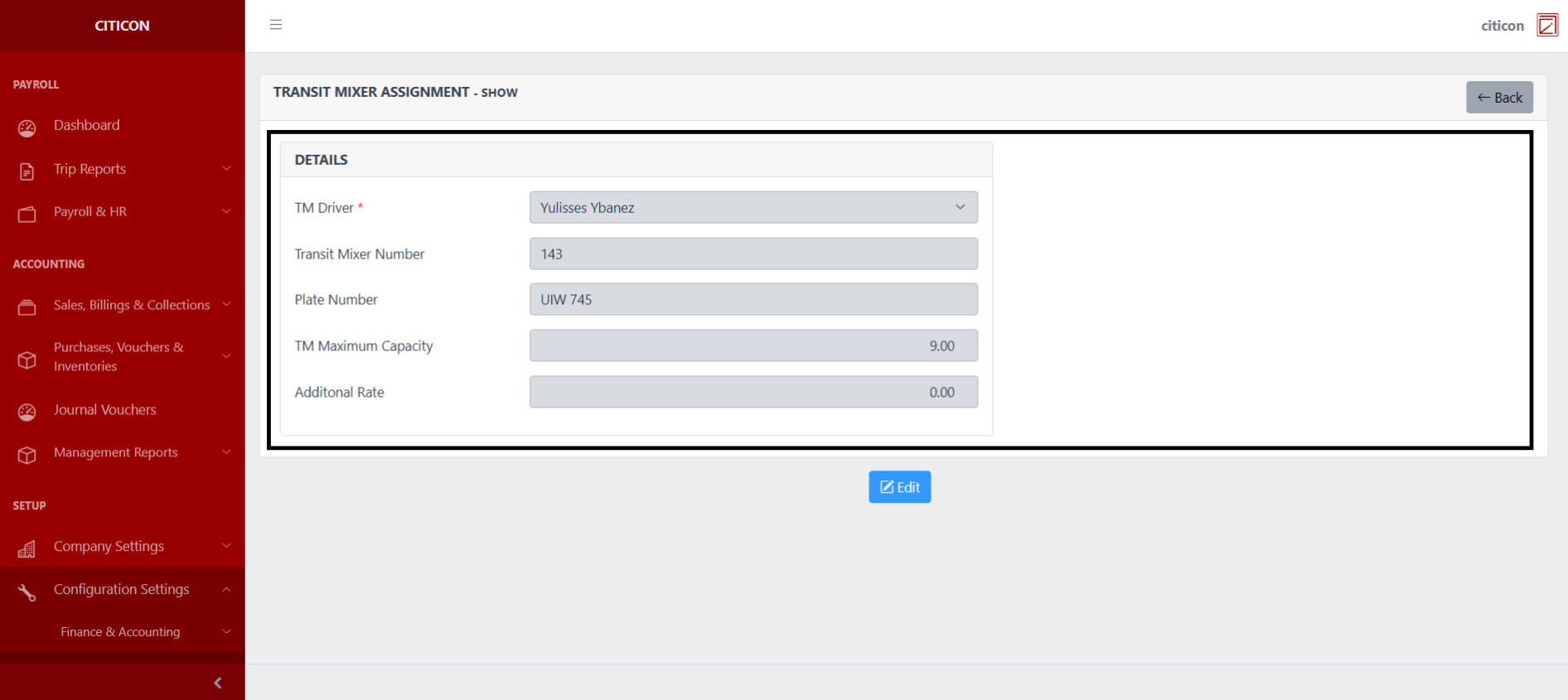
 Here you can view more specific details on the record that you selected.
Update Records
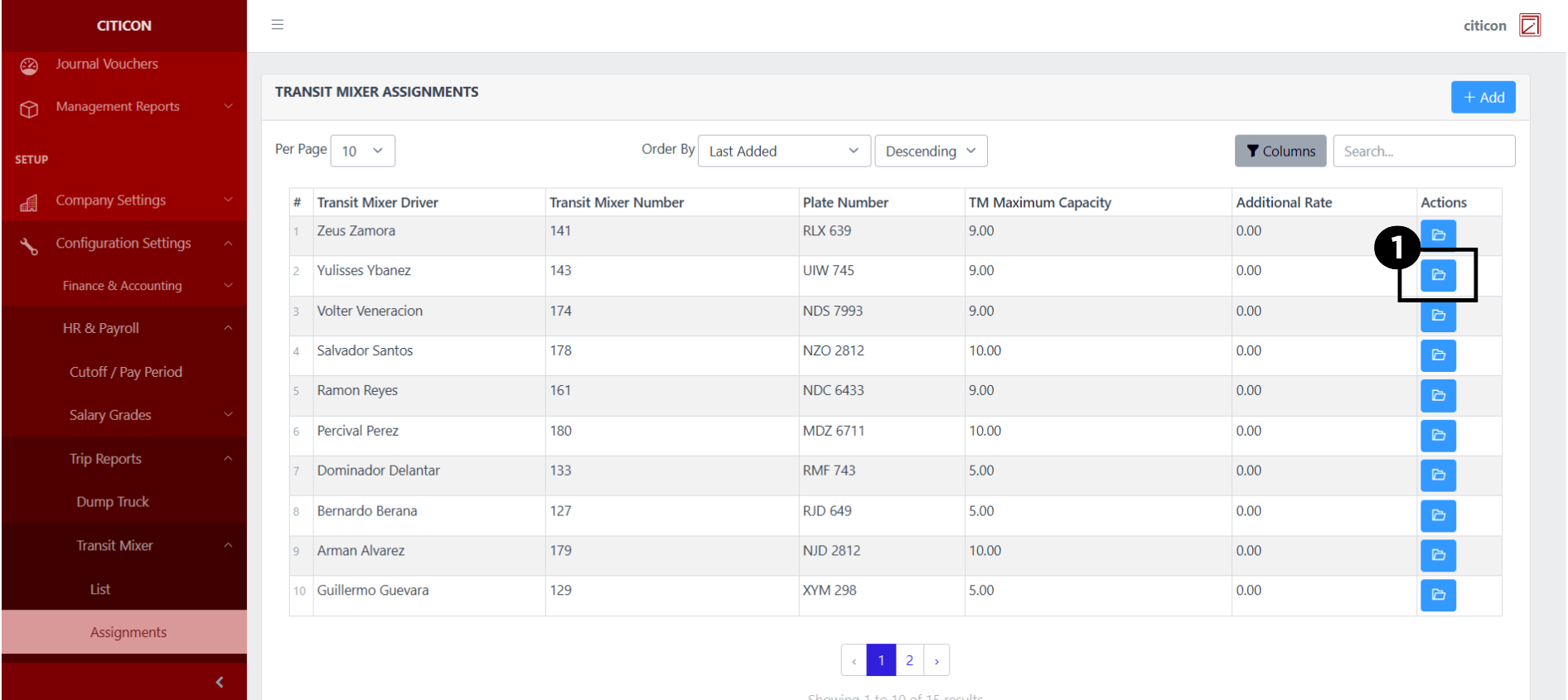
- Select the folder button of the record which you want to edit.
- Select the Edit button to update the details of the record.
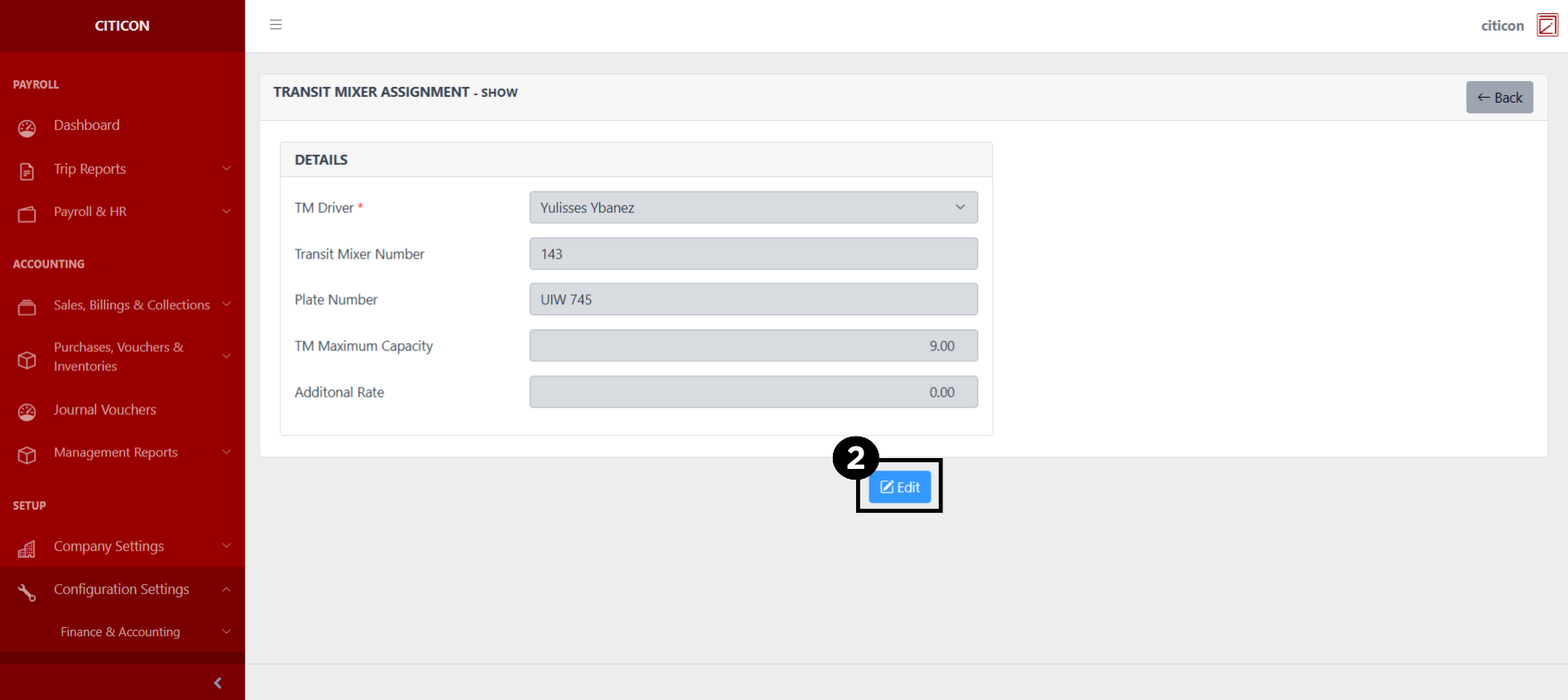
- Select a detail section which you want to edit, and enter the necessary changes.
All fields with an asterisk (*) are required to be filled up.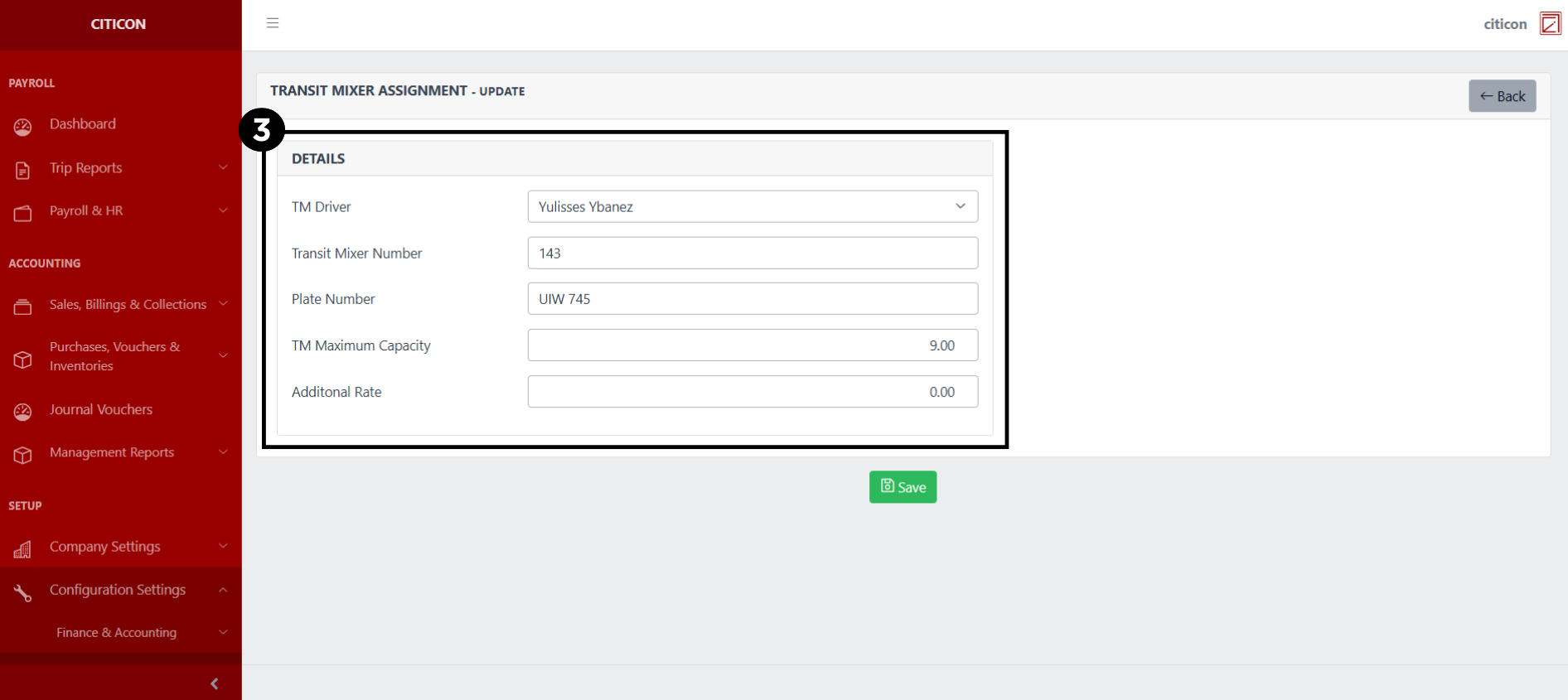
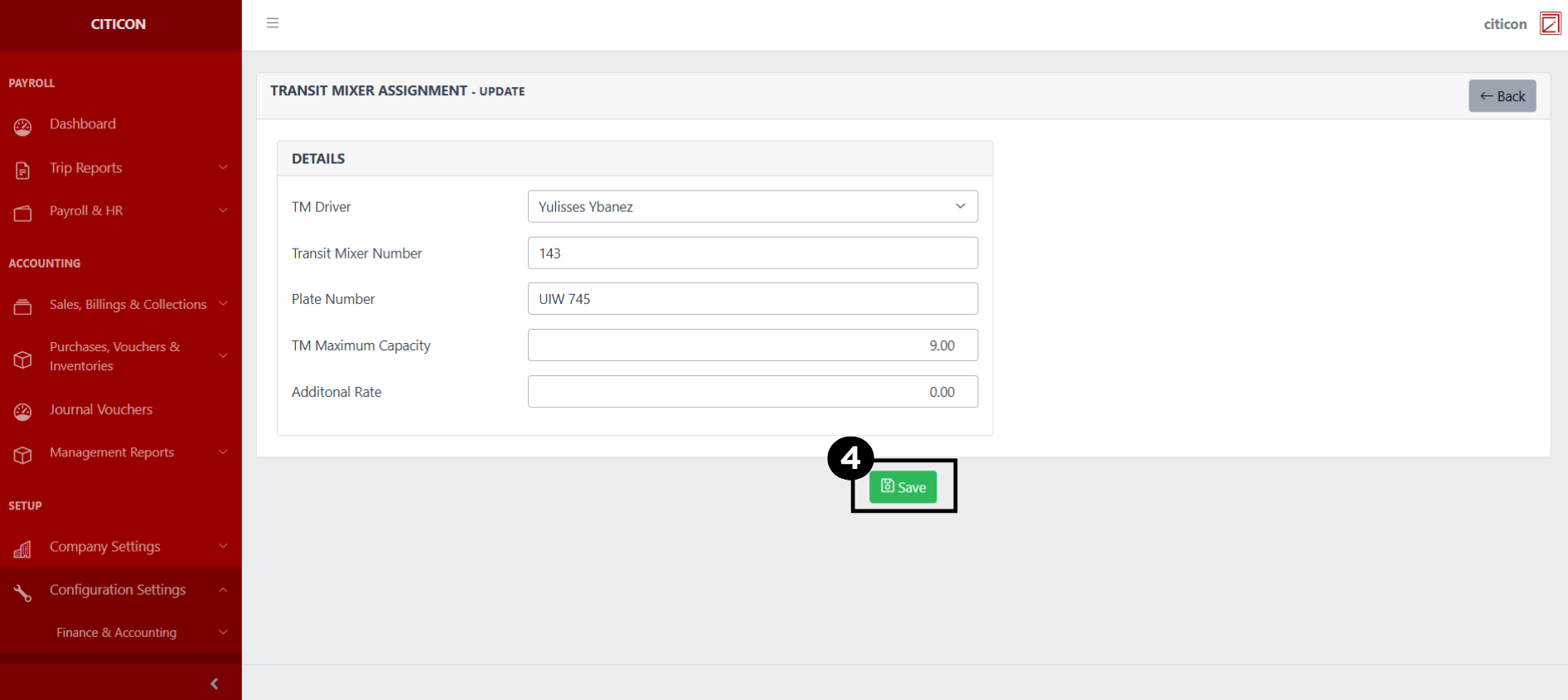
- Select the Save button to save the changes you have made.
Explore Citicon Payroll and Accounting System: Trip Reports - Pumpcrete Configuration