Holidays - Declarations
Welcome to Citicon Payroll and Accounting Systems Configuration for Holiday Declarations. This section allows you to define and manage official holidays observed by your organization across branches, ensuring accurate leave and payroll processing aligned with declared dates and coverage.
Key Purposes
- Declare Official Holidays: Input and manage holidays including type, name, and specific date as recognized by your organization or government.
- Specify Coverage and Branches: Assign holiday declarations to particular branches or coverage areas to localize observance.
- Organize by Entry Details: Track declarations using unique entry numbers for efficient reference and auditing.
- Classify Holiday Types: Categorize holidays as regular, special non-working, or company-declared for accurate payroll treatment.
- Enable or Disable Entries: Manage which holiday declarations are currently active to reflect updated or seasonal changes.
Holidays - Declarations Module User-Manual
This section provides details, and set-by-step instructions to access, view, and update the Holidays - Declarations data stored in the system.
Index Page
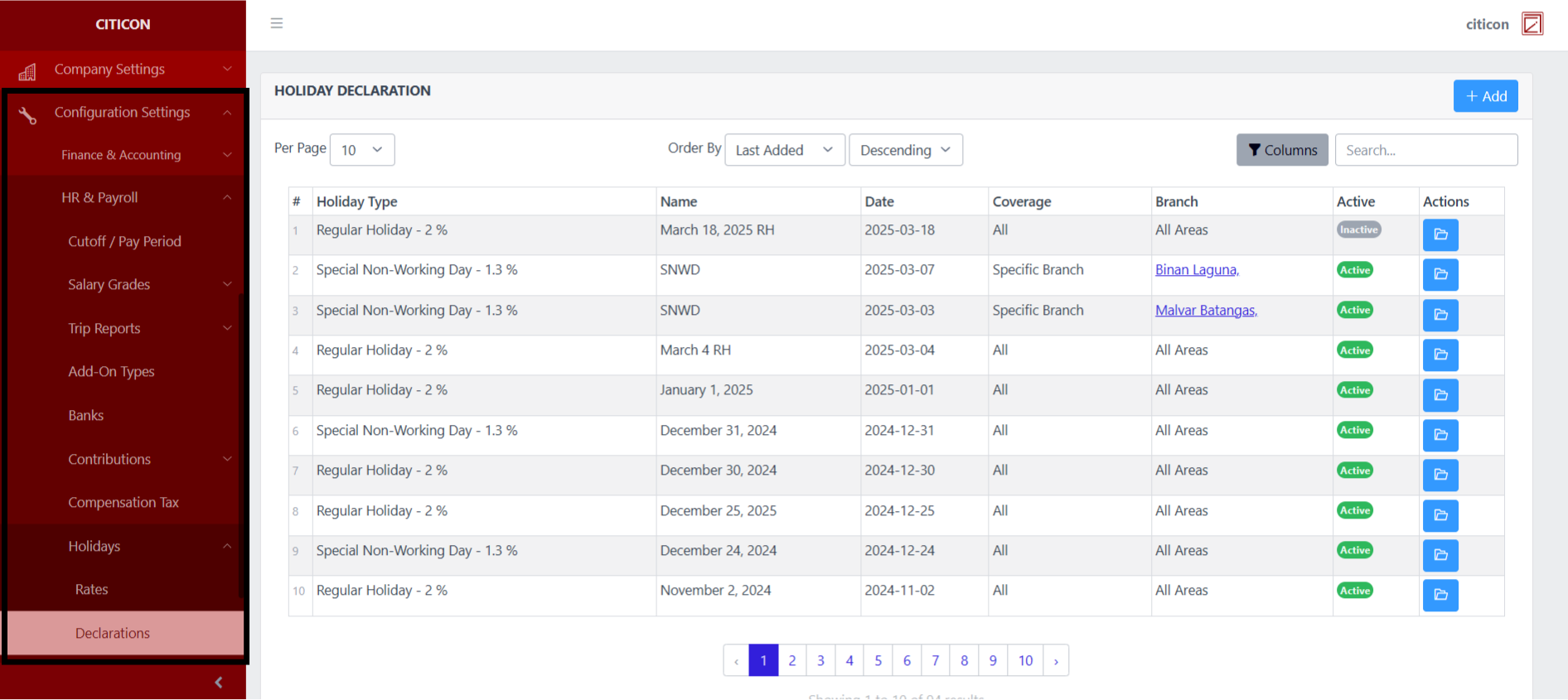
To access the Holidays - Declarations Configuration. Go to Setup, select Configuration Settings, select HR & Payroll, then select Holidays - Declarations.
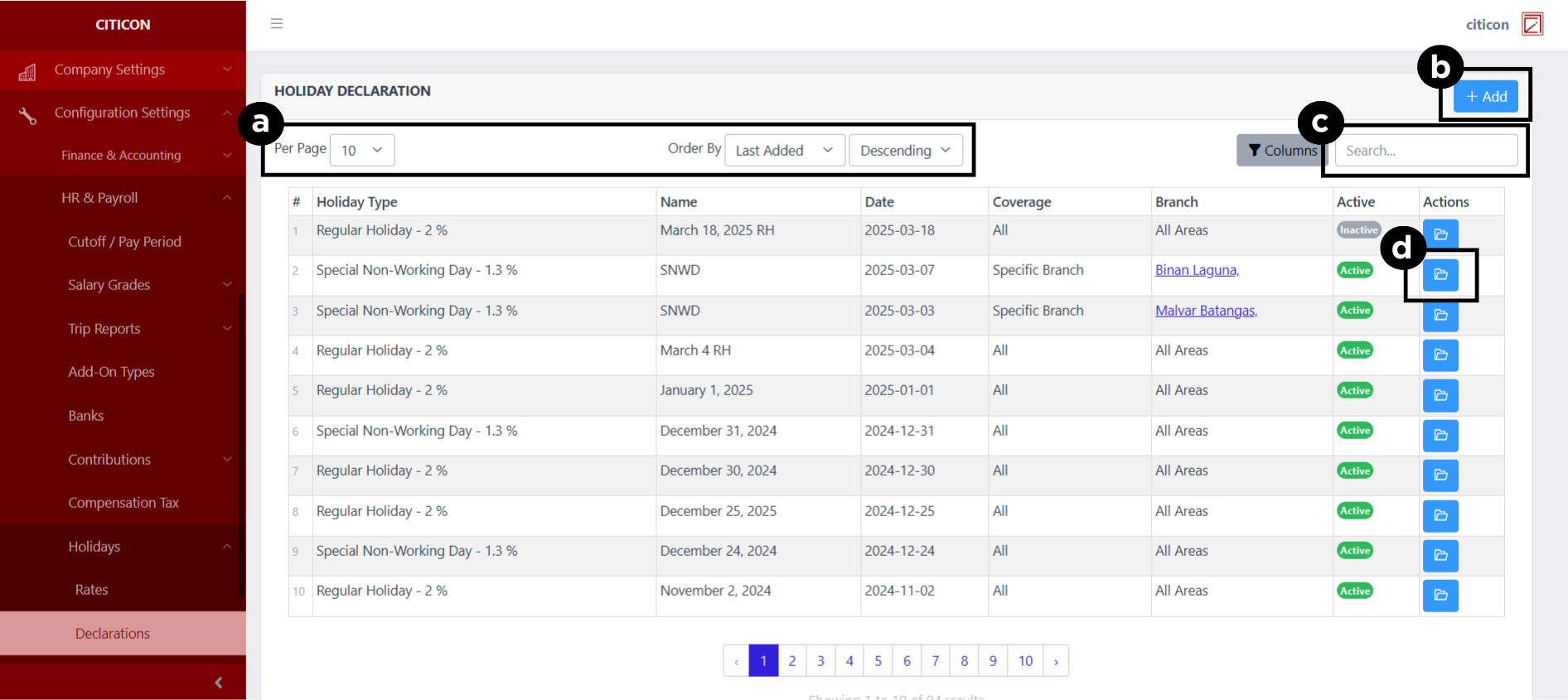
a. Adjust the paging, ordering, and sorting of the Holidays - Declarations Page here.
b. Select the Add button to add new data.
c. Search for specific record details using the search bar.
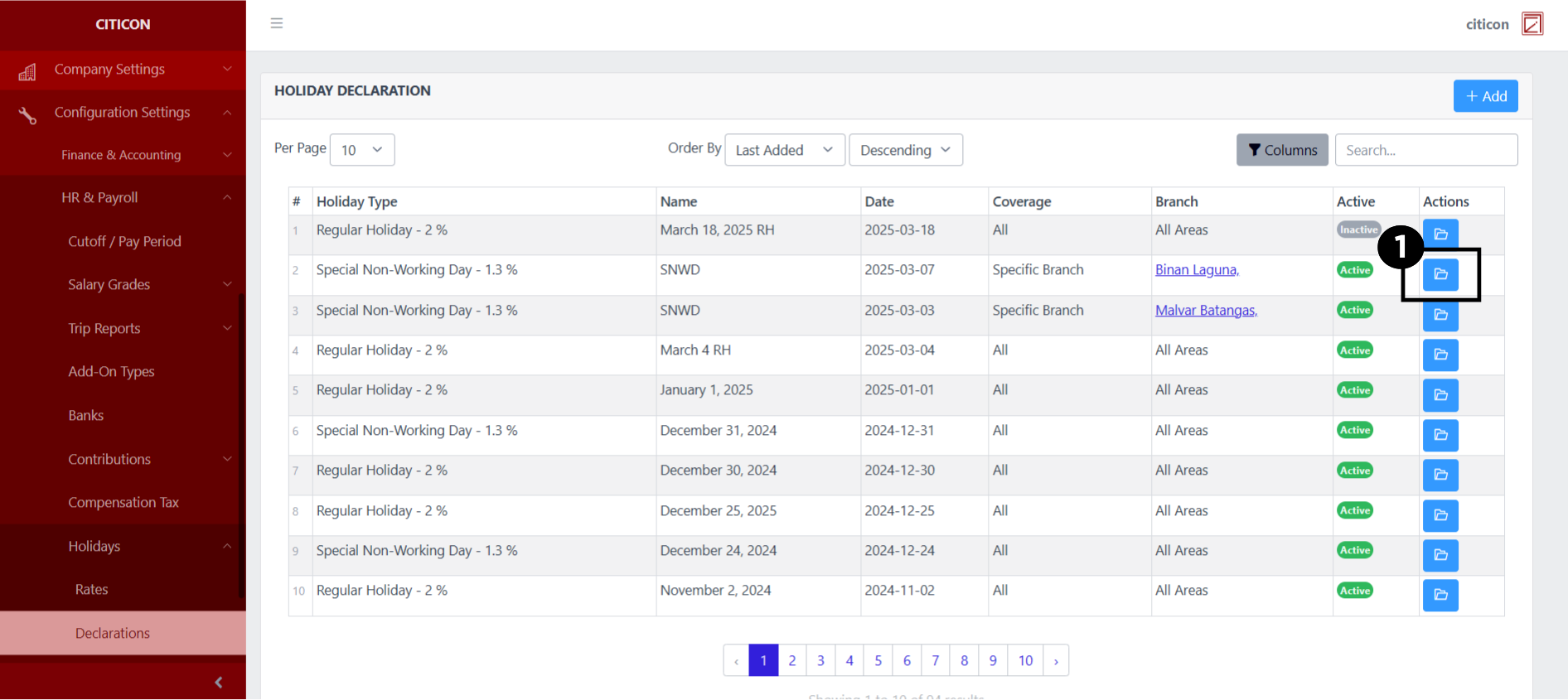
d. View or Edit a record by selecting the folder button.
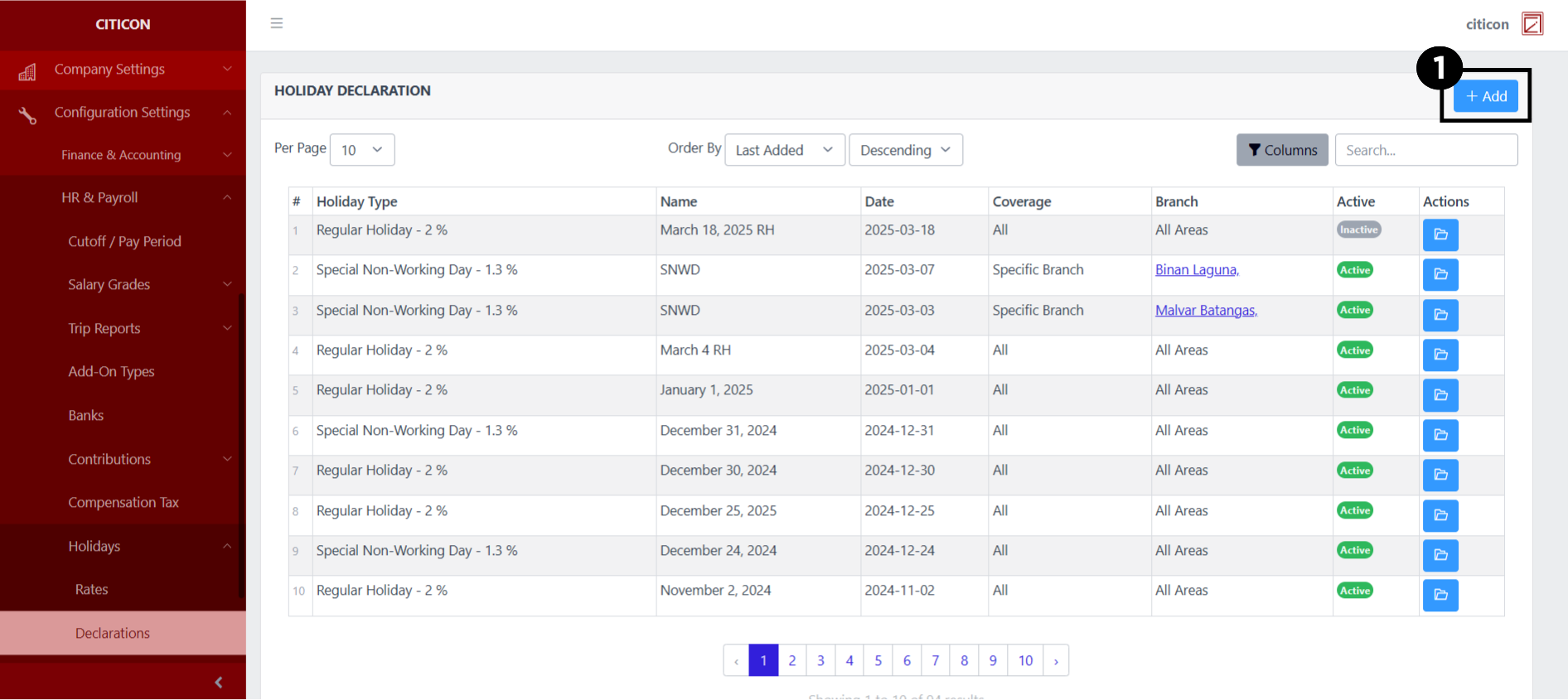
Add Records
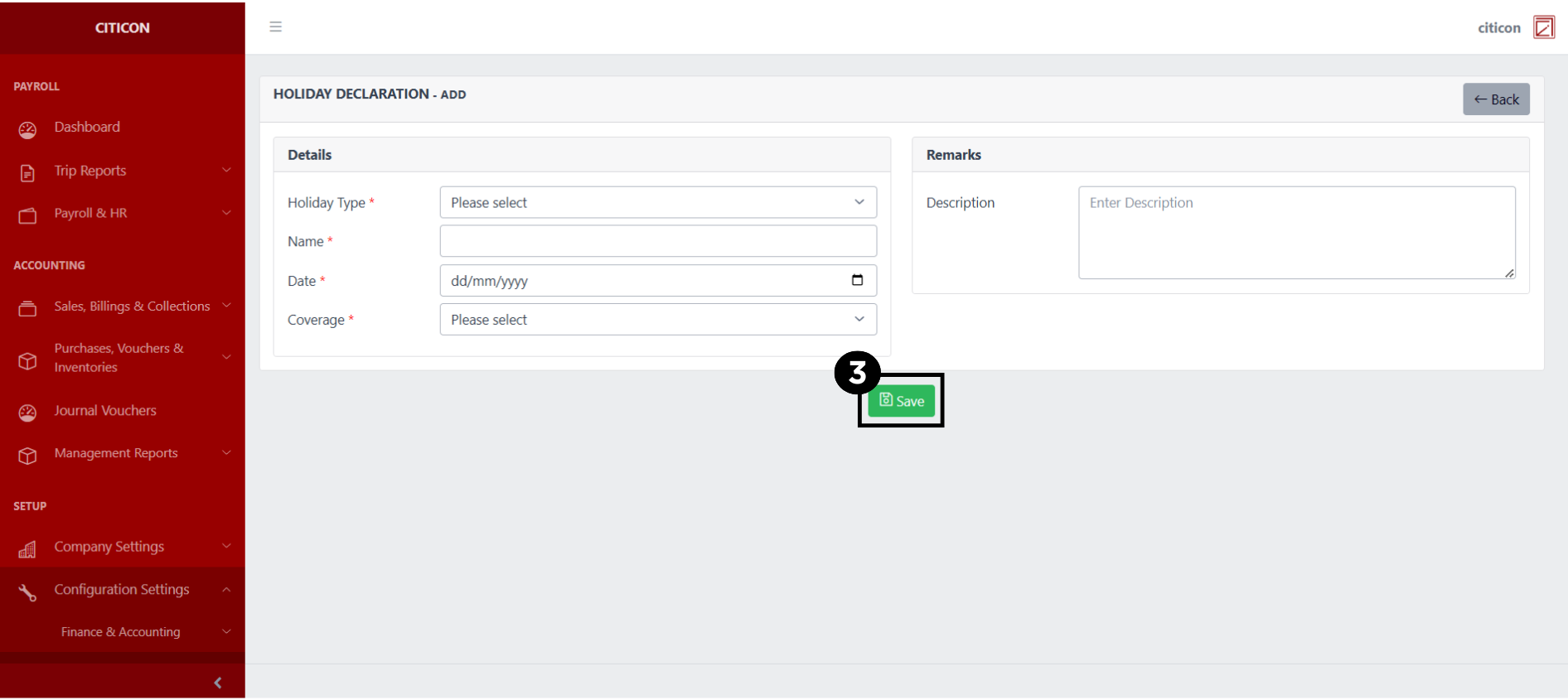
- Select the Add button to add a new record.
- Input the necessary details for your new record.
All fields that has an asterisk (*) are required to be filled up.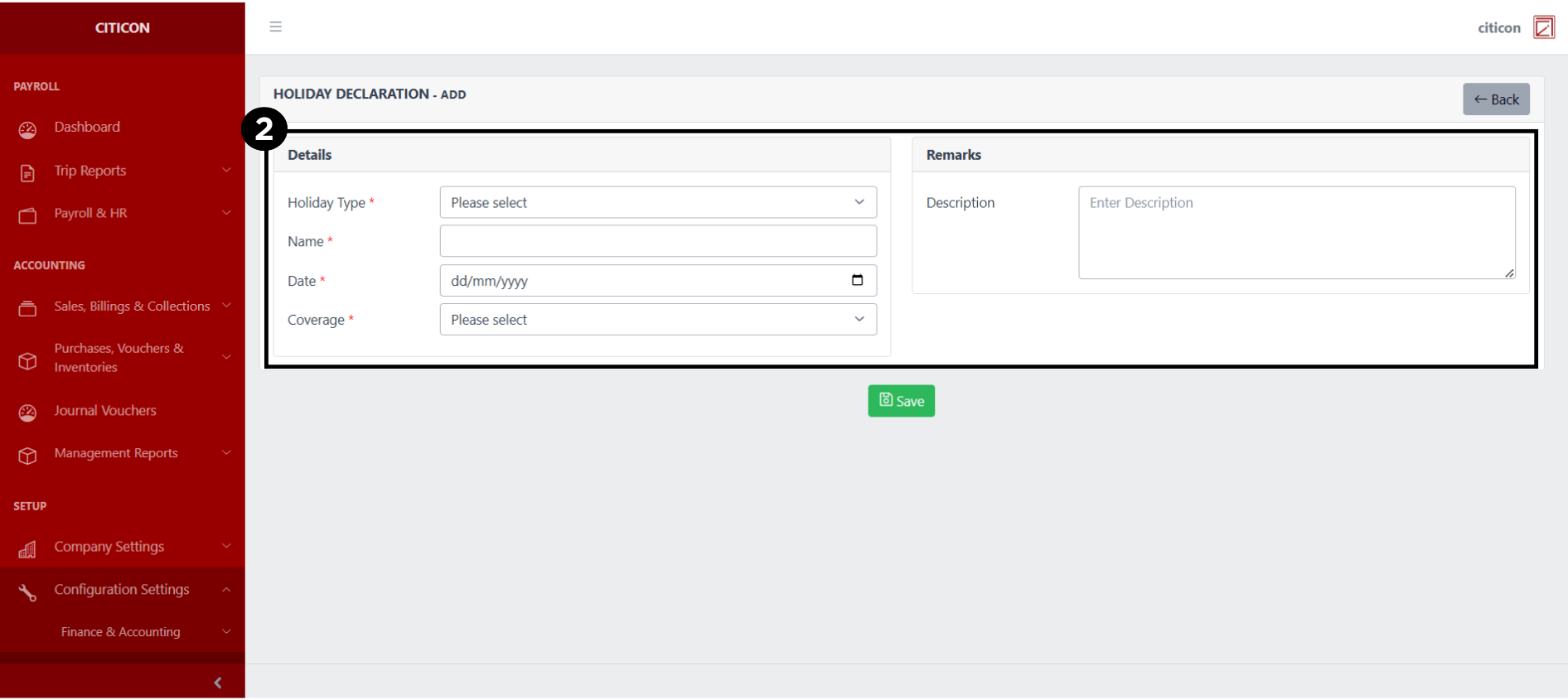
- Select the Save button to save your new record.
Show Records
- Select the folder button to view a record.
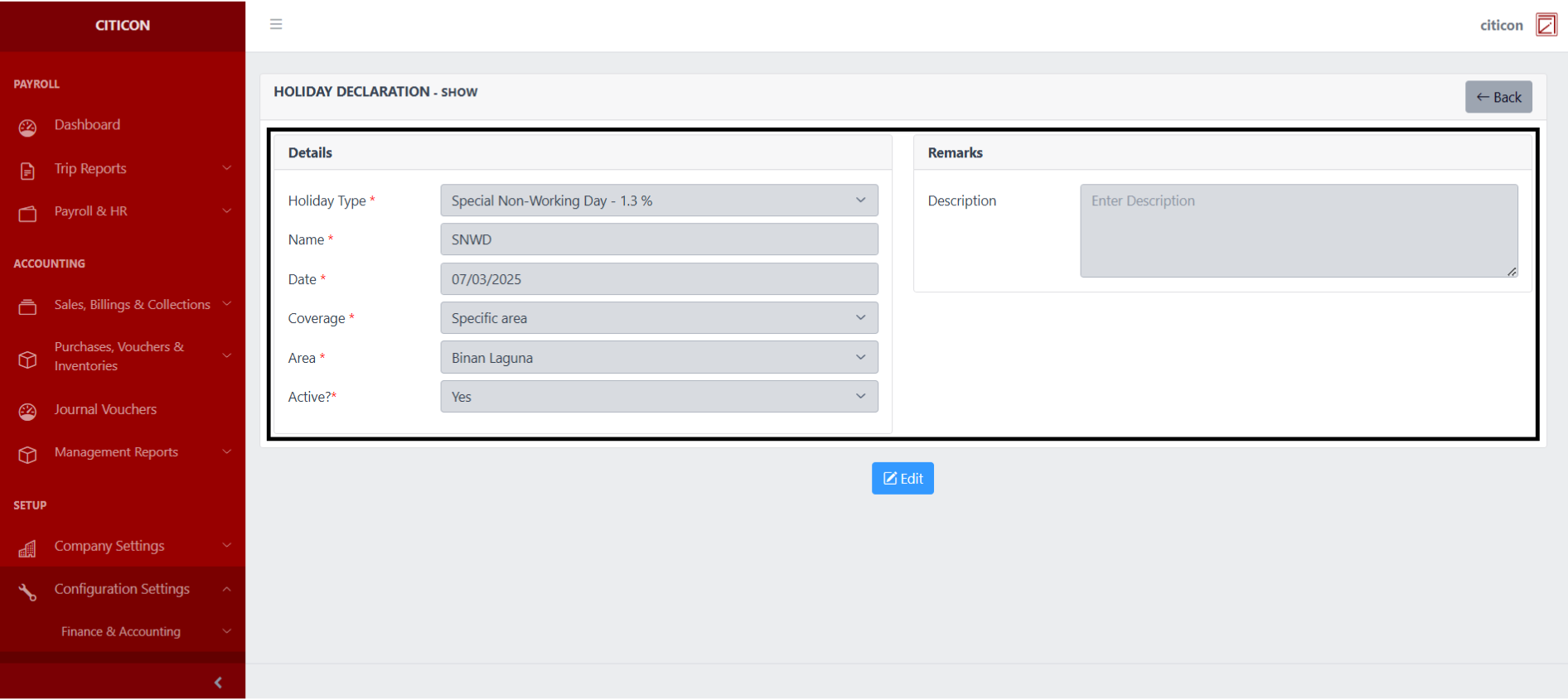
 Here you can view more specific details on the record that you selected.
Update Records
- Select the folder button of the record which you want to edit.
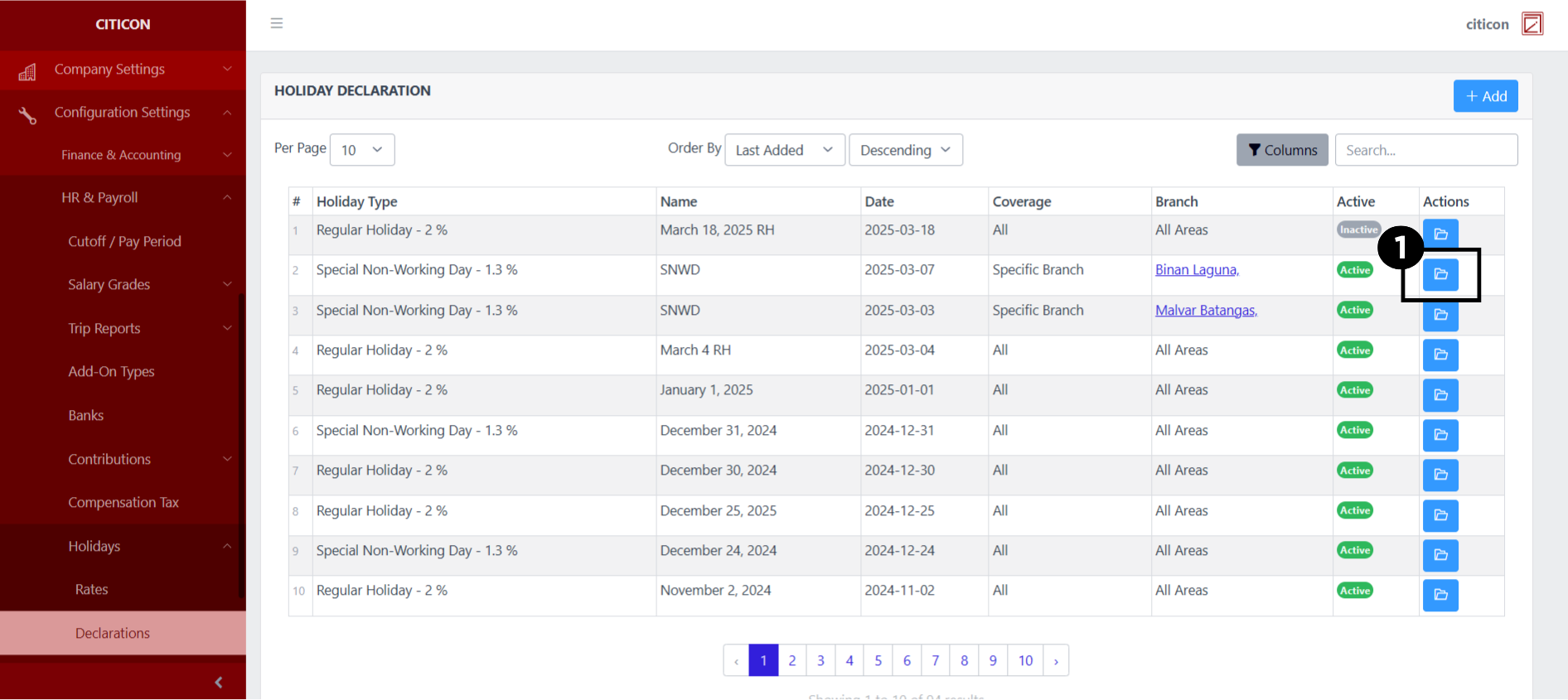
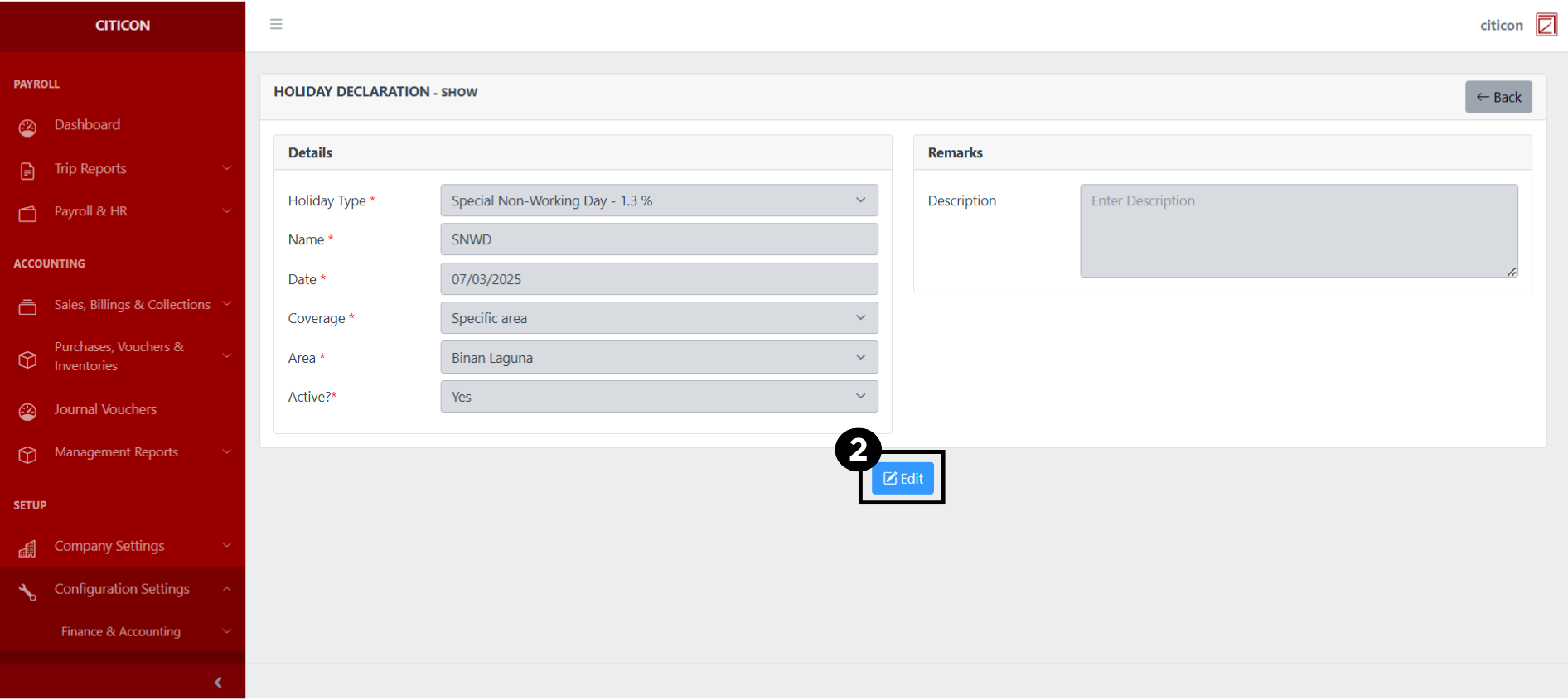
- Select the Edit button to update the details of the record.
- Select a detail section which you want to edit, and enter the necessary changes.
All fields with an asterisk (*) are required to be filled up.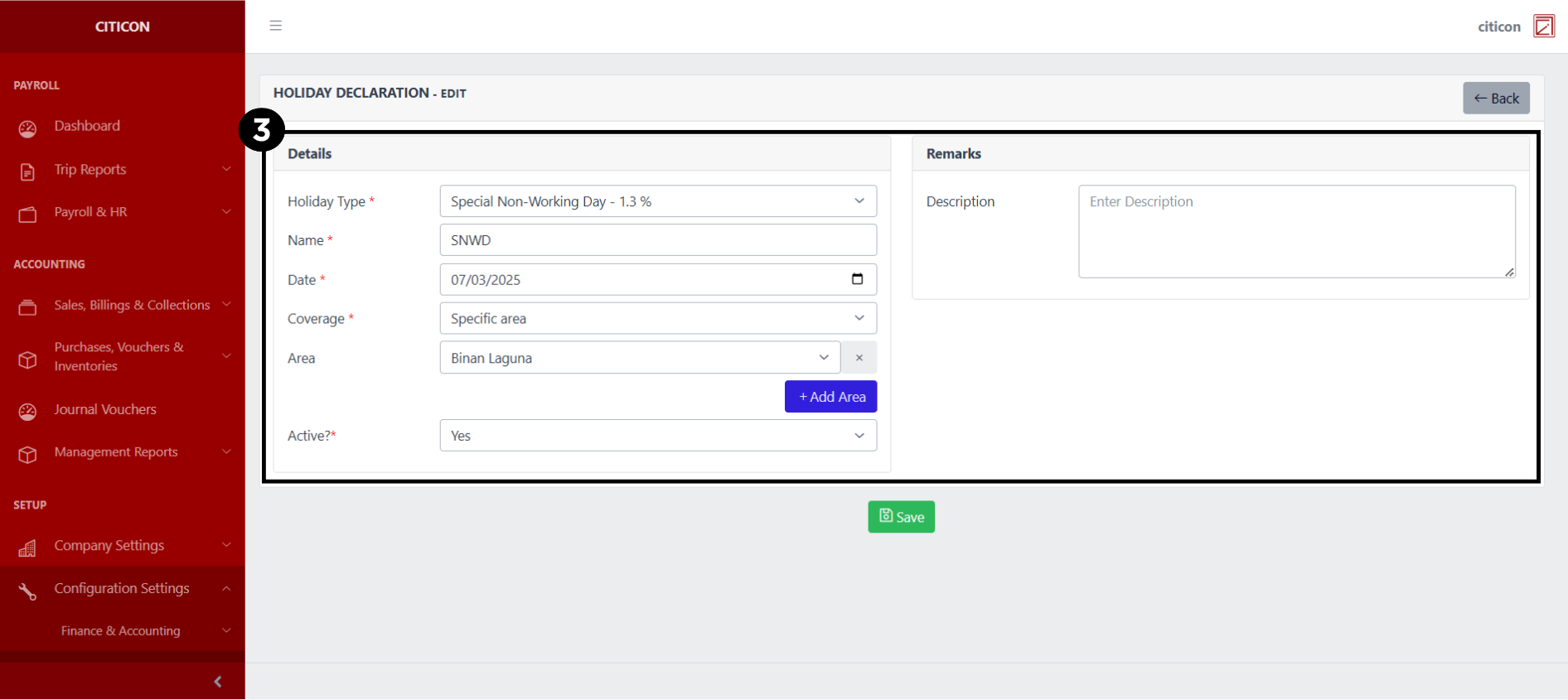
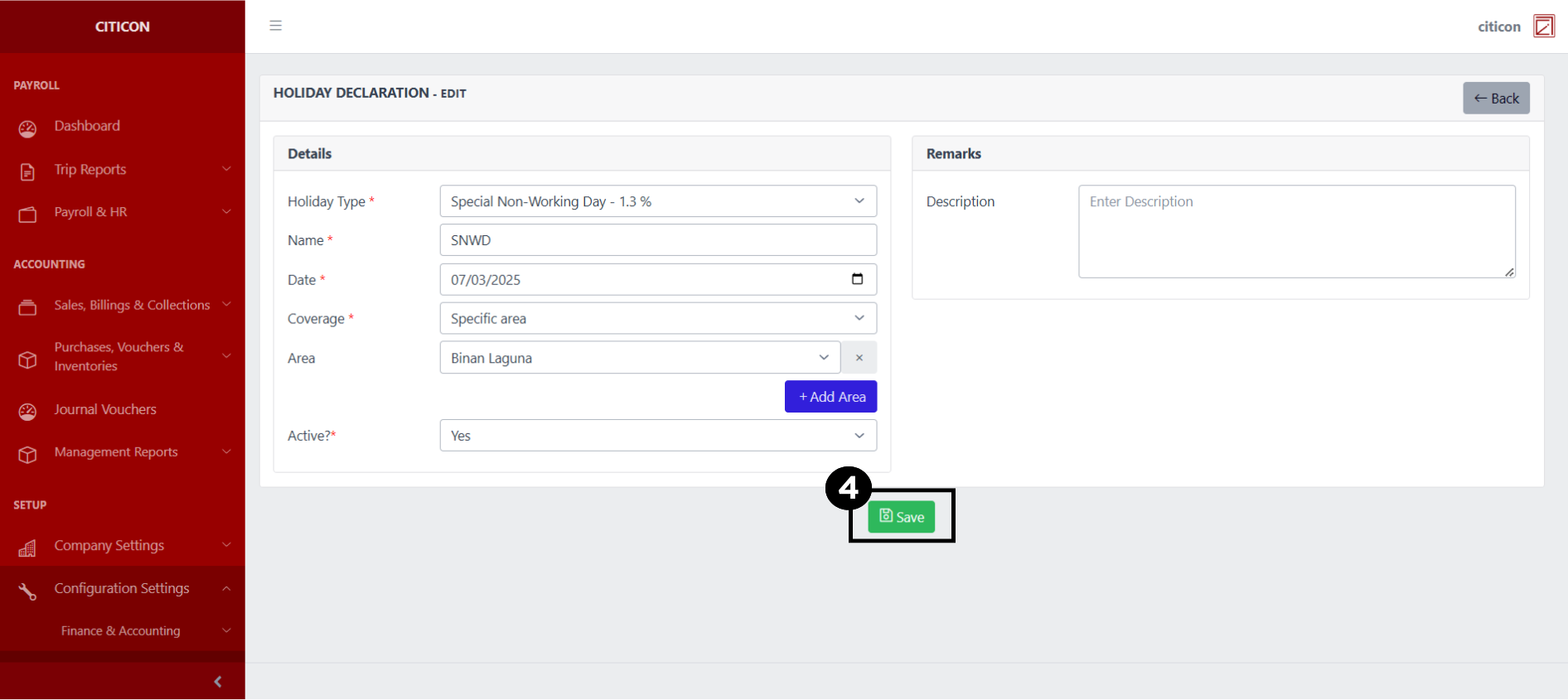
- Select the Save button to save the changes you have made.
Explore Citicon Payroll and Accounting System: Overtime Configuration