Units Configuration
Welcome to Citicon Payroll and Accounting Systems Configuration for Units. This configuration module allows you to define and manage measurement or item units used throughout the system. Keeping this data accurate and up to date supports clarity and consistency when assigning units across records.
Key Purposes
1. Standardized Unit Management: Define standard units used in transactions, inventory, and reporting to maintain uniformity and avoid confusion.
2. Easy Data Entry: Quickly add, edit, or deactivate units using a straightforward interface.
3. Customization: Each unit can have a unique name and description, allowing you to tailor them to your organization's operational language.
4. Status Control: Easily manage the active or inactive state of a unit to keep only relevant units available for use.
5. Data Consistency: Supports standardized use of measurement units across the system to ensure data accuracy and uniform reporting.
Units Module User-Manual
This section provides details, and set-by-step instructions to access, view, and update the Units data stored in the system.
Index Page
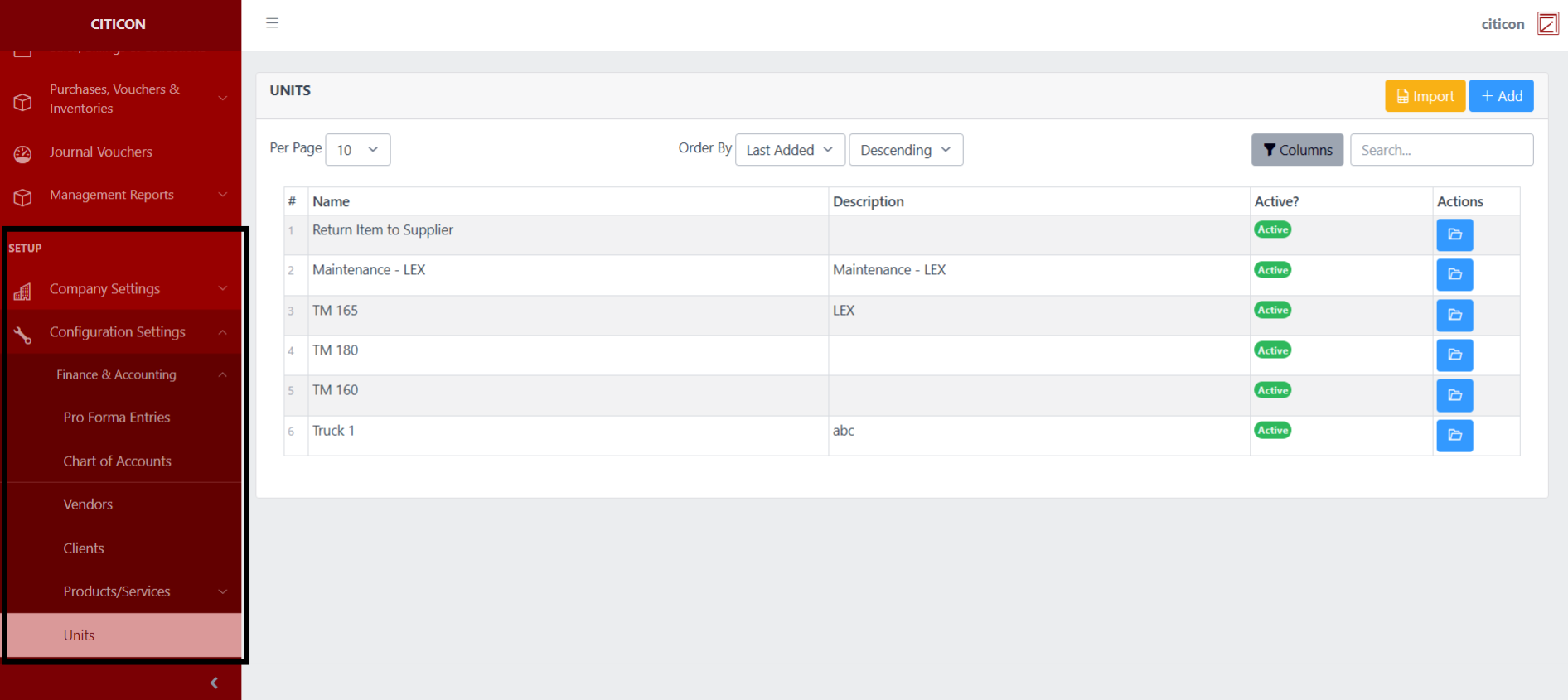
To access the Units Configuration. Go to Setup, select Configuration Settings, select Finance & Accounting, then select Units.
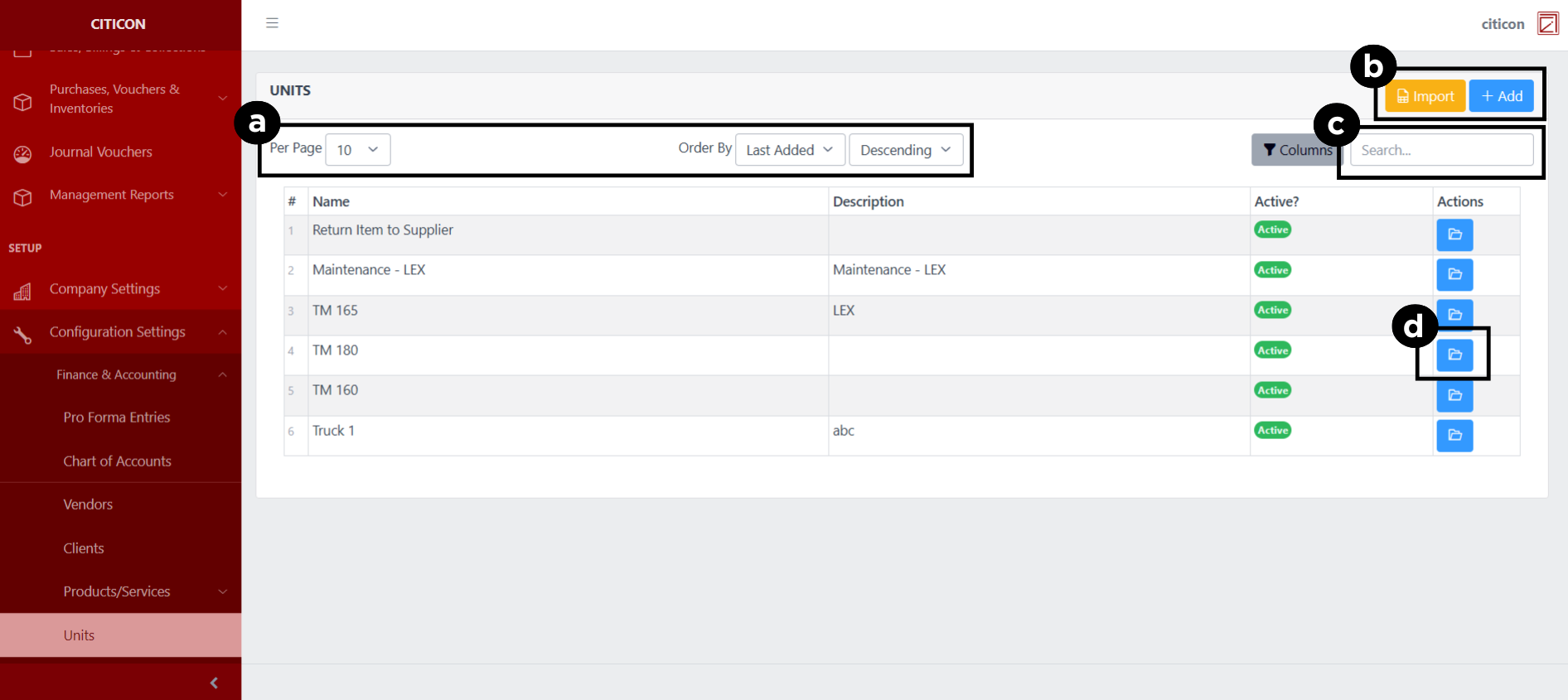
a. Adjust the paging, ordering, and sorting of the Units Page here.
b. Select the respective button to either Import or Add data.
c. Search for specific record details using the search bar.
d. View or Edit a record by selecting the folder button.
Import Records
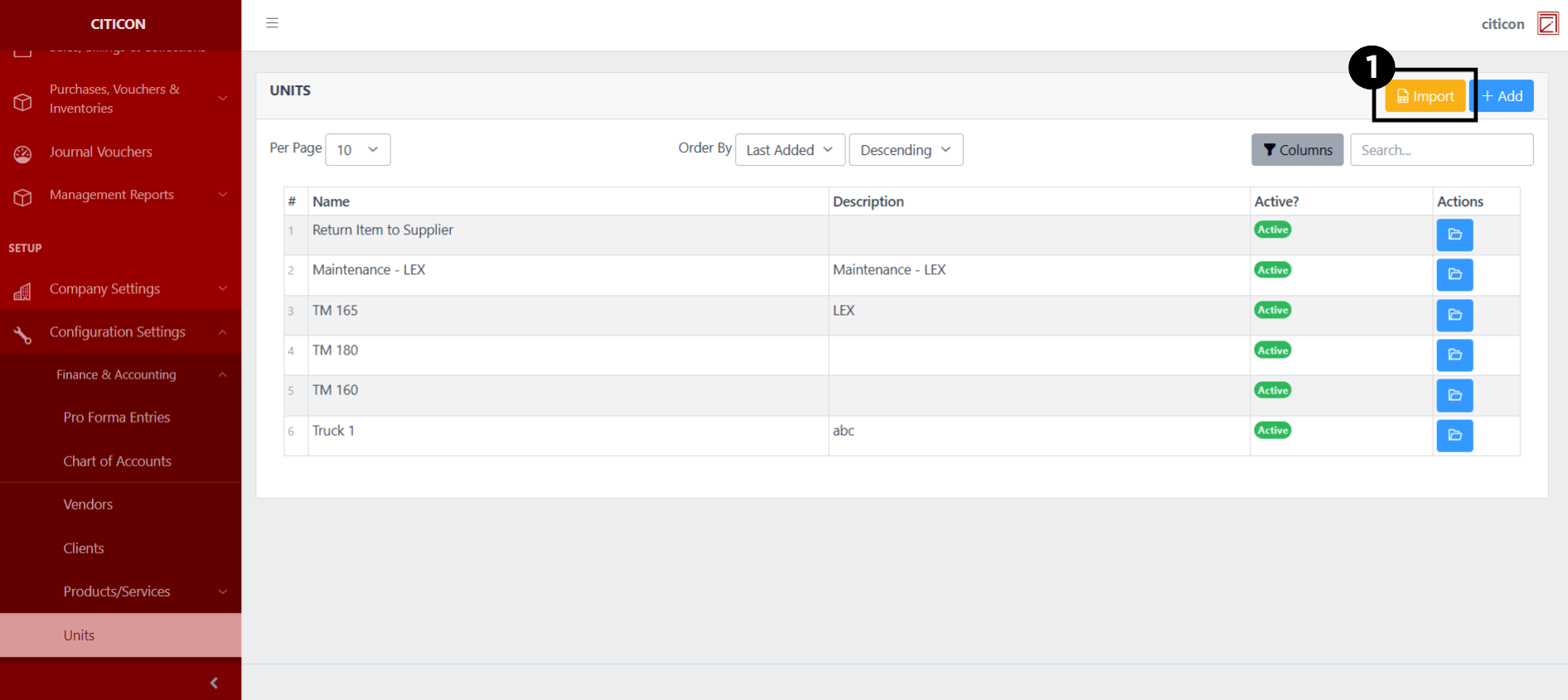
- Select the Import button to import new records.
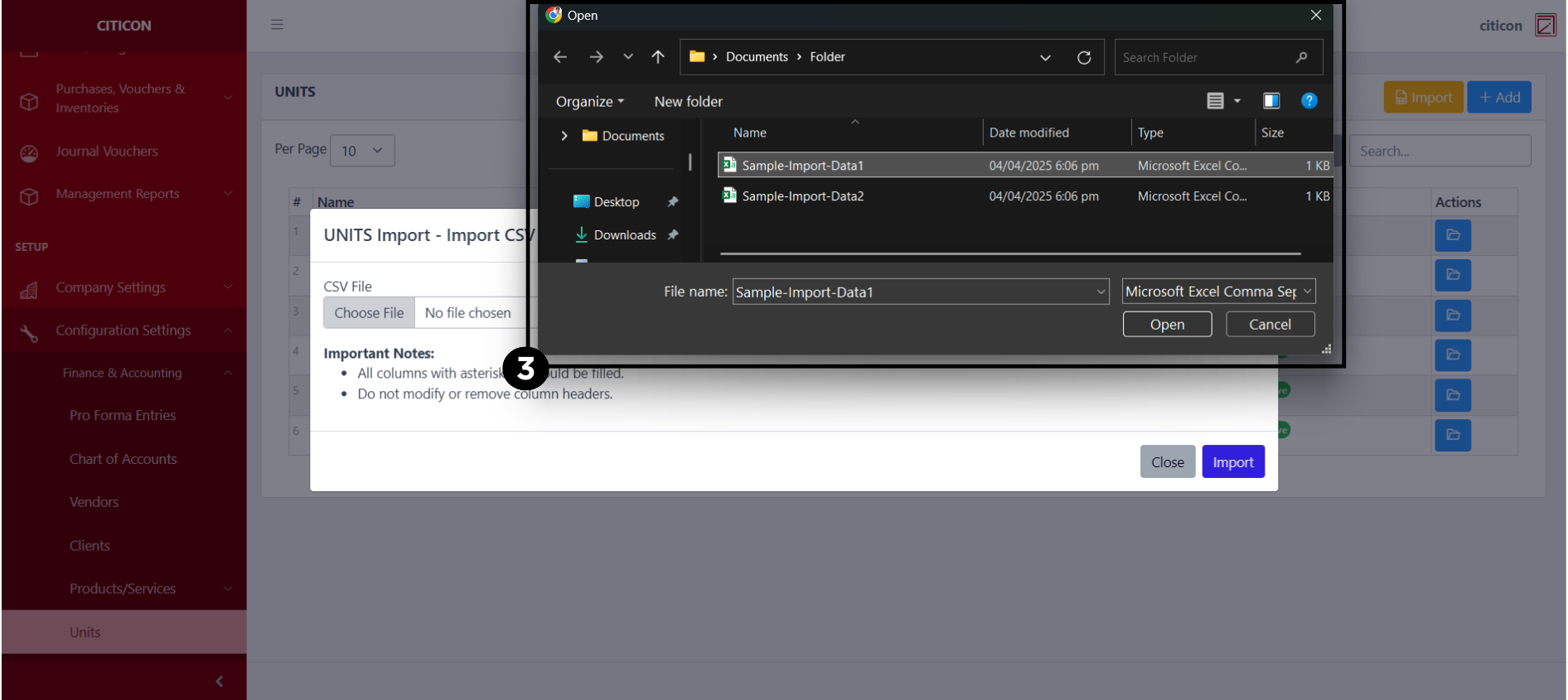
- Select the Choose File button.
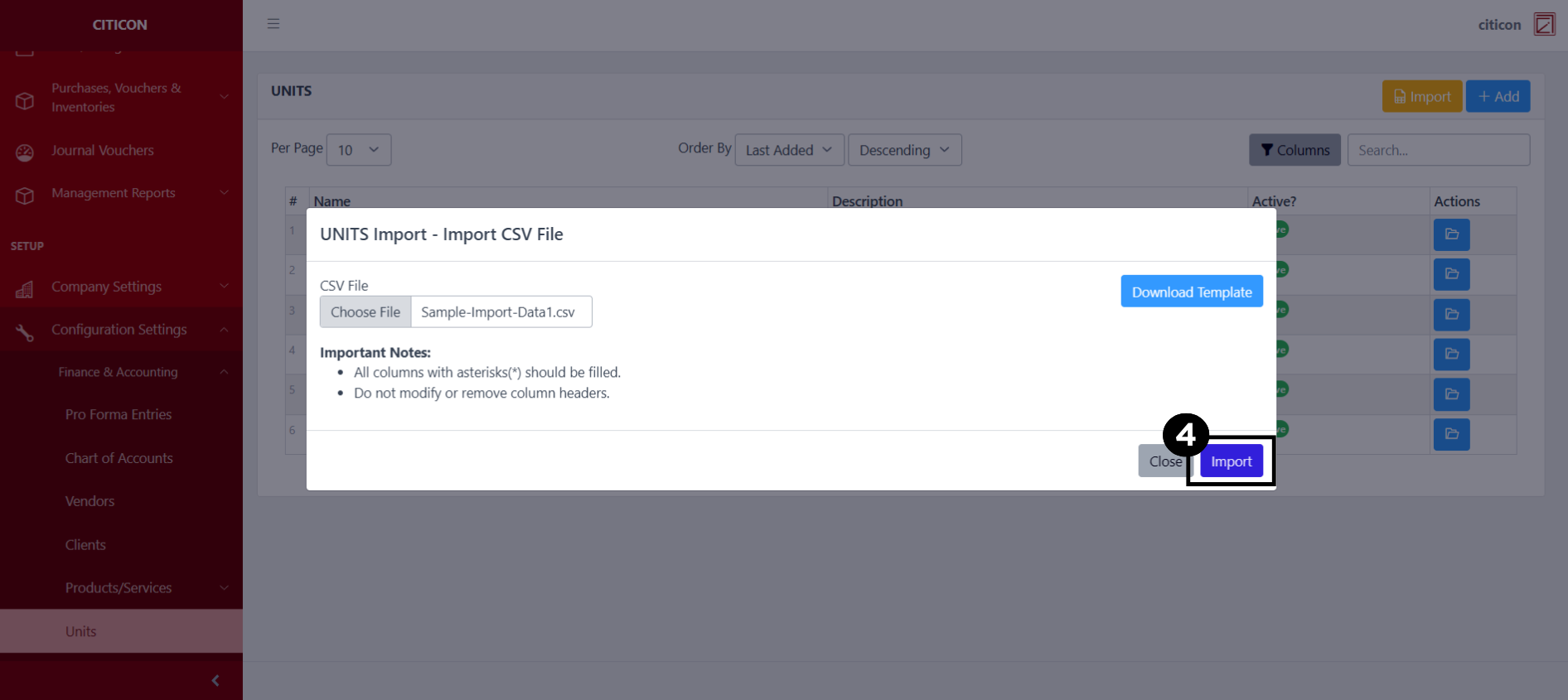
Select the Download Template button to view the required format for imported data, including the number of columns, and mandatory fields to be filled.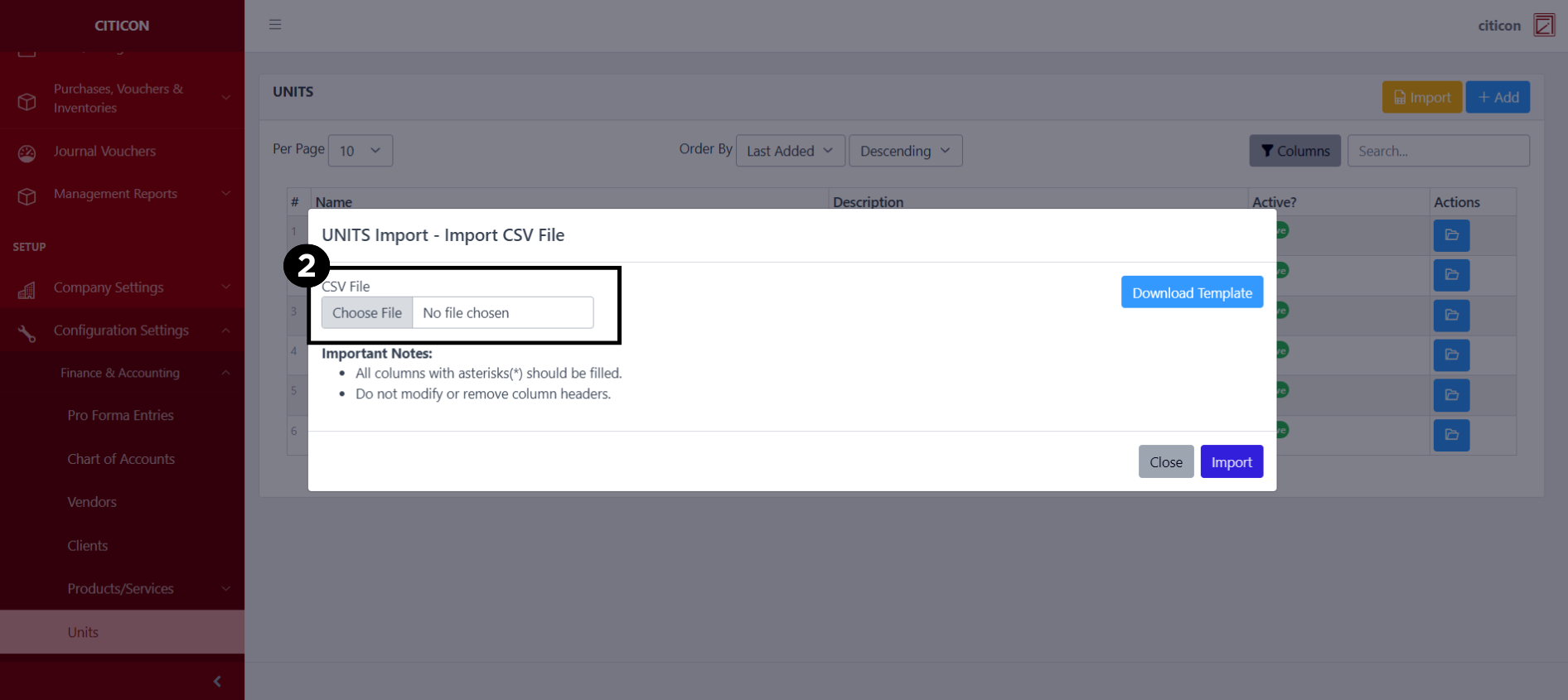
- From your local storage, select the file you want to import, then select the Open button.
- Select the Import button.
Add Records
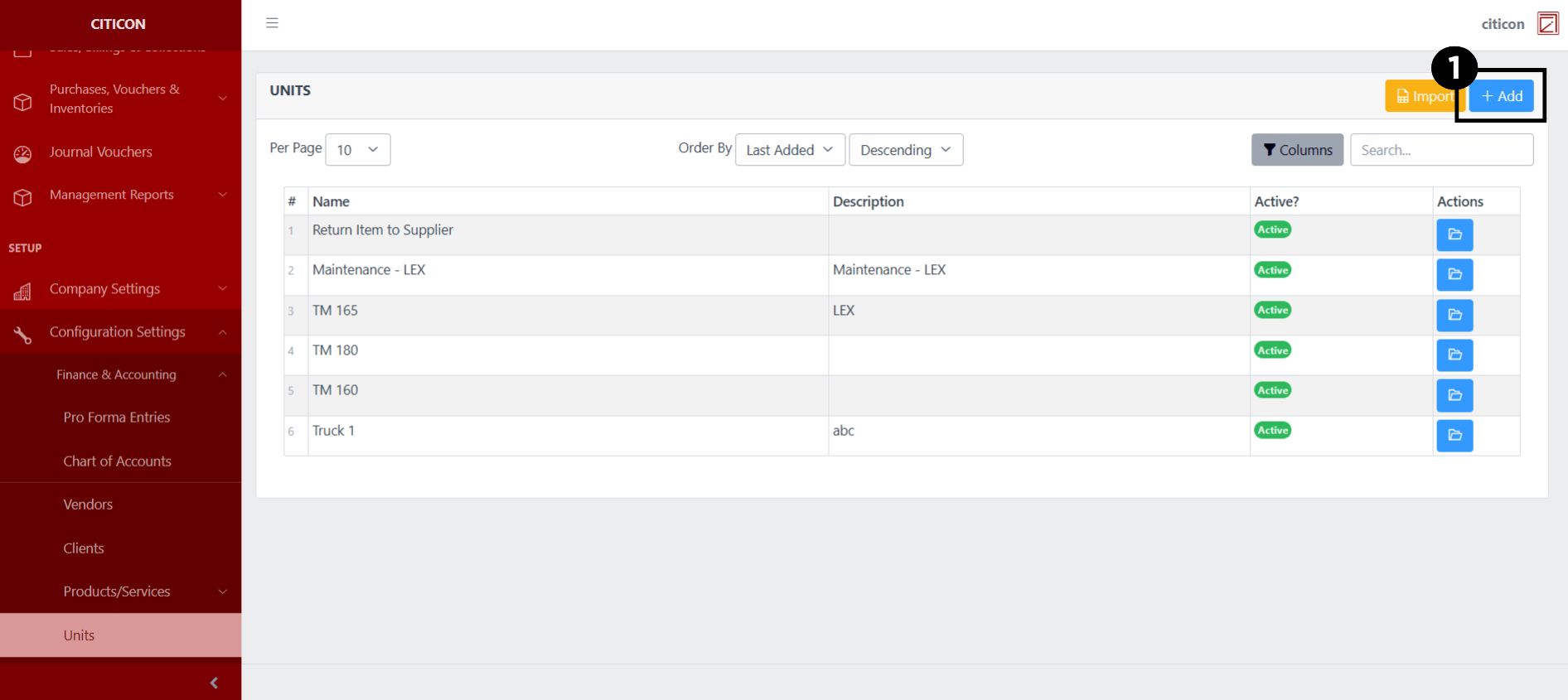
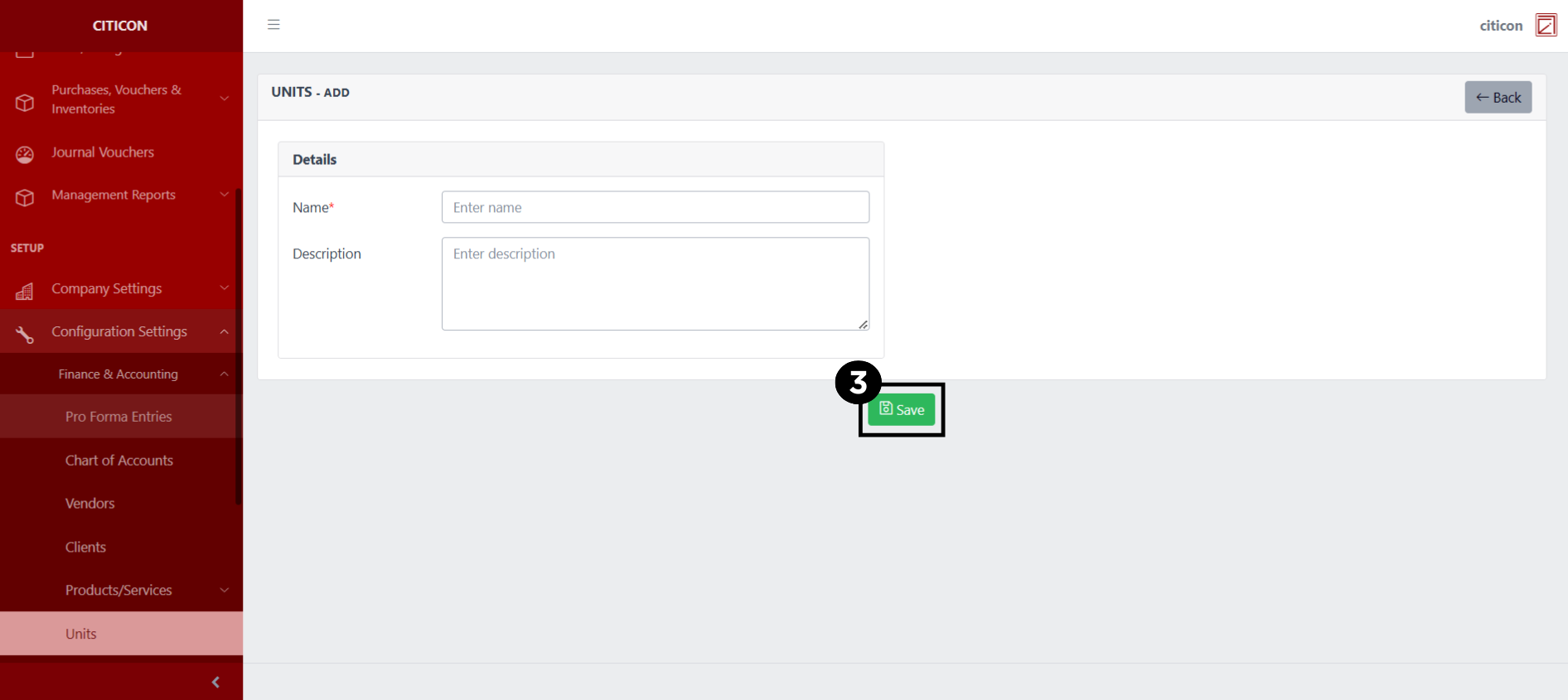
- Select the Add button to add a new record.
- Input the necessary details for your new record.
All fields that has an asterisk (*) are required to be filled up.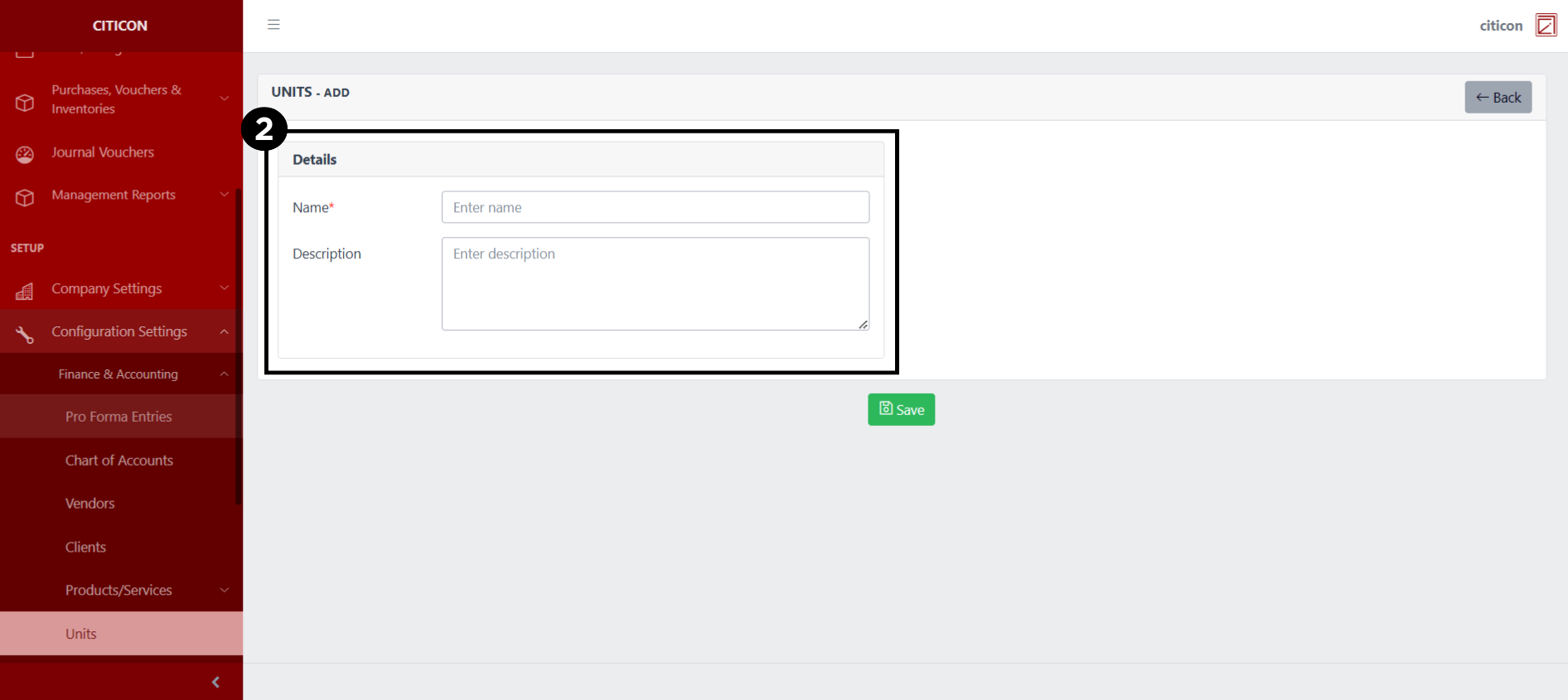
- Select the Save button to save your new record.
Show Records
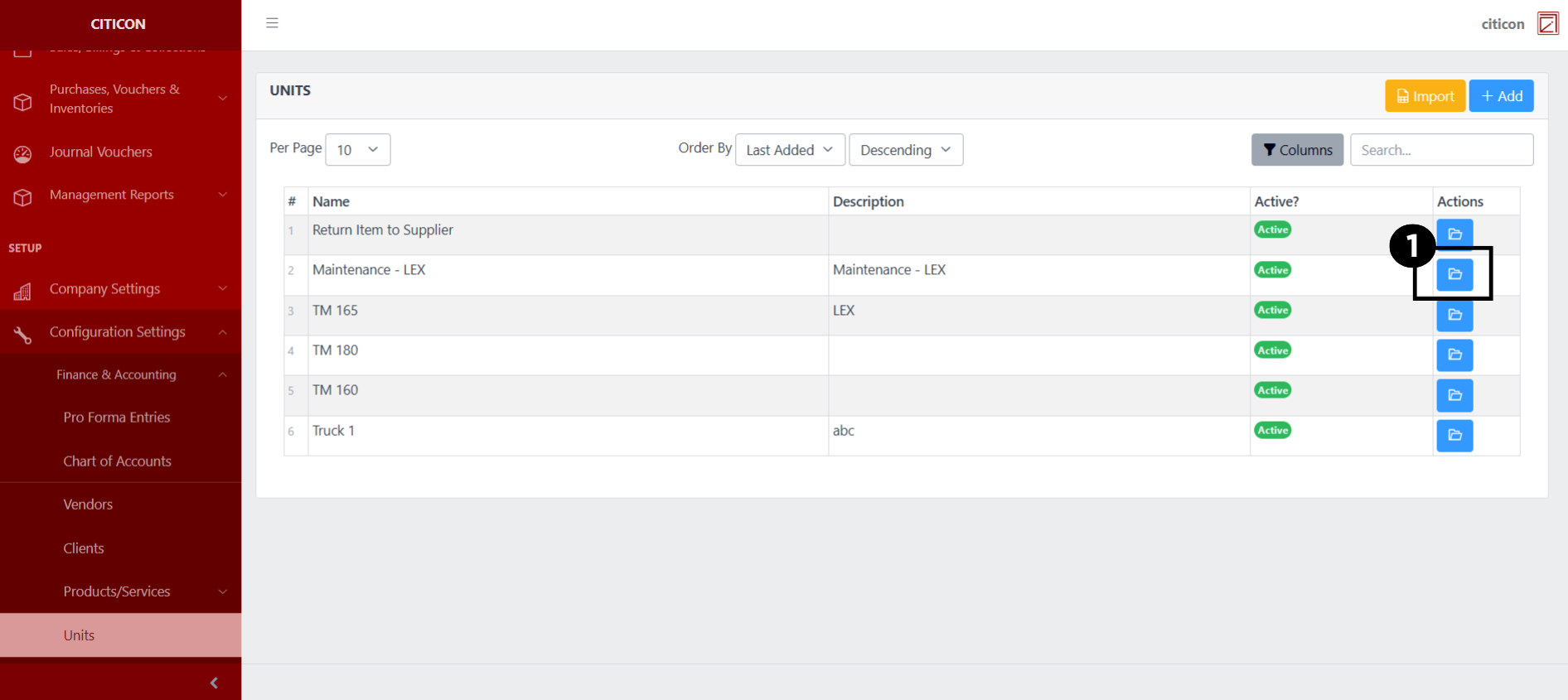
- Select the folder button to view a record.
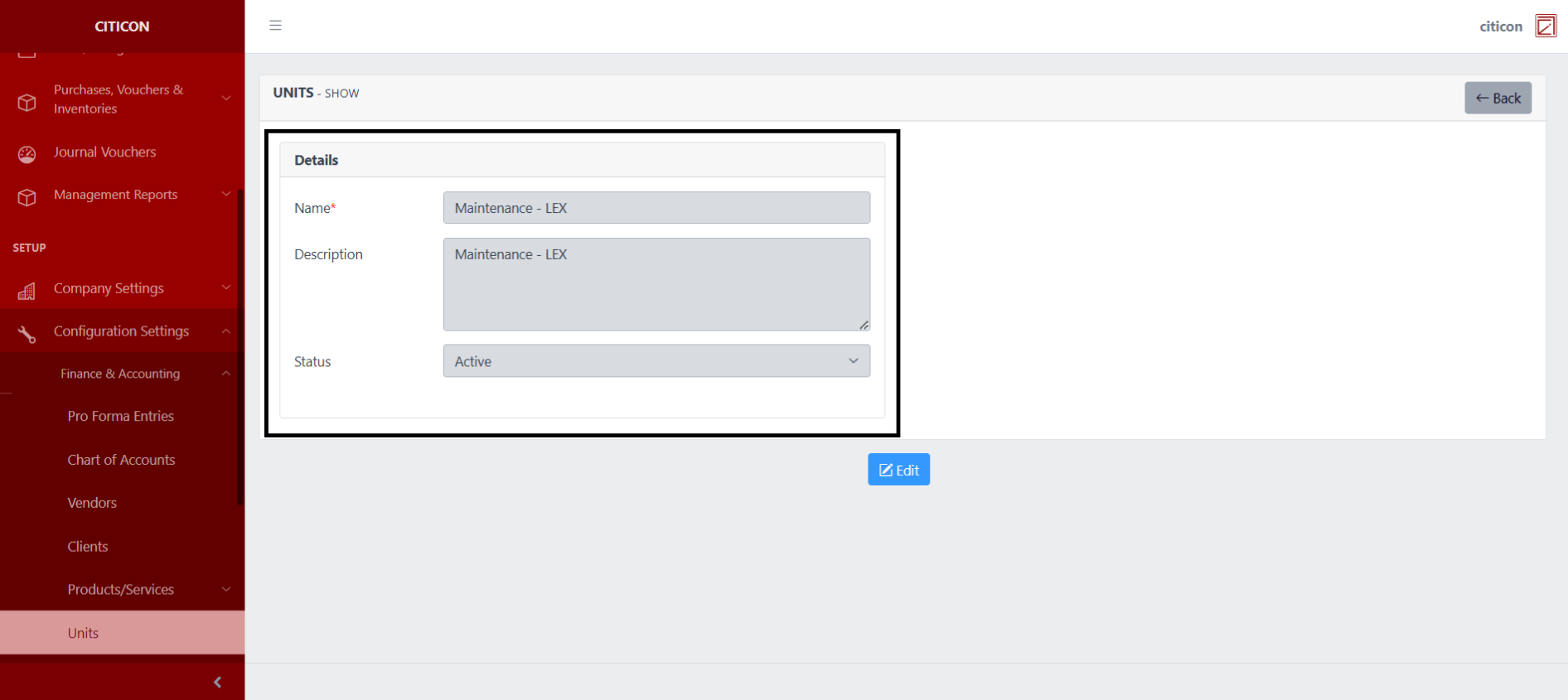
 Here you can view more specific details on the record that you selected.
Update Records
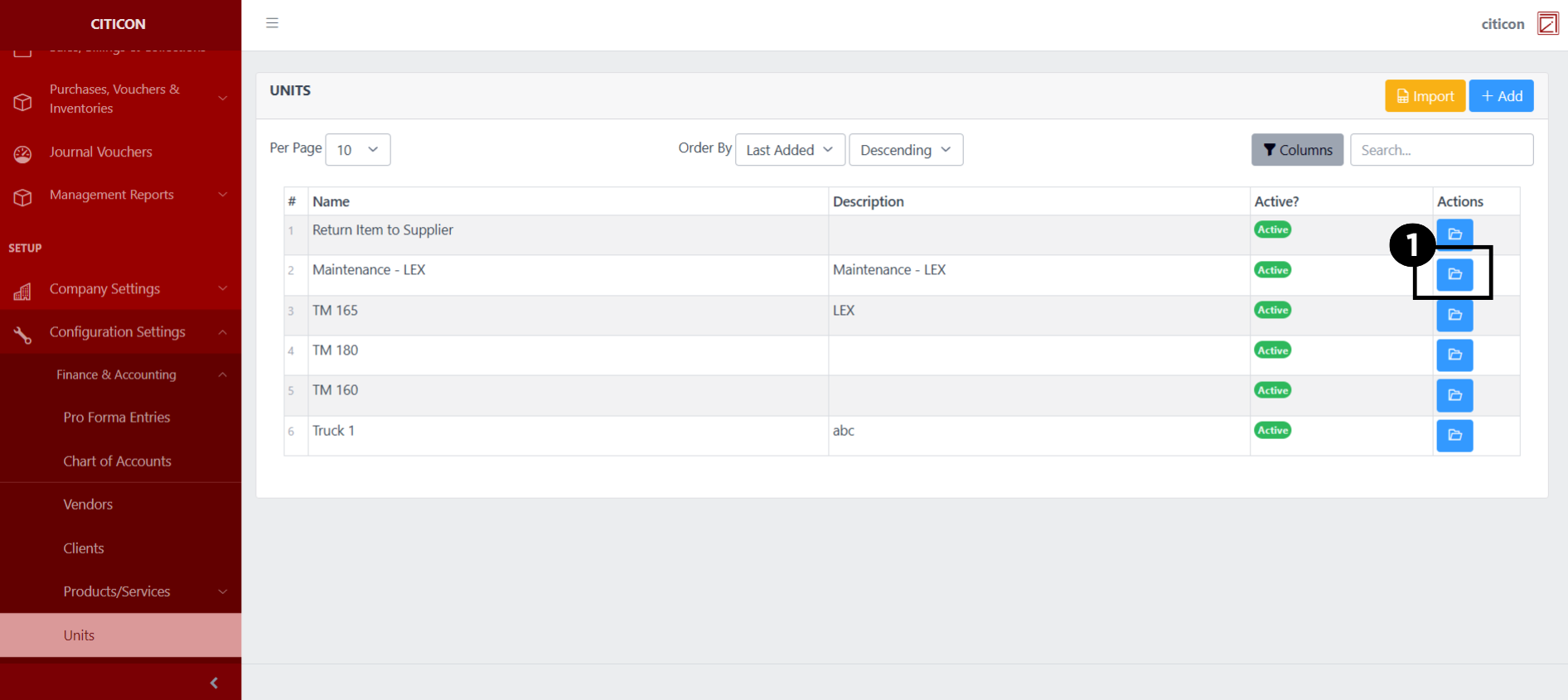
- Select the folder button of the record which you want to edit.
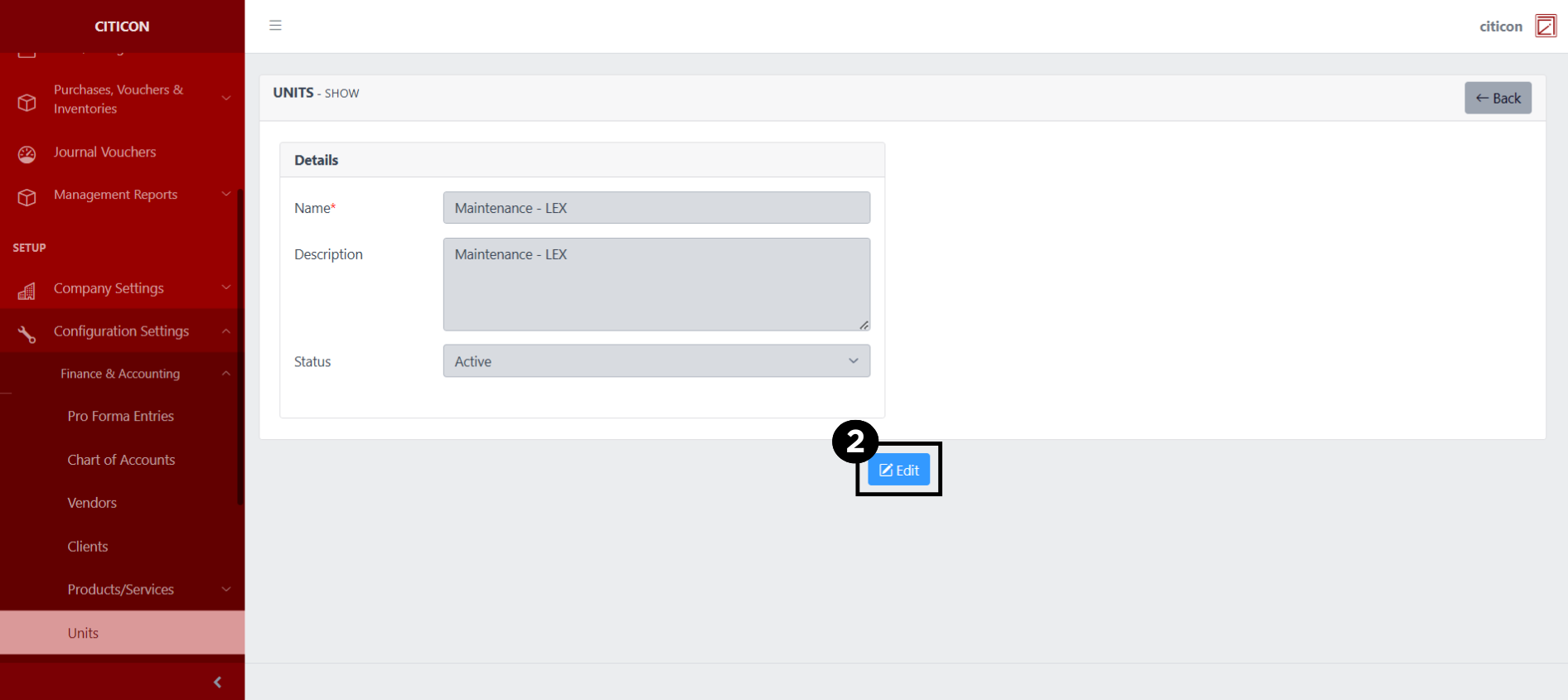
- Select the Edit button to update the details of the record.
- Select a detail section which you want to edit, and enter the necessary changes.
All fields with an asterisk (*) are required to be filled up.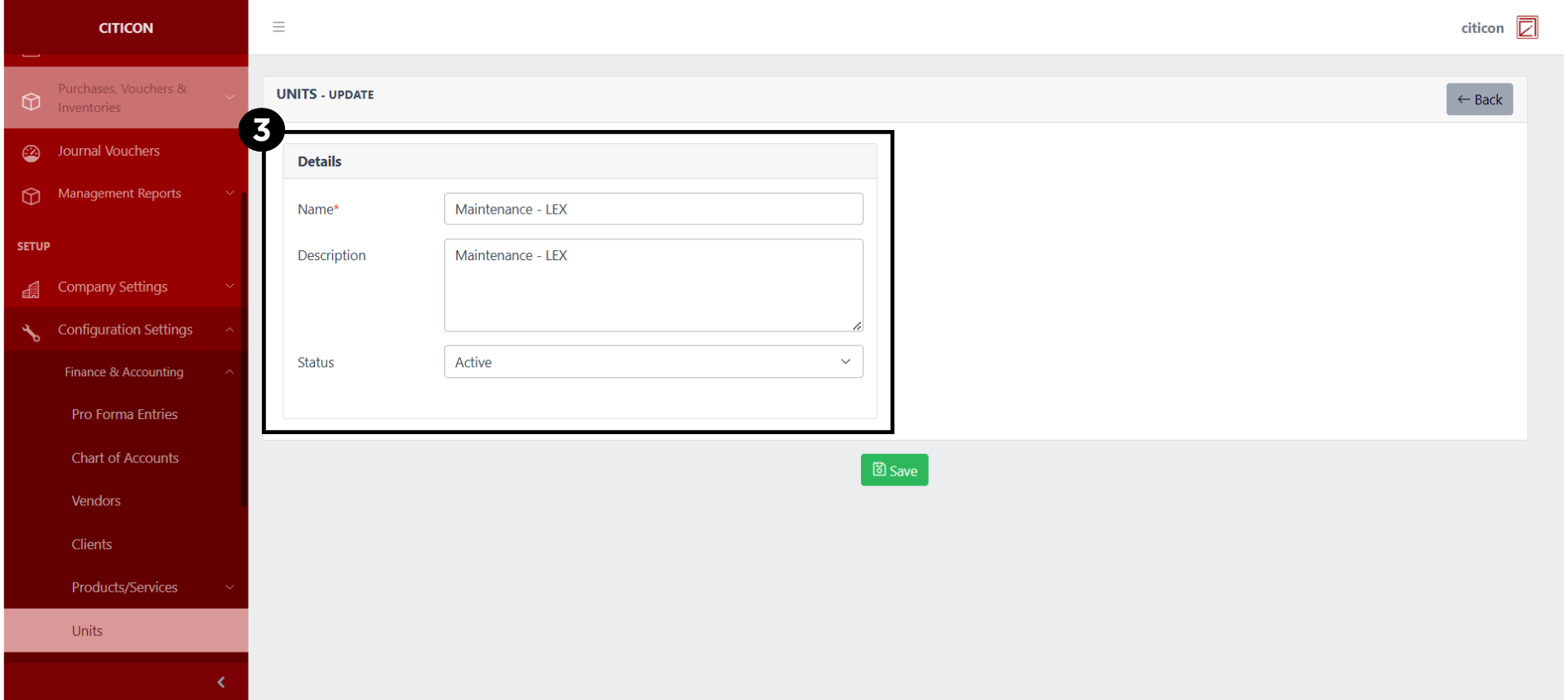
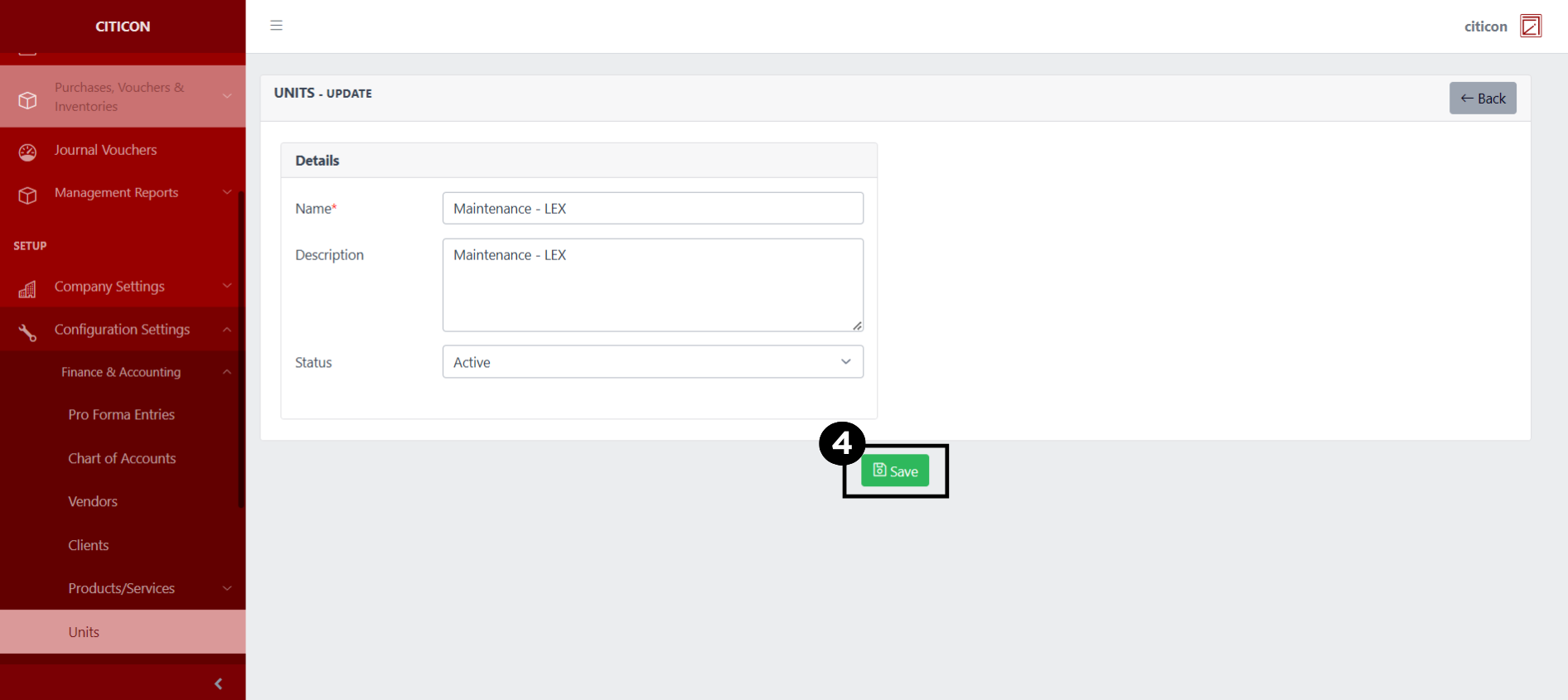
- Select the Save button to save the changes you have made.
Explore Citicon Payroll and Accounting System: Projects Configuration