Projects Configuration
Welcome to Citicon Payroll and Accounting Systems Configuration for Projects. This module helps you organize, track, and manage projects related to your business operations, ensuring accuracy in assignments and financial tracking.
Key Purposes
1. Centralized Project Tracking: Maintain a complete list of ongoing or past projects with relevant identifiers and descriptions.
2. Geographical and Operational Clarity: Store details such as project location and scope, helping departments and users identify each project.
3. Flexible Setup: Easily update or deactivate project entries as needed.
4. Clear Identification: Assign a unique code and name to each project for easy referencing.
5. Streamlined Project Management: Supports accurate tracking of project-related transactions and documentation.
Projects Module User-Manual
This section provides details, and set-by-step instructions to access, view, and update the Projects data stored in the system.
Index Page
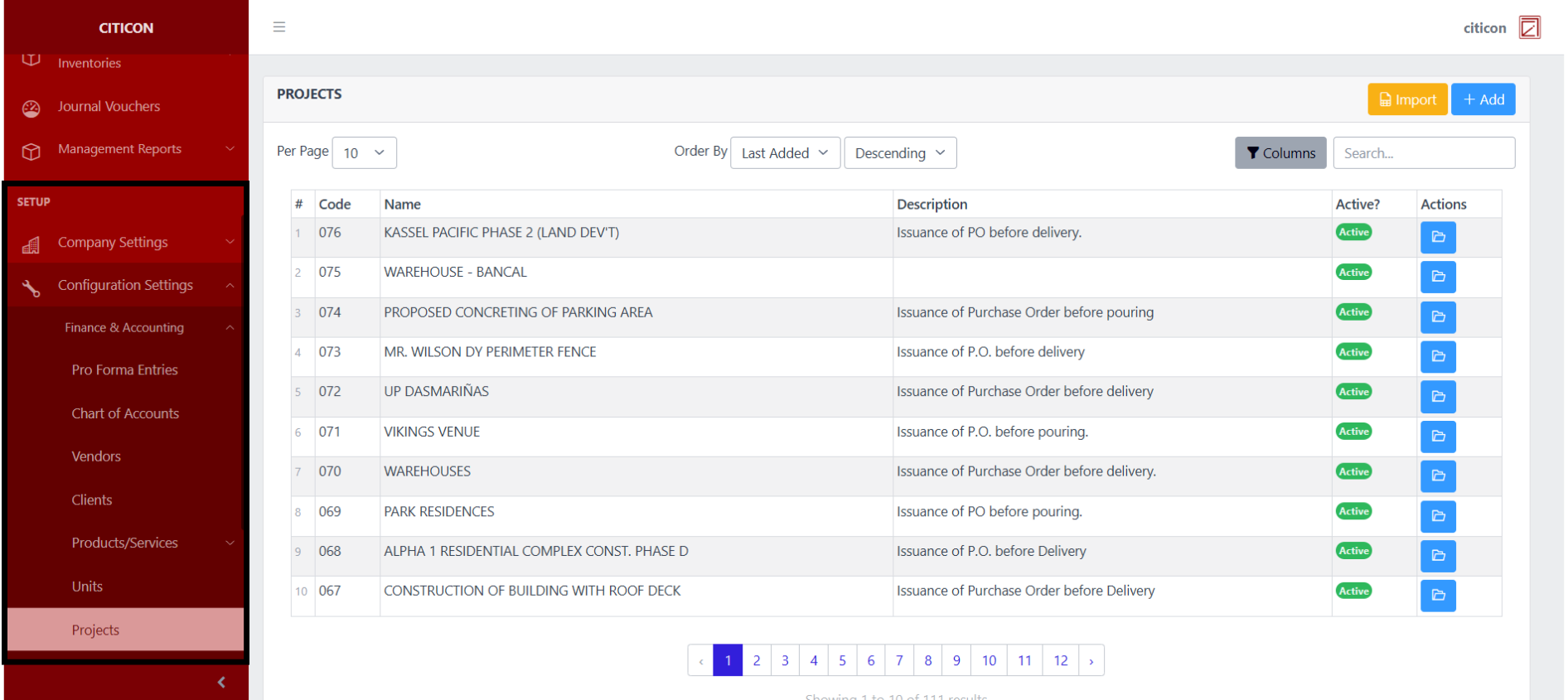
To access the Projects Configuration. Go to Setup, select Configuration Settings, select Finance & Accounting, then select Projects.
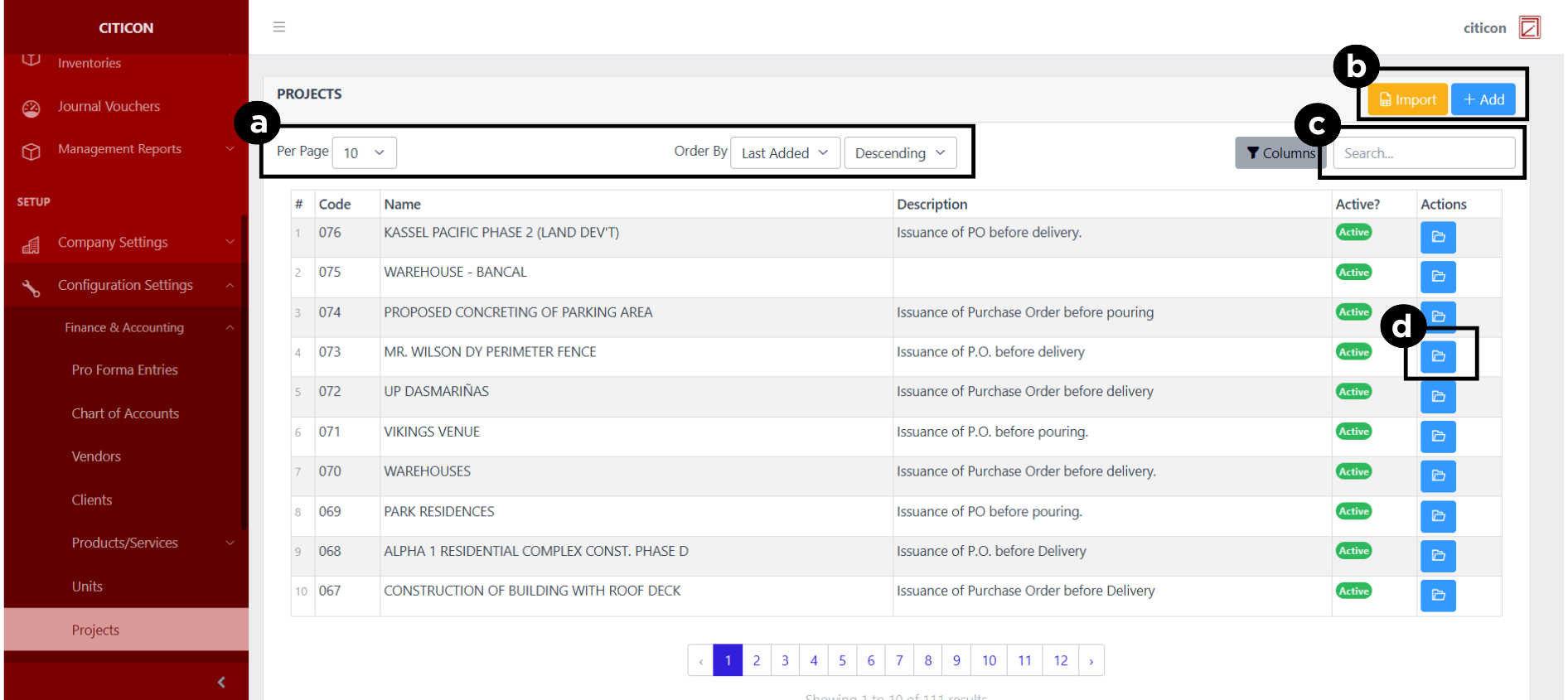
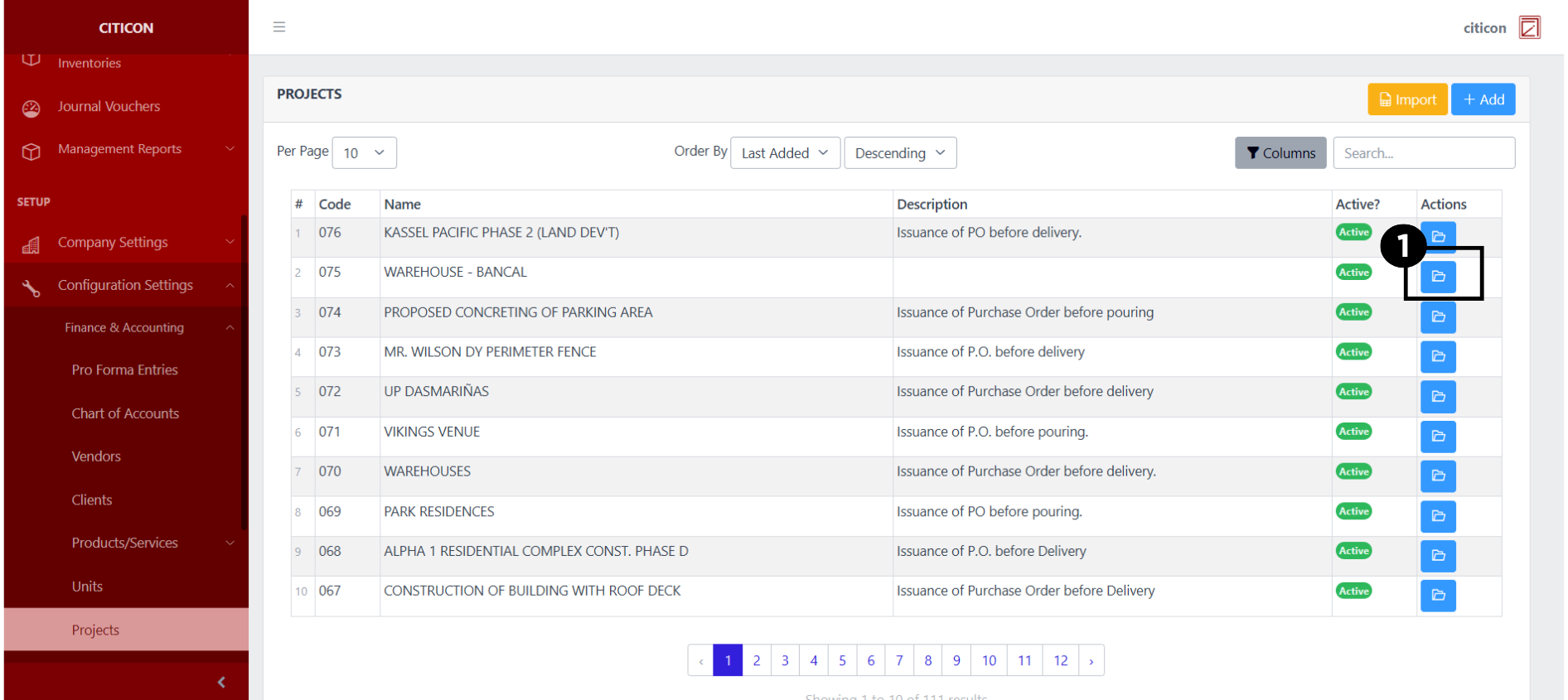
a. Adjust the paging, ordering, and sorting of the Projects Page here.
b. Select the respective button to either Import or Add data.
c. Search for specific record details using the search bar.
d. View or Edit a record by selecting the folder button.
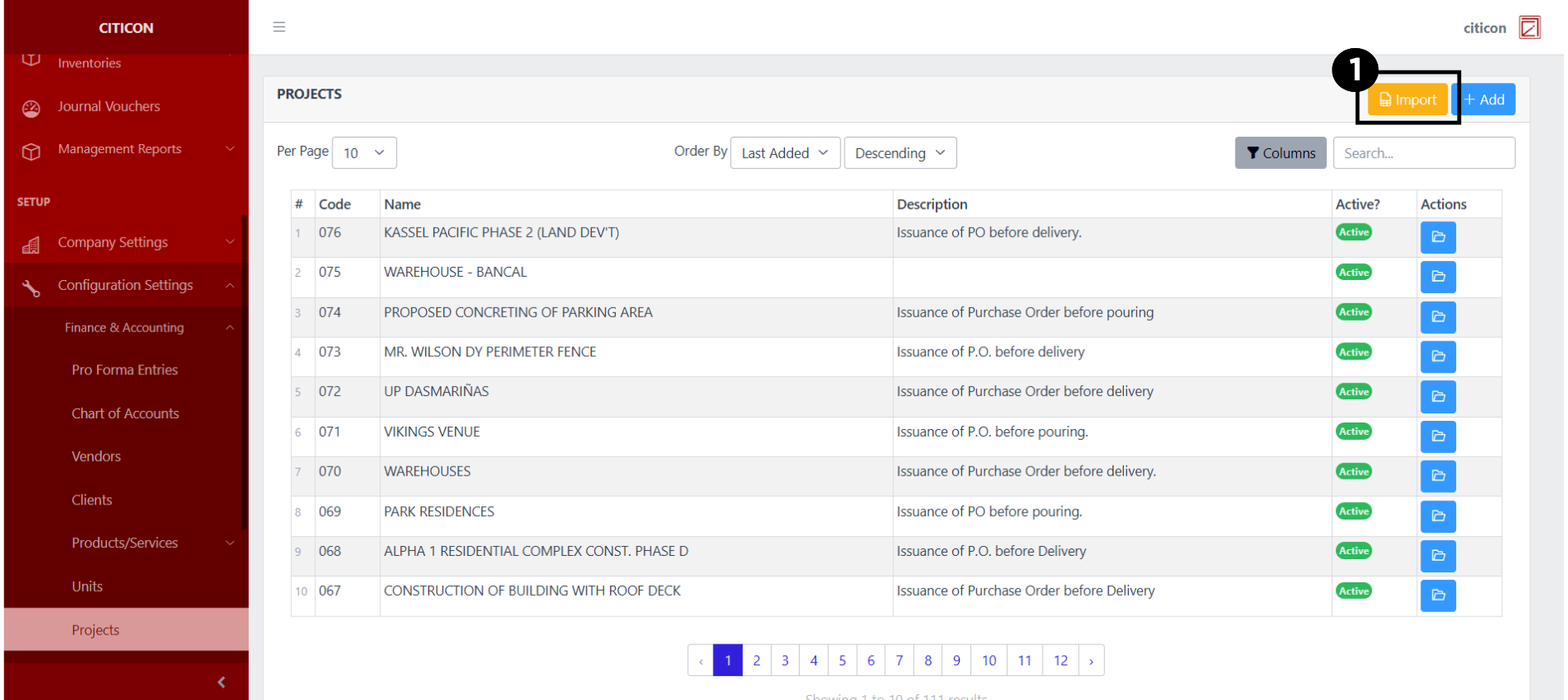
Import Records
- Select the Import button to import new records.
- Select the Choose File button.
Select the Download Template button to view the required format for imported data, including the number of columns, and mandatory fields to be filled.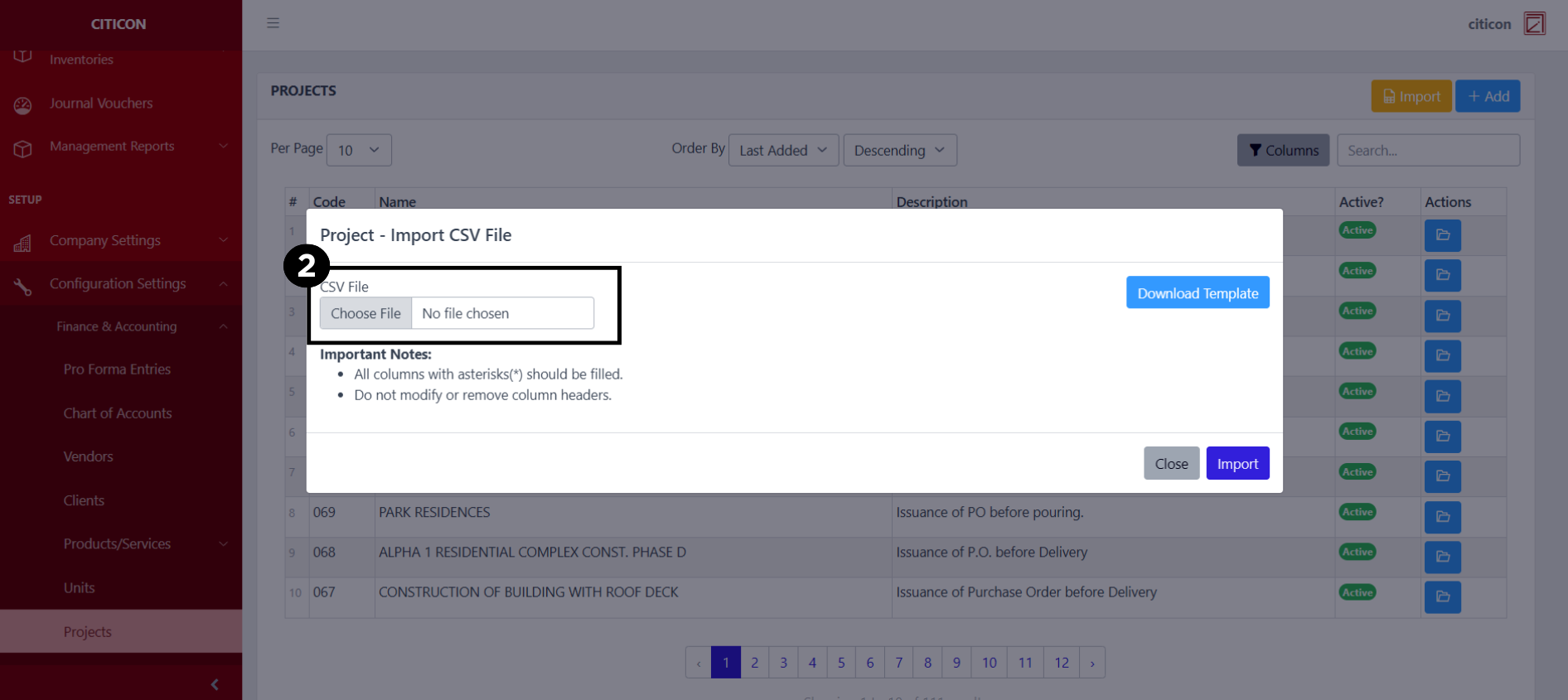
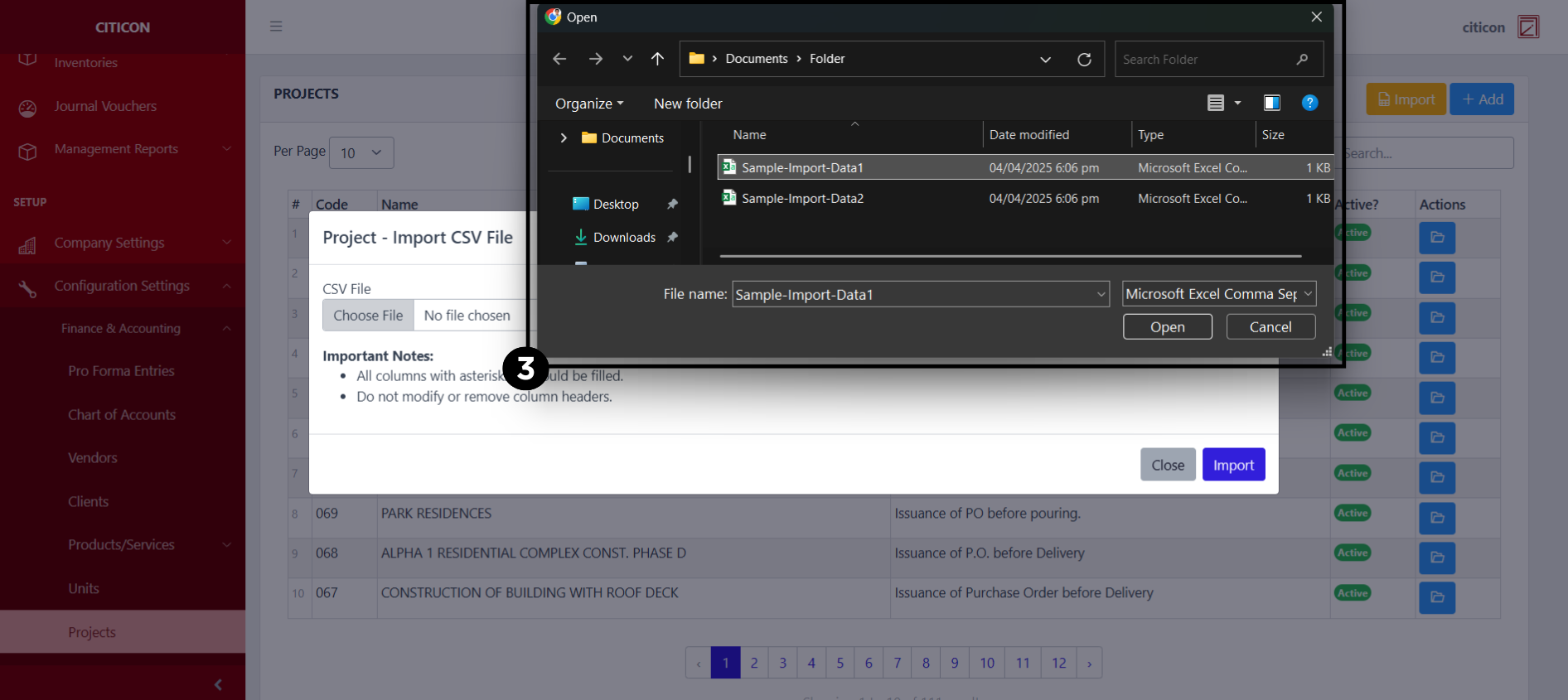
- From your local storage, select the file you want to import, then select the Open button.
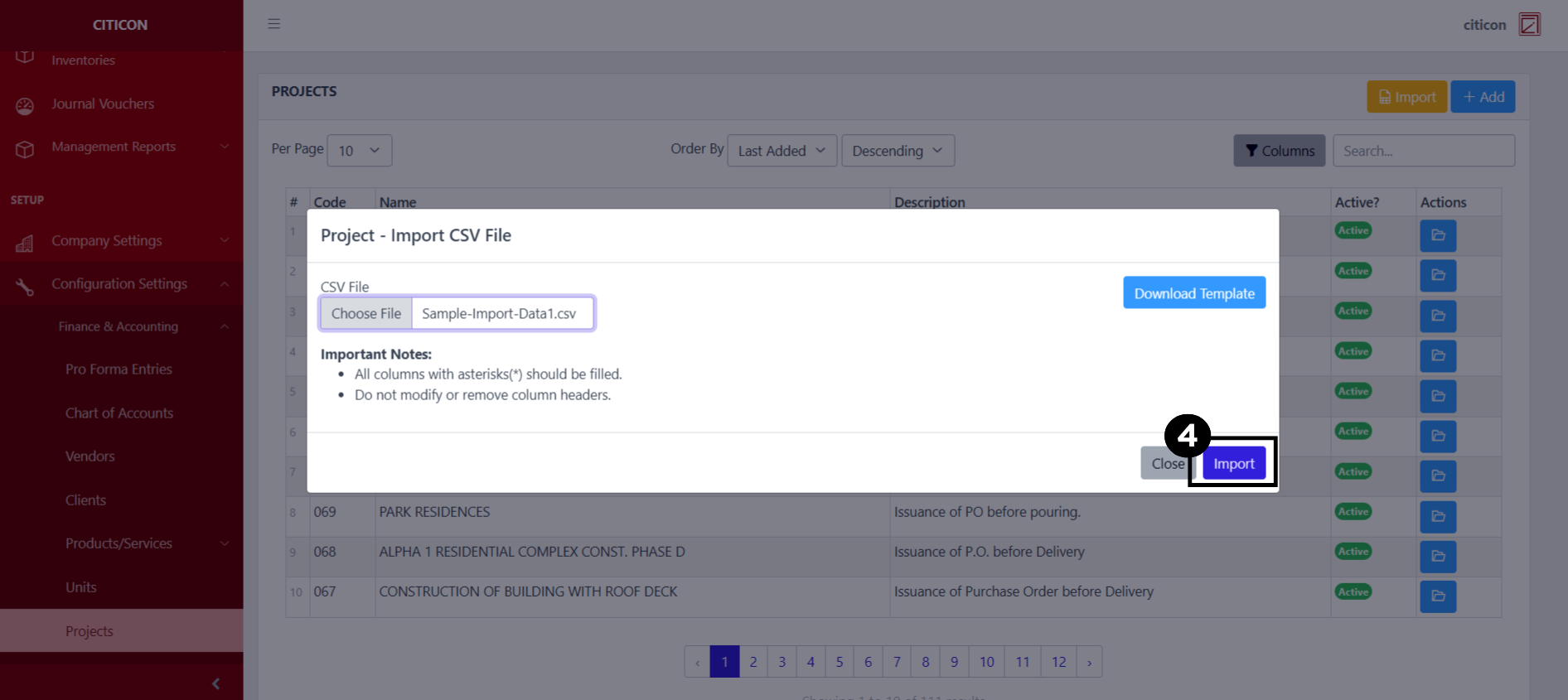
- Select the Import button.
Add Records
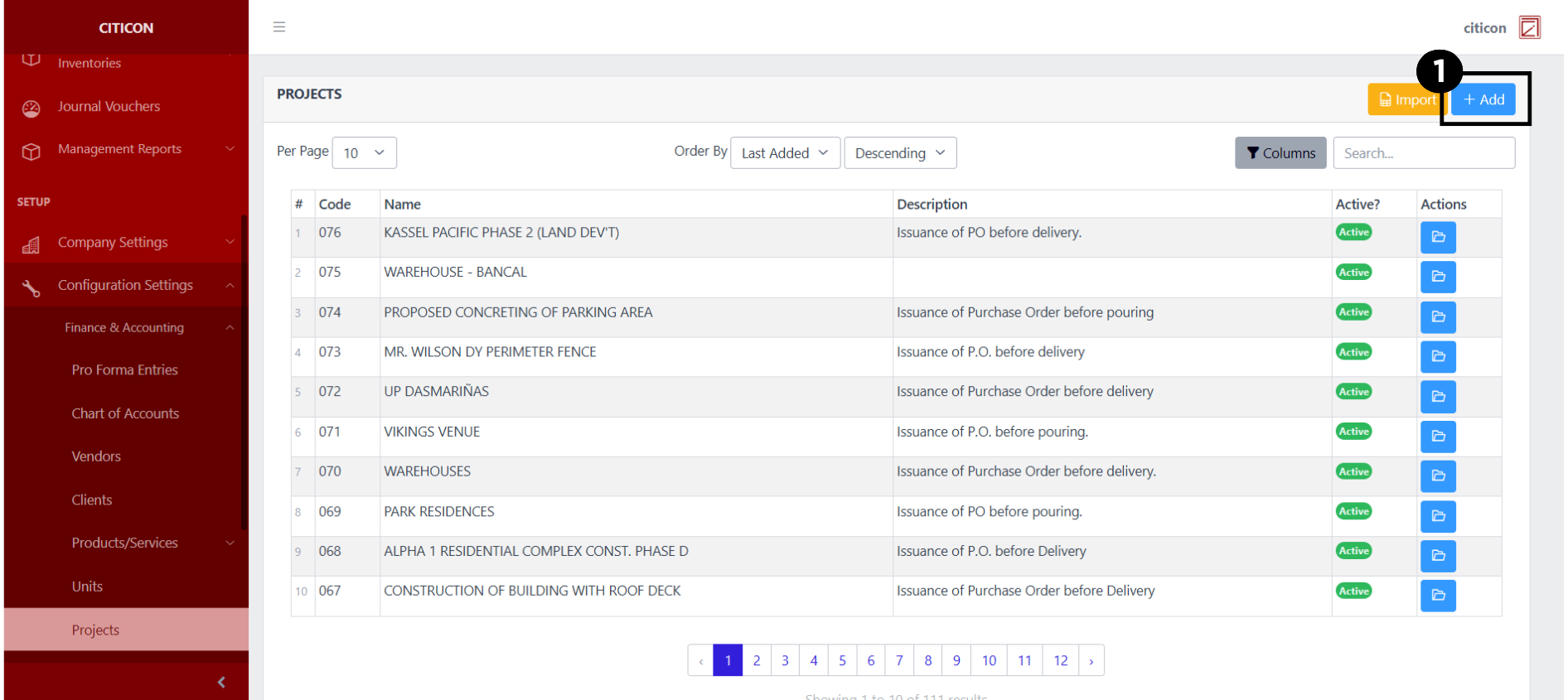
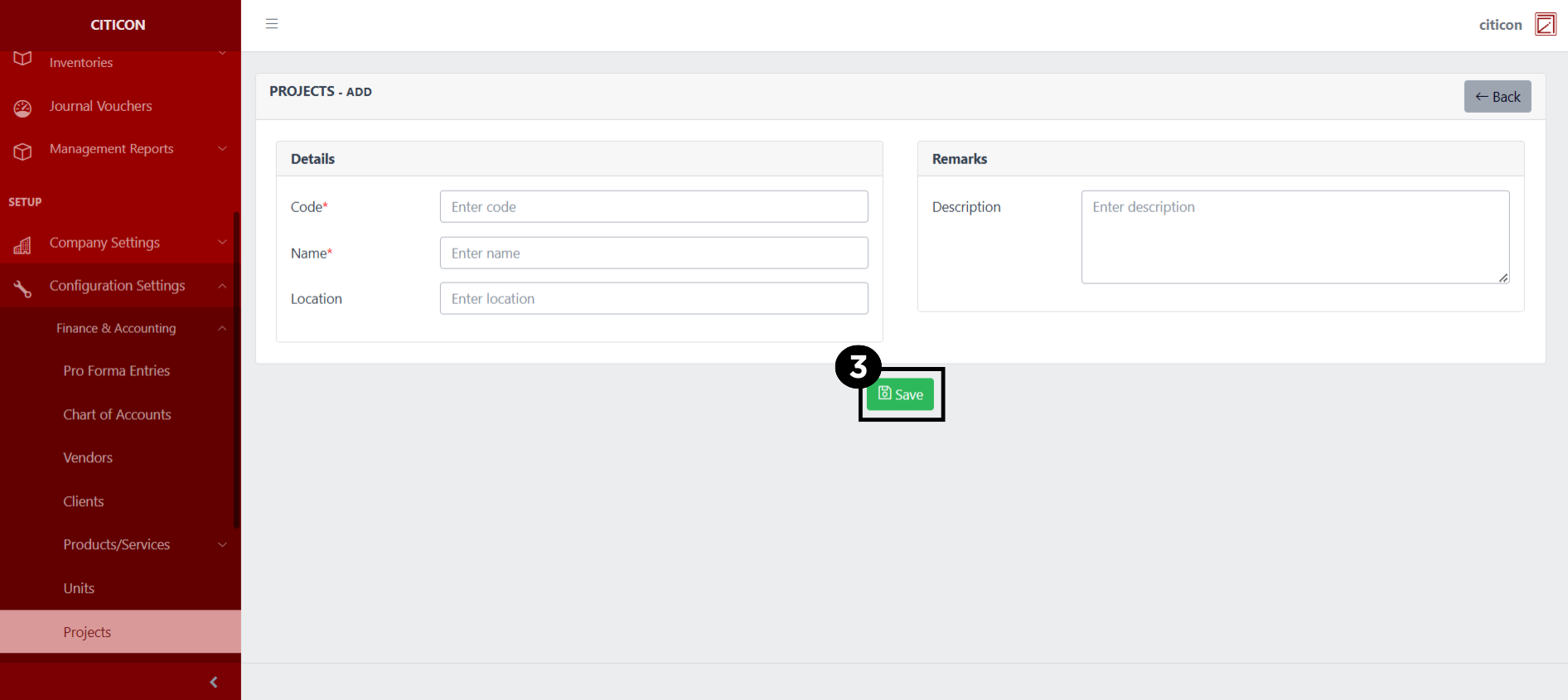
- Select the Add button to add a new record.
- Input the necessary details for your new record.
All fields that has an asterisk (*) are required to be filled up.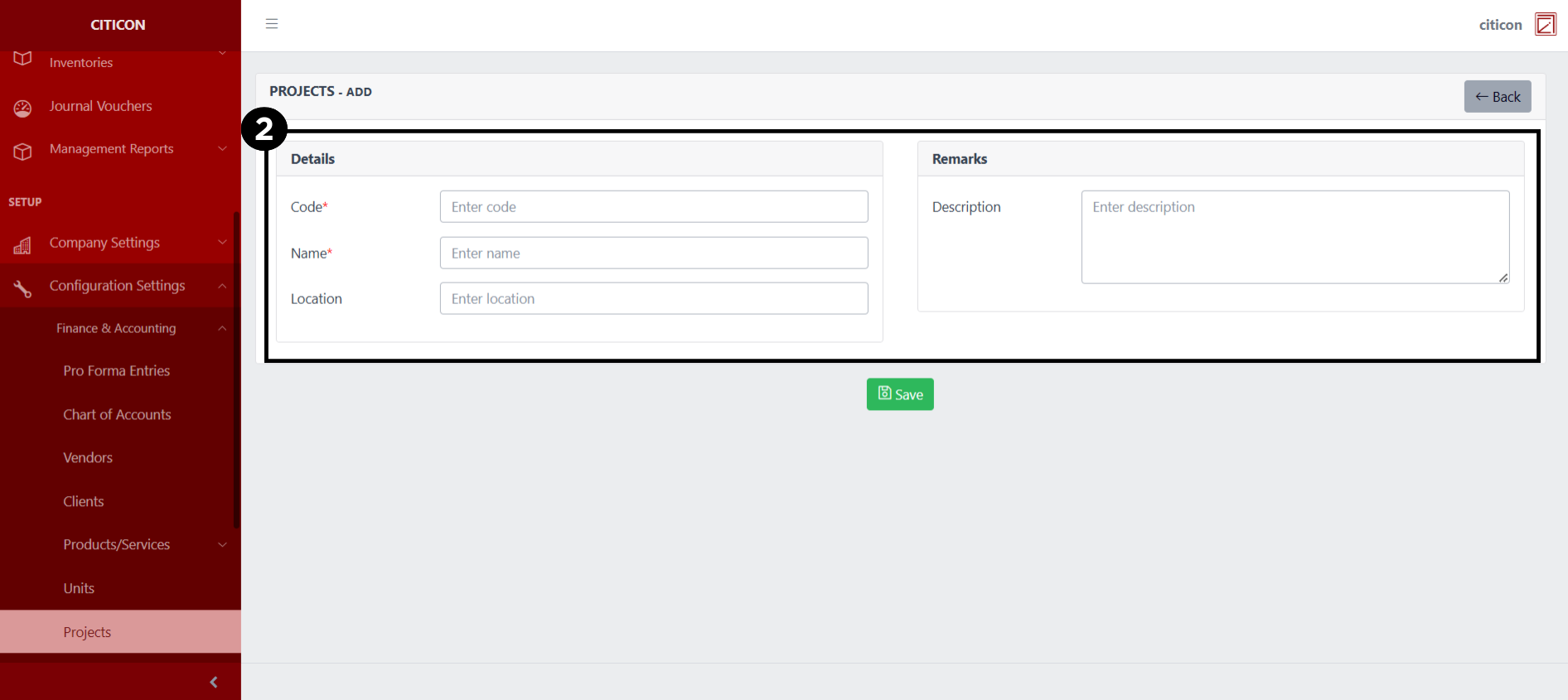
- Select the Save button to save your new record.
Show Records
- Select the folder button to view a record.
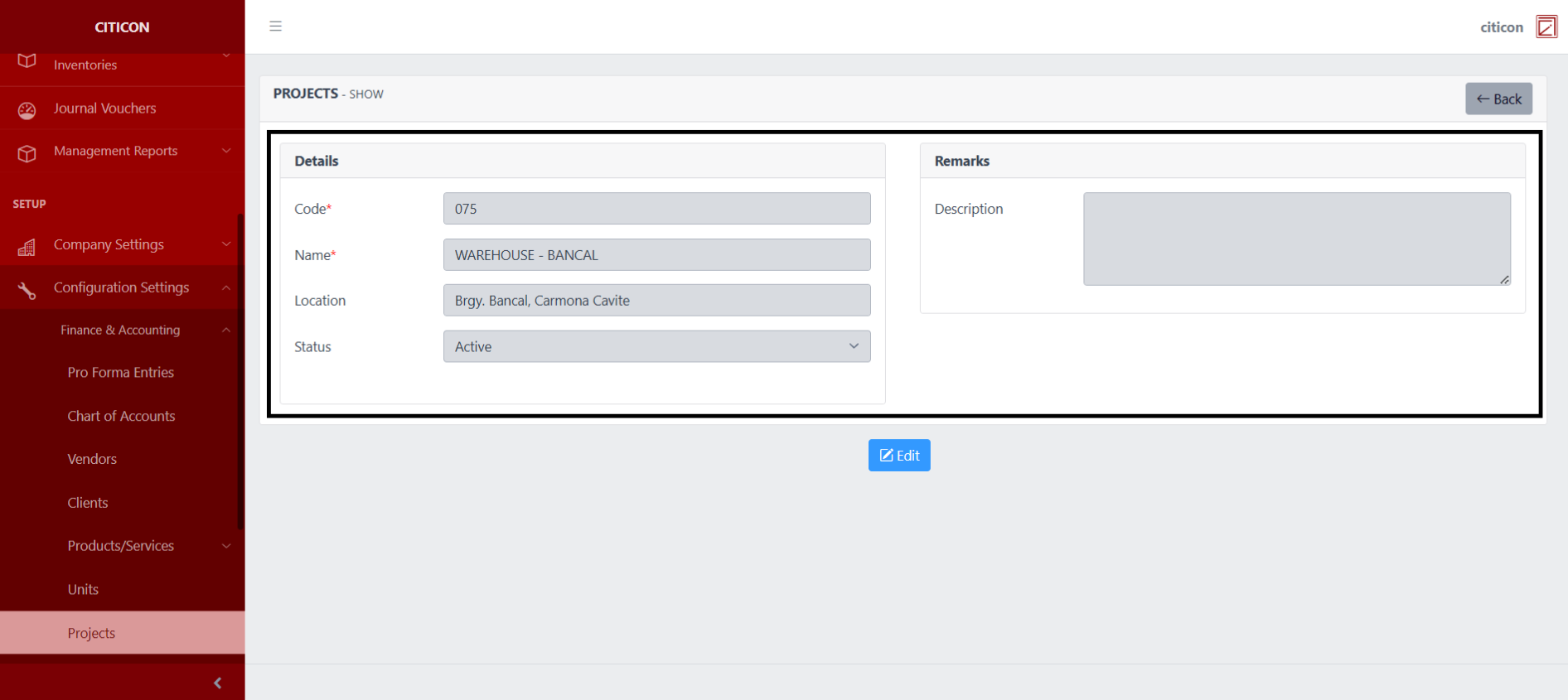
 Here you can view more specific details on the record that you selected.
Update Records
- Select the folder button of the record which you want to edit.
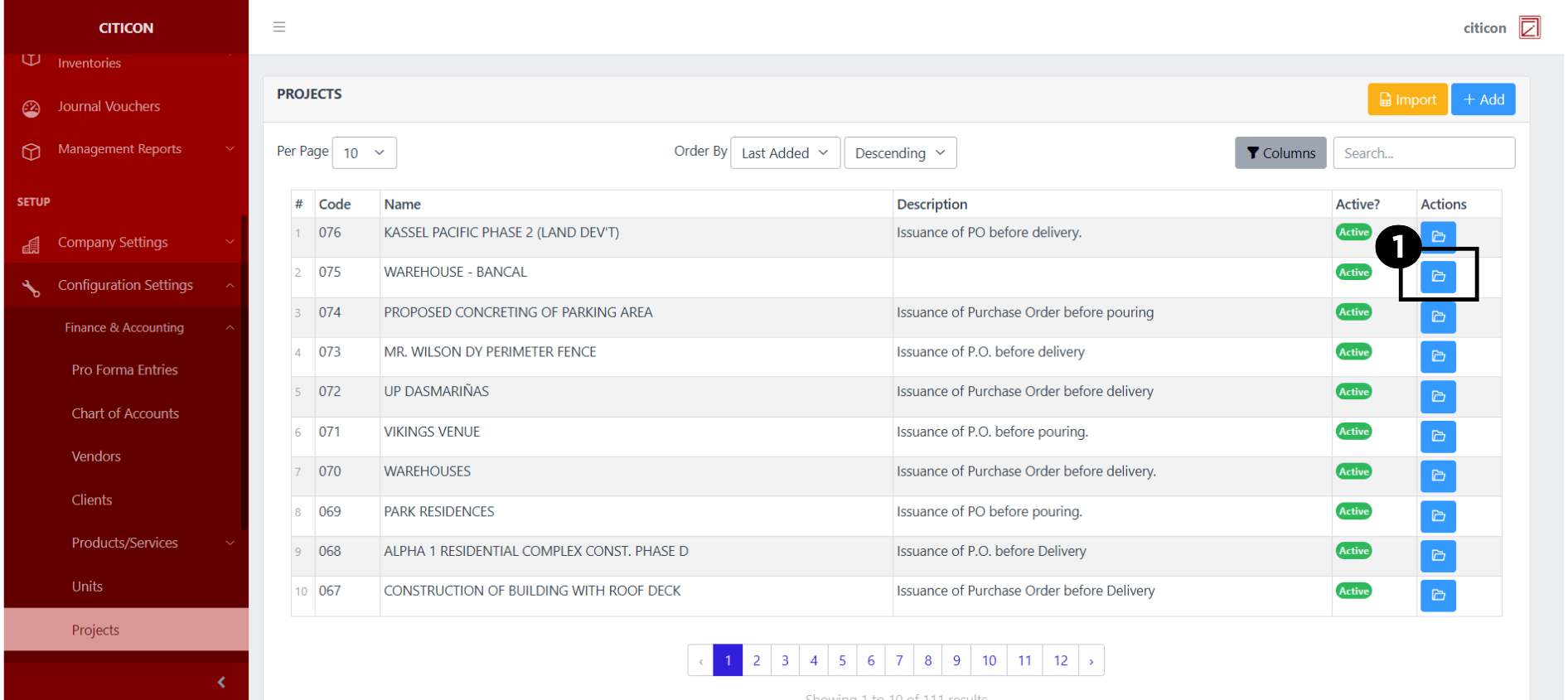
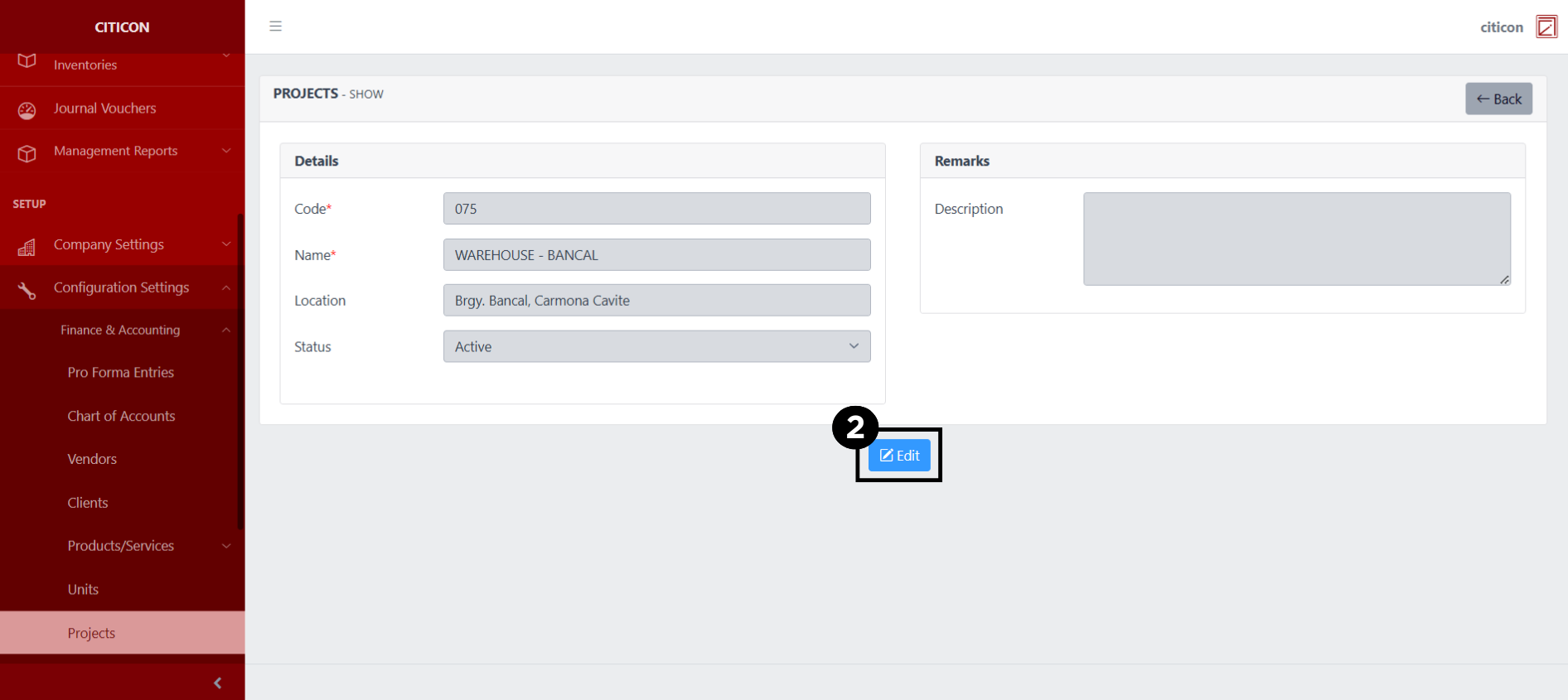
- Select the Edit button to update the details of the record.
- Select a detail section which you want to edit, and enter the necessary changes.
All fields with an asterisk (*) are required to be filled up.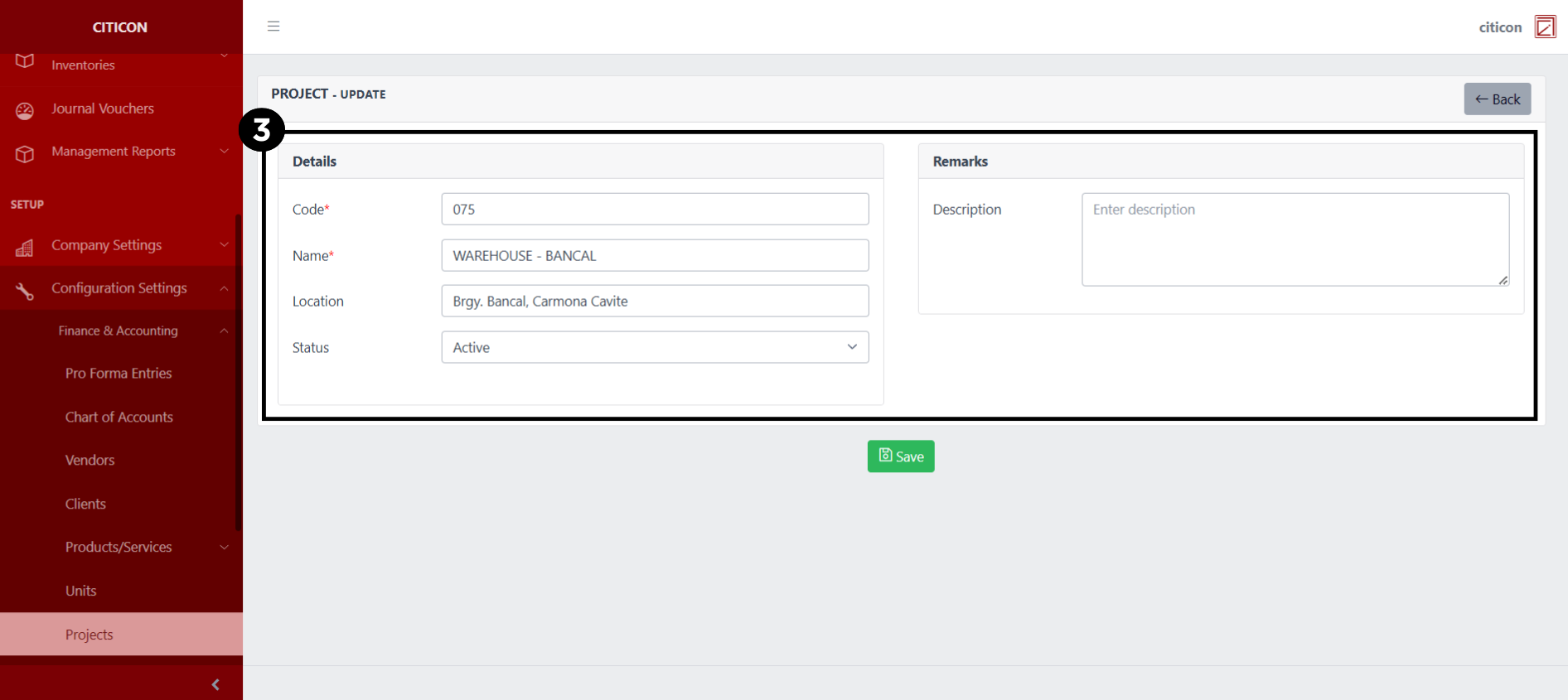
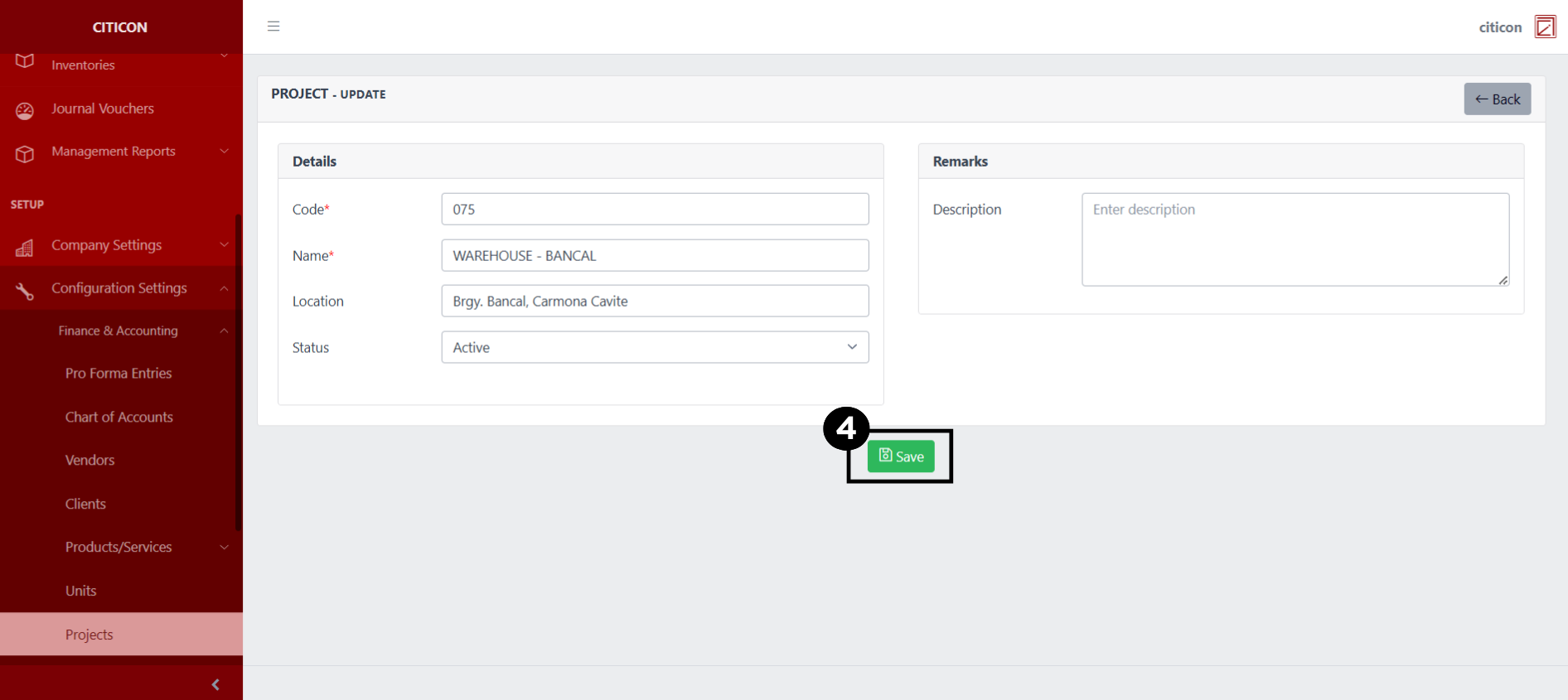
- Select the Save button to save the changes you have made.
Explore Citicon Payroll and Accounting System: Taxes - VAT Configuration