Products / Services - Items Configuration
Welcome to Citicon Payroll and Accounting System Configuration for Products and Services - Items. This module is designed to manage individual products or services offered by your organization. It ensures detailed item tracking, smooth integration into sales and purchasing workflows, and organized inventory records—ultimately enhancing operational efficiency and financial accuracy.
Key Purposes
1. Individual Product Management: Maintain detailed records for each item, including unique codes, names, brands, units of measure, and prices. This supports inventory tracking and financial control.
2. Transaction Readiness: Items entered into this module become instantly available for use in sales, purchase, and reporting processes, reducing manual entry during transactions.
3. Simplified Data Entry: Add new items quickly through a guided form where required fields ensure completeness (e.g., code, name, brand, unit, price).
4. Editable Item Profiles: Update details such as pricing or descriptions, or deactivate items that are no longer in use.
5. Inventory Accuracy: Helps maintain a clean and accurate inventory database by enforcing data consistency and avoiding duplication.
6. Custom Categorization: Classify items for better reporting and organization within the accounting system.
Products/Services - Items Module User-Manual
This section provides details, and set-by-step instructions to access, view, and update the Products/Services - Items data stored in the system.
Index Page
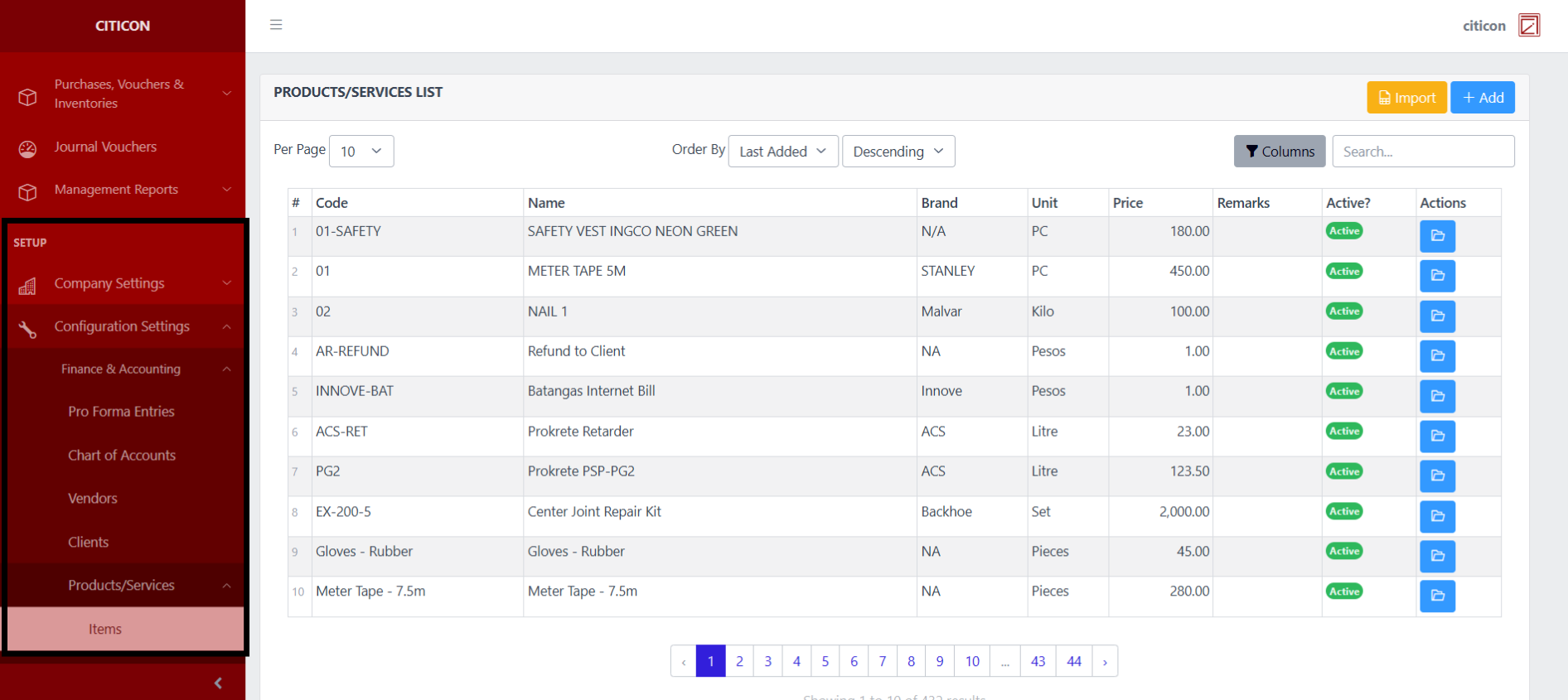
To access the Vendors Configuration. Go to Setup, select Configuration Settings, select Finance & Accounting, select Products/Services, then select Items.
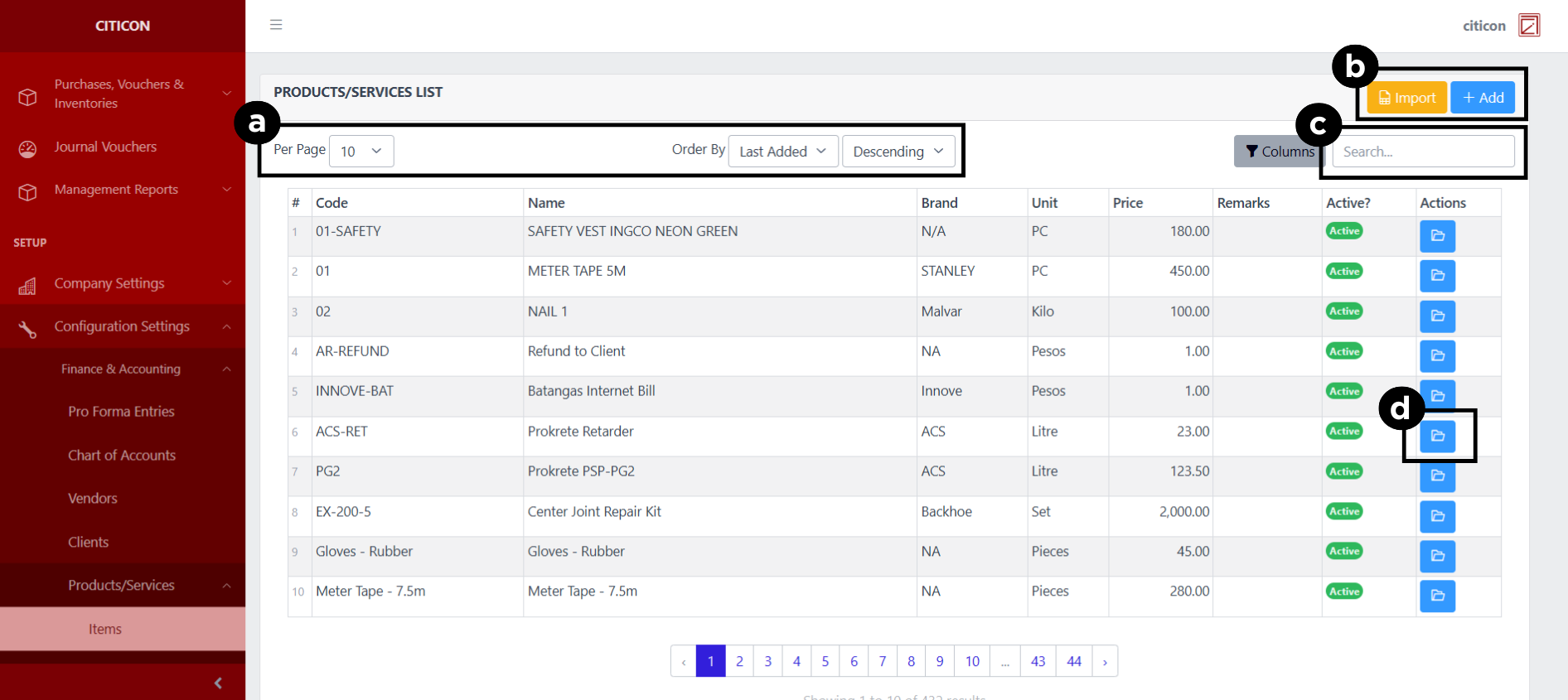
a. Adjust the paging, ordering, and sorting of the Products/Services - Items Page here.
b. Select the respective button to either Import or Add data.
c. Search for specific record details using the search bar.
d. View or Edit a record by selecting the folder button.
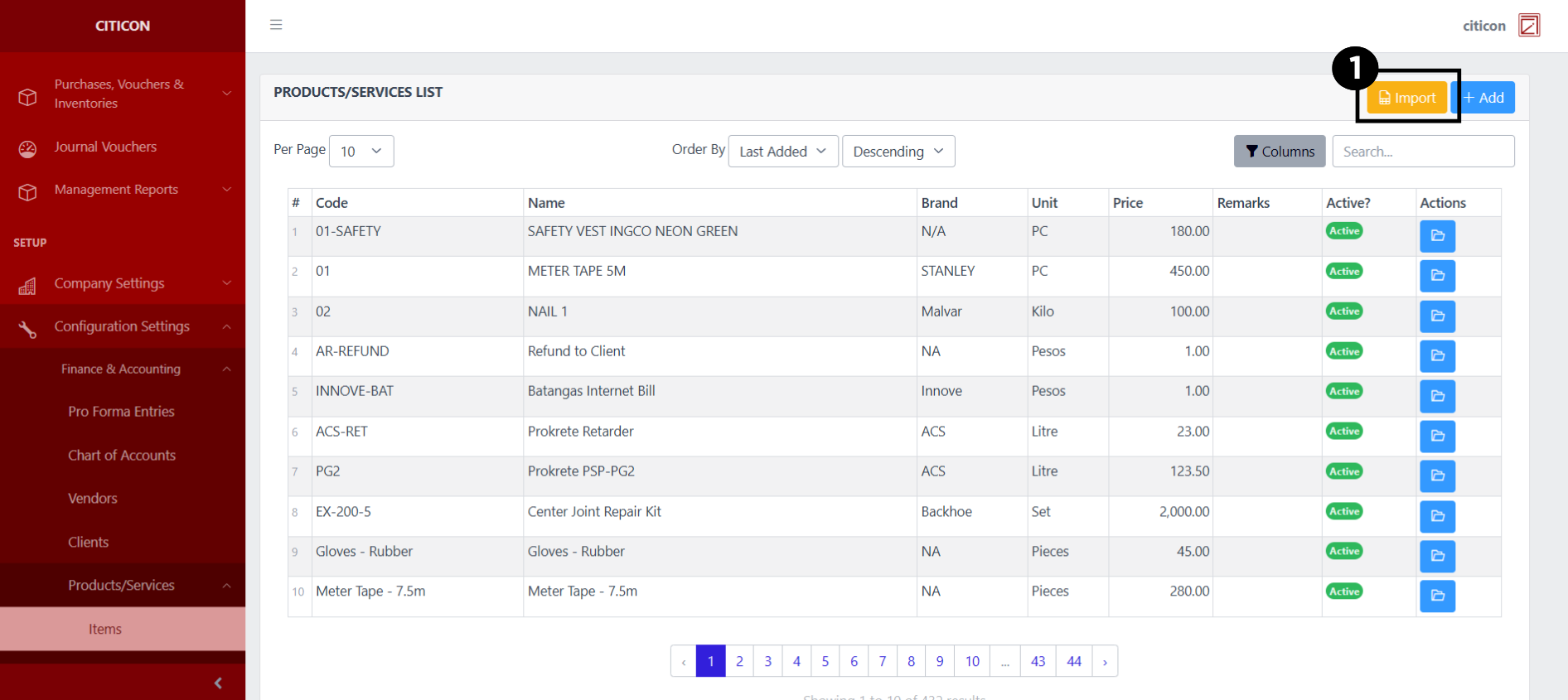
Import Records
- Select the Import button to import new records.
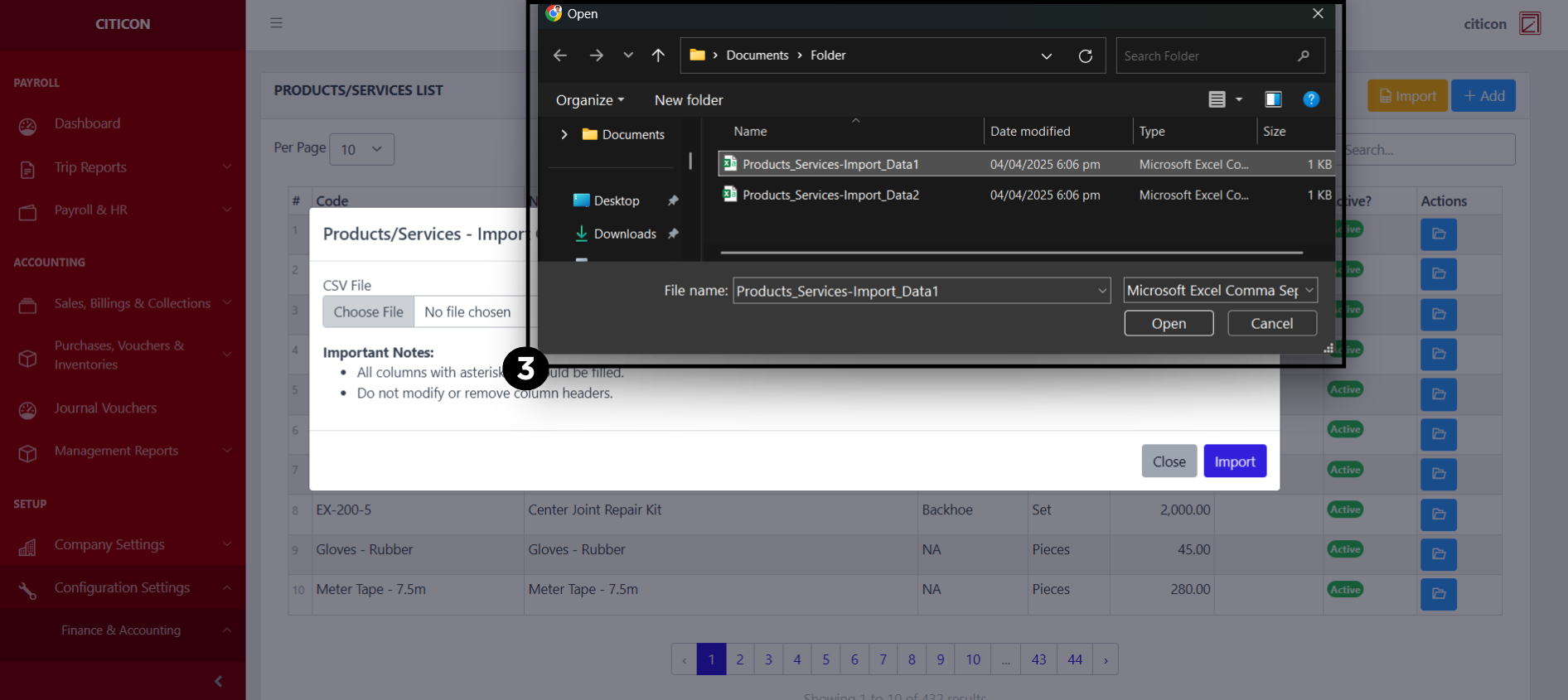
- Select the Choose File button.
Select the Download Template button to view the required format for imported data, including the number of columns, and mandatory fields to be filled.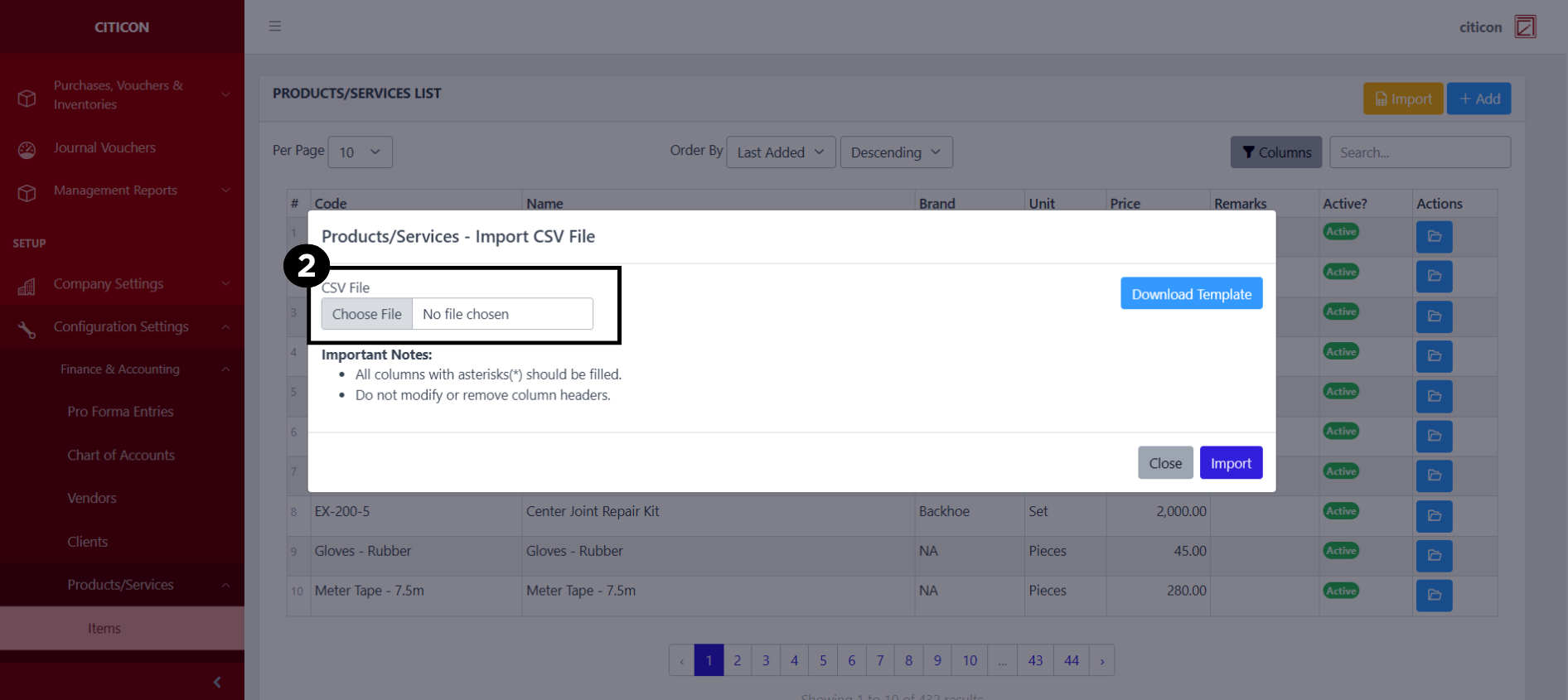
- From your local storage, select the file you want to import, then select the Open button.
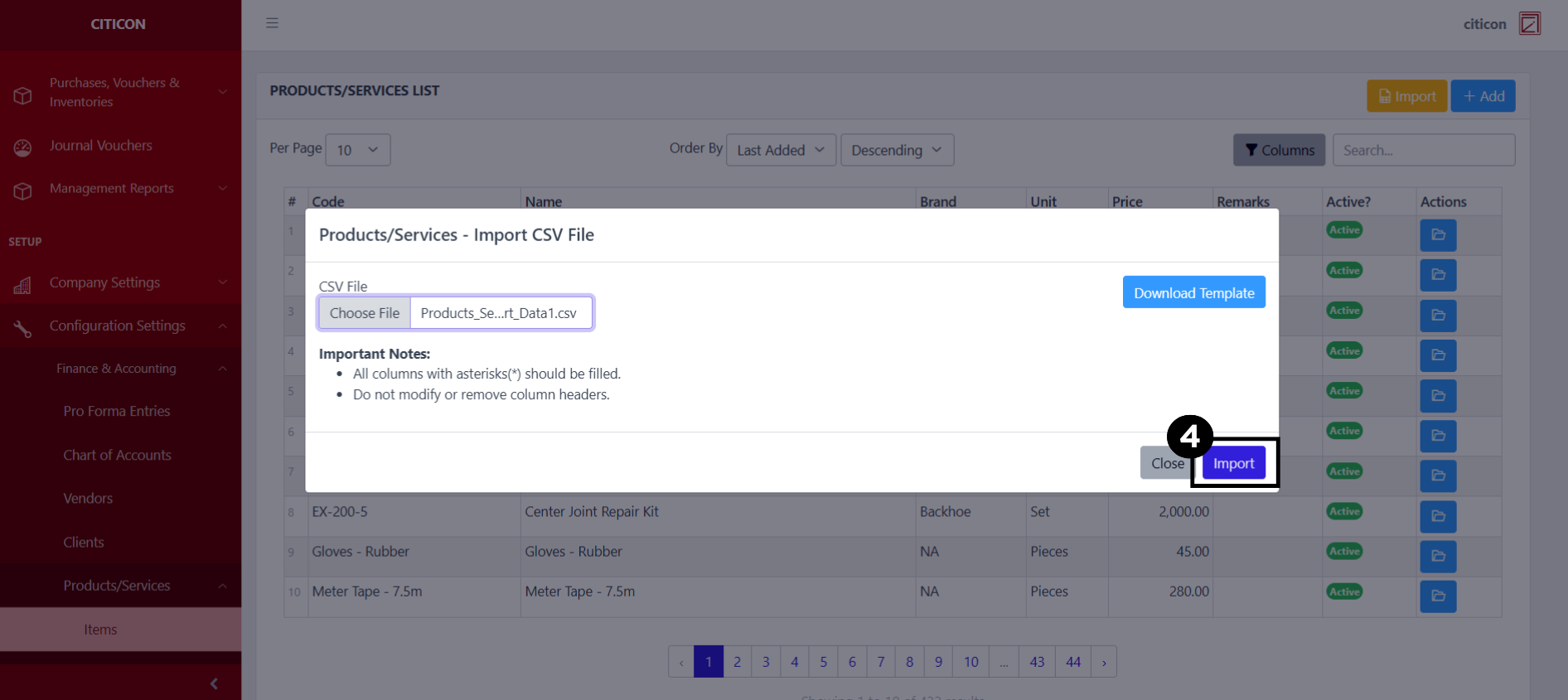
- Select the Import button.
Add Records
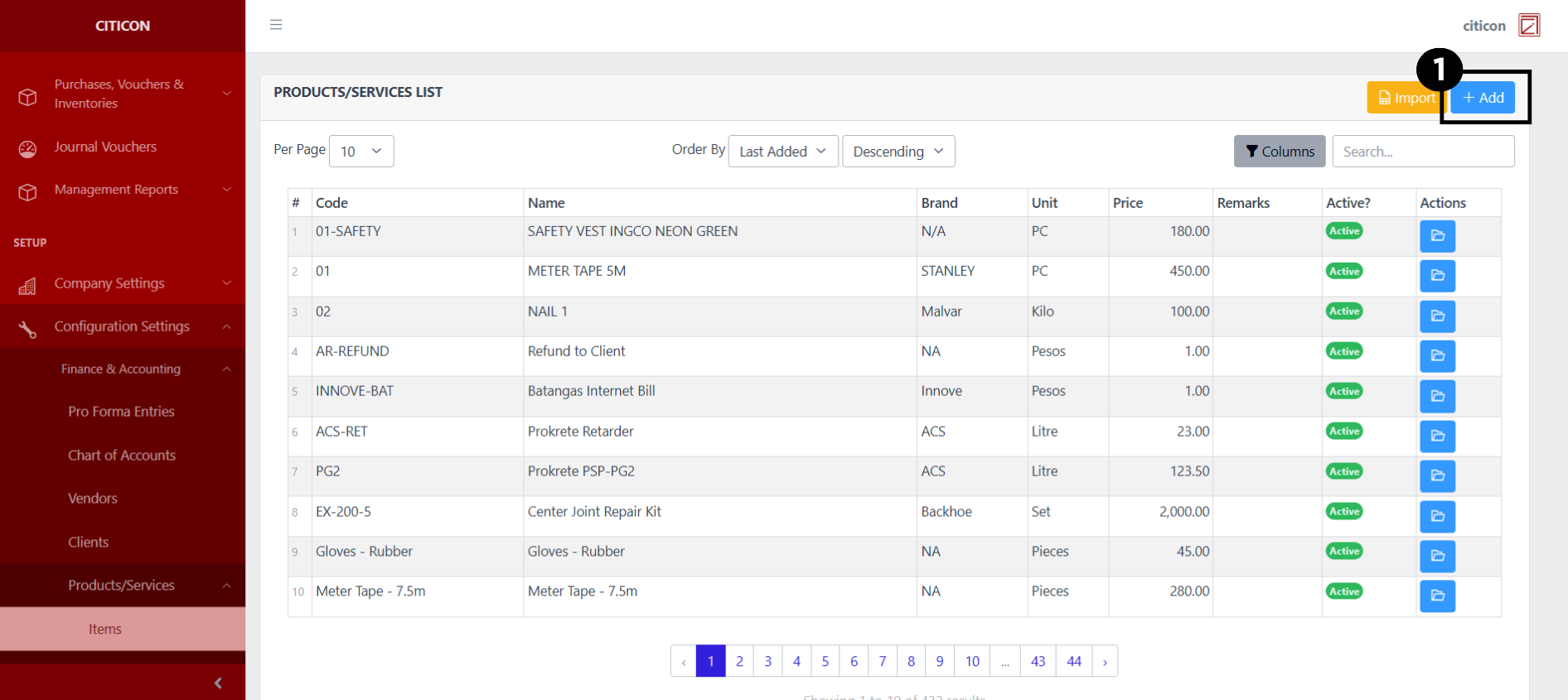
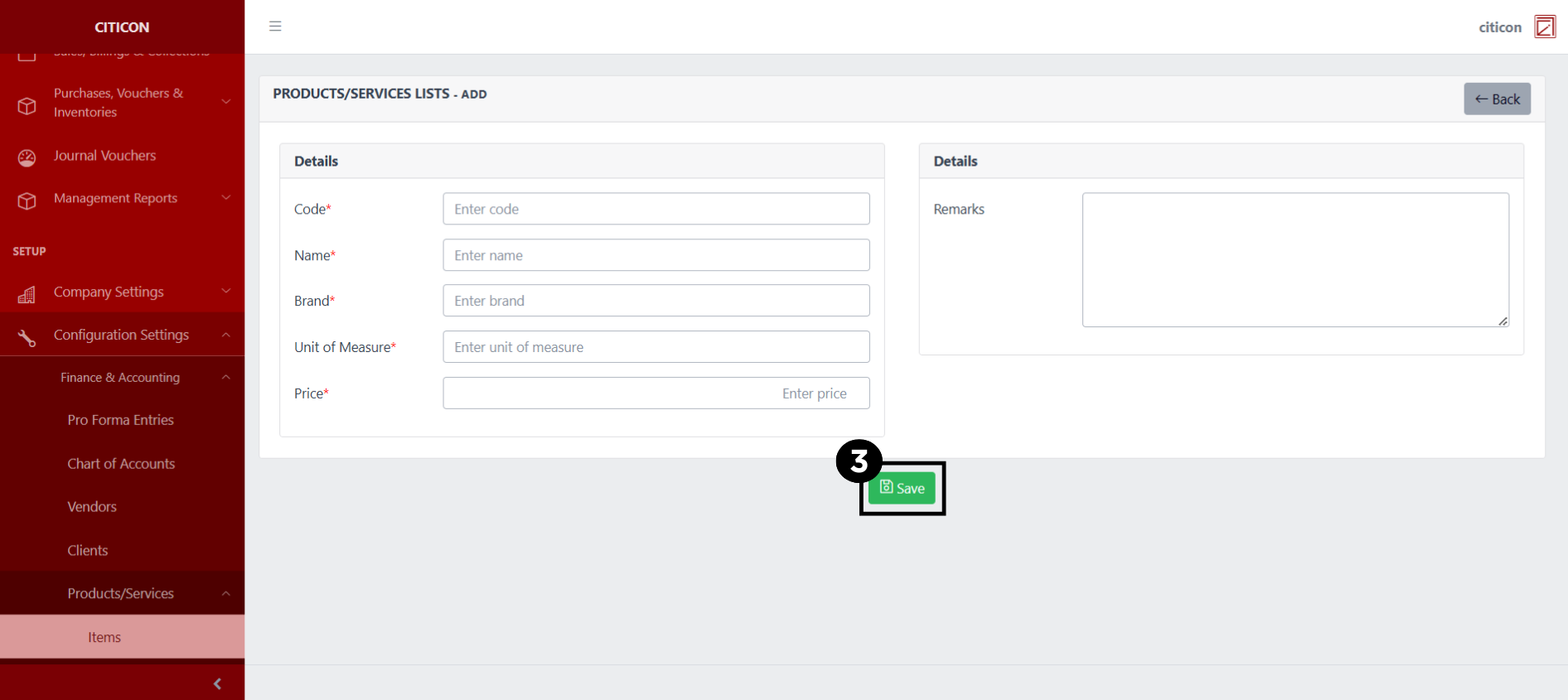
- Select the Add button to add a new record.
- Input the necessary details for your new record.
All fields that has an asterisk (*) are required to be filled up.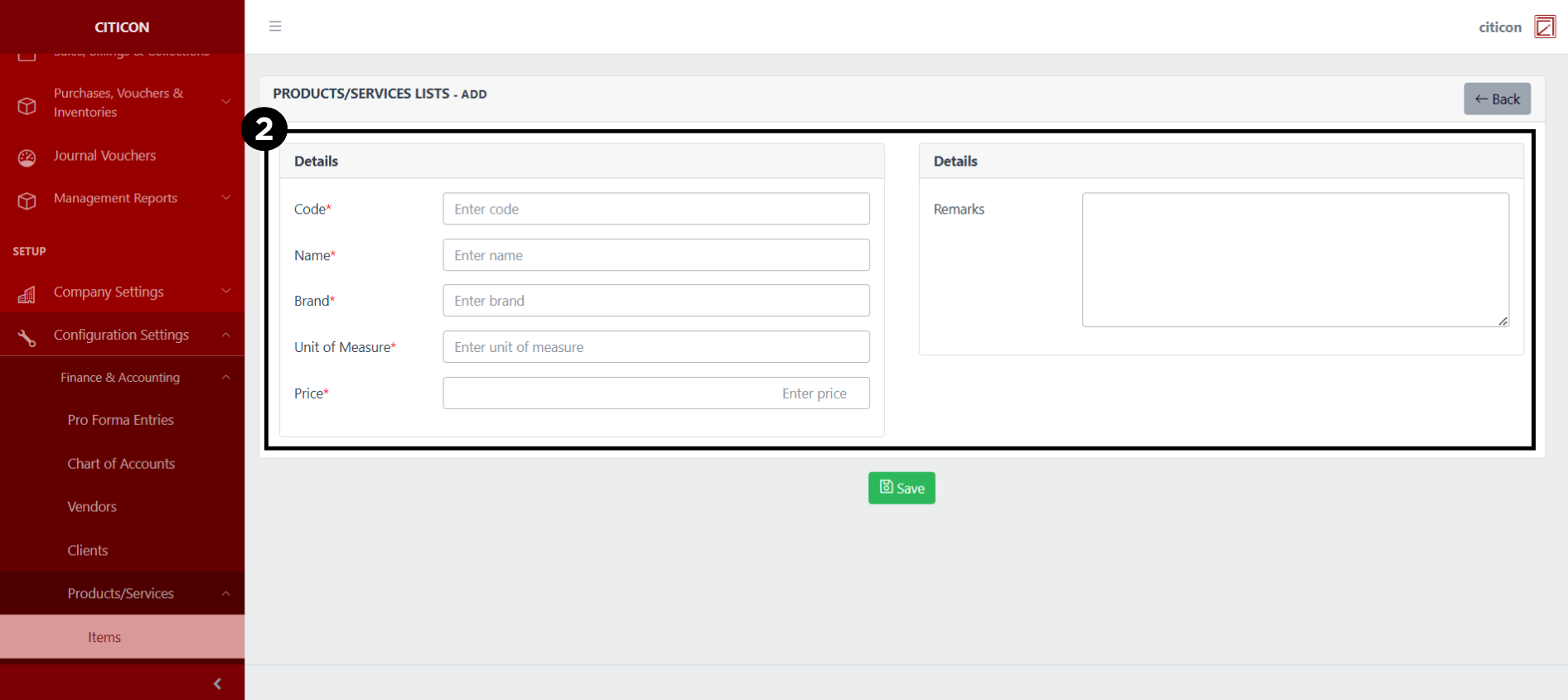
- Select the Save button to save your new record.
Show Records
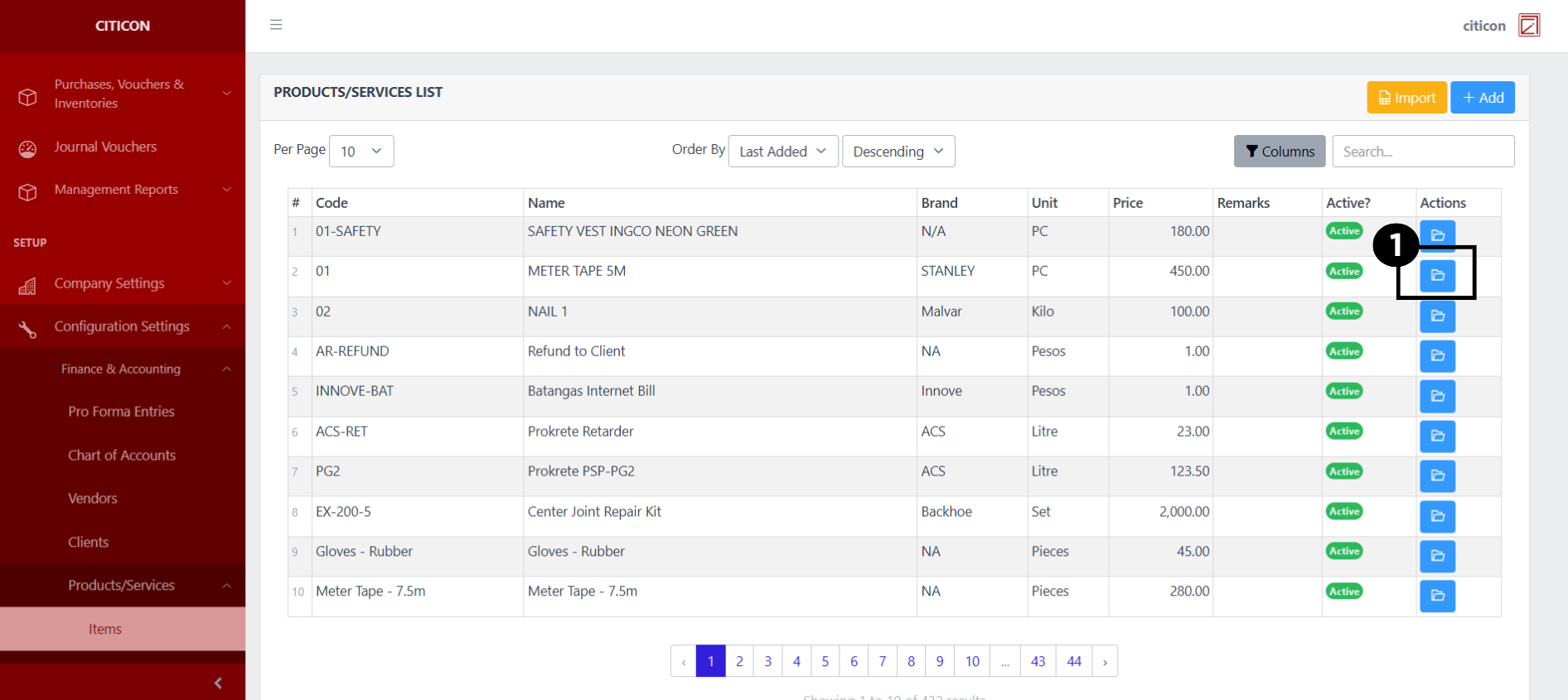
- Select the folder button to view a record.
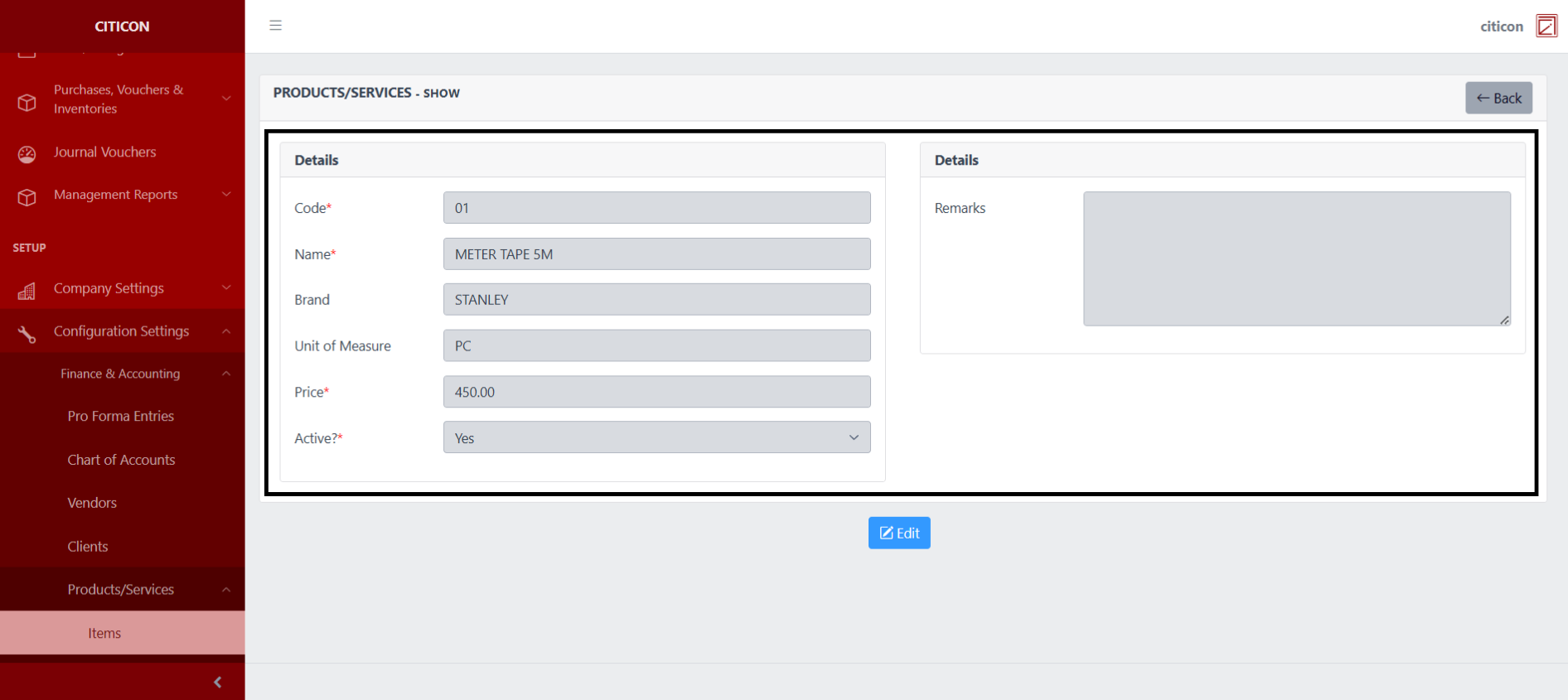
 Here you can view more specific details on the record that you selected.
Update Records
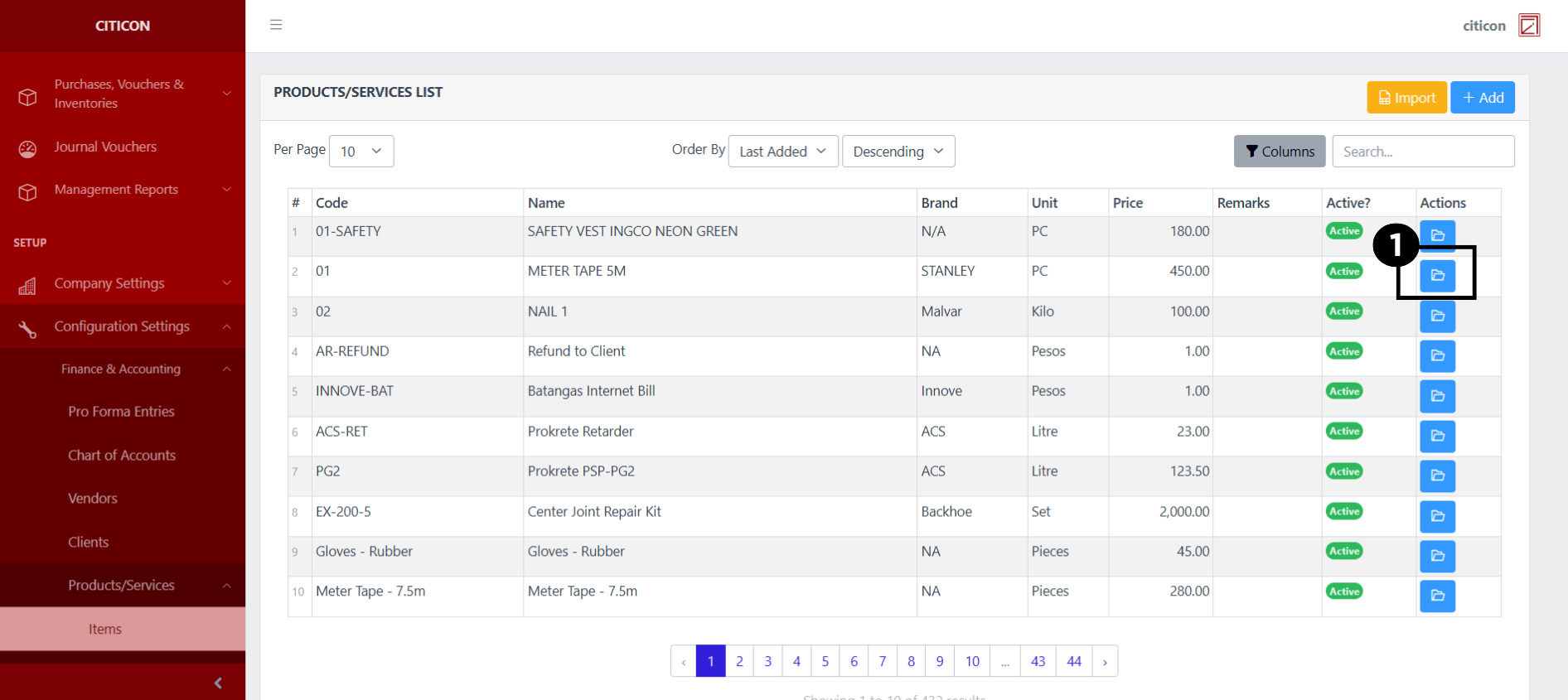
- Select the folder button of the record which you want to edit.
- Select the Edit button to update the details of the record.
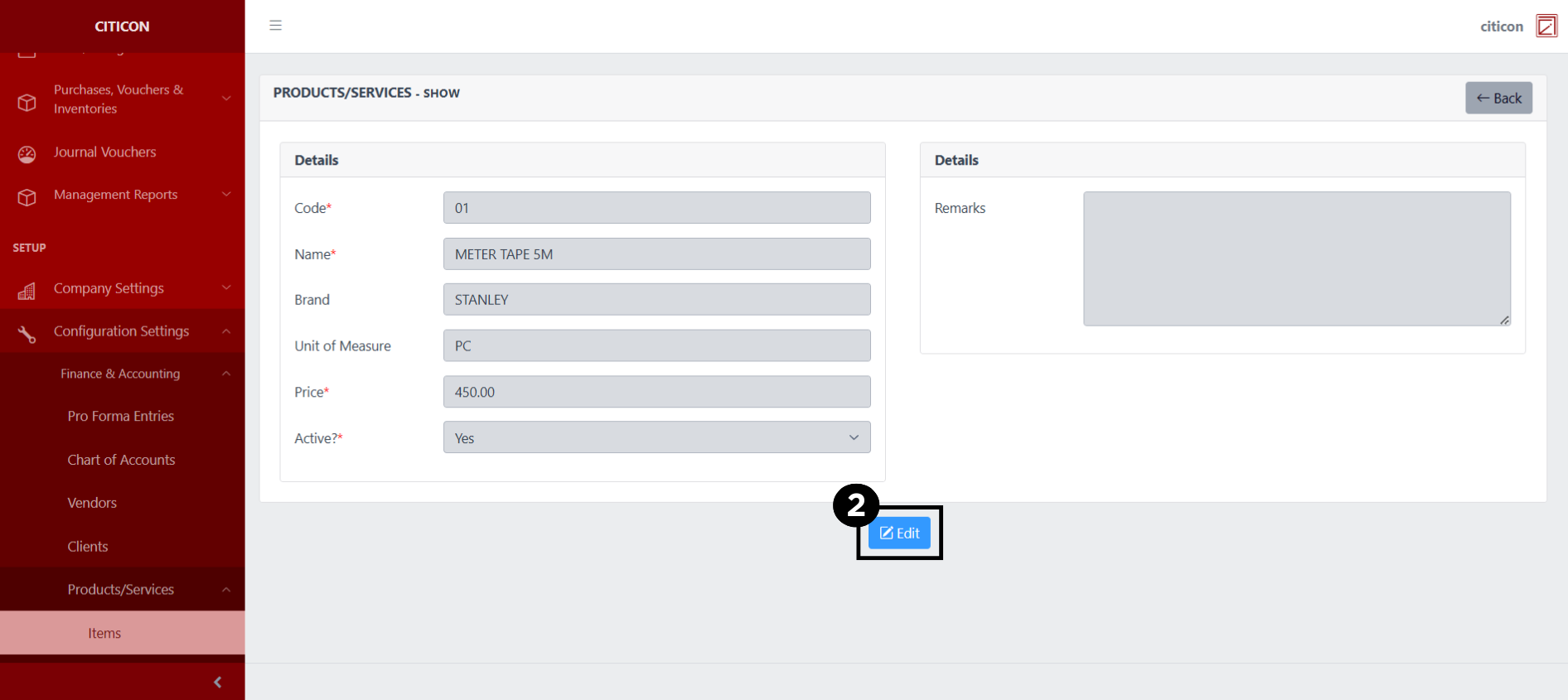
- Select a detail section which you want to edit, and enter the necessary changes.
All fields with an asterisk (*) are required to be filled up.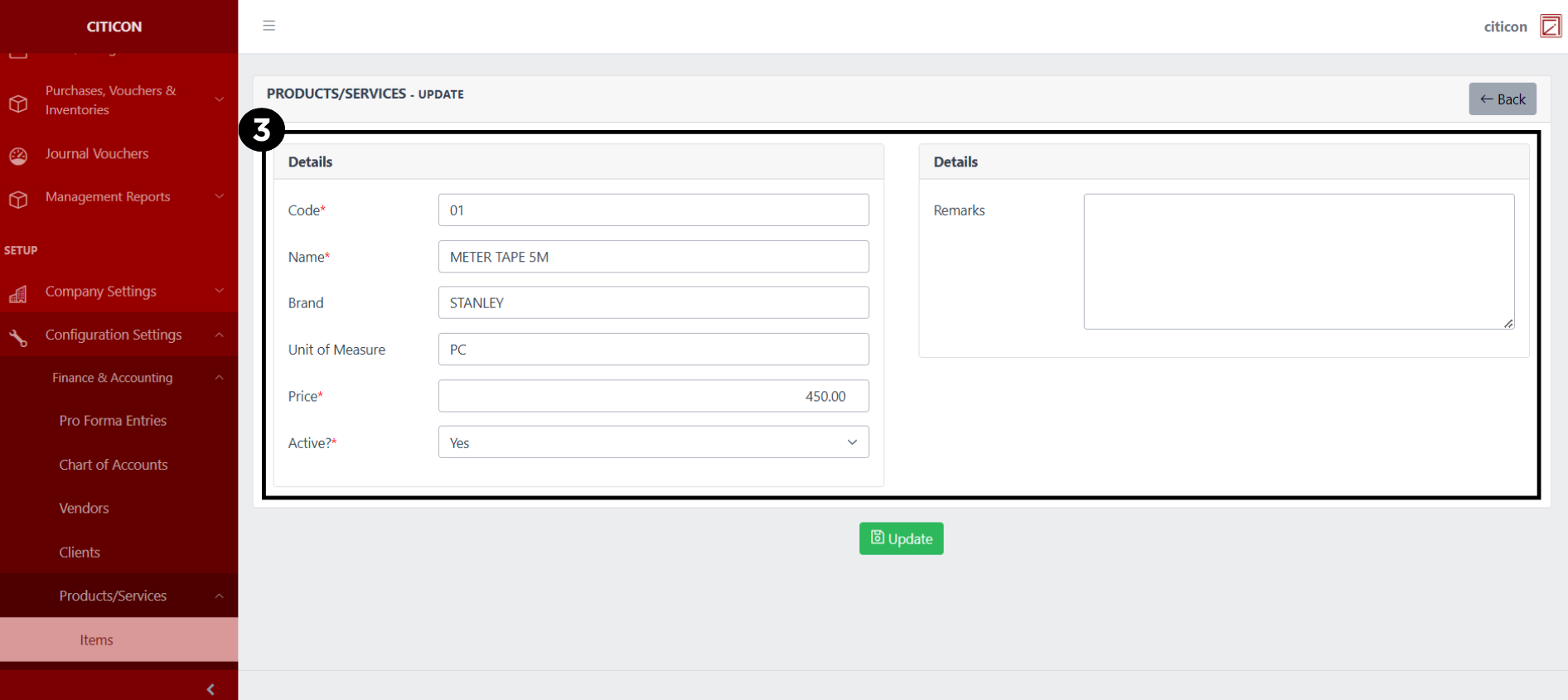
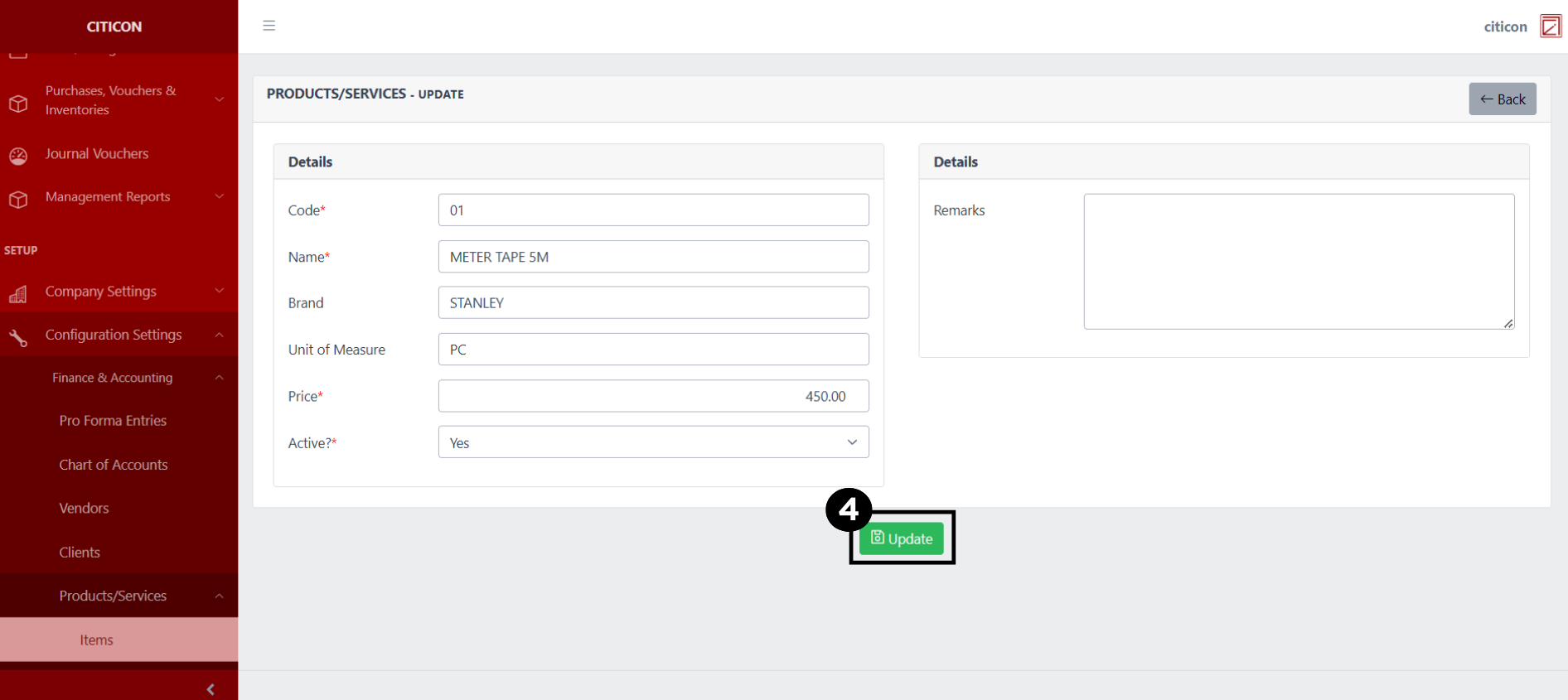
- Select the Update button to save the changes you have made.
Explore Citicon Payroll and Accounting System: Products/Services - Bulk Configuration