Products / Services - Bulk Configuration
Welcome to Citicon Payroll and Accounting System Configuration for Products and Services - Bulk. This module is specifically designed to handle the entry and tracking of products or services that are managed in bulk—such as vehicles, construction materials, or shipment-based services. It is ideal for organizations that deal with large-scale items where dimensions and identifying details are crucial.
Key Purposes
1. Bulk Product Tracking: Maintain comprehensive details for bulk-managed items, including size dimensions and plate numbers where applicable.
2. Efficient Registration: Quickly register each bulk item using a standardized form that captures code, name, plate number, and dimensions.
3. Operational Relevance: Designed for industries where tracking the physical attributes of inventory (length, width) is essential to operations and billing.
4. Optimized Workflow: Enables quick referencing and use of bulk records in system transactions, ensuring accurate invoicing and service tracking.
5. Data Consistency: Reinforces correct entry through required fields, minimizing inconsistencies or missing records.
6. Inventory Oversight: Helps in maintaining clarity between bulk items and regular products/services, allowing for better reporting and resource allocation.
Products/Services - Bulk Module User-Manual
This section provides details, and set-by-step instructions to access, view, and update the Products/Services - Bulk data stored in the system.
Index Page
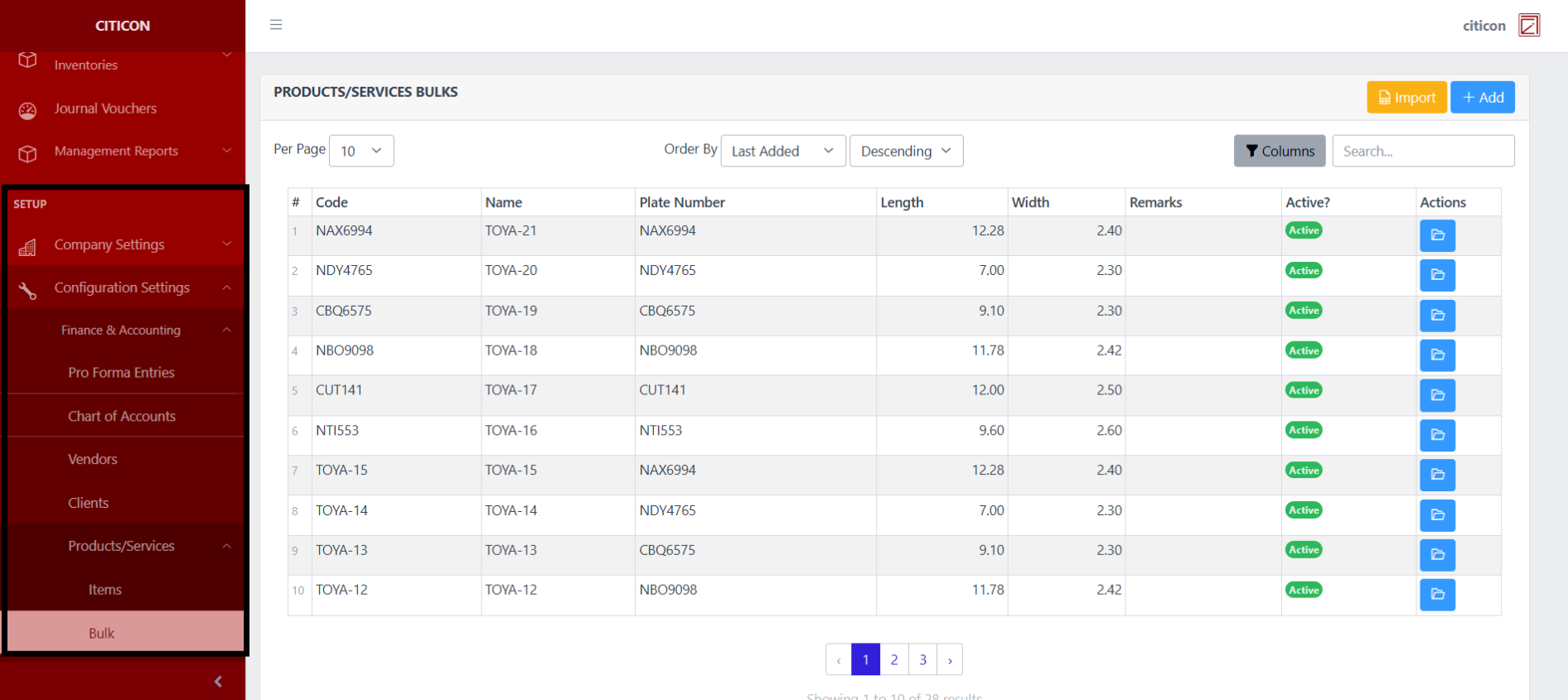
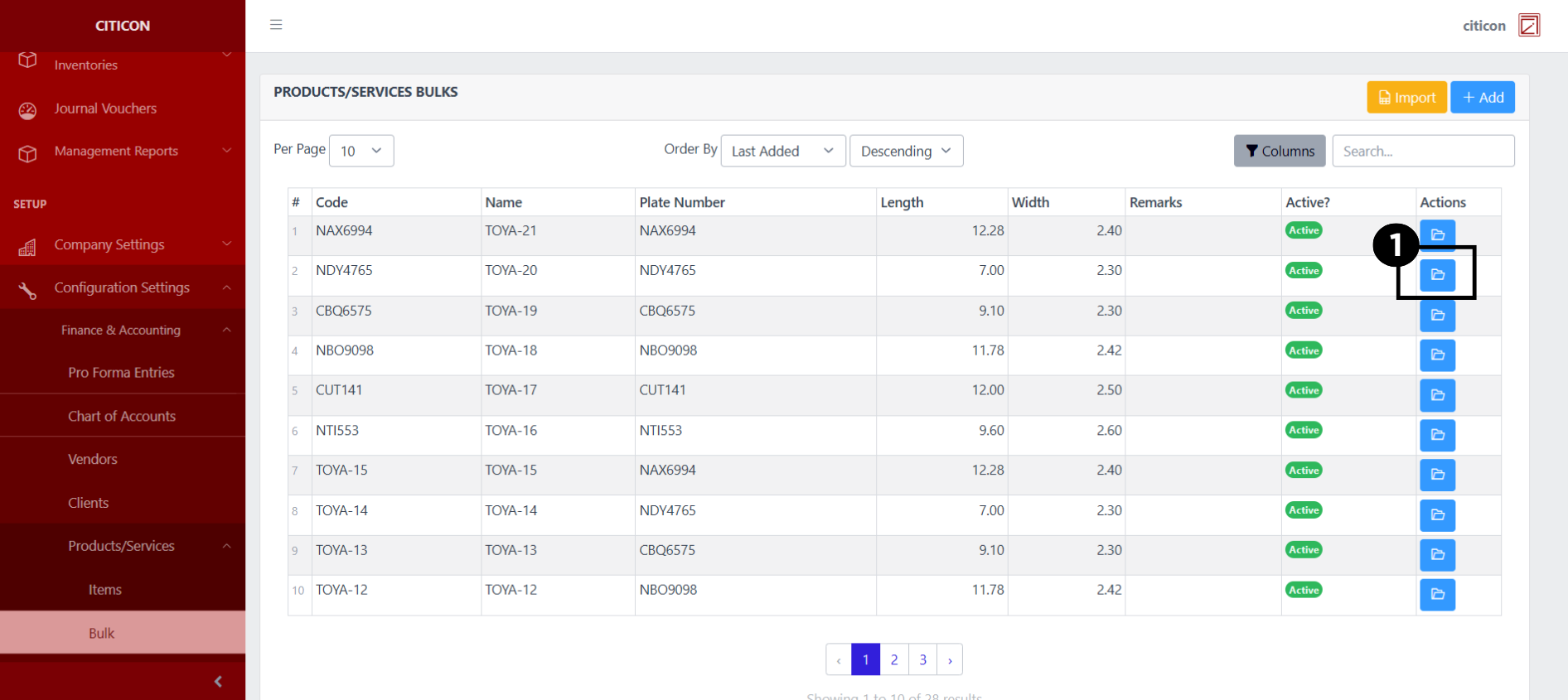
To access the Vendors Configuration. Go to Setup, select Configuration Settings, select Finance & Accounting, select Products/Services, then select Bulk.
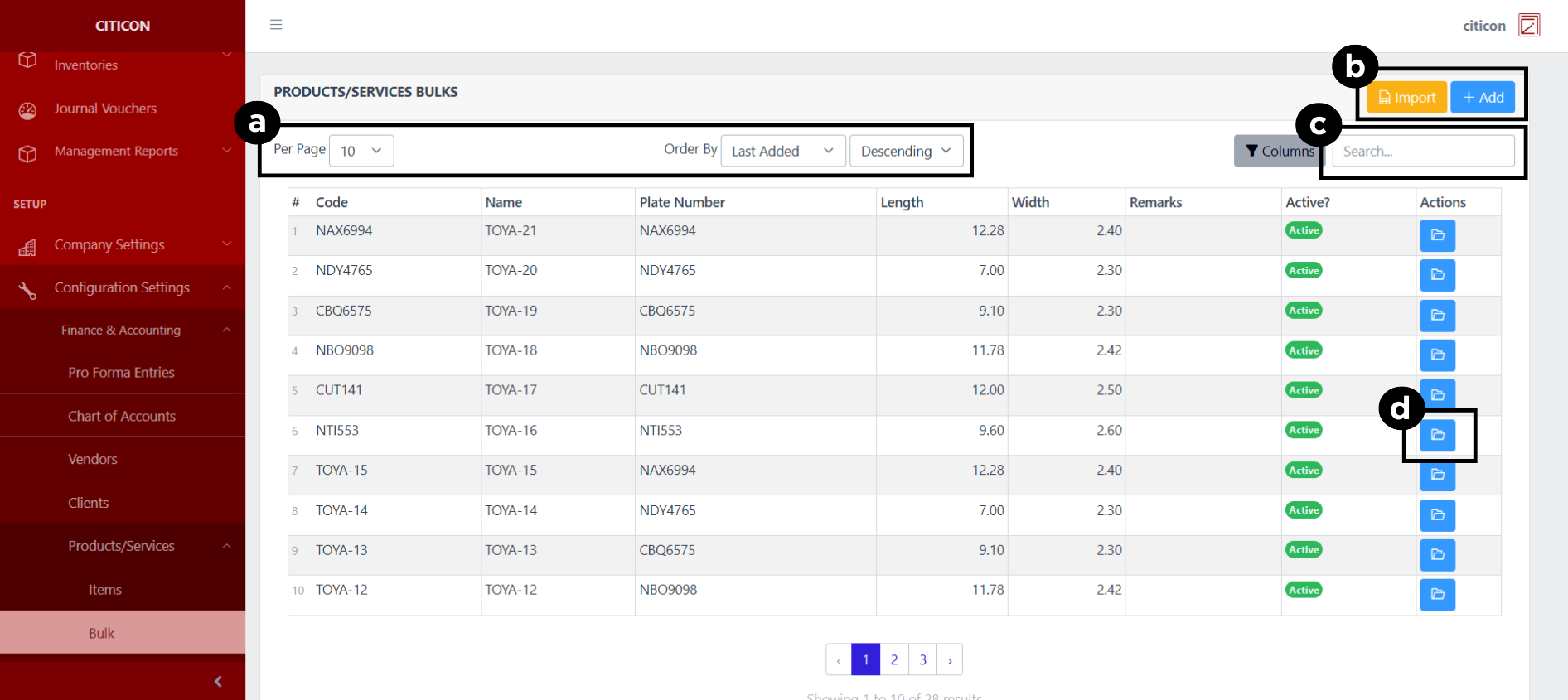
a. Adjust the paging, ordering, and sorting of the Products/Services - Bulk Page here.
b. Select the respective button to either Import or Add data.
c. Search for specific record details using the search bar.
d. View or Edit a record by selecting the folder button.
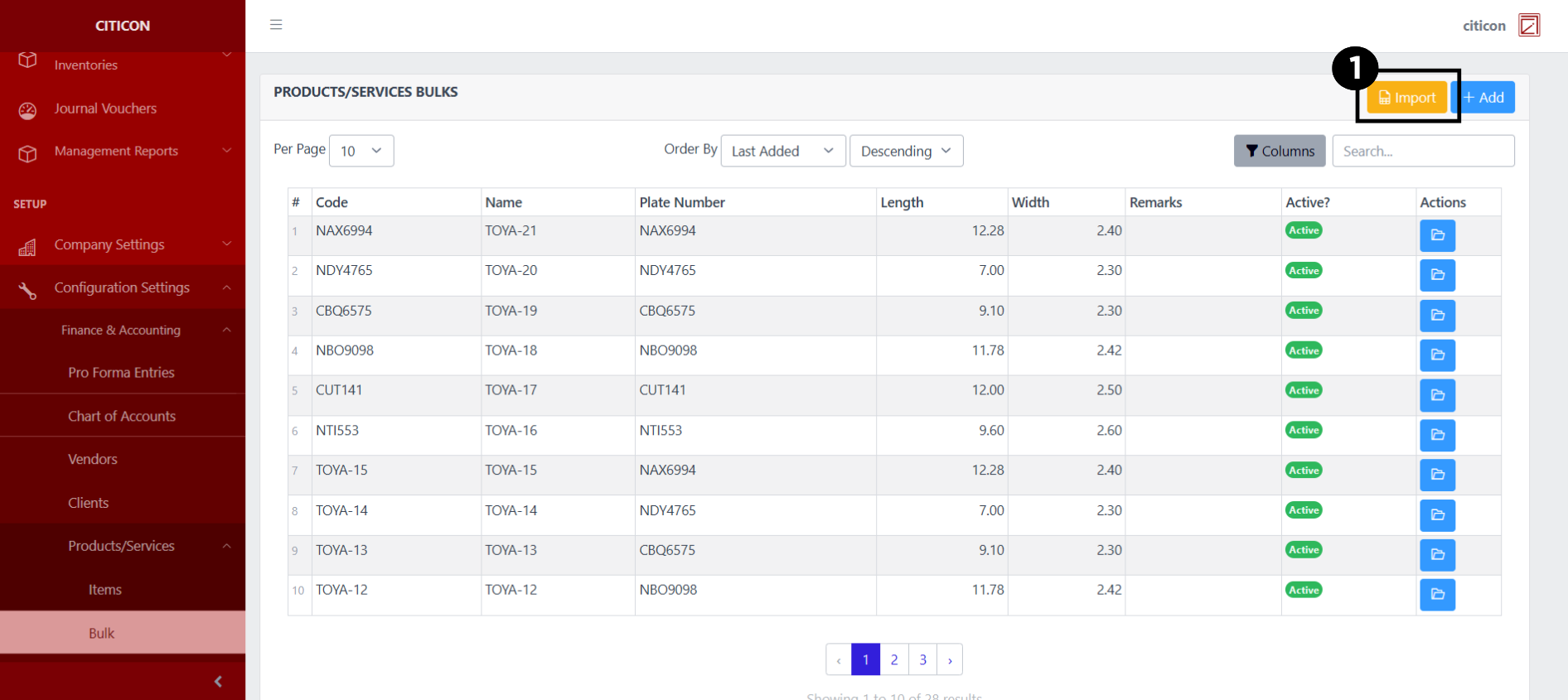
Import Records
- Select the Import button to import new records.
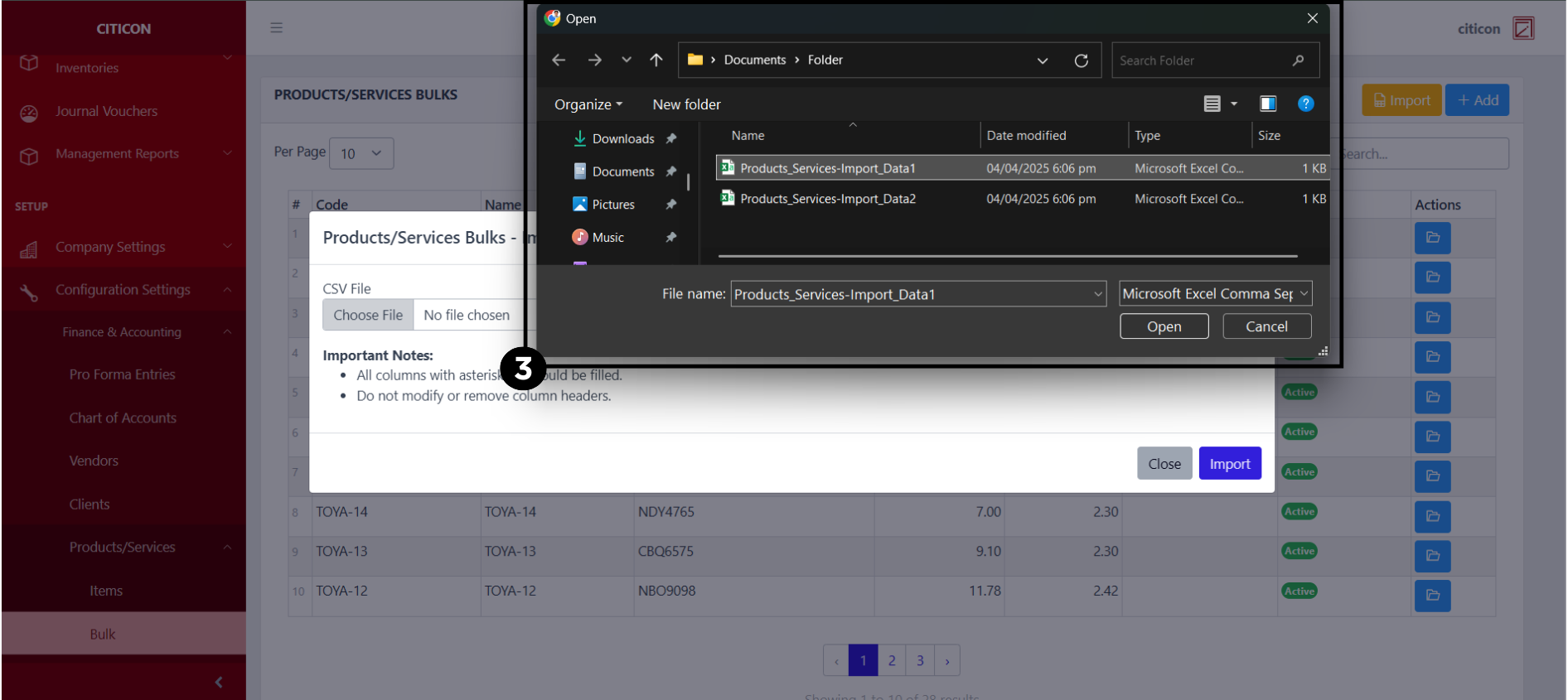
- Select the Choose File button.
Select the Download Template button to view the required format for imported data, including the number of columns, and mandatory fields to be filled.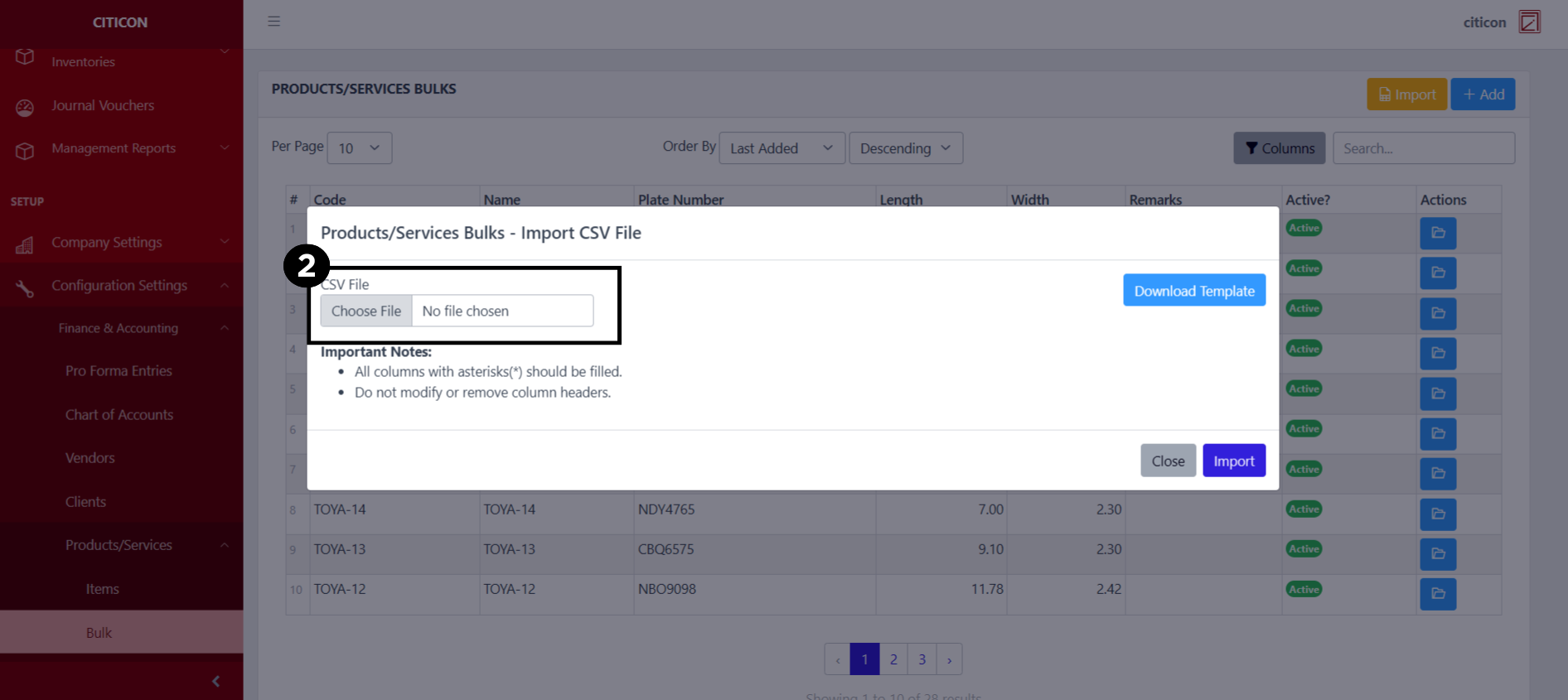
- From your local storage, select the file you want to import, then select the Open button.
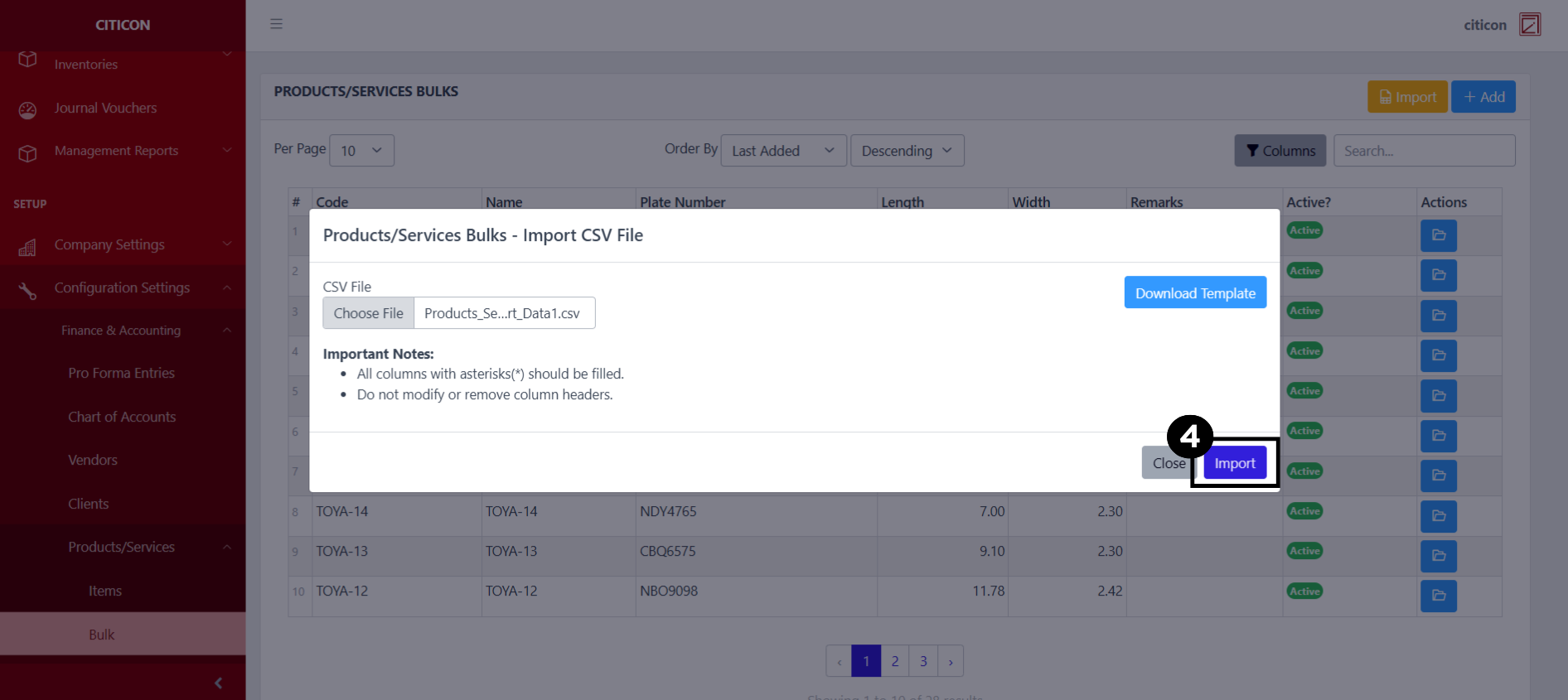
- Select the Import button.
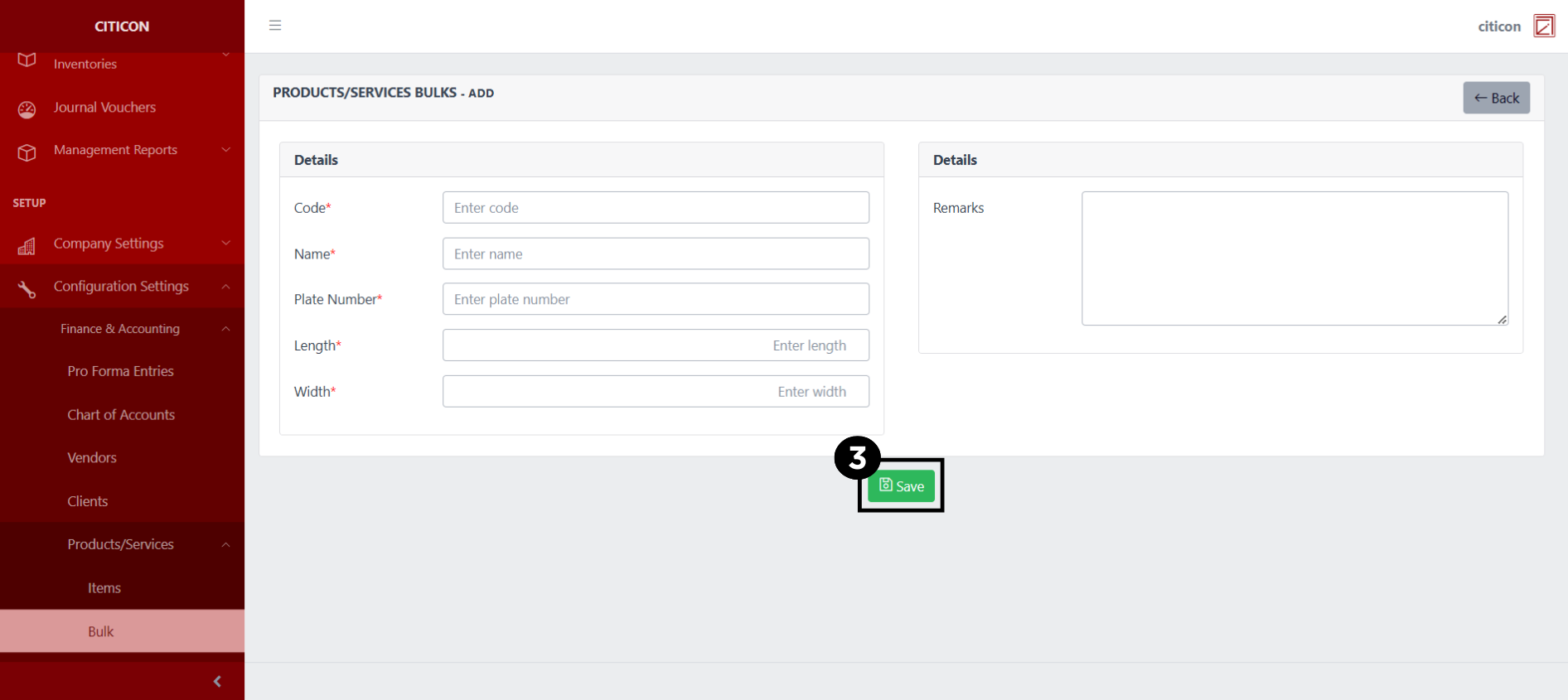
Add Records
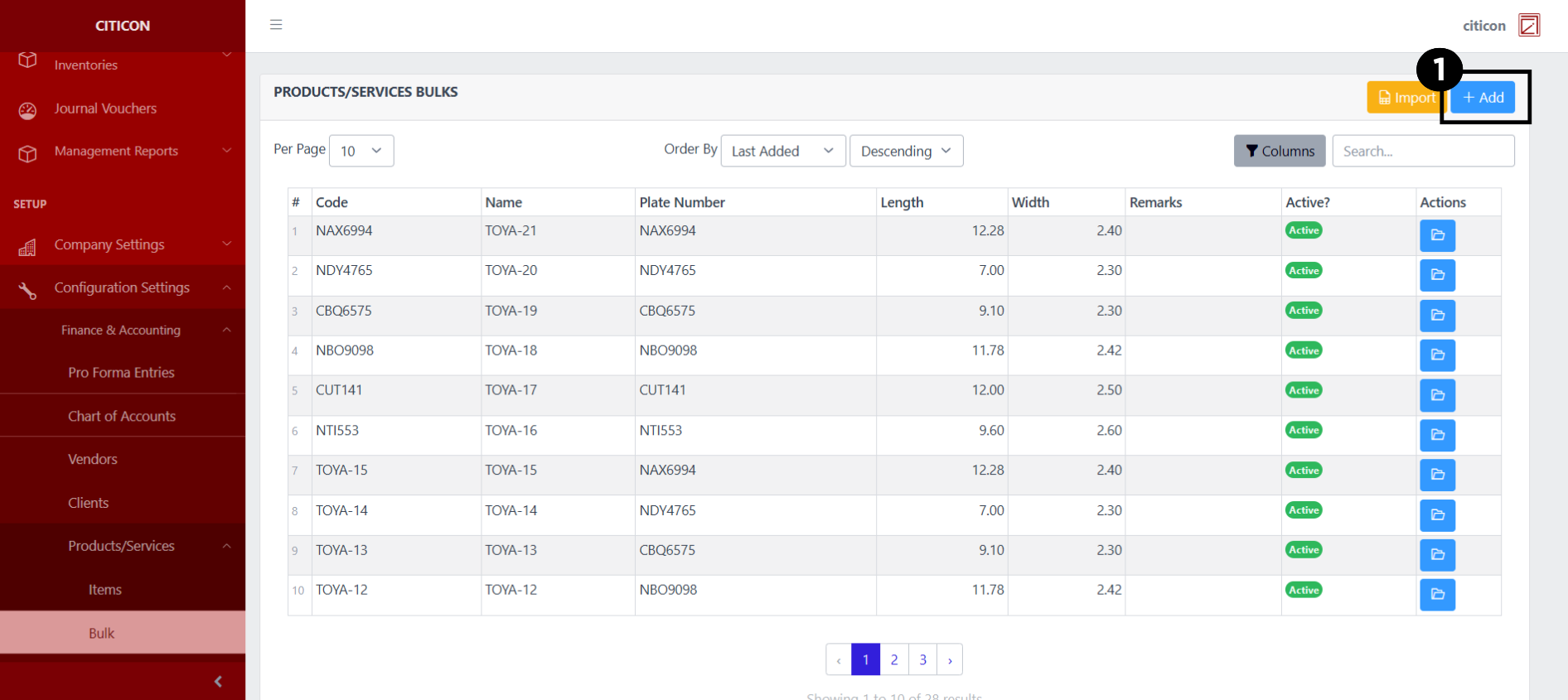
- Select the Add button to add a new record.
- Input the necessary details for your new record.
All fields that has an asterisk (*) are required to be filled up.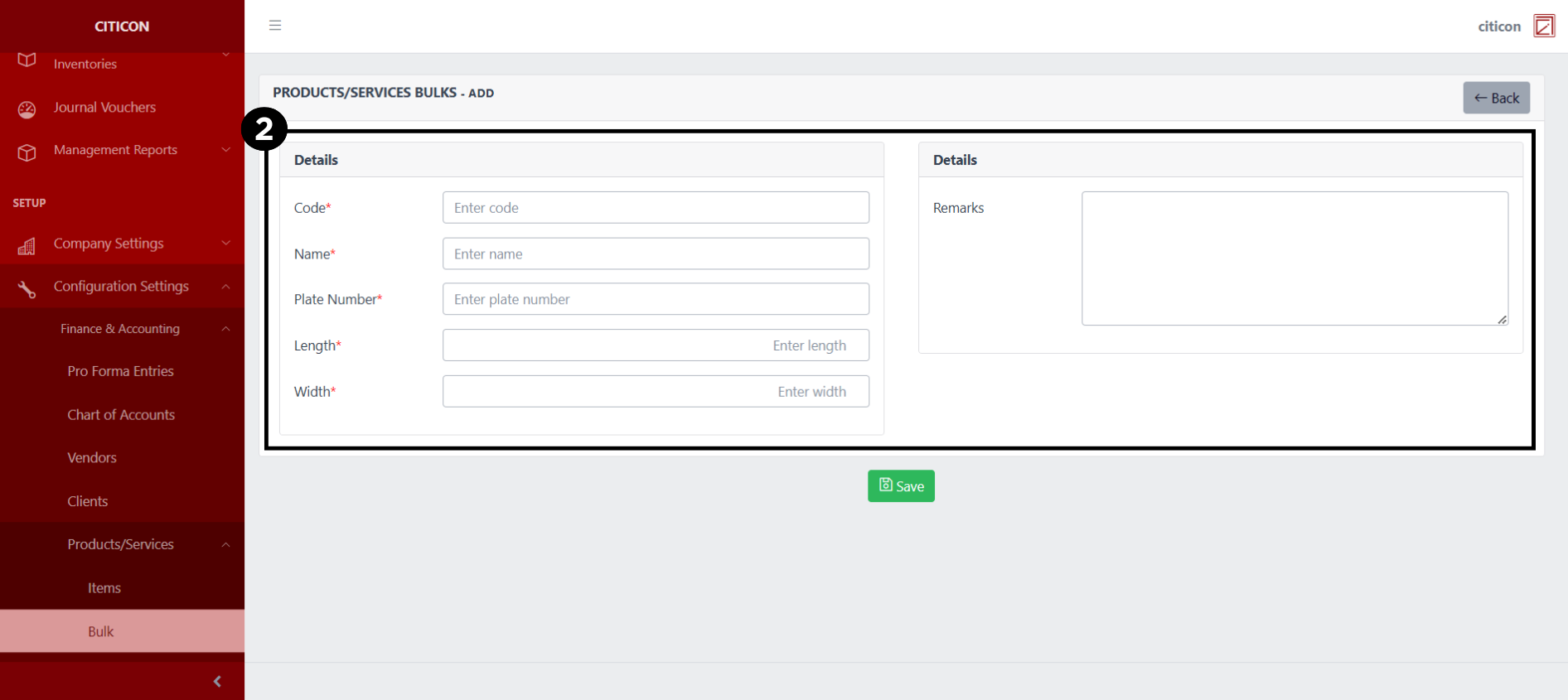
- Select the Save button to save your new record.
Show Records
- Select the folder button to view a record.
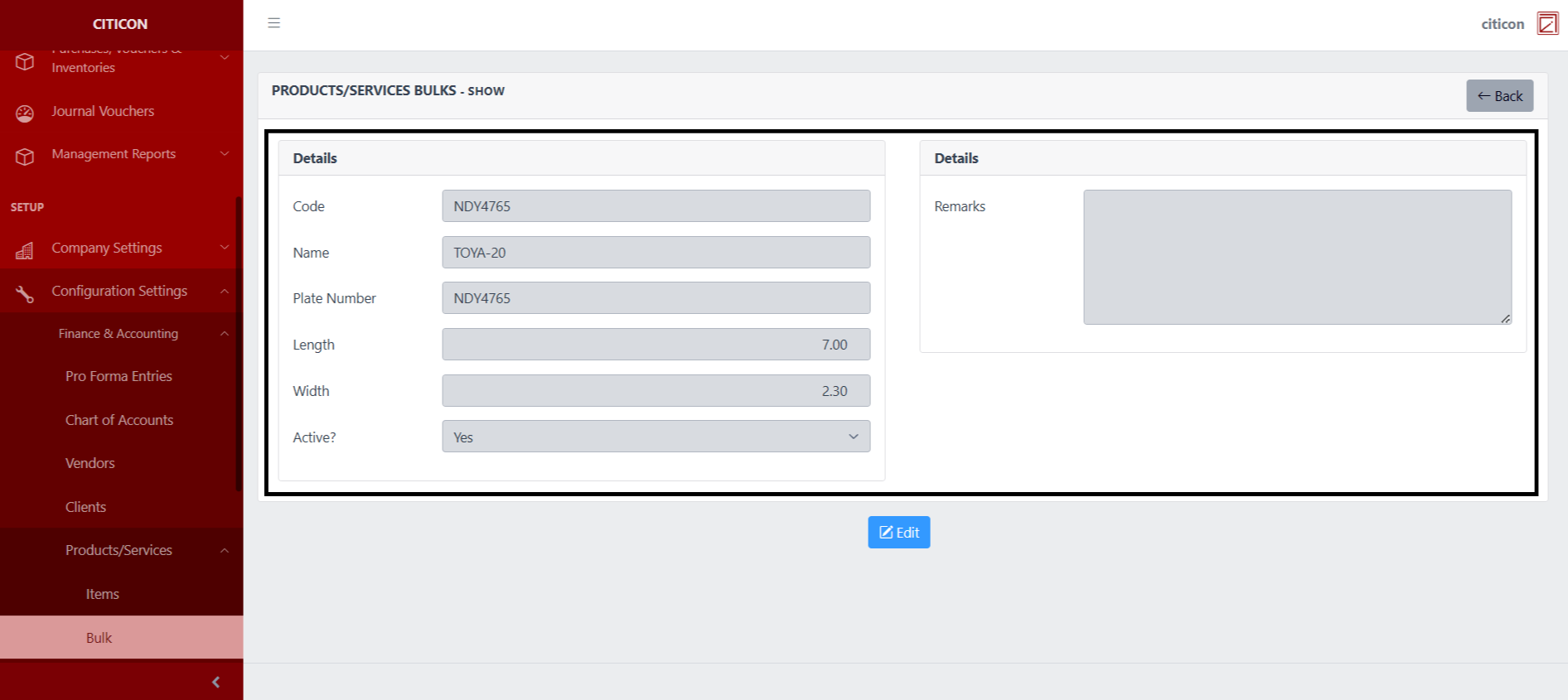
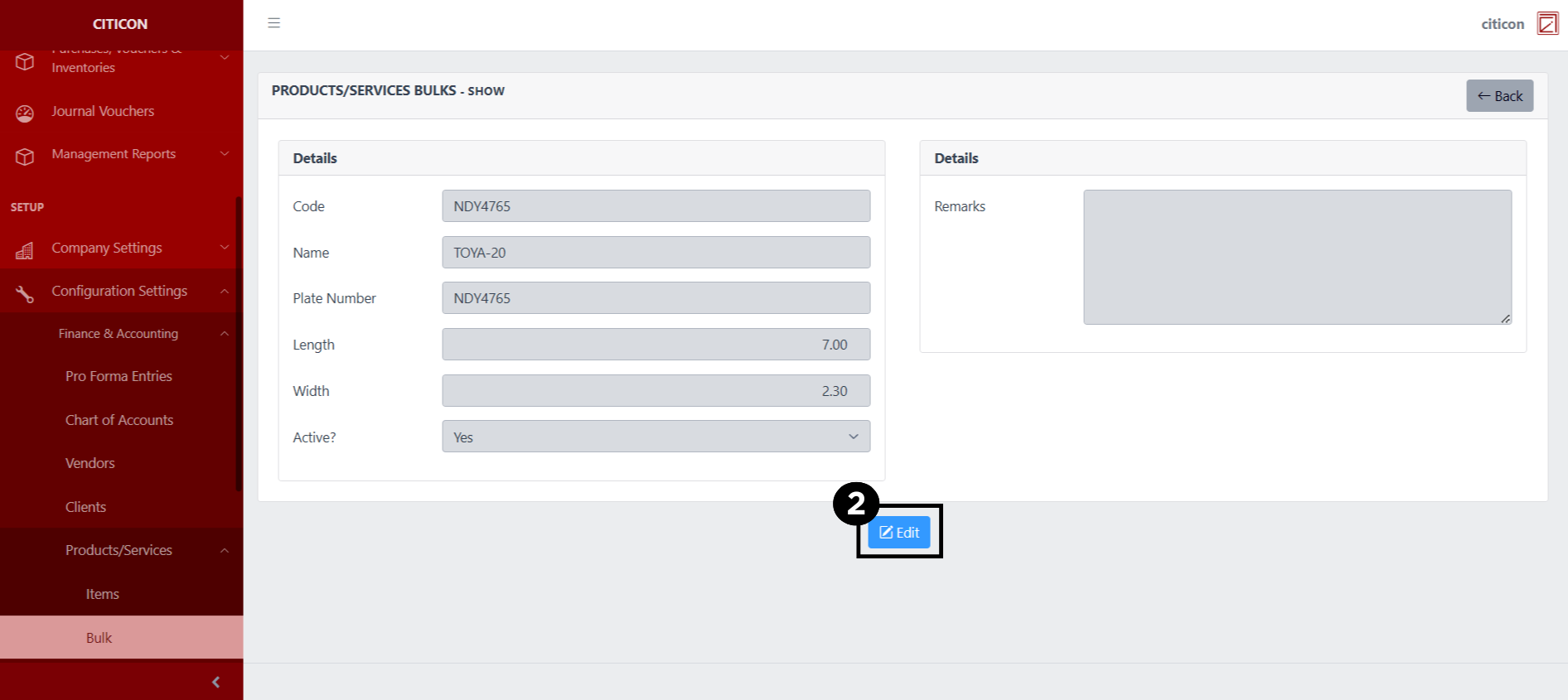
 Here you can view more specific details on the record that you selected.
Update Records
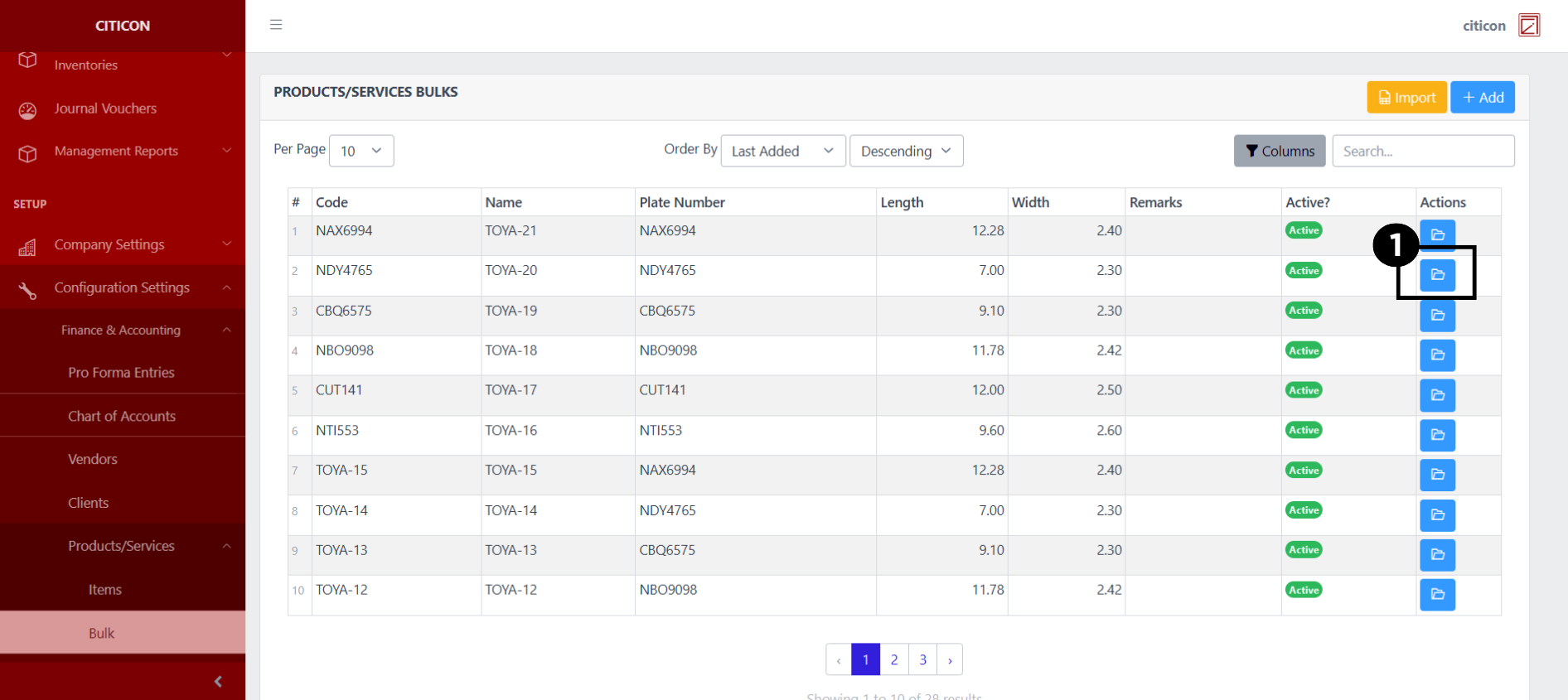
- Select the folder button of the record which you want to edit.
- Select the Edit button to update the details of the record.
- Select a detail section which you want to edit, and enter the necessary changes.
All fields with an asterisk (*) are required to be filled up.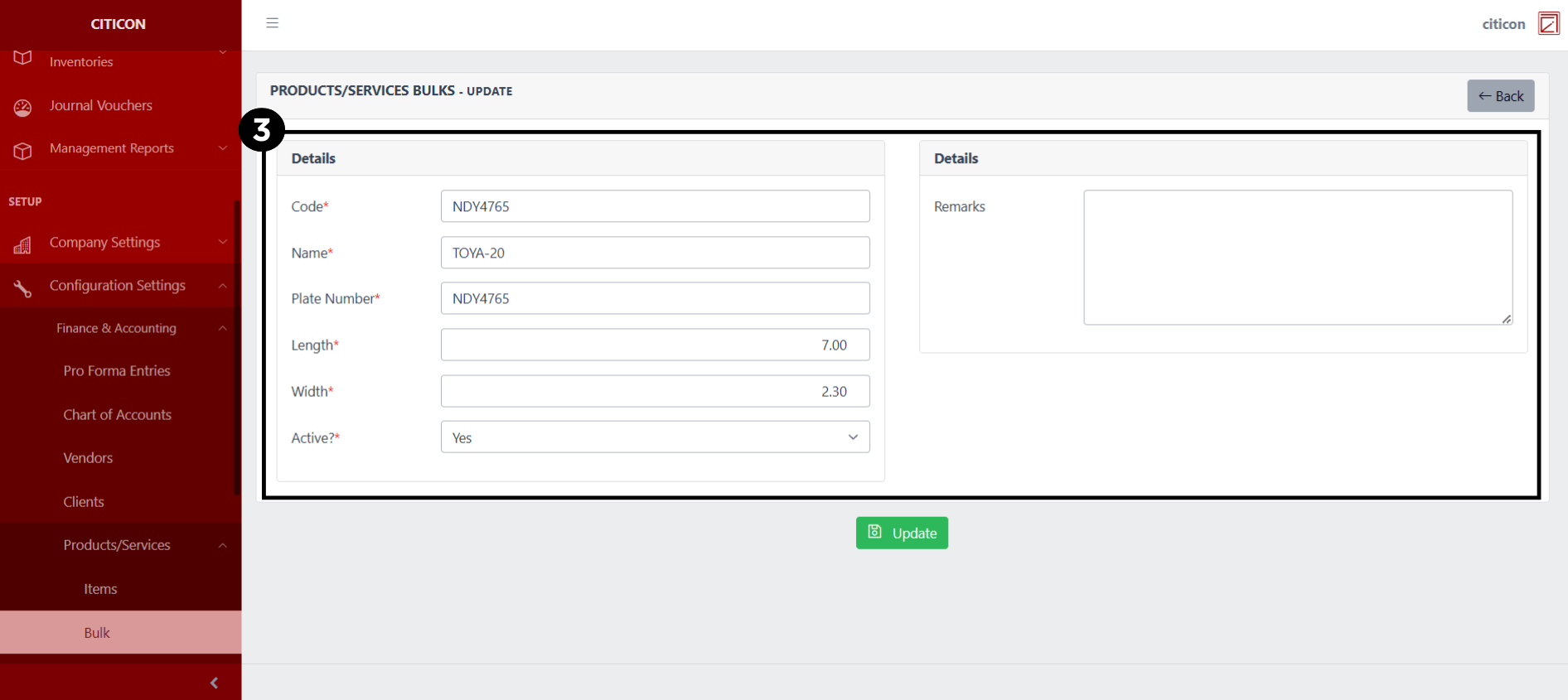
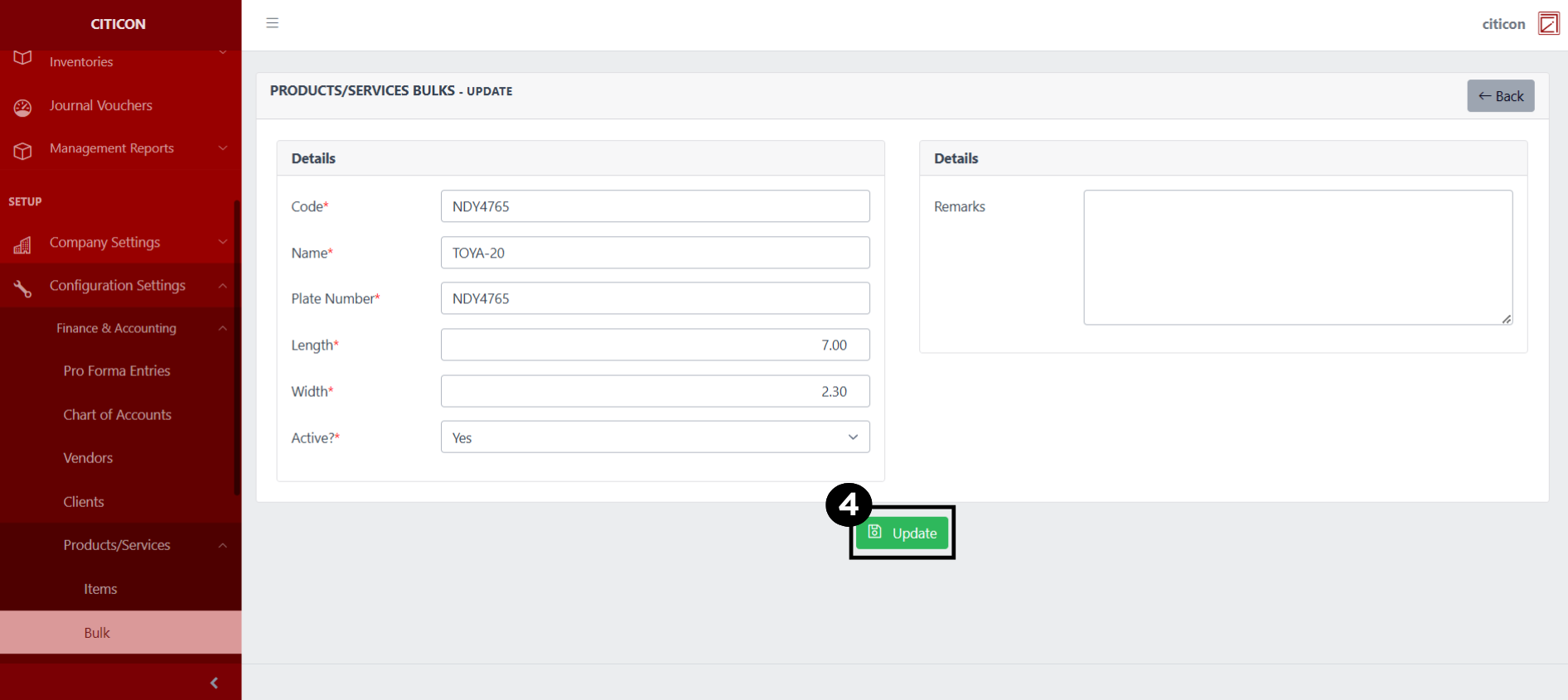
- Select the Update button to save the changes you have made.
Explore Citicon Payroll and Accounting System: Units Configuration