Pro Forma Entries Configuration
Welcome to Citicon Payroll and Accounting System Configurations of Pro Forma Entries. Pro Forma Entries module is designed to streamline and customize the accounting process, ensuring that journal entries are automatically and accurately generated based on the specific needs of the business.
This guide will walk you through the following:
1. Understanding Pro Forma Entries: It explains what pro forma entries are and their role as templatesP for journal entries within the accounting system.
2. Reviewing and Updating Entries: It guides users on how to review the default pro forma entries provided by the system to ensure they align with the specific chart of accounts used by their business.
3. Customizing Journal Entries: The guide instructs users on how to customize these entries, such as changing the names and details of accounts to match the business's specific needs (e.g., specifying a particular bank for cash receipts).
4. Navigating the System: It provides step-by-step instructions on how to navigate the pro forma entries module, including how to access, edit, and update entries within the system.
5. Ensuring Accuracy: The guide helps ensure that all journal entries generated by the system are accurate and appropriate for the business's financial records by showing how to correctly set up and modify pro forma entries.
Key Purposes
1. Template Provision: Pro forma entries provide predefined templates for journal entries, ensuring that common transactions like cash receipts, sales, collections, purchases, payments, and disbursements are consistently recorded in the accounting system.
2. Customization: They allow businesses to tailor these templates to their specific chart of accounts. This customization ensures that the entries accurately reflect the business's unique financial structure and needs.
3. Automation: By using pro forma entries, the accounting system can automatically generate journal entries for various transactions. This automation saves time and reduces the likelihood of manual errors.
4. Adaptability: The ability to update and change pro forma entries means that the system can be adapted to different banks or specific accounts as required by the business. This flexibility ensures that all transactions are correctly categorized and accounted for.
5. Consistency: Ensuring that all journal entries follow a standardized format helps maintain consistency across the business's financial records, which is crucial for accurate reporting and analysis.
Pro Forma Entry Types
1. Cash Receipts: These are entries related to the inflow of cash into the business, such as payments received from customers.
2. Sales: These entries capture revenue from the sale of goods or services.
3. Collections: These are entries related to the collection of receivables, such as payments from customers on credit.
4. Purchases: Entries that record the acquisition of goods or services for the business.
5. Payments: These entries cover cash outflows for various expenses or liabilities.
6. Cash Disbursements: These are entries related to the payment of cash for expenses, purchases, or other financial obligations.
Pro Forma Entries User-Manual
This section provides details, and set-by-step instruction to access, view, and update the pro forma entry records that are stored within the system.
Index Page
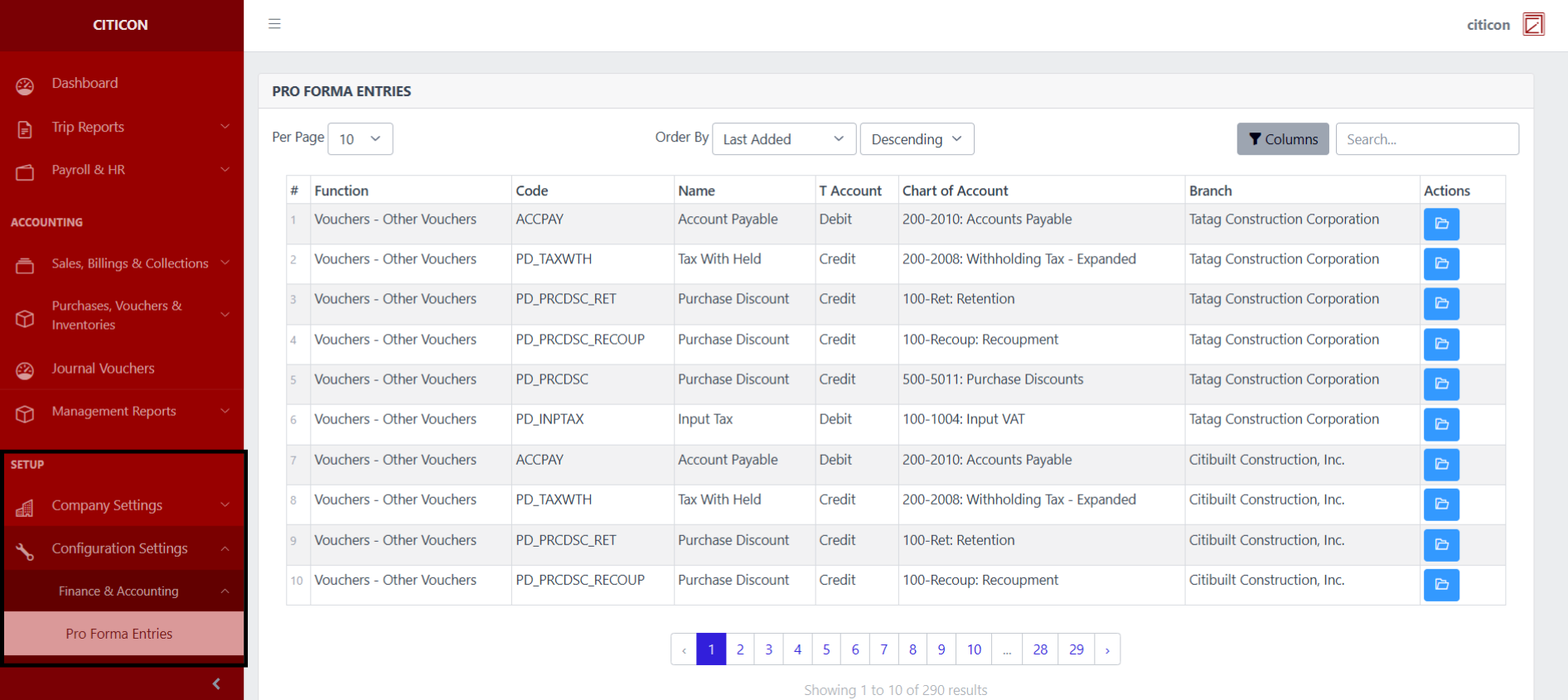
To access the Pro Forma Entries Configuration. Go to Setup, select Configuration Settings, select Finance & Accounting, then select Pro Forma Entries.
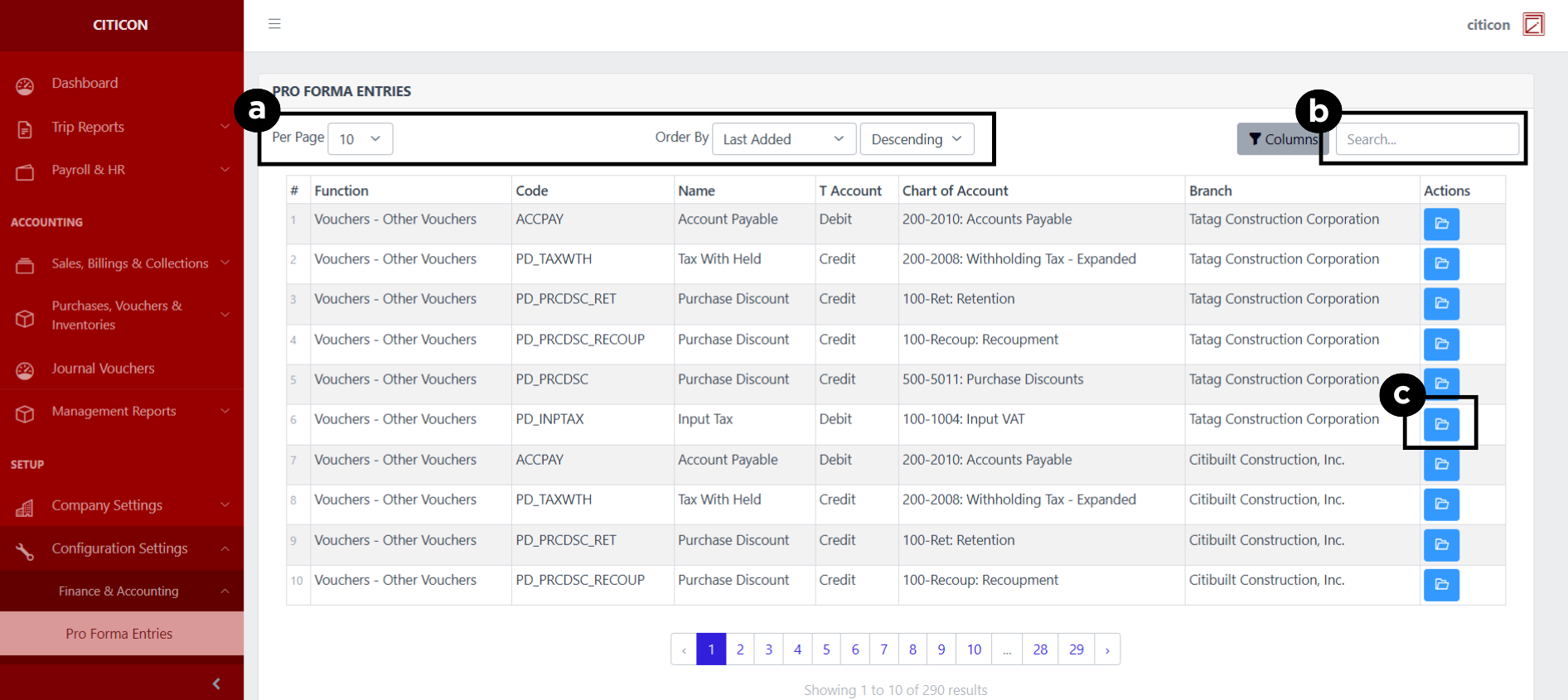
a. Adjust the paging, ordering, and sorting of the Pro Forma Entries Page here.
b. Search for specific record details using the search bar.
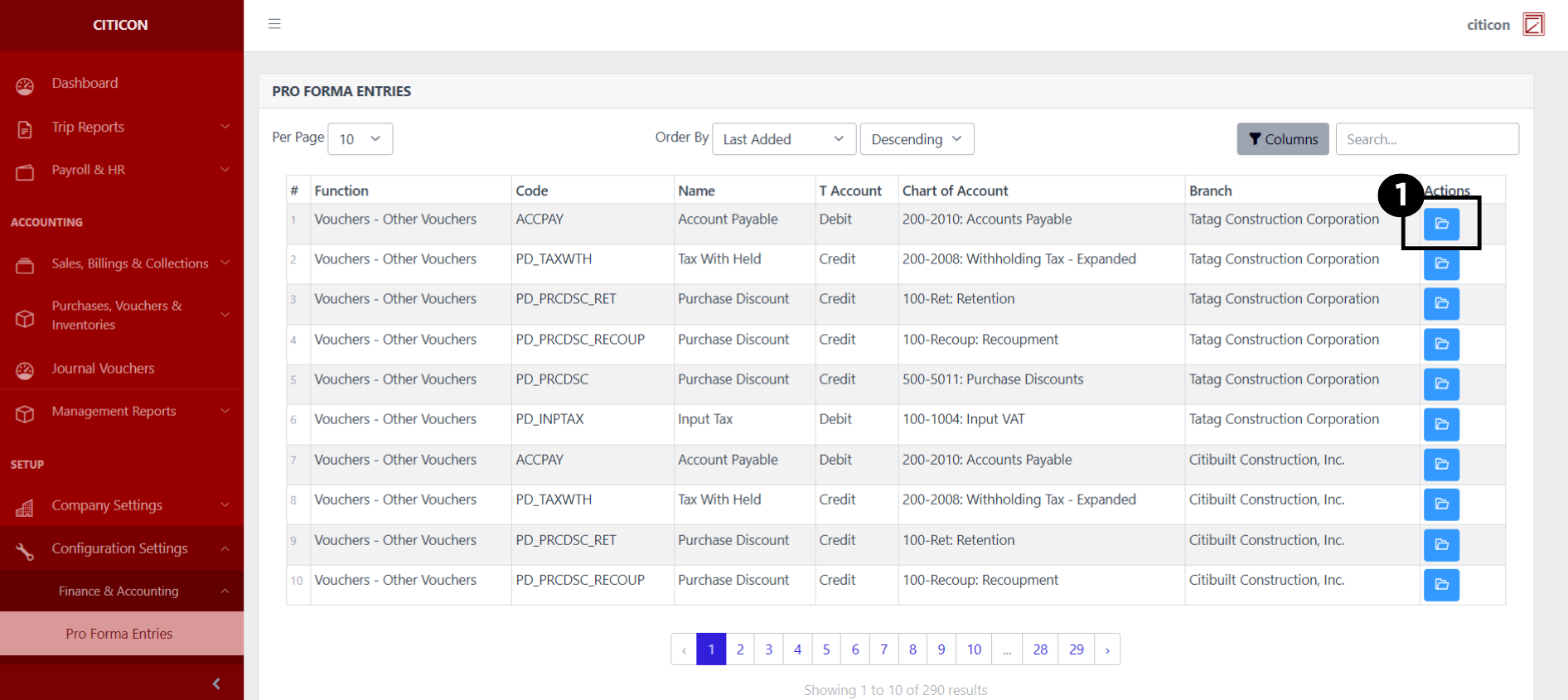
c. View or Edit a record by selecting the folder button.
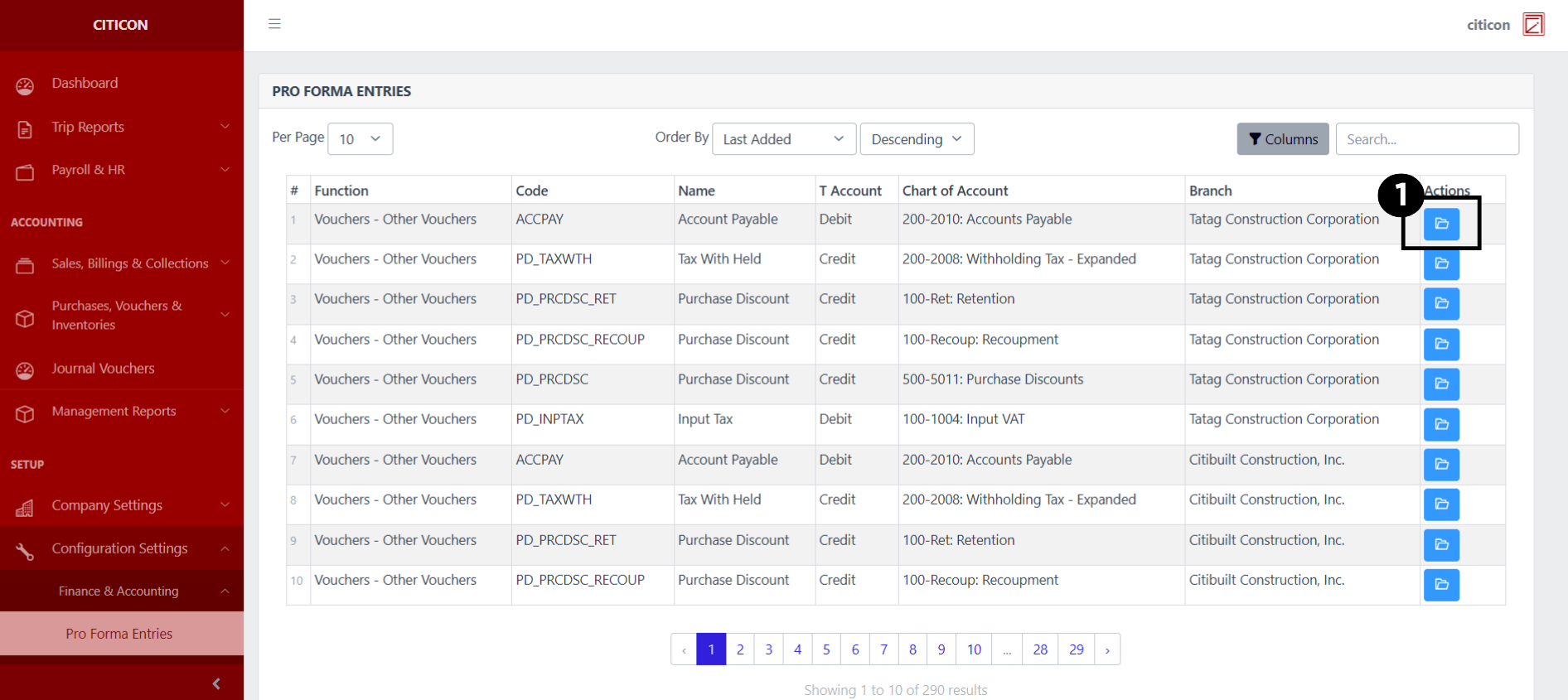
Show Records
- Select the folder button to view a record.
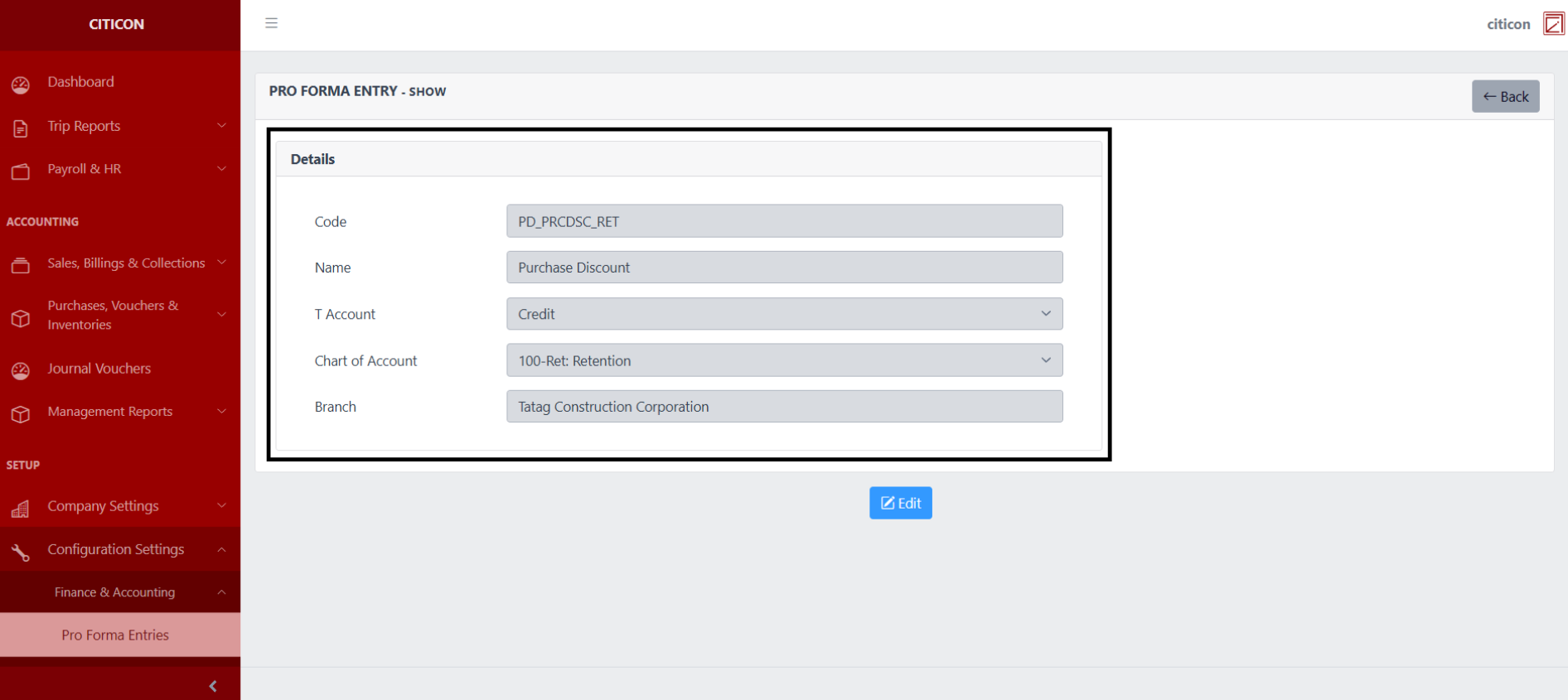
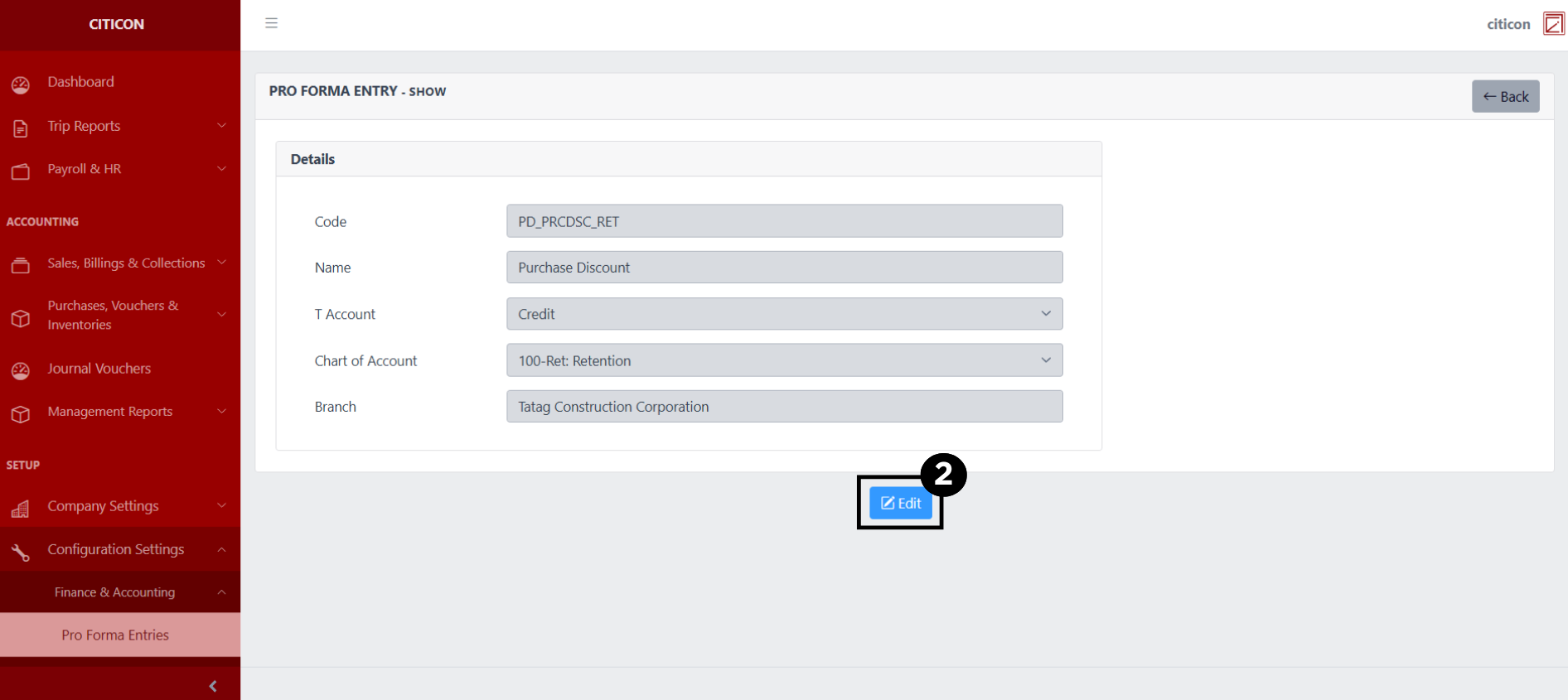
 Here you can view more specific details on the Pro Forma Entries record that you selected.
Update Records
- Select the folder button of the Pro Forma Entry record which you want to edit.
- Select the Edit button to update the details of an existing record.
- Select a detail section which you want to edit, and enter the necessary changes.
All fields with an asterisk (*) are required to be filled up.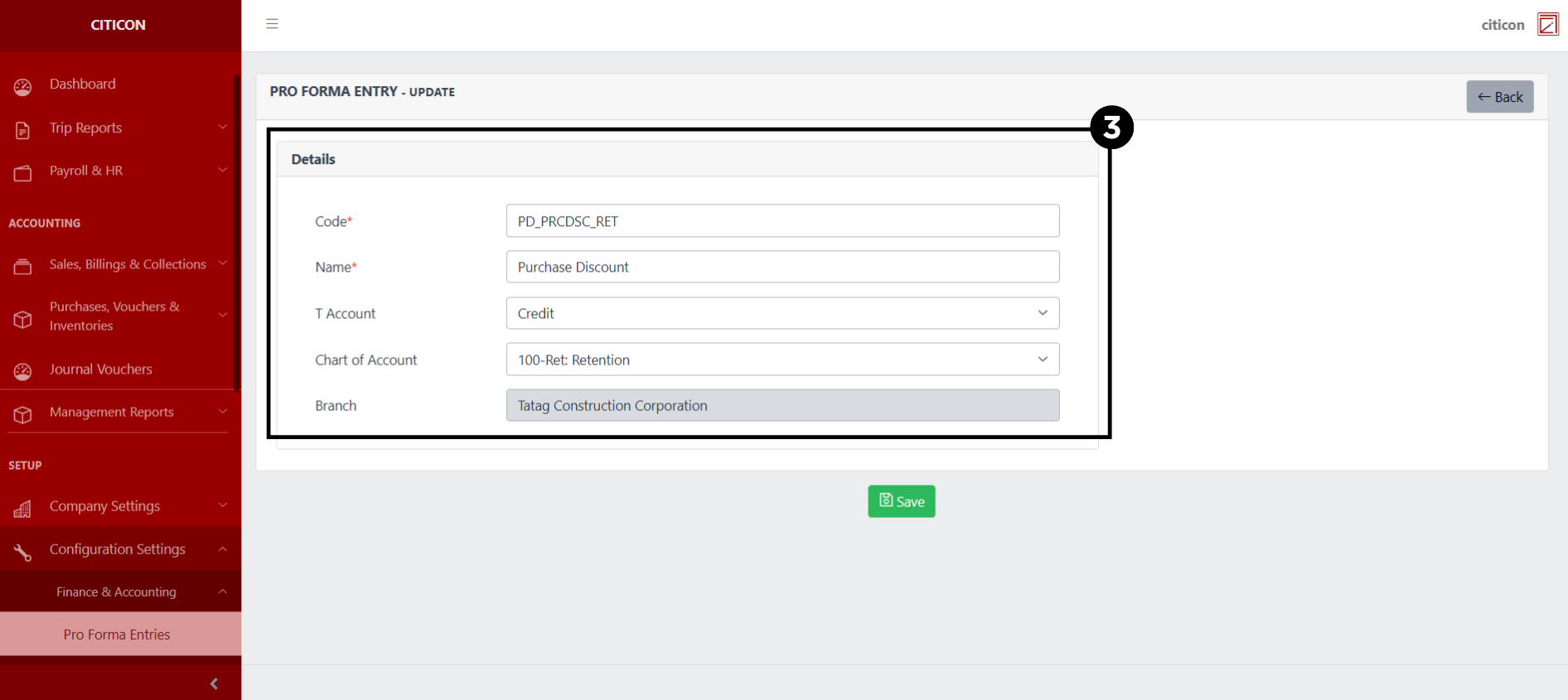
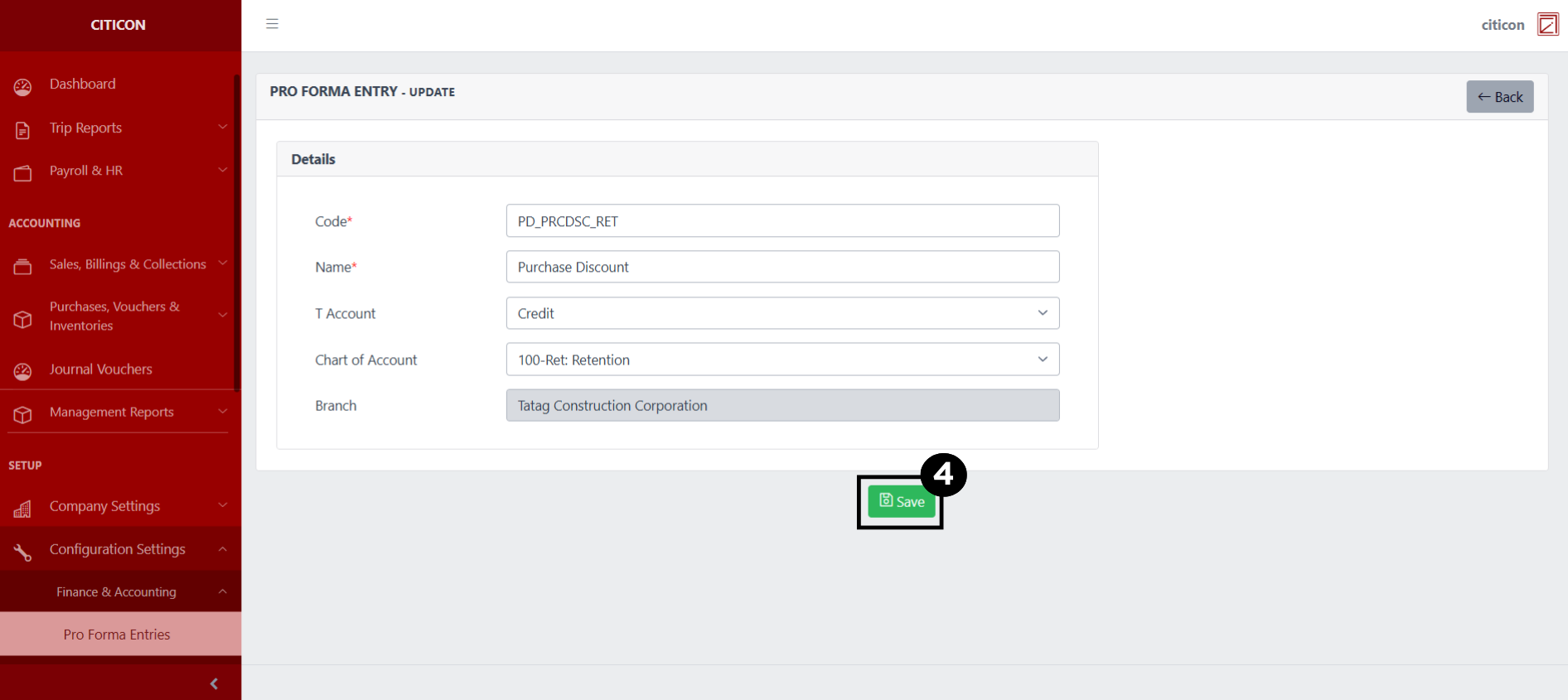
- Select the Save button to save the changes you have made.
Explore Citicon Payroll and Accounting System: Chart of Account Configuration