Billing Add-Ons Configuration
Welcome to Citicon Payroll and Accounting Systems Configuration for Billing Add-Ons. This module is designed to configure and manage additional charges or billing items that may be applied on top of regular billing.
Key Purposes
1. Customizable Billing Components: Add configurable add-on charges such as delivery, installation, or other service-related fees.
2. Streamlined Billing Setup: Define codes, prices, and types to categorize and apply them efficiently in billing modules.
3. Detailed Record-Keeping: Include remarks and descriptions for clarity in financial statements and client communications.
4. Accurate Pricing: Assign specific prices to each add-on to ensure correct total billing amounts.
5. Flexible Categorization: Classify add-ons by type to support accurate reporting and usage tracking.
Billing Add-Ons Module User-Manual
This section provides details, and set-by-step instructions to access, view, and update the Billing Add-Ons data stored in the system.
Index Page
To access the Billing Add-Ons Configuration. Go to Setup, select Configuration Settings, select Finance & Accounting, then select Billing Add-Ons.
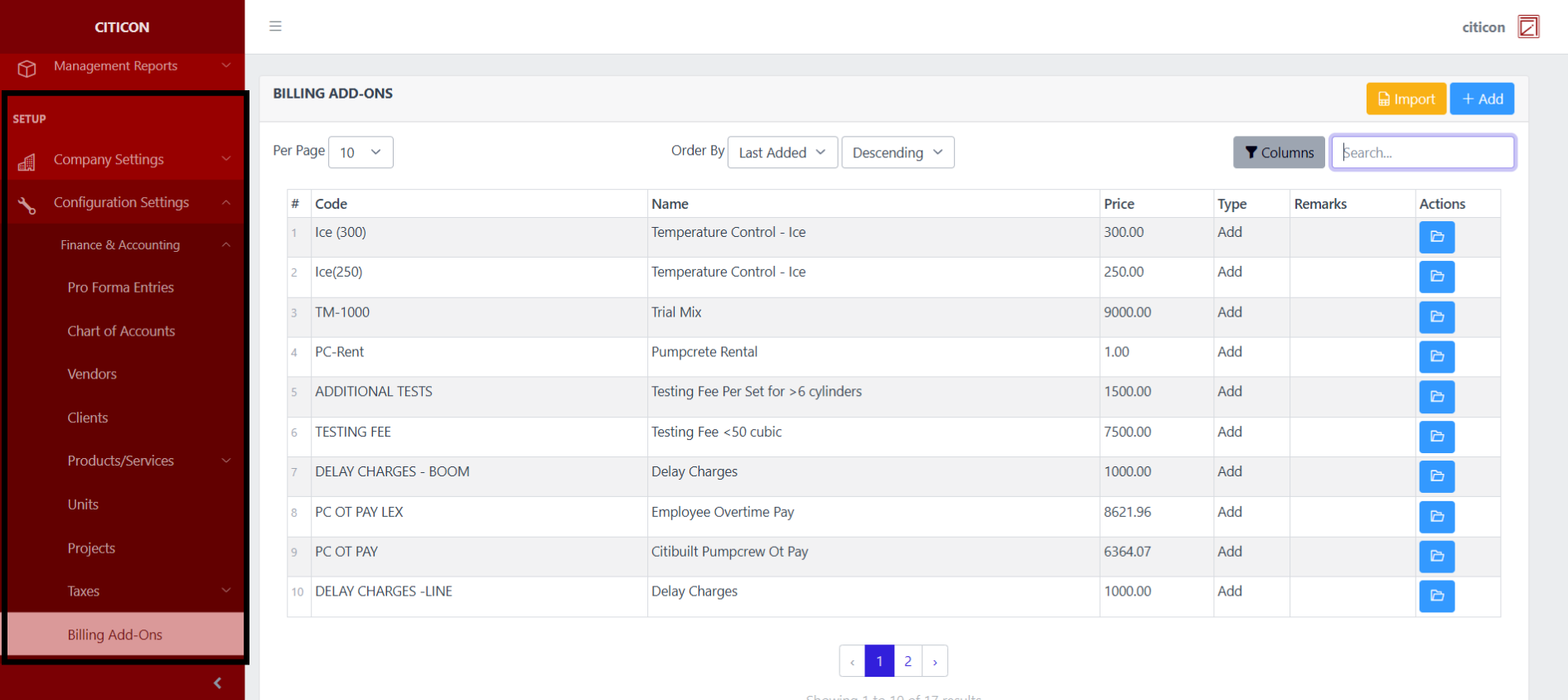
a. Adjust the paging, ordering, and sorting of the Billing Add-Ons Page here.
b. Select the respective button to either Import or Add data.
c. Search for specific record details using the search bar.
d. View or Edit a record by selecting the folder button.

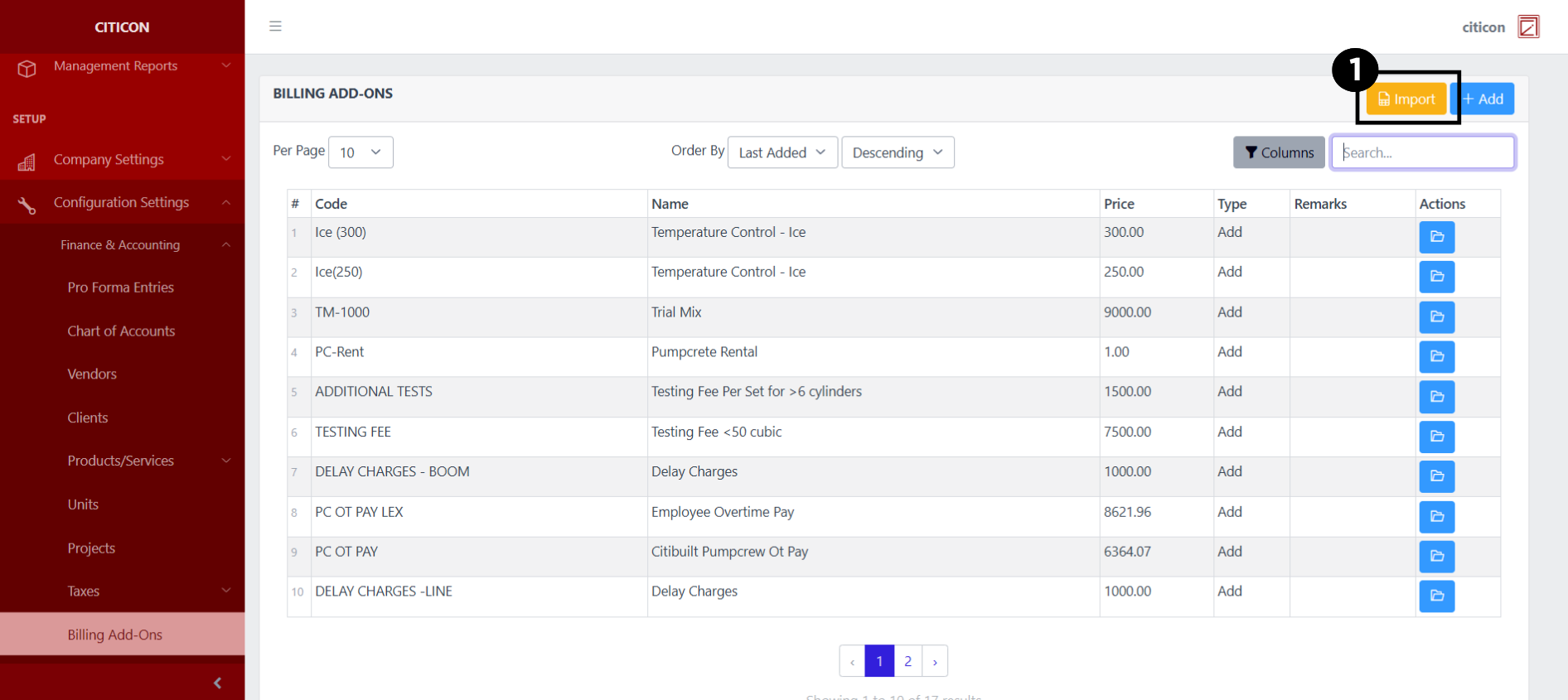
Import Records
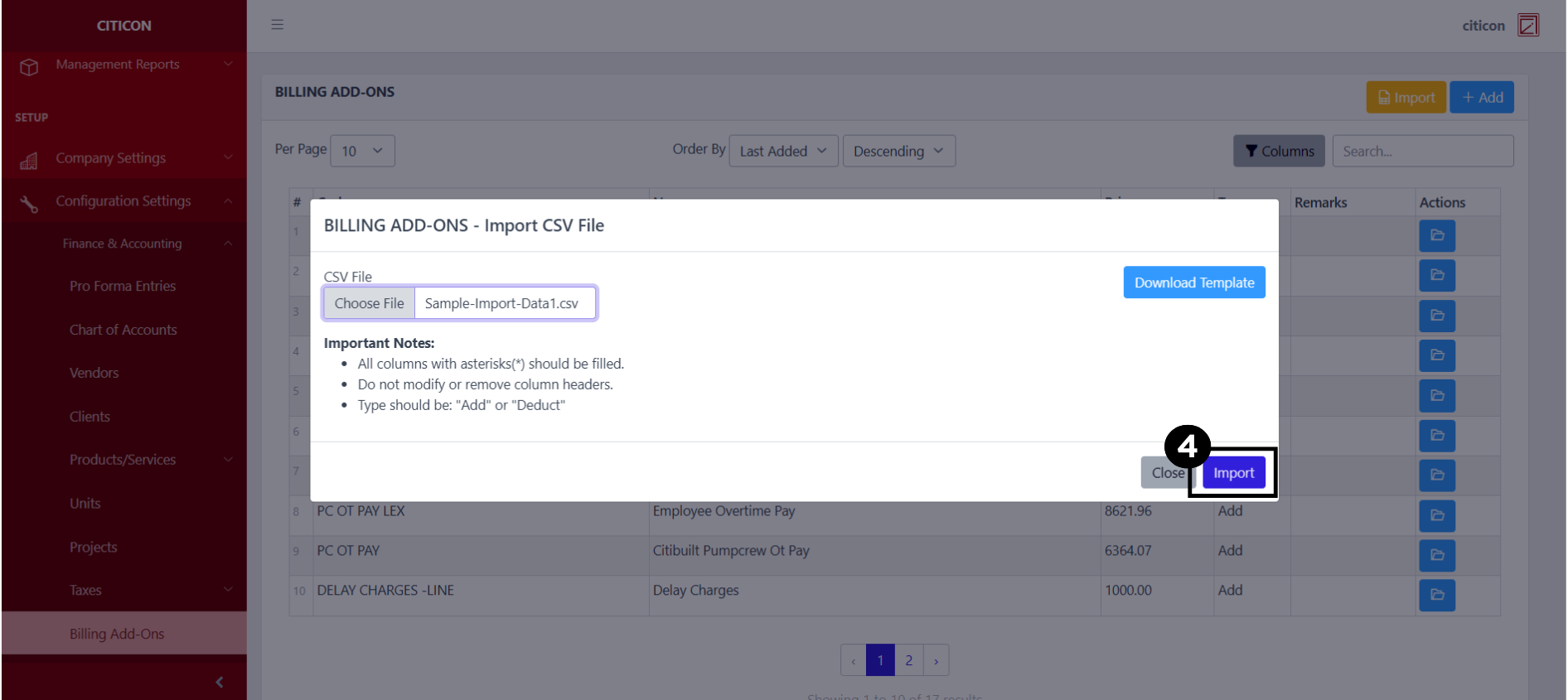
- Select the Import button to import new records.
- Select the Choose File button.
Select the Download Template button to view the required format for imported data, including the number of columns, and mandatory fields to be filled.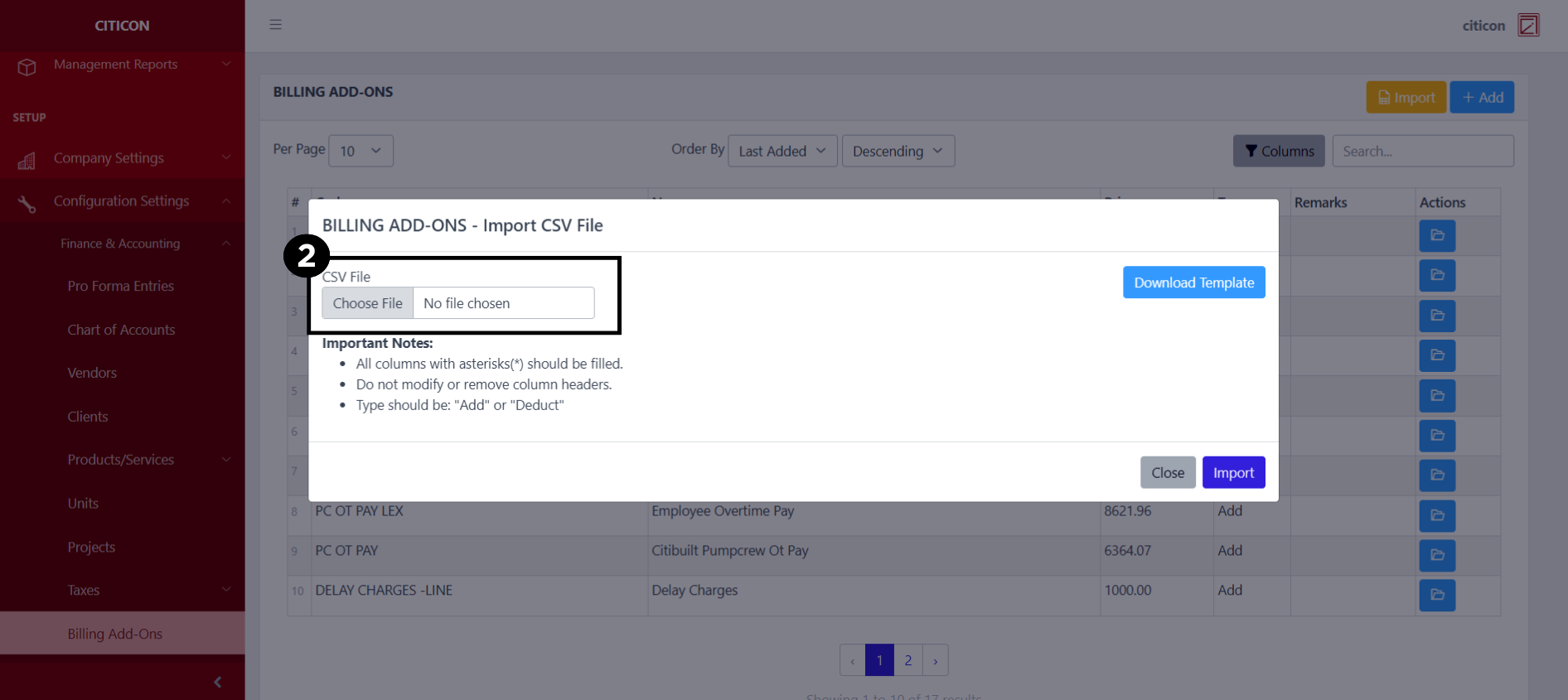
- From your local storage, select the file you want to import, then select the Open button.
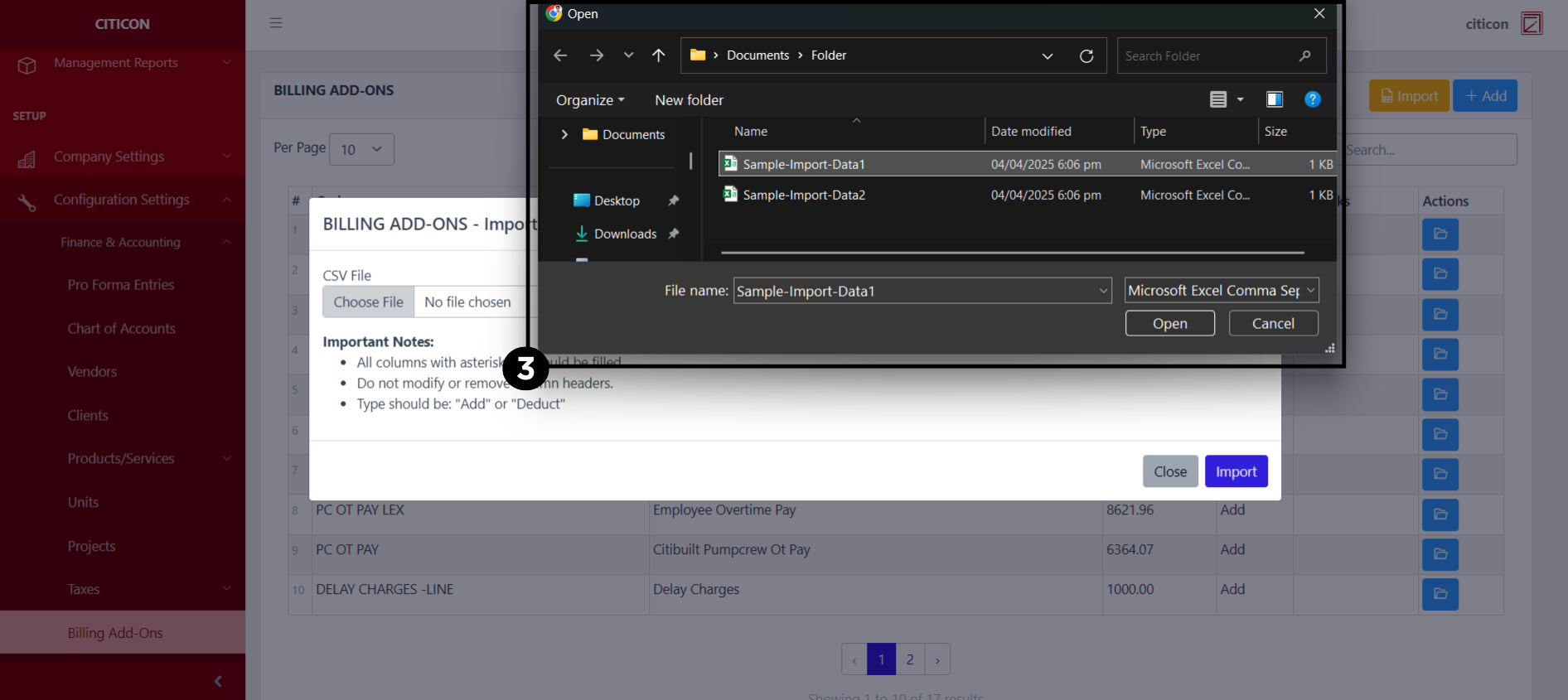
- Select the Import button.
Add Records
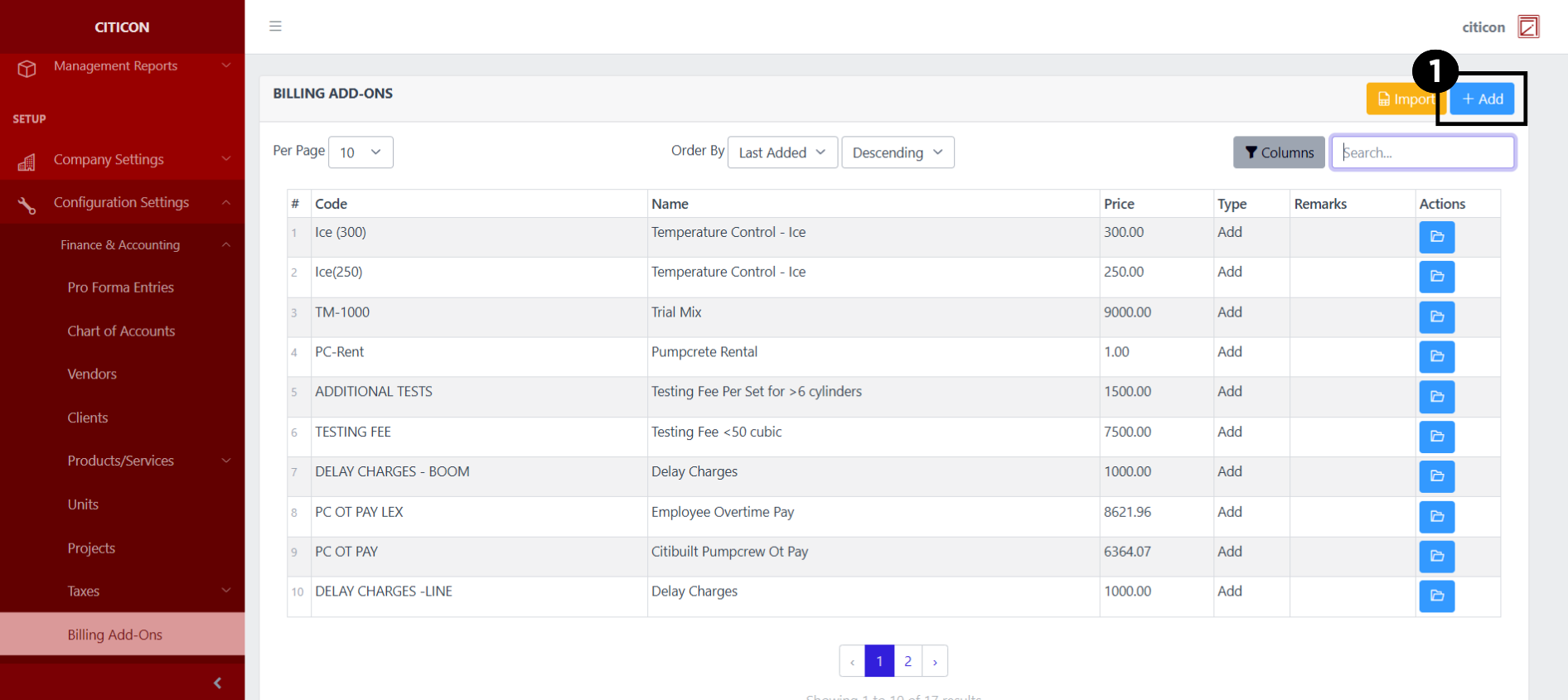
- Select the Add button to add a new record.
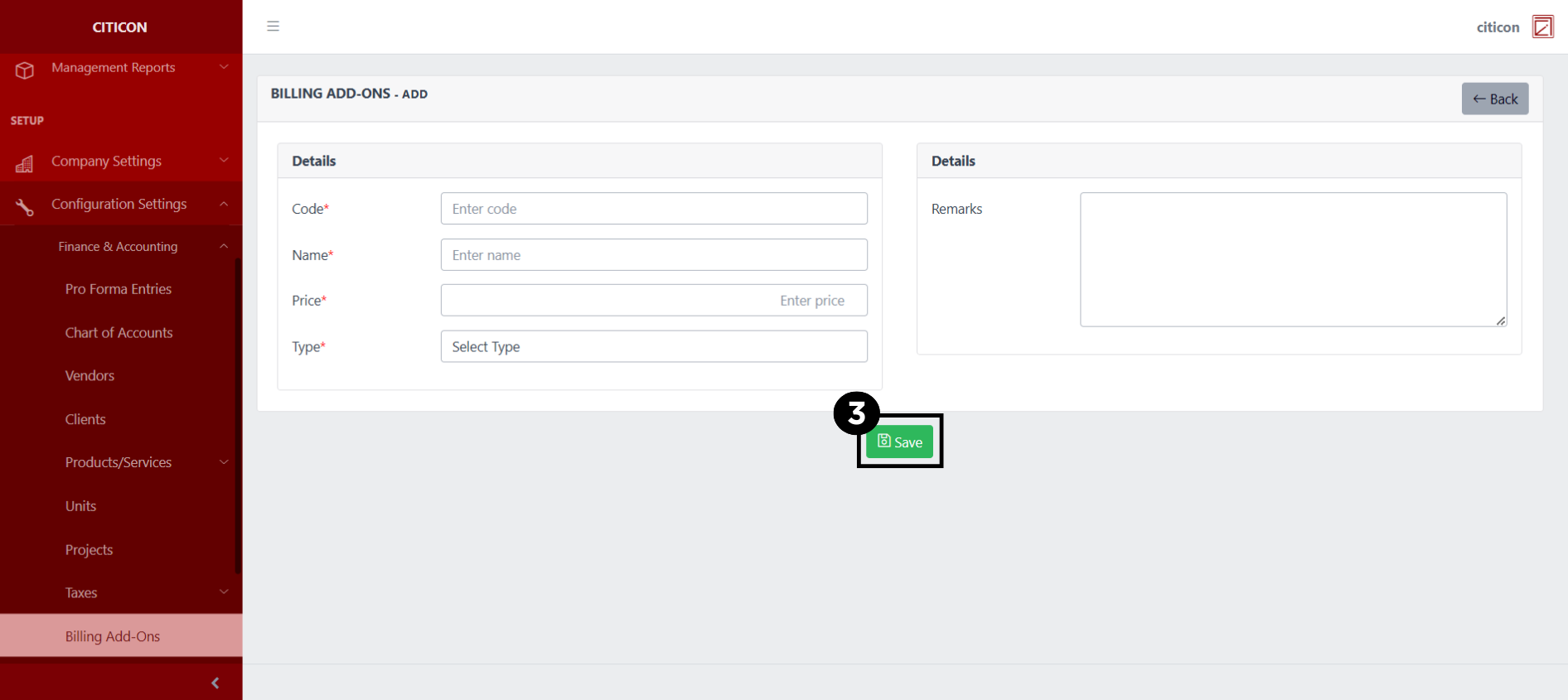
- Input the necessary details for your new record.
All fields that has an asterisk (*) are required to be filled up.
- Select the Save button to save your new record.
Show Records
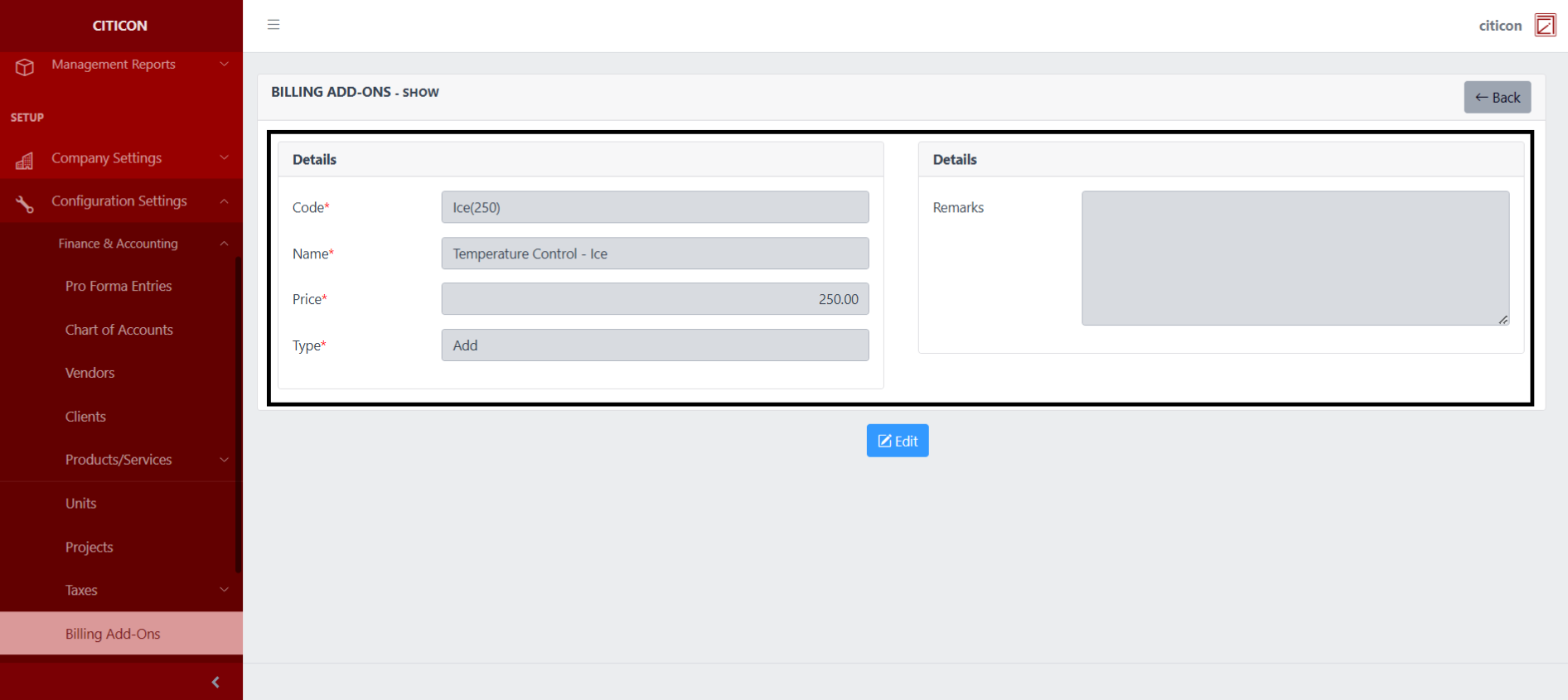
- Select the folder button to view a record.
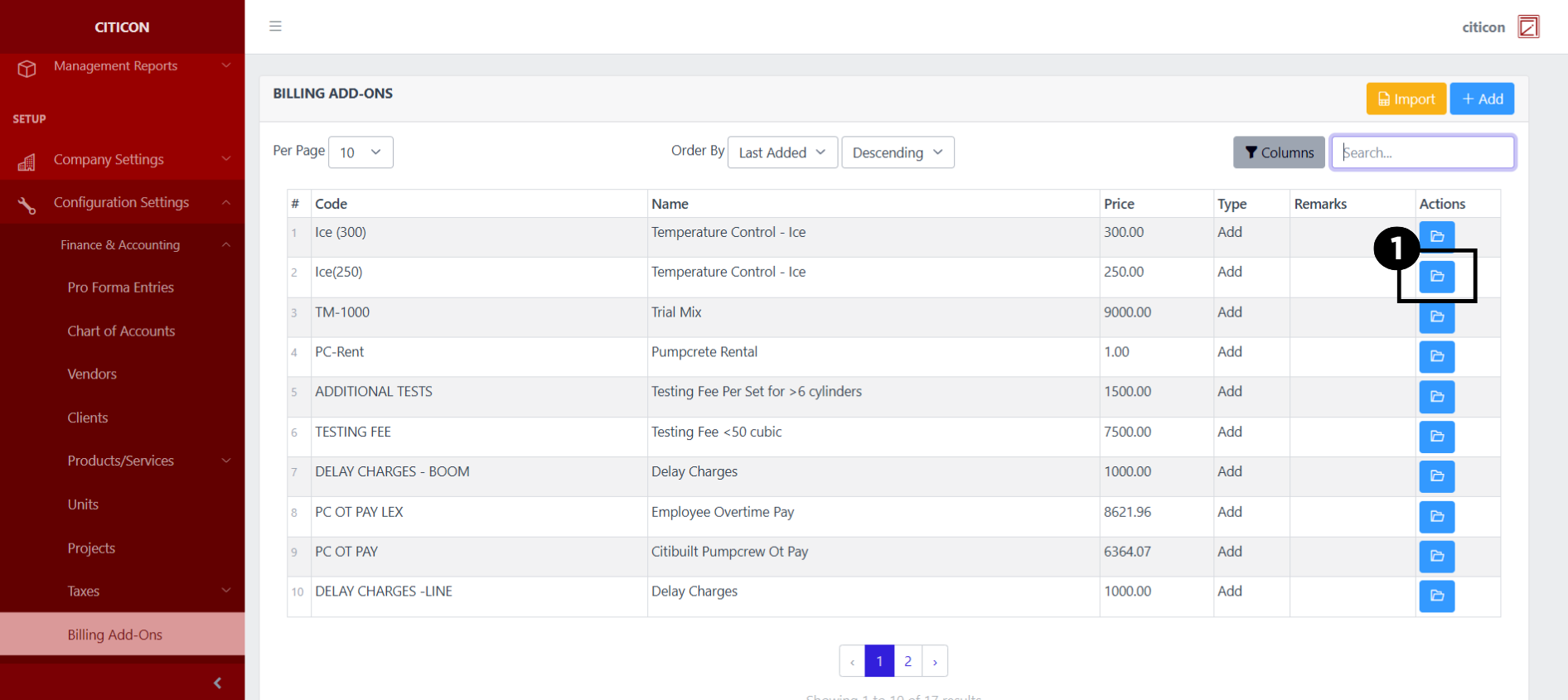 Here you can view more specific details on the record that you selected.
Update Records
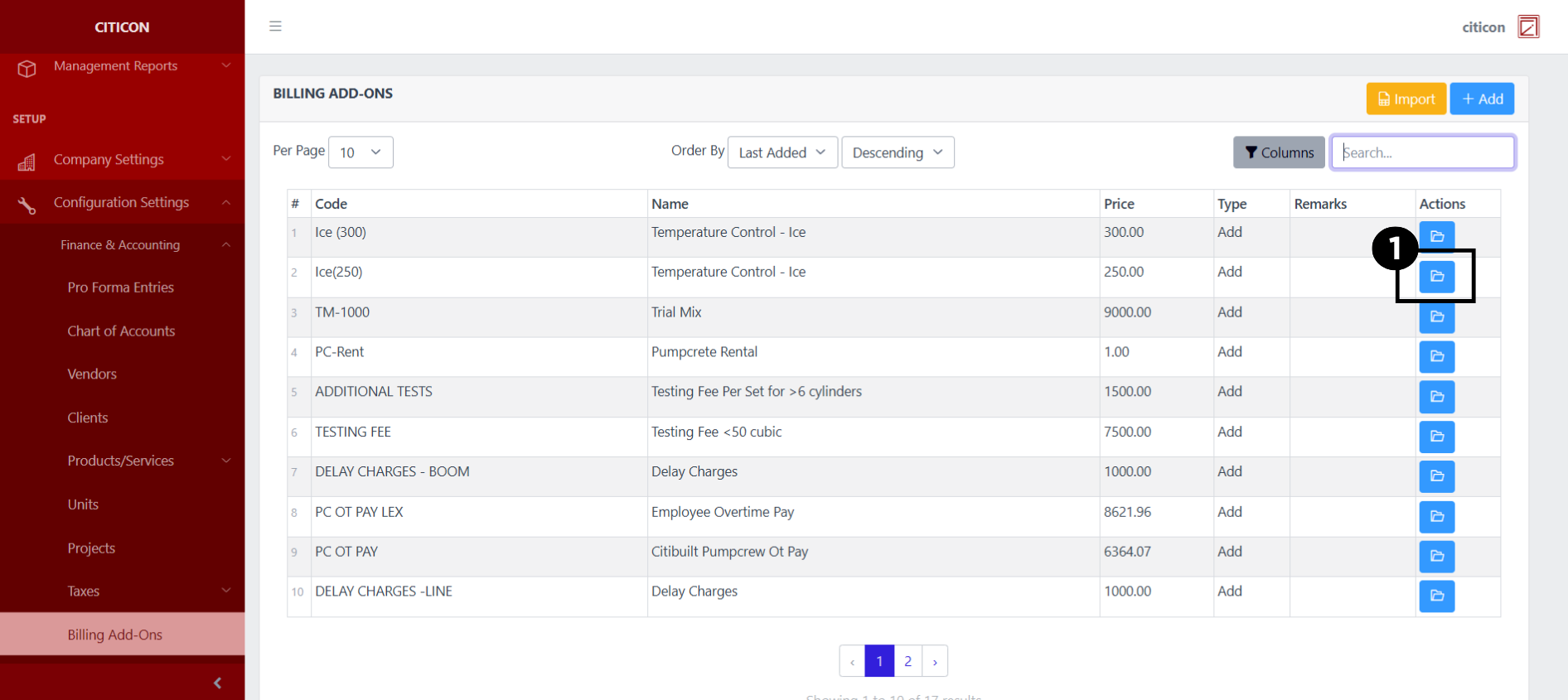
- Select the folder button of the record which you want to edit.
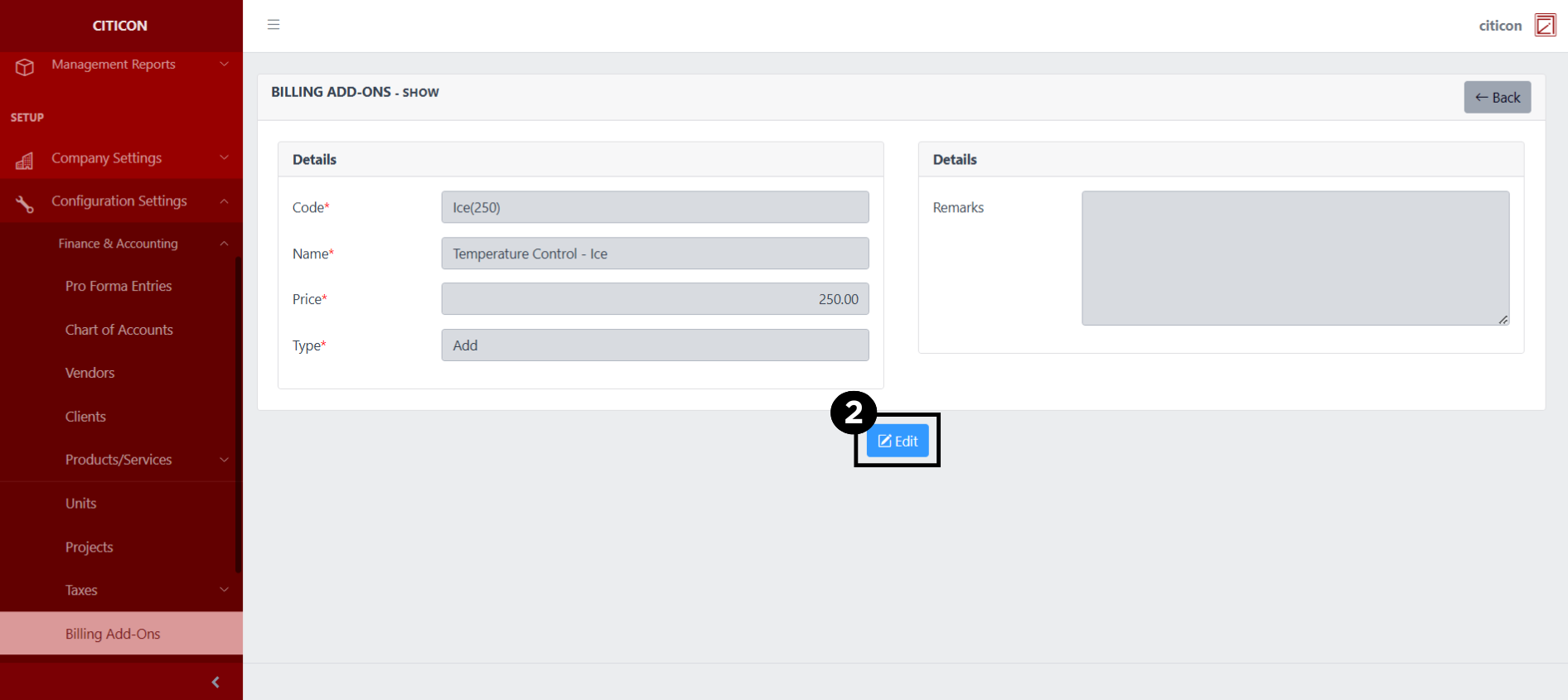
- Select the Edit button to update the details of the record.
- Select a detail section which you want to edit, and enter the necessary changes.
All fields with an asterisk (*) are required to be filled up.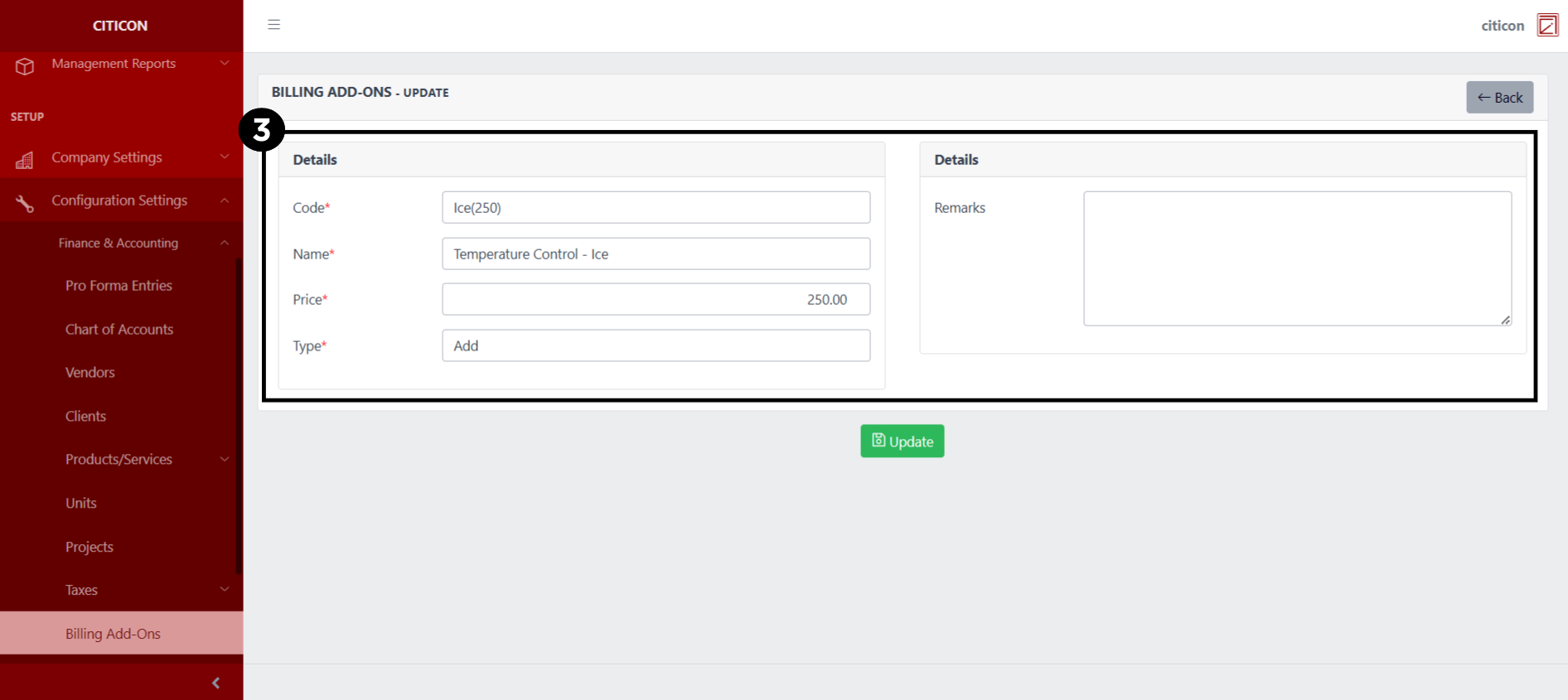
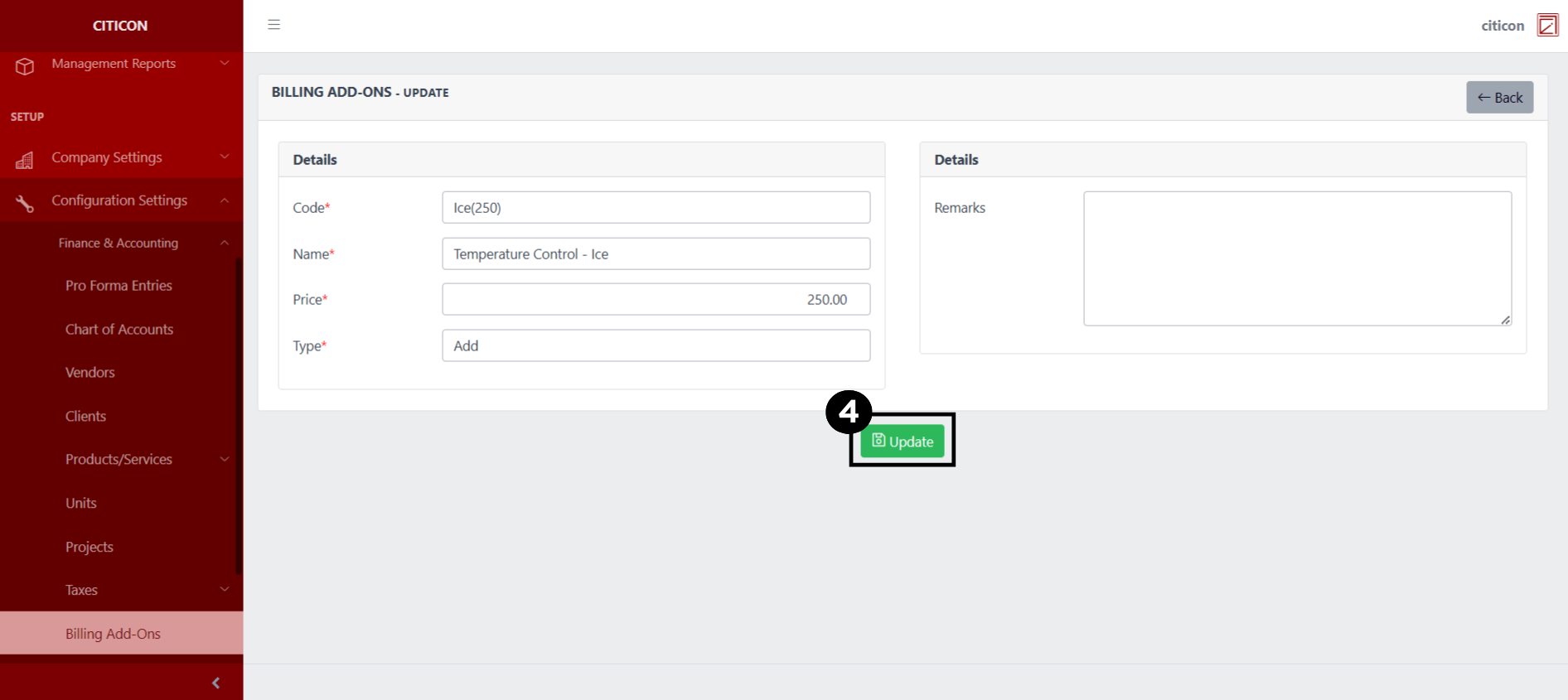
- Select the Update button to save the changes you have made.
Explore Citicon Payroll and Accounting System: ACAP List Configuration