Company Settings Group
Welcome to Citicon Payroll and Accounting Systems Configuration for Groups. This section enables you to define internal groups within your company to support classification, segmentation, and reporting needs across departments or operational units.
Key Purposes
- Categorize Company Units: Create structured groups for organizing employees, assets, or operations into meaningful classifications.
- Streamline Assignment Logic: Use groupings for assigning responsibilities, workflows, or access permissions based on predefined roles.
- Simplify Reporting: Enhance internal analytics by filtering data according to groups for better performance tracking and evaluation.
- Ensure Administrative Control: Easily activate or deactivate groups to maintain relevant structures without deleting historical data.
- Add Descriptive Context: Use the remarks section to provide specific notes or guidelines about each group’s function or usage.
Groups Module User-Manual
This section provides details, and set-by-step instructions to access, view, and update the Groups data stored in the system.
Index Page
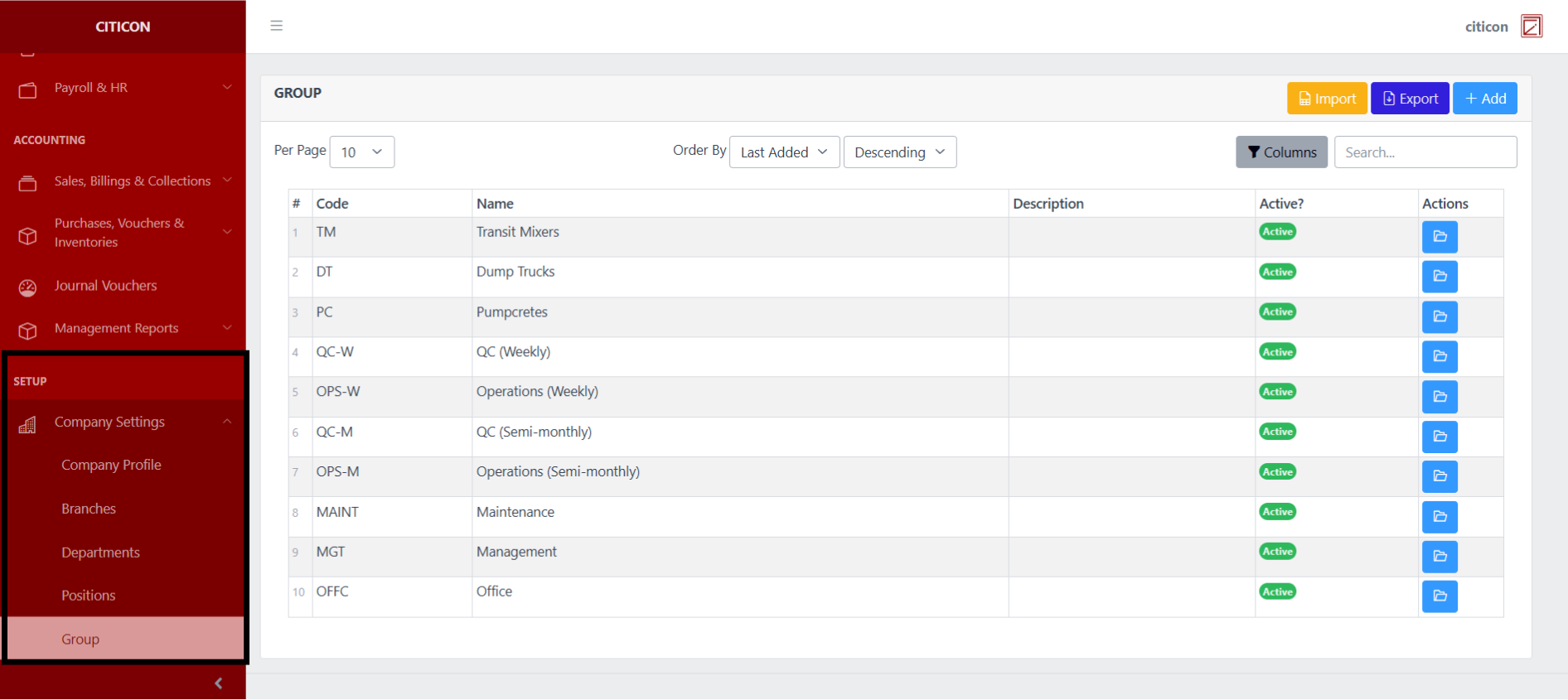
To access the Groups Settings. Go to Setup, select Company Settings, then select Groups.
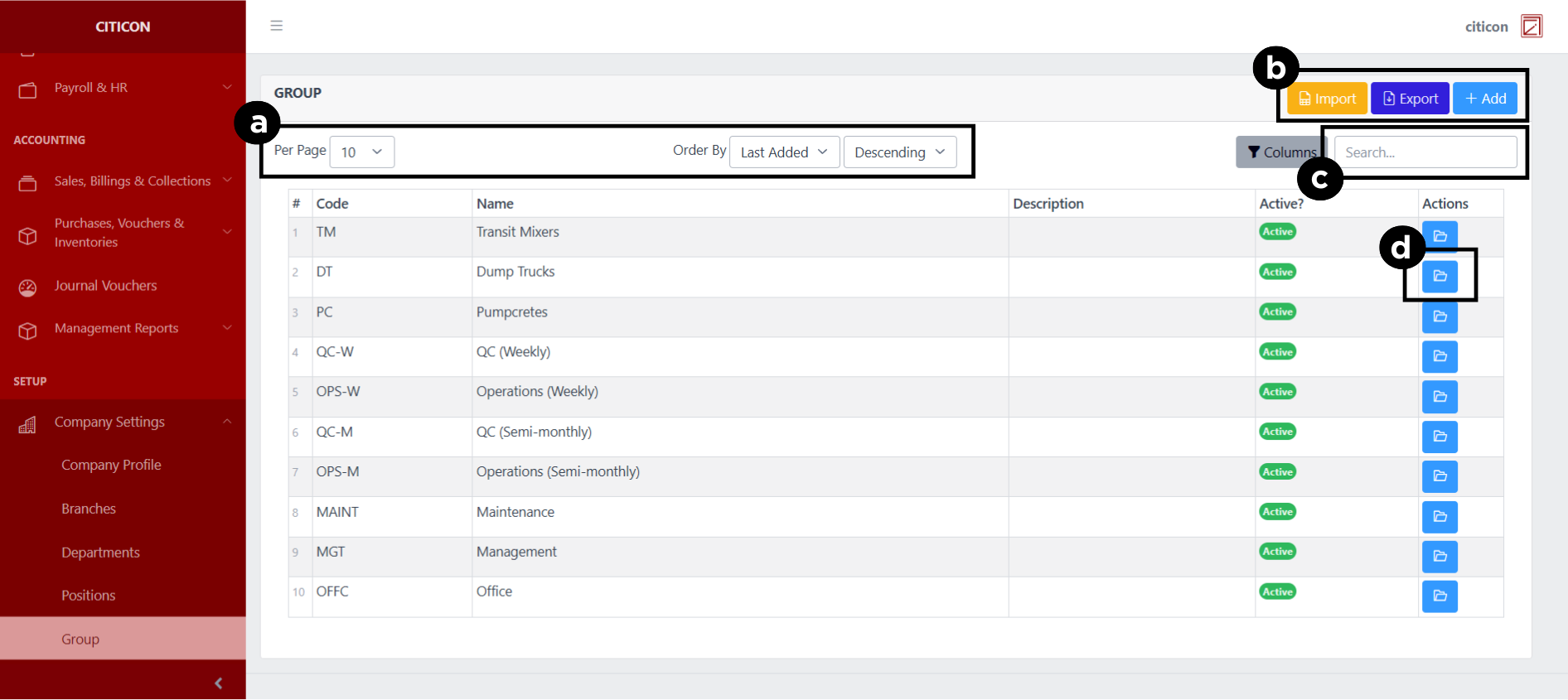
a. Adjust the paging, ordering, and sorting of the Groups Page here.
b. Select the respective button to either Import, Export, or Add data.
c. Search for specific record details using the search bar.
d. View or Edit a record by selecting the folder button.
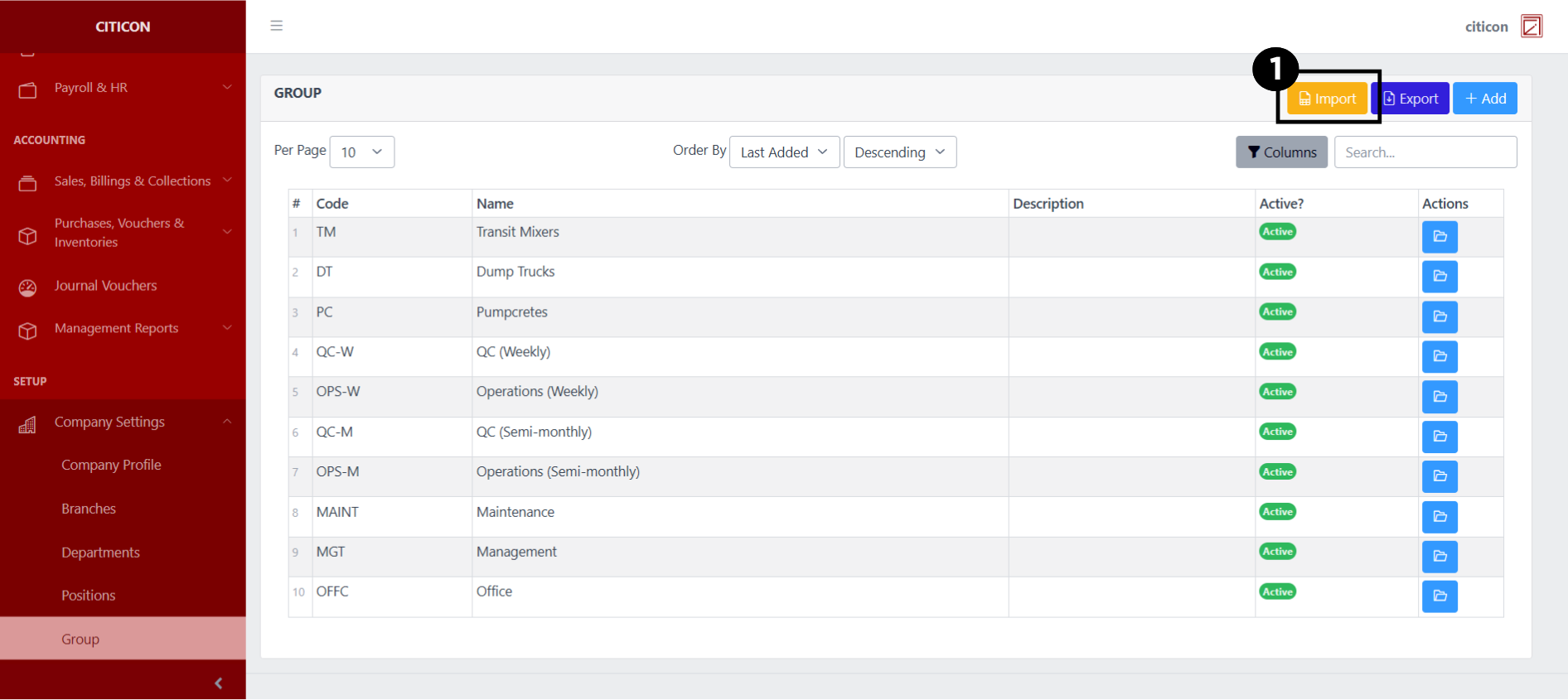
Import Data
- Select the Import button to import new records.
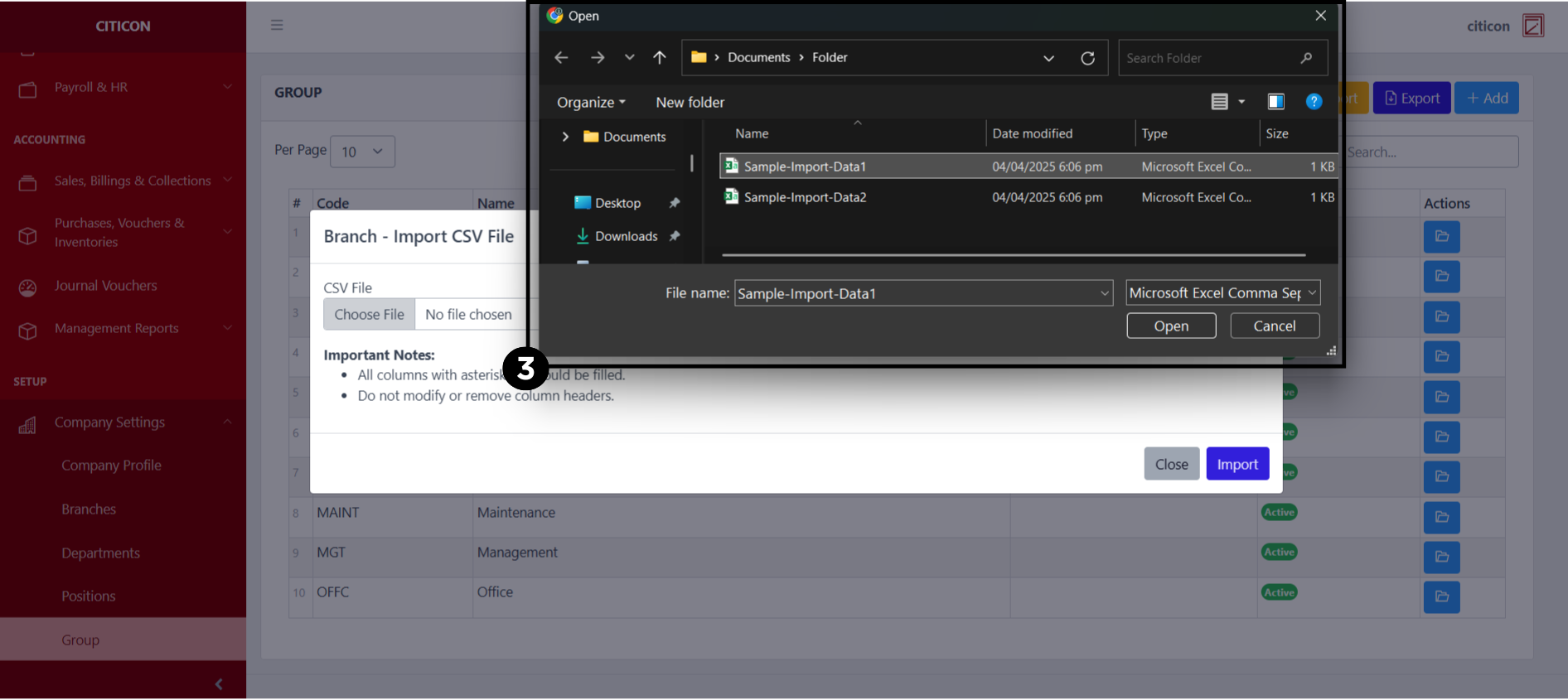
- Select the Choose File button.
Select the Download Template button to view the required format for imported data, including the number of columns, and mandatory fields to be filled.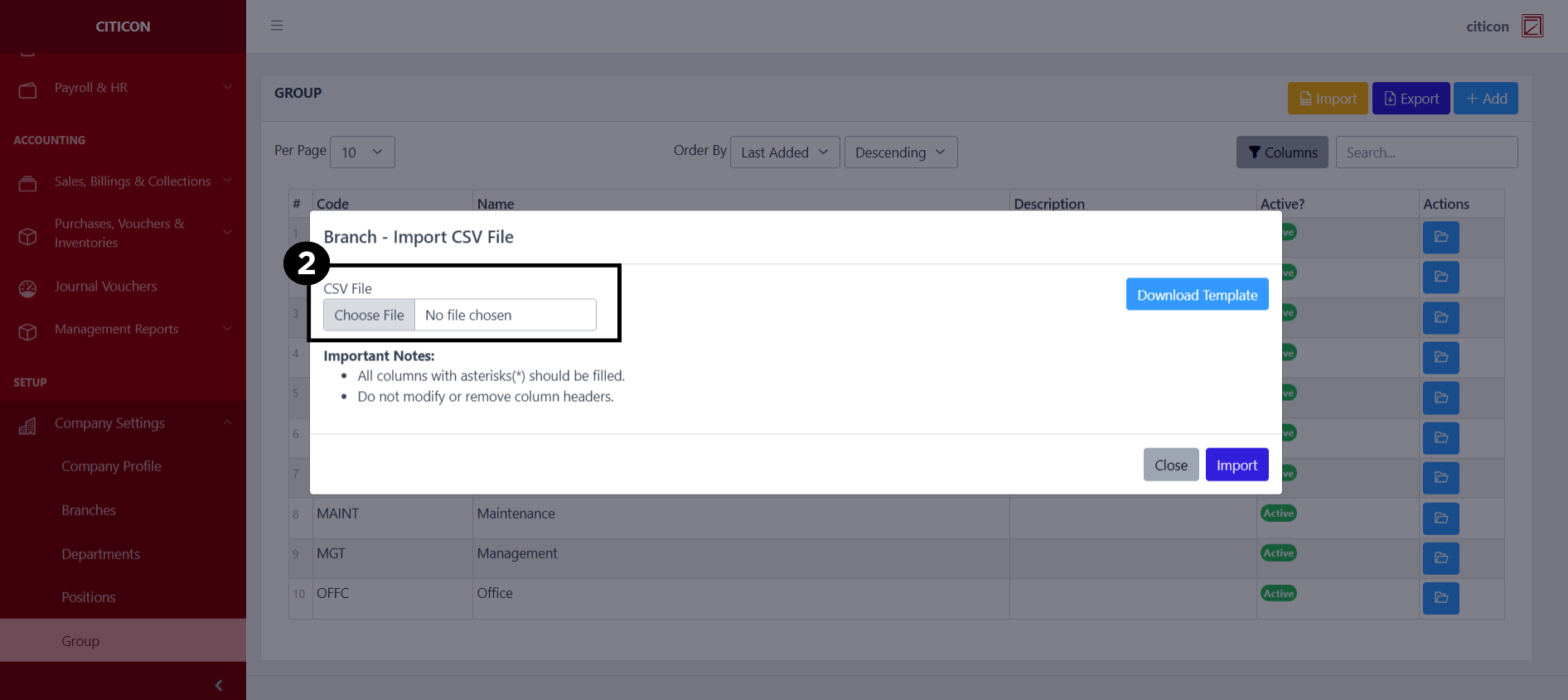
- From your local storage, select the file you want to import, then select the Open button.
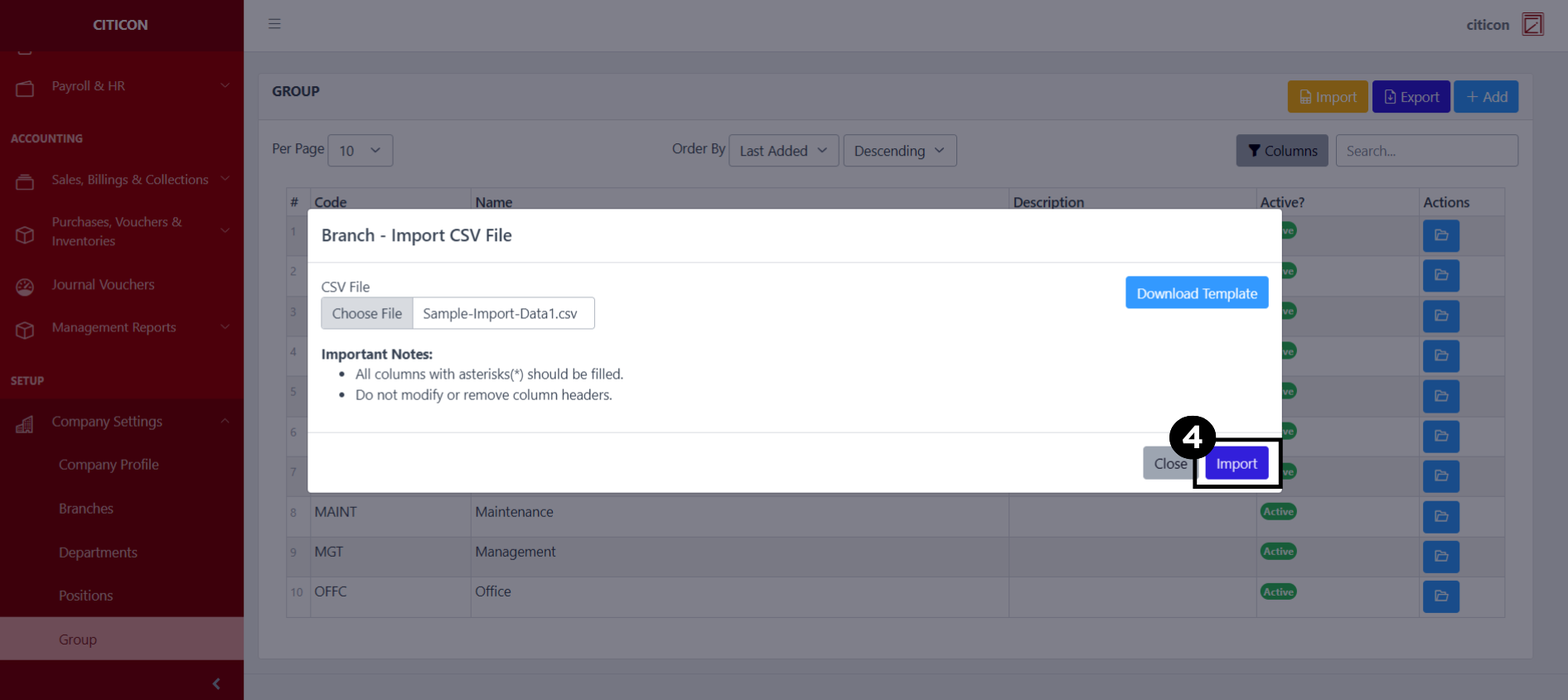
- Select the Import button.
Add Data
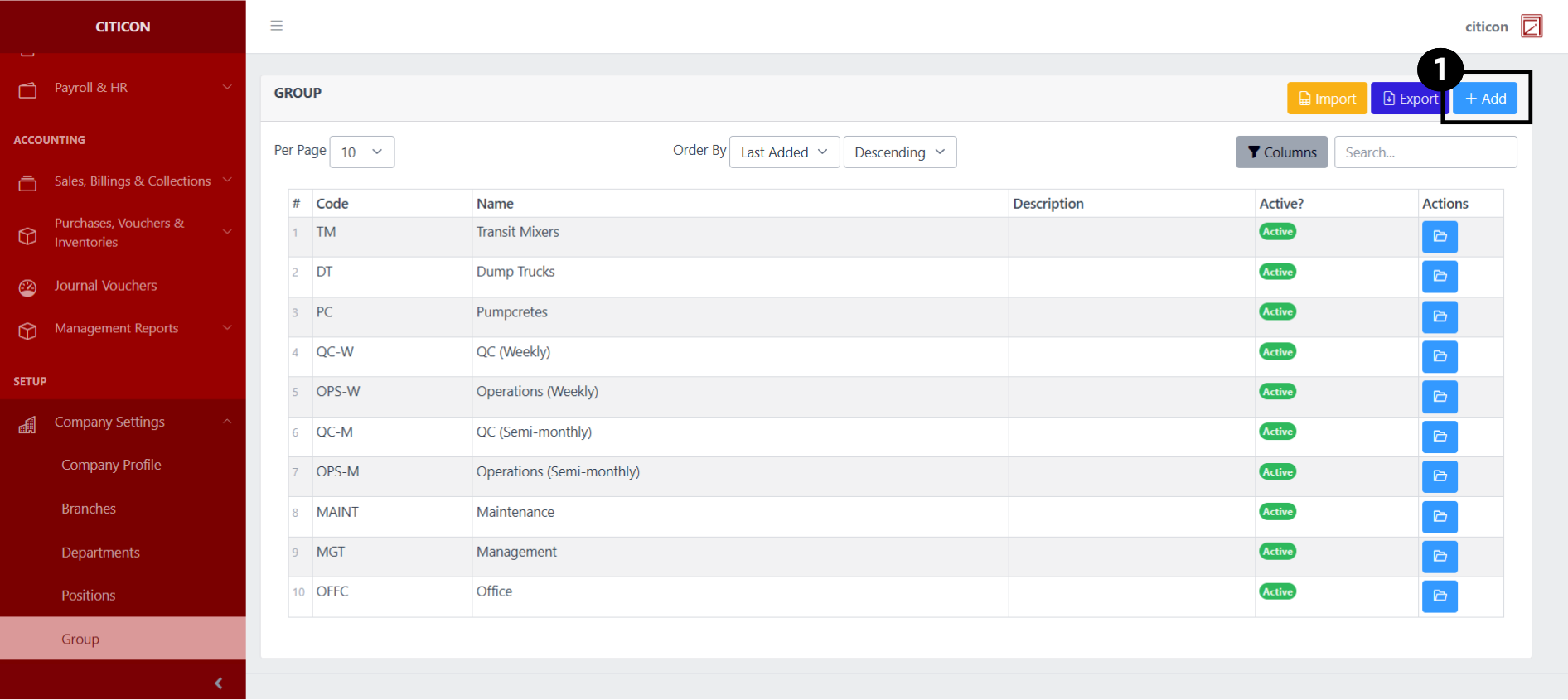
- Select the Add button to add a new record.
- Input the necessary details for your new record.
All fields that has an asterisk (*) are required to be filled up.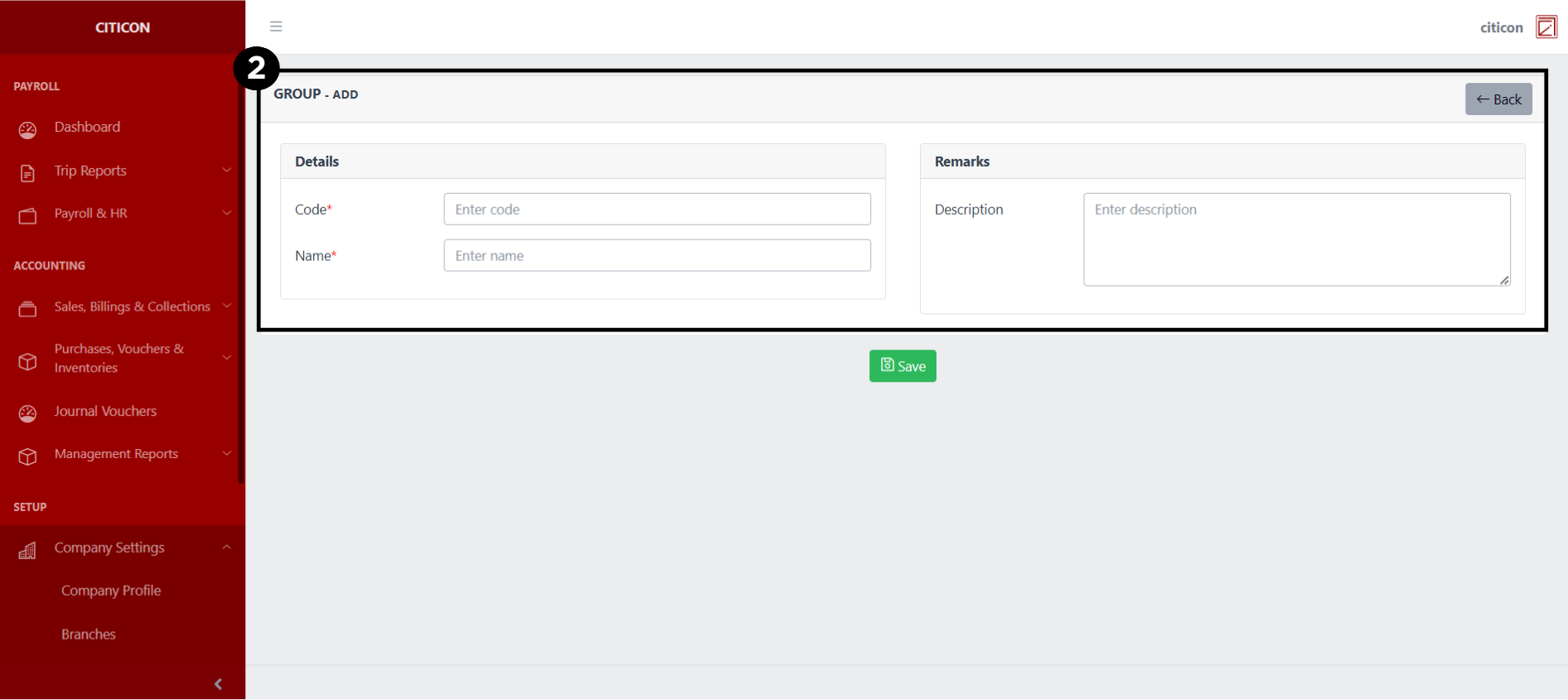
- Select the Save button to save your new record.

Show Data
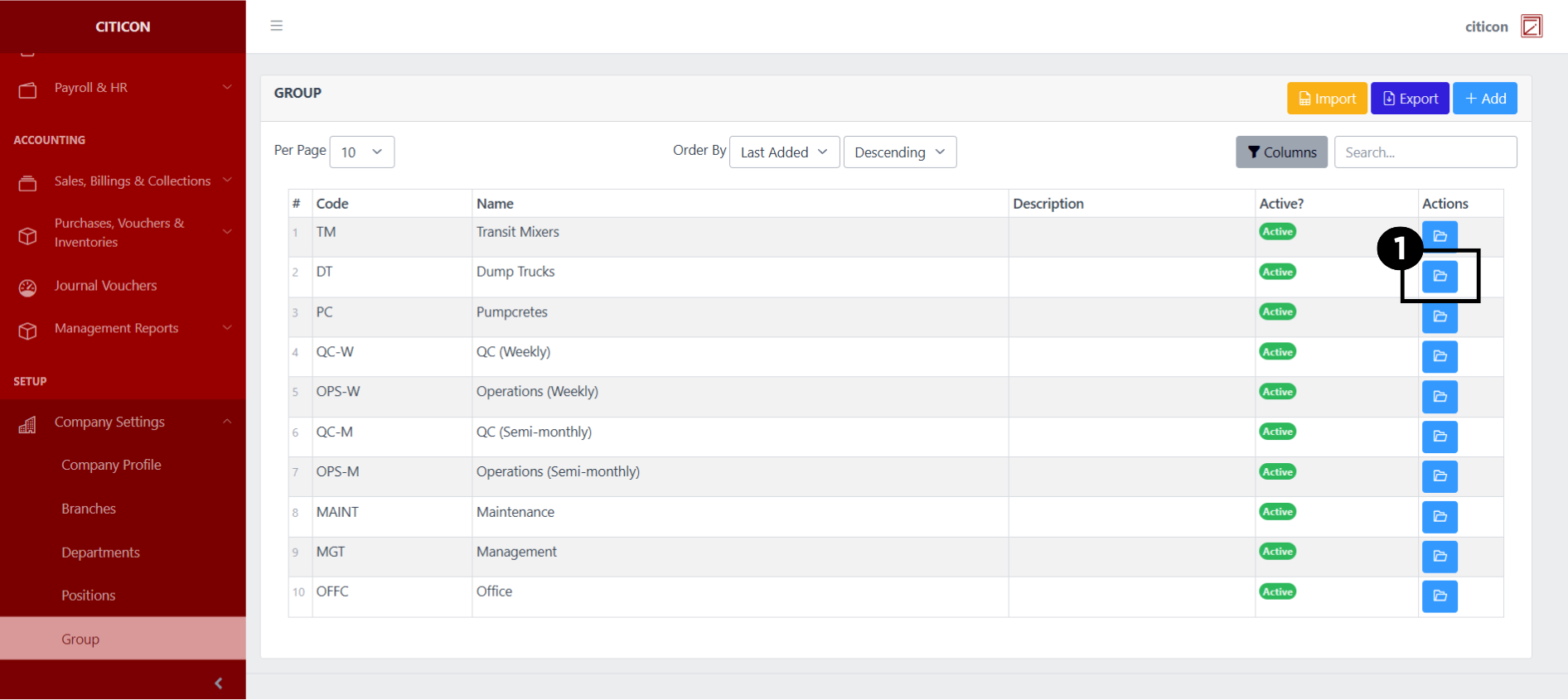
- Select the folder button to view a record.
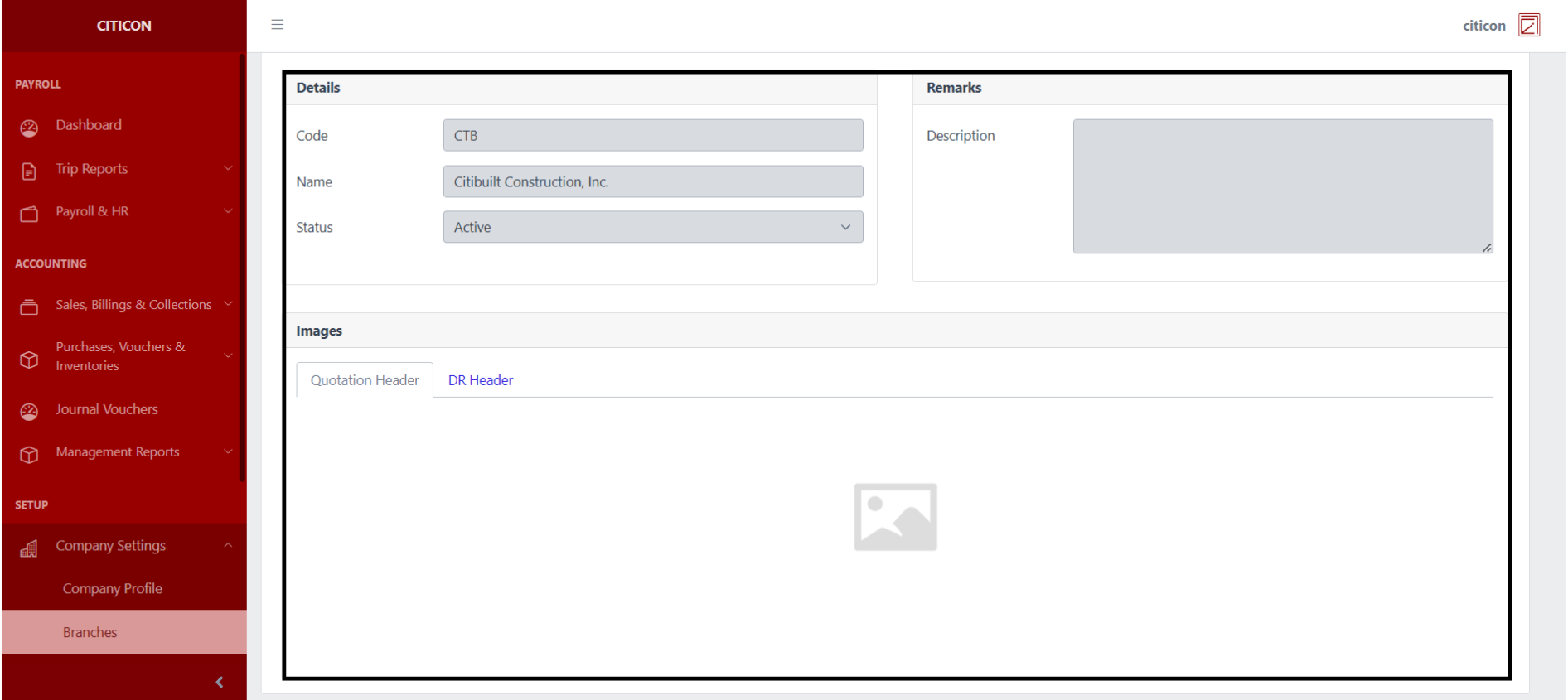
 Here you can view more specific details on the record that you selected.
Update Data
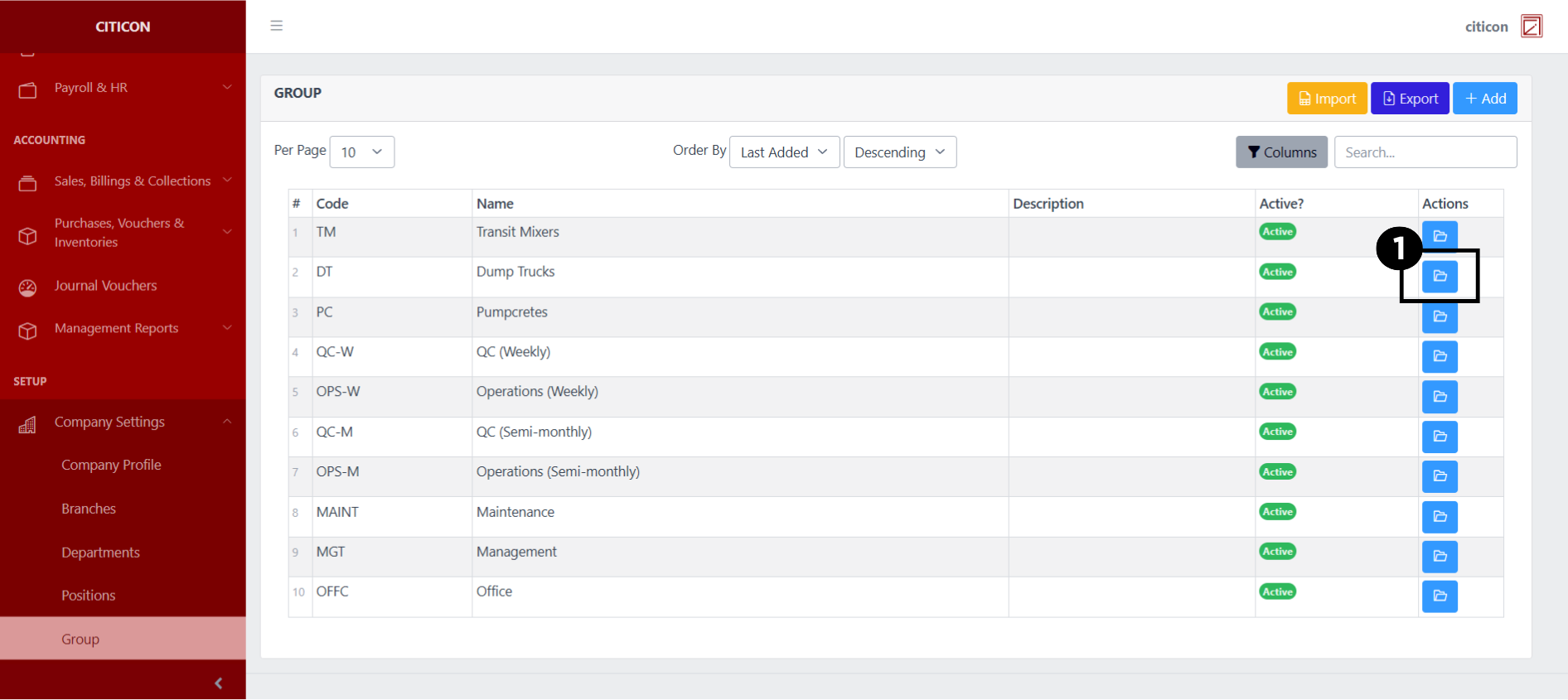
- Select the folder button of the record which you want to edit.
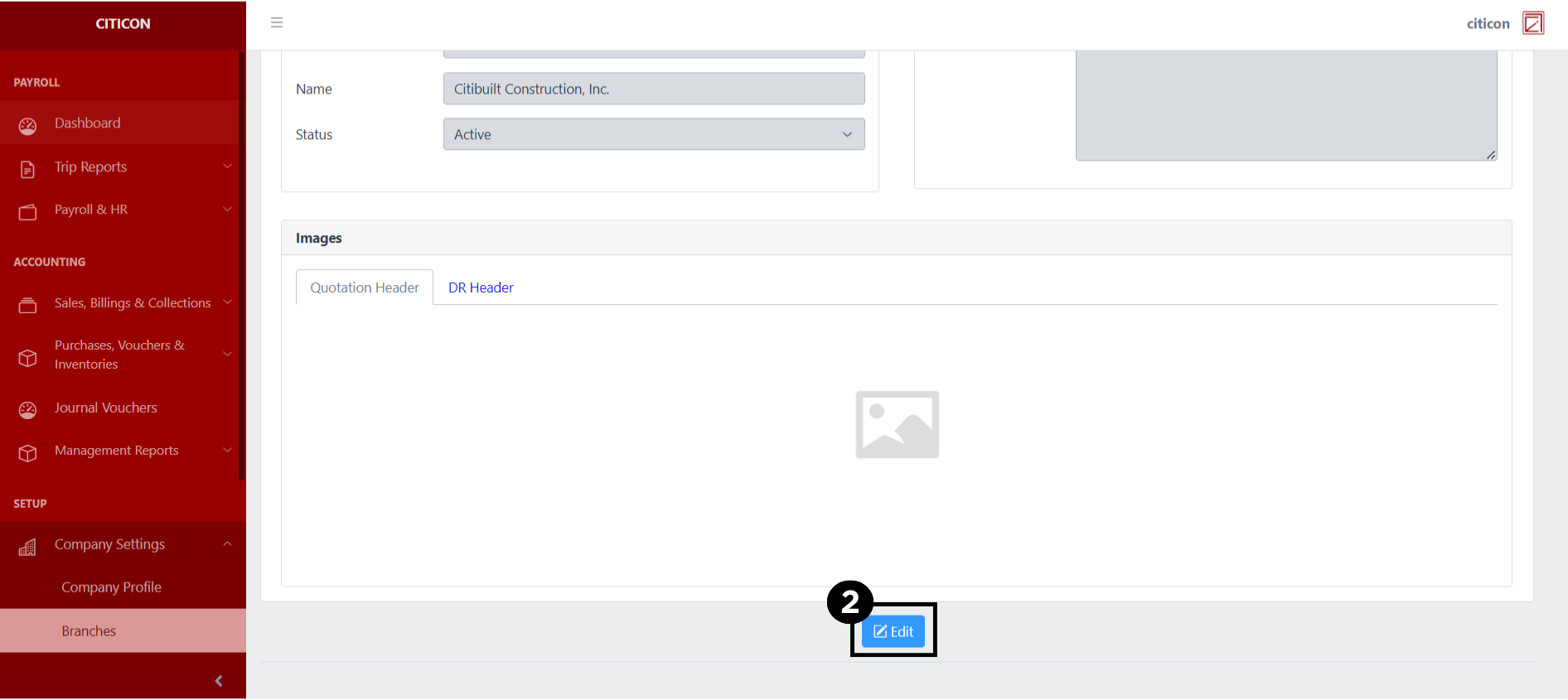
- Select the Edit button to update the details of the record.
- Select a detail section which you want to edit, and enter the necessary changes.
All fields with an asterisk (*) are required to be filled up.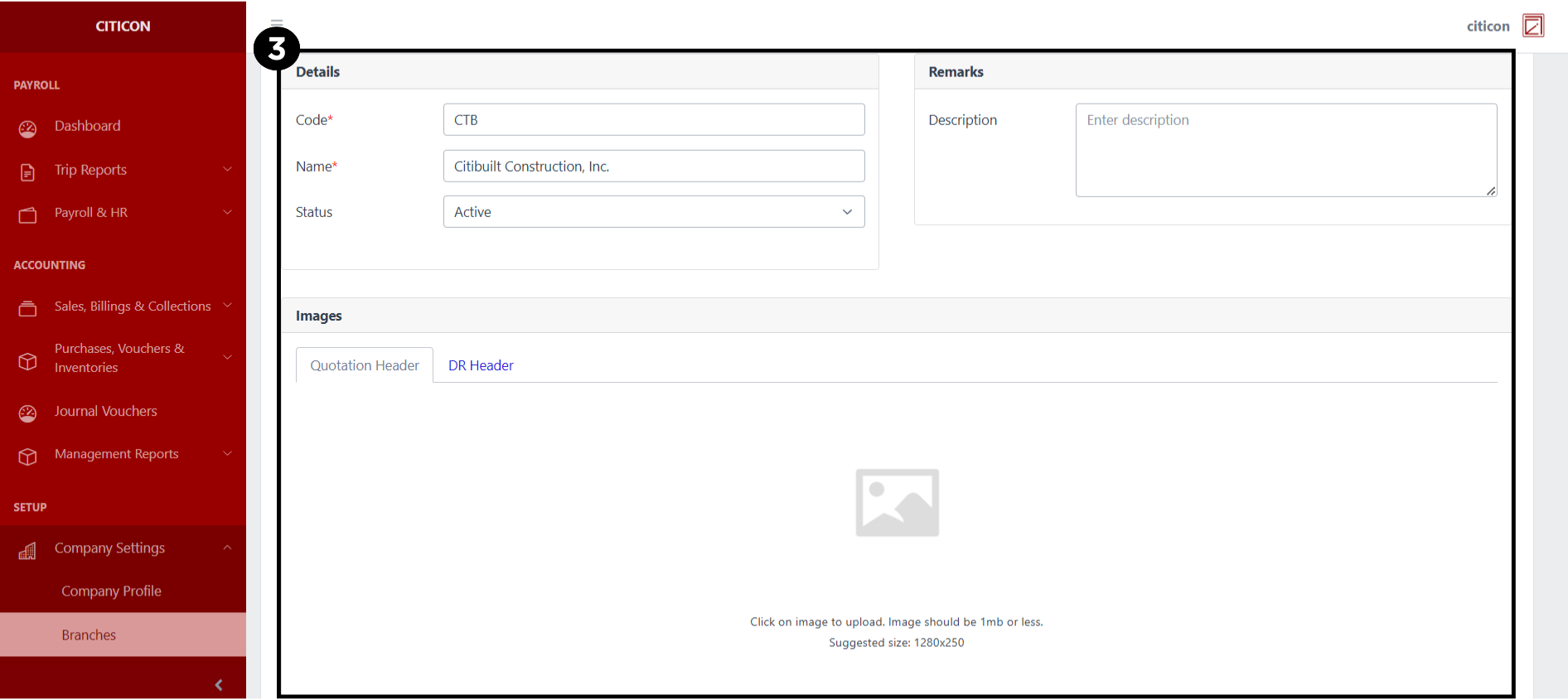
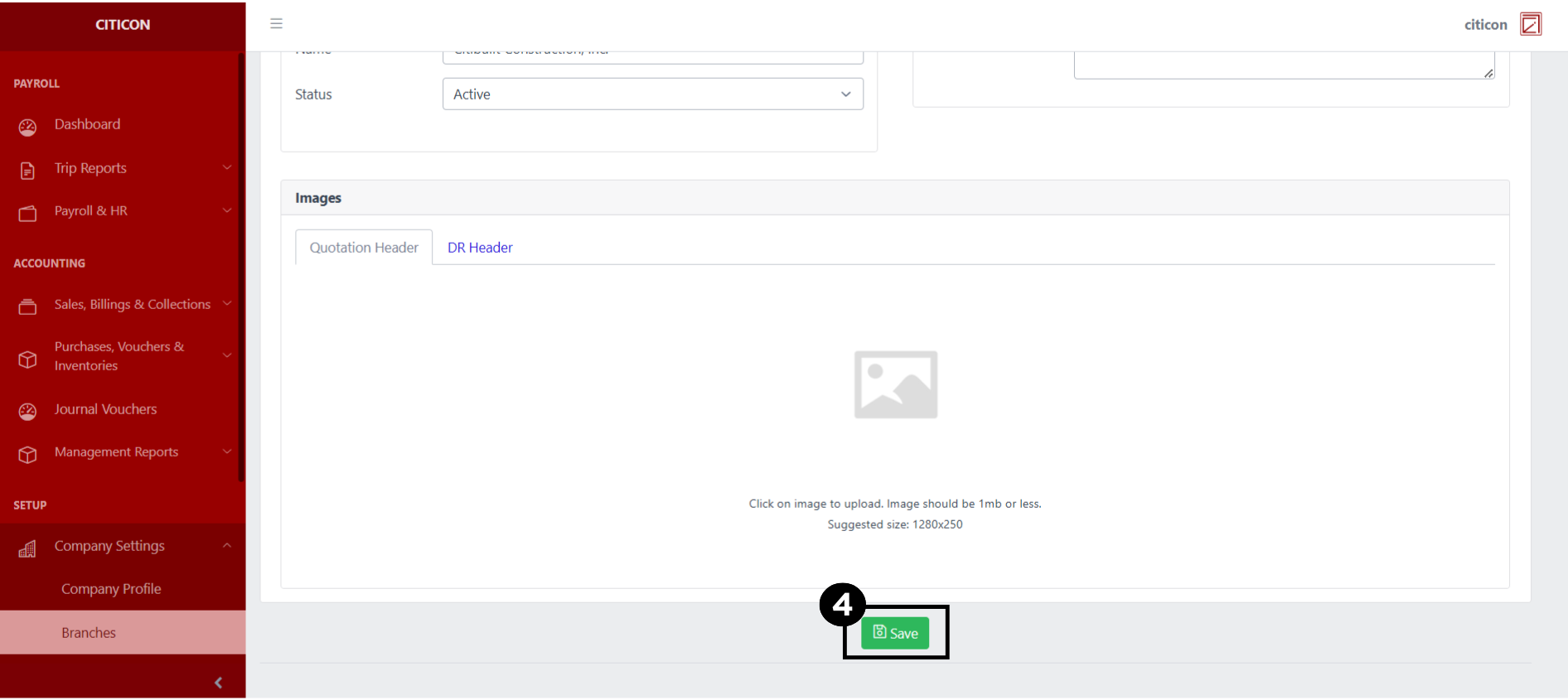
- Select the Save button to save the changes you have made.
Explore Citicon Payroll and Accounting System: Approvals Settings