Company Settings Approvals
Welcome to the Citicon Approvals Configuration Settings. This section defines the structured flow of user roles and responsibilities for verifying and approving transactions within various modules of the system.
Key Purposes
- Establish Approval Hierarchies
Define checkers and approvers per module to ensure proper validation before final approval. - Enforce Accountability Assign specific users to review and authorize actions, reinforcing traceability and responsibility.
- Support Internal Controls
Implement layered approval processes to minimize risks, errors, or fraudulent entries. - Enhance Workflow Efficiency
Streamline transaction handling by assigning designated users to their respective modules and approval stages.
Approvals Module User-Manual
This section provides details, and set-by-step instructions to access, view, and update the Approvals data stored in the system.
Index Page
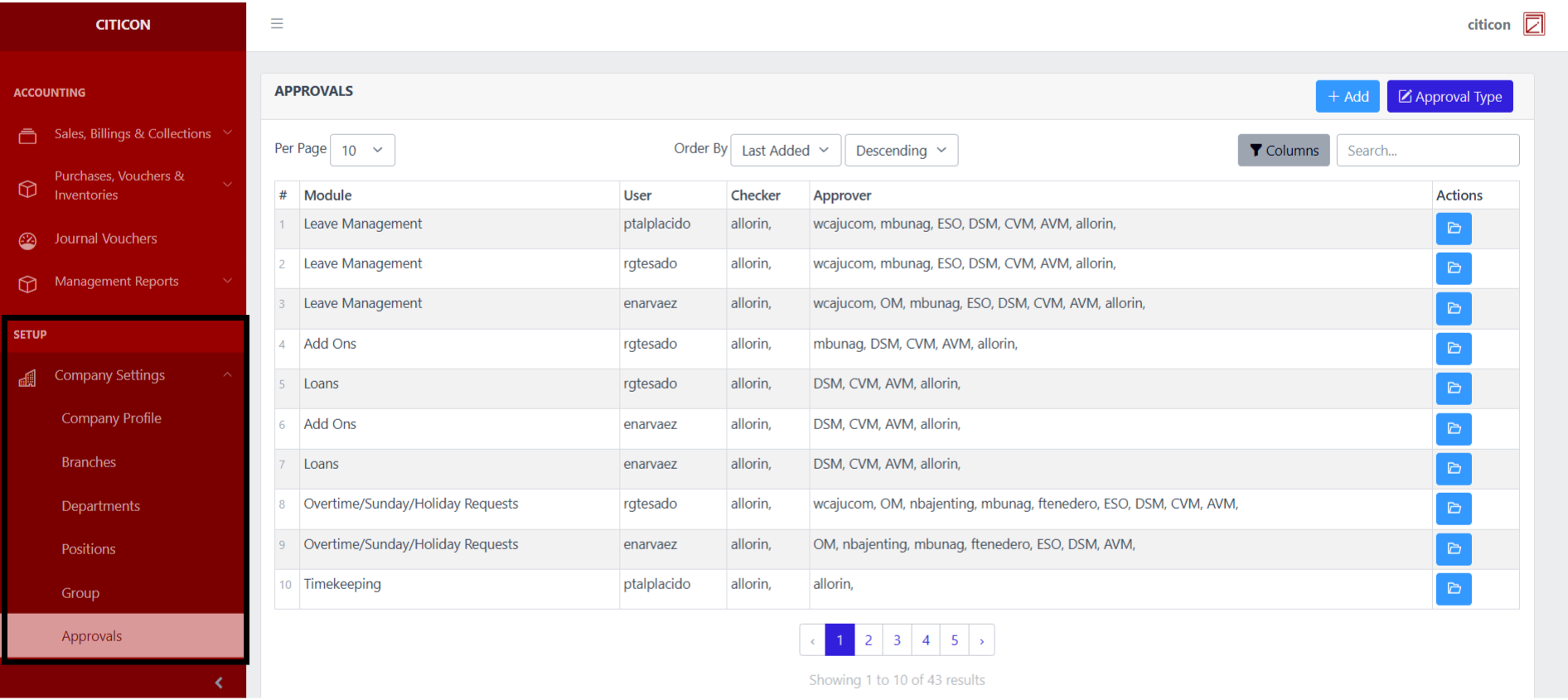
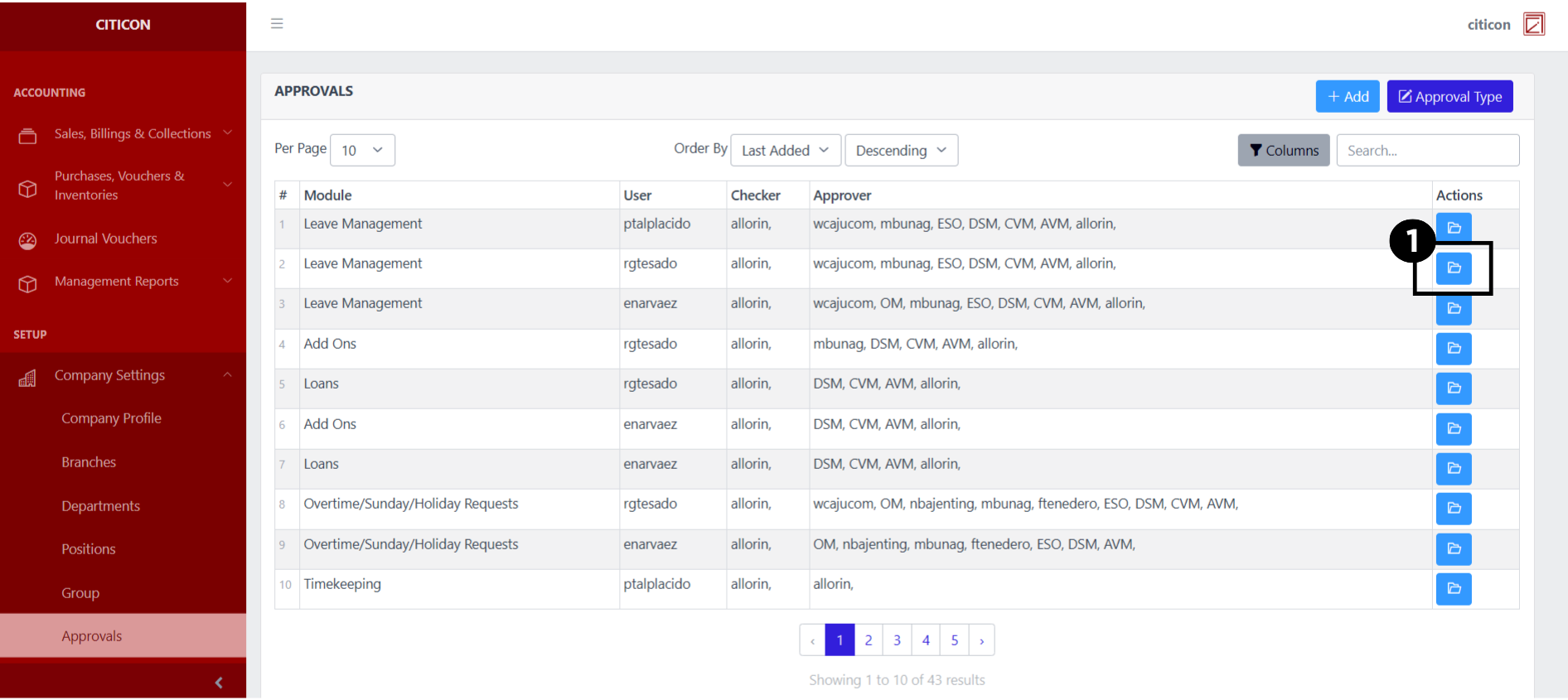
To access the Approvals Settings. Go to Setup, select Company Settings, then select Approvals.
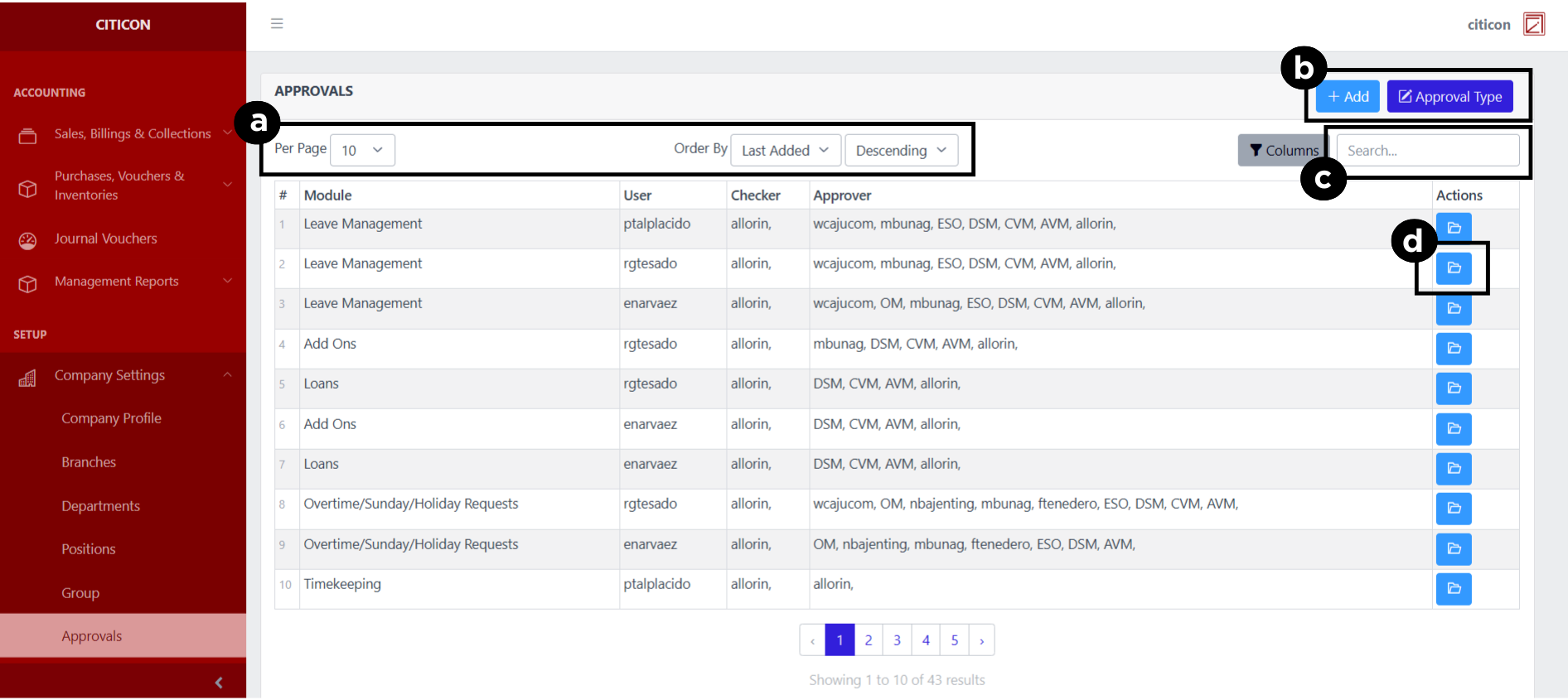
a. Adjust the paging, ordering, and sorting of the Approvals Page here.
b. Select the respective button to either add new data, or set the approval type data to be shown .
c. Search for specific record details using the search bar.
d. View or Edit a record by selecting the folder button.
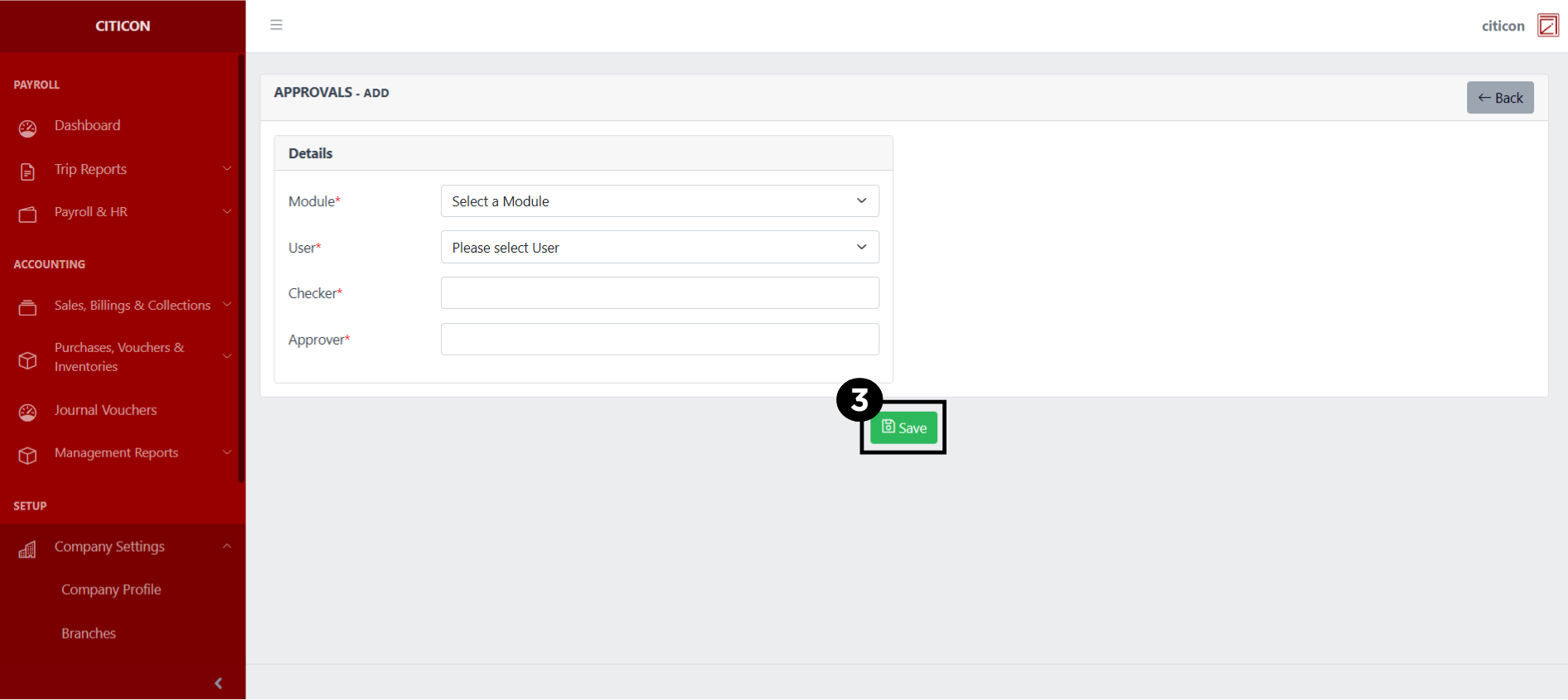
Add Data
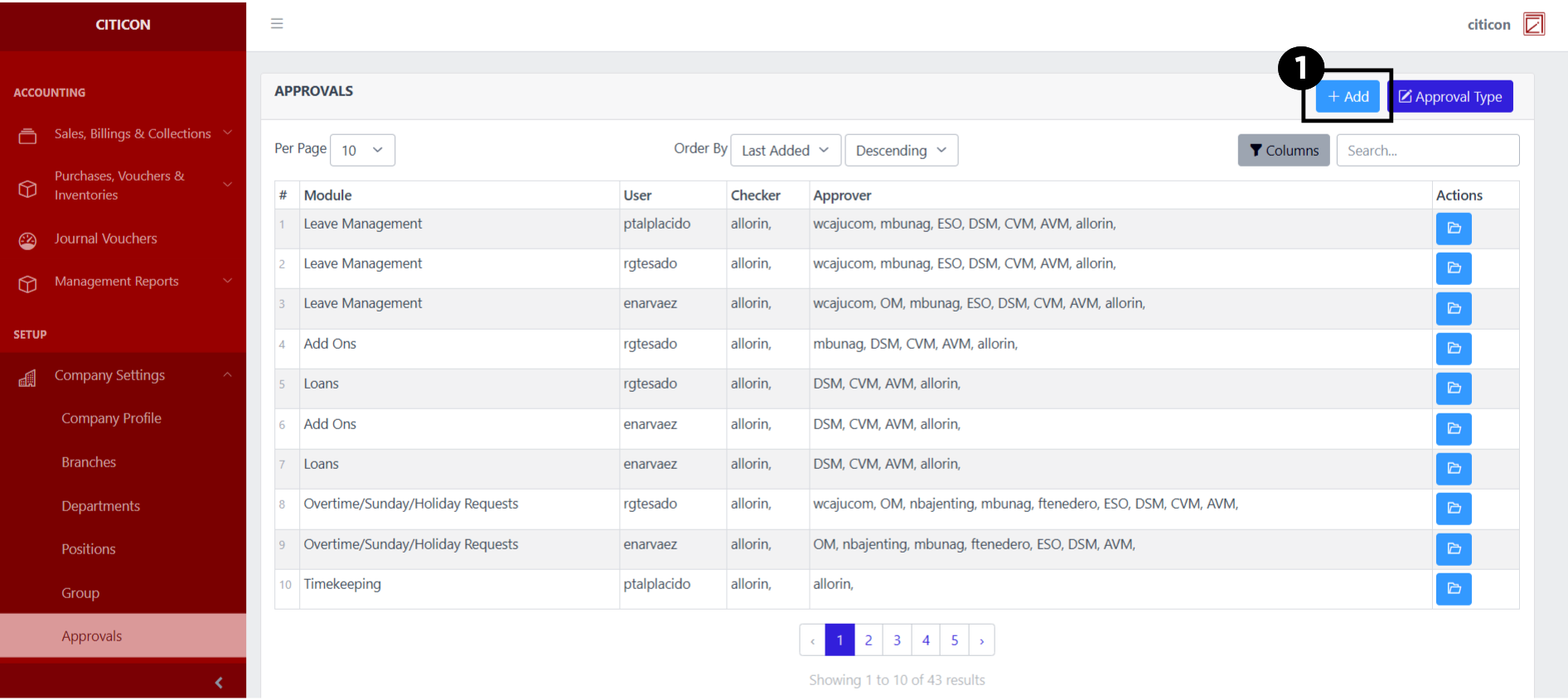
- Select the Add button to add a new record.
- Input the necessary details for your new record.
All fields that has an asterisk (*) are required to be filled up.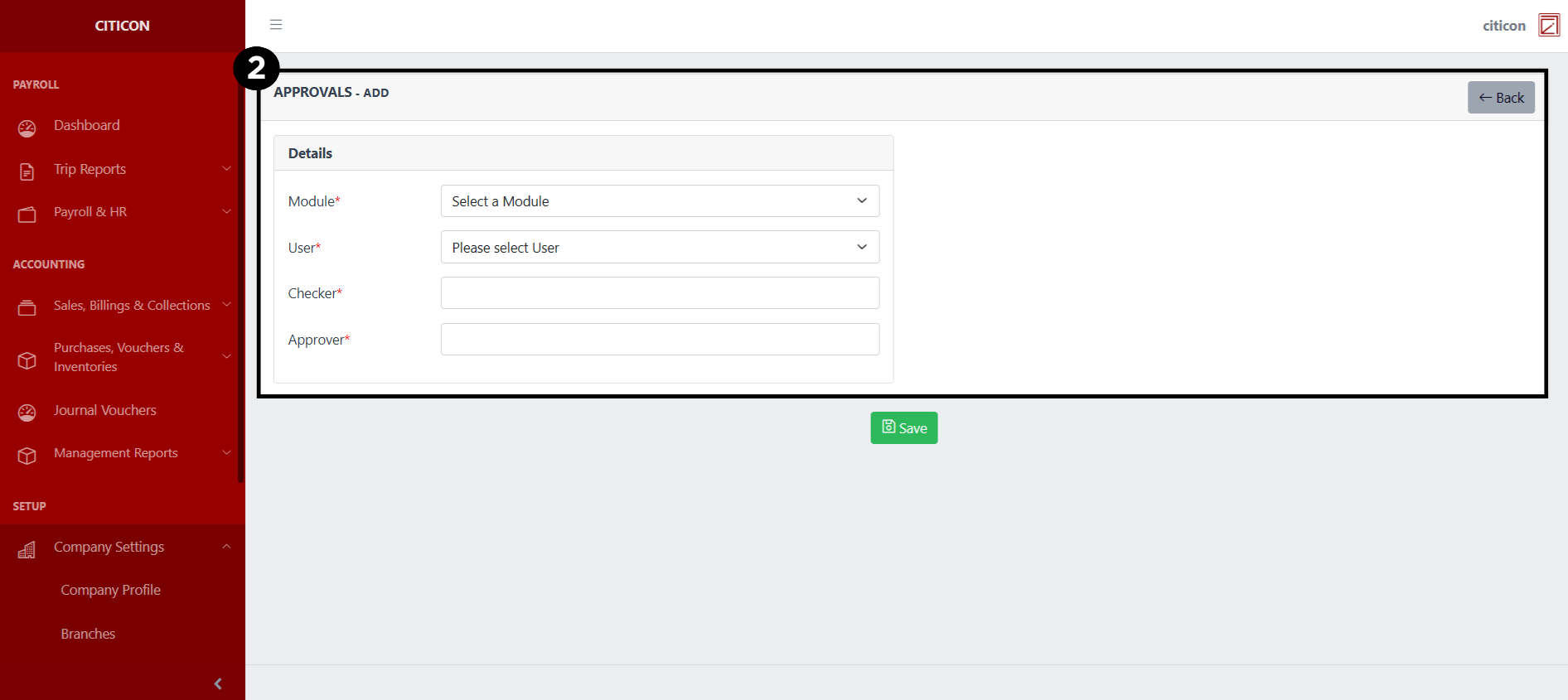
- Select the Save button to save your new record.
Show Data
- Select the folder button to view a record.
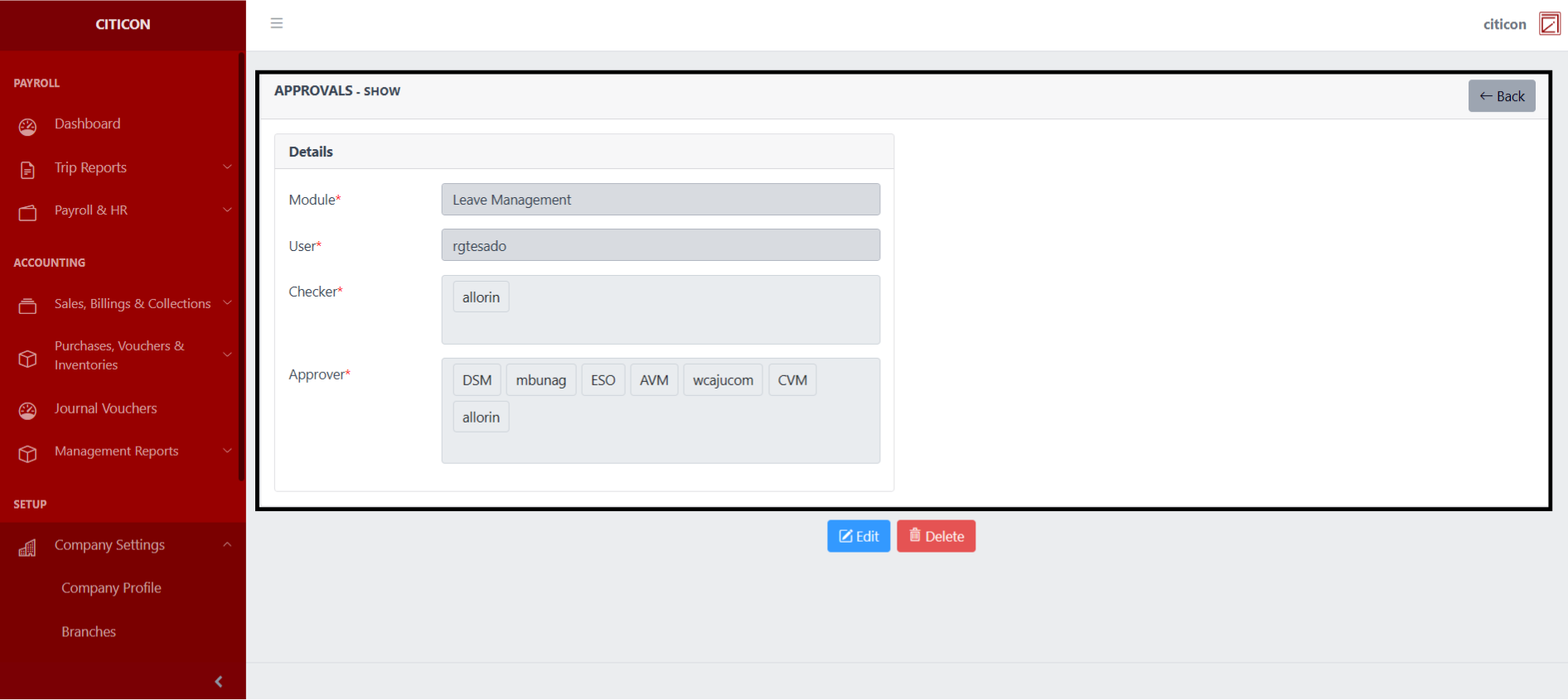
 Here you can view more specific details on the record that you selected.
Update Data
- Select the folder button of the record which you want to edit.
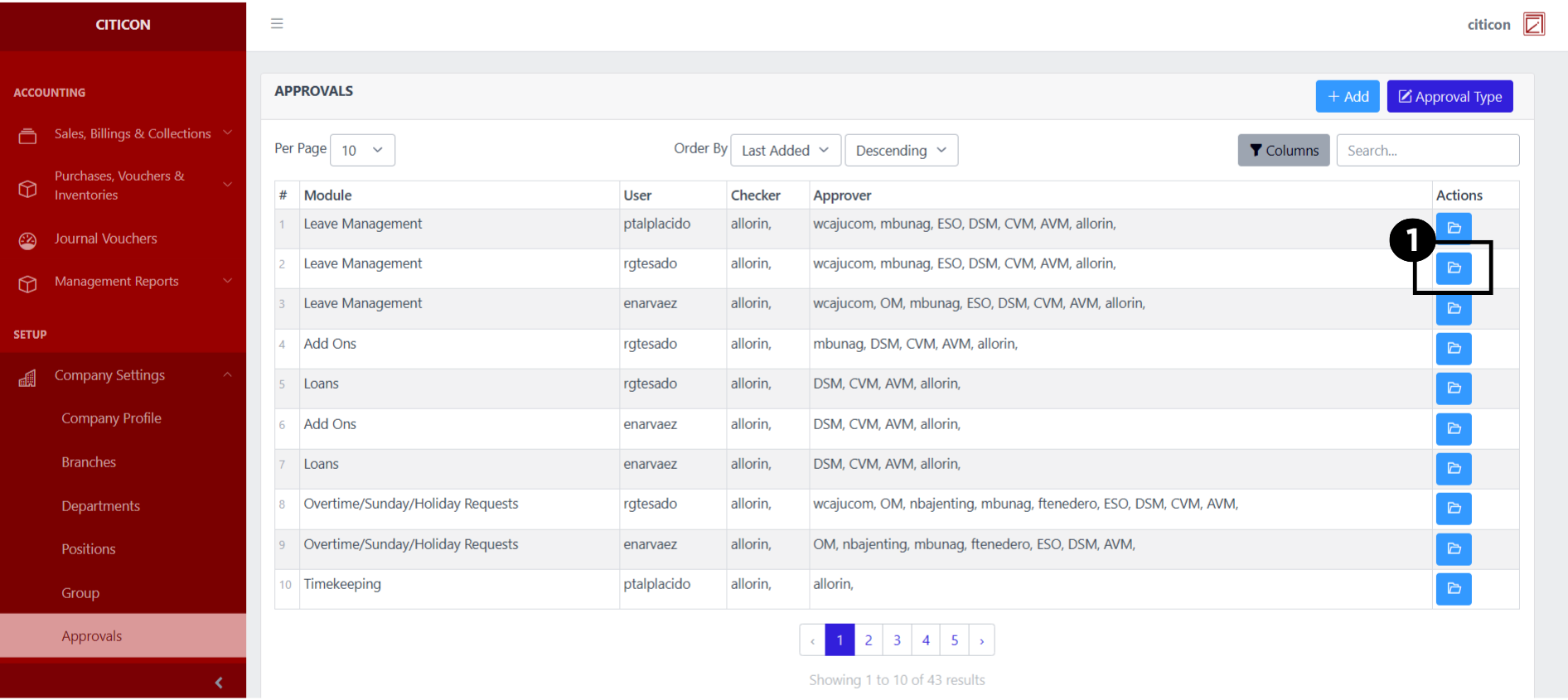
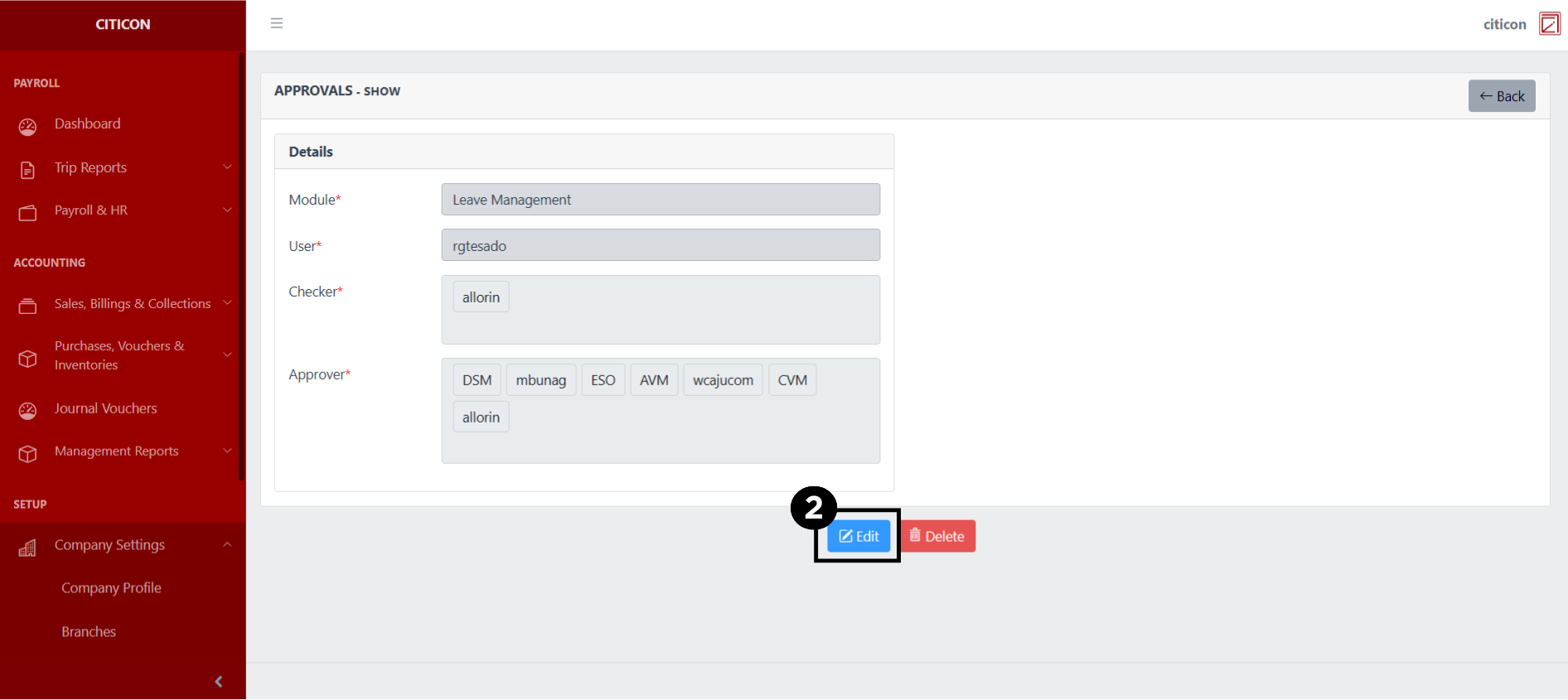
- Select the Edit button to update the details of the record.
- Select a detail section which you want to edit, and enter the necessary changes.
All fields with an asterisk (*) are required to be filled up.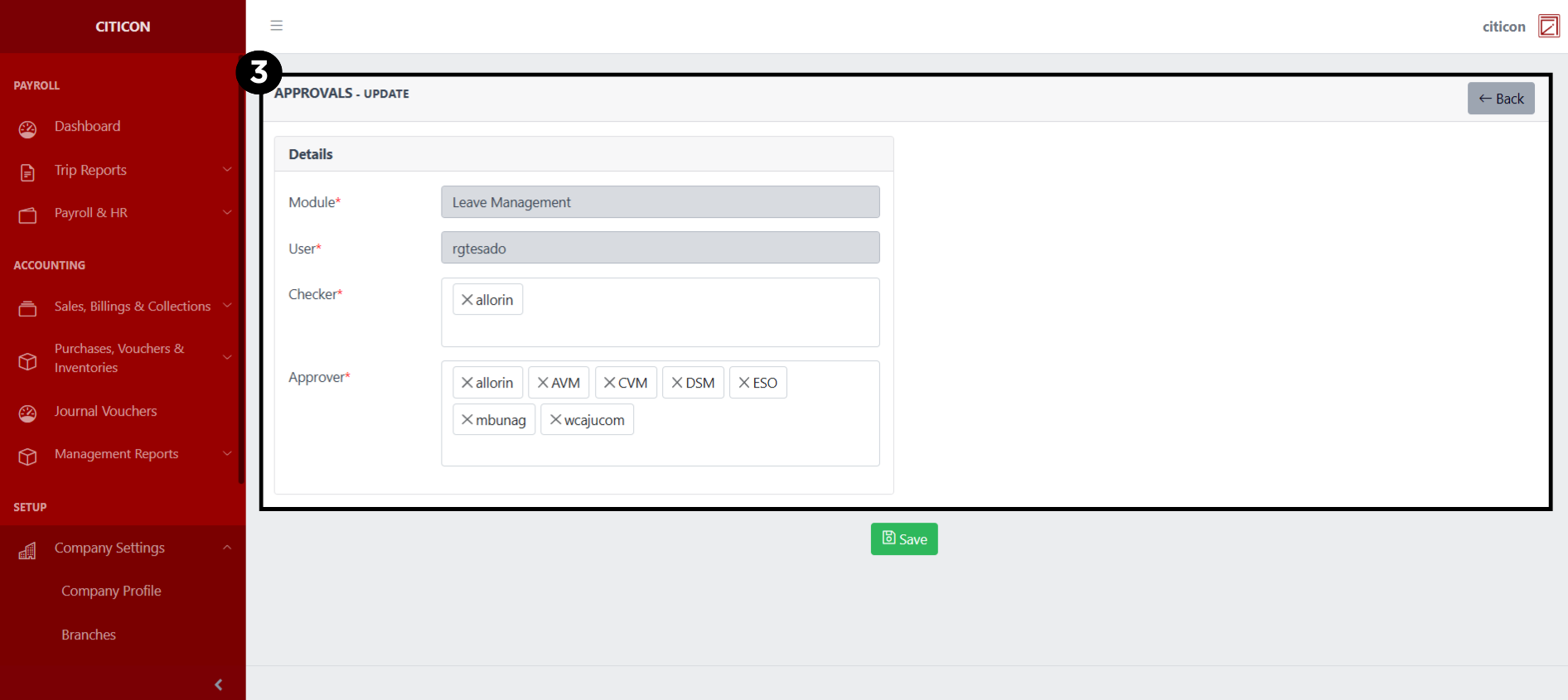
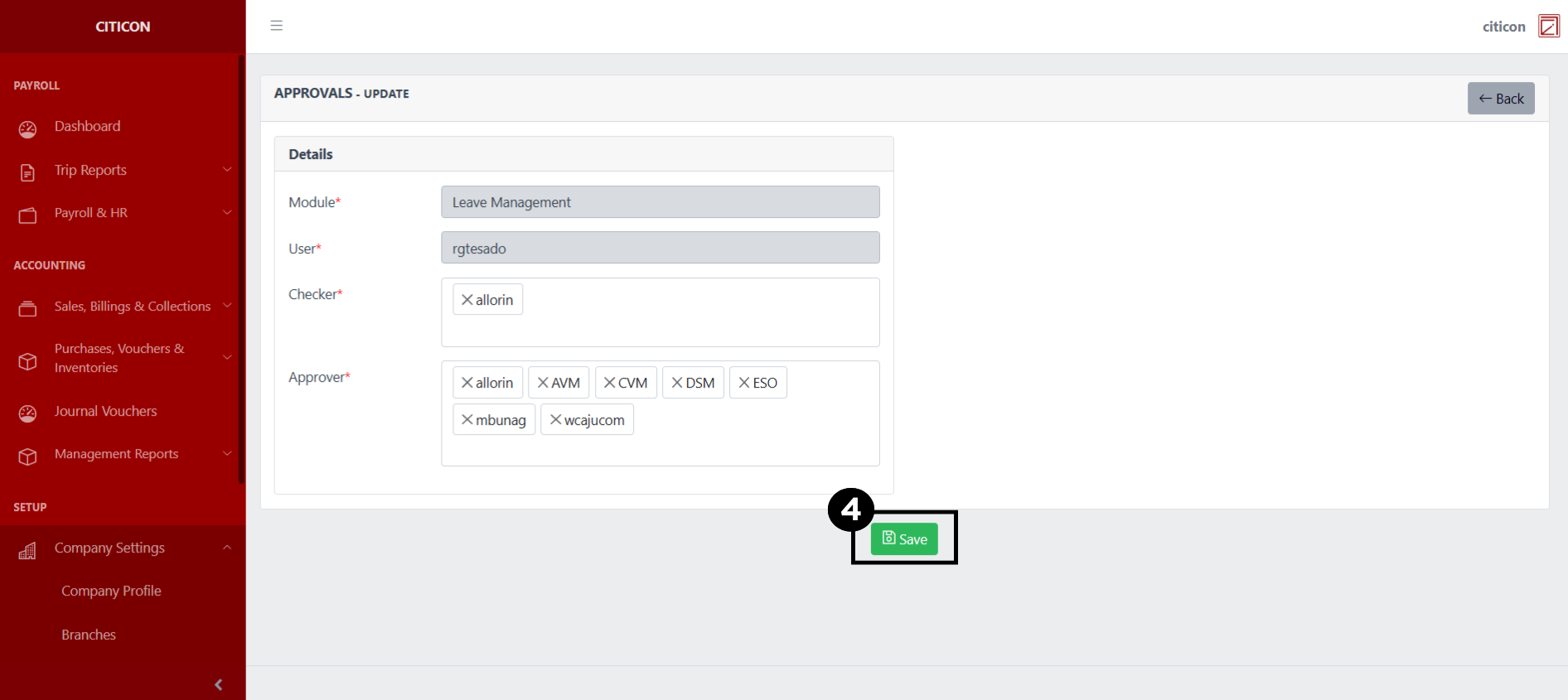
- Select the Save button to save the changes you have made.
Explore Citicon Payroll and Accounting System: Configuration Settings