Sales, Billings, & Collections - Sales Orders
Welcome to Citicon Payroll and Accounting Systems - Sales Orders module. This module is designed to meticulously manage the creation and processing of sales orders, ensuring accurate capture of client requirements and efficient fulfillment.
Key Purposes
- Centralized Sales Order Management: Provide a single platform for recording and tracking all sales orders, linking them to corresponding Sales Orders and client purchase orders.
- Accurate Order Capture: Ensure precise capture of essential sales order details, including client information, project specifics, requested volume, and validity dates.
- Seamless Integration with Sales Orders: Allow for the direct creation of sales orders from approved Sales Orders, minimizing data entry errors and ensuring consistency.
- Real-time Volume Tracking: Monitor purchase order volume and running balances to provide immediate insights into order fulfillment status.
- Efficient Approval and Export: Implement a streamlined process for batch approval of sales orders and enable bulk export of documents in PDF format for record-keeping and external sharing.
Sales Orders Module User-Manual
This section provides details, and set-by-step instructions to view, and access the Sales Orders module.
Index Page
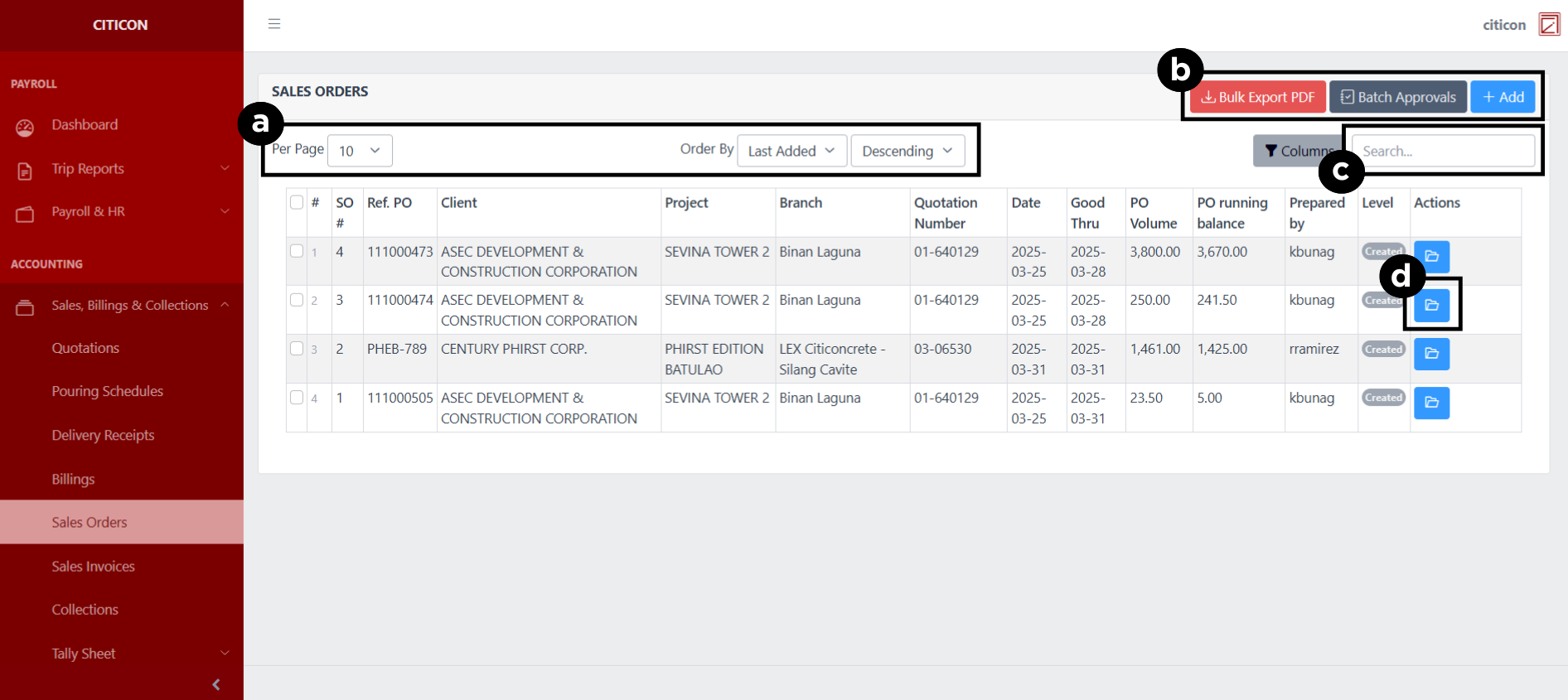
To access the Sales Orders. Go to Accounting, select Sales, Billings, & Collections, then select Sales Orders.

a. Adjust the paging, ordering, and sorting of the entries here.
b. Select the respective button to either Add, Approve, or Bulk Export entries.
c. Search for specific entry details using the search bar.
d. View, Edit, or Delete an entry by selecting this button.
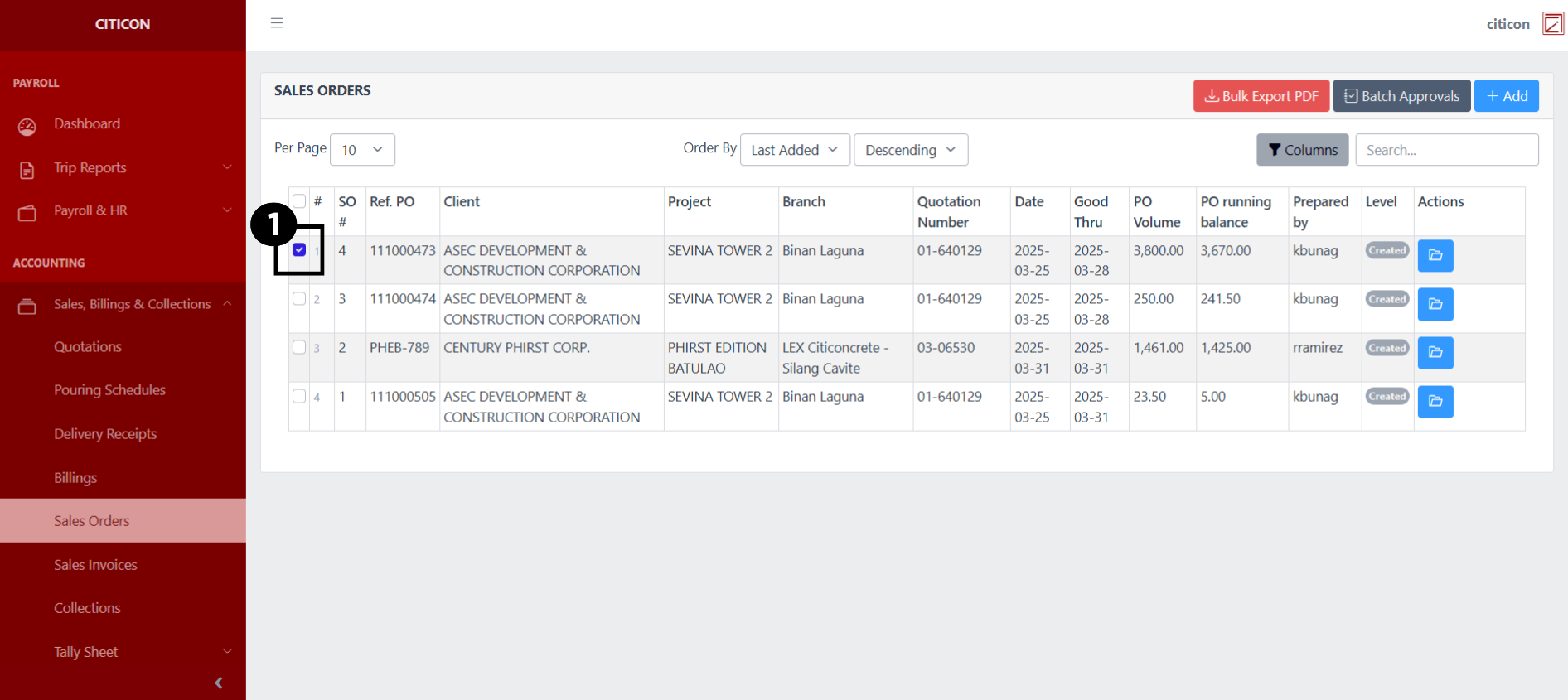
Export Entries
- Select the entries you want to export.
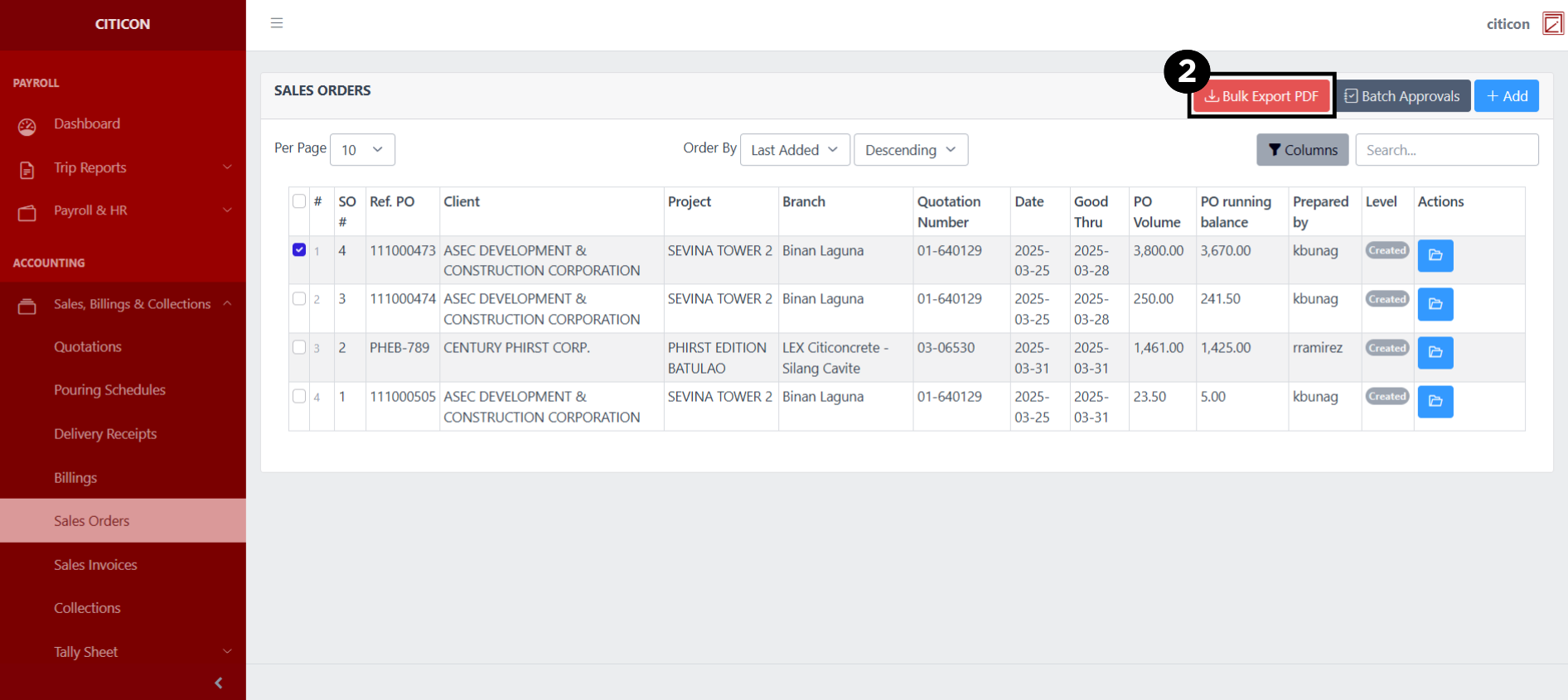
- Select the Bulk Export PDF button.
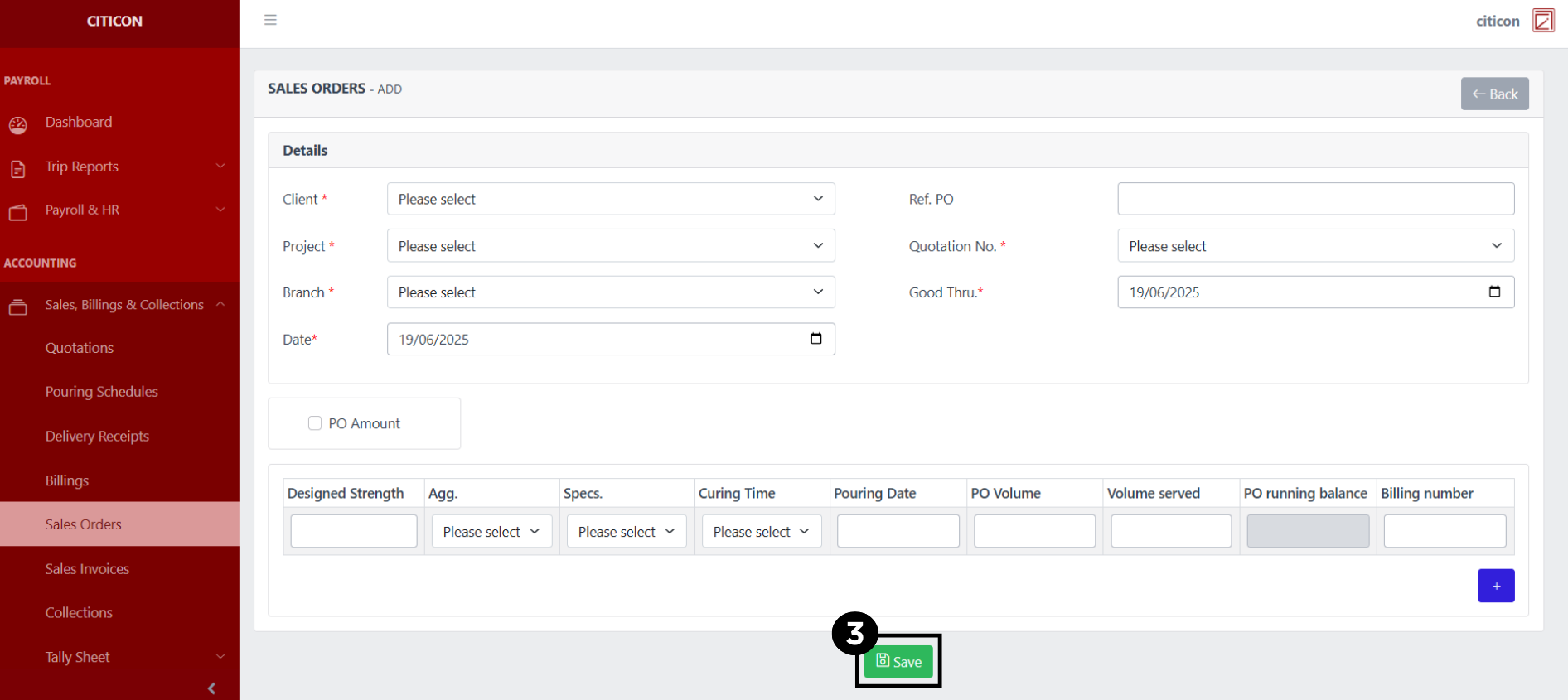
Add Entry
- Select the Add button to add a new entry.

- Input the necessary details for your new entry.
All fields that has an asterisk (*) are required to be filled up.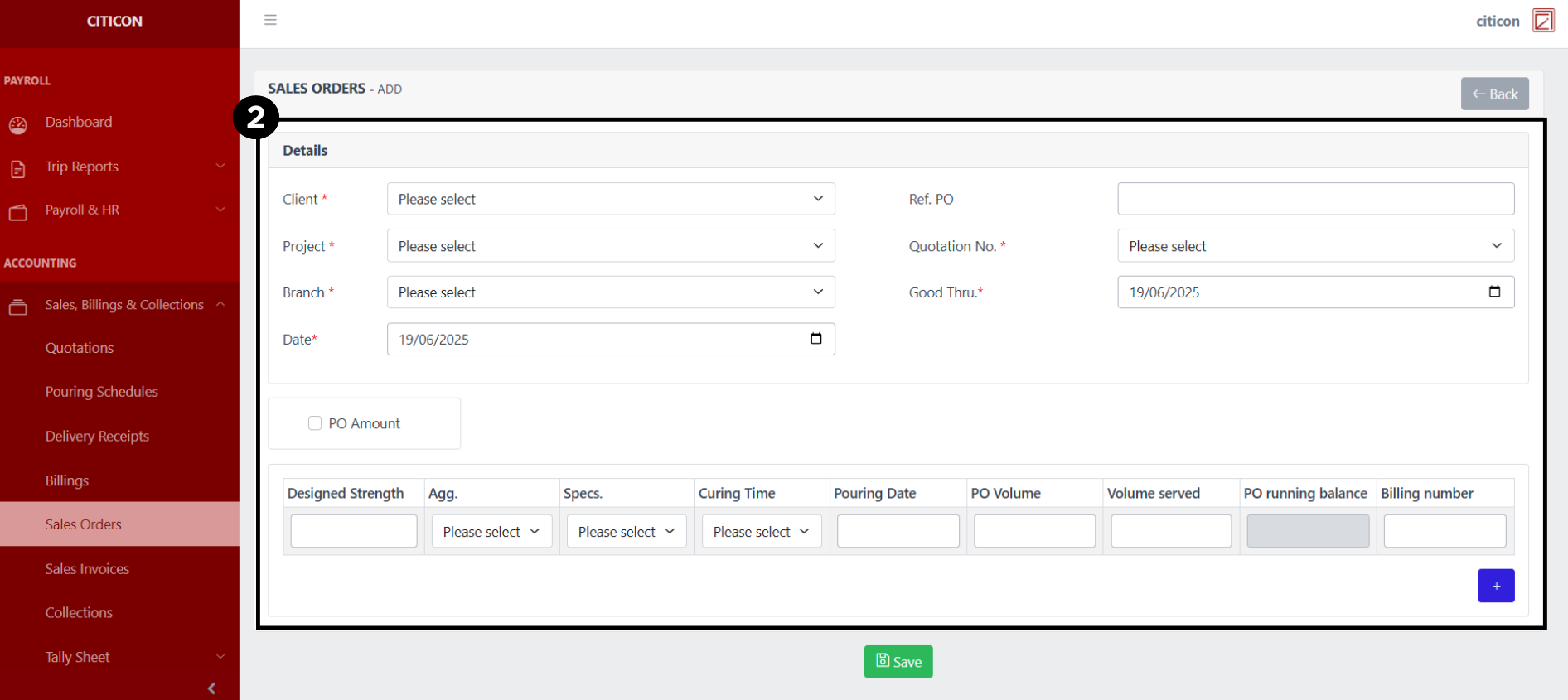
- Select the Save button to save your new entry.
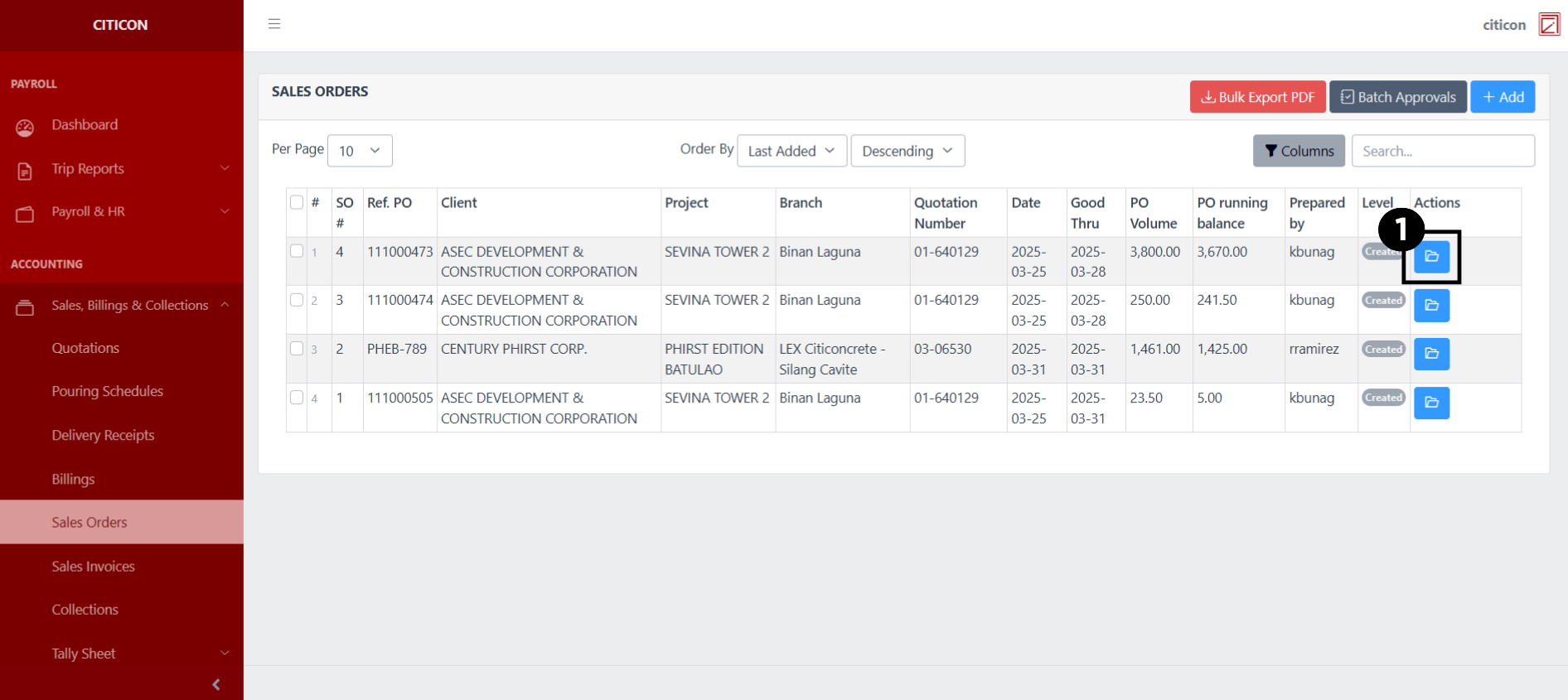
Show Entry
- Select the folder button to view an entry.
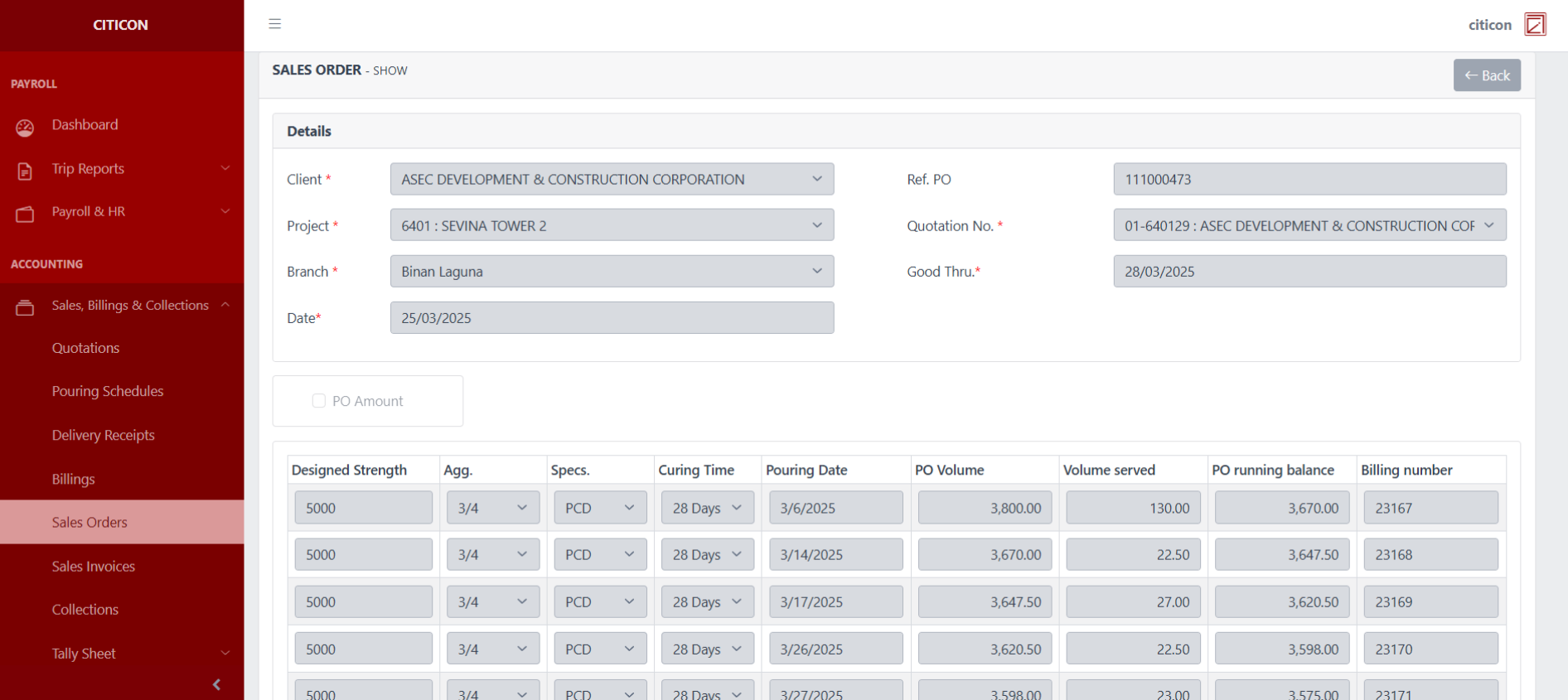
 Here you can view more specific details on the entry that you selected.
Update Entry
- Select the folder button of the entry which you want to edit.

- Select the Edit button to update the details of the entry.

- Select a detail section which you want to edit, and enter the necessary changes.
All fields with an asterisk (*) are required to be filled up.

- Select the Save button to save the changes you have made.

Submit Entry
- Select the Batch Approvals button to submit an entry.

- Select the For Submission tab.

- Select the entry that you want to submit.

- Select the Submit button to submit the entry. In cases where you want to delete a entry, select the entry you want to delete, then select the Delete button.
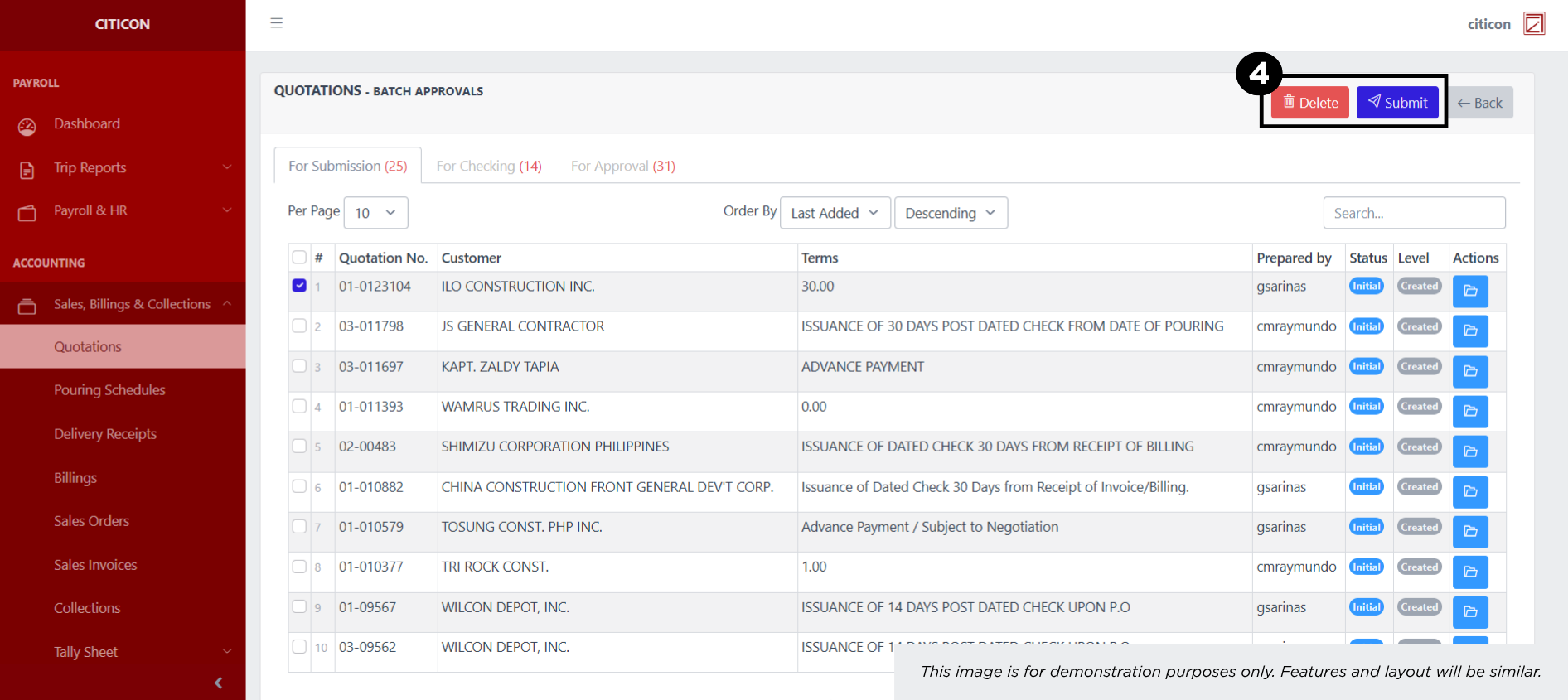 To view the details of an individual entry, select the folder button and from here, you may either Edit, Submit, or Cancel the entry.

Check Entry
- Select the Batch Approvals button to check an entry.

- Select the For Checking tab.
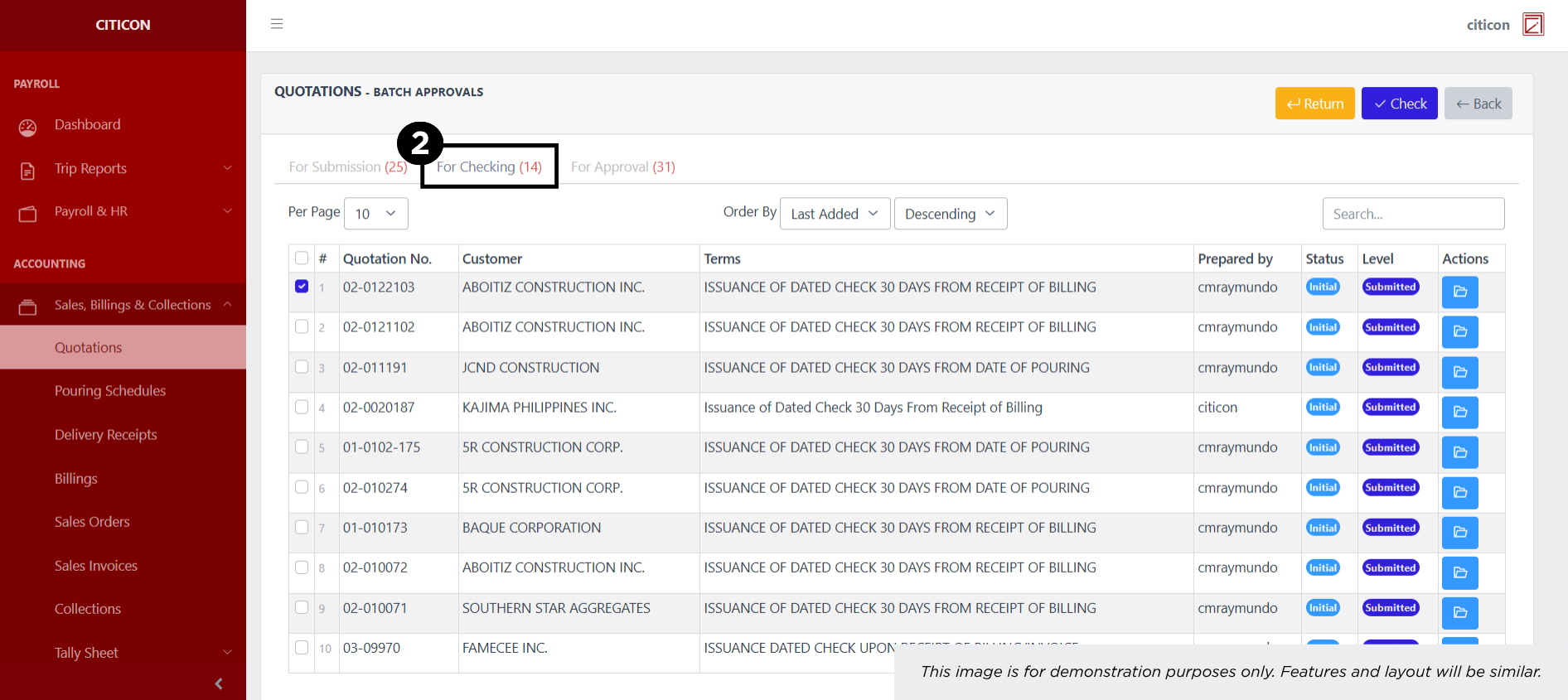
- Select the entry that you want to be checked.
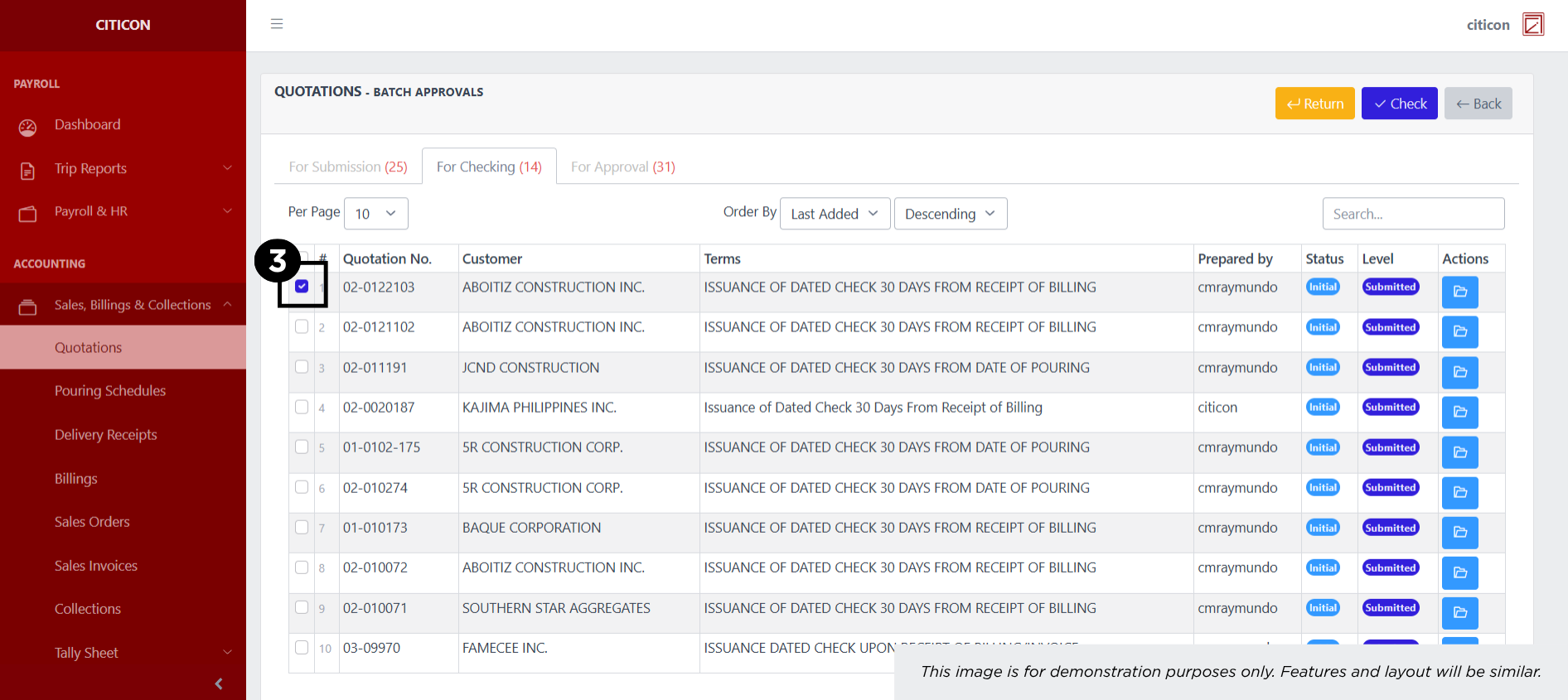
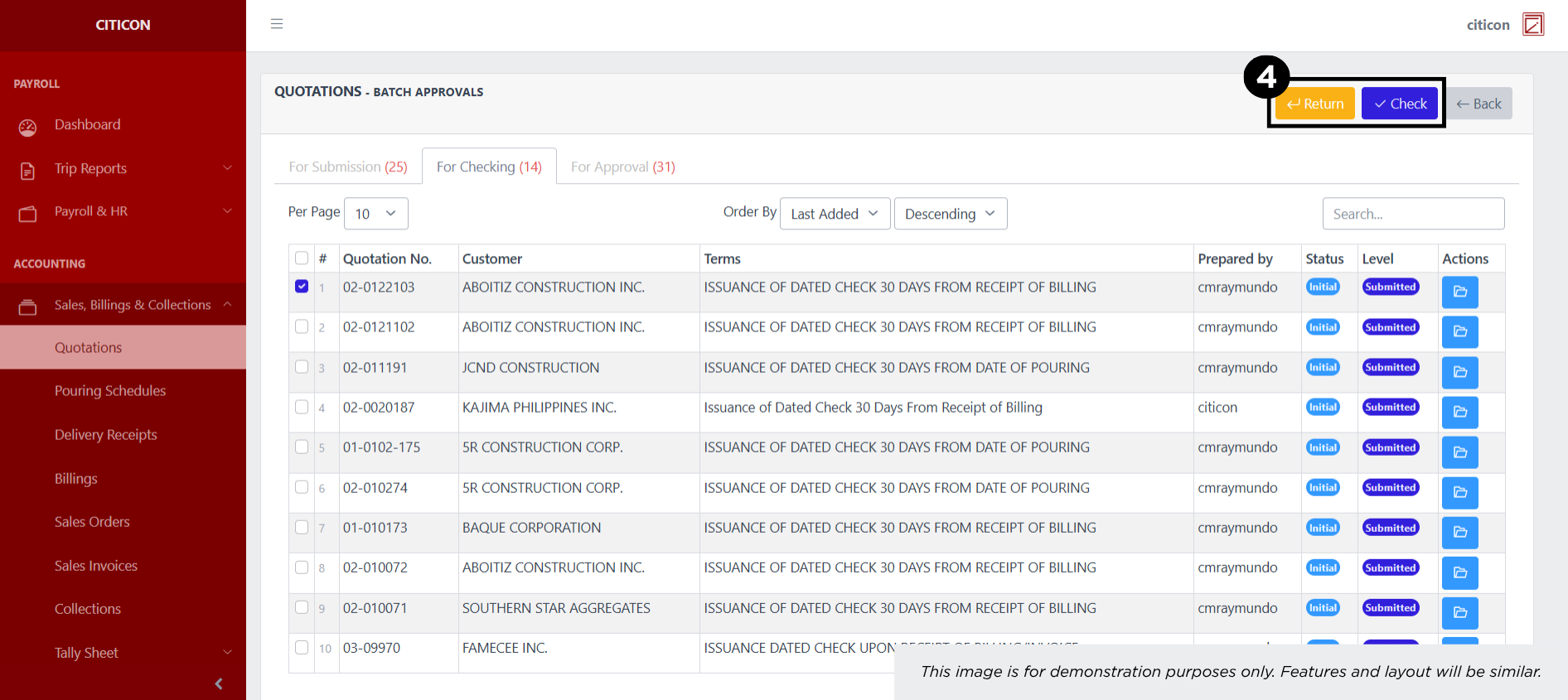
- Select the Check button to check the entry. In cases where you want to return a entry, select the entry you want to return, then select the Return button.
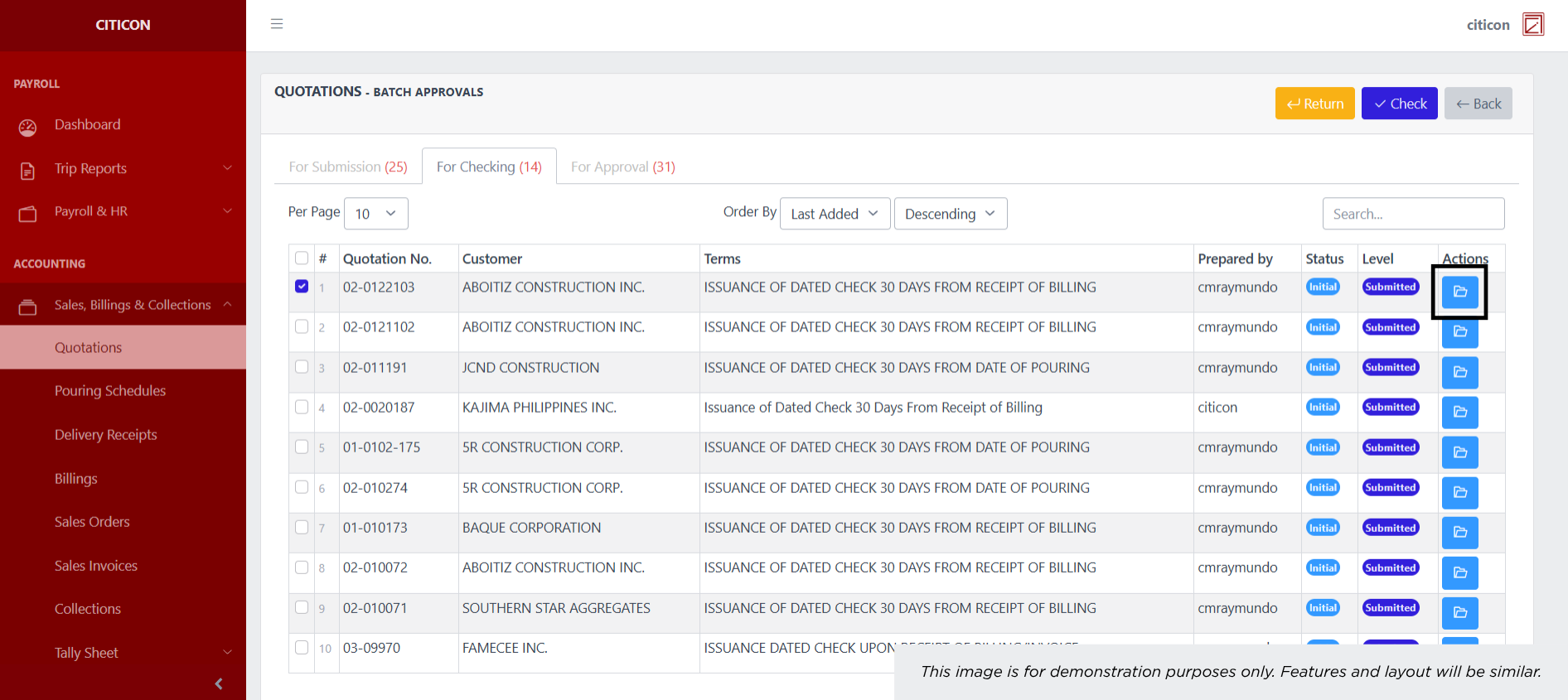
 To view the details of an individual entry, select the folder button and from here, you may either Edit, Delete, Check, or Cancel the entry.
Approve Entry
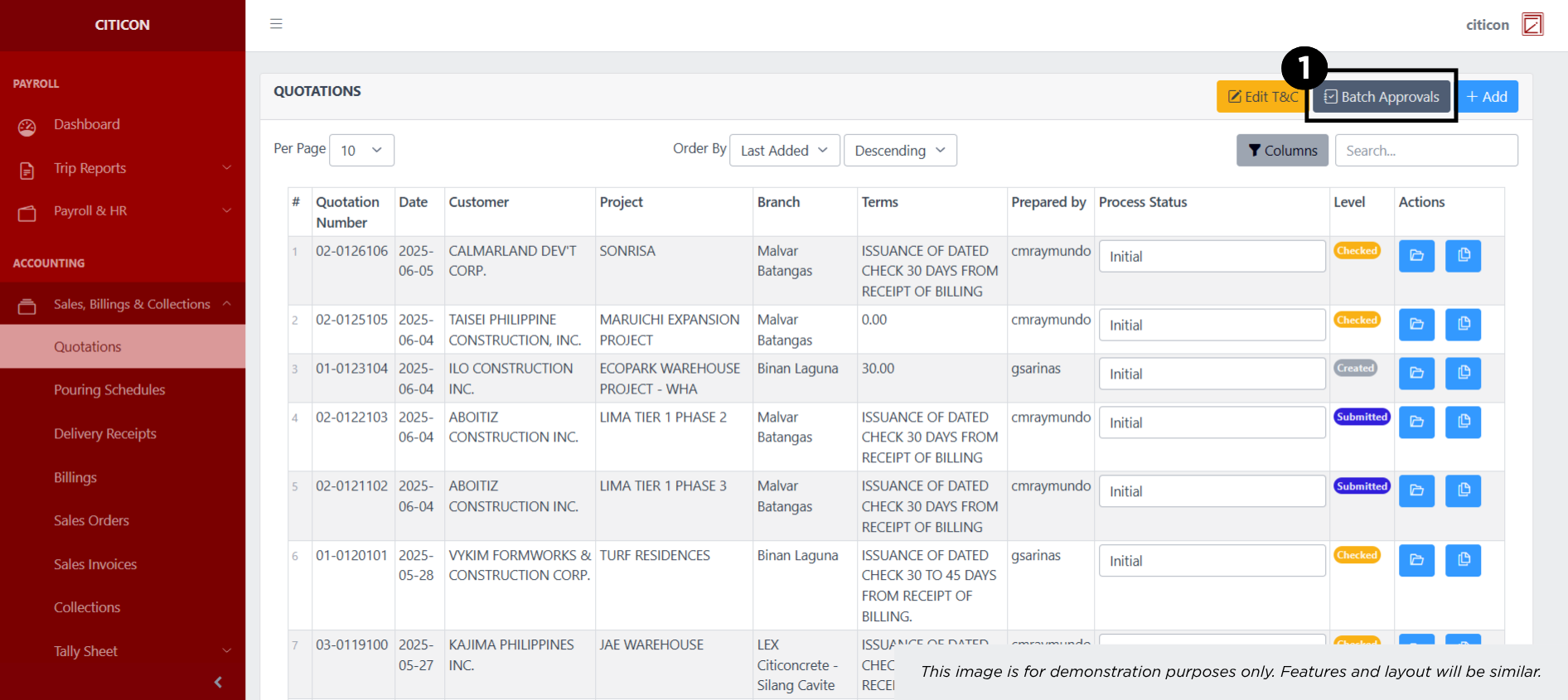
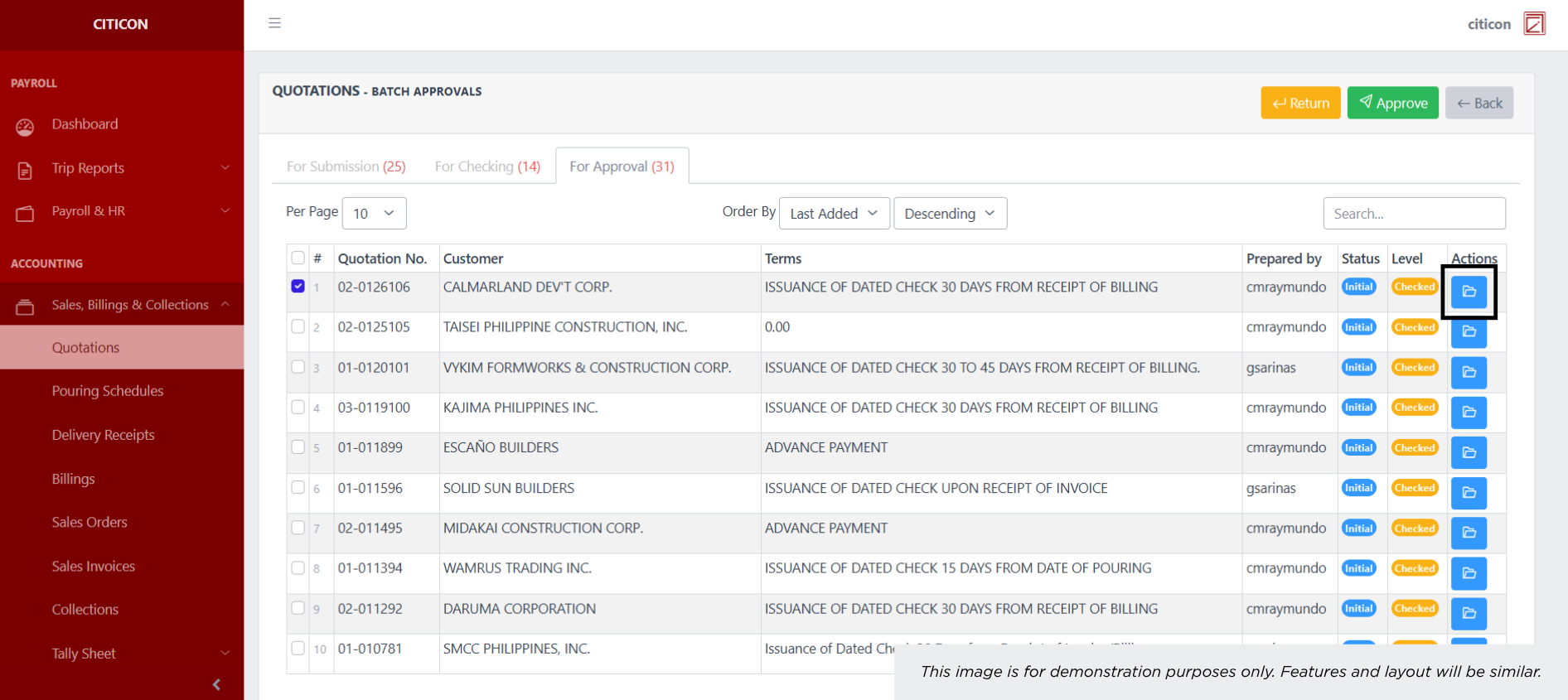
- Select the Batch Approvals button to approve a entry.
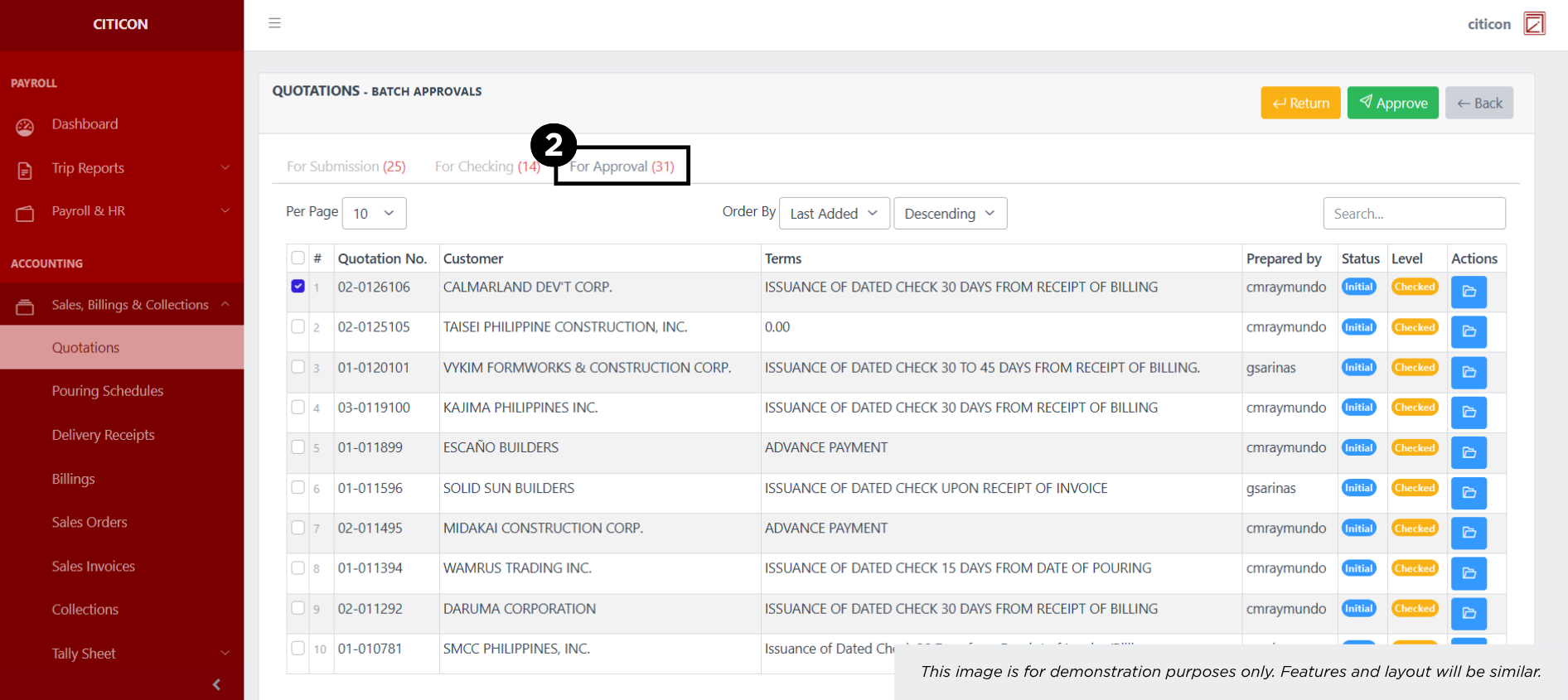
- Select the For Approval tab.
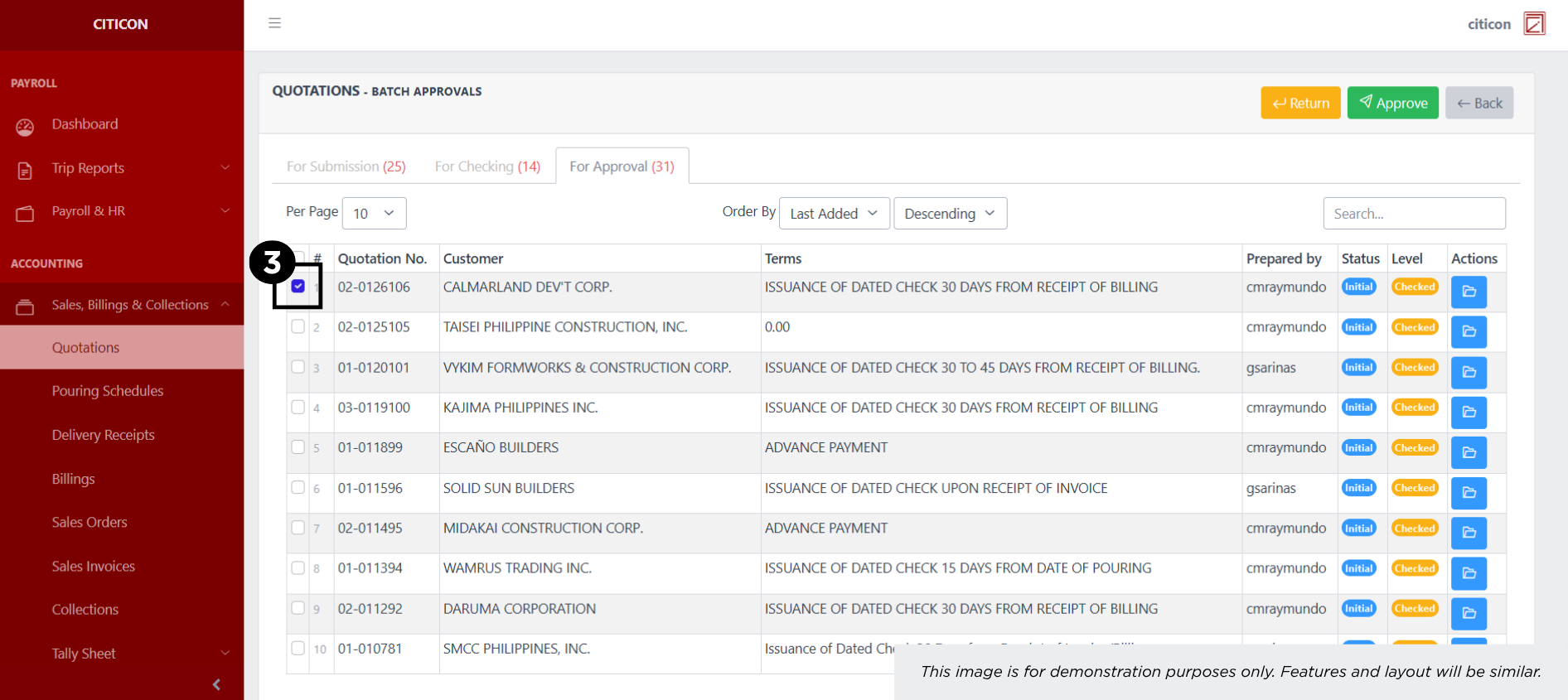
- Select the entry that you want to approve.
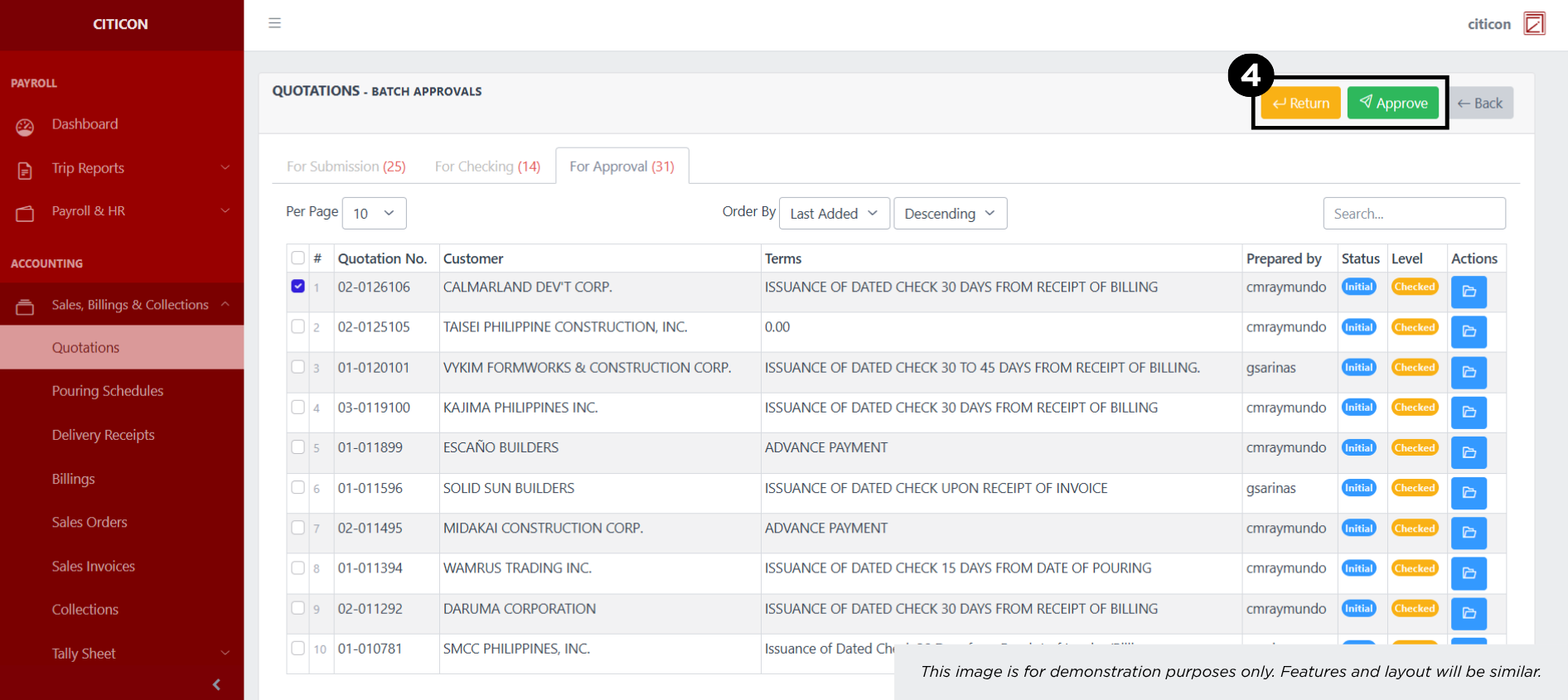
- Select the Approve button to approve the entry. In cases where you want to return a entry to submission section, select the entry you want to return, then select the Return button.
 To view the details of an individual entry, select the folder button and from here, you may either Return, Approve, or Cancel the entry.
Explore Citicon Payroll and Accounting System: Accounting - Sales Invoices