Sales, Billings, & Collections - Quotations
Welcome to Citicon Payroll and Accounting Systems - Quotations module. This module is designed to streamline the creation, management, and approval of sales quotations, providing a comprehensive tool for initiating client engagements and sales processes.
Key Purposes
- Standardized Quotation Generation: Facilitate the creation of professional and consistent sales quotations, ensuring all necessary details such as customer information, project specifics, and terms are accurately captured.
- Centralized Quotation Management: Provide a single repository for all quotations, allowing for easy tracking, retrieval, and status monitoring of each proposed project or service.
- Efficient Approval Workflow: Implement a multi-level approval process for quotations, ensuring all proposals are reviewed and authorized by the appropriate personnel before being issued to clients.
- Version Control and Duplication: Allow for the easy duplication and modification of existing quotations, streamlining the process for similar projects or revised proposals.
- Customizable Terms and Conditions: Enable users to edit and apply specific terms and conditions to each quotation, ensuring clarity and legal compliance for every engagement.
Quotations Module User-Manual
This section provides details, and set-by-step instructions to view, and access the Quotations module.
Index Page
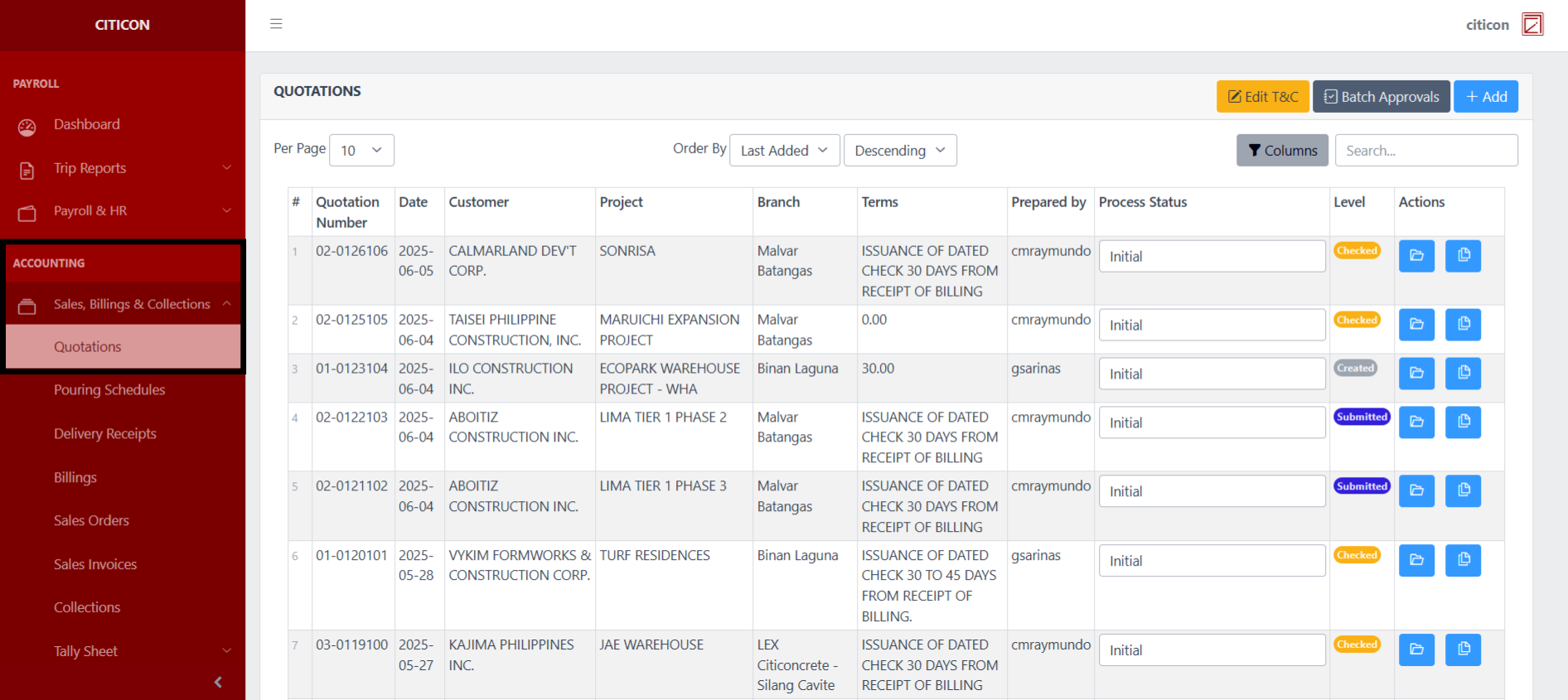
To access the Quotations. Go to Accounting, select Sales, Billings, & Collections, then select Quotations.
a. Adjust the paging, ordering, and sorting of the entries here.
b. Select the respective button to either Edit the Terms & Conditions, Approve entries, or Add entries.
c. Search for specific entry details using the search bar.
d. View, or Export an entry by selecting this button.
e. Select this button to Duplicate an entry.
f. Select the dropdown menu to update the Process Status of an entry.

Edit Terms and Condition
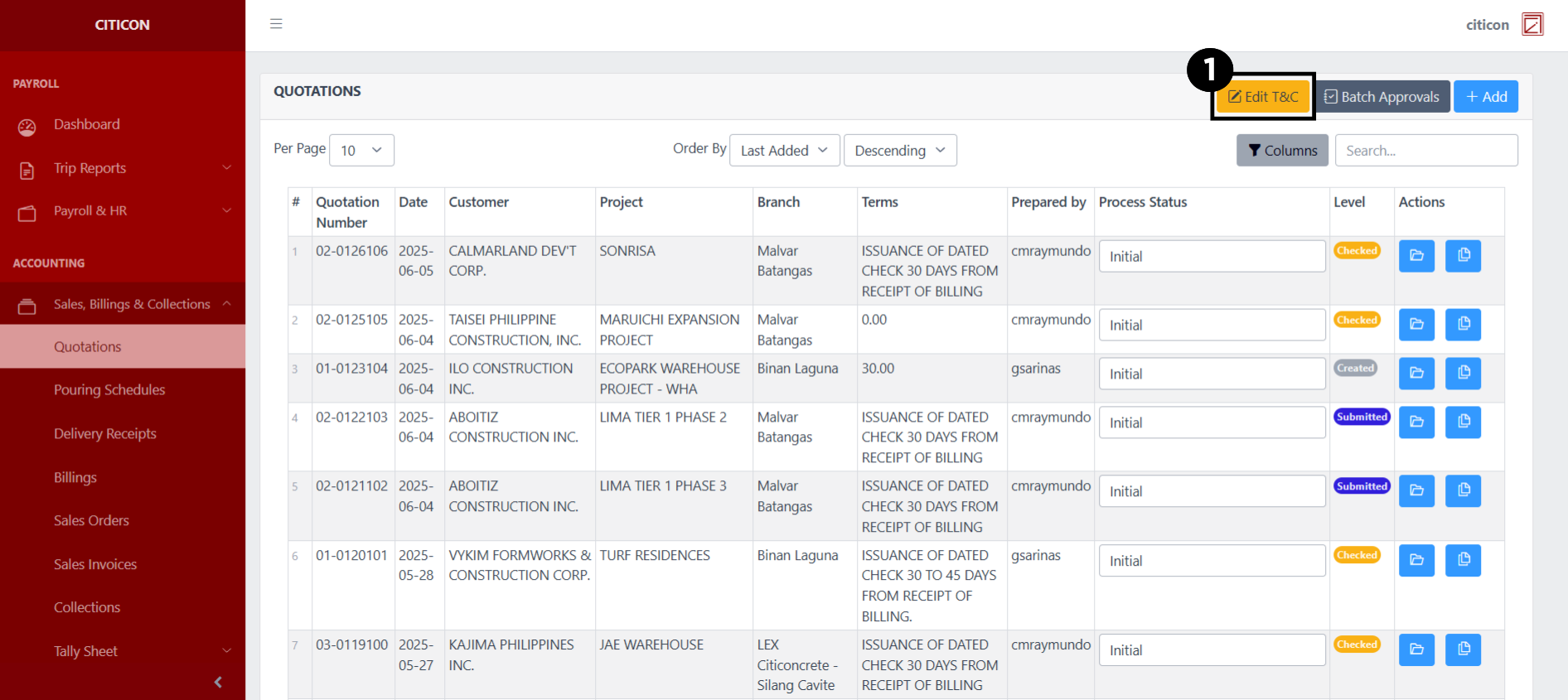
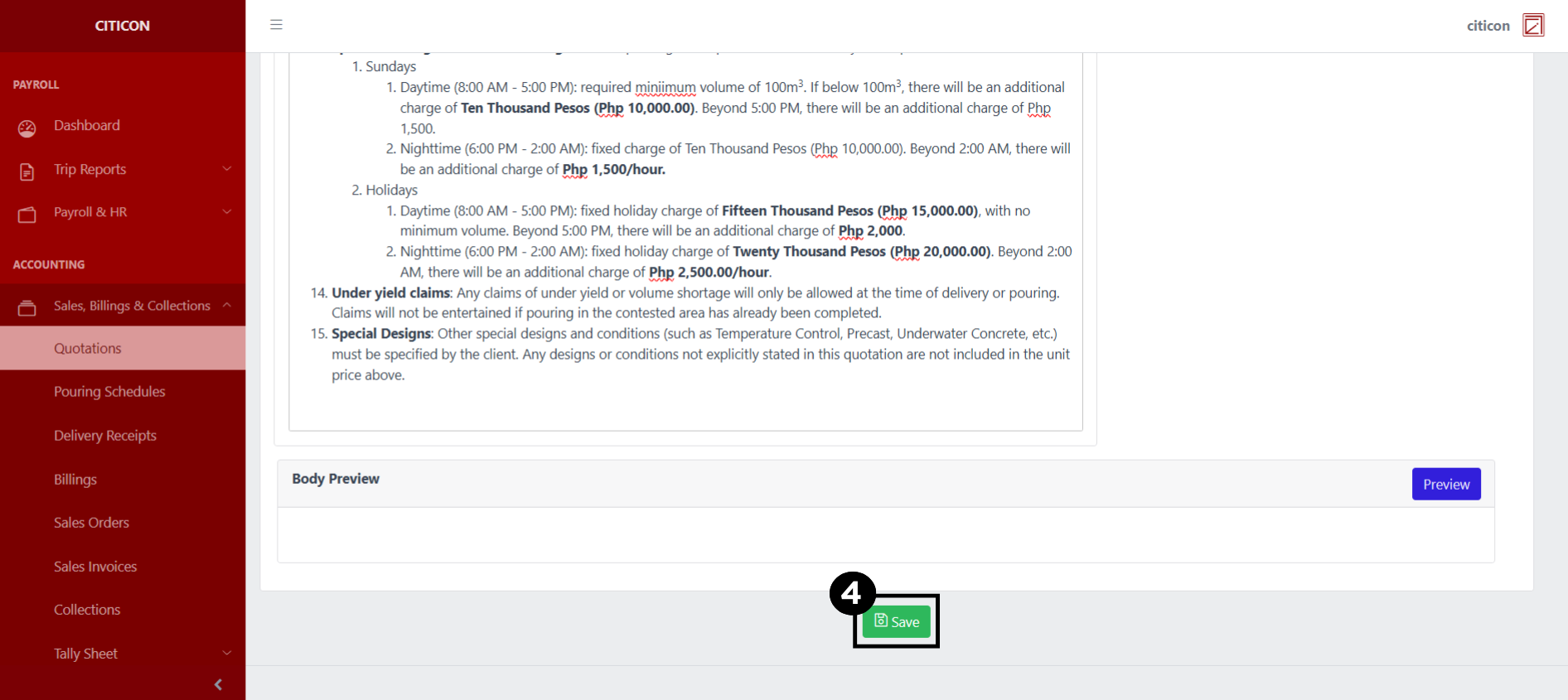
- Select the Edit T&C button to edit the current Terms and Conditions.
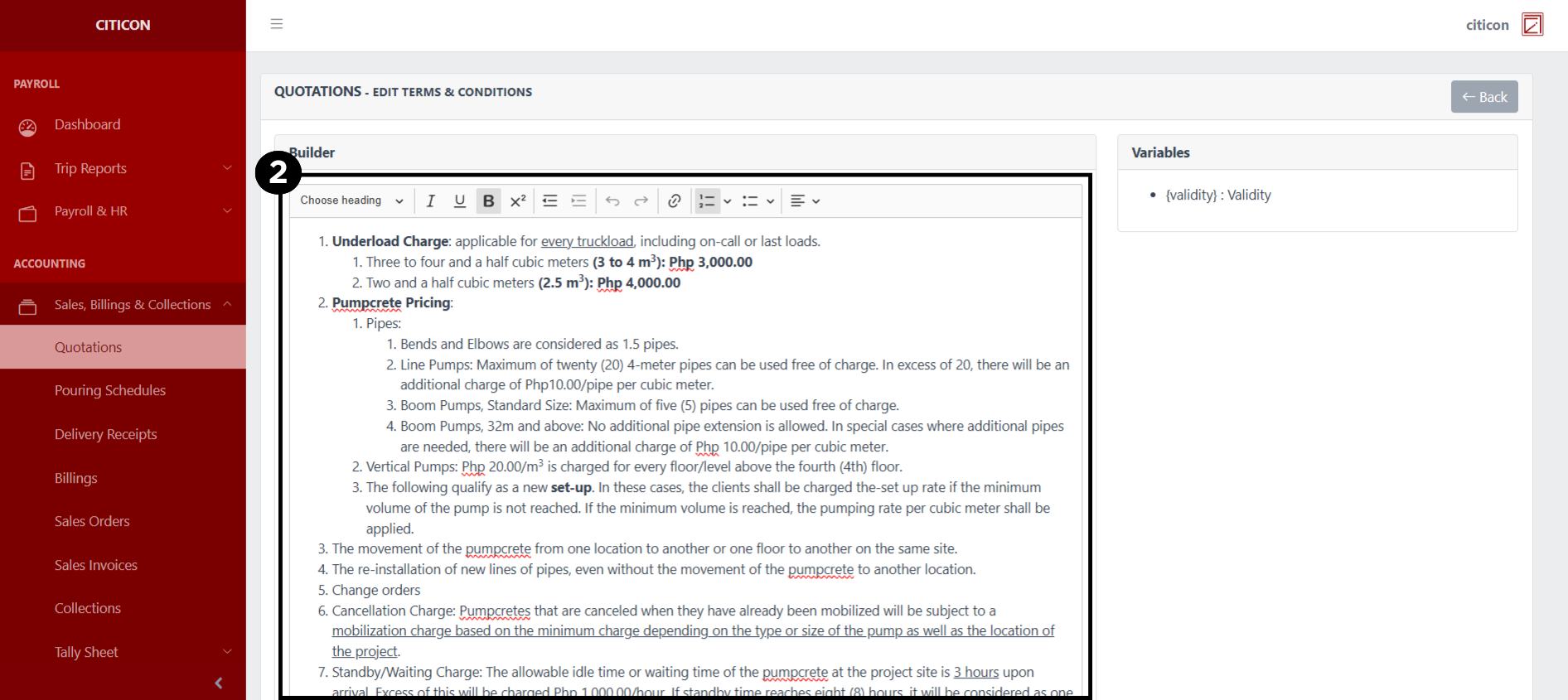
- Input your text here. You may use the formatting options to properly arrange your Terms and Conditions.
You may select the Preview button to see how your Terms and Conditions will look like.
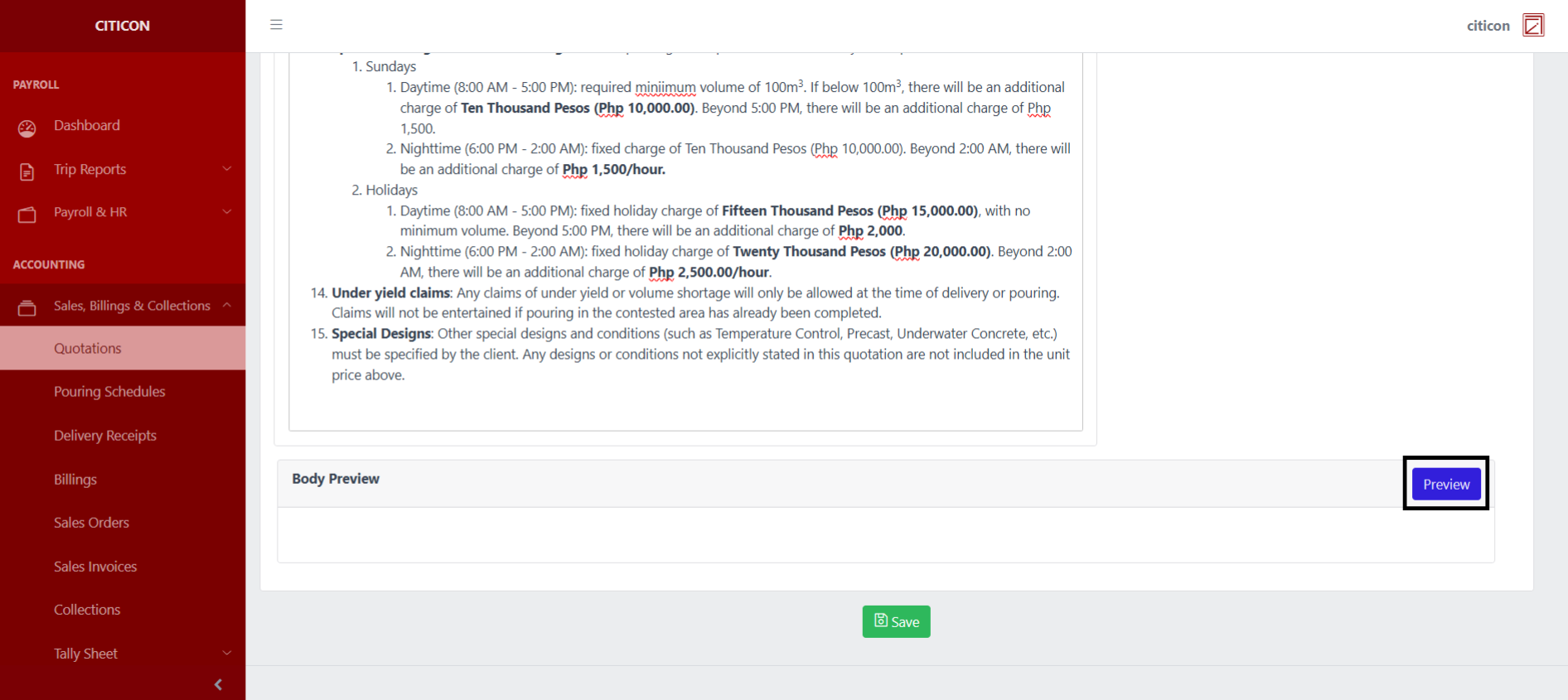
- Select the Save button to save your changes.
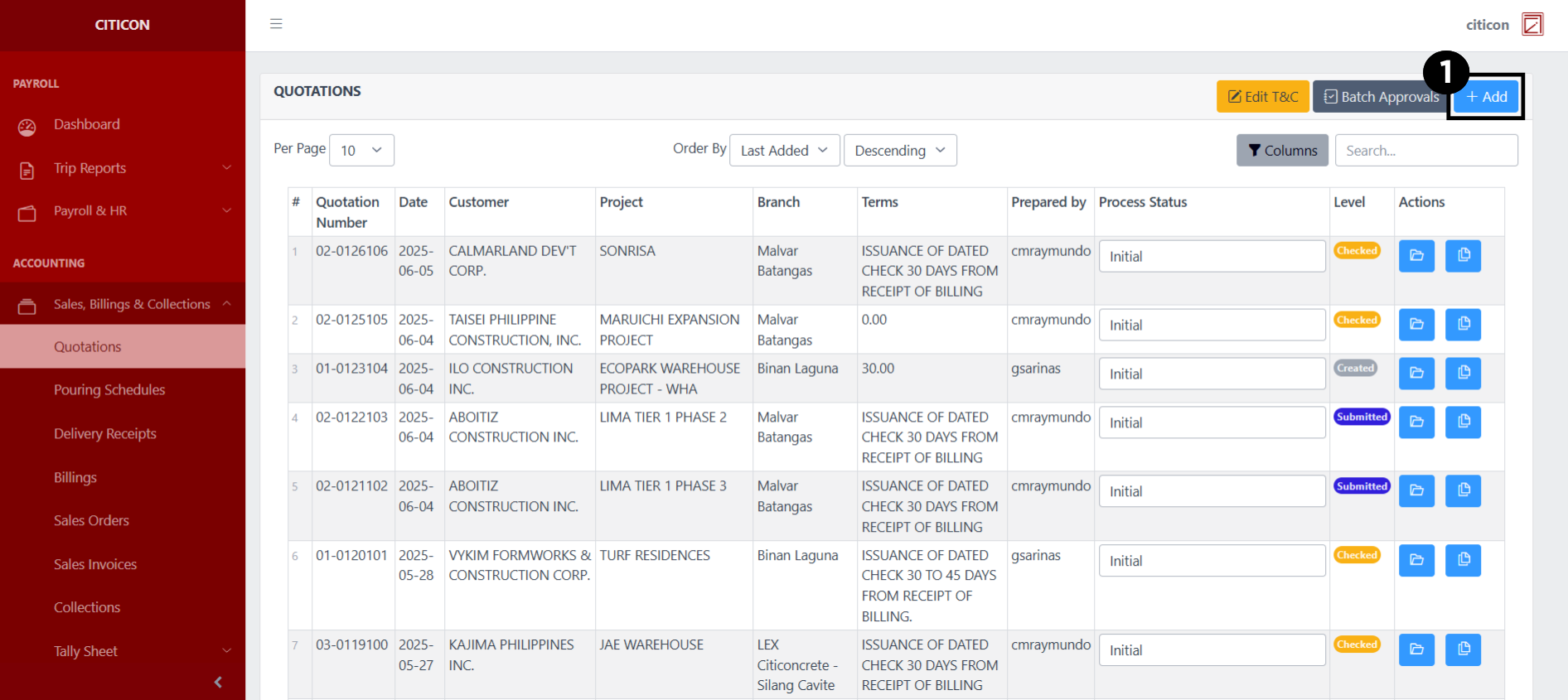
Add Entry
- Select the Add button to add a new entry.
- Input the necessary details for your new entry.
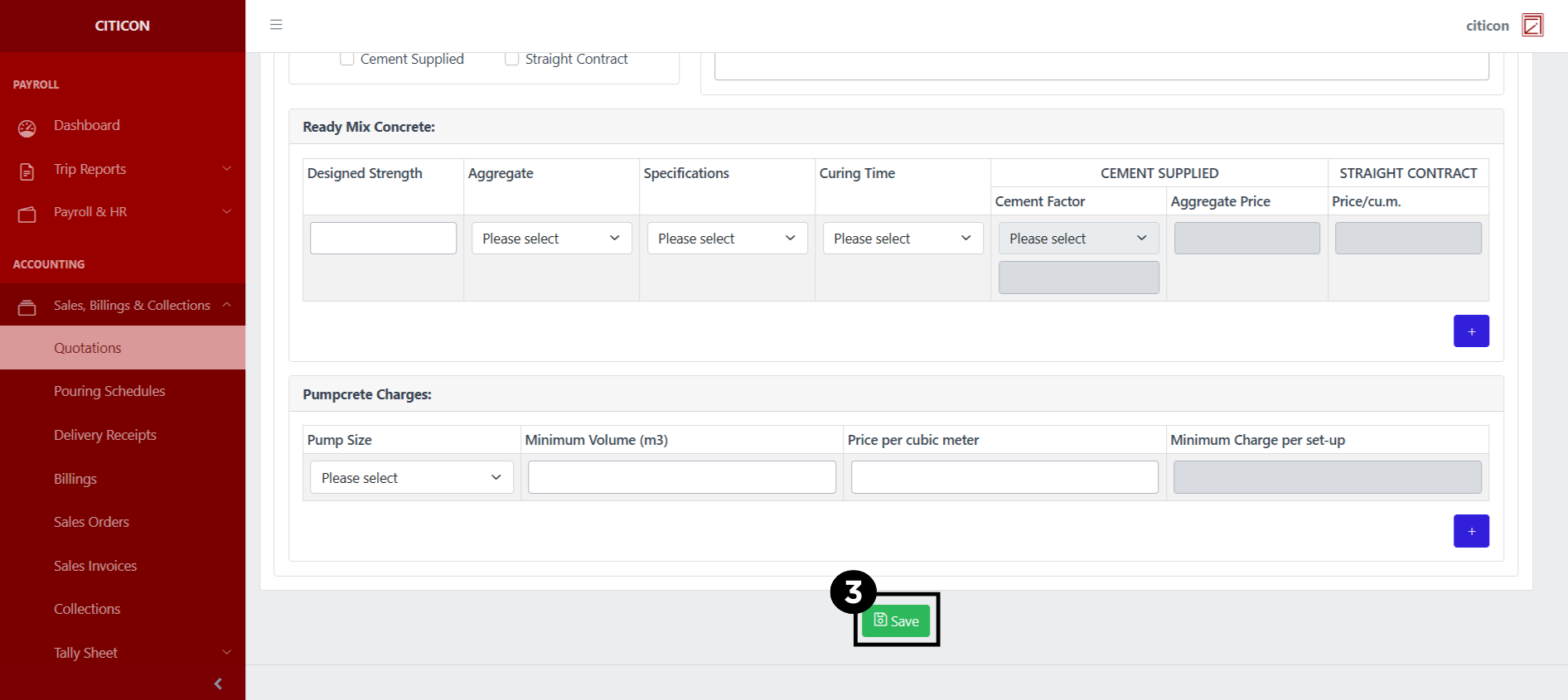
All fields that has an asterisk (*) are required to be filled up.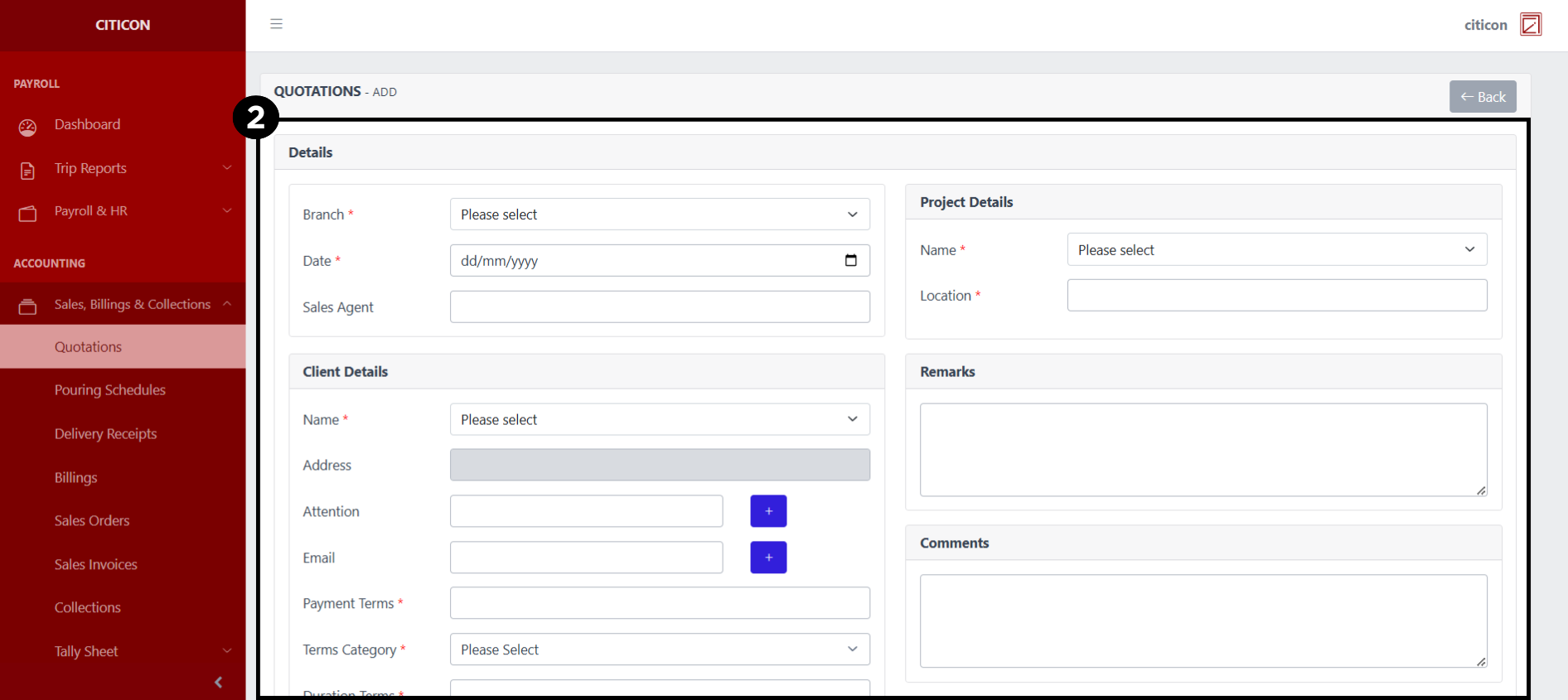
- Select the Save button to save your new entry.
Show Entry
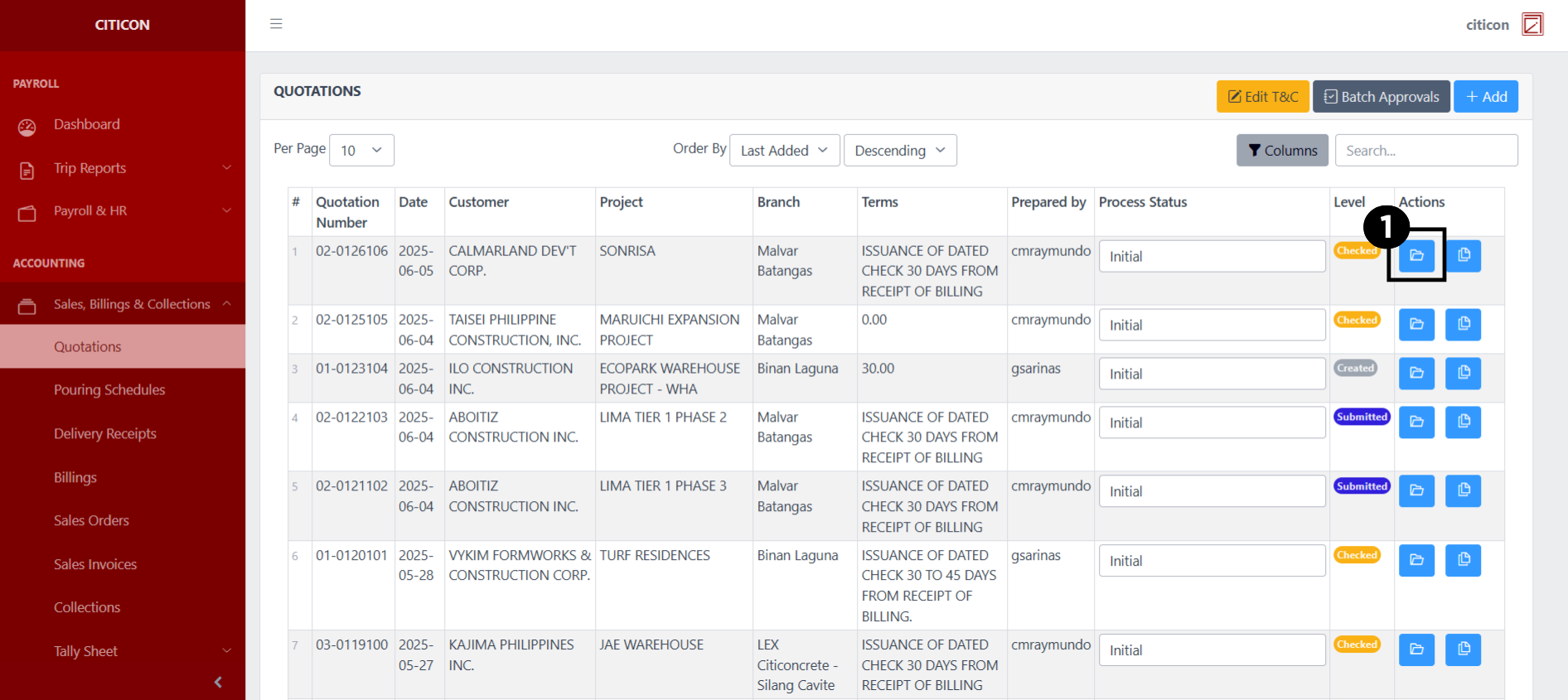
- Select the folder button to view an entry.
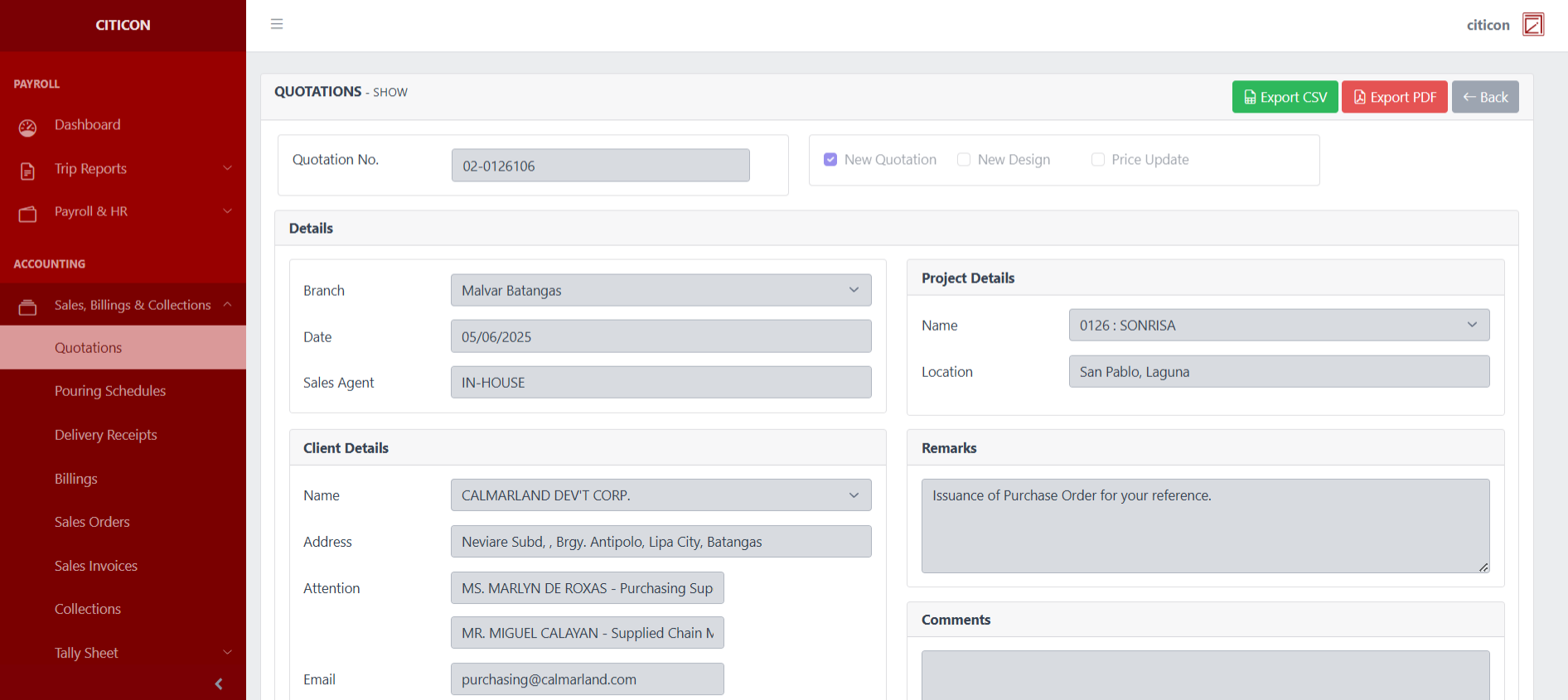
Here you can view more specific details on the entry that you selected.
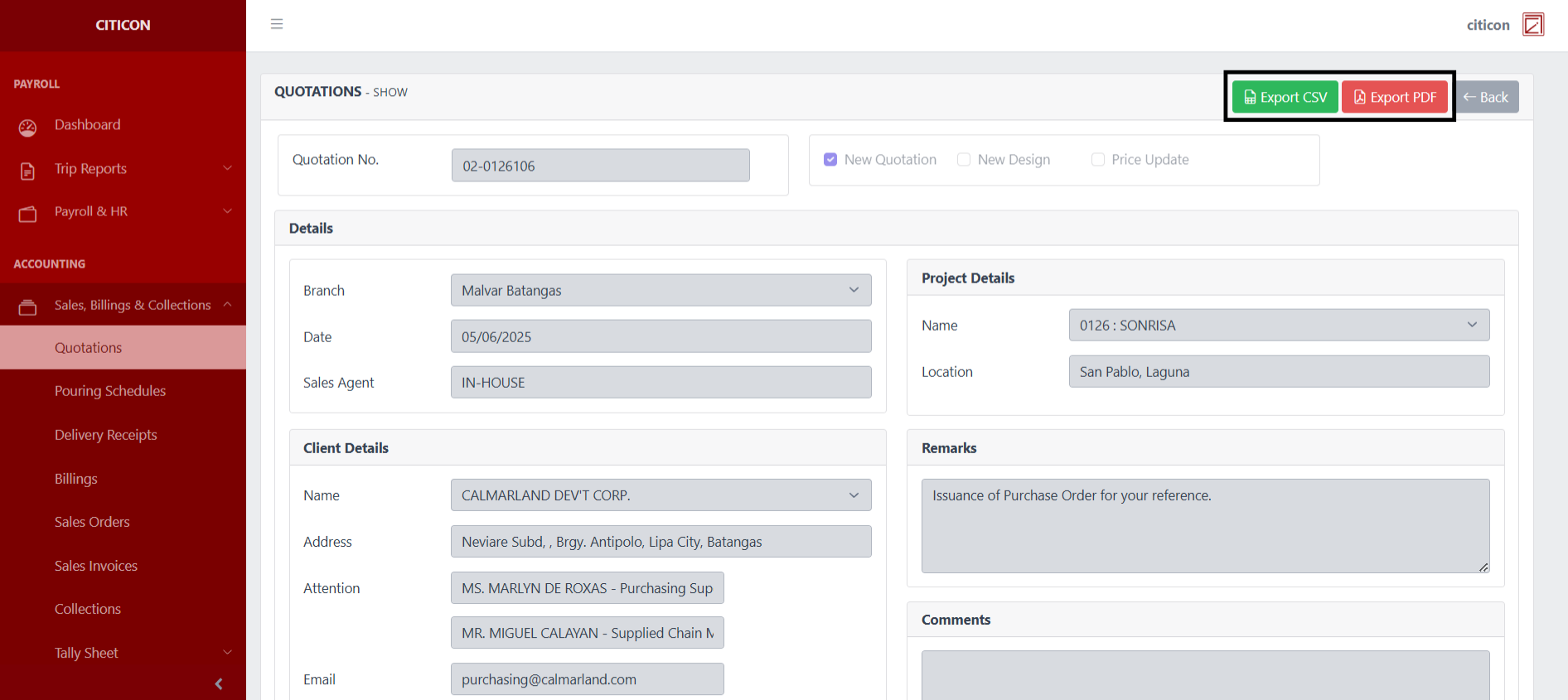
Select the respective button to either Export the entry in CSV or PDF.
Submit Entry
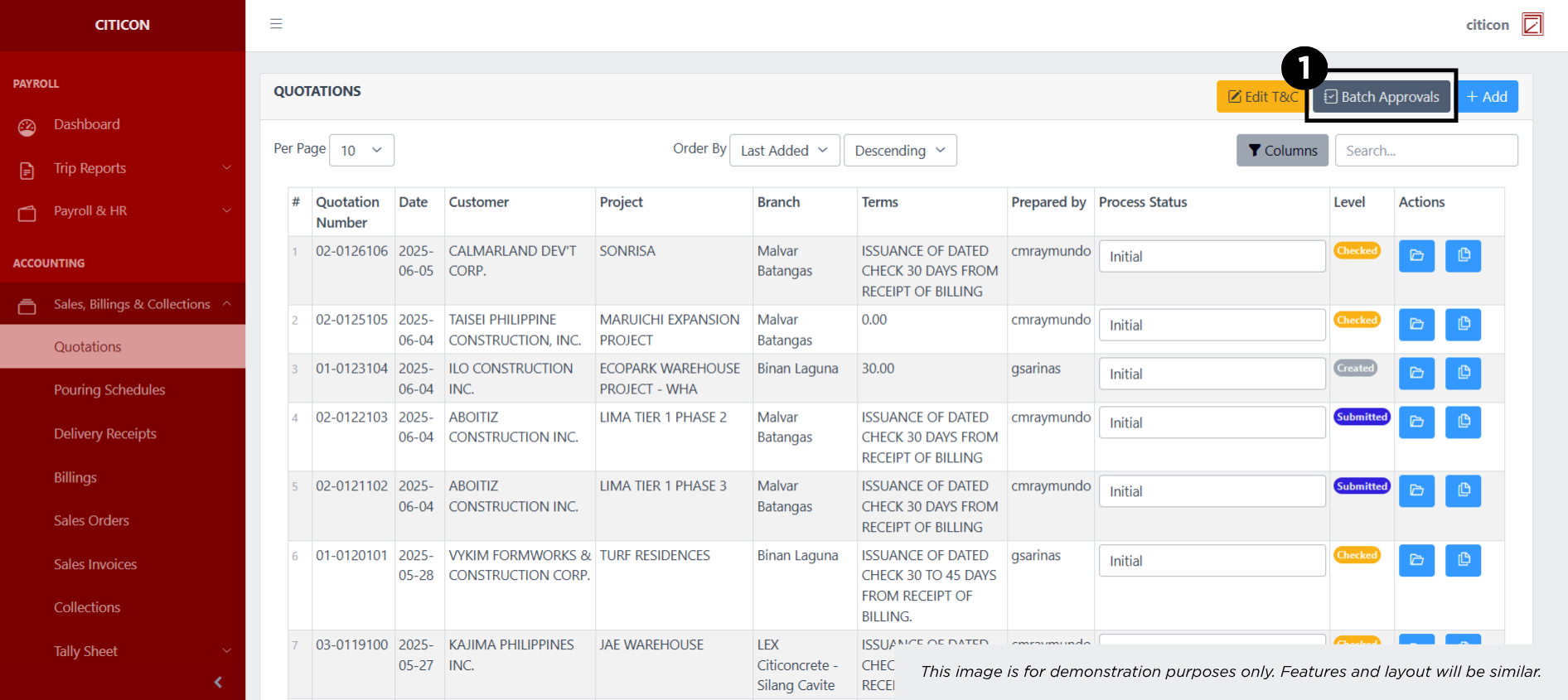
- Select the Batch Approvals button to submit an entry.
- Select the For Submission tab.
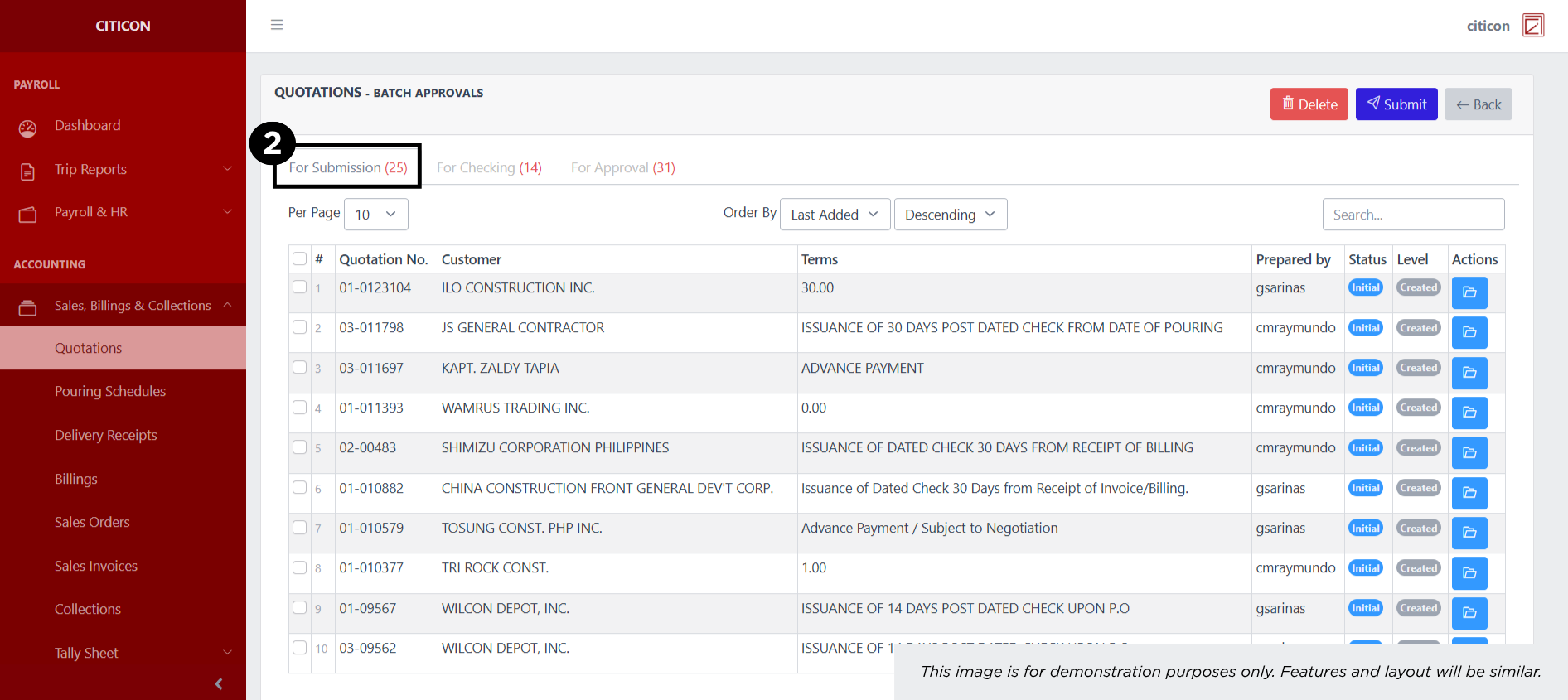
- Select the entry that you want to submit.
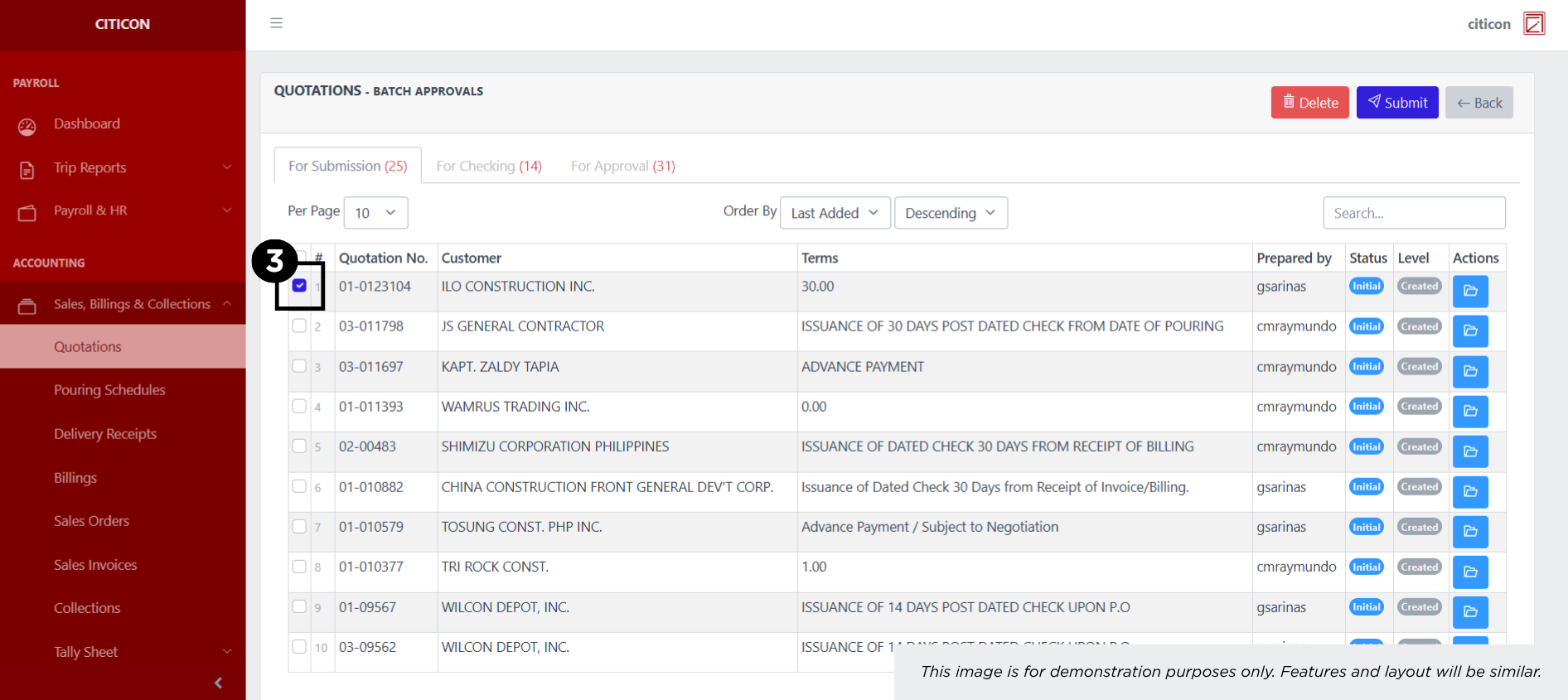
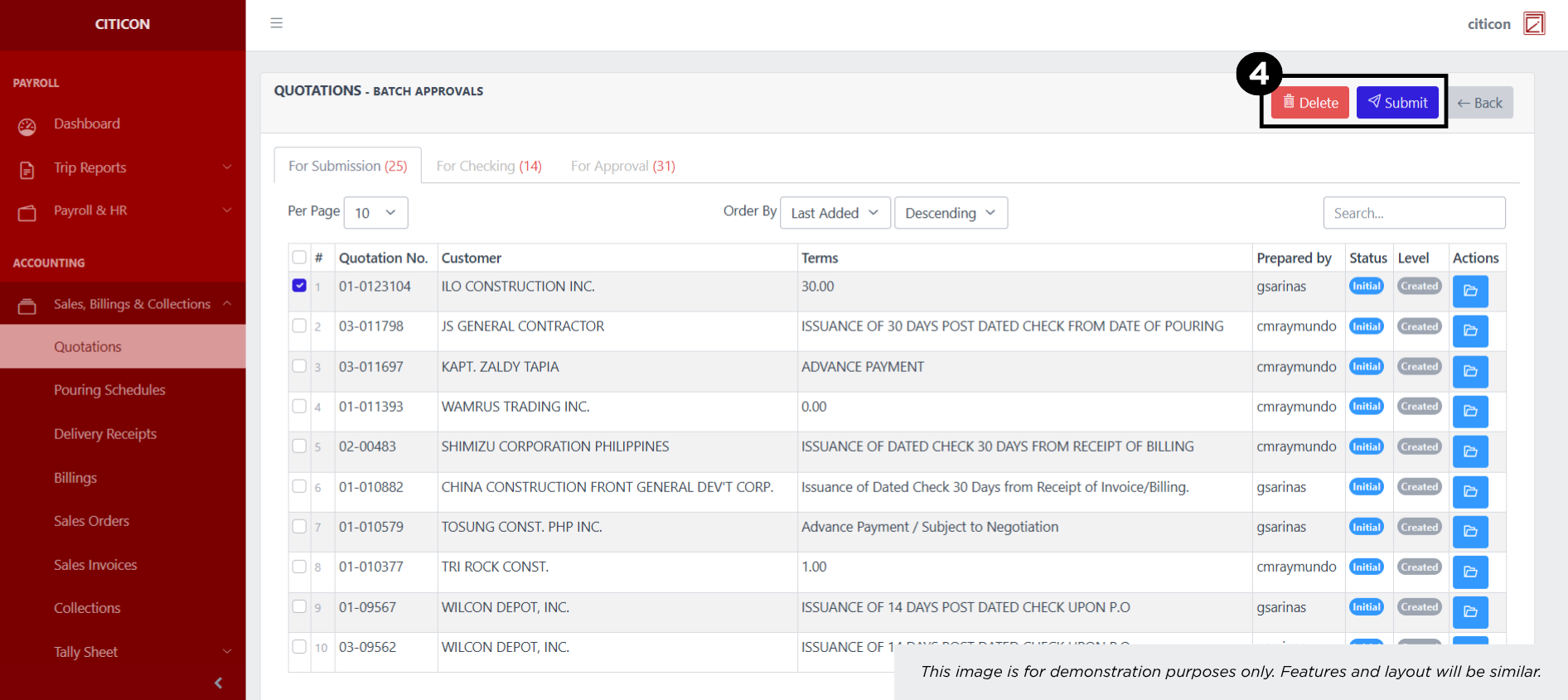
- Select the Submit button to submit the entry. In cases where you want to delete a entry, select the entry you want to delete, then select the Delete button.
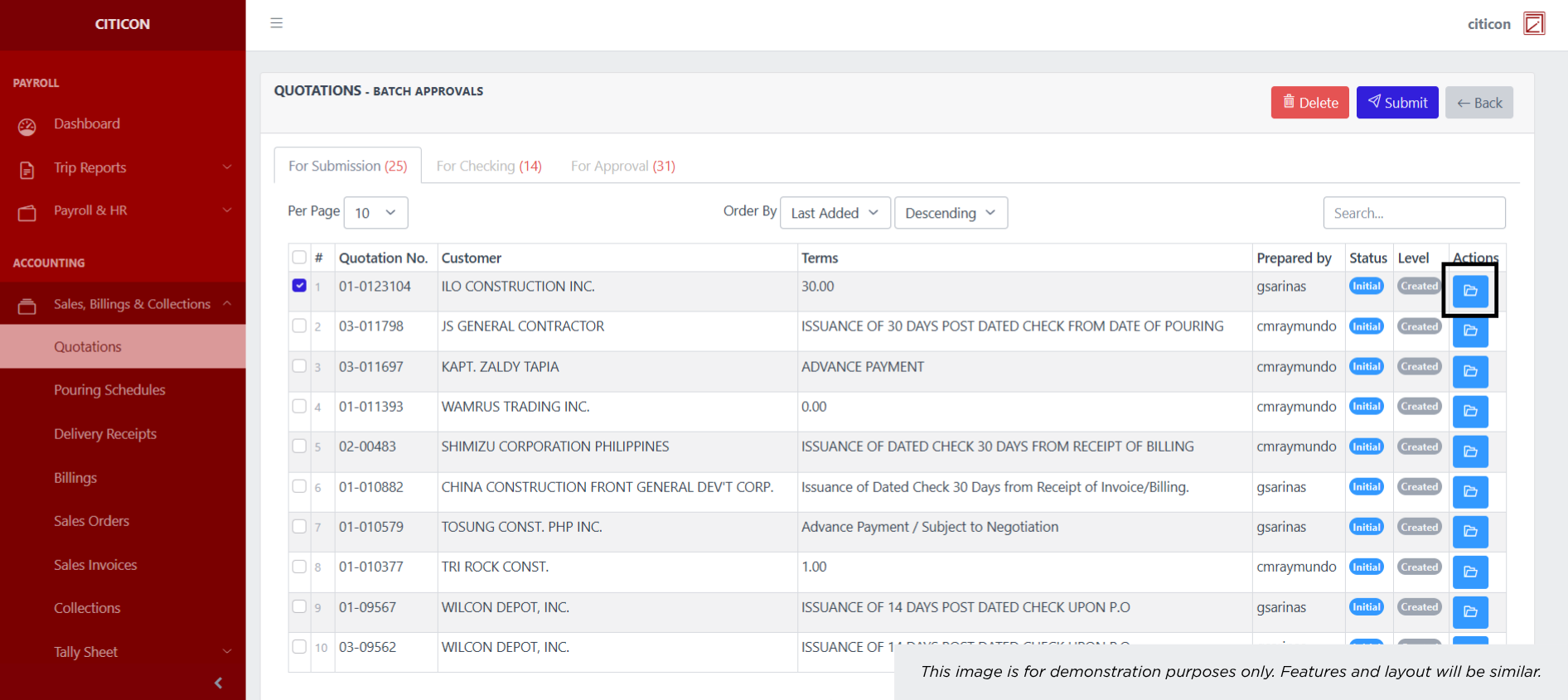
 To view the details of an individual entry, select the folder button and from here, you may either Edit, Submit, or Cancel the entry.
Check Entry
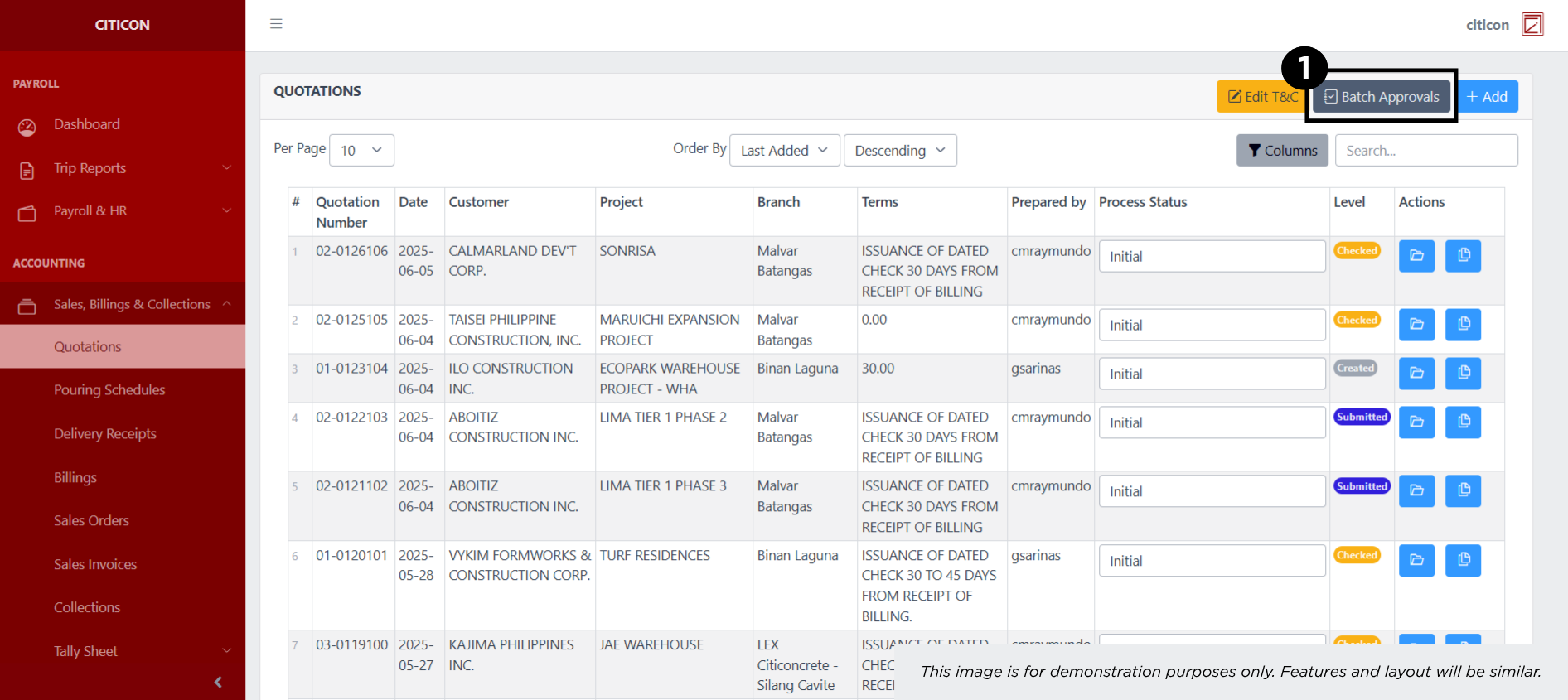
- Select the Batch Approvals button to check an entry.
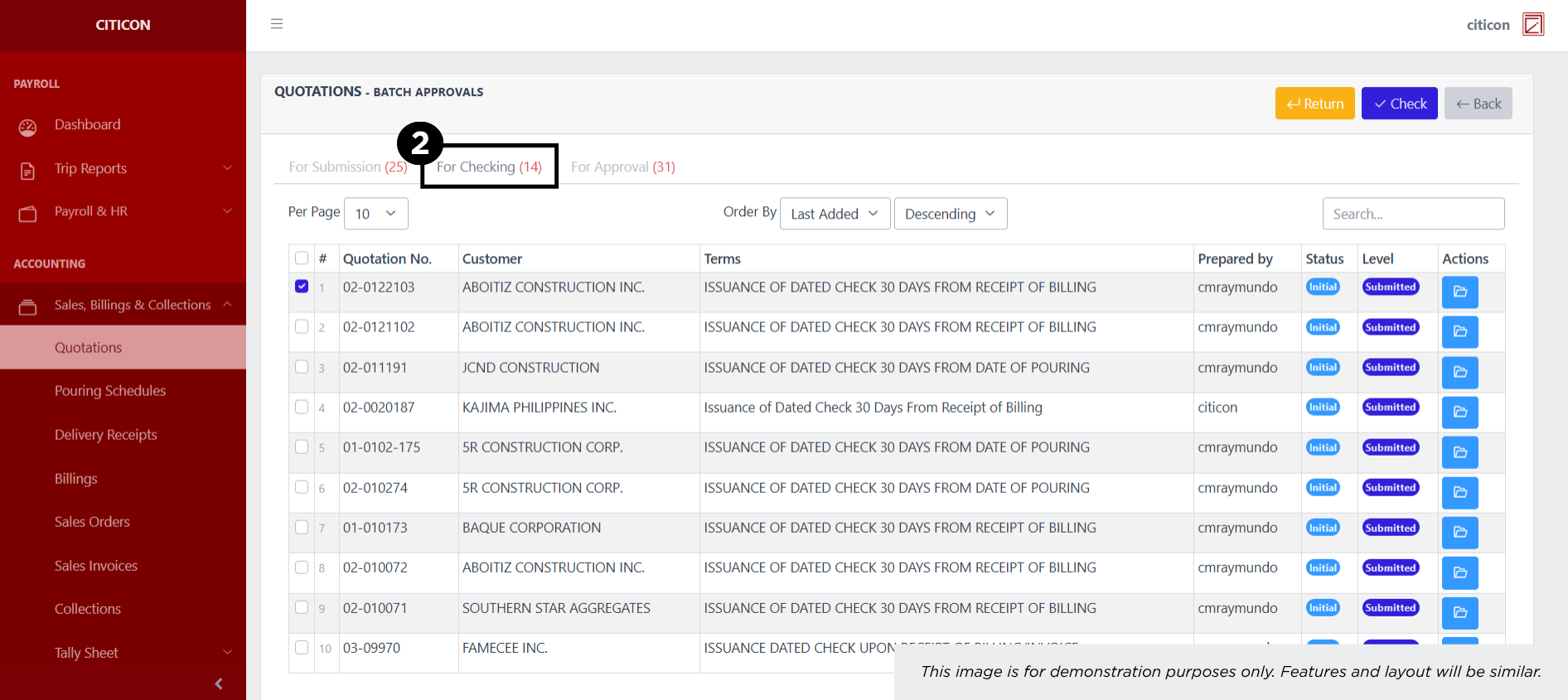
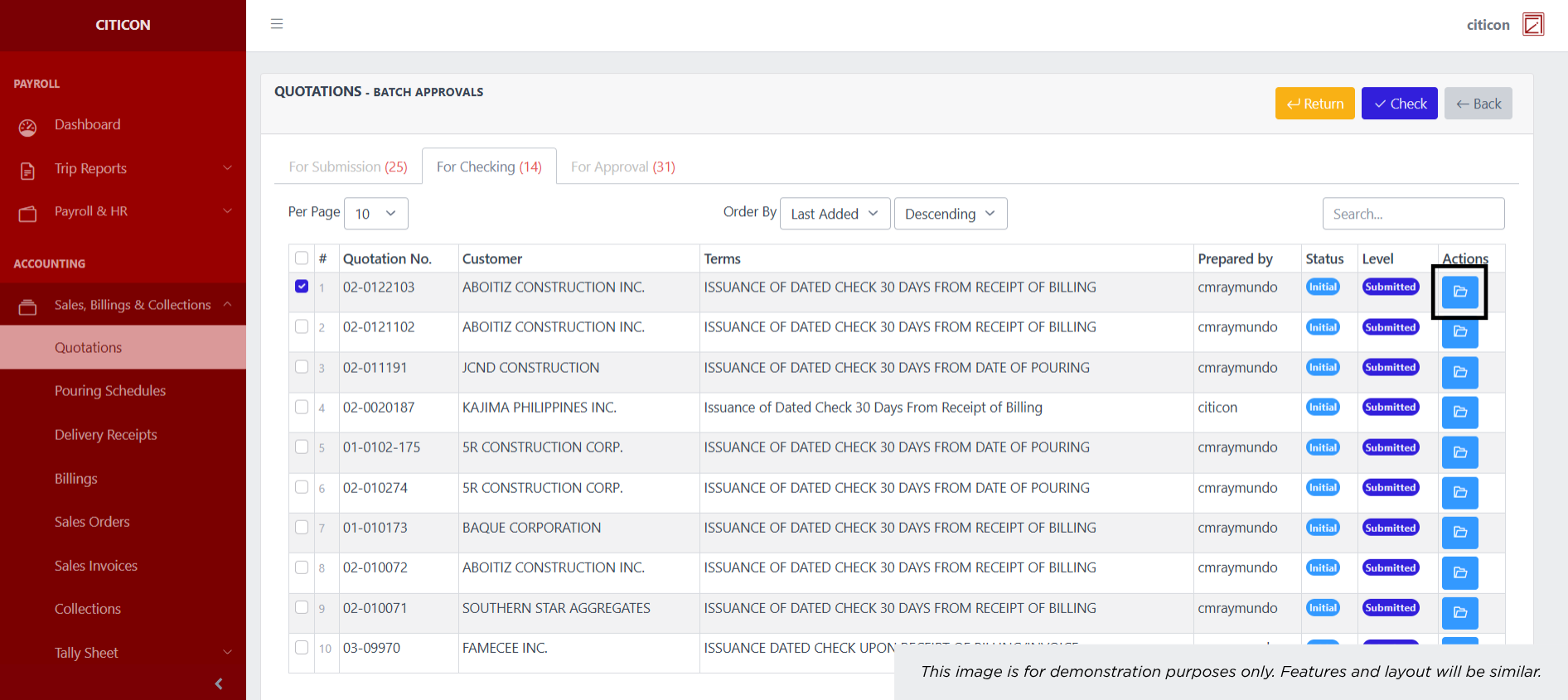
- Select the For Checking tab.
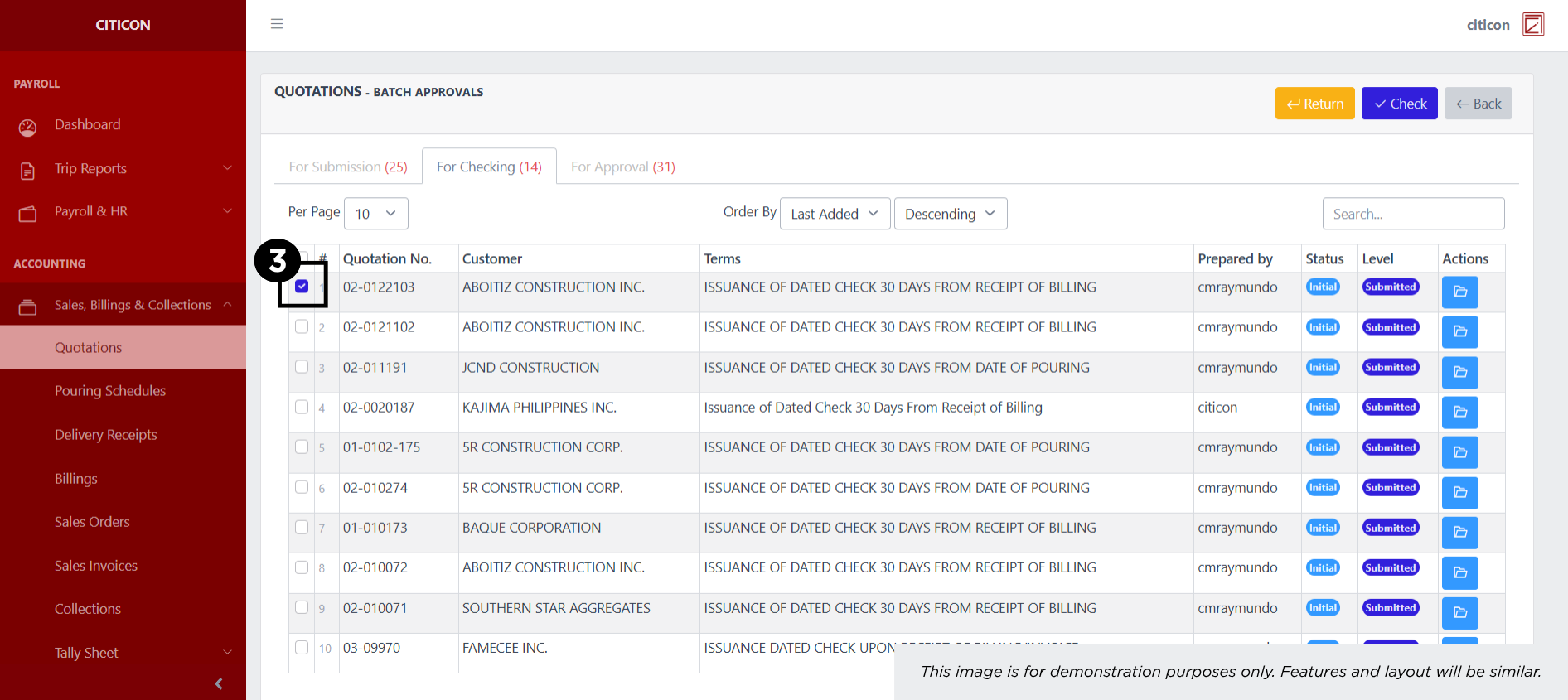
- Select the entry that you want to be checked.
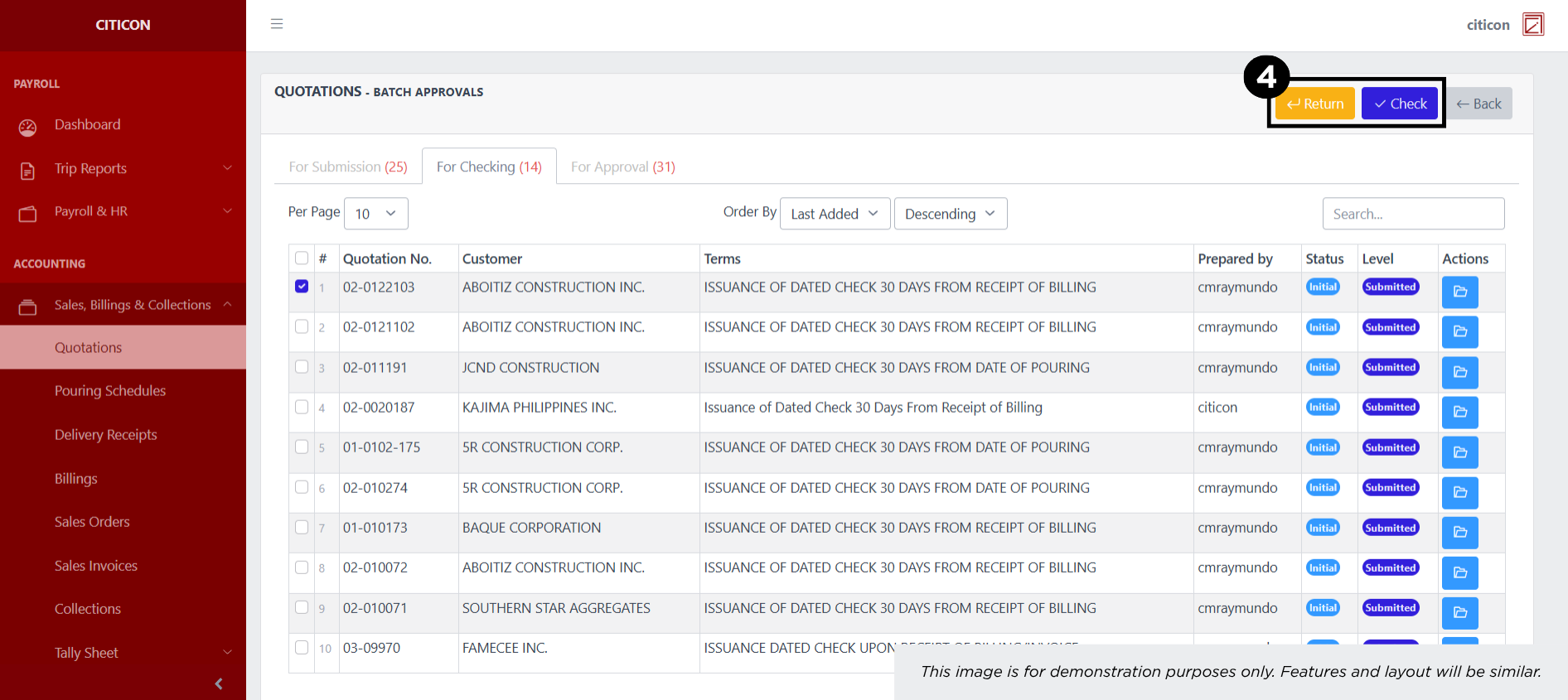
- Select the Check button to check the entry. In cases where you want to return a entry, select the entry you want to return, then select the Return button.
To view the details of an individual entry, select the folder button and from here, you may either Edit, Check, or Cancel the entry.
Approve Entry
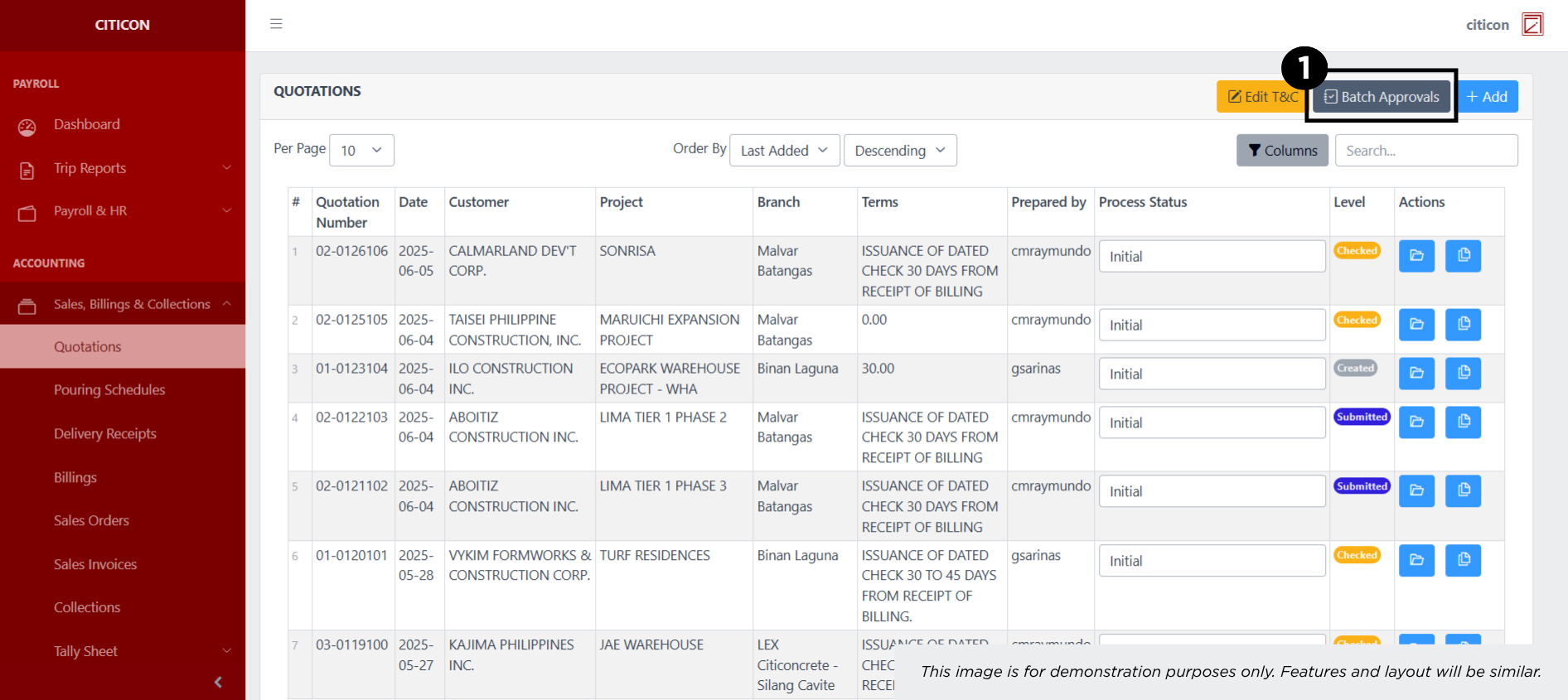
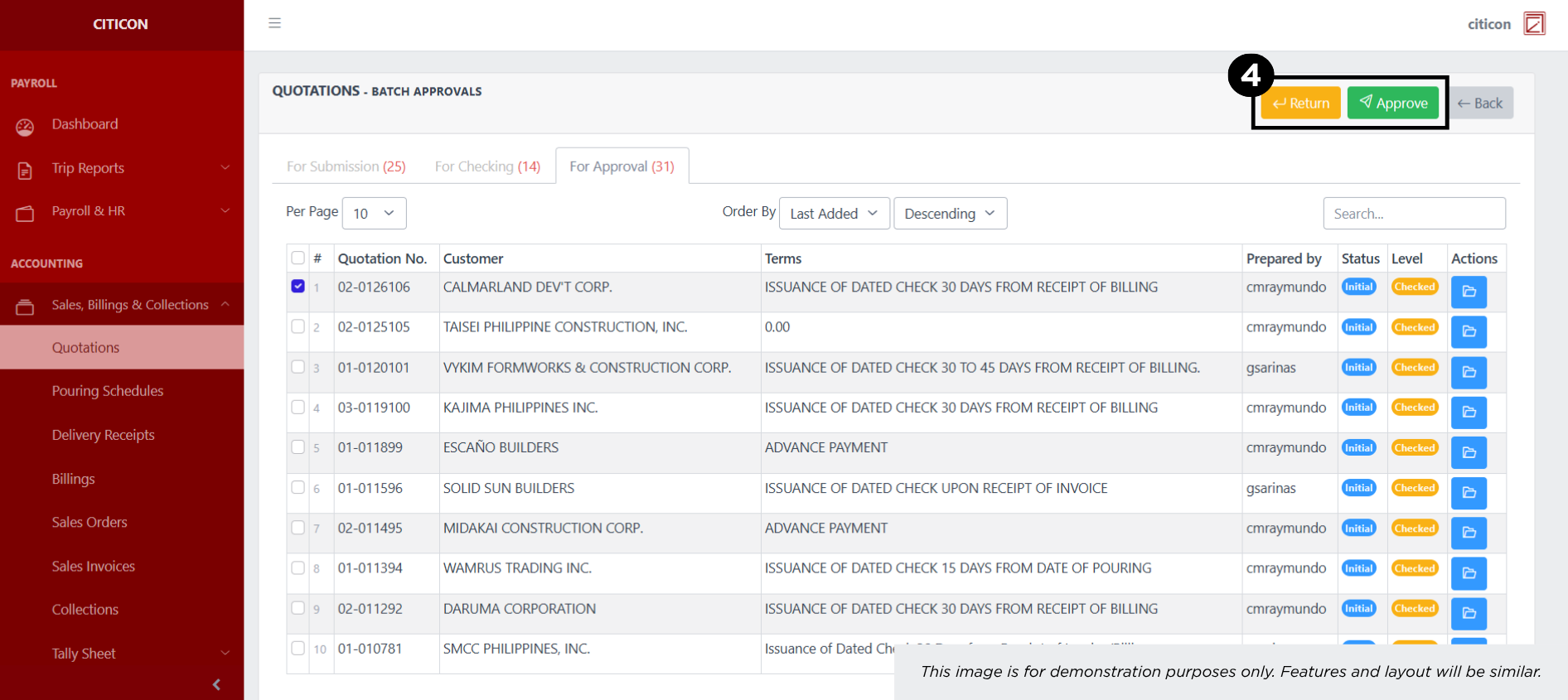
- Select the Batch Approvals button to approve a entry.
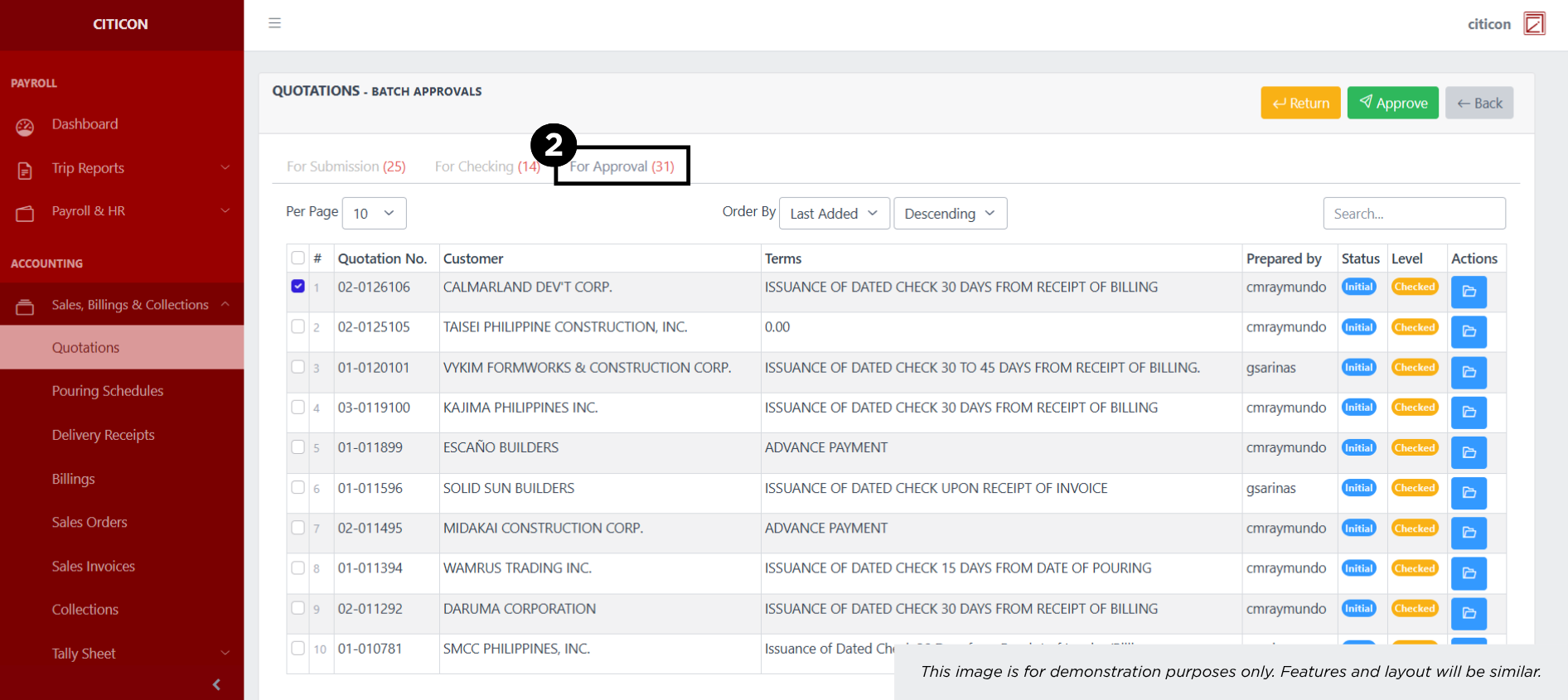
- Select the For Approval tab.
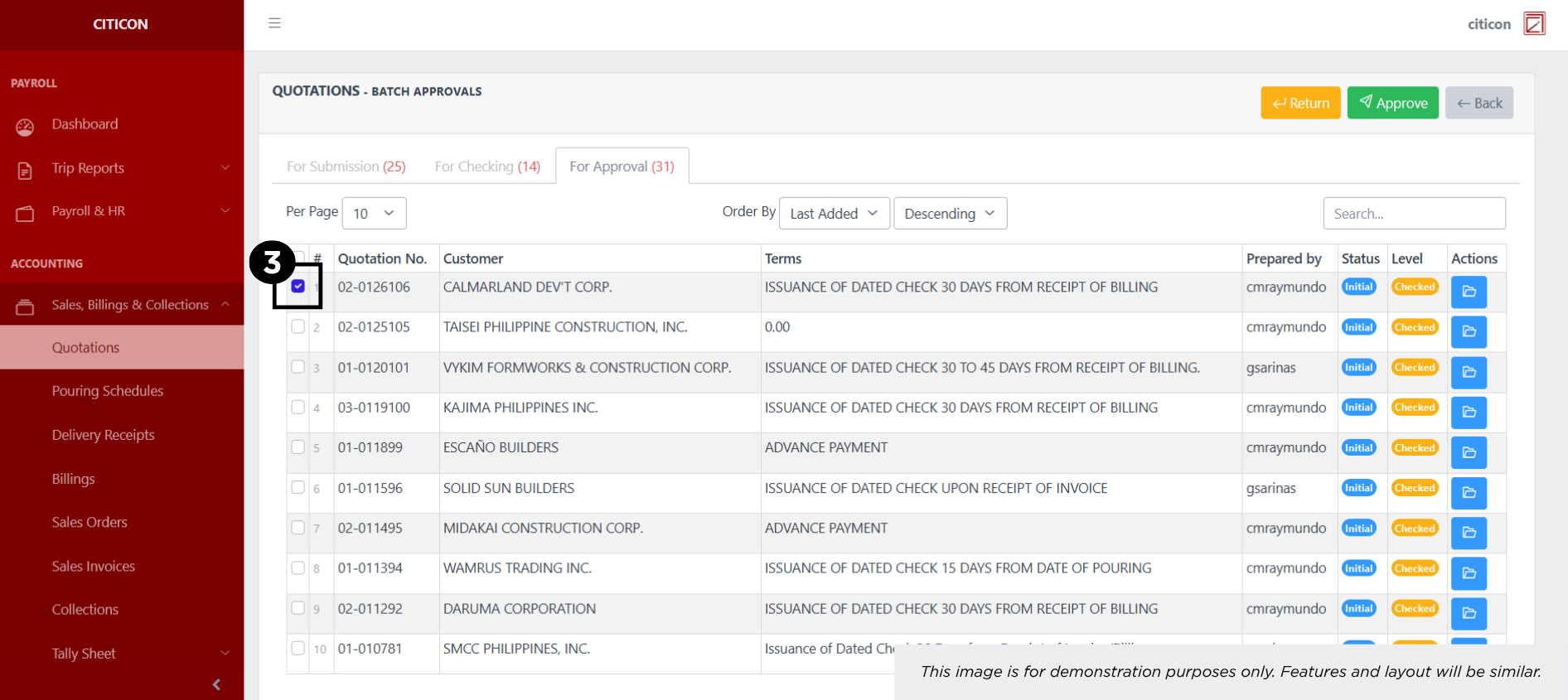
- Select the entry that you want to approve.
- Select the Approve button to approve the entry. In cases where you want to return a entry to submission section, select the entry you want to return, then select the Return button.
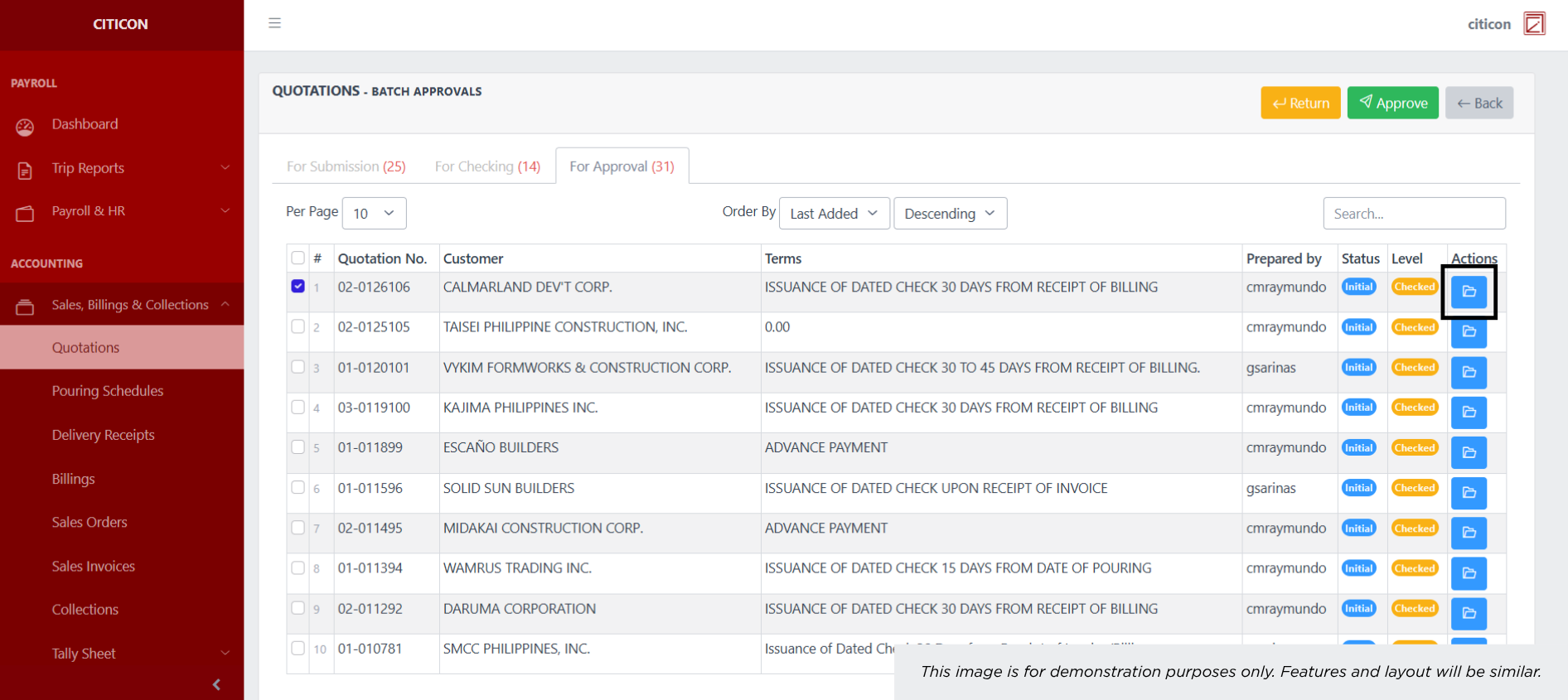
To view the details of an individual entry, select the folder button and from here, you may either Return, Approve, or Cancel the entry.
Explore Citicon Payroll and Accounting System: Accounting - Pouring Schedules